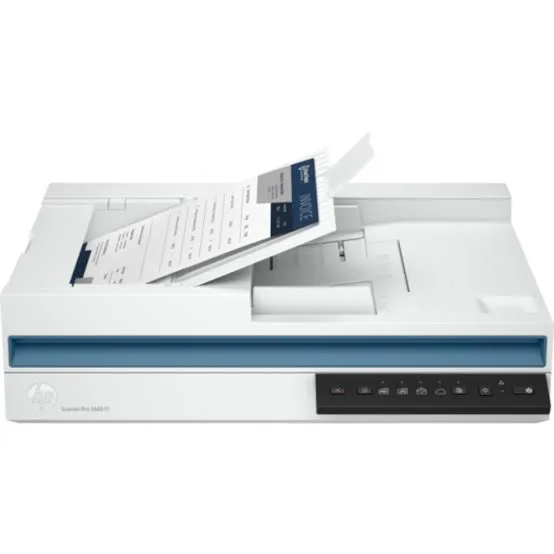
HP ScanJet Pro 2600 f1 Flatbed and ADF Document Scanner in Kenya | City Gadgets Kenya
Same-day delivery in Nairobi by 10 Oct – 11 Oct
Description
Buy the genuine HP ScanJet Pro 2600 f1 A4 flatbed and 60-sheet two-sided ADF document scanner, 25 ppm and 50 ipm, 1,500 pages a day, in Kenya from City Gadgets Kenya. HP 2600 f1 price in Kenya, document scanner Nairobi, scanner for offices, clinics and schools.
HP ScanJet Pro 2600 f1 Flatbed and ADF Document Scanner in Kenya
Genuine HP | Brand New | A4 Flatbed and 60-Sheet Two-Sided ADF | 25 Pages (50 Images) per Minute | Up to 1,500 Pages a Day | USB | One-Button Shortcuts
Looking for the HP ScanJet Pro 2600 f1 price in Kenya, a document scanner in Nairobi, or a fast scanner that can digitise stacks of paperwork for your office, clinic or school? The HP ScanJet Pro 2600 f1 is a brand-new, genuine A4 document scanner with a flatbed glass and a 60-sheet automatic document feeder (ADF) that scans both sides of every page in a single pass. HP rates it at up to 25 pages (50 images) per minute and a daily duty cycle of up to 1,500 pages. It's available from City Gadgets Kenya with delivery across Kenya. Buyers also search for it as an HP ScanJet Pro 2600 f1, an HP 2600 f1 scanner, a document scanner with ADF, a duplex document scanner, an HP scanner for offices, a scanner for digitising records, a fast document scanner or a scanner for IDs, contracts and books.
This guide explains the scanner in plain language: what a document scanner does that a printer's scanner doesn't, how to plan a paperless office, what the specifications mean, and where the scanner is limited. If you'd like to talk it through, message us on WhatsApp.
The short verdict
The HP ScanJet Pro 2600 f1 is a dedicated, compact workhorse for turning paper into searchable digital files. Its 60-sheet feeder scans both sides at once, at up to 25 pages per minute (50 images per minute), and HP rates it for up to 1,500 pages a day, which is far more than the scanner built into a typical all-in-one printer will take. The flatbed glass handles books, magazines, IDs, receipts and fragile pages. A built-in display and one-button shortcuts let staff scan to PDF, to editable Word or Excel files, to email or to a folder, and HP's software includes optical character recognition (OCR) so scans can become searchable text. It connects by USB 2.0 only, so it's tied to a computer, and it's an A4 scanner, so large drawings need another solution. For an office, clinic, school registry or law firm that wants to digitise paper and keep going, it's an excellent tool.
Who this scanner is for
It suits you if:
- You need to scan stacks of documents, such as contracts, invoices, student records and patient files.
- You want to go paperless, or to keep a digital backup of important records.
- You scan double-sided pages and want them captured in one pass.
- You need to scan IDs, books and fragile pages too, using the flatbed.
- You want scanning shortcuts that staff can learn in minutes.
Look elsewhere if:
- You only scan a few pages a month. The scanner in a printer, such as the Epson L5290 or L6370 in our range, is enough.
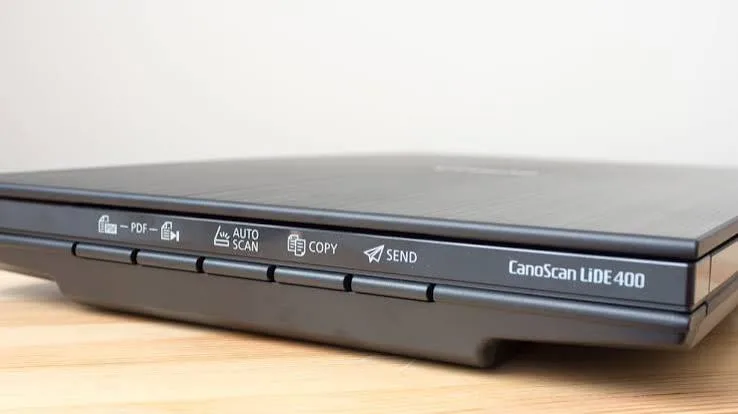
- You scan photos at high quality. See the Canon CanoScan LiDE 400 in our range.
- You need to scan large drawings or A3 originals.
- You want a network scanner shared across an office without a computer.
Specifications in plain English
| Feature | Detail | What it means for you |
|---|---|---|
| Model | HP ScanJet Pro 2600 f1 (20G05A) | HP's compact flatbed and ADF document scanner |
| Type | Flatbed plus automatic document feeder | Stacks and single pages |
| ADF capacity | 60 sheets | A good-sized batch |
| Duplex | Two-sided scanning in a single pass | Both sides captured at once |
| Speed | Up to 25 pages (50 images) per minute | Quick for office volumes |
| Optical resolution | 600 dpi (ADF), up to 1200 dpi (flatbed) | Sharp documents and small print |
| Colour depth | 48-bit input, 24-bit output | Good colour scans |
| Sensor | CIS | Slim and low power |
| Daily duty cycle | Up to 1,500 pages | Built for heavy use |
| Output formats | PDF, JPEG, PNG, TIFF, BMP, RTF, DOC, DOCX, XLS and CSV | Flexible formats, including editable files |
| Interface | USB 2.0 | Wired to one computer |
| Drivers | TWAIN | Works with many scanning programs |
| Display | Built-in display with one-button shortcuts | Easy for staff |
| Size and weight | About 133 mm high and 5.4 kg | A compact desktop unit |
| In the box | Scanner, power adapter and USB cable | Ready to connect |
These figures come from HP and retailer listings of the 2600 f1. Ask us to confirm what's in the box, the software and the warranty for the unit you order.
Document scanner or printer scanner?
Many buyers ask whether they really need a separate scanner, so here is a plain answer.
A printer's built-in scanner (flatbed or small feeder)
- Fine for occasional scans, copies and IDs.
- Slower, with smaller feeders and lower duty cycles.
- One page at a time on the glass for the cheapest models.
A document scanner like the 2600 f1
- Built for high volume, at 25 pages per minute with a 60-sheet feeder.
- Scans both sides in one pass.
- Designed for 1,500 pages a day.
- Includes software for OCR and one-touch workflows.
- Costs more, and only scans.
If you scan more than a few dozen pages a week, a document scanner pays for itself in staff time.
What "50 images per minute" means
Scanner speeds can confuse, so here is a plain explanation.
- Pages per minute (ppm) counts sheets of paper. The 2600 f1 does up to 25 sheets a minute.
- Images per minute (ipm) counts each side scanned. A double-sided sheet gives two images, so 25 sheets a minute is 50 images.
- Real speed depends on settings. Higher resolution, colour and OCR take longer than black-and-white at 200 dpi.
- Your computer matters. A slow computer or USB port can limit the speed.
- Preparation matters. Removing staples and flattening pages avoids jams that slow you down more than any specification.
For planning, assume roughly 15 to 25 sheets a minute in practice for typical documents.
Planning a paperless office
A scanner is the tool, and a plan makes it work.
- Decide what to scan first. Start with documents you need often or must keep safe, such as contracts, financial records and staff files.
- Decide the file naming. A pattern such as date, client and document type makes search easy.
- Choose folders. By year and client, or by department.
- Choose settings. 200 to 300 dpi black-and-white or greyscale PDF suits most text documents. Use colour for stamps, signatures and photos.
- Prepare the paper. Remove staples and clips, smooth folded corners and separate sticky notes.
- Scan in batches of 30 to 50 pages, so a jam doesn't spoil a long stack.
- Check a sample of scans for legibility before you destroy or file originals.
- Back up twice, to the cloud and an external drive from our range, such as a SanDisk or WD portable drive.
- Protect confidential files with passwords and limited access.
- Keep the originals for as long as the law or your policy requires.
OCR: turning scans into searchable text
Optical character recognition is one of the biggest benefits of a document scanner.
- OCR reads the text in a scan and adds it to the file, so you can search for words.
- A searchable PDF looks like the original but lets you find a name or a number in seconds.
- Editable output such as Word or Excel files is possible, though complex layouts need checking.
- Accuracy depends on the scan. Clean, straight, 300 dpi pages give the best results.
- Handwriting is hard, and OCR often misreads it.
- Check important numbers such as amounts and IDs, because OCR can make small errors.
HP's software includes OCR, and listings show output to editable formats. We confirm the software that comes with the unit you order.
Scanning IDs, books and fragile pages
The flatbed handles the jobs the feeder shouldn't.
- IDs and cards. Place them on the glass, and scan both sides. HP lists IDs among the items the scanner handles.
- Books and magazines. Lay them on the glass, and scan page by page. Don't feed bound books through the ADF.
- Fragile, old or torn pages. Use the glass, not the feeder.
- Photos. Use the glass. For photo quality, see the Canon CanoScan LiDE 400.
- Receipts. Thin, curled receipts can jam the ADF, so scan them on the glass or in a carrier sleeve.
- Clean the glass with a soft, lint-free cloth.
Using the ADF without jams
The feeder is a mechanical part, and a few habits keep it reliable.
- Remove staples, clips and sticky notes.
- Fan the stack and square the edges before loading.
- Don't overload it. Keep to 60 sheets of standard paper.
- Don't mix paper sizes and weights in one stack, unless the manual allows it.
- Don't feed torn, wet or very thin pages.
- Keep the paper path clean. Wipe the rollers and glass strips with a soft, lint-free cloth, with the scanner off.
- Replace the roller kit when the feeder starts to skip or double-feed, with an authorised service.
- Keep the lid and feeder closed when idle, to keep out dust.
Setting up the scanner
- Unbox with care, and remove all tape and packing material, including any transit lock.
- Connect the power adapter and the USB cable to your computer.
- Install HP's scanning software and drivers, following the guide.
- Test the feeder with a few sheets, in both single and double-sided modes.
- Set up the shortcut buttons for your most common jobs, such as scan to PDF or scan to email.
- Choose a folder for scans, with enough free disk space.
- Keep the scanner on a stable desk, near the computer.
- Set up your naming and backup routine.
A worked example: digitising a clinic's patient files
A concrete example shows how the scanner fits a real job.
- The task: 8,000 pages of patient records in paper folders, which staff want searchable and backed up.
- The speed: at a realistic 15 to 20 sheets a minute, a 60-sheet batch takes about 3 to 4 minutes, so 8,000 pages is roughly 130 batches, or about 7 to 9 hours of scanning, plus preparation.
- The preparation: remove staples and clips, flatten pages and sort by patient. Preparation often takes longer than scanning.
- The settings: 300 dpi, greyscale, searchable PDF, one file per patient folder.
- The naming: patient number, name and year, such as 10452-Wanjiru-2025.
- The checks: a staff member opens a sample of each batch to check legibility and page order.
- The storage: the files go to a protected folder, with limited access, and to two backups, one in the cloud and one on an external drive.
- The originals: the clinic keeps them for as long as the rules require.
- The privacy: patient records are sensitive, so use passwords, encrypt the drive and limit who can see the files.
The same method works for a school's student records, a law firm's case files or a company's invoices.
A guide to scan settings
Scan settings decide file size, quality and speed.
- Resolution. 200 dpi is fine for clean, large text. 300 dpi suits normal documents and small print. 600 dpi is for fine detail, and makes large files.
- Colour mode. Black-and-white is smallest and fastest for plain text. Greyscale suits text with stamps and shading. Colour is for photos, logos and coloured forms.
- File type. PDF is the standard for documents. A multi-page PDF keeps a stack together. JPEG suits single images.
- Searchable PDF. Turn on OCR if you want to search the text.
- Double-sided. Turn it on for double-sided originals, and skip blank pages if the software offers it.
- Auto-crop and straighten. Useful, but check the results.
For most offices, 300 dpi greyscale searchable PDF is a good default.
Keeping scans safe: security and backup
Scanned records are often confidential and valuable.
- Use strong passwords on the computer and the folders.
- Encrypt the backup drive, so a lost drive doesn't leak data.
- Limit access to people who need the files.
- Back up twice, to the cloud and an external drive, and test restoring a file.
- Keep the scanning computer updated and protected with security software. We stock Kaspersky in our range.
- Log what you've scanned, so you know what's done.
- Follow the rules for your sector on keeping and destroying records.
Choosing between a document scanner and outsourcing
A fair question for a big job.
- Outsourcing a one-off backlog to a scanning bureau can be quicker, with no equipment to buy.
- Your own scanner costs more upfront, and then scanning costs almost nothing, and you keep control of confidential files.
- If scanning will be ongoing, such as daily invoices or new patient files, your own scanner wins.
- If it's a single large project, compare quotes.
We'll tell you honestly which suits you.
Common problems and simple fixes
Lines on scans. The glass or the feeder strip is dirty. Clean with a soft, lint-free cloth.
Pages feed crooked or jam. Check the paper guides, remove staples, don't overload the feeder, and clean the rollers.
Two sheets feed together. Fan the stack, use good paper, and clean or replace the rollers.
The computer doesn't find the scanner. Check the USB cable and port, try another port, restart both devices and reinstall the driver.
Scans are too dark or light. Adjust the brightness and contrast, or the colour mode.
OCR text is wrong. Rescan at 300 dpi, straighten the page and check the language setting.
The scanner is slow. Lower the resolution, turn off colour, use a faster USB port and close other programs.
If a problem continues, message us on WhatsApp.
Questions to ask before you buy a document scanner
- How many pages will I scan a day or a week?
- Do I need double-sided scanning?
- What sizes and types of document do I scan? IDs, books, receipts.
- Do I need OCR and editable output?
- Do I need network or Wi-Fi scanning?
- What software is included?
- What warranty is included, and who honours it? Get it in writing.
- Can I see it before I pay?
We're glad to answer all of these on WhatsApp or in the shop before you pay.
Looking after the scanner for years
- Keep the glass and feeder clean, with a soft, lint-free cloth.
- Keep paper dry and free of staples.
- Use a surge protector.
- Cover the scanner when idle.
- Replace the roller kit when the feeder skips.
- Keep the software and drivers updated.
- Keep the box, manual and receipt.
Warranty and after-sales: what to ask
A scanner is a working tool, so ask us what warranty covers the unit you order, how long it lasts and what it covers. Ask also about roller kits and servicing. Keep your receipt, the serial number and the box. If a fault appears, message us on WhatsApp first, and we'll tell you the quickest way to get it sorted.
Using one-button shortcuts
HP's one-button shortcuts are what make a document scanner fast for staff.
- Choose the shortcut on the scanner's display, or in the software.
- Common shortcuts: scan to PDF, scan to a folder, scan to email, scan to editable Word, scan to cloud storage.
- Set them up once, with the right resolution, colour mode and folder.
- Name them clearly, such as "Invoice to PDF" or "ID both sides".
- Train staff with a one-page guide taped near the scanner.
- Test each shortcut with a few pages before a big batch.
A good set of shortcuts turns scanning into a thirty-second job, even for a new employee.
Scanning invoices, receipts and forms
Accountants and shopkeepers scan the same things again and again, and a few habits help.
- Scan daily or weekly, so paper never piles up.
- Use the flatbed or a carrier sleeve for thin or curled receipts, which jam feeders.
- Name files by date and supplier, for easy search.
- Use OCR, so you can search for an amount or an invoice number.
- Keep originals in a labelled box by date, in case a tax authority asks.
- Back up every day, because your accounts are your business.
Scanning for schools and colleges
Registries and exam offices scan a lot.
- Student records go in folders by year and class.
- Exam scripts can be scanned for marking, archiving and appeals.
- Certificates and IDs go on the flatbed.
- Timetables and notices can be shared as PDFs.
- Staff files need strong passwords and limited access.
- Plan the term: a quiet week is the time to scan a backlog.
Scanning for law firms and professionals
Lawyers, surveyors and consultants handle paper with high stakes.
- Scan case files into one searchable PDF per matter.
- Use consistent naming, with client and date.
- Scan signed documents in colour at 300 dpi, so signatures stay clear.
- Keep a log of what's been scanned and checked.
- Protect files with encryption and strict access.
- Follow your professional rules on originals and retention.
Using a scanner in Kenya
Power protection. Scanners can be damaged by surges. Use a surge protector, and a UPS for the computer so a cut doesn't corrupt a batch.
Dust. Dust on the glass causes lines on scans. Keep the scanner covered when idle.
Humidity. Damp paper jams the feeder. Keep paper dry.
Security. Scanned records are valuable and often confidential. Protect the computer and the backups.
Warranty. Ask us for the warranty that applies to the unit you order, and keep the receipt and box.
How it compares with other options in our range
| HP ScanJet Pro 2600 f1 | Canon CanoScan LiDE 400 | Epson L6370 (printer) | Brother MFC-T930DW (printer) | |
|---|---|---|---|---|
| Type | Flatbed and ADF scanner | Flatbed scanner | Printer with ADF | Printer with ADF |
| ADF capacity | 60 sheets, duplex | None | 30 sheets, duplex | 20 sheets |
| Speed | Up to 25 ppm (50 ipm) | Single pages | Slower | Slower |
| Duty cycle | Up to 1,500 pages a day | Light | Office | Office |
| Best for | High-volume document scanning | Photos and single pages | Occasional scans | Occasional scans |
Against the Canon CanoScan LiDE 400: the LiDE is a photo and single-page scanner. The 2600 f1 is for stacks of documents.
Against printers with feeders: they scan, print and copy, with lower speed and duty cycles. The 2600 f1 is made for scanning.
Honest pros and cons
Pros
- A 60-sheet ADF with two-sided, single-pass scanning.
- Up to 25 pages (50 images) per minute.
- Up to 1,500 pages a day.
- A flatbed for IDs, books and fragile pages.
- One-button shortcuts and a built-in display.
- OCR and editable output formats.
- A compact, trusted build.
Cons
- USB 2.0 only, with no network or Wi-Fi.
- A4 only.
- A maximum ADF resolution of 600 dpi.
- Not for high-quality photo scanning.
- Needs a computer, and decent software habits.
What to check when it arrives
- The box model matches HP ScanJet Pro 2600 f1.
- The scanner, power adapter and USB cable are in the box.
- All tape and packing material are removed.
- The feeder scans a test stack, single and double-sided.
- The flatbed glass is clean and scratch-free.
- The software installs, and the shortcut buttons work.
- You get a receipt with the serial number and warranty details in writing.
Frequently asked questions
What is the HP ScanJet Pro 2600 f1 price in Kenya? We confirm the current price when you message us on WhatsApp, because supplier prices change. We tell you the price and what's in the box before you pay.
Where can I buy the HP 2600 f1 in Nairobi? At City Gadgets Kenya, New Alnoor Exhibition, Second Floor, Shop C7, Accra Road, Nairobi CBD, or by delivery.
Does it scan both sides at once? Yes, in a single pass through the feeder.
How many sheets does the feeder hold? 60 sheets.
How fast is it? Up to 25 pages (50 images) per minute.
How many pages can it scan a day? HP rates it for up to 1,500 pages a day.
Does it have Wi-Fi? No. It connects by USB 2.0.
Can it scan IDs and books? Yes, on the flatbed glass.
Can it make searchable PDFs? Yes, with OCR in the software.
What warranty does it have? Ask us for the warranty that applies to the unit you order.
Can you deliver it? Yes, same day in Nairobi and next day outside Nairobi.
Can I pay via M-Pesa? Yes.
Why buy from City Gadgets Kenya
Genuine, brand-new HP scanner. We're at New Alnoor Exhibition, Second Floor, Shop C7, Accra Road, Nairobi CBD, and you're welcome to see the scanner before you buy. Message us on WhatsApp with how many pages you scan and what kind, and we'll tell you honestly whether the 2600 f1 is right or a printer's scanner will do. We confirm what's in the box before you pay.
Order your HP ScanJet Pro 2600 f1 today
Available now at City Gadgets Kenya. Message us on WhatsApp.
Specifications
- Brand
- HP
- Condition
- New
Frequently Asked Questions
How much does the HP ScanJet Pro 2600 f1 Flatbed and ADF Document Scanner in Kenya | City Gadgets Kenya cost in Kenya?
The HP ScanJet Pro 2600 f1 Flatbed and ADF Document Scanner in Kenya | City Gadgets Kenya is priced at Ksh 40,000 at City Gadgets. You can pay via M-Pesa, card or cash on delivery.
Is the HP ScanJet Pro 2600 f1 Flatbed and ADF Document Scanner in Kenya | City Gadgets Kenya available in Kenya?
Yes — the HP ScanJet Pro 2600 f1 Flatbed and ADF Document Scanner in Kenya | City Gadgets Kenya is in stock at City Gadgets, ready for same-day delivery in Nairobi and countrywide shipping across Kenya.
Is the HP ScanJet Pro 2600 f1 Flatbed and ADF Document Scanner in Kenya | City Gadgets Kenya genuine and does it have a warranty?
Every HP ScanJet Pro 2600 f1 Flatbed and ADF Document Scanner in Kenya | City Gadgets Kenya we sell is 100% genuine brand-new stock and comes with a 12-month official brand warranty.
Do you deliver the HP ScanJet Pro 2600 f1 Flatbed and ADF Document Scanner in Kenya | City Gadgets Kenya in Nairobi?
Yes. We offer fast same-day delivery within Nairobi and fast, affordable delivery to the rest of Kenya — order online or on WhatsApp.
Customer Reviews
No reviews yet
Be the first to review this product.
Rate us on Google
Your review helps other shoppers find us
Reviews from verified buyers will appear here.