Canon CanoScan LiDE 400 USB-C Flatbed Photo and Document Scanner in Kenya | City Gadgets Kenya
Same-day delivery in Nairobi by 10 Oct – 11 Oct
Description
Buy the genuine Canon CanoScan LiDE 400 A4 flatbed scanner with 4800 dpi, USB-C bus power, Auto Scan mode and Z-Lid in Kenya from City Gadgets Kenya. Canon LiDE 400 price in Kenya, photo scanner Nairobi, scanner for photos, documents and books.
Canon CanoScan LiDE 400 USB-C Flatbed Photo and Document Scanner in Kenya
Genuine Canon | Brand New | A4 Flatbed Scanner | 4800 x 4800 dpi | USB-C Bus Powered | Auto Scan Mode | Auto Photo Fix and Auto Document Fix | Z-Lid for Upright Scanning
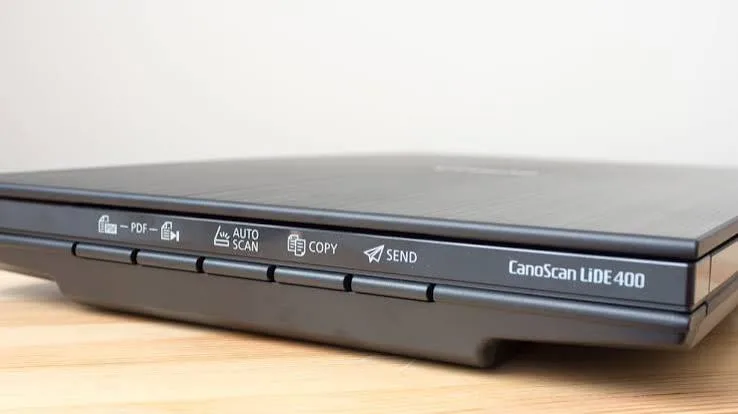
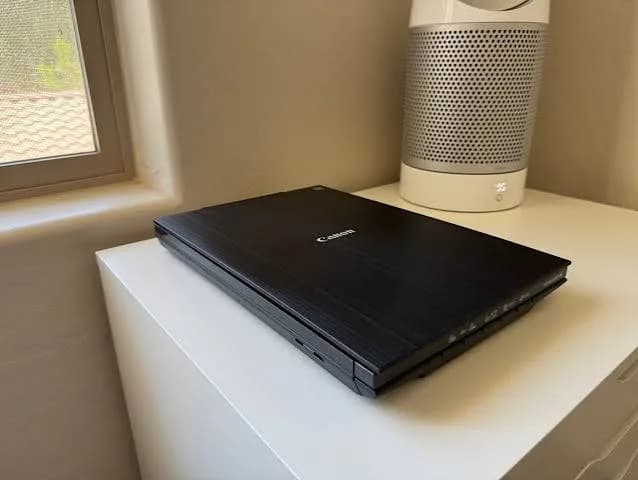
Looking for the Canon LiDE 400 price in Kenya, a photo scanner in Nairobi, or a slim, simple scanner for your photos, documents and books? The Canon CanoScan LiDE 400 is a brand-new, genuine A4 flatbed scanner with a 4800 x 4800 dpi optical resolution, a slim body and a single USB-C cable that carries both data and power, so there's no power adapter to plug in. It has EZ buttons for one-touch scanning, an Auto Scan mode that recognises what you've placed on the glass, Canon's Auto Photo Fix and Auto Document Fix software, and a lid that stands upright so you can scan bulky books. It's available from City Gadgets Kenya with delivery across Kenya. Buyers also search for it as a Canon CanoScan LiDE 400, a Canon LiDE 400 scanner, a Canon photo scanner, a USB-C flatbed scanner, a slim A4 scanner, a scanner for family photos, a scanner for students and a scanner for documents and books.
This guide explains the scanner in plain language: what resolution really means, how to digitise family photos and albums, what the LiDE 400 can and can't do, and how it compares with a document scanner. If you'd like to talk it through, message us on WhatsApp.
The short verdict
The Canon CanoScan LiDE 400 is the simple, affordable way to turn photos, certificates, drawings and book pages into digital files. Its CIS scanning element and 4800 x 4800 dpi optical resolution (with selectable resolutions from 25 to 19,200 dpi) give sharp scans of photos and documents. It's powered through its USB-C cable, so one cable to your laptop is all you need, which makes it ideal for a student, a home user or anyone who wants to scan without a power socket. Auto Scan mode figures out what's on the glass, Auto Photo Fix improves faded and dull pictures, and the Z-Lid lets the lid stand up for thick books. It's a flatbed, so it scans one page at a time, and it doesn't scan film negatives or slides. For family photo albums, certificates, student notes and occasional documents, it's an excellent, low-cost choice. For stacks of documents, the HP ScanJet Pro 2600 f1 in our range is faster.
Who this scanner is for
It suits you if:
- You want to digitise family photos, old albums and keepsakes.
- You're a student who scans notes, book pages and certificates.
- You want a slim scanner that needs no power adapter, only a USB-C cable.
- You scan books, magazines and fragile pages that can't go through a feeder.
- You scan artwork, drawings and receipts occasionally.
- You want a simple scanner with one-touch buttons.
Look elsewhere if:
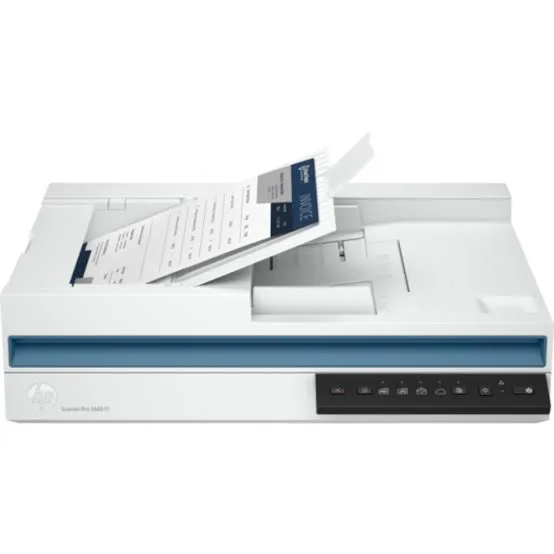
- You scan stacks of documents. See the HP ScanJet Pro 2600 f1 with a 60-sheet feeder.
- You need to scan film negatives or slides. This scanner doesn't have a film adapter.
- You need a network scanner shared across an office.
- You scan large drawings or A3 originals.
Specifications in plain English
| Feature | Detail | What it means for you |
|---|---|---|
| Model | Canon CanoScan LiDE 400 | Canon's slim USB-C flatbed scanner |
| Type | Flatbed scanner with a CIS element and a 3-colour RGB LED light source | Slim, light and low-power |
| Optical resolution | 4800 x 4800 dpi | Fine detail in photos and documents |
| Selectable resolution | 25 to 19,200 dpi | From tiny files to huge enlargements |
| Colour depth | 48-bit input, 48 or 24-bit output | Rich colour and smooth gradients |
| Interface | USB Type-C, compatible with USB 3.0 and 2.0 | One cable to your computer |
| Power | Supplied through the USB port | No power adapter needed |
| Scan speed | About 1.7 ms per line at 300 dpi on USB 3.0, slower on USB 2.0, and slowest at 4800 dpi | Quick for normal scans |
| Features | Auto Scan mode, Auto Document Fix, Auto Photo Fix, EZ buttons, scan to cloud and Z-Lid | Easy, one-touch scanning |
| Software | Canon's scanning software and drivers | Download from Canon, as the listing describes |
These figures come from Canon's specification page for the LiDE 400. Ask us to confirm what's in the box and the warranty for the unit you order.
What 4800 dpi really means
Resolution is the most misunderstood specification, so a plain explanation helps.
- dpi means dots per inch. It's how many points of detail the scanner captures along each inch of the original.
- 4800 dpi is the maximum. It's useful for scanning a small original and enlarging it a lot, such as a small print or a stamp.
- For documents, 200 to 300 dpi is plenty, and 600 dpi suits small print.
- For photos, 300 to 600 dpi suits normal prints. 1200 dpi lets you enlarge a 4x6 print to a larger size.
- Higher dpi makes bigger files and slower scans. At 4800 dpi, even an A4 scan is huge and takes a long time.
- The original limits the result. A blurry print stays blurry at any resolution.
- Selectable up to 19,200 dpi is software interpolation, which adds size, not detail.
For most family photos, 600 dpi is the sweet spot.
Digitising family photos and albums
This is where the LiDE 400 shines, and a plan helps.
- Gather and sort. Group photos by year, event or family branch, and note names and dates on the back in pencil.
- Clean gently. Dust photos with a soft brush or a blower, and wipe the glass with a lint-free cloth.
- Scan at 600 dpi in colour for normal prints, and 1200 dpi for small prints you may enlarge. Use TIFF or high-quality JPEG.
- Scan several small prints at once. Place a few on the glass with gaps, and let the software separate them, if it can.
- Use Auto Photo Fix to improve faded colour, contrast and dust, then check the results.
- Name the files with the year, the event and the people.
- Back up twice. Keep a copy on the cloud and on an external drive from our range, such as a SanDisk portable SSD or a WD drive.
- Share with family by cloud link or WhatsApp.
- Keep the originals in an album or a box, away from damp and sun.
A weekend and a few hundred photos can turn a shoebox of memories into a safe digital archive.
Auto Scan, Auto Photo Fix and Auto Document Fix
Canon's one-touch features make the LiDE 400 easy for beginners.
- Auto Scan mode detects whether you've placed a photo, a document or a magazine on the glass, and applies suitable settings.
- Auto Photo Fix corrects faded colour, poor contrast, and in some cases dust and scratches.
- Auto Document Fix straightens and sharpens text documents and improves readability.
- EZ buttons let you scan to PDF, copy, email or save with one press.
- Scan to cloud sends files to a cloud service, using Canon's software.
- Check the results. Automatic corrections help most scans, and can overdo some. Keep the unfixed original.
Scanning books and thick items: the Z-Lid
Scanning books is a common problem, and the Z-Lid helps.
- The Z-Lid hinge lifts and stands the lid upright, so a thick book or album can lie flat on the glass.
- Press gently to flatten the page, without forcing the spine.
- Scan page by page, and combine them into one PDF.
- Upright scanning also helps with large, bulky items.
- Don't scan fragile or valuable books by pressing hard. Take care.
- Check copyright before scanning whole books.
USB-C bus power: what it gives you
The LiDE 400 uses one USB-C cable for power and data.
- No power adapter, so there's one fewer cable and no extra socket.
- Easy to carry, since the scanner is slim and light.
- Use a good port. For best speed, plug into a USB 3.0 or faster port. USB 2.0 works, and it's slower.
- Use the supplied cable, or a good-quality USB-C cable, since poor cables cause failures.
- Check your laptop. Slim laptops with only USB-C ports connect directly. Older laptops need a USB-A to USB-C cable or adapter.
- A low-power port may struggle. If the scanner doesn't start, try a different port, or a powered USB hub.
What it can't do
It helps to know the limits before you buy.
- It scans one page at a time. There's no feeder, so a big stack takes a long time. See the HP ScanJet Pro 2600 f1.
- It doesn't scan film negatives or slides. There's no transparency unit. A dedicated film scanner is needed.
- It's A4. Larger originals need stitching or a bigger scanner.
- It has no network or Wi-Fi. It connects to one computer.
- It doesn't scan two sides at once. You flip the page.
- It needs software and a computer.
Setting up the scanner
- Unbox with care, and remove all tape and the transport lock, if there's one.
- Download and install Canon's scanning software and drivers from Canon's site, following the guide, since the listing indicates software is provided online.
- Connect the USB-C cable to the scanner and your computer.
- Place a page or a photo face down on the glass, aligned with the mark.
- Press an EZ button or open the software, and run a test scan.
- Choose a folder with enough free disk space, especially for high-resolution photo scans.
- Set your naming and backup routine.
A worked example: a weekend digitising an album
A concrete example shows what to expect.
- The task: a family album of 200 prints, mostly 4x6 inches, taken over thirty years, some faded.
- The settings: 600 dpi, colour, JPEG at high quality, with Auto Photo Fix on for the faded ones.
- The method: place two prints at a time on the glass, scan, flip and repeat. A 600 dpi 4x6 scan takes roughly 15 to 30 seconds on a USB 3.0 port, so 200 prints is roughly 1 to 2 hours of scanning, plus sorting and naming.
- The checks: open a few scans at full size to check focus and colour, and rescan any that look wrong.
- The naming: year, event and people, such as 1998-Kisumu-wedding-Wanjiku.
- The storage: each scan is about 3 to 8 MB, so 200 prints take roughly 1 to 2 GB. Back up to the cloud and an external drive.
- The sharing: send a small web-size copy to family on WhatsApp, and keep the large originals safe.
- The result: a digital album that survives damp, fire and time, and a safe copy of memories you can't replace.
Scanning certificates, IDs and documents
The LiDE 400 handles documents well, for occasional jobs.
- Certificates and IDs. Scan at 300 dpi in colour, and save as PDF. Keep copies in a protected folder.
- Receipts and forms. Auto Document Fix straightens and sharpens them.
- Student notes. Scan pages to PDF for revision.
- Drawings and artwork. Use 600 dpi or more, and save as TIFF or high-quality JPEG.
- Multi-page documents. Scan page by page and combine them in the software or a PDF tool. If you do this often, a feeder scanner is faster.
- Sensitive documents. Protect files with passwords, and back up.
Photo scanning tips for the best results
- Clean the glass and the print before every batch.
- Align the print straight against the corner mark.
- Scan at the right resolution. 600 dpi suits most prints, and 1200 dpi for small ones.
- Don't over-correct. Auto fixes help, and heavy edits can look unnatural.
- Scan the back too, if there are notes or dates.
- Handle prints by the edges, with clean, dry hands.
- Don't scan sticky or damp prints.
- Scan flat prints. Curled prints can be pressed gently under the lid.
- Keep scanning sessions short, so your eyes stay fresh when you check results.
Getting good book scans
- Lift the lid with the Z-Lid hinge so the book lies flat.
- Press gently on the pages, not the spine.
- Scan at 300 dpi for text, and save as a searchable PDF using OCR software.
- Scan page by page, and check the order.
- Crop and straighten in the software.
- Don't scan fragile or valuable books without care.
- Respect copyright.
Storage planning for photo scans
Photo scans are large, so plan your storage.
- A 600 dpi 4x6 JPEG is about 3 to 8 MB.
- A 1200 dpi 4x6 TIFF can reach 100 MB or more.
- A 4800 dpi scan can be gigabytes, and rarely makes sense.
- A 1 TB external drive holds many thousands of photo scans.
- Use two backups: the cloud and an external drive from our range, such as a SanDisk portable SSD or a WD drive.
- Name and folder-organise from the start.
- Keep a master and a small copy for sharing.
Common problems and simple fixes
The scanner isn't found. Check the USB-C cable and port, try another port or a powered hub, restart both devices and reinstall the driver.
The scanner doesn't power on. The port may not supply enough power. Try a different port or a powered hub.
Spots or lines on scans. Dust is on the glass or the print. Clean both gently.
Scans look dull. Try Auto Photo Fix, or adjust brightness and contrast.
Scans are slow. Use a USB 3.0 port, lower the resolution, and close other programs.
Colours look off. Check the colour mode and the monitor's calibration.
A book's spine looks dark. Press more gently, and use the Z-Lid so the book lies flat.
If a problem continues, message us on WhatsApp.
Questions to ask before you buy a scanner
- What will I scan most? Photos, documents or books.
- How many pages at a time? If it's stacks, choose a feeder scanner.
- Do I need film scanning? If so, ask us about film scanners.
- Do I need USB-C or a power adapter?
- What software comes with it, and does it support my computer?
- How much storage will I need?
- What warranty is included, and who honours it? Get it in writing.
- Can I see it before I pay?
We're glad to answer all of these on WhatsApp or in the shop before you pay.
Looking after the scanner for years
- Keep the glass clean, with a soft, lint-free cloth.
- Cover the scanner when idle, to keep out dust.
- Don't press hard on the glass.
- Keep liquids away.
- Use a good USB-C cable, and don't bend it sharply.
- Keep the software updated.
- Keep the box, manual and receipt.
Warranty and after-sales: what to ask
A scanner is a long-term tool, so ask us what warranty covers the unit you order, how long it lasts and what it covers. Keep your receipt, the serial number and the box. If a fault appears, message us on WhatsApp first, and we'll tell you the quickest way to get it sorted.
Understanding the specifications: a quick glossary
- Flatbed. A scanner with a glass plate where you place the original face down.
- CIS. Contact image sensor, a slim sensor that keeps the scanner thin and low in power.
- Optical resolution. The real detail the sensor captures, 4800 dpi here.
- Interpolated resolution. Software enlargement, which adds size and not detail.
- 48-bit colour. A lot of colour information, for smooth gradients and editing.
- Bus powered. Power comes through the USB cable.
- Z-Lid. A hinge that lets the lid stand up for thick items.
- EZ buttons. One-touch buttons for common scans.
Sharing and storing scans safely
Digital copies are safer than paper, if you treat them well.
- Keep a master set of high-quality files, and never edit the master.
- Make small copies for sharing and printing.
- Use cloud storage with a strong password and two-step sign-in.
- Keep an offline backup on an external drive in a different place.
- Label folders clearly, so family can find things in years to come.
- Test restoring a file once a year.
- Print favourites on photo paper, with the Epson L8050 or Canon G540 in our range.
A student's guide to the LiDE 400
A slim USB-C scanner suits student life.
- Scan notes and handouts to PDF for revision.
- Scan certificates and IDs for applications, and keep them in a protected folder.
- Scan book chapters for study, within copyright rules.
- Use one USB-C cable from your laptop, with no adapter to carry.
- Back up your work to the cloud and a SanDisk flash drive.
- Keep the glass clean and the scanner covered in a dusty hostel room.
- Use a surge protector for your laptop charger.
Using a scanner in Kenya
Power and surges. The scanner is powered by your computer, so protect the computer with a surge protector or a UPS.
Dust. Dust on the glass shows as spots on scans. Keep the scanner covered when idle, and clean the glass.
Humidity. Damp prints can stick to the glass. Keep photos dry.
Storage space. High-resolution photo scans are large. Plan disk space and backups.
Warranty. Ask us for the warranty that applies to the unit you order, and keep the receipt and box.
How it compares with other options in our range
| Canon LiDE 400 | HP ScanJet Pro 2600 f1 | Epson L8050 (printer) | Canon G3410 (printer) | |
|---|---|---|---|---|
| Type | Flatbed scanner | Flatbed and ADF scanner | Photo printer, no scanner | Printer with flatbed |
| Feeder | None | 60 sheets, duplex | None | None |
| Optical resolution | 4800 dpi | 600 dpi (ADF), 1200 dpi (flatbed) | None | Printer-class scanning |
| Power | USB-C bus powered | Mains adapter | Mains | Mains |
| Best for | Photos, books, single pages | Stacks of documents | Printing photos | Basic scanning |
Against the HP ScanJet Pro 2600 f1: the HP is a fast document scanner with a feeder. The LiDE 400 is a photo and book scanner, and costs far less.
Against a printer's scanner: a dedicated scanner like the LiDE 400 gives better detail for photos and a simpler workflow, at a low price.
Honest pros and cons
Pros
- 4800 x 4800 dpi optical resolution.
- USB-C bus power, with no adapter.
- Slim, light and easy to store.
- Auto Scan, Auto Photo Fix and Auto Document Fix.
- A Z-Lid for books and thick items.
- EZ buttons for one-touch scanning.
- A low price.
Cons
- One page at a time, with no feeder.
- No film or slide scanning.
- A4 only, with no network.
- Software is a download, and needs a computer.
- High-resolution scans are slow and large.
What to check when it arrives
- The box model matches Canon CanoScan LiDE 400.
- The scanner, USB-C cable and paperwork are in the box.
- All tape and any transport lock are removed.
- The glass is clean and scratch-free.
- The software installs, and a test scan works.
- The EZ buttons work.
- You get a receipt with the serial number and warranty details in writing.
Frequently asked questions
What is the Canon LiDE 400 price in Kenya? We confirm the current price when you message us on WhatsApp, because supplier prices change. We tell you the price and what's in the box before you pay.
Where can I buy the Canon LiDE 400 in Nairobi? At City Gadgets Kenya, New Alnoor Exhibition, Second Floor, Shop C7, Accra Road, Nairobi CBD, or by delivery.
Does it need a power adapter? No. It's powered through its USB-C cable.
What resolution is it? 4800 x 4800 dpi optical.
Can it scan photos? Yes, with Auto Photo Fix, at up to 4800 dpi.
Can it scan negatives or slides? No.
Does it have a document feeder? No. See the HP ScanJet Pro 2600 f1.
Can I scan books? Yes, using the Z-Lid.
Does it work with a Mac and a phone? It works with computers. Ask us to confirm your operating system.
What warranty does it have? Ask us for the warranty that applies to the unit you order.
Can you deliver it? Yes, same day in Nairobi and next day outside Nairobi.
Can I pay via M-Pesa? Yes.
Why buy from City Gadgets Kenya
Genuine, brand-new Canon scanner. We're at New Alnoor Exhibition, Second Floor, Shop C7, Accra Road, Nairobi CBD, and you're welcome to see the scanner before you buy. Message us on WhatsApp with what you want to scan, and we'll tell you honestly whether the LiDE 400 is right or a document scanner would suit you better. We confirm what's in the box before you pay.
Order your Canon CanoScan LiDE 400 today
Available now at City Gadgets Kenya. Message us on WhatsApp.
Specifications
- Brand
- Canon
- Condition
- New
Frequently Asked Questions
How much does the Canon CanoScan LiDE 400 USB-C Flatbed Photo and Document Scanner in Kenya | City Gadgets Kenya cost in Kenya?
The Canon CanoScan LiDE 400 USB-C Flatbed Photo and Document Scanner in Kenya | City Gadgets Kenya is priced at Ksh 20,000 at City Gadgets. You can pay via M-Pesa, card or cash on delivery.
Is the Canon CanoScan LiDE 400 USB-C Flatbed Photo and Document Scanner in Kenya | City Gadgets Kenya available in Kenya?
Yes — the Canon CanoScan LiDE 400 USB-C Flatbed Photo and Document Scanner in Kenya | City Gadgets Kenya is in stock at City Gadgets, ready for same-day delivery in Nairobi and countrywide shipping across Kenya.
Is the Canon CanoScan LiDE 400 USB-C Flatbed Photo and Document Scanner in Kenya | City Gadgets Kenya genuine and does it have a warranty?
Every Canon CanoScan LiDE 400 USB-C Flatbed Photo and Document Scanner in Kenya | City Gadgets Kenya we sell is 100% genuine brand-new stock and comes with a 12-month official brand warranty.
Do you deliver the Canon CanoScan LiDE 400 USB-C Flatbed Photo and Document Scanner in Kenya | City Gadgets Kenya in Nairobi?
Yes. We offer fast same-day delivery within Nairobi and fast, affordable delivery to the rest of Kenya — order online or on WhatsApp.
Customer Reviews
No reviews yet
Be the first to review this product.
Rate us on Google
Your review helps other shoppers find us
Reviews from verified buyers will appear here.