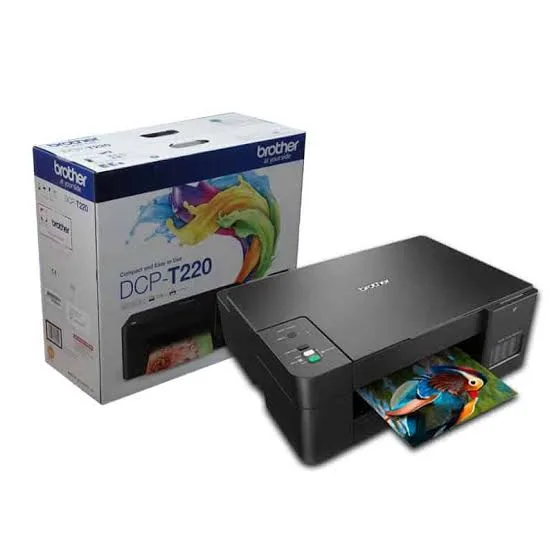
Brother DCP-T220 USB Ink Tank All-in-One Printer in Kenya | City Gadgets Kenya
Same-day delivery in Nairobi by 10 Oct – 11 Oct
Description
Buy the genuine Brother DCP-T220 A4 color ink tank all-in-one printer with USB connection in Kenya from City Gadgets Kenya. Brother T220 price in Kenya, cheapest Brother ink tank printer Nairobi, low cost per page for one-computer homes and shops.
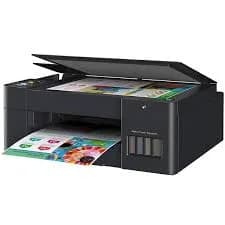
Brother DCP-T220 USB Ink Tank All-in-One Printer in Kenya
Genuine Brother | Brand New | A4 Color Print, Copy and Scan | USB Connection | Refillable Ink Tanks
Looking for the Brother DCP-T220 price in Kenya, the cheapest Brother ink tank printer in Nairobi, or a simple printer for one computer with a very low cost per page? The Brother DCP-T220 is a brand-new, genuine A4 colour ink tank all-in-one that prints, copies and scans, and connects to your computer by USB cable. It's Brother's most affordable ink tank printer, with refillable tanks and high-yield bottles, and it has no Wi-Fi. It's available from City Gadgets Kenya with delivery across Kenya. Buyers also search for it as a Brother DCP-T220, a Brother T220, a cheap Brother refill printer, a USB ink tank printer, a Brother printer with no Wi-Fi, a printer for one computer, a printer for a shop or an internet cafe, or a low-cost printer for students.
This guide is written to help you decide honestly. We explain what the T220 does well, what the lack of Wi-Fi means in real life, the workarounds, and when the Wi-Fi T420W in our range is a better buy. If you'd like to talk it through, message us on WhatsApp.
The short verdict
The Brother DCP-T220 is the simplest, cheapest way into Brother's ink tank range. It prints, copies and scans in colour at a very low cost per page, and it needs only a USB cable. There's no Wi-Fi to set up, no password to forget and no app to install, which suits a single computer at a desk, a shop counter or a school office. The trade-off is clear: it can't be used wirelessly, so you can't print from phones, and sharing it across several computers takes extra steps. If you print from one computer, and you want the lowest price for an ink tank printer, the T220 is a good value. If you want to print from phones or share the printer, the T420W in our range adds Wi-Fi for a modest extra cost.
Who this printer is for
It suits you if:
- You print from one computer, such as a desktop at a shop counter, an office desk or a home study.
- You want the lowest purchase price for an ink tank printer.
- You want a very low cost per page.
- You prefer a simple, wired connection with no network setup.
- You print in a place with no Wi-Fi, such as a stall, a kiosk or a school lab.
Look elsewhere if:
- You want to print from phones or tablets. See the Brother T420W, T530DW or the Epson and Canon Wi-Fi models.
- You want to share the printer among several computers easily.
- You want automatic duplex or a feeder. See the Brother T530DW or T720DW.
- You print very little. A cheap cartridge printer has a lower purchase price.
What "USB only" means in real life
It helps to understand exactly what you get, and what you don't.
What works
- Print, copy and scan from the computer the printer is plugged into.
- Copy a page directly from the printer, using its buttons, without a computer.
- A very simple setup: plug in, install the driver, print.
- No Wi-Fi password, router or app to manage.
What doesn't work
- Printing from a phone or tablet directly.
- Printing from a laptop in another room without plugging it in.
- Printing from several computers at once, without sharing.
Workarounds
- Share it through a computer. On Windows, you can share the printer from the PC it's connected to, so other computers on your network can print through that PC. The PC must be on.
- Use a USB print server. Small devices can turn a USB printer into a network printer. Ask us if you need one.
- Move the cable. Plug the printer into whichever laptop needs it.
- Choose a Wi-Fi model. If you'll want any of these often, the T420W is the better buy.
Specifications in plain English
| Feature | Detail | What it means for you |
|---|---|---|
| Model | Brother DCP-T220 | Brother's entry USB ink tank 3-in-1 |
| Functions | Print, copy and scan | Three jobs in one machine |
| Print technology | Four-colour refillable ink tank | Low cost per page |
| Print speed (ISO) | About 16 ipm black and 9 ipm colour (typical of this entry range) | Steady for home use |
| Fast-mode speed | Brother lists "laser-comparable" speeds of up to about 28 ppm black and 11 ppm colour | Faster in draft modes |
| Connectivity | Hi-Speed USB 2.0 only | Wired to one computer |
| Wi-Fi | None | No wireless or phone printing |
| Duplex | None automatic | You turn pages yourself |
| Document feeder | None | You scan and copy one page at a time |
These figures come from Brother's brochure and retailer listings for the entry ink tank range. Ask us to confirm the exact speeds, ink yields, what's in the box and the warranty for the unit you order. Brother notes that printing and scanning on a Mac needs a driver download for this model.
How Brother's ink tank system works
Cartridge printers use small cartridges that run out quickly and cost a lot to replace. The T220 has large built-in tanks that you fill from bottles.
- Four bottles for four colours: black, cyan, magenta and yellow.
- Spill-free refilling. Brother designs the bottles and ports to fit together.
- High yields. Brother's ink bottles are rated for thousands of pages.
- A low cost per page, a small fraction of cartridge costs.
- Front-visible tanks let you check levels at a glance.
For anyone who prints regularly, the saving over a cartridge printer is large.
Who uses a USB printer well
A USB printer suits more situations than people expect.
- A shop counter. One computer prints receipts, invoices and price lists.
- A school or college office. A single desktop prints notices and forms.
- A home study. One desktop or laptop, with the printer next to it.
- An internet cafe or business centre. A dedicated machine prints and scans for customers.
- A kiosk or stall. A laptop and the printer run from a small power supply.
- A secure office. Some offices prefer a printer that isn't on the network.
Getting set up: a first-day guide
- Unbox and remove all packing tape and protective material.
- Fill the ink tanks with the matching Brother bottles, slowly and carefully.
- Let the printer initialise, which takes a few minutes.
- Load plain A4 paper in the tray.
- Connect the USB cable to your computer.
- Install the Brother driver from Brother's site or the supplied software. On a Mac, download the driver as Brother instructs.
- Print a test page, and make a test copy and scan.
- Run a nozzle check after the first week.
Paper, ink and keeping costs down
- Use good-quality A4 paper, since poor paper jams more.
- Use genuine Brother ink bottles. Cheap third-party ink can clog print heads.
- Print in standard or economy mode for everyday documents.
- Print something weekly, so the print head stays healthy.
- Keep the printer level and in a cool, shaded spot.
- Store bottles upright, away from heat and sunlight.
Sharing a USB printer on a Windows network
If you want other computers to use the T220, Windows can share it, and the steps are simple.
- Connect the printer to one computer by USB, and make sure it prints.
- Open Settings, then Printers and scanners, and choose the Brother printer.
- Open the printer properties and turn on sharing, giving it a clear name.
- On the other computers, add the shared printer by its network name.
- Keep the host computer on. If it's off or asleep, nobody can print.
- Set a fixed name and a password on the host if your network needs it.
This works well for two or three computers in a small office. For more, or for phone printing, a Wi-Fi printer is easier.
A worked example: what the T220 saves
A short calculation shows when an ink tank printer pays for itself, using figures you can replace with real prices.
- Find the price of a bottle set for the T220. Ask us for current prices and the rated page yield.
- Divide price by pages to get the cost per page.
- Do the same for a cartridge printer, such as a Canon TS3640 or an HP DeskJet in our range.
- Multiply the difference by your monthly pages. At 150 pages a month, the saving is clear within a year.
- Compare purchase prices. The T220 costs more than a cartridge printer upfront and catches up quickly.
For a shop that prints receipts, forms and price lists every day, the saving is large.
Running a shop, kiosk or business centre with the T220
A USB printer is a natural fit for a counter or a small service business.
- Print receipts, invoices and price lists in black-and-white at a very low cost.
- Copy IDs and documents for customers with the printer's copy button.
- Scan documents to the computer and send them by email or WhatsApp.
- Print photos and flyers for customers in colour, using suitable paper.
- Charge fairly, knowing your cost per page.
- Keep spare ink and paper, so a busy day never stops you.
- Protect the printer with a surge protector and a dust cover.
If your customers also want to print from their phones, consider the Wi-Fi T420W.
Scanning and copying basics
The T220 scans and copies from a flatbed glass.
- Clean the glass with a soft, lint-free cloth.
- Place the page face down against the corner marker.
- Copy with the buttons, choosing the number of copies, without a computer.
- Scan from the computer with Brother's software, at 300 dpi for documents.
- For multi-page documents, scan page by page and combine them into one PDF.
- There's no feeder, so scanning stacks is slow. See the Brother DCP-T720DW or Epson L5290 if you scan a lot.
Common problems and simple fixes
The computer doesn't find the printer. Check the USB cable and port, try a different port, restart the printer and the computer, and reinstall the driver.
Streaks or faded lines. Run a nozzle check, then a print-head cleaning from the printer software.
Paper jams. Switch off, pull the paper out gently, and use good, dry paper.
Blank pages. Check that tanks aren't empty, clean the head and make sure packing tape is gone.
Colours look wrong. Run a head cleaning, check the paper type setting and make sure each tank holds the right ink.
Scanning won't start on a Mac. Download the scanner driver as Brother instructs.
Error message about the ink absorber. The part that collects waste ink is nearly full. Ask us, since it needs an authorised service.
If a problem continues, message us on WhatsApp.
Questions to ask before you buy a USB printer
- Will I ever need to print from a phone or share the printer? If yes, choose a Wi-Fi model.
- How many pages will I print each month?
- What does a replacement bottle set cost, and what is the real cost per page?
- What's in the box, and does it include ink and a USB cable?
- Which operating system will I use? Check driver support.
- What warranty is included, and who honours it? Get it in writing.
- Can I see it before I pay? A trustworthy seller says yes.
We're glad to answer all of these on WhatsApp or in the shop before you pay.
Looking after the printer for years
- Print something every week, so the print head stays healthy.
- Use the printer's power button, not the wall switch.
- Keep the tanks above the minimum mark.
- Use genuine ink.
- Wipe the glass and body with a soft cloth.
- Keep it level, covered and out of direct sun.
- Service it when you see a maintenance message.
Warranty and after-sales: what to ask
A printer is a long-term purchase, so ask us what warranty covers the unit you order, how long it lasts and what it covers. Brother offers long carry-in warranties on some ink tank models in some markets, and Kenyan terms may differ. Printers normally exclude consumables such as ink, and damage from non-genuine ink or misuse. Keep your receipt, the serial number and the box. If a fault appears, message us on WhatsApp first, and we'll tell you the quickest way to get it sorted.
Choosing between the T220 and the T420W
Because these two Brother models are so alike, a clear decision guide helps.
Choose the T220 if:
- You print from one computer only.
- You don't need phone printing.
- You want the lowest price in Brother's ink tank range.
- You print somewhere with no Wi-Fi.
Choose the T420W if:
- You'll print from phones and tablets.
- You have several computers, or want to move the printer around.
- You want the flexibility of Wi-Fi, for a modest extra cost.
- You may sell or give the printer to someone with different needs later.
For most households, the Wi-Fi model is the better long-term choice. For a counter, a kiosk or a single study computer, the T220 does the job for less.
Printing from a phone without Wi-Fi on the printer
If you own a T220 and want to print from a phone, there are options.
- Send the file to the connected computer, by email, WhatsApp or cloud storage, and print it from there.
- Use a USB OTG cable, if your phone and the printer support direct printing. Support varies, so check first.
- Use a USB print server or a small wireless adapter that adds Wi-Fi to a USB printer. Ask us what works with this model.
- Plan ahead. If phone printing is important to you, choose a Wi-Fi printer.
What to know about Mac and Windows drivers
Drivers connect your computer to the printer, and a few points help.
- Windows. Install the driver from Brother's site or the supplied disc. Windows may also find a basic driver automatically.
- Mac. Brother notes that printing and scanning on the T220 via a Mac needs a driver download, so do this before you set up.
- Updates. Keep the driver updated if your operating system changes.
- Scanning software. Install Brother's scanning software to scan to PDF and image files.
- If something stops working, reinstall the driver, and check the USB cable.
A student's guide to the T220
Students who share a desktop or a single laptop use the T220 well.
- Print drafts in economy mode, and the final copy in standard quality.
- Print double-sided manually for long documents, to save paper.
- Use print preview to avoid wasted pages.
- Keep a spare bottle set and paper so a deadline doesn't catch you short.
- Back up your work to the cloud and a SanDisk flash drive.
- Cover the printer and use a surge protector in your room.
Placing a USB printer for the best results
A few simple choices help.
- Put the printer close to the computer, so the USB cable is short.
- Use a good cable, and avoid long extensions and cheap hubs.
- Keep it on a flat, stable surface at a comfortable height.
- Keep it out of direct sun and damp.
- Use a surge protector for both the printer and the computer.
- Leave space so the paper tray and scanner lid open freely.
- Cover it when idle, to keep out dust.
Is a USB-only printer old-fashioned?
Some buyers worry that a printer without Wi-Fi is outdated. In practice, it's a design choice with real advantages.
- Simplicity. Nothing to configure, and nothing to break when a router changes.
- Security. A printer that isn't on a network can't be reached by other devices.
- Reliability. A cable doesn't drop out, and doesn't compete with other Wi-Fi devices.
- Price. Leaving out the wireless hardware keeps the cost down.
For the right buyer, those are real benefits. For anyone who wants phone printing, a Wi-Fi model is the better fit, and we'll tell you honestly which you need.
Using a printer in Kenya
Power protection. Printers can be damaged by surges. Use a surge protector, and don't plug a printer into a UPS meant for computers.
Dust and heat. Keep the printer covered when idle, in a clean, shaded spot.
Paper storage. Keep paper flat and dry, because humidity makes paper curl and jam.
Refilling. Use clean hands and a flat surface, and keep ink away from children and pets.
USB cable. Use a good-quality cable of a sensible length, ideally under 2 metres, and plug it directly into the computer.
Warranty. Ask us for the warranty that applies to the unit you order, and keep the receipt and box.
How it compares with other options in our range
| Brother DCP-T220 | Brother DCP-T420W | Epson L3250 | Canon G3410 | |
|---|---|---|---|---|
| Connection | USB only | Wi-Fi and USB | Wi-Fi, Wi-Fi Direct and USB | Wi-Fi and USB |
| Phone printing | No | Yes | Yes | Yes |
| Automatic duplex | No | No | No | No |
| Cost per page | Very low | Very low | Very low | Very low |
| Best for | One computer, lowest price | Regular home printing | Regular home printing | Regular home printing |
Against the Brother T420W: it adds Wi-Fi and phone printing for a small extra cost, so for most buyers it's the better value.
Against the Epson L3250 and Canon G3410: these are Wi-Fi models. The T220's advantage is its price and simplicity.
Honest pros and cons
Pros
- The lowest price in Brother's ink tank range.
- A very low cost per page.
- Simple setup, with no Wi-Fi or app.
- Print, copy and scan in one machine.
- Spill-free refilling.
Cons
- No Wi-Fi, so no phone printing.
- Awkward to share across several computers.
- No automatic duplex or feeder.
- A basic control panel.
- A little messy to refill the first time.
What to check when it arrives
- The box model matches Brother DCP-T220.
- The printer, power cable, USB cable and ink bottles are in the box.
- All packing tape and protective material are removed.
- The ink tanks fill properly, and a test page prints.
- Scanning and copying work.
- You get a receipt with the serial number and warranty details in writing.
Frequently asked questions
What is the Brother DCP-T220 price in Kenya? We confirm the current price when you message us on WhatsApp, because supplier prices change. We tell you the price and what's in the box before you pay.
Where can I buy the Brother T220 in Nairobi? At City Gadgets Kenya, New Alnoor Exhibition, Second Floor, Shop C7, Accra Road, Nairobi CBD, or by delivery.
Does it have Wi-Fi? No. It connects by USB. See the Brother T420W for Wi-Fi.
Can I print from my phone? Not directly.
Can I use it with a Mac? Yes, with a driver download.
Can several computers use it? Through sharing from the connected computer, or a USB print server.
Does it come with ink? Brother ink tank printers normally ship with a starter set of ink bottles. Ask us to confirm.
What warranty does it have? Ask us for the warranty that applies to the unit you order.
Can you deliver it? Yes, same day in Nairobi and next day outside Nairobi.
Can I pay via M-Pesa? Yes.
Why buy from City Gadgets Kenya
Genuine, brand-new Brother printer. We're at New Alnoor Exhibition, Second Floor, Shop C7, Accra Road, Nairobi CBD, and you're welcome to look at the printer before you buy. Message us on WhatsApp with how you'll use it, and we'll tell you honestly whether the T220 is right or the Wi-Fi T420W would suit you better. We confirm what's in the box before you pay.
Order your Brother DCP-T220 today
Available now at City Gadgets Kenya. Message us on WhatsApp.
Specifications
- Brand
- Brother
- Condition
- New
Frequently Asked Questions
How much does the Brother DCP-T220 USB Ink Tank All-in-One Printer in Kenya | City Gadgets Kenya cost in Kenya?
The Brother DCP-T220 USB Ink Tank All-in-One Printer in Kenya | City Gadgets Kenya is priced at Ksh 23,000 at City Gadgets. You can pay via M-Pesa, card or cash on delivery.
Is the Brother DCP-T220 USB Ink Tank All-in-One Printer in Kenya | City Gadgets Kenya available in Kenya?
Yes — the Brother DCP-T220 USB Ink Tank All-in-One Printer in Kenya | City Gadgets Kenya is in stock at City Gadgets, ready for same-day delivery in Nairobi and countrywide shipping across Kenya.
Is the Brother DCP-T220 USB Ink Tank All-in-One Printer in Kenya | City Gadgets Kenya genuine and does it have a warranty?
Every Brother DCP-T220 USB Ink Tank All-in-One Printer in Kenya | City Gadgets Kenya we sell is 100% genuine brand-new stock and comes with a 12-month official brand warranty.
Do you deliver the Brother DCP-T220 USB Ink Tank All-in-One Printer in Kenya | City Gadgets Kenya in Nairobi?
Yes. We offer fast same-day delivery within Nairobi and fast, affordable delivery to the rest of Kenya — order online or on WhatsApp.
Customer Reviews
No reviews yet
Be the first to review this product.
Rate us on Google
Your review helps other shoppers find us
Reviews from verified buyers will appear here.