Brother MFC-T930DW 4-in-1 Ink Tank Printer with Fax, ADF, Ethernet and Auto Duplex in Kenya | City Gadgets Kenya
Same-day delivery in Nairobi by 10 Oct – 11 Oct
Description
Buy the genuine Brother MFC-T930DW A4 colour 4-in-1 ink tank printer with fax, 20-sheet ADF, automatic duplex, Ethernet and Wi-Fi in Kenya from City Gadgets Kenya. Brother T930DW price in Kenya, compact office ink tank printer Nairobi.
Brother MFC-T930DW 4-in-1 Ink Tank Printer with Fax, ADF, Ethernet and Auto Duplex in Kenya
Genuine Brother | Brand New | A4 Colour Print, Scan, Copy and Fax | 20-Sheet Document Feeder | Automatic Duplex | Ethernet, Wi-Fi and Wi-Fi Direct | Refillable Ink Tanks
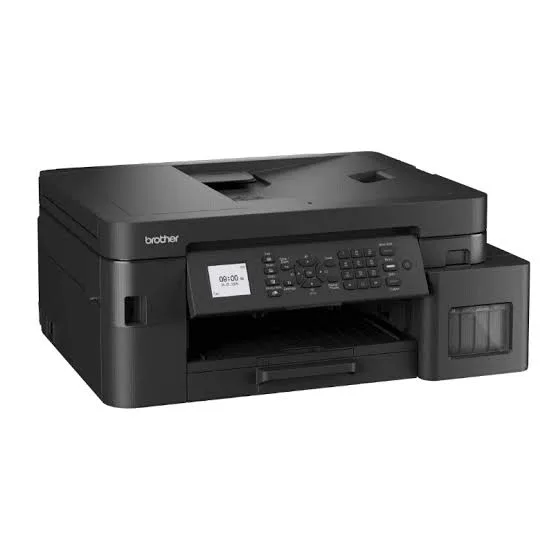
Looking for the Brother MFC-T930DW price in Kenya, a compact office printer with fax and Ethernet in Nairobi, or a 4-in-1 ink tank printer with automatic duplex? The Brother MFC-T930DW is a brand-new, genuine A4 colour 4-in-1 ink tank printer: it prints, scans, copies and faxes, with a 20-sheet automatic document feeder, automatic two-sided printing, a 1.8-inch colour screen, and Ethernet, Wi-Fi and Wi-Fi Direct. It's Brother's most complete ink tank office printer in our range, and it uses refillable tanks with Brother quoting up to 7,500 black and 5,000 colour pages per bottle set. It's available from City Gadgets Kenya with delivery across Kenya. Buyers also search for it as a Brother MFC-T930DW, a Brother T930DW, a Brother ink tank printer with fax, a Brother 4-in-1 printer, a small office printer with Ethernet, a duplex fax printer, or a compact office all-in-one.
This guide explains the printer in plain language: what the fax and Ethernet add to Brother's other ink tank models, how it suits a small office, how it compares with the Epson L6390 and Brother T720DW in our range, and where it's limited. If you'd like to talk it through, message us on WhatsApp.
The short verdict
The Brother MFC-T930DW is the full-featured, compact office ink tank printer. Compared with the Brother DCP-T720DW in our range, it adds fax, a wired Ethernet connection and a bigger colour screen, so an office can share it reliably over the network. It keeps the T720DW's best points: automatic duplex printing, a 20-sheet document feeder, speeds of up to 17 images per minute in black and 16.5 in colour, and very low running costs from refillable tanks. It's compact, at about 435 by 418 by 180 millimetres, and the ink tanks fill from the front without mess. The honest limits are that the feeder scans one side per pass, it's an inkjet and so slower than a laser for huge volumes, and it costs more than the T720DW. For a small office, clinic or practice that wants fax and Ethernet, it's a very good value.
Who this printer is for
It suits you if:
- You run a small office, clinic, school office or practice with several people sharing one printer.
- You want a wired Ethernet connection for reliability.
- You need fax, even occasionally.
- You scan and copy multi-page documents and want a feeder.
- You print double-sided regularly and want a very low cost per page.
Look elsewhere if:
- You don't need fax or Ethernet. See the Brother DCP-T720DW, which costs less.
- You print very high volumes. See the Epson L6390 or the HP and Epson mono models in our range.
- You need A3. See the Epson L15150.
- You print very little at home. See the Epson L3250 or Canon G3410.
What the extras add over the T720DW
It helps to see exactly what you're paying for.
- Fax. Send and receive faxes without a separate machine, using a landline connection.
- Ethernet. A wired network port, which is more stable than Wi-Fi in a busy office.
- A larger display. A 1.8-inch colour LCD makes setup and walk-up copying easier than a basic screen.
- Office positioning. Brother markets the MFC-T930DW at busy small offices.
If none of those matter, the T720DW gives you the feeder and duplex for less.
Specifications in plain English
| Feature | Detail | What it means for you |
|---|---|---|
| Model | Brother MFC-T930DW | Brother's 4-in-1 ink tank office printer |
| Functions | Print, scan, copy and fax | Four jobs in one machine |
| Print speed (ISO) | Up to 17 ipm black and 16.5 ipm colour | Quick for an inkjet |
| Duplex | Automatic 2-sided printing | Saves paper and time |
| Document feeder | 20 sheets (80 gsm) | Scan and copy stacks |
| Display | 1.8-inch colour LCD | Easy to control |
| Connectivity | Ethernet (10/100), Wi-Fi (802.11 a/b/g/n), Wi-Fi Direct and USB 2.0 | Wired and wireless |
| Mobile printing | Brother iPrint&Scan, Apple AirPrint and Mopria | Print from phones |
| Ink bottles | BTD100 black, cyan, magenta and yellow | High-yield bottles |
| Ink yield | Up to about 7,500 black and 5,000 colour pages per set | A very low cost per page |
| Size | About 435 x 418 x 180 mm | Compact for an office printer |
| Print resolution | Up to 1200 x 6000 dpi | Sharp text and good graphics |
These figures come from Brother and retailer listings of the MFC-T930DW. Speeds and yields are Brother's test figures, and your results depend on your pages. Ask us to confirm what's in the box and the warranty for the unit you order.
How Brother's ink tank system works
Cartridge printers use small cartridges that run out quickly and cost a lot to replace. Brother's tank printers have large built-in tanks that you fill from bottles.
- Four bottles, four tanks. The MFC-T930DW uses BTD100 black, cyan, magenta and yellow bottles.
- Spill-free refilling. The bottles and ports are designed to fit together precisely, so refilling is clean.
- Front-access tanks, so you can see levels at a glance.
- High yields. Up to about 7,500 black and 5,000 colour pages from a set, per Brother.
- A low cost per page, a small fraction of cartridge costs.
For an office printing hundreds of pages a month, the saving over a cartridge printer is large.
Setting up fax
If you plan to use fax, a few steps save frustration.
- Check you have a landline. Fax needs a telephone line, not mobile data.
- Connect the telephone cable to the printer's line port, and a telephone, if you have one, to the extension port.
- Set your fax header with your name or company and number.
- Choose the receiving mode. Automatic suits a dedicated fax line, and manual suits a shared line.
- Set the date and time, which print on every fax.
- Store frequent numbers in the address book, or speed dials.
- Send a test fax to a machine you can check.
- Keep paper loaded, because incoming faxes print on paper.
Protect the telephone line with a surge protector. Many offices use email or WhatsApp now, so fax is a bonus for those who still need it.
Setting up a shared office printer
- Place it centrally, with room to load the feeder and open the scanner lid.
- Connect it by Ethernet for the most reliable network connection.
- Reserve an IP address for the printer on your router, so it never changes.
- Install the driver on each computer.
- Set defaults that save money: double-sided and black-and-white.
- Set up scan-to-folder or scan-to-email, using Brother's tools.
- Use the Brother iPrint&Scan app on phones.
- Assign someone to check ink and paper weekly, and keep a spare bottle set.
Getting set up: a first-day guide
- Unbox and remove all packing tape and protective material, including in the feeder.
- Fill the ink tanks with the matching BTD100 bottles, slowly and carefully.
- Let the printer initialise.
- Load plain A4 paper in the tray.
- Connect the network cable, or join Wi-Fi.
- Install the driver and print a test page.
- Test duplex printing and the feeder.
- Connect and test fax if you'll use it.
- Run a nozzle check after the first week.
Faxing from the printer and the computer
The MFC-T930DW can send faxes from the printer itself, and from a computer when the driver supports it.
From the printer.
- Place the document in the feeder, face up, or on the glass.
- Open the fax menu on the screen, and enter the number.
- Choose black-and-white or colour, and the resolution.
- Press start, and check the confirmation report.
From a computer. Many Brother drivers include a PC-fax option, so you can send a document straight from a program without printing it. Ask us to confirm PC-fax support for your computer and the unit you order.
Receiving. Choose automatic receiving for a dedicated fax line, or manual for a shared line, and keep paper loaded. Keep sent and received fax reports for your records.
Going paperless with the feeder
The 20-sheet feeder makes digitising paper practical.
- Decide what to scan first, starting with contracts, financial records and documents you need often.
- Prepare the paper. Remove staples and clips, and smooth folded corners.
- Scan in batches of 15 to 20 pages, so a jam doesn't spoil a long stack.
- Choose settings that keep files small, such as 200 to 300 dpi in greyscale for text.
- Name files consistently, by date, client and document type.
- Back up twice, to the cloud and an external drive from our range, such as a SanDisk or WD portable drive.
- Check a sample of scans for legibility before you shred or file the originals.
- Protect confidential files with passwords and limited access.
Remember that the feeder scans one side per pass. For double-sided originals, scan each side, or use the glass.
Comparing running costs with a laser
Offices often ask whether to buy an ink tank printer or a laser. A simple comparison helps.
- Ink tank (the MFC-T930DW). Higher purchase price than a cartridge printer, very low cost per page, good for colour, and photos look better.
- Laser. Fast for black text, no drying out, a higher cost per page, and expensive for colour.
- Volume decides. An office printing hundreds to a few thousand mixed pages a month often saves most with an ink tank printer.
- Mostly black text in huge volumes? See the Epson M3170 or the HP LaserJet Tank 2602sdn in our range.
- Rarely printing? A laser may suit better, because toner doesn't dry out.
Tell us your monthly pages, and we'll advise honestly.
Common problems and simple fixes
Streaks or faded lines. Run a nozzle check, then a print-head cleaning from the screen or the app.
Paper jams. Switch off, pull the paper out gently, and use good, dry paper.
Feeder jams. Remove staples and clips, use good paper and don't overload the feeder.
Duplex pages jam. Use dry, good-quality paper, straight in the tray.
Can't be found on the network. Check the Ethernet cable and router, restart the printer and confirm its IP address hasn't changed.
Fax won't send or receive. Check the telephone cable and line, the number and the receiving mode.
Won't connect to Wi-Fi. Restart the printer and router, move closer and set it up again.
Error message about the ink absorber. The part that collects waste ink is nearly full. Ask us, since it needs an authorised service.
If a problem continues, message us on WhatsApp.
Questions to ask before you buy an office printer
- How many pages will we print, scan and copy each month?
- Do we need fax? If not, consider the T720DW.
- Do we need Ethernet? For a shared office printer, yes.
- What does a replacement bottle set cost, and what is the real cost per page?
- What's in the box, and does it include ink?
- What warranty is included, and who honours it? Get it in writing.
- Can I see it before I pay? A trustworthy seller says yes.
We're glad to answer all of these on WhatsApp or in the shop before you pay.
Looking after the printer for years
- Print or scan something weekly, so the print head stays healthy.
- Use the printer's power button, not the wall switch.
- Keep the tanks above the minimum mark.
- Use genuine ink.
- Wipe the glass, feeder strip and body with a soft cloth.
- Keep it level, covered and out of direct sun.
- Protect the phone line and power with surge protectors.
- Service it when you see a maintenance message.
Warranty and after-sales: what to ask
A printer is a long-term purchase, so ask us what warranty covers the unit you order, how long it lasts and what it covers. Brother offers long carry-in warranties on some ink tank models in some markets, and Kenyan terms may differ. Printers normally exclude consumables such as ink, and damage from non-genuine ink or misuse. Keep your receipt, the serial number and the box. If a fault appears, message us on WhatsApp first, and we'll tell you the quickest way to get it sorted.
Equipping a clinic, school office or small practice with the T930DW
Different small organisations use a compact 4-in-1 in different ways.
A clinic. Reception scans referral letters and forms, prints prescriptions and appointment cards, copies IDs and receives occasional faxes from labs and suppliers. Protect scanned records with passwords, because they're sensitive.
A school office. Staff print notices, report forms and exams double-sided, scan student records and copy documents for parents. The feeder speeds up term-start paperwork, and the ink tanks keep costs low.
A law or accounting practice. The team scans contracts and receipts, prints drafts double-sided and receives the odd fax from a court or a bank. Ethernet keeps the shared printer reliable.
A small company. A shared machine on the network handles scanning to folders, double-sided reports and quick copies.
In each case, a surge protector, a telephone line protector, a spare bottle set and a weekly check keep the printer reliable.
Photo and graphics quality from a business ink tank printer
The T930DW is built for documents, and it handles graphics and photos acceptably.
- Text is sharp, with a resolution of up to 1200 x 6000 dpi.
- Colour charts and graphics print cleanly for reports and presentations.
- Photos are good for office use, such as staff IDs and simple marketing, though a dedicated photo printer, such as the Epson L8050 or Canon G540 in our range, looks better.
- Paper matters. Use photo paper and the right paper type setting for photos.
- Let prints dry before stacking them.
Keeping a busy printer reliable
A printer that runs all day needs a few simple habits.
- Check paper and ink at the start of each week.
- Don't overload the paper tray or the feeder.
- Use dry, good-quality paper, and store it sealed and flat.
- Clean the glass and the feeder strip with a soft cloth every few weeks.
- Run a nozzle check if print quality drops.
- Keep firmware and drivers updated.
- Keep the printer away from direct sun, dust and damp.
- Keep a log of faults and fixes, so patterns show up early.
Printing from phones and tablets in an office
A shared printer is more useful when staff can print from their phones.
- Apple AirPrint lets iPhones and iPads print to the printer when they're on the same network, without extra apps.
- Mopria lets Android phones print through the built-in print service.
- Brother iPrint&Scan adds scanning to the phone, ink checks and setup.
- Wi-Fi Direct lets a visitor's phone print without joining your office network, which keeps your network private.
- A wired Ethernet connection to the printer doesn't stop phones printing, as long as they're on the same router's network.
- Keep printing secure. Change the printer's default admin password, and keep it off public networks.
Why Ethernet is worth having
Wi-Fi is convenient, and Ethernet is dependable. For an office printer, the wired connection has real advantages.
- Stability. A cable doesn't drop out because of interference or distance.
- Speed. Large jobs travel faster over a cable.
- Security. A wired connection is harder to snoop on than wireless.
- Simplicity. Plug in, reserve an address and forget about it.
- Less strain on Wi-Fi. A busy office network works better when fixed devices use cables.
If your printer sits far from the router, a cheap network cable or a powerline adapter can bring Ethernet to it.
Using a printer in Kenya
Power protection. Printers can be damaged by surges. Use a surge protector, and don't plug a printer into a UPS meant for computers.
Telephone line protection. If you use fax, put a surge protector on the line too.
Dust and heat. Keep the printer covered when idle, in a clean, shaded spot.
Paper storage. Keep paper flat and dry, because humidity makes paper curl and jam.
Network safety. Change the printer's default admin password, and keep it off public networks.
Warranty. Ask us for the warranty that applies to the unit you order, and keep the receipt and box.
How it compares with other options in our range
| Brother MFC-T930DW | Brother DCP-T720DW | Epson L6390 | Epson L5290 | |
|---|---|---|---|---|
| Functions | Print, scan, copy, fax | Print, scan, copy | Print, scan, copy, fax | Print, scan, copy, fax |
| Automatic duplex | Yes | Yes | Yes | Manual |
| Document feeder | 20 sheets | 20 sheets | 30 sheets | Yes |
| Ethernet | Yes | No | Yes | No |
| Ink yield | Up to about 7,500/5,000 pages | Up to about 7,500/5,000 pages | Thousands of pages | Thousands of pages |
| Best for | Compact offices needing fax and Ethernet | Home businesses | Larger office use | Small offices |
Against the Epson L6390: the Epson has a bigger 30-sheet feeder, duplex scanning and faster draft speeds, and costs more. The Brother is more compact.
Against the Epson L5290: the Brother adds automatic duplex and Ethernet.
Honest pros and cons
Pros
- Print, scan, copy and fax in a compact machine.
- Automatic duplex printing.
- A 20-sheet document feeder.
- Ethernet, Wi-Fi and Wi-Fi Direct.
- A 1.8-inch colour screen.
- Up to 17 ipm in black and 16.5 in colour.
- A very low cost per page, with high-yield bottles.
- Spill-free refilling.
Cons
- The feeder scans one side per pass.
- A higher price than the T720DW.
- Fax needs a landline, and many offices no longer use it.
- Not suited to very high volumes.
- A little messy to refill the first time.
What to check when it arrives
- The box model matches Brother MFC-T930DW.
- The printer, power cable, telephone cable and ink bottles are in the box.
- All packing tape and protective material are removed.
- The ink tanks fill properly, and a test page prints.
- Duplex printing and the document feeder work.
- The network connection and the screen work.
- Fax sends and receives, if you use it.
- You get a receipt with the serial number and warranty details in writing.
Frequently asked questions
What is the Brother MFC-T930DW price in Kenya? We confirm the current price when you message us on WhatsApp, because supplier prices change. We tell you the price and what's in the box before you pay.
Where can I buy the Brother MFC-T930DW in Nairobi? At City Gadgets Kenya, New Alnoor Exhibition, Second Floor, Shop C7, Accra Road, Nairobi CBD, or by delivery.
Does it fax? Yes, with a landline connection.
Does it have Ethernet? Yes, Ethernet, Wi-Fi and Wi-Fi Direct.
Does it print double-sided automatically? Yes.
How many sheets does the feeder hold? 20 sheets.
How many pages do the ink bottles print? Brother quotes up to about 7,500 black and 5,000 colour pages per set.
What warranty does it have? Ask us for the warranty that applies to the unit you order.
Can you deliver it? Yes, same day in Nairobi and next day outside Nairobi.
Can I pay via M-Pesa? Yes.
Why buy from City Gadgets Kenya
Genuine, brand-new Brother printer. We're at New Alnoor Exhibition, Second Floor, Shop C7, Accra Road, Nairobi CBD, and you're welcome to look at the printer before you buy. Message us on WhatsApp with how much your office prints and whether you really need fax, and we'll tell you honestly whether the MFC-T930DW or the cheaper T720DW is the better buy. We confirm what's in the box before you pay.
Order your Brother MFC-T930DW today
Available now at City Gadgets Kenya. Message us on WhatsApp.
Specifications
- Brand
- Brother
- Condition
- New
Frequently Asked Questions
How much does the Brother MFC-T930DW 4-in-1 Ink Tank Printer with Fax, ADF, Ethernet and Auto Duplex in Kenya | City Gadgets Kenya cost in Kenya?
The Brother MFC-T930DW 4-in-1 Ink Tank Printer with Fax, ADF, Ethernet and Auto Duplex in Kenya | City Gadgets Kenya is priced at Ksh 59,500 at City Gadgets. You can pay via M-Pesa, card or cash on delivery.
Is the Brother MFC-T930DW 4-in-1 Ink Tank Printer with Fax, ADF, Ethernet and Auto Duplex in Kenya | City Gadgets Kenya available in Kenya?
Yes — the Brother MFC-T930DW 4-in-1 Ink Tank Printer with Fax, ADF, Ethernet and Auto Duplex in Kenya | City Gadgets Kenya is in stock at City Gadgets, ready for same-day delivery in Nairobi and countrywide shipping across Kenya.
Is the Brother MFC-T930DW 4-in-1 Ink Tank Printer with Fax, ADF, Ethernet and Auto Duplex in Kenya | City Gadgets Kenya genuine and does it have a warranty?
Every Brother MFC-T930DW 4-in-1 Ink Tank Printer with Fax, ADF, Ethernet and Auto Duplex in Kenya | City Gadgets Kenya we sell is 100% genuine brand-new stock and comes with a 12-month official brand warranty.
Do you deliver the Brother MFC-T930DW 4-in-1 Ink Tank Printer with Fax, ADF, Ethernet and Auto Duplex in Kenya | City Gadgets Kenya in Nairobi?
Yes. We offer fast same-day delivery within Nairobi and fast, affordable delivery to the rest of Kenya — order online or on WhatsApp.
Customer Reviews
No reviews yet
Be the first to review this product.
Rate us on Google
Your review helps other shoppers find us
Reviews from verified buyers will appear here.