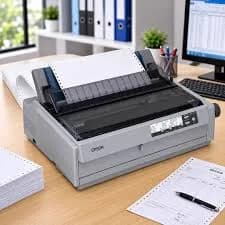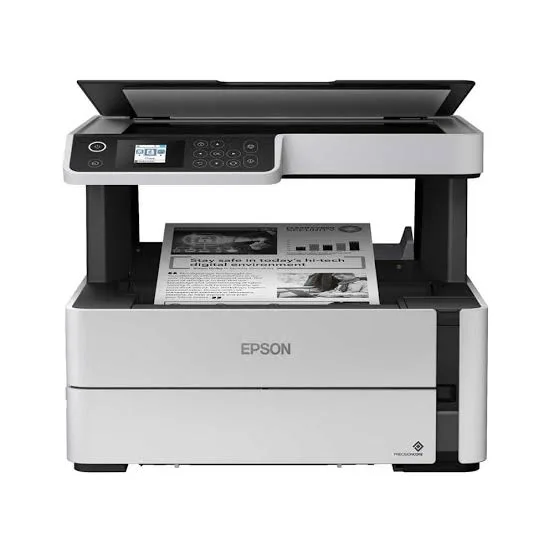
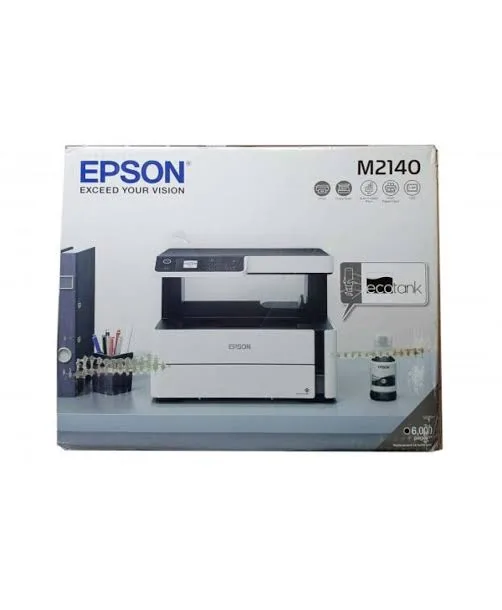
Epson EcoTank Monochrome M2170 Wi-Fi Duplex Ink Tank All-in-One Printer
Same-day delivery in Nairobi by 10 Oct – 11 Oct
Description
Buy the genuine Epson EcoTank Monochrome M2140 A4 black-and-white all-in-one ink tank printer with automatic duplex and USB in Kenya from City Gadgets Kenya. Epson M2140 price in Kenya, cheap mono printer Nairobi, low cost per page for one computer.
Epson EcoTank Monochrome M2140 Duplex Ink Tank All-in-One Printer in Kenya
Genuine Epson | Brand New | A4 Black-and-White Print, Copy and Colour Scan | Automatic Duplex | USB | Pigment Ink Tank
Looking for the Epson M2140 price in Kenya, a cheap black-and-white printer in Nairobi, or a simple mono printer with automatic duplex and a very low cost per page? The Epson EcoTank Monochrome M2140 is a brand-new, genuine A4 black-and-white all-in-one ink tank printer that prints, copies and scans, with automatic double-sided printing and a USB connection. It's the simplest and most affordable of Epson's monochrome EcoTanks, with a refillable pigment ink tank that keeps each page very cheap. It's available from City Gadgets Kenya with delivery across Kenya. Buyers also search for it as an Epson M2140, an Epson mono EcoTank, a black-and-white ink tank printer, a cheap printer for text documents, a duplex mono printer with USB, a printer for a shop counter or office desk, or a laser printer alternative.
This guide explains the printer in plain language: what the M2140 offers, what it leaves out compared with the M2170 and M3170 in our range, and who it suits. If you'd like to talk it through, message us on WhatsApp.
The short verdict
The Epson EcoTank Monochrome M2140 is a lean, practical black-and-white printer for one computer. It prints at up to 39 pages per minute in draft mode, prints on both sides of the paper automatically, copies at up to 99 copies with 25 to 400 percent resizing, and scans in colour at up to 1200 x 2400 dpi. Its pigment black ink gives sharp, smudge-resistant text, and its refillable tank makes each page cost a fraction of a cartridge printer's or a laser's. The specifications we found for the M2140 don't list Wi-Fi or Ethernet, so it connects by USB to a single computer. If you print black-and-white documents from one PC, and you want the lowest price and the lowest running cost, the M2140 is a strong value. If you want Wi-Fi, a screen and a bigger tray, step up to the M2170.
Who this printer is for
It suits you if:
- You print mostly black-and-white documents from one computer.
- You want a very low cost per page.
- You want automatic double-sided printing to save paper.
- You want the lowest price in Epson's monochrome EcoTank range.
- You work at a shop counter, a school desk, a clinic reception or a home study.
Look elsewhere if:
- You want Wi-Fi or phone printing. See the Epson M2170 in our range.
- You scan or copy stacks of pages. See the Epson M3170, with a document feeder.
- You need colour. See the Epson L-series EcoTanks.
- You print rarely, with long gaps. A laser never dries out.
Specifications in plain English
| Feature | Detail | What it means for you |
|---|---|---|
| Model | Epson EcoTank Monochrome M2140 | Epson's entry duplex mono ink tank 3-in-1 |
| Functions | Print, copy and scan | Three jobs in one machine |
| Colour | Black-and-white printing and copying. The scanner scans in colour | Text and forms |
| Print speed | Up to 39 ppm in draft mode | Fast for an inkjet |
| Duplex | Automatic printing | Saves paper and time |
| Print resolution | Up to 1200 x 2400 dpi | Crisp text |
| Copying | Up to 99 copies, with 25 to 400 percent resizing, at up to 600 x 1200 dpi | Flexible copying |
| Scanner | Flatbed, up to 1200 x 2400 dpi optical, 216 x 297 mm scan area | Good scans of A4 pages |
| Scan formats | BMP, JPEG, PNG, TIFF and PDF | Flexible file types |
| Connectivity | USB. The specifications we found don't list Wi-Fi | A wired connection to one computer |
| Fax | No | Not for fax |
| Ink | Refillable pigment black ink tank | A very low cost per page |
These figures come from Epson data sheets for the M2140. Ask us to confirm the ink yield, the paper tray size, what's in the box and the warranty for the unit you order.
M2140, M2170 or M3170: how to choose
Epson sells three monochrome EcoTank all-in-ones, and a clear comparison helps.
- M2140 (this model): automatic duplex and USB. For one computer, at the lowest price.
- M2170: adds Wi-Fi, Wi-Fi Direct, a 1.44-inch colour touchscreen and a 250-sheet tray. For shared use.
- M3170: adds a document feeder, fax and Ethernet. For offices that scan and copy stacks.
If you print from one computer, the M2140 is enough. If you want phone printing or sharing, the M2170 is the better value.
Why pigment ink suits documents
The M2140 uses a pigment black ink, and the choice matters for office work.
- Sharper text, even on ordinary plain paper.
- Smudge and water resistance, useful for highlighters and light moisture.
- Fade resistance, which suits records and forms.
- Barcode-friendly output.
- A single high-yield ink bottle keeps costs low.
For plain documents, pigment black is the right ink. It isn't made for photos or colour.
How a monochrome ink tank printer works
Cartridge printers use small cartridges that run out quickly. The M2140 has a large built-in ink tank that you fill from a bottle.
- One black ink bottle, designed to fit the tank.
- A very high yield, thousands of pages per bottle.
- A low cost per page, a small fraction of cartridge or toner costs.
- Clean refilling, when you follow the steps.
- Regular use keeps the print head healthy, so print something weekly.
Getting set up: a first-day guide
- Unbox and remove all packing tape and protective material.
- Fill the ink tank with the black ink bottle, slowly, and wipe any drips.
- Let the printer initialise, which takes a few minutes the first time.
- Load plain A4 paper in the tray.
- Connect the USB cable to your computer.
- Install the Epson driver, and print a test page.
- Test duplex printing, and make a test copy and scan.
- Run a nozzle check after the first week.
A worked example: why a mono tank beats toner and cartridges
A simple calculation shows the value, using figures you can replace with real prices.
- Find the price of the black ink bottle and its rated page yield. Ask us for both for the M2140's bottle.
- Divide price by pages to get the cost per page, a small fraction of a shilling for black text.
- Do the same for a toner cartridge in a small laser, such as the HP Laser MFP 137fnw in our range, using its price and its smaller page yield.
- Do the same for a cartridge inkjet, such as a Canon TS3640, and note how quickly its cartridges run out.
- Multiply the differences by your monthly pages. At 1,000 pages a month, the gap is large within a year.
- Add duplex savings, because printing double-sided halves your paper.
For a shop, school office or clinic that prints black-and-white documents every day, an ink tank mono printer saves the most.
Automatic duplex: how to use it well
Automatic duplex is the M2140's best feature for the price.
- Choose two-sided printing in the print dialog.
- Choose the binding edge. Long edge for portrait pages bound like a book, and short edge for landscape pages.
- Use good, dry paper of at least 80 gsm, so ink doesn't show through.
- Print a test page before a long job.
- Set double-sided as the default if you print multi-page documents often.
- Expect it to be slower than single-sided printing, as the paper flips inside the printer.
Over a year, double-sided printing can save thousands of sheets in a busy office.
A shop counter, kiosk or business centre with the M2140
A USB mono printer is a natural fit for a counter.
- Print receipts, invoices and price lists in black and white at a very low cost.
- Copy IDs and documents for customers from the glass.
- Scan documents to the computer and send them by email or WhatsApp.
- Charge fairly, knowing your cost per page.
- Keep spare ink and paper, so a busy day never stops you.
- Protect the printer with a surge protector and a dust cover.
If customers want to print from phones, the Wi-Fi M2170 is the better fit.
Scanning and copying basics
The M2140 scans in colour and copies in black and white from a flatbed glass.
- Clean the glass with a soft, lint-free cloth.
- Place the page face down against the corner marker.
- Scan to a computer at 200 to 300 dpi for documents, and save as PDF or JPEG.
- Copy with the buttons, up to 99 copies, resizing from 25 to 400 percent.
- For multi-page documents, scan page by page and combine them into one PDF.
- There's no feeder, so scanning stacks is slow. See the Epson M3170 if you scan a lot.
Sharing a USB printer on Windows
If you want other computers to use the M2140, Windows can share it.
- Connect the printer to one computer by USB, and make sure it prints.
- Open Settings, then Printers and scanners, and choose the Epson printer.
- Open the printer properties and turn on sharing, giving it a clear name.
- On the other computers, add the shared printer by its network name.
- Keep the host computer on. If it's off, nobody can print.
This works for two or three computers. For more, or for phones, choose a Wi-Fi model such as the M2170.
Common problems and simple fixes
The computer doesn't find the printer. Check the USB cable and port, try another port, restart both devices and reinstall the driver.
Streaks or faded lines. Run a nozzle check, then a head cleaning from the printer software.
Paper jams. Switch off, pull the paper out gently, and use good, dry paper.
Duplex pages jam or show through. Use dry, good-quality paper, straight in the tray.
Scans have lines. Clean the scanner glass with a soft cloth.
Error message about the maintenance box. The box that collects waste ink is nearly full. Ask us, since it needs an authorised service.
If a problem continues, message us on WhatsApp.
Keeping an ink tank printer healthy if you print rarely
Ink tank printers prefer regular use, so a few habits help.
- Print something every week, even a short page.
- Use the printer's power button, not the wall switch.
- Keep it covered and out of direct sun.
- If it sits for weeks, run a nozzle check and cleaning before an important job.
- Consider a laser if you print only a few pages a month, because toner doesn't dry out.
We'll tell you honestly if a different printer would suit your pattern better.
Questions to ask before you buy a monochrome printer
- Will I ever need colour? If yes, buy a colour model.
- How many pages will I print each month?
- Do I need Wi-Fi, a feeder or fax? If yes, see the M2170 or M3170.
- What does a replacement ink bottle cost, and what is the real cost per page?
- What's in the box, and does it include ink?
- What warranty is included, and who honours it? Get it in writing.
- Can I see it before I pay? A trustworthy seller says yes.
We're glad to answer all of these on WhatsApp or in the shop before you pay.
Looking after the printer for years
- Print something every week, so the print head stays healthy.
- Keep the tank above the minimum mark.
- Use genuine ink.
- Clean the scanner glass and the body with a soft cloth.
- Keep it level, covered and out of direct sun.
- Service it when you see a maintenance message.
Warranty and after-sales: what to ask
A printer is a long-term purchase, so ask us what warranty covers the unit you order, how long it lasts and what it covers. Epson lists a one-year or 100,000-page warranty for its EcoTank mono printers, and Kenyan terms may differ. Printers normally exclude consumables such as ink, and damage from non-genuine ink or misuse. Keep your receipt, the serial number and the box. If a fault appears, message us on WhatsApp first, and we'll tell you the quickest way to get it sorted.
A student's and teacher's guide to the M2140
A black-and-white duplex printer suits people who print a lot of text.
- Print notes, worksheets and past papers double-sided to save paper.
- Use draft mode for revision notes, and standard quality for final copies.
- Use print preview to avoid wasted pages.
- Keep a spare ink bottle and paper so a deadline doesn't catch you short.
- Scan handwritten notes and receipts to PDF for safe keeping.
- Back up your work to the cloud and a SanDisk flash drive.
- Cover the printer and use a surge protector.
Teachers who print worksheets and tests in volume find the low cost per page especially welcome.
Printing forms, invoices and reports
Small businesses print the same kinds of documents again and again.
- Invoices and receipts. Pigment ink resists smudging when documents are handled.
- Forms. Use plain 80 gsm paper, and heavier paper for covers.
- Reports. Print double-sided, and staple or bind them.
- Price lists and notices. Draft mode is plenty for internal use.
- Batch jobs. Print in sections of a few hundred pages, and check the output between batches.
- Keep digital copies of everything you print, backed up to the cloud.
Paper handling tips
Duplex and high-volume printing depend on good paper handling.
- Use dry, good-quality paper of at least 80 gsm.
- Fan the stack before loading, and keep it straight in the tray.
- Don't overfill the tray, or mix paper types.
- Store paper sealed and flat, away from damp.
- Avoid curled, creased or torn sheets.
- Clear jams gently, in the direction of paper travel.
Choosing between a mono ink tank and a mono laser
Because we stock both, here is a plain summary.
- Choose a mono ink tank like the M2140 if you print often, want the lowest cost per page, and want duplex at a low price.
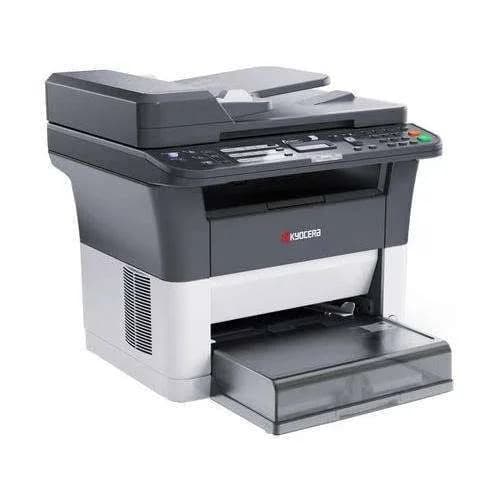
- Choose a mono laser like the HP 137fnw or the Kyocera FS-1025MFP if you print in bursts with long gaps, and want a printer that never dries out.
- Choose a tank laser like the HP LaserJet Tank 2602sdn if you want laser reliability with a low cost per page.
- Choose Wi-Fi or a feeder if you need them, and step up to the M2170 or M3170.
Tell us your monthly pages and priorities, and we'll recommend honestly.
Ink-saving habits for a busy desk
Small habits stretch every bottle.
- Print in draft mode for internal documents.
- Print double-sided wherever possible.
- Check page ranges before printing.
- Avoid printing long email threads and web pages with large images.
- Use PDF preview to catch blank or repeated pages.
- Avoid heavy black backgrounds in documents.
- Store spare bottles upright, away from heat and sunlight.
Why duplex matters more than you think
Automatic duplex is easy to overlook on a spec sheet, and it quietly changes the economics of printing.
- Paper is a big cost. In an office printing thousands of pages, paper often costs more than ink with a tank printer.
- Halving paper use halves that cost on multi-page documents.
- It also saves storage and filing space, because double-sided documents are thinner.
- It reduces waste, which many schools and organisations care about.
- It makes documents easier to carry and bind.
For a printer that costs little to run on ink, paper becomes the main running cost, and duplex tackles it directly.
A note on regular use
Because the M2140 is an inkjet, it works best when it prints something regularly. A page a week keeps the print head healthy. If the printer is idle for a long time, the head can clog, and cleaning cycles use ink. If you rarely print, a mono laser, such as the Kyocera or HP models in our range, may suit you better. If you print often, which is why most customers choose a tank printer, the M2140 is a very good choice.
Using a printer in Kenya
Power protection. Printers can be damaged by surges. Use a surge protector, and don't plug a printer into a UPS meant for computers.
Dust and heat. Keep the printer covered when idle, in a clean, shaded spot.
Paper storage. Keep paper flat and dry, because humidity makes paper curl and jam, and duplex is especially sensitive.
USB cable. Use a good-quality cable, ideally under 2 metres, plugged directly into the computer.
Warranty. Ask us for the warranty that applies to the unit you order, and keep the receipt and box.
How it compares with other options in our range
| Epson M2140 | Epson M2170 | Epson M3170 | Brother DCP-T220 | |
|---|---|---|---|---|
| Colour | No | No | No | Yes |
| Automatic duplex | Yes | Yes | Confirm | No |
| Wi-Fi | Not listed | Yes | Yes | No |
| Document feeder | No | No | Yes | No |
| Fax | No | No | Yes | No |
| Cost per page | Very low | Very low | Very low | Very low |
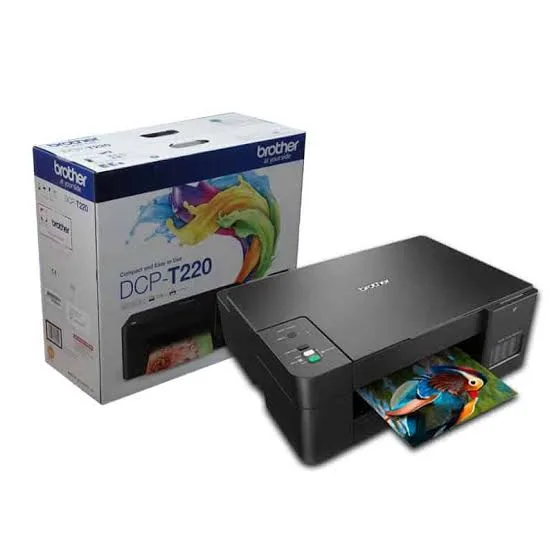
| Best for | Mono printing from one PC | Shared mono printing | Mono printing with feeder and fax | Colour from one PC |
Honest pros and cons
Pros
- A very low cost per page for black-and-white documents.
- Automatic duplex printing.
- Up to 39 ppm in draft mode.
- Sharp, smudge-resistant pigment ink.
- The lowest price in Epson's mono range.
- Print, copy and colour scan in one machine.
Cons
- Black and white printing and copying only.
- No Wi-Fi listed, so no phone printing.
- No document feeder or fax.
- Needs regular use to keep the print head healthy.
- A little messy to refill the first time.
What to check when it arrives
- The box model matches Epson EcoTank Monochrome M2140.
- The printer, power cable, USB cable and ink bottle are in the box.
- All packing tape and protective material are removed.
- The ink tank fills properly, and a test page prints.
- Duplex printing, copying and scanning work.
- You get a receipt with the serial number and warranty details in writing.
Frequently asked questions
What is the Epson M2140 price in Kenya? We confirm the current price when you message us on WhatsApp, because supplier prices change. We tell you the price and what's in the box before you pay.
Where can I buy the Epson M2140 in Nairobi? At City Gadgets Kenya, New Alnoor Exhibition, Second Floor, Shop C7, Accra Road, Nairobi CBD, or by delivery.
Does it print in colour? No. It prints and copies in black and white, and it scans in colour.
Does it print double-sided automatically? Yes.
Does it have Wi-Fi? The specifications we found don't list it. See the Epson M2170 for Wi-Fi. We'll confirm for the unit you order.
Does it have a document feeder or fax? No. See the Epson M3170.
What warranty does it have? Ask us for the warranty that applies to the unit you order.
Can you deliver it? Yes, same day in Nairobi and next day outside Nairobi.
Can I pay via M-Pesa? Yes.
Why buy from City Gadgets Kenya
Genuine, brand-new Epson printer. We're at New Alnoor Exhibition, Second Floor, Shop C7, Accra Road, Nairobi CBD, and you're welcome to look at the printer before you buy. Message us on WhatsApp with how you'll use it, and we'll tell you honestly whether the M2140 is right or the M2170 would suit you better. We confirm what's in the box before you pay.
Order your Epson EcoTank Monochrome M2140 today
Available now at City Gadgets Kenya. Message us on WhatsApp.
Specifications
- Brand
- Epson
- Condition
- New
Frequently Asked Questions
How much does the Epson EcoTank Monochrome M2170 Wi-Fi Duplex Ink Tank All-in-One Printer cost in Kenya?
The Epson EcoTank Monochrome M2170 Wi-Fi Duplex Ink Tank All-in-One Printer is priced at Ksh 43,000 at City Gadgets. You can pay via M-Pesa, card or cash on delivery.
Is the Epson EcoTank Monochrome M2170 Wi-Fi Duplex Ink Tank All-in-One Printer available in Kenya?
Yes — the Epson EcoTank Monochrome M2170 Wi-Fi Duplex Ink Tank All-in-One Printer is in stock at City Gadgets, ready for same-day delivery in Nairobi and countrywide shipping across Kenya.
Is the Epson EcoTank Monochrome M2170 Wi-Fi Duplex Ink Tank All-in-One Printer genuine and does it have a warranty?
Every Epson EcoTank Monochrome M2170 Wi-Fi Duplex Ink Tank All-in-One Printer we sell is 100% genuine brand-new stock and comes with a 12-month official brand warranty.
Do you deliver the Epson EcoTank Monochrome M2170 Wi-Fi Duplex Ink Tank All-in-One Printer in Nairobi?
Yes. We offer fast same-day delivery within Nairobi and fast, affordable delivery to the rest of Kenya — order online or on WhatsApp.
Customer Reviews
No reviews yet
Be the first to review this product.
Rate us on Google
Your review helps other shoppers find us
Reviews from verified buyers will appear here.