HP DeskJet Ink Advantage 2876 All-in-One Wi-Fi Printer in Kenya | City Gadgets Kenya
Same-day delivery in Nairobi by 10 Oct – 11 Oct
Description
Buy the genuine HP DeskJet Ink Advantage 2876 colour all-in-one printer with Wi-Fi in Kenya from City Gadgets Kenya. HP DeskJet 2876 price in Kenya, compact home printer Nairobi, first printer for a student or teen. An honest buyer's guide with running costs.
HP DeskJet Ink Advantage 2876 All-in-One Wi-Fi Printer in Kenya
Genuine HP | Brand New | A4 Colour Print, Copy and Scan | Wi-Fi and USB | Compact Home Printer in Cement
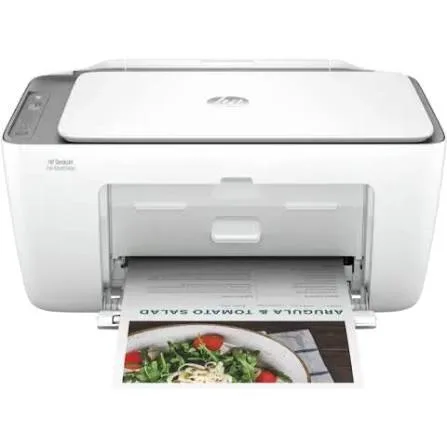
Searching for the HP DeskJet 2876 price in Kenya, a compact Wi-Fi printer for your home in Nairobi, or a first printer for a student or teenager? The HP DeskJet Ink Advantage 2876 is a brand-new, genuine A4 colour all-in-one inkjet that prints, copies and scans, with Wi-Fi and USB. Retailers list it in a cement colour, and its core specifications match the 2875. It's available from City Gadgets Kenya with delivery across Kenya. Buyers also search for it as an HP 2876, an HP DeskJet IA 2876, a small colour printer scanner copier, a printer for a teenager's room, a printer for a small desk, a gift printer, or a cheap Wi-Fi all-in-one.
This guide takes a slightly different angle from our page on the 2875: it focuses on buying a first printer, on how the 2875, 2876 and 2976 differ, and on running costs, which any honest guide to this class of printer has to cover. If you'd like to talk it through, message us on WhatsApp.
The short verdict
The HP DeskJet Ink Advantage 2876 is a low-priced first printer for homes where printing is light. It prints, scans and copies in colour, joins your Wi-Fi through the HP Smart app, and takes up little space. As with all small cartridge printers, its weakness is the cost of ink: HP rates it for 50 to 100 pages a month, and each page costs several times more than on an ink tank printer. If you or your child will print a few pages a week, the 2876 is a sensible, inexpensive choice. If printing will be regular, the Epson EcoTank L3250 in our range costs more upfront and much less to run.
2875, 2876 and 2976: what's the difference?
Buyers are often confused by HP's near-identical names, so here is a clear comparison.
- The 2875 and 2876 share the same core specifications. Retailer listings for both show print, copy and scan, up to 7.5 ppm black and 5.5 ppm colour in the ISO test, a 60-sheet tray, manual duplex, Wi-Fi on 2.4 GHz and USB. The 2876 is listed in a cement colour with HP 653 setup cartridges.
- The 2976 steps up the Wi-Fi. It adds dual-band Wi-Fi (2.4 and 5 GHz), HP's "self-healing" reconnection feature, and Mopria support for Android printing, per a retailer listing.
- All three use the same type of small cartridge and are rated for light use.
If the colour or availability suits you, the 2875 and 2876 are interchangeable. If your home Wi-Fi is busy and you want a steadier connection, look at the 2976 in our range.
Who this printer is for
It suits you if:
- You're buying a first printer for a student or teenager.
- You print only a few pages a week: homework, forms and the occasional colour page.
- You want the lowest purchase price and a compact machine.
- You want simple setup from your phone.
- You need a small printer for a spare room or a shelf.
Look elsewhere if:
- You print dozens of pages a week. See the Epson EcoTank L3250 or L3260.
- You need automatic double-sided printing, a feeder or Ethernet.
- You print many photos, where cartridge costs are high.
- You run a business from home with regular printing.
Specifications in plain English
| Feature | Detail | What it means for you |
|---|---|---|
| Model | HP DeskJet Ink Advantage 2876 (6W7E6C) | HP's compact entry colour all-in-one |
| Functions | Print, copy and scan | Three jobs in one machine |
| Technology | HP thermal inkjet, black and tri-colour cartridges | Simple cartridge printing |
| Speed (ISO) | Up to 7.5 ppm black and 5.5 ppm colour | Slow but steady |
| Speed (draft) | Up to 20 ppm black and 16 ppm colour | Faster for drafts |
| First page out | About 13 seconds black and 16 seconds colour | Not instant |
| Print quality | Up to 1200 x 1200 dpi (black) and 4800 x 1200 optimised dpi (colour) | Good for everyday use |
| Duplex | Manual, with driver support | You turn pages yourself |
| Connectivity | Wi-Fi (802.11 b/g/n) and Hi-Speed USB 2.0 | Wireless and wired |
| Duty cycle | Up to 1,000 pages a month | The absolute maximum |
| Recommended volume | 50 to 100 pages a month | The comfortable range |
| Display | Icon LCD | A simple indicator screen |
| Size and weight | About 425 x 304 x 154 mm, about 3.4 kg | Compact and light |
| In the box | Printer, HP 653 setup black and tri-colour cartridges, power cord and setup guides | Ready to start |
These figures come from retailer listings of the 2876. Ask us to confirm what's in the box and the warranty for the unit you order.
Buying a first printer: a short guide
If this is your first printer, a few principles save money and frustration.
- Estimate your pages honestly. Count what you printed last month, or what your child's school asks for.
- Look at running costs, not only the price. A cheap printer can be an expensive habit.
- Think about features you'll actually use. Wi-Fi is useful. Automatic duplex and a feeder matter only if you print or scan a lot.
- Check the cartridges. Know which cartridges the printer needs, what they cost and where you can buy them.
- Plan for protection. A surge protector and a dust cover cost little, and prevent many faults.
- Ask about warranty and support. A seller that answers questions after the sale is worth more than a small discount.
For many first-time buyers, the 2876 is a good start. For others, an ink tank printer is the smarter first purchase.
The honest truth about running costs
Because the DeskJet family has a high cost per page, it deserves a plain explanation.
- Small cartridges, high cost per page. The HP 653 cartridges are small, and each page costs several times what it would on an ink tank printer.
- Setup cartridges are small. The ones in the box print fewer pages than standard cartridges, so keep a spare set.
- HP's own range. HP recommends 50 to 100 pages a month for this printer.
- Colour pages cost more than black ones.
- Photos are the costliest. If you want to print photos, an ink tank photo printer such as the Epson L8050 in our range is far cheaper per print.
If you print only a little, the low purchase price wins. If you print a lot, it's a false economy, and we'll say so honestly.
Setting up the printer
- Unbox and remove all packing tape inside and outside the printer.
- Plug in and switch on, then install the setup cartridges.
- Load plain A4 paper in the tray.
- Download the HP Smart app and follow the steps to join your Wi-Fi.
- Print an alignment page if the printer prompts you.
- Print a test page and make a test copy.
- Keep the box, which you'll need if there's a warranty claim.
A teenager's printer: practical tips
A printer for a student at home or in a hostel works best with a few simple rules.
- Agree on a paper and cartridge plan, so nobody runs out at a deadline.
- Print drafts in greyscale, and only print the final copy in colour.
- Use print preview to avoid wasted pages.
- Keep digital copies of assignments, backed up to a SanDisk flash drive or the cloud.
- Use the HP Smart app to scan notes and homework to the phone.
- Keep the printer covered and on a stable shelf, away from food and drinks.
- Switch off with the power button when not in use for long.
Using the HP Smart app: a quick walkthrough
The app turns your phone into the printer's control panel, and a first-time walkthrough helps.
- Install the app from your phone's app store, and open it.
- Add the printer. The app searches for printers on your Wi-Fi, or guides you through setup if the printer is new.
- Choose what to do: print, scan, copy or check supplies.
- To print, pick a photo or document, choose the number of copies and paper size, and send.
- To scan, place the page on the glass, open the scan tool, and save it as a PDF or image on your phone.
- To copy, place the page on the glass and use the copy tool, or the buttons on the printer.
- To check ink, open the supplies page for cartridge levels.
- For help, use the troubleshooting section.
On Apple devices, AirPrint also lets you print from many apps without HP Smart. On Android, the built-in printing service usually finds the printer on the network.
Printing from a phone without extra apps
Phones can print without installing the printer maker's app.
- iPhone and iPad. Open a photo or document, tap Share, then Print, and choose the printer on your Wi-Fi.
- Android. Use the Print option in the app's menu, and choose the printer.
- Windows laptops. Windows finds Wi-Fi printers automatically in Settings, then Printers and scanners.
- Mac. System Settings, then Printers, will find the printer on the network.
- Same network. Always make sure your phone or laptop is on the same Wi-Fi as the printer.
If printing fails, restart the printer and the router, and check you're on the 2.4 GHz band.
Common problems and simple fixes
The printer shows offline. Restart the printer and your router, and make sure both are on the same Wi-Fi network.
Prints are faint or streaky. Run the print-head cleaning tool from the app or printer software, and check cartridge levels.
Colours look wrong. Clean the print head, replace the colour cartridge if empty and check the paper type setting.
Paper jams. Switch off, pull the paper out gently, and use good, dry paper.
Cartridge not recognised. Remove it, check the contacts and refit it. Use genuine HP cartridges.
Slow printing. The 2876 is slow by design, with an ISO speed of 7.5 ppm. Draft mode is faster.
The app can't find the printer. Check that your phone and printer are on the same Wi-Fi, and use USB for setup if needed.
If a problem continues, message us on WhatsApp.
When to move up to an ink tank printer
Many of our customers start with a DeskJet and later upgrade. You'll know it's time when:
- You replace cartridges every month or two.
- You print more than about 100 pages a month.
- You print photos or colour documents regularly.
- You need automatic duplex, a feeder or Ethernet.
- You run a small business from home.
The Epson EcoTank L3250, L3260 and L4360 in our range cost more upfront and far less per page, and a printer you use heavily pays them back within a year.
Gifts, schools and small spaces
The 2876's small size and low price make it popular in a few specific ways.
- A gift for a student starting college, with spare cartridges and paper included.
- A school or hostel room printer, kept on a small desk and covered when idle.
- A small apartment or bedsitter, where space is tight.
- A backup printer for a home office, used for occasional jobs.
- A printer for grandparents, with simple setup done by a family member and a plan for cartridges.
In each case, buy the spare cartridges at the same time, so the printer is never stuck with empty setup cartridges.
Questions to ask before you buy any entry printer
- How many pages will I print each month? Be honest.
- What does a replacement cartridge cost, and how many pages does it print?
- Do I need double-sided printing, a feeder or Ethernet?
- What's in the box, and are the cartridges full size?
- Which Wi-Fi band does it support?
- What warranty is included, and who honours it? Get it in writing.
- Can I see it before I pay? A trustworthy seller says yes.
We're glad to answer all of these on WhatsApp or in the shop before you pay.
Looking after the printer for years
- Print something every week or two, so the cartridges don't dry out.
- Use the printer's power button, not the wall switch.
- Keep it covered, level and out of direct sun.
- Use genuine HP cartridges.
- Wipe the glass and body with a soft cloth.
- Keep the app and firmware updated.
Warranty and after-sales: what to ask
A printer is a purchase worth protecting, so ask us what warranty covers the unit you order, how long it lasts and what it covers. Printers normally exclude consumables such as cartridges, and damage from non-genuine supplies or misuse. Keep your receipt, the serial number and the box. If a fault appears, message us on WhatsApp first, and we'll tell you the quickest way to get it sorted.
What the "Ink Advantage" name means
HP uses several family names, and it helps to know what "Ink Advantage" tells you.
- Ink Advantage is HP's line of low-cost inkjet printers, designed to be cheap to buy, with cartridges priced to keep the cost per page lower than HP's regular cartridge printers.
- It's still a cartridge printer. The cost per page remains far higher than an ink tank printer.
- The model number (2876) identifies the generation and features. Higher numbers in the family generally add features.
- Regional versions exist. Part numbers differ by region, and the same printer can carry several codes. That's why the 2875 and 2876 look almost identical on paper.
Understanding this helps you read listings with confidence, and see through marketing that makes small differences sound big.
Keeping cartridges healthy
Cartridges are the most delicate part of a small inkjet.
- Print something every week or two, even a small colour test.
- Don't leave the printer switched on at the wall for weeks; use the power button so the printer caps the print head properly.
- Store spare cartridges sealed, in a cool, dry place, away from sunlight.
- Don't touch the copper contacts or the nozzles.
- Replace cartridges promptly when they run out, and don't leave an empty cartridge in for weeks.
- Use genuine HP cartridges, since cheap refills can clog the head and cause streaks.
Scanning and copying with a compact printer
The 2876 scans and copies from a flatbed glass, and a few habits improve results.
- Clean the glass with a soft, lint-free cloth before scanning.
- Place the page face down against the corner marker, and close the lid gently.
- Use the HP Smart app to scan straight to your phone as a PDF or image.
- Choose 300 dpi for documents, and higher only for photos.
- For multi-page documents, scan page by page and combine them in the app.
- Copying works from the buttons or the app, in colour or black-and-white.
- Remember there's no feeder. If you scan stacks regularly, an Epson L5290 or L6370 in our range is much quicker.
For occasional scans of an ID, a form or a receipt, the 2876 does the job well.
How long should a small printer last?
An entry-level inkjet is built to a price, and its lifespan depends on how you use it. With light use, regular weekly printing and a surge protector, a DeskJet can serve a household for several years. With heavy use, the rollers and cartridges wear faster. Printers of this type are generally not repaired, so when one fails after the warranty, you replace it. That's one more reason to match the printer to your real needs, and to move to a sturdier model when your printing grows.
A short checklist for the first week
New printers behave best when the first week goes well.
- Print a few test pages in black and in colour.
- Run the alignment if the printer or app asks.
- Make a test copy and a test scan.
- Save the printer's Wi-Fi details and the serial number in a note on your phone.
- Buy a spare cartridge set before the setup cartridges run out.
- Cover the printer when you aren't using it.
Using a printer in Kenya
Power protection. Printers can be damaged by surges. Use a surge protector, and don't plug a printer into a UPS meant for computers.
Dust and heat. Keep the printer covered when idle, in a clean, shaded spot.
Paper storage. Keep paper flat and dry, because humidity makes paper curl and jam.
Wi-Fi. The 2876 connects on 2.4 GHz only. If your router offers separate 2.4 and 5 GHz networks, join the printer to the 2.4 GHz one.
Warranty. A Kuwait retailer lists a one-year brand warranty for this model. Ask us for the warranty that applies to the unit you order in Kenya, and keep the receipt and box.
How it compares with other options in our range
| HP DeskJet 2876 | HP DeskJet 2875 | HP DeskJet 2976 | Epson L3250 | Epson L3260 | |
|---|---|---|---|---|---|
| Type | Cartridge inkjet | Cartridge inkjet | Cartridge inkjet | Ink tank | Ink tank |
| Wi-Fi | 2.4 GHz | 2.4 GHz | Dual band | 2.4 GHz plus Wi-Fi Direct | 2.4 GHz plus Wi-Fi Direct |
| Screen | Icon LCD | Icon LCD | Icon LCD | None | 1.44-inch colour |
| Cost per page | High | High | High | Very low | Very low |
| Best for | Occasional home use | Occasional home use | Occasional use on busy Wi-Fi | Regular home printing | Shared home printing |
Honest pros and cons
Pros
- A very low purchase price.
- Print, copy and scan in one compact machine.
- Wi-Fi and simple setup with the HP Smart app.
- Colour printing.
- A small, light body.
Cons
- A high cost per page, with small cartridges.
- Recommended for only 50 to 100 pages a month.
- Slow printing.
- Manual duplex, no feeder, no Ethernet.
- 2.4 GHz Wi-Fi only.
- Setup cartridges run out sooner than standard ones.
What to check when it arrives
- The box model matches HP DeskJet Ink Advantage 2876.
- The printer, power cord, setup cartridges and paperwork are in the box.
- All packing tape is removed.
- The cartridges install, and a test page prints.
- Wi-Fi connects through the HP Smart app.
- The scanner and copier work.
- You get a receipt with the serial number and warranty details in writing.
Frequently asked questions
What is the HP DeskJet 2876 price in Kenya? We confirm the current price when you message us on WhatsApp, because supplier prices change. We tell you the price and what's in the box before you pay.
Where can I buy the HP DeskJet 2876 in Nairobi? At City Gadgets Kenya, New Alnoor Exhibition, Second Floor, Shop C7, Accra Road, Nairobi CBD, or by delivery.
Is the 2876 the same as the 2875? Retailer listings show the same core specifications, with a different colour and part number.
Does it have Wi-Fi? Yes, 2.4 GHz Wi-Fi, plus USB.
Does it print double-sided? Only manually.
How many pages can I print a month? HP recommends 50 to 100 pages.
Can I print photos? Basic photos, but cartridge photo printing is costly.
What warranty does it have? Ask us for the warranty that applies to the unit you order.
Can you deliver it? Yes, same day in Nairobi and next day outside Nairobi.
Can I pay via M-Pesa? Yes.
Why buy from City Gadgets Kenya
Genuine, brand-new HP printer. We're at New Alnoor Exhibition, Second Floor, Shop C7, Accra Road, Nairobi CBD, and you're welcome to look at the printer before you buy. Message us on WhatsApp with how much you print, and we'll tell you honestly whether the 2876 is right or an ink tank printer would save you money. We confirm what's in the box before you pay.
Order your HP DeskJet Ink Advantage 2876 today
Available now at City Gadgets Kenya. Message us on WhatsApp.
Specifications
- Brand
- HP
- Condition
- New
Frequently Asked Questions
How much does the HP DeskJet Ink Advantage 2876 All-in-One Wi-Fi Printer in Kenya | City Gadgets Kenya cost in Kenya?
The HP DeskJet Ink Advantage 2876 All-in-One Wi-Fi Printer in Kenya | City Gadgets Kenya is priced at Ksh 11,550 at City Gadgets. You can pay via M-Pesa, card or cash on delivery.
Is the HP DeskJet Ink Advantage 2876 All-in-One Wi-Fi Printer in Kenya | City Gadgets Kenya available in Kenya?
Yes — the HP DeskJet Ink Advantage 2876 All-in-One Wi-Fi Printer in Kenya | City Gadgets Kenya is in stock at City Gadgets, ready for same-day delivery in Nairobi and countrywide shipping across Kenya.
Is the HP DeskJet Ink Advantage 2876 All-in-One Wi-Fi Printer in Kenya | City Gadgets Kenya genuine and does it have a warranty?
Every HP DeskJet Ink Advantage 2876 All-in-One Wi-Fi Printer in Kenya | City Gadgets Kenya we sell is 100% genuine brand-new stock and comes with a 12-month official brand warranty.
Do you deliver the HP DeskJet Ink Advantage 2876 All-in-One Wi-Fi Printer in Kenya | City Gadgets Kenya in Nairobi?
Yes. We offer fast same-day delivery within Nairobi and fast, affordable delivery to the rest of Kenya — order online or on WhatsApp.
Customer Reviews
No reviews yet
Be the first to review this product.
Rate us on Google
Your review helps other shoppers find us
Reviews from verified buyers will appear here.