HP DeskJet Ink Advantage 2875 All-in-One Wi-Fi Printer in Kenya | City Gadgets Kenya
Same-day delivery in Nairobi by 10 Oct – 11 Oct
Description
Buy the genuine HP DeskJet Ink Advantage 2875 colour all-in-one printer with Wi-Fi in Kenya from City Gadgets Kenya. HP DeskJet 2875 price in Kenya, cheap home printer scanner copier Nairobi, starter printer for students. An honest buyer's guide with running costs.
HP DeskJet Ink Advantage 2875 All-in-One Wi-Fi Printer in Kenya
Genuine HP | Brand New | A4 Colour Print, Copy and Scan | Wi-Fi and USB | Compact Starter Printer
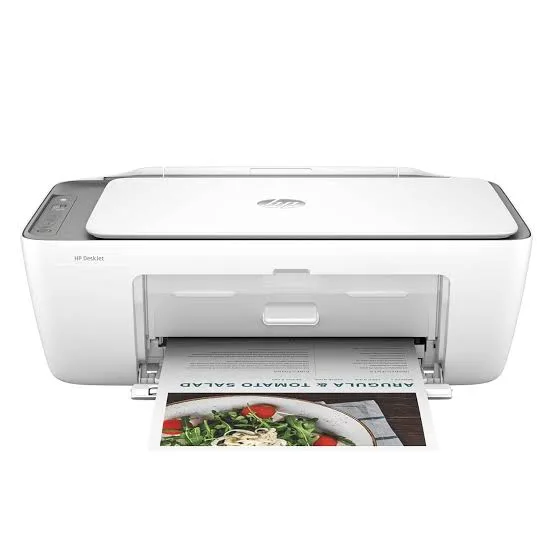
Looking for the HP DeskJet 2875 price in Kenya, a cheap printer for home or school in Nairobi, or a compact Wi-Fi printer, scanner and copier? The HP DeskJet Ink Advantage 2875 is a brand-new, genuine A4 colour all-in-one inkjet that prints, copies and scans, and connects by Wi-Fi and USB. It's HP's entry-level family printer: small, simple and inexpensive to buy, with setup cartridges included. It's available from City Gadgets Kenya with delivery across Kenya. Buyers also search for it as an HP DeskJet Ink Advantage 2875, an HP 2875 printer, a cheap Wi-Fi printer, a home printer scanner copier, a student printer, a small desk printer, or the cheapest colour all-in-one printer.
This guide is written to help you decide honestly. We explain what the 2875 does well, what it costs to run, and, importantly, who should buy a refillable ink tank printer instead. If you'd like to talk it through, message us on WhatsApp.
The short verdict
The HP DeskJet Ink Advantage 2875 is a very affordable way to own a printer, scanner and copier, and it's well suited to a person or household that prints only occasionally. Setup is simple through the HP Smart app, it's compact enough for a shelf, and it prints in colour. The honest catch is the running cost: it uses small replacement cartridges, and HP itself rates it for about 50 to 100 pages a month. Per page, cartridges cost far more than the refillable ink in an ink tank printer, so if you print more than a little, you'll spend more on ink than a more expensive tank printer would cost you. If you print a handful of pages a week, the 2875 is a fine, low-cost choice. If you print regularly, look at the Epson EcoTank L3250 or L3260 in our range.
Who this printer is for
It suits you if:
- You print only occasionally: a few pages a week, such as forms, assignments and the odd photo.
- You want the lowest purchase price for a printer, scanner and copier.
- You have limited space and want a compact machine.
- You want simple setup from your phone.
- You need a basic second printer for a spare room or a child's desk.
Look elsewhere if:
- You print dozens of pages a week or more. An ink tank printer will cost far less to run.
- You need automatic double-sided printing or a document feeder.
- You need to share the printer across an office by network cable. The 2875 uses Wi-Fi and USB only.
- You print photos regularly, where a cartridge printer is costly.
Specifications in plain English
| Feature | Detail | What it means for you |
|---|---|---|
| Model | HP DeskJet Ink Advantage 2875 (60K47C) | HP's entry colour all-in-one |
| Functions | Print, copy and scan | Three jobs in one machine |
| Print technology | HP thermal inkjet, with two cartridges (black and tri-colour) | Simple cartridge printing |
| Print speed (ISO) | Up to 7.5 ppm black and 5.5 ppm colour | Slow but steady |
| Print speed (draft) | Up to 20 ppm black and 16 ppm colour | Faster in draft mode |
| First page out | About 13 seconds black and 16 seconds colour | Not instant |
| Print quality | Up to 1200 x 1200 dpi (black) and 4800 x 1200 optimised dpi (colour) | Good for text and everyday colour |
| Paper input | 60 sheets | A small tray |
| Duplex (double-sided) | Manual | You turn pages yourself |
| Connectivity | Wi-Fi (802.11 b/g/n, 2.4 GHz only) and Hi-Speed USB 2.0 | Wireless and wired |
| Monthly duty cycle | Up to 1,000 pages | The absolute maximum |
| Recommended monthly volume | 50 to 100 pages | The comfortable range |
| Cartridges | HP 653 black and tri-colour (setup cartridges included) | Small cartridges that run out quickly |
| Display | Icon LCD | Simple indicator screen |
These figures come from HP and retailer listings of the 2875. Setup cartridges in the box print fewer pages than standard ones, so keep a spare set. Ask us to confirm what's in the box for the unit you order.
The honest truth about running costs
This is the most important section on the page.
Cartridge printers cost little to buy and a lot to run. The HP 653 cartridges are small, and each page costs many times what it would on an ink tank printer. The setup cartridges that come with the printer print fewer pages than standard ones, so you may need to replace them sooner than you expect.
An example to try. Ask us for the price of an HP 653 black cartridge and its rated page yield, and divide. Do the same for a bottle of Epson ink and its rated yield. For a household printing 100 pages a month, the difference adds up within months. For one printing 10 pages a month, it hardly matters.
HP's own guidance. HP lists a recommended monthly volume of 50 to 100 pages for this printer. If you print above that regularly, you're outside the range it was designed for.
Our advice. If you print under about 100 pages a month, the 2875 is economical because the purchase price is low. If you print more, an Epson EcoTank costs more upfront, and costs less within months. We'll tell you honestly which suits you when you message us.
What the 2875 does well
- Low purchase price. It's among the cheapest ways to get a printer, scanner and copier in one.
- Compact size. It fits on a small shelf or desk.
- Easy setup. The HP Smart app guides you through connecting to Wi-Fi.
- Colour printing. Good enough for homework, forms and everyday colour documents.
- Mobile printing. Print from your phone with the HP Smart app and AirPrint on Apple devices.
- Low power use. It sips electricity compared with a laser.
What the 2875 leaves out
- No automatic duplex, so double-sided printing is manual.
- No document feeder, so you scan and copy one page at a time on the glass.
- No fax, and no Ethernet port.
- No 5 GHz Wi-Fi. The 2875 connects on the 2.4 GHz band only. The 2976 in our range adds dual-band Wi-Fi.
- A small 60-sheet tray and a slow print speed.
- No borderless photo printing, per HP's listing for this family.
Setting up the printer
- Unbox and remove all packing tape inside and outside the printer.
- Plug in and switch on, then install the setup cartridges, following the on-screen prompts.
- Load plain A4 paper in the tray, and slide the guides in.
- Download the HP Smart app on your phone or computer.
- Follow the app to connect the printer to your Wi-Fi.
- Print an alignment page when prompted, and place it on the scanner glass if the printer asks.
- Print a test page and make a test copy.
Using the HP Smart app
The app is the easiest way to run the printer.
- Setup. It finds the printer and joins it to your Wi-Fi.
- Print. Print documents and photos from your phone.
- Scan. Scan a page with the printer and save it to your phone as a PDF or image.
- Copy. Start a copy from your phone.
- Check ink. See estimated cartridge levels.
- Get help. Troubleshooting tips and support links.
On Apple devices, AirPrint also lets you print without the app, as long as the phone and printer are on the same Wi-Fi.
Tips to save ink and money
- Print in draft or greyscale for everyday documents.
- Print only what you need. Use print preview.
- Use black-and-white unless colour matters.
- Print something occasionally. Cartridges can dry out if left for months.
- Keep spare cartridges in their sealed packs, in a cool, dry place.
- Use genuine HP cartridges. Cheap refills can clog the head.
- Avoid printing photos on this printer, where ink costs are high. Use a photo shop, or an Epson ink tank photo printer.
A worked example: three households, three answers
Numbers help you decide, so here are three typical cases. Ask us for current cartridge and bottle prices, and swap in the real figures.
The light user: 10 to 20 pages a month. A student or family that prints a few forms and assignments. The 2875's cartridge cost per page doesn't matter much at this volume, and its low purchase price is the saving. The 2875 is the right choice.
The moderate user: 50 to 100 pages a month. A household with school-age children. Cartridge costs add up, and the setup cartridges run out within a few months. The 2875 still works, and an ink tank printer would start to pay for itself within a year.
The regular user: 200 pages a month or more. A home business, a studio or a busy family. Cartridges become the main expense, and an Epson EcoTank saves a large amount per year. For this user, the 2875 is a false economy.
Our advice is to find your own number honestly. If you're unsure, count the pages you printed last month, and message us.
A student's guide to using it well
The 2875 is a popular student printer, and a few habits keep costs and stress down.
- Print in draft or greyscale for notes and drafts, and keep the colour cartridge for the pages that need it.
- Print double-sided manually for long documents. Print odd pages, flip the stack as the app shows and print the even pages.
- Use a campus or print shop for big jobs, such as a thesis, where a cartridge printer's cost per page is high.
- Keep a spare cartridge set so a deadline doesn't catch you with empty cartridges.
- Save digital copies of everything you print, and back them up to a SanDisk flash drive.
- Protect the printer. A cover, a surge protector and a stable shelf prevent most faults.
Scanning and copying basics
The 2875 scans and copies from a flatbed glass.
- Clean the glass with a soft, lint-free cloth.
- Place the page face down against the corner marker.
- Scan with the HP Smart app to save PDFs or images straight to your phone.
- Choose the resolution. 300 dpi suits documents, and higher settings make bigger files.
- Copy with the buttons or the app. Copies are made in colour or black-and-white.
- For multi-page documents, scan each page and combine them into one PDF in the app.
Because there's no document feeder, scanning many pages by hand takes time. If you do this often, an Epson L5290 or L6370 in our range has a feeder.
Common problems and simple fixes
The printer shows offline. Restart the printer and your router, make sure both are on the same Wi-Fi network, and check that the printer is on the 2.4 GHz band.
Prints are faint or streaky. Run the printer's clean-the-print-head tool from the HP Smart app or the printer software, and check cartridge levels. Replace empty cartridges.
Colours look wrong. Replace or clean the colour cartridge, and make sure the paper type setting is correct.
Paper jams. Switch off, pull the paper out gently, and use good-quality, dry paper.
The printer won't recognise a cartridge. Remove it, check the contacts for dust, and refit it. Use genuine HP cartridges.
It prints slowly. The 2875 is slow by design, with an ISO speed of 7.5 ppm. Draft mode is faster.
The app can't find the printer. Check that your phone is on the same Wi-Fi network, and try USB for setup.
If a problem continues, message us on WhatsApp.
Signs you've outgrown it
An entry printer serves well until your needs change. You may be ready for an upgrade if:
- You replace cartridges every month or two.
- You print more than about 100 pages a month.
- You need automatic double-sided printing or a document feeder.
- You want to share the printer across an office by network cable.
- You print photos or colour documents regularly.
When that happens, the Epson EcoTank printers in our range cost more upfront and far less to run, and we're happy to help you move up.
Questions to ask before you buy any entry printer
- How many pages will I print each month? Be honest.
- What does a replacement cartridge cost, and how many pages does it print?
- Do I need double-sided printing, a feeder or Ethernet?
- What's in the box, and are the cartridges full size?
- Which Wi-Fi band does it support?
- What warranty is included, and who honours it? Get it in writing.
- Can I see it before I pay? A trustworthy seller says yes.
We're glad to answer all of these on WhatsApp or in the shop before you pay.
Looking after the printer for years
- Print something every week or two, so the cartridges don't dry out.
- Use the printer's power button, not the wall switch.
- Keep it covered, level and out of direct sun.
- Use genuine HP cartridges.
- Wipe the glass and body with a soft cloth.
- Keep the app and firmware updated.
Warranty and after-sales: what to ask
A printer is a purchase worth protecting, so ask us what warranty covers the unit you order, how long it lasts and what it covers. Printers normally exclude consumables such as cartridges, and damage from non-genuine supplies or misuse. Keep your receipt, the serial number and the box. If a fault appears, message us on WhatsApp first, and we'll tell you the quickest way to get it sorted.
Wi-Fi in plain language: why the 2.4 GHz limit matters
Many modern routers broadcast two Wi-Fi bands, and the 2875 can use only one.
- 2.4 GHz has longer range and passes through walls better, but it's slower and more crowded with other devices.
- 5 GHz is faster with less interference, but has a shorter range.
- The 2875 supports 2.4 GHz only. If your router combines both bands under one name, the printer usually joins the right one on its own, though some routers cause confusion.
- If setup fails, temporarily turn off the 5 GHz band on your router, or use USB for setup.
- For busy Wi-Fi homes, the dual-band DeskJet 2976 in our range handles this better.
If you aren't sure about your router's bands, we can help you check on WhatsApp.
Choosing paper for a small inkjet
Paper makes a visible difference on a small inkjet.
- Plain 80 gsm paper is fine for documents and homework.
- Brighter paper makes colour look better.
- Photo paper gives better results for photos, but remember the cost of cartridge photo printing.
- Avoid thin or damp paper, which jams and shows through.
- Keep paper sealed and flat, and load it with the guides snug.
- Match the paper type setting in the print dialog.
A note on HP's setup cartridges
Entry printers ship with "setup" cartridges, and it helps to know what that means. They contain enough ink to get you started, and they typically print fewer pages than a standard retail cartridge. That's normal, and it's why we recommend keeping a spare set on hand. When a cartridge runs out, the printer or the HP Smart app will tell you. Don't wait until a deadline to find out. Buy the matching HP 653 cartridges, and store them sealed.
Using a printer in Kenya
Power protection. Printers can be damaged by surges. Use a surge protector, and don't plug a printer into a UPS meant for computers.
Dust and heat. Keep the printer covered when idle, in a clean, shaded spot.
Paper storage. Keep paper flat and dry, because humidity makes paper curl and jam.
Wi-Fi. The 2875 connects on 2.4 GHz only. If your router offers separate 2.4 and 5 GHz networks, join the printer to the 2.4 GHz one.
Warranty. Ask us for the warranty that applies to the unit you order, and keep the receipt and box. A Kuwait retailer lists a one-year brand warranty, and Kenyan terms may differ.
Accessories worth buying with it
| Accessory | Why it helps |
|---|---|
| Spare HP 653 cartridge set (black and tri-colour) | Keeps you printing when the setup cartridges run out |
| Surge protector | Protects against power spikes |
| USB cable (type A to B) | For a wired connection if needed |
| Quality A4 paper | Fewer jams, better results |
| Dust cover | Protects the printer when idle |
How it compares with other options in our range
| HP DeskJet 2875 | HP DeskJet 2876 | HP DeskJet 2976 | Epson L3250 | |
|---|---|---|---|---|
| Type | Cartridge inkjet | Cartridge inkjet | Cartridge inkjet | Ink tank |
| Wi-Fi | 2.4 GHz | 2.4 GHz | Dual band | 2.4 GHz, plus Wi-Fi Direct |
| Cost per page | High | High | High | Very low |
| Recommended monthly pages | 50 to 100 | 50 to 100 | 50 to 100 | Hundreds to thousands |
| Best for | Occasional home use | Occasional home use | Occasional use on busy Wi-Fi | Regular printing |
Against the DeskJet 2876: it's the same printer in a different colour, as retailers list the same specifications. Choose by colour and availability.
Against the DeskJet 2976: it adds dual-band Wi-Fi.
Against the Epson L3250: the L3250 costs more to buy and far less to run. If you print regularly, it saves money within months.
Honest pros and cons
Pros
- A very low purchase price.
- Print, copy and scan in one compact machine.
- Wi-Fi and simple setup with the HP Smart app.
- Colour printing.
- Low power use.
Cons
- A high cost per page, with small cartridges.
- Recommended for only 50 to 100 pages a month.
- Slow printing, with an ISO speed of 7.5 ppm.
- Manual duplex, no feeder, no Ethernet.
- 2.4 GHz Wi-Fi only.
- Setup cartridges run out sooner than standard ones.
What to check when it arrives
- The box model matches HP DeskJet Ink Advantage 2875.
- The printer, power cord, setup cartridges and paperwork are in the box.
- All packing tape is removed.
- The cartridges install, and a test page prints.
- Wi-Fi connects through the HP Smart app.
- The scanner and copier work.
- You get a receipt with the serial number and warranty details in writing.
Frequently asked questions
What is the HP DeskJet 2875 price in Kenya? We confirm the current price when you message us on WhatsApp, because supplier prices change. We tell you the price and what's in the box before you pay.
Where can I buy the HP DeskJet 2875 in Nairobi? At City Gadgets Kenya, New Alnoor Exhibition, Second Floor, Shop C7, Accra Road, Nairobi CBD, or by delivery.
Does it have Wi-Fi? Yes, 2.4 GHz Wi-Fi, plus USB.
Does it print double-sided? Only manually.
Does it have a document feeder? No.
How many pages does a cartridge print? Small amounts. Ask us for the yield of the cartridge you need.
Is it good for students? For light use, yes. For heavy printing, an ink tank printer is cheaper to run.
Can I print photos? Basic photos, but cartridge photo printing is costly.
What warranty does it have? Ask us for the warranty that applies to the unit you order.
Can you deliver it? Yes, same day in Nairobi and next day outside Nairobi.
Can I pay via M-Pesa? Yes.
Why buy from City Gadgets Kenya
Genuine, brand-new HP printer. We're at New Alnoor Exhibition, Second Floor, Shop C7, Accra Road, Nairobi CBD, and you're welcome to look at the printer before you buy. Message us on WhatsApp with how much you print, and we'll tell you honestly whether the 2875 is right or an ink tank printer would save you money. We confirm what's in the box before you pay.
Order your HP DeskJet Ink Advantage 2875 today
Available now at City Gadgets Kenya. Message us on WhatsApp.
Specifications
- Brand
- HP
- Condition
- New
Frequently Asked Questions
How much does the HP DeskJet Ink Advantage 2875 All-in-One Wi-Fi Printer in Kenya | City Gadgets Kenya cost in Kenya?
The HP DeskJet Ink Advantage 2875 All-in-One Wi-Fi Printer in Kenya | City Gadgets Kenya is priced at Ksh 11,550 at City Gadgets. You can pay via M-Pesa, card or cash on delivery.
Is the HP DeskJet Ink Advantage 2875 All-in-One Wi-Fi Printer in Kenya | City Gadgets Kenya available in Kenya?
Yes — the HP DeskJet Ink Advantage 2875 All-in-One Wi-Fi Printer in Kenya | City Gadgets Kenya is in stock at City Gadgets, ready for same-day delivery in Nairobi and countrywide shipping across Kenya.
Is the HP DeskJet Ink Advantage 2875 All-in-One Wi-Fi Printer in Kenya | City Gadgets Kenya genuine and does it have a warranty?
Every HP DeskJet Ink Advantage 2875 All-in-One Wi-Fi Printer in Kenya | City Gadgets Kenya we sell is 100% genuine brand-new stock and comes with a 12-month official brand warranty.
Do you deliver the HP DeskJet Ink Advantage 2875 All-in-One Wi-Fi Printer in Kenya | City Gadgets Kenya in Nairobi?
Yes. We offer fast same-day delivery within Nairobi and fast, affordable delivery to the rest of Kenya — order online or on WhatsApp.
Customer Reviews
No reviews yet
Be the first to review this product.
Rate us on Google
Your review helps other shoppers find us
Reviews from verified buyers will appear here.