Canon PIXMA G540 MegaTank 6-Colour Photo Ink Tank Printer in Kenya | City Gadgets Kenya
Same-day delivery in Nairobi by 10 Oct – 11 Oct
Description
Buy the genuine Canon PIXMA G540 MegaTank six-colour photo ink tank printer with Wi-Fi in Kenya from City Gadgets Kenya. Canon G540 price in Kenya, photo printer Nairobi, home photo printing with red and grey inks.
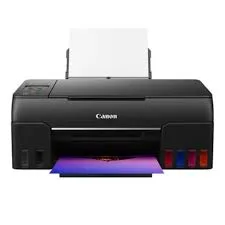
Canon PIXMA G540 MegaTank 6-Colour Photo Ink Tank Printer in Kenya
Genuine Canon | Brand New | Six-Colour Dye Ink Photo Printer | Wi-Fi and USB | Front-Mounted MegaTank Ink System
Searching for the Canon G540 price in Kenya, a photo printer in Nairobi, or a home photo printer with a low cost per print? The Canon PIXMA G540 MegaTank is a brand-new, genuine six-colour photo ink tank printer. It uses six dye inks, including special shades of red and grey, to give photos strong colour and contrast, and it uses Canon's MegaTank high-capacity ink system so each print costs far less than on a cartridge printer. It's available from City Gadgets Kenya with delivery across Kenya. Buyers also search for it as a Canon PIXMA G540, a Canon MegaTank photo printer, a six-colour ink tank printer, a home photo printer, a printer for photographers and hobbyists, a printer with red and grey ink, or a Canon alternative to the Epson L8050.
This guide explains the printer in plain language: what six dye inks give your photos, how the G540 compares with the Epson L8050 in our range, how to get the best prints, and where it's limited. If you'd like to talk it through, message us on WhatsApp.
The short verdict
The Canon PIXMA G540 is made for people who care about how photos look. Canon's six-ink set adds red and grey inks to the usual colours, which helps skin tones, warm sunsets and black-and-white or neutral tones look richer and smoother. High-capacity ink tanks sit at the front of the printer where you can see the levels, and refilling from bottles keeps the cost per photo low. The G540 connects by Wi-Fi and USB, loads up to 100 sheets from the rear tray, and works with Canon's PRINT app, Creative Park and Easy-PhotoPrint Editor. Canon's pages for this model are light on speed and yield figures, so we ask buyers to confirm them with us. For photos, art prints and creative projects at home, it's a strong choice. For plain text documents, a standard MegaTank or a laser is cheaper to run.
What red and grey inks add
Most inkjet printers use four colours: cyan, magenta, yellow and black. Photo printers add more, and the G540's six-ink set uses dye inks with extra shades.
- Red. Adds richness to warm tones: skin, sunsets, flowers, autumn leaves and red cars. Without it, reds can look a little flat or orange.
- Grey. Smooths neutral tones and shadows, so black-and-white photos show finer steps from light to dark, and grey skies look natural, not blotchy.
- Fewer visible dots. Extra shades let the printer lay down smaller, lighter dots in subtle areas, so gradients look smoother.
- Better contrast. Canon says the combination delivers high vividness and appropriate contrast.
- More accurate colour. A wider range of colours means more lifelike prints.
You'll notice the difference most in portraits, landscapes and black-and-white work. For plain documents, the extra inks add nothing.
Who this printer is for
It suits you if:
- You print photos often, at home or for a small business.
- You make crafts, greeting cards, posters and school projects with colour.
- You're a hobby photographer who wants affordable prints.
- You want a refillable system with a very low cost per print.
- You like Canon's apps and software.
Look elsewhere if:
- You print mostly text documents. A Canon G3410, Epson EcoTank or a laser is cheaper to run for text.
- You need a document feeder, fax or Ethernet.
- You need prints that must last decades in sunlight. Dye inks fade faster than pigment inks.
- You need A3. See the Epson L18050 or L15150 in our range.
What Canon's pages confirm, and what to check with us
We want you to know what's confirmed.
Confirmed from Canon and retailer pages
- Six dye inks, including specialist red and grey shades.
- MegaTank high-capacity ink tanks, mounted at the front.
- Wi-Fi and USB 2.0 connectivity.
- A rear paper feed that holds up to 100 sheets.
- GI-43 ink bottles.
- Support for the Canon PRINT, Creative Park and Easy-PhotoPrint Editor apps.
Please confirm with us before you buy
- Whether the unit is print-only, or also scans and copies.
- Print speeds and ink yields for your use.
- Borderless sizes and special media support.
- What's in the box, including the starter ink.
- The warranty that applies.
We'll confirm all of this for the unit you order, in writing.
Specifications in plain English
| Feature | Detail | What it means for you |
|---|---|---|
| Model | Canon PIXMA G540 MegaTank | Canon's six-colour photo ink tank printer |
| Ink | Six dye inks, including red and grey | Vivid, smooth photo colour |
| Ink system | MegaTank, with front-mounted tanks and GI-43 bottles | A low cost per print, with easy-to-see levels |
| Connectivity | Wi-Fi and USB 2.0 | Print from phones and laptops |
| Paper input | Rear feed, up to 100 sheets | A reasonable tray |
| Apps | Canon PRINT, Creative Park and Easy-PhotoPrint Editor | Print, create and edit from your phone |
| Functions | Confirm with us (print-only or all-in-one) | Check before you buy |
| Speeds and yields | Confirm with us | Check before you buy |
These details come from Canon and a European retailer's page. We'd rather list what's confirmed than guess at the rest.
G540 or Epson L8050: how to choose
Because these two six-colour photo MegaTank-style printers compete directly, here is an honest comparison.
Canon PIXMA G540
- Six dye inks with red and grey.
- Front-mounted tanks and GI-43 bottles.
- Canon PRINT, Creative Park and Easy-PhotoPrint Editor.
- Rear tray of 100 sheets.
Epson L8050
- Six dye inks with light cyan and light magenta.
- CD/DVD and PVC ID card printing.
- Borderless printing up to A4, and a fast 4x6 photo in about 25 seconds.
- 70 ml bottles, with Epson estimating up to about 2,100 4x6 photos per set.
Both make excellent photos. The Canon's red and grey inks favour warm tones and neutrals. The Epson's light inks favour smooth skin tones and soft gradients, and it adds disc and ID card printing. We'll help you choose, and we'll tell you honestly which suits your photos.
Getting the best photo prints
A few habits make a big difference to results.
- Start with a good image. A sharp, well-exposed photo at a good resolution prints well.
- Use proper photo paper. Canon's photo papers are designed for these inks. Plain paper dulls colours.
- Choose the right paper type in the print settings.
- Use the highest quality setting for important photos.
- Use borderless printing where the printer supports the size.
- Let prints dry for several minutes before stacking or framing.
- Check colour on a good screen, and view prints in daylight.
- Keep prints out of direct sunlight.
Using Canon's apps
The G540 works with three Canon apps.
- Canon PRINT. Print and manage the printer from your phone, check ink levels and run maintenance.
- Canon Creative Park. A library of paper crafts, cards and templates you can print at home.
- Easy-PhotoPrint Editor. Edit photos, make collages and print them with a few taps.
These make the G540 a good printer for families, crafters and teachers who like to create.
Photo projects you can make
The G540's colour and low cost per print make it good for many projects.
- Family photo prints and albums.
- Passport and ID photos, printed several to a sheet and cut to size.
- Greeting cards, invitations and thank-you notes.
- School projects and posters.
- Calendars and photo gifts.
- Small business marketing, such as flyers and menus.
- Crafts, using Creative Park templates.
Getting set up: a first-day guide
- Unbox and remove all packing tape inside and outside the printer.
- Fill the six ink tanks with the matching GI-43 bottles, slowly, and wipe any drips.
- Wait for the printer to charge the ink, which takes several minutes the first time.
- Load photo or plain paper in the rear tray.
- Download the Canon PRINT app and follow the steps to join your Wi-Fi.
- Install the driver on your laptop if needed, and print a test photo.
- Run a nozzle check after the first week.
Paper, ink and keeping costs down
- Use genuine Canon GI-43 bottles. Cheap third-party ink can clog print heads and change colours.
- Use Canon photo paper or papers recommended for dye inks.
- Print drafts in standard quality, and finals in high quality.
- Print something weekly, so the print heads stay healthy.
- Keep the printer level and out of direct sun.
- Store bottles upright, away from heat and sunlight.
- Buy photo paper in small batches, because it absorbs humidity.
Printing passport and ID photos at home
Many families and small businesses use a photo printer for passport and ID photos, and the G540 suits it.
- Check the size required by the office or institution, which varies by country and document.
- Take or choose a plain-background photo that meets the rules, with a neutral expression and good light.
- Use an editor such as Easy-PhotoPrint Editor to size the photo and place several on a 4x6 sheet.
- Print on photo paper in high quality.
- Let the prints dry, then cut them accurately with a photo trimmer.
- Keep a spare print in case one is rejected.
Always check what the receiving office accepts, because some require specific paper, size or printing methods.
Colour, paper and screen: why prints sometimes look different
Colour surprises are the most common photo-printing frustration, so here is a plain explanation.
- Screens glow, paper reflects. A screen emits light, and a print reflects it, so prints often look a little darker and less saturated than the screen.
- Brightness settings matter. If your screen is very bright, prints will look dark by comparison.
- Paper type matters. Glossy paper gives deeper colour, and matte paper gives softer tones.
- Lighting matters. View prints in daylight or under neutral white light.
- Let the printer manage colour for everyday use, by choosing the printer's colour management in the print dialog.
- Make a small test print before you print a large batch.
If you do paid photo work, a hardware screen calibrator is a worthwhile investment.
Making prints last
Dye-ink prints are beautiful, and a little care helps them last.
- Keep prints out of direct sunlight.
- Frame behind glass or acrylic.
- Store unframed prints in albums or archival sleeves, away from heat and humidity.
- Handle prints by the edges, with clean, dry hands.
- Let prints dry fully before stacking.
- Keep the original files backed up on a SanDisk flash drive or portable hard drive from our range, so you can reprint later.
Looking after the print heads
A photo ink tank printer rewards regular use.
- Print something every week, even a small colour test.
- Use the printer's power button, not the wall switch.
- Keep the tanks above the minimum mark.
- Use genuine ink.
- Run a nozzle check when quality drops, and clean the heads only when needed, because each cleaning uses ink.
- Keep the printer level and out of direct sun.
- If you won't use it for weeks, run a test print before an important job.
Questions to ask before you buy a photo printer
- What will I print most? Photos, documents or both?
- Do I need to scan or copy? Ask us whether the G540 does.
- What sizes do I need?
- How many photos will I print a month?
- What does a replacement bottle set cost, and what is the real cost per print?
- What's in the box, and does it include ink?
- What warranty is included, and who honours it? Get it in writing.
- Can I see sample prints before I pay? A trustworthy seller says yes.
We're glad to answer all of these on WhatsApp or in the shop before you pay.
Warranty and after-sales: what to ask
A printer is a long-term purchase, so ask us what warranty covers the unit you order, how long it lasts and what it covers. Printers normally exclude consumables such as ink, and damage from non-genuine ink or misuse. Keep your receipt, the serial number and the box. If a fault appears, message us on WhatsApp first, and we'll tell you the quickest way to get it sorted.
Photo paper guide for home printing
Paper changes a photo print more than almost anything else, so here is a practical guide.
- Glossy. A shiny surface with deep, vivid colour and strong contrast. It suits colourful snapshots, and shows fingerprints.
- Semi-gloss or lustre. A subtle sheen that resists fingerprints. It's a favourite for portraits and framed prints.
- Matte. Soft and non-reflective, and good for black-and-white and art prints.
- Weight. Heavier paper, around 200 to 300 gsm, feels more premium and resists curling.
- Sizes. 4x6 inches (10x15 cm) is the standard snapshot. 5x7 and A4 suit larger prints.
- Plain paper is fine for drafts and proofs, but dull for finals.
- Card stock suits greeting cards and invitations, within the printer's weight limit.
Always set the matching paper type in the print dialog, so the printer lays down the right amount of ink.
Setting up a small home photo business
Some of our customers earn extra income with a home photo printer. If you're thinking about it, here is a short plan.
- Choose a service: passport photos, family prints, event prints, cards or school photos.
- Work out your costs: ink and paper per print, plus your time.
- Price fairly, and compare with local photo shops.
- Keep stock: spare ink bottles, a few paper types, sleeves and a trimmer.
- Protect your equipment: a surge protector, a dust cover and a UPS for your computer.
- Print weekly, even in quiet periods, so the print heads stay healthy.
- Present well, with clean edges and protective sleeves.
Because the cost per print is low, a modest number of jobs can pay the printer back quickly.
Quick photo editing tips before you print
A few small edits make prints look better, and Easy-PhotoPrint Editor or any phone editor can do them.
- Crop to the print shape. A 4x6 print has a different shape from a phone photo, so crop to avoid surprises.
- Brighten slightly. Prints usually look darker than screens, so a small lift in brightness helps.
- Straighten the horizon, and trim distracting edges.
- Don't oversharpen or oversaturate. Heavy edits often look worse on paper.
- Check faces and skin tones, and adjust warmth if they look too red or too pale.
- Keep the original file, and save edits as a copy.
- Print a small test before a big batch.
Sharing the printer with the family
A home photo printer is used by several people, so a few simple rules keep it happy.
- Connect everyone's phone with the Canon PRINT app, or the built-in printing on their phones.
- Agree who buys paper and ink, and keep a spare bottle set.
- Keep photo paper in a sealed box, away from heat and damp.
- Teach everyone to choose the right paper type before printing a photo.
- Don't leave the printer on a long job unattended if you're short of paper.
- Cover the printer when it's not in use.
Using a printer in Kenya
Power protection. Printers can be damaged by surges. Use a surge protector, and don't plug a printer into a UPS meant for computers.
Heat, dust and humidity. Keep the printer covered when idle, in a clean, shaded spot. Humid air affects photo paper, so keep it sealed and dry.
Refilling. Use clean hands and a flat surface, and keep ink away from children and pets.
Warranty. Ask us for the warranty that applies to the unit you order, and keep the receipt and box.
Common problems and simple fixes
Prints look too dark. Lower your screen brightness or raise the image brightness, and check the paper type setting.
Banding or horizontal lines. Run a nozzle check and print-head cleaning, and print at higher quality.
Colour casts. Run a head cleaning, make sure each tank has the right ink and check your colour settings.
Paper jams. Fan the paper, load fewer sheets and keep paper dry.
Won't connect to Wi-Fi. Restart the printer and router, move closer and set it up again from the Canon PRINT app.
Smudged prints. Let prints dry, and use the correct paper type.
Error message about ink absorbers. The part that collects waste ink is nearly full. Ask us, since it needs an authorised service.
If a problem continues, message us on WhatsApp.
Accessories worth buying with it
| Accessory | Why it helps |
|---|---|
| Spare Canon GI-43 bottle set (six colours) | Keeps you printing when tanks run low |
| Canon photo paper | Gives the best results |
| Surge protector | Protects against power spikes |
| USB cable (type A to B) | For a wired connection if needed |
| Photo trimmer | For cutting passport photos accurately |
| Dust cover | Protects the printer when idle |
How it compares with other options in our range
| Canon G540 | Epson L8050 | Canon G3410 | Epson L18050 | |
|---|---|---|---|---|
| Type | Six-colour photo | Six-colour photo | Four-colour all-in-one | Six-colour A3+ photo |
| Special inks | Red and grey | Light cyan and light magenta | None | Light cyan and light magenta |
| Paper size | A4 | A4 | A4 | A3+ |
| Best for | Home photo printing | Photo printing with discs and ID cards | Everyday documents and photos | Large photo prints |
Honest pros and cons
Pros
- Six dye inks with red and grey for vivid photos.
- A MegaTank system with a low cost per print.
- Front-mounted tanks that show ink levels.
- Wi-Fi and the Canon PRINT, Creative Park and Easy-PhotoPrint apps.
- A 100-sheet rear tray.
- A trusted brand.
Cons
- Dye inks fade faster than pigment inks.
- Not the cheapest for text documents.
- No document feeder, Ethernet or fax.
- Some specifications should be confirmed before you buy.
- A little messy to refill the first time.
What to check when it arrives
- The box model matches Canon PIXMA G540.
- The printer, power cable and ink bottles are in the box.
- All packing tape is removed.
- The ink tanks fill properly, and a test photo prints.
- Wi-Fi connects through the Canon PRINT app.
- You get a receipt with the serial number and warranty details in writing.
Frequently asked questions
What is the Canon G540 price in Kenya? We confirm the current price when you message us on WhatsApp, because supplier prices change. We tell you the price and what's in the box before you pay.
Where can I buy the Canon G540 in Nairobi? At City Gadgets Kenya, New Alnoor Exhibition, Second Floor, Shop C7, Accra Road, Nairobi CBD, or by delivery.
What inks does it use? Six dye inks, including red and grey, from GI-43 bottles.
Does it have Wi-Fi? Yes, Wi-Fi and USB.
Does it scan and copy? Please ask us. We'll confirm this for the unit you order.
Do the prints fade? Dye inks fade faster than pigment inks in sunlight. Keep prints out of direct sun, and use glass or protective sleeves.
What warranty does it have? Ask us for the warranty that applies to the unit you order.
Can you deliver it? Yes, same day in Nairobi and next day outside Nairobi.
Can I pay via M-Pesa? Yes.
Why buy from City Gadgets Kenya
Genuine, brand-new Canon printer. We're at New Alnoor Exhibition, Second Floor, Shop C7, Accra Road, Nairobi CBD, and you're welcome to look at the printer, and see sample prints, before you buy. Message us on WhatsApp with what you want to print, and we'll tell you honestly whether the G540 or the Epson L8050 would suit you better. We confirm what's in the box before you pay.
Order your Canon PIXMA G540 today
Available now at City Gadgets Kenya. Message us on WhatsApp.
Specifications
- Brand
- Canon
- Condition
- New
Frequently Asked Questions
How much does the Canon PIXMA G540 MegaTank 6-Colour Photo Ink Tank Printer in Kenya | City Gadgets Kenya cost in Kenya?
The Canon PIXMA G540 MegaTank 6-Colour Photo Ink Tank Printer in Kenya | City Gadgets Kenya is priced at Ksh 49,000 at City Gadgets. You can pay via M-Pesa, card or cash on delivery.
Is the Canon PIXMA G540 MegaTank 6-Colour Photo Ink Tank Printer in Kenya | City Gadgets Kenya available in Kenya?
Yes — the Canon PIXMA G540 MegaTank 6-Colour Photo Ink Tank Printer in Kenya | City Gadgets Kenya is in stock at City Gadgets, ready for same-day delivery in Nairobi and countrywide shipping across Kenya.
Is the Canon PIXMA G540 MegaTank 6-Colour Photo Ink Tank Printer in Kenya | City Gadgets Kenya genuine and does it have a warranty?
Every Canon PIXMA G540 MegaTank 6-Colour Photo Ink Tank Printer in Kenya | City Gadgets Kenya we sell is 100% genuine brand-new stock and comes with a 12-month official brand warranty.
Do you deliver the Canon PIXMA G540 MegaTank 6-Colour Photo Ink Tank Printer in Kenya | City Gadgets Kenya in Nairobi?
Yes. We offer fast same-day delivery within Nairobi and fast, affordable delivery to the rest of Kenya — order online or on WhatsApp.
Customer Reviews
No reviews yet
Be the first to review this product.
Rate us on Google
Your review helps other shoppers find us
Reviews from verified buyers will appear here.