Epson EcoTank L6370 Wi-Fi Duplex Ink Tank All-in-One Printer with ADF and Ethernet in Kenya | City Gadgets Kenya
Same-day delivery in Nairobi by 8 Oct – 9 Oct
Description
Buy the genuine Epson EcoTank L6370 A4 colour all-in-one ink tank printer with automatic duplex, ADF, Ethernet and Wi-Fi in Kenya from City Gadgets Kenya. Epson L6370 price in Kenya, office duplex printer Nairobi, high-volume ink tank printer. A complete buyer's guide.
Epson EcoTank L6370 Wi-Fi Duplex Ink Tank All-in-One Printer with ADF and Ethernet in Kenya
Genuine Epson | Brand New | A4 Colour Print, Scan and Copy | Automatic Duplex Print, Scan and Copy | Automatic Document Feeder | Ethernet, Wi-Fi and Wi-Fi Direct | Refillable Ink Tanks
Searching for the Epson L6370 price in Kenya, a duplex ink tank printer for your office in Nairobi, or a network printer with a document feeder and low running costs? The Epson EcoTank L6370 is a brand-new, genuine A4 colour all-in-one printer built for small and mid-sized offices. It prints, scans and copies, with automatic double-sided printing, scanning and copying, a 30-sheet automatic document feeder and a built-in Ethernet network port, all with refillable ink tanks that keep the cost per page very low. It's available from City Gadgets Kenya with delivery across Kenya. Buyers also search for it as an Epson L6370 printer, an EcoTank office printer, a network ink tank printer, a duplex scanner printer, an ink tank printer with Ethernet, a high-volume inkjet for offices, or a printer for schools and clinics.
This guide explains the printer in plain language: how it differs from the home EcoTank models, what its office features give you, how to set it up for a team, and where it's limited. If you'd like to talk it through, message us on WhatsApp.
The short verdict
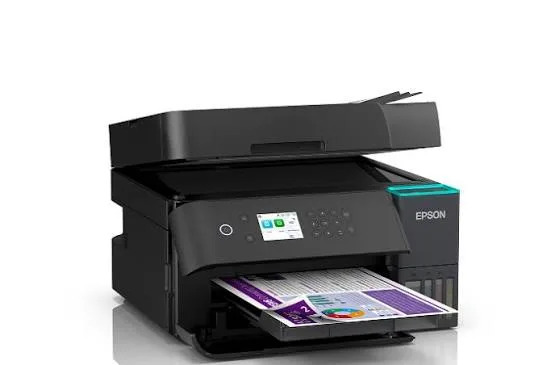
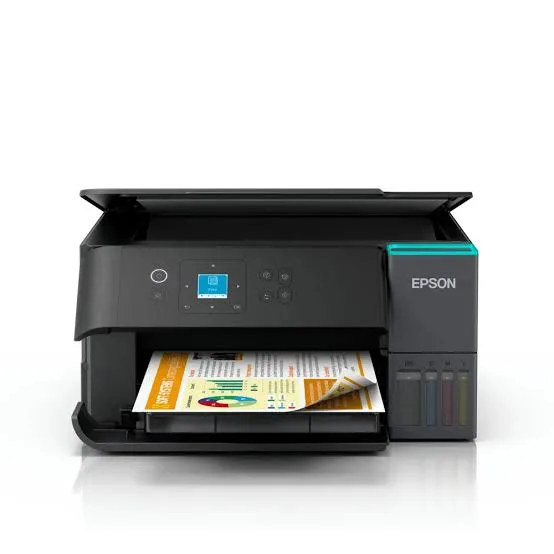
The Epson EcoTank L6370 is the step up from the home and student EcoTanks into proper office territory. Where the L3250, L3260 and L4360 are built for a person or a family, the L6370 is built for a team: an Ethernet network port so everyone in the office can share it reliably, a 30-sheet document feeder that scans and copies on both sides of the page automatically, a 2.4-inch colour touchscreen, and faster printing. The ink tank system keeps costs very low even at office volumes. It doesn't include fax, which the L6390 in our range adds. If you run an office, school, clinic or practice and want one shared machine that scans, copies and prints double-sided with minimal fuss, the L6370 is a strong choice.
What makes it an office printer
It helps to see exactly what separates this model from the cheaper EcoTanks.
- Ethernet. A wired network connection is more stable than Wi-Fi in a busy office, and it doesn't depend on signal strength. Everyone on the network can print to it.
- Automatic duplex printing, scanning and copying. Double-sided output on the way out, and double-sided originals on the way in.
- A 30-sheet document feeder (A4). Scan or copy a stack in one pass.
- A 2.4-inch colour touchscreen. Easier to use than buttons and lights, and quicker for walk-up copying.
- Faster speeds. Epson quotes up to 35 pages per minute black and 23 colour in draft mode, and 18 and 9 images per minute in ISO tests, with duplex around 7 and 5.
- Heat-Free technology. Epson's print head design uses less power than heat-based inkjets.
- Higher volume, lower cost. Built for businesses that print every day.
If you don't need these, the home models are cheaper. If you do, they're worth it.
Who this printer is for
It suits you if:
- You run an office, school, clinic, church, NGO or practice with several people sharing one printer.
- You scan or copy multi-page documents, and want double-sided originals handled automatically.
- You print double-sided regularly to save paper.
- You want a wired network connection for reliability.
- You want a very low cost per page, in black and colour.
Look elsewhere if:
- You need fax. See the Epson L6390 in our range.
- You print only a little, at home. See the Epson L3250 or L3260.
- You print very high volumes of black text, where a laser printer, such as the HP LaserJet or Brother models in our range, may be faster.
- You need A3 printing. See the Epson A3 models in our range.
Specifications in plain English
| Feature | Detail | What it means for you |
|---|---|---|
| Model | Epson EcoTank L6370 | Epson's office duplex ink tank all-in-one |
| Functions | Print, scan and copy, with ADF | Three jobs, with a document feeder |
| Fax | No (the L6390 adds fax) | Choose the L6390 if you need fax |
| Paper size | A4, with Letter and Legal in the feeder | Standard office sizes |
| Print speed (draft) | Up to 35 ppm black and 23 ppm colour | Fast for office documents |
| Print speed (ISO) | Simplex up to 18 ipm black and 9 ipm colour. Duplex up to 7 and 5 ipm | A more realistic guide |
| Duplex | Automatic printing, scanning and copying | Saves paper and time |
| Document feeder | 30 sheets of A4, or 10 sheets of Legal | Scan and copy stacks |
| Display | 2.4-inch colour touchscreen | Easy to control |
| Connectivity | Ethernet, Wi-Fi, Wi-Fi Direct and USB 2.0 | Wired and wireless options |
| Borderless printing | Up to A4 | Good for brochures and photos |
| Noise (photo mode) | About 38 dB(A) | Quiet for an office machine |
These figures come from Epson's brochures and retailer listings of the L6370. Ask us to confirm the details of the unit you order.
How an ink tank printer works, and why it's cheaper
Cartridge printers use small plastic cartridges that run out quickly and cost a lot to replace. An ink tank printer like the L6370 has large built-in tanks that you fill from bottles.
- Each colour has its own tank and matching bottle, and the bottle nozzle fits only its tank.
- Bottles are cheap for the amount of ink they hold, so each page costs a small fraction of a cartridge page.
- Yields are measured in thousands of pages per set of bottles, and the L6370 is designed for high volumes.
- You refill occasionally, and it's tidy once you've done it a couple of times.
For an office that prints hundreds of pages a week, the saving over a cartridge printer is large.
Setting up a shared office printer
A shared printer works best when it's set up properly.
- Place it centrally, within reach of everyone, with room to open the scanner lid and load the feeder.
- Connect it by Ethernet to your router or switch, for the most reliable network connection.
- Give it a fixed address. Ask whoever manages your network to reserve an IP address for the printer, so it never changes and computers don't lose it.
- Install the driver on each computer, or let Windows find it automatically.
- Set defaults that save money: double-sided and black-and-white by default.
- Set up scan-to-folder or scan-to-email, using Epson's tools, so scans arrive where people need them.
- Use the Epson Smart Panel app for phones and tablets.
- Assign someone to check ink and paper weekly.
- Keep a spare ink set so a busy week never stops you.
Automatic duplex: printing, scanning and copying
The L6370 handles double-sided pages in three ways.
- Duplex printing. Choose two-sided printing in the print dialog. The printer prints both sides and delivers a finished sheet.
- Duplex scanning. Load a double-sided original into the feeder, and the printer scans both sides in one pass.
- Duplex copying. Copy a double-sided original to a double-sided copy, without turning pages.
For offices that handle contracts, forms, reports and records, this saves a surprising amount of time. Set double-sided as the default for printing, to cut paper use by about half.
Getting set up: a first-day guide
- Unbox and remove all packing tape inside and outside the printer, including the document feeder.
- Fill the ink tanks with the matching bottles, slowly, and wipe any drips.
- Let the printer initialise.
- Load plain A4 paper in the paper cassette.
- Connect the network cable, or join Wi-Fi from the touchscreen.
- Install the driver and print a test page.
- Test duplex printing and the document feeder.
- Run a nozzle check after the first week.
Paper, ink and keeping costs down
- Use good-quality A4 paper, since thin or damp paper jams, especially in duplex and the feeder.
- Remove staples and clips before loading the feeder.
- Use genuine Epson ink bottles. Ask us for the correct bottle code.
- Print in standard or draft mode for everyday documents.
- Set double-sided and black-and-white as defaults.
- Print something weekly, so the print head stays healthy.
- Keep the printer level and in a cool, shaded spot.
Printing policies that save an office money
The printer saves money on ink, and a few simple office rules save more.
- Default to double-sided and black-and-white. Most documents don't need colour, and single-sided is rarely needed.
- Use draft mode for internal copies.
- Print only what you need. Preview first, and avoid printing long emails.
- Set up scan-to-email, so documents travel digitally instead of on paper.
- Keep colour for jobs that need it, such as proposals, certificates and brochures.
- Track usage by checking how often the tanks need refilling, and discuss any big jumps.
- Buy paper in bulk from a reliable supplier, and store it well.
Over a year, these habits often save more than the printer itself costs to run.
Scan workflows for a busy office
The feeder and duplex scanning make some workflows genuinely fast.
- Contracts and forms. Load the stack, scan to PDF, and name the file with the client and date.
- Invoices and receipts. Scan daily, or in a weekly batch, into folders by month, and keep the originals in a box labelled by date.
- Student or patient records. Scan to a protected folder, with limited access, and back up regularly.
- Mixed-size documents. Use the glass for small, fragile or odd-sized items, and the feeder for standard A4.
- Quality control. Check a few pages of each batch before filing the originals.
- Searchable files. Use optical character recognition in your scanning software so you can search scanned documents for words.
- Backups. Store scans in the cloud and on an external drive from our range, such as a SanDisk or WD portable drive.
Getting the best from the touchscreen
The 2.4-inch colour touchscreen is quicker than the button-based panels of home printers.
- Walk-up copying. Choose copies, colour or black, single or double-sided, and paper size on the screen.
- Quick access to settings. Wi-Fi, Ethernet, ink levels and maintenance are a few taps away.
- Clear messages. Errors appear in words, so staff can fix simple problems without calling anyone.
- Shortcuts. Save common copy and scan settings, if the menu allows, for repeated jobs.
- Language and display. Set the language and brightness to suit your office.
Common problems and simple fixes
Document feeder jams. Remove staples and clips, use good paper, don't overload the feeder and keep the rollers clean.
Duplex pages jam. Use dry, good-quality paper, and make sure the paper is straight in the tray.
Streaks in printing. Run a nozzle check, then a head cleaning from the menu.
Can't be found on the network. Check the Ethernet cable and the router, restart the printer and confirm its IP address hasn't changed.
Slow printing. Check the quality setting, since high quality is slower, and the duplex setting.
Scans have lines. Clean the scanner glass and the feeder's scanning strip with a soft, lint-free cloth.
Error message about the maintenance box. The box that collects waste ink is nearly full. Ask us, since it needs an authorised service.
If a problem continues, message us on WhatsApp.
Equipping a school, clinic or small company
Different organisations use a printer like this in different ways.
A school. The office prints notices, report forms and exams, and scans student records. Duplex printing halves the paper bill, and the feeder speeds up term-start paperwork.
A clinic. Reception scans referral letters and forms, and prints prescriptions and appointment cards. Protect scanned records with passwords, because they're sensitive.
A small company. Teams share one printer over the network, scan contracts straight to folders and print double-sided reports.
A church or NGO. Print programmes, newsletters and reports cheaply, and scan donor and member records.
In each case, a surge protector, a spare ink set, good paper and a weekly check keep the printer reliable.
Questions to ask before you buy an office printer
- How many pages will we print, scan and copy each month?
- How many people will share it?
- Do we need Ethernet, duplex scanning and a feeder?
- Do we need fax? If yes, see the L6390.
- What does a replacement ink set cost, and what is the real cost per page?
- What's in the box, and does it include ink?
- What warranty is included, and who honours it? Get it in writing.
- Can I see it before I pay? A trustworthy seller says yes.
We're glad to answer all of these on WhatsApp or in the shop before you pay.
Is an ink tank printer right for a busy office, or should you buy a laser?
This is the question most office buyers ask, so here is an honest comparison.
Where the L6370 wins
- Colour. Colour pages cost very little compared with colour lasers.
- Running cost. Ink bottles cost little for the pages they print.
- Photo and graphics quality. Inkjet looks better for images.
- Low energy use. Heat-Free technology uses less power than a laser.
- Purchase price. It often costs less to buy than a comparable colour laser.
Where a laser can win
- Raw speed for black text. Lasers print plain black pages faster.
- Heavy daily volume of black text. A mono laser is built for thousands of pages a month.
- No drying out. Toner doesn't dry, so a laser suits an office that prints rarely.
- Water resistance. Laser prints don't smudge when wet.
For an office that prints a mix of text and colour, scans often and wants a low running cost, the L6370 is a strong choice. For a team printing mostly plain black text in huge volumes, one of the HP or Brother lasers in our range may suit better. Tell us your volumes and we'll advise honestly.
Looking after the printer for years
An EcoTank printer can serve an office for many years with simple care.
- Print or scan something weekly, so the print head stays healthy.
- Use the printer's power button, not the wall switch.
- Keep the tanks above the minimum mark.
- Use genuine ink.
- Clean the scanner glass, the feeder strip and the body with a soft cloth.
- Keep it level, covered and out of direct sun.
- Service it when you see a maintenance message.
- Keep firmware and drivers updated.
Warranty and after-sales: what to ask
A printer is a long-term purchase, so ask us what warranty covers the unit you order, how long it lasts and what it covers. Printers normally exclude consumables such as ink, and damage from non-genuine ink or misuse. Keep your receipt, the serial number and the box. If a fault appears, message us on WhatsApp first, and we'll tell you the quickest way to get it sorted.
A note on speed expectations
Manufacturer speeds are measured under ideal conditions, so real office jobs run slower. A 35 pages-per-minute draft figure becomes closer to 18 images per minute in ISO tests, and duplex is slower again. For a typical office job of a few dozen pages, the difference is a few seconds, and you won't notice. For very large jobs, plan a little extra time, and print big batches in sections.
Using a printer in Kenya
Power protection. Printers can be damaged by surges. Use a surge protector, and don't plug a printer into a UPS meant for computers, because printers draw a lot of power when they start.
Dust and heat. Keep the printer covered when idle, in a clean, shaded spot.
Paper storage. Keep paper flat and dry, because humidity makes paper curl and jam.
Network safety. Change the printer's default admin password, and keep it off public networks.
Warranty. Ask us for the warranty that applies to the unit you order, and keep the receipt and box.
Accessories worth buying with it
| Accessory | Why it helps |
|---|---|
| Spare Epson ink bottle set | Keeps you printing when tanks run low |
| Surge protector | Protects against power spikes |
| Ethernet cable | For a reliable network connection |
| Quality A4 paper (80 gsm or more) | Fewer jams, better duplex results |
| Spare feeder-friendly paper stock | Keeps the document feeder reliable |
| Dust cover | Protects the printer when idle |
How it compares with other options in our range
| Epson L6370 | Epson L6390 | Epson L5290 | Epson L4360 | |
|---|---|---|---|---|
| Functions | Print, scan, copy | Print, scan, copy, fax | Print, scan, copy, fax | Print, scan, copy |
| Automatic duplex printing | Yes | Yes | Manual | Yes |
| Duplex scanning (ADF) | Yes | Yes | No | No feeder |
| Ethernet | Yes | Yes | No | No |
| Touchscreen | 2.4-inch | 2.4-inch | Screen | Screen |
| Best for | Offices | Offices needing fax | Small offices | Duplex at home |
Against the Epson L6390: it adds fax.
Against the Epson L5290 and L4360: it adds Ethernet, automatic duplex scanning and faster speeds, at a higher price.
Against laser printers: lasers are faster for black text, but cost more in colour. The L6370 gives very low running cost in both.
Honest pros and cons
Pros
- Automatic duplex printing, scanning and copying.
- A 30-sheet document feeder.
- Ethernet, Wi-Fi and Wi-Fi Direct.
- A 2.4-inch colour touchscreen.
- A very low cost per page.
- Quiet for an office machine.
- Built for higher volumes.
Cons
- No fax.
- A higher price than the home EcoTanks.
- Larger than home models.
- Manufacturer speeds are draft speeds.
- A little messy to refill the first time.
What to check when it arrives
- The box model matches Epson EcoTank L6370.
- The printer, power cable and ink bottles are in the box.
- All packing tape is removed, including in the document feeder.
- The ink tanks fill properly, and a test page prints.
- Duplex printing and the document feeder work.
- The network connection and the touchscreen work.
- You get a receipt with the serial number and warranty details in writing.
Frequently asked questions
What is the Epson L6370 price in Kenya? We confirm the current price when you message us on WhatsApp, because supplier prices change. We tell you the price and what's in the box before you pay.
Where can I buy the Epson L6370 in Nairobi? At City Gadgets Kenya, New Alnoor Exhibition, Second Floor, Shop C7, Accra Road, Nairobi CBD, or by delivery.
Does it fax? No. The L6390 adds fax.
Does it have Ethernet? Yes, Ethernet, Wi-Fi and Wi-Fi Direct.
Does it print and scan double-sided automatically? Yes, automatic duplex printing, scanning and copying.
How many sheets does the document feeder hold? 30 sheets of A4, or 10 sheets of Legal.
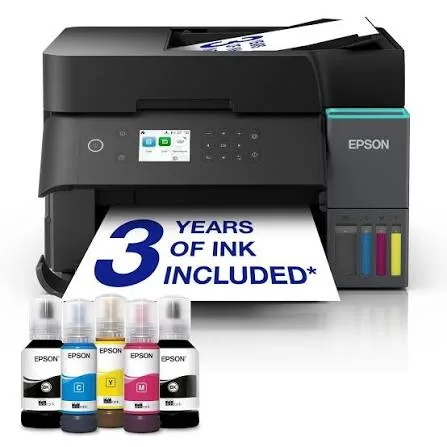
Does it come with ink? Epson EcoTank printers normally ship with a starter set of ink bottles. Ask us to confirm.
Is it good for a school or clinic? Yes, especially when several people share it.
What warranty does it have? Ask us for the warranty that applies to the unit you order.
Can you deliver it? Yes, same day in Nairobi and next day outside Nairobi.
Can I pay via M-Pesa? Yes.
Why buy from City Gadgets Kenya
Genuine, brand-new Epson printer. We're at New Alnoor Exhibition, Second Floor, Shop C7, Accra Road, Nairobi CBD, and you're welcome to look at the printer before you buy. Message us on WhatsApp with how much your office prints and scans, and we'll tell you honestly whether the L6370 is right or a smaller or larger model would suit you better. We confirm what's in the box before you pay.
Order your Epson EcoTank L6370 today
Available now at City Gadgets Kenya. Message us on WhatsApp.
Specifications
- Brand
- Epson
- Condition
- New
Frequently Asked Questions
How much does the Epson EcoTank L6370 Wi-Fi Duplex Ink Tank All-in-One Printer with ADF and Ethernet in Kenya | City Gadgets Kenya cost in Kenya?
The Epson EcoTank L6370 Wi-Fi Duplex Ink Tank All-in-One Printer with ADF and Ethernet in Kenya | City Gadgets Kenya is priced at Ksh 66,000 at City Gadgets. You can pay via M-Pesa, card or cash on delivery.
Is the Epson EcoTank L6370 Wi-Fi Duplex Ink Tank All-in-One Printer with ADF and Ethernet in Kenya | City Gadgets Kenya available in Kenya?
Yes — the Epson EcoTank L6370 Wi-Fi Duplex Ink Tank All-in-One Printer with ADF and Ethernet in Kenya | City Gadgets Kenya is in stock at City Gadgets, ready for same-day delivery in Nairobi and countrywide shipping across Kenya.
Is the Epson EcoTank L6370 Wi-Fi Duplex Ink Tank All-in-One Printer with ADF and Ethernet in Kenya | City Gadgets Kenya genuine and does it have a warranty?
Every Epson EcoTank L6370 Wi-Fi Duplex Ink Tank All-in-One Printer with ADF and Ethernet in Kenya | City Gadgets Kenya we sell is 100% genuine brand-new stock and comes with a 12-month official brand warranty.
Do you deliver the Epson EcoTank L6370 Wi-Fi Duplex Ink Tank All-in-One Printer with ADF and Ethernet in Kenya | City Gadgets Kenya in Nairobi?
Yes. We offer fast same-day delivery within Nairobi and fast, affordable delivery to the rest of Kenya — order online or on WhatsApp.
Customer Reviews
No reviews yet
Be the first to review this product.
Rate us on Google
Your review helps other shoppers find us
Reviews from verified buyers will appear here.