Epson EcoTank L5290 Wi-Fi Ink Tank All-in-One Printer with ADF and Fax in Kenya | City Gadgets Kenya
Same-day delivery in Nairobi by 8 Oct – 9 Oct
Description
Buy the genuine Epson EcoTank L5290 A4 colour 4-in-1 ink tank printer with ADF, fax and Wi-Fi in Kenya from City Gadgets Kenya. Epson L5290 price in Kenya, office ink tank printer Nairobi, printer with document feeder. A complete buyer's guide.
Epson EcoTank L5290 Wi-Fi Ink Tank All-in-One Printer with ADF and Fax in Kenya
Genuine Epson | Brand New | A4 Colour Print, Scan, Copy and Fax | Automatic Document Feeder | Wi-Fi | Refillable Ink Tanks
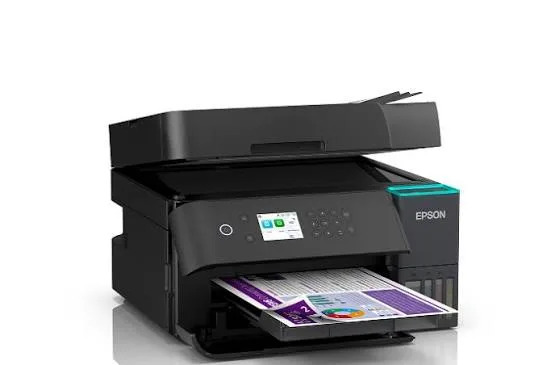
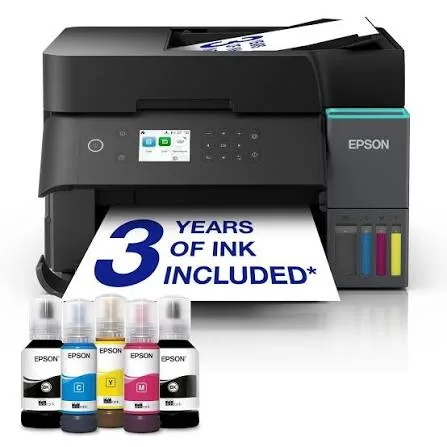
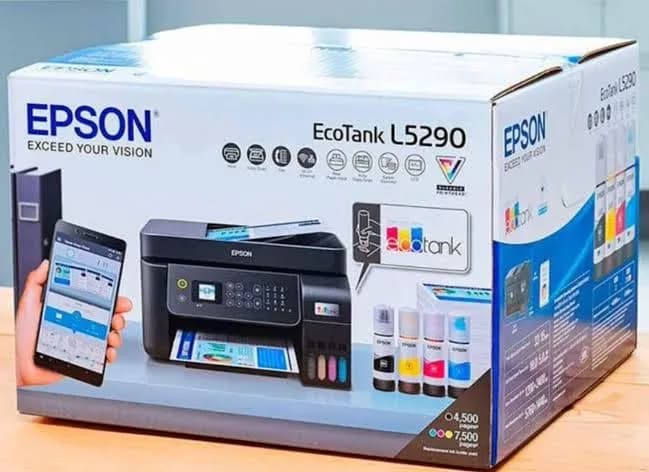
Looking for the Epson L5290 price in Kenya, an office ink tank printer in Nairobi, or a printer with an automatic document feeder for scanning and copying stacks of paper? The Epson EcoTank L5290 is a brand-new, genuine A4 colour 4-in-1 printer that prints, scans, copies and faxes, and adds an automatic document feeder (ADF) to the EcoTank formula. It uses refillable ink tanks for a very low cost per page, and it connects by Wi-Fi, Wi-Fi Direct and USB. It's available from City Gadgets Kenya with delivery across Kenya. Buyers also search for it as an Epson L5290 printer, an EcoTank office printer, an ink tank printer with ADF, a printer scanner copier fax, a printer for small offices and clinics, or a cheap multifunction office printer.
This guide explains the printer in plain language, with a focus on what the document feeder and fax add, who needs them, and where the printer is limited. If you'd like to talk it through, message us on WhatsApp.
The short verdict
The Epson EcoTank L5290 is the office-minded EcoTank in this group. Its headline feature is the automatic document feeder: you place a stack of pages on top, press a button, and the printer scans or copies them one after another, which is a huge time saver compared with lifting the lid for every page. Add fax, Wi-Fi, a colour screen and the same very low cost per page as the other EcoTanks, and you have a capable small-office machine. Its limits are honest ones: duplex printing is manual, not automatic, and it's an inkjet, so for very high-volume black-and-white work a laser printer is faster. If you scan and copy multi-page documents regularly, the L5290 is the right EcoTank.
What the automatic document feeder (ADF) gives you
The ADF is the reason to choose this model, so it's worth understanding.
- Scan a stack in one go. Load a multi-page document face up in the feeder, press scan, and every page is captured into one file.
- Copy a stack the same way. Place the pages in the feeder, choose the number of copies, and press start.
- Save a lot of time. For a ten-page contract, the ADF takes seconds, and the glass takes minutes.
- Reduce mistakes. You can't skip or misalign pages.
- Suit office workflows. Scanning invoices, contracts, forms, student records and patient files becomes quick.
If you only scan or copy single pages now and then, the ADF isn't worth paying for, and the cheaper L3250 or L3260 will do. If you handle stacks daily, the ADF repays its cost in saved time.
Fax: does anyone still need it?
The L5290 includes fax, which many printers have dropped. Fax is far less common than it was, but some organisations still use it: certain government offices, legal and medical contacts, and a few businesses.
- Epson lists a fax speed of about three seconds per page and memory for around 100 pages.
- Fax needs a landline telephone connection. Check your own line before you rely on it.
- If you never fax, the feature costs you nothing to ignore.
- If you need to send documents to someone who only accepts fax, it's a real convenience.
Many people today send scans by email or WhatsApp instead, and the L5290 does that well too, with its Wi-Fi scanning.
Who this printer is for
It suits you if:
- You scan or copy multi-page documents regularly.
- You run a small office, clinic, school office, law practice or accounting business.
- You want a low cost per page, in black and colour.
- You want fax available, even if rarely.
- You want to print from phones and laptops over Wi-Fi.
Look elsewhere if:
- You want automatic double-sided printing. See the Epson L4360 in our range.
- You print only occasionally, or you don't scan stacks. See the Epson L3250 or L3260.
- You print very high volumes of black text. A laser printer, such as the HP LaserJet or Brother models in our range, is faster.
- You need a built-in Ethernet network port. Ask us about networked models.
Specifications in plain English
| Feature | Detail | What it means for you |
|---|---|---|
| Model | Epson EcoTank L5290 | Epson's office ink tank 4-in-1 |
| Functions | Print, scan, copy and fax | Four jobs in one machine |
| Scanner | Flatbed plus automatic document feeder | Scan stacks or single pages |
| Paper size | A4, with Legal and Letter also supported | Standard office sizes |
| Print technology | Ink tank, colour inkjet, 4 ink bottles | Low cost per page |
| Print speed | About 33 pages per minute black and about 15 colour (draft speeds) | Real-world speeds are slower |
| Print resolution | Up to 5760 x 1440 dpi | Sharp text and good photos |
| Connectivity | Wi-Fi, Wi-Fi Direct and USB, with Apple AirPrint and Epson Connect | Print from phones and laptops |
| Duplex (double-sided) printing | Manual | You turn pages yourself |
| Fax | Yes, about 3 seconds per page, with memory for about 100 pages | Useful where fax is still needed |
| Display | Colour screen | Easy setup and control |
These figures come from Epson and retailer listings of the L5290. Manufacturer speeds are draft-mode figures, so ask us what to expect for your documents.
How an ink tank printer works, and why it's cheaper
Cartridge printers use small plastic cartridges that run out quickly and cost a lot to replace. An ink tank printer like the L5290 has large built-in tanks that you fill from bottles.
- Each colour has its own tank and matching bottle, and the bottle nozzle fits only its tank.
- Bottles are cheap for the amount of ink they hold, so each page costs a small fraction of a cartridge page.
- Yields are measured in thousands of pages per set of bottles.
- You refill occasionally, and it's tidy once you've done it a couple of times.
For an office that scans, copies and prints every day, the saving over a cartridge printer is large.
Setting up an office workflow
The L5290 works well in a small office when you plan how it's used.
- Place it centrally, where everyone can reach it, with space on top for the document feeder to load.
- Connect it to the office Wi-Fi, so everyone can print from their own computer and phone.
- Use the Epson Smart Panel app and Epson Connect for scanning to email and cloud services.
- Decide on scan settings. 200 to 300 dpi, black and white or greyscale, keeps files small for documents. Use colour and higher resolution only when you need them.
- Create a naming habit for scanned files, such as date, client and document type.
- Back up scanned documents to cloud storage and an external drive from our range.
- Keep a spare ink set so a busy week never stops you.
- Assign one person to check ink and paper each week.
Getting set up: a first-day guide
- Unbox and remove all packing tape inside and outside the printer, including the document feeder.
- Fill the ink tanks with the matching bottles, slowly, and wipe any drips.
- Let the printer initialise.
- Load plain A4 paper in the rear tray.
- Connect to Wi-Fi using the printer's screen, or the Epson Smart Panel app.
- Install the driver on your laptop if needed, and print a test page.
- Test the document feeder with a few sheets of plain paper.
- Connect a telephone line if you plan to use fax.
Printing double-sided on the L5290
The L5290 supports duplex printing manually, which means a two-step process.
- In the print dialog, choose double-sided printing.
- The printer prints the odd-numbered pages first.
- You take the stack out, flip it according to the on-screen instructions and load it back.
- The printer prints the even-numbered pages on the other sides.
It works, but it's slower and needs attention. If you print double-sided regularly, the Epson L4360 in our range does it automatically.
Paper, ink and keeping costs down
- Use good-quality A4 paper, especially for the document feeder, since thin, curled or stapled paper jams.
- Remove staples and paper clips before loading the ADF.
- Use genuine Epson ink bottles. Ask us for the correct bottle code.
- Print in standard or draft mode for everyday documents.
- Print something weekly, so the print head stays healthy.
- Keep the printer level and in a cool, shaded spot.
Going paperless: digitising records with the document feeder
Many offices in Kenya hold years of paper files, such as invoices, student records, patient files, contracts and receipts. The L5290's feeder makes digitising them practical.
- Decide what to scan first. Start with documents you need often or must keep safe, such as contracts and financial records.
- Prepare the paper. Remove staples and clips, smooth folded corners and separate sticky notes.
- Scan in batches of 20 to 30 pages, so a jam doesn't spoil a long stack.
- Choose settings that keep files small, such as 200 to 300 dpi in greyscale for text.
- Name files consistently. A pattern such as date, client name and document type makes search easy.
- Store them in folders by year and client, or by department.
- Back up twice. Keep a copy in cloud storage and another on an external drive from our range, such as a SanDisk or WD portable drive.
- Check a sample of scans for legibility before you shred or file the originals.
- Respect confidentiality. Protect scanned files with passwords and restrict access, since scanned records often contain personal data.
A steady habit of scanning a little each day clears a paper backlog over a few months.
Choosing scan settings
Scan settings affect file size and quality, so a quick guide helps.
- Resolution (dpi). 200 dpi is fine for clean text, 300 dpi for clear text and small print, 600 dpi for photos and detailed images. Higher settings make bigger files and slower scans.
- Colour mode. Use black and white or greyscale for text documents, and colour only when colour matters, such as for stamps or signatures.
- File type. PDF suits documents, and a multi-page PDF keeps a stack together. JPEG suits photos.
- Searchable text. Some apps can turn a scan into searchable text with OCR, which helps you find words in old documents later.
- Orientation. Load pages the same way each time, so scans come out upright.
For most offices, 300 dpi greyscale PDF is a good default.
Copying: everyday office uses
The L5290 copies from the glass or the feeder, using the on-screen menu.
- Copy a stack by placing it in the feeder and choosing the number of copies.
- Copy an ID or card by placing it on the glass, and choose the mode that keeps the original size.
- Reduce or enlarge a document to fit a different paper size.
- Choose black or colour, and quality, for the job.
- Check the glass is clean, because marks copy as well.
Colour copies cost little thanks to the ink tanks, so you can copy in colour without worrying much about cost.
Looking after the document feeder
The feeder is a mechanical part, and a little care keeps it reliable.
- Use good-quality paper, not thin, curled or damp sheets.
- Remove staples, clips and sticky notes before loading.
- Don't overload it. Keep to the sheet limit in the manual.
- Don't feed torn or very small items, and use the glass for fragile documents and photos.
- Wipe the scanning strip and rollers gently with a lint-free cloth occasionally, with the printer off.
- Clear jams carefully. Open the cover, and pull the paper in the direction of travel.
- Keep the feeder closed when you're not using it, to keep out dust.
Common problems and simple fixes
Lines or streaks on scans. The scanning strip or glass is dirty. Clean it with a soft cloth.
Pages feed crooked or jam. Check the paper guides, use better paper and don't overload the feeder.
Streaks in printing. Run a nozzle check, then a head cleaning from the printer's menu.
Won't connect to Wi-Fi. Restart the printer and the router, move the printer closer, and set it up again from the screen. Test with Wi-Fi Direct.
Fax won't send. Check the telephone cable and line, and confirm the number and settings.
Error message about the maintenance box. The box that collects waste ink is nearly full. Ask us, since it needs an authorised service.
If a problem continues, message us on WhatsApp.
Questions to ask before you buy any office printer
- How many pages will we print, scan and copy each month?
- Do we need a document feeder? If you handle stacks, yes.
- Do we need fax? Only if a client or agency requires it.
- Do we need automatic double-sided printing?
- How will we connect it? Wi-Fi, USB or a network cable.
- What does a replacement ink set cost, and what is the real cost per page?
- What's in the box, and does it include ink?
- What warranty is included, and who honours it? Get it in writing.
We're glad to answer all of these on WhatsApp or in the shop before you pay.
Equipping a small clinic, school office or practice
Different small organisations use the L5290 in slightly different ways, so here are three quick examples.
A clinic. Receptionists scan patient forms and referral letters into the records, print prescriptions and appointment cards, and copy IDs. The feeder speeds up stacks of forms, and the ink tanks keep costs down. Keep scanned patient records protected with passwords, because they're sensitive.
A school office. Staff print notices, report forms and exam papers, scan student records, and copy documents for parents. Fast stack copying saves hours at the start of term, and a surge protector protects against the power cuts that often strike on busy days.
A law or accounting practice. The team scans contracts, receipts and statements into client folders, prints drafts and copies bundles of documents. The feeder is the star, and a good backup habit protects the practice's most important records.
In each case, a UPS for the computers, a surge protector for the printer, a spare ink set and a monthly clean of the scanner glass keep things running smoothly.
Keeping the printer running for years
An EcoTank printer can serve an office for many years with simple care.
- Print or scan something weekly, so the print head stays healthy.
- Use the printer's power button, not the wall switch.
- Keep the tanks above the minimum mark.
- Use genuine ink.
- Wipe the scanner glass and body with a soft cloth.
- Keep it level, covered and out of direct sun.
- Service it when you see a maintenance message.
- Replace worn feeder rollers if the feeder begins to slip, with an authorised service.
Warranty and after-sales: what to ask
A printer is a long-term purchase, so ask us what warranty covers the unit you order, how long it lasts and what it covers. Printers normally exclude consumables such as ink, and damage from non-genuine ink or misuse. Keep your receipt, the serial number and the box. If a fault appears, message us on WhatsApp first, and we'll tell you the quickest way to get it sorted.
Using a printer in Kenya
Power protection. Printers can be damaged by surges. Use a surge protector, and don't plug a printer into a UPS meant for computers, because printers draw a lot of power when they start.
Dust and heat. Keep the printer covered when idle, in a clean, shaded spot.
Paper storage. Keep paper flat and dry, because humidity makes paper curl and jam, and the ADF is especially sensitive.
Warranty. Ask us for the warranty that applies to the unit you order, and keep the receipt and box.
Accessories worth buying with it
| Accessory | Why it helps |
|---|---|
| Spare Epson ink bottle set | Keeps you printing when tanks run low |
| Surge protector | Protects against power spikes |
| USB cable (type A to B) | For a wired connection if needed |
| Quality A4 paper | Fewer jams, better results |
| Telephone cable | For fax, if you use it |
| Dust cover | Protects the printer when idle |
How it compares with other options in our range
| Epson L5290 | Epson L4360 | Epson L3260 | HP or Brother laser | |
|---|---|---|---|---|
| Functions | Print, scan, copy, fax | Print, scan, copy | Print, scan, copy | Varies |
| Document feeder | Yes | No | No | Often yes |
| Automatic duplex | Manual | Yes | No | Often yes |
| Cost per page | Very low | Very low | Very low | Low for black text |
| Best for | Scanning and copying stacks | Double-sided printing | Home and shop use | High-volume black text |
Against the Epson L4360: it adds automatic double-sided printing. The L5290 has the document feeder and fax.
Against the Epson L3250 and L3260: they cost less and lack the feeder and fax.
Against laser printers: lasers are faster for black text and don't dry out, though they cost more for colour and have lower photo quality. Ask us for a comparison based on your volume.
Honest pros and cons
Pros
- An automatic document feeder for scanning and copying stacks.
- Fax included.
- A very low cost per page.
- A colour screen and Wi-Fi.
- Print, scan, copy and fax in one machine.
- Sharp text and good photos.
Cons
- Duplex printing is manual.
- Manufacturer speeds are draft speeds.
- A higher price than the L3250 and L3260.
- No Ethernet port on this model, per listings.
- An inkjet, so very high-volume black text is faster on a laser.
- A little messy to refill the first time.
What to check when it arrives
- The box model matches Epson EcoTank L5290.
- The printer, power cable and ink bottles are in the box.
- All packing tape is removed, including in the document feeder.
- The ink tanks fill properly, and a test page prints.
- The document feeder scans a few sheets cleanly.
- Wi-Fi connects, and the screen works.
- You get a receipt with the serial number and warranty details in writing.
Frequently asked questions
What is the Epson L5290 price in Kenya? We confirm the current price when you message us on WhatsApp, because supplier prices change. We tell you the price and what's in the box before you pay.
Where can I buy the Epson L5290 in Nairobi? At City Gadgets Kenya, New Alnoor Exhibition, Second Floor, Shop C7, Accra Road, Nairobi CBD, or by delivery.
Does it have an automatic document feeder? Yes, an ADF for scanning and copying stacks of pages.
Does it fax? Yes, it has fax. You need a landline connection to use it.
Does it print double-sided automatically? No. Duplex printing is manual. See the Epson L4360 for automatic duplex.
Does it have Wi-Fi? Yes, Wi-Fi and Wi-Fi Direct, with AirPrint and Epson Connect.
Does it come with ink? Epson EcoTank printers normally ship with a starter set of ink bottles. Ask us to confirm.
Is it good for a small office? Yes, especially if you scan or copy multi-page documents.
What warranty does it have? Ask us for the warranty that applies to the unit you order.
Can you deliver it? Yes, same day in Nairobi and next day outside Nairobi.
Can I pay via M-Pesa? Yes.
Why buy from City Gadgets Kenya
Genuine, brand-new Epson printer. We're at New Alnoor Exhibition, Second Floor, Shop C7, Accra Road, Nairobi CBD, and you're welcome to look at the printer before you buy. Message us on WhatsApp with how much you print and scan, and we'll tell you honestly whether the L5290's feeder is worth paying for. We confirm what's in the box before you pay.
Order your Epson EcoTank L5290 today
Available now at City Gadgets Kenya. Message us on WhatsApp.
Specifications
- Brand
- Epson
- Condition
- New
Frequently Asked Questions
How much does the Epson EcoTank L5290 Wi-Fi Ink Tank All-in-One Printer with ADF and Fax in Kenya | City Gadgets Kenya cost in Kenya?
The Epson EcoTank L5290 Wi-Fi Ink Tank All-in-One Printer with ADF and Fax in Kenya | City Gadgets Kenya is priced at Ksh 53,000 at City Gadgets. You can pay via M-Pesa, card or cash on delivery.
Is the Epson EcoTank L5290 Wi-Fi Ink Tank All-in-One Printer with ADF and Fax in Kenya | City Gadgets Kenya available in Kenya?
Yes — the Epson EcoTank L5290 Wi-Fi Ink Tank All-in-One Printer with ADF and Fax in Kenya | City Gadgets Kenya is in stock at City Gadgets, ready for same-day delivery in Nairobi and countrywide shipping across Kenya.
Is the Epson EcoTank L5290 Wi-Fi Ink Tank All-in-One Printer with ADF and Fax in Kenya | City Gadgets Kenya genuine and does it have a warranty?
Every Epson EcoTank L5290 Wi-Fi Ink Tank All-in-One Printer with ADF and Fax in Kenya | City Gadgets Kenya we sell is 100% genuine brand-new stock and comes with a 12-month official brand warranty.
Do you deliver the Epson EcoTank L5290 Wi-Fi Ink Tank All-in-One Printer with ADF and Fax in Kenya | City Gadgets Kenya in Nairobi?
Yes. We offer fast same-day delivery within Nairobi and fast, affordable delivery to the rest of Kenya — order online or on WhatsApp.
Customer Reviews
No reviews yet
Be the first to review this product.
Rate us on Google
Your review helps other shoppers find us
Reviews from verified buyers will appear here.