Epson EcoTank L3260 Wi-Fi Ink Tank All-in-One Printer with LCD in Kenya | City Gadgets Kenya
Same-day delivery in Nairobi by 8 Oct – 9 Oct
Description
Buy the genuine Epson EcoTank L3260 A4 colour all-in-one ink tank printer with Wi-Fi and a colour LCD screen in Kenya from City Gadgets Kenya. Epson L3260 price in Kenya, EcoTank printer Nairobi, low-cost printing for home and business. A complete buyer's guide.
Epson EcoTank L3260 Wi-Fi Ink Tank All-in-One Printer with LCD in Kenya
Genuine Epson | Brand New | A4 Colour Print, Scan and Copy | Wi-Fi, Wi-Fi Direct and a 1.44-Inch Colour Screen | Refillable Ink Tanks
Searching for the Epson L3260 price in Kenya, an EcoTank printer with a screen in Nairobi, or a Wi-Fi all-in-one printer that's easy to set up? The Epson EcoTank L3260 is a brand-new, genuine A4 colour all-in-one printer that prints, scans and copies, and adds a small colour screen to the basic EcoTank formula. It uses refillable ink tanks for a very low cost per page, and it connects by Wi-Fi, Wi-Fi Direct and USB. It's available from City Gadgets Kenya with delivery across Kenya. Buyers also search for it as an Epson L3260 printer, an EcoTank L3260 with LCD, a cheap Wi-Fi printer, a printer for home business, a refillable ink printer with a display, or an upgrade from the L3250.
This guide explains the printer in plain language, with a focus on what the screen adds, who should choose the L3260 over the cheaper L3250, and where the printer is limited. If you'd like to talk it through, message us on WhatsApp.
The short verdict
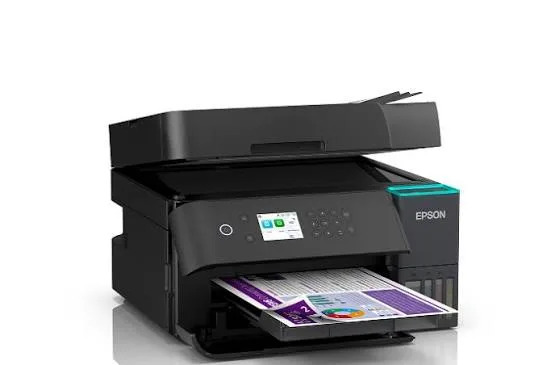
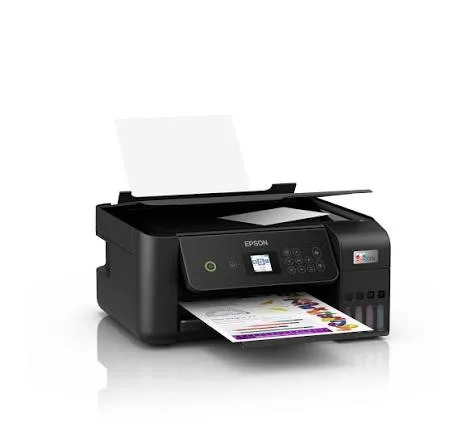
The Epson EcoTank L3260 is the L3250 with one useful upgrade: a 1.44-inch colour LCD screen. That screen sounds small, but it changes how the printer feels to use. You can set up Wi-Fi, check ink levels, run maintenance, choose copy settings and start copies directly on the printer, without relying on a phone app or a computer. Everything else is shared with the L3250: the refillable ink tanks, print, scan and copy functions, Wi-Fi and Wi-Fi Direct, sharp 5760 x 1440 dpi output, and a very low cost per page. It still has no automatic double-sided printing, no document feeder and no fax. If the screen is worth a little extra to you, the L3260 is the better everyday choice. If not, the L3250 saves money.
What the 1.44-inch screen actually gives you
It's worth being specific, because this is the whole reason to pay more.
- Easier Wi-Fi setup. You can pick your network and enter the password on the printer, which is much less frustrating than guessing at lights and buttons.
- A clear view of ink levels. You see how much ink is left in each tank before you run out, instead of finding out when a page fades.
- Direct copying. You choose the number of copies, colour or black, and paper size on the screen, without a computer.
- Maintenance in a few taps. Nozzle checks and head cleaning are on-screen menus, which helps when a print goes streaky.
- Error messages you can read. Jams, empty tanks and connection problems appear in words, not a pattern of blinking lights.
- Helpful in shared places. In a shop, a family home or a small office, anyone can walk up and use the printer without installing an app.
If you're the only user, comfortable with a phone app, the screen matters less. If several people use the printer, or you're not confident with technology, it's a real improvement.
How an ink tank printer works, and why it's cheaper
Cartridge printers use small plastic cartridges that run out quickly and cost a lot to replace. An ink tank printer like the L3260 has large built-in tanks that you fill from bottles.
- Each colour has its own tank and matching bottle, and the bottle nozzle fits only its tank, so you can't pour the wrong colour in.
- Bottles are cheap for the ink they hold, which makes each page cost a small fraction of a cartridge page.
- Yields are in the thousands of pages. Listings for the L3260 quote figures of several thousand black pages and several thousand colour pages per set of bottles, with sources differing slightly, so treat them as a guide.
- You refill occasionally, and it's tidy once you've done it a couple of times.
The higher purchase price is repaid by the low running cost, if you print regularly.
Who this printer is for
It suits you if:
- You print regularly, at home, for school or for a small business.
- You want a printer that's easy to set up and use without an app.
- Several people share the printer, and you want clear on-screen messages.
- You print some colour, including photos and school projects, and want low running costs.
- You want to print from phones and laptops over Wi-Fi.
Look elsewhere if:
- You want automatic double-sided printing. See the Epson L4360 in our range.
- You scan or copy stacks of pages and want a document feeder. See the Epson L5290.
- You want the lowest price and don't need a screen. See the Epson L3250.
- You print very high volumes. See the laser printers in our range.
Specifications in plain English
| Feature | Detail | What it means for you |
|---|---|---|
| Model | Epson EcoTank L3260 (C11CJ66501) | An upgraded L3250 with a screen |
| Functions | Print, scan and copy | Three jobs in one machine |
| Paper size | A4 | The standard office size |
| Print technology | Ink tank, colour inkjet | Low cost per page |
| Print speed | About 33 pages per minute black and about 15 colour (draft speeds) | Real-world speeds are slower |
| Print resolution | Up to 5760 x 1440 dpi | Sharp text and good photos |
| Display | 1.44-inch colour LCD | Easy setup and control |
| Connectivity | Wi-Fi, Wi-Fi Direct and USB 2.0 | Print from phones and laptops |
| Duplex (double-sided) | Manual only | You turn pages yourself |
| Document feeder (ADF) | None | You scan and copy one page at a time |
| Released | 2022 | A proven, mature design |
These figures come from Epson and retailer listings of the L3260. Printing speeds quoted by manufacturers are draft-mode figures, so ask us what to expect for your documents.
L3250 or L3260: which should you choose?
Because these two printers are so similar, here is a simple way to decide.
Choose the L3250 if:
- You're the only user and happy with a phone app.
- You want the lowest possible price.
- You mostly print and rarely change settings.
Choose the L3260 if:
- Several people share the printer.
- You want to set up Wi-Fi and run maintenance without a phone.
- You copy without a computer often.
- You like clear messages on the printer itself.
The print quality, speed, ink system and functions are the same. The screen is the whole difference, so ask yourself whether it's worth the extra to you. For many households and shops, it is.
Photos and borderless printing
The L3260 prints good photos for home use at 5760 x 1440 dpi, and it supports borderless printing of small photo sizes such as 4x6 inches.
- Use photo paper for the best results.
- Select the right paper type in the print settings.
- Choose high quality for photos.
- Let prints dry before handling.
- Keep prints out of direct sunlight.
For everyday family photos, school projects and small business flyers, the L3260 does very well. For professional photo work, Epson sells dedicated photo printers.
Getting set up: a first-day guide
- Unbox and remove all packing tape inside and outside the printer.
- Fill the ink tanks with the matching bottles, slowly, and wipe any drips.
- Let the printer initialise. The first charge of ink takes a few minutes.
- Load plain A4 paper in the rear tray.
- Connect to Wi-Fi using the printer's screen, or the Epson Smart Panel app.
- Install the driver on your laptop if needed, and print a test page.
- Run a nozzle check after the first week.
Using the printer from your phone
Even with a screen, the Epson Smart Panel app is handy.
- Print photos, documents and web pages from your phone.
- Scan a document from the glass straight to your phone as a PDF.
- Copy with a few taps.
- Check ink levels and run maintenance.
- Use Wi-Fi Direct when you don't have a router.
AirPrint support is common in this class of printer for Apple devices. Ask us to confirm it and Android printing for the unit you order.
Paper, ink and keeping costs down
- Use good-quality A4 paper, since poor paper jams more.
- Use genuine Epson ink bottles. Cheap third-party ink can clog print heads. Ask us for the correct bottle code.
- Print in standard or draft mode for everyday documents, and use high quality for photos.
- Print something weekly, so the print head stays healthy.
- Keep the printer level, and don't tilt it with ink in the tanks.
- Store bottles upright, away from heat and sunlight.
Sharing one printer between several people
A printer with a screen shines when more than one person uses it. A few steps make sharing smooth.
- Connect everyone to the same Wi-Fi network as the printer. In a home or small office, this is usually your router.
- Add the printer on each laptop. Windows finds most Wi-Fi printers automatically. For phones, use the Epson Smart Panel app or built-in printing.
- Use Wi-Fi Direct for visitors. Guests can connect straight to the printer without joining your network.
- Agree on paper and ink rules. Decide who refills the tanks and who keeps spare paper.
- Check ink levels on the screen each week, so nobody gets caught out.
- Keep the printer where people can reach it but away from dust and sunlight.
- Label the paper tray with the paper size, so nobody loads the wrong one.
For offices with many users, a networked printer with an Ethernet port, such as some laser models in our range, may be easier to manage.
Printing for a shop or small counter business
Many of our customers use a printer like the L3260 in a small shop, salon, clinic or stall.
- Print receipts, invoices and price lists at a very low cost per page.
- Scan IDs, documents and forms for customers, and send them by email or WhatsApp.
- Photocopy documents with the copy button and the on-screen settings, without a computer.
- Print photos for passport-style and family prints, using photo paper.
- Keep spare ink and paper so a busy day never stops you.
- Protect it from dust and power surges with a cover and a surge protector.
- Charge for services honestly. Knowing your cost per page lets you price copies and prints with a fair margin.
Understanding printer numbers: resolution, speed and yield
Printer specifications can be confusing, so here is a plain guide.
Resolution (dpi). "5760 x 1440 dpi" is the maximum number of ink dots per inch. More dots mean finer detail, but beyond a point the human eye can't tell. For documents, the standard setting looks sharp, and for photos, high quality uses more of the resolution.
Speed (ppm). "33 ppm" is the manufacturer's draft speed for black text on plain paper, and "15 ppm" for colour. Real-world speeds, in normal quality, with a full page of graphics, are lower. Epson also publishes ISO speeds, which are closer to real use. Use the headline figure to compare models, not to predict exact timings.
Yield (pages). This is how many pages a set of ink bottles prints, measured to a standard test page. Your own pages may use more or less ink, depending on how much of the page is covered. Heavy photos and solid colour use much more than a text letter.
Cost per page. Divide the cost of a bottle set by its yield to estimate cost per page. Ask us for the bottle price, and we'll help you work it out.
Duplex, ADF and fax. These are features, not performance measures. Decide whether you need them, and choose a model accordingly.
Common problems and simple fixes
Print is streaky or faded. Run a nozzle check, then a head cleaning from the screen's maintenance menu. Repeat once if needed.
Paper jams. Switch off, pull the paper out gently in the direction of travel, and check for torn scraps. Use good paper, fan it before loading and don't overfill the tray.
Won't connect to Wi-Fi. Restart the printer and router, move the printer closer, and re-run Wi-Fi setup on the screen. Test with Wi-Fi Direct.
Blank pages. Check that the ink tanks aren't empty, clean the head, and make sure all packing tape is gone.
Colours look wrong. Check the paper type setting, clean the head, and make sure each tank holds the right ink.
Error message about the maintenance box. The box that collects waste ink is nearly full. Ask us, since it needs an authorised service.
If a problem continues, message us on WhatsApp.
Questions to ask before you buy any printer
- How many pages will I print each month? This decides ink tank, cartridge or laser.
- Do I need double-sided printing or a document feeder?
- Do I need a screen? It helps if several people share the printer.
- How will I connect it? Wi-Fi, USB or a network cable.
- What does a replacement ink set cost, and what is the real cost per page?
- What's in the box, and does it include ink?
- What warranty is included, and who honours it? Get it in writing.
- Can I see it before I pay? A trustworthy seller says yes.
We're glad to answer all of these on WhatsApp or in the shop before you pay.
A worked example: what printing really costs
Numbers make the value of an ink tank printer clear, so here is a simple way to compare, using placeholder figures you can replace with real prices.
- Find the price of a replacement set of bottles and the number of pages it prints. Ask us for both.
- Divide the price by the pages to get the cost per page. For a tank printer, this comes out at a small fraction of a shilling or a few cents per page, for black text.
- Do the same for a cartridge printer. Take the price of a cartridge and divide it by its much smaller page yield.
- Multiply the difference by your monthly pages. A family printing 200 pages a month, or a small shop printing 1,000, sees the saving grow quickly.
- Add the purchase prices. The tank printer costs more upfront, so work out how many months it takes to catch up.
The break-even point arrives sooner than most people expect if you print regularly, and never if you print only a few pages a year. We're happy to run the numbers with you for your own use.
Looking after the printer for years
Ink tank printers last when they're used regularly and kept clean.
- Print something every week.
- Use the power button, not the wall switch, to turn the printer off.
- Keep the tanks above the minimum mark.
- Use genuine ink.
- Wipe dust from the scanner glass and the body with a soft cloth.
- Keep the printer level and in a cool, dry place.
- Cover it when idle.
- Don't move it with the ink tanks nearly full, and keep it upright when you do.
- Service it if you see a maintenance message.
Warranty and after-sales: what to ask
A printer is a long-term purchase, so it's worth knowing what happens if something goes wrong. Ask us what warranty covers the unit you order, how long it lasts, and what it covers. Printers normally exclude consumables such as ink, and damage from non-genuine ink or misuse. Keep your receipt, the serial number and the box. If a fault appears, message us on WhatsApp first, and we'll tell you the quickest way to get it sorted. Prevention helps too: genuine ink, regular use and a surge protector prevent most faults.
Using a printer in Kenya
Power protection. Printers can be damaged by surges. Use a surge protector, and don't plug a printer into a UPS meant for computers, because printers draw a lot of power when they start.
Dust and heat. Keep the printer covered when idle, in a clean, shaded spot.
Paper storage. Keep paper flat and dry, because humidity makes paper curl and jam.
Warranty. Ask us for the warranty that applies to the unit you order, and keep the receipt and box.
Accessories worth buying with it
| Accessory | Why it helps |
|---|---|
| Spare Epson ink bottle set | Keeps you printing when tanks run low |
| Surge protector | Protects against power spikes |
| USB cable (type A to B) | For a wired connection if needed |
| Quality A4 paper | Fewer jams, better results |
| Photo paper | For photo prints |
| Dust cover | Protects the printer when idle |
How it compares with other options in our range
| Epson L3260 | Epson L3250 | Epson L4360 | Epson L5290 | |
|---|---|---|---|---|
| Functions | Print, scan, copy | Print, scan, copy | Print, scan, copy | Print, scan, copy, fax |
| Display | Yes | No | Yes | Yes |
| Automatic duplex | No | No | Yes | Manual |
| Document feeder | No | No | No | Yes |
| Best for | Shared home and shop use | Basic home use | Double-sided printing | Small offices |
Against the Epson L4360: it adds automatic double-sided printing, which saves paper and time.
Against the Epson L5290: it adds an automatic document feeder and fax, for offices.
Against Canon and Brother ink tank printers: these are comparable. Ask us for a comparison based on your needs.
Honest pros and cons
Pros
- A very low cost per page.
- A colour screen for easy setup and control.
- Print, scan and copy in one machine.
- Wi-Fi and Wi-Fi Direct.
- Sharp text and good photos.
- A proven design.
Cons
- No automatic double-sided printing.
- No automatic document feeder, and no fax.
- A small screen, which is basic compared with larger touchscreens.
- No Ethernet port.
- Manufacturer speeds are draft speeds.
- A little messy to refill the first time.
What to check when it arrives
- The box model matches Epson EcoTank L3260.
- The printer, power cable and ink bottles are in the box.
- All packing tape is removed.
- The ink tanks fill properly, and a test page prints.
- The screen works and Wi-Fi connects.
- The scanner glass is clean and the lid closes properly.
- You get a receipt with the serial number and warranty details in writing.
Frequently asked questions
What is the Epson L3260 price in Kenya? We confirm the current price when you message us on WhatsApp, because supplier prices change. We tell you the price and what's in the box before you pay.
Where can I buy the Epson L3260 in Nairobi? At City Gadgets Kenya, New Alnoor Exhibition, Second Floor, Shop C7, Accra Road, Nairobi CBD, or by delivery.
What's the difference between the L3250 and L3260? The L3260 has a 1.44-inch colour screen. The rest is the same.
Does it have Wi-Fi? Yes, Wi-Fi and Wi-Fi Direct.
Does it print double-sided automatically? No. See the Epson L4360 for automatic duplex.
Does it have a document feeder? No. See the Epson L5290.
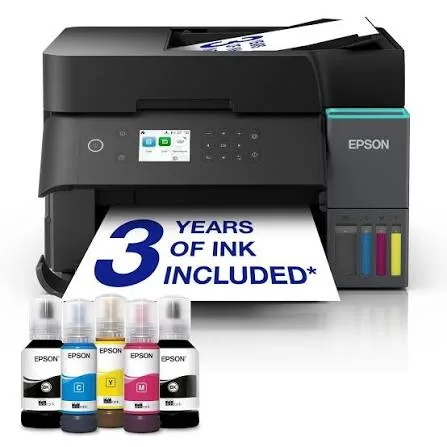
Does it come with ink? Epson EcoTank printers normally ship with a starter set of ink bottles. Ask us to confirm.
Can I print from my phone? Yes, with the Epson Smart Panel app and Wi-Fi Direct.
What warranty does it have? Ask us for the warranty that applies to the unit you order.
Can you deliver it? Yes, same day in Nairobi and next day outside Nairobi.
Can I pay via M-Pesa? Yes.
Why buy from City Gadgets Kenya
Genuine, brand-new Epson printer. We're at New Alnoor Exhibition, Second Floor, Shop C7, Accra Road, Nairobi CBD, and you're welcome to look at the printer before you buy. Message us on WhatsApp with how much you print and who uses it, and we'll tell you honestly whether the screen is worth paying for. We confirm what's in the box before you pay.
Order your Epson EcoTank L3260 today
Available now at City Gadgets Kenya. Message us on WhatsApp.
Specifications
- Brand
- Epson
- Condition
- New
Frequently Asked Questions
How much does the Epson EcoTank L3260 Wi-Fi Ink Tank All-in-One Printer with LCD in Kenya | City Gadgets Kenya cost in Kenya?
The Epson EcoTank L3260 Wi-Fi Ink Tank All-in-One Printer with LCD in Kenya | City Gadgets Kenya is priced at Ksh 35,000 at City Gadgets. You can pay via M-Pesa, card or cash on delivery.
Is the Epson EcoTank L3260 Wi-Fi Ink Tank All-in-One Printer with LCD in Kenya | City Gadgets Kenya available in Kenya?
Yes — the Epson EcoTank L3260 Wi-Fi Ink Tank All-in-One Printer with LCD in Kenya | City Gadgets Kenya is in stock at City Gadgets, ready for same-day delivery in Nairobi and countrywide shipping across Kenya.
Is the Epson EcoTank L3260 Wi-Fi Ink Tank All-in-One Printer with LCD in Kenya | City Gadgets Kenya genuine and does it have a warranty?
Every Epson EcoTank L3260 Wi-Fi Ink Tank All-in-One Printer with LCD in Kenya | City Gadgets Kenya we sell is 100% genuine brand-new stock and comes with a 12-month official brand warranty.
Do you deliver the Epson EcoTank L3260 Wi-Fi Ink Tank All-in-One Printer with LCD in Kenya | City Gadgets Kenya in Nairobi?
Yes. We offer fast same-day delivery within Nairobi and fast, affordable delivery to the rest of Kenya — order online or on WhatsApp.
Customer Reviews
No reviews yet
Be the first to review this product.
Rate us on Google
Your review helps other shoppers find us
Reviews from verified buyers will appear here.