Epson EcoTank L3250 Wi-Fi Ink Tank All-in-One Printer in Kenya | City Gadgets Kenya
Same-day delivery in Nairobi by 8 Oct – 9 Oct
Description
Buy the genuine Epson EcoTank L3250 A4 colour all-in-one ink tank printer with Wi-Fi in Kenya from City Gadgets Kenya. Epson L3250 price in Kenya, EcoTank printer Nairobi, cheap printing for home, students and small offices. A complete buyer's guide.
Epson EcoTank L3250 Wi-Fi Ink Tank All-in-One Printer in Kenya
Genuine Epson | Brand New | A4 Colour Print, Scan and Copy | Wi-Fi and Wi-Fi Direct | Refillable Ink Tanks
Looking for the Epson L3250 price in Kenya, an EcoTank printer in Nairobi, or the cheapest way to print lots of pages at home or in a small office? The Epson EcoTank L3250 is a brand-new, genuine A4 colour all-in-one printer that prints, scans and copies, with Wi-Fi so you can print from your phone and laptop. It uses refillable ink tanks, not small cartridges, which is why printing costs far less per page. It's available from City Gadgets Kenya with delivery across Kenya. Buyers also search for it as an Epson L3250 printer, an Epson EcoTank Wi-Fi printer, a cheap ink tank printer, a printer for students, a printer for home business, a refillable ink printer, or a printer scanner copier.
This guide explains the printer in plain language: how an ink tank printer works and why it's cheaper to run, what the L3250 does well, what it deliberately leaves out, and how it compares with the other Epson, Canon and Brother ink tank printers in our range. If you'd like to talk it through, message us on WhatsApp.
The short verdict
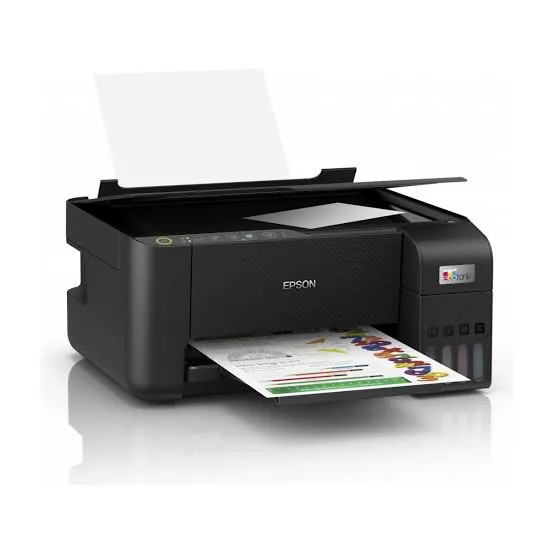
The Epson EcoTank L3250 is the affordable, sensible starting point in Epson's ink tank range. For a home, a student or a small business that prints regularly, it does the three jobs people need, printing, scanning and copying, with Wi-Fi, and the cost per page is a fraction of a cartridge printer's. It prints black text at about 33 pages per minute on paper-draft speed, and colour at around 15. What it leaves out are the extras that cost more: no automatic double-sided printing, no automatic document feeder, no fax and no screen. If you want those, look at the L3260, L4360 or L5290, also in our range. If you want the simplest low-cost printer that does the basics very well, this is the one.
How an ink tank printer works, and why it's cheaper
Most people know cartridge printers: small plastic cartridges full of ink that run out quickly and cost a lot to replace. An ink tank printer is built differently.
- Large built-in ink tanks hold a large amount of ink, and you refill them from bottles, with each bottle designed to fit its tank only.
- Bottles are cheap for the amount of ink they hold, so each page costs a small fraction of a cartridge page.
- Yields are measured in thousands of pages. Epson quotes thousands of black and colour pages from one set of bottles, though the exact figures depend on the model and on how you print.
- You fill the tanks once, and top them up every so often, which is a little messy the first time and easy after that.
The trade-off is a higher price for the printer itself, which you recover quickly if you print regularly. If you print only a few pages a month, a cartridge printer might suit you better. If you print dozens of pages a week, an ink tank printer saves money.
Who this printer is for
It suits you if:
- You print regularly at home, for school, college or a small business.
- You want to print from your phone, tablet or laptop without cables.
- You want the lowest running cost per page, in black and colour.
- You want a simple, compact printer that also scans and copies.
- You print mostly single-sided documents, forms, notes, assignments and photos.
Look elsewhere if:
- You want automatic double-sided printing. See the Epson L4360 in our range.
- You scan or copy stacks of pages and want an automatic document feeder. See the Epson L5290.
- You want an on-screen display, which the L3260 has.
- You print very high volumes in a busy office. A laser printer, such as the HP LaserJets or Brother models in our range, may suit you better.
Specifications in plain English
| Feature | Detail | What it means for you |
|---|---|---|
| Model | Epson EcoTank L3250 | Epson's entry Wi-Fi ink tank all-in-one |
| Functions | Print, scan and copy | Three jobs in one machine |
| Paper size | A4 | The standard office size |
| Print technology | Ink tank, colour inkjet | Low cost per page |
| Print speed | About 33 pages per minute black and about 15 colour (Epson's draft speeds) | Real-world speeds are slower |
| Print resolution | Up to 5760 x 1440 dpi | Sharp text and good photos |
| Connectivity | Wi-Fi, Wi-Fi Direct and USB 2.0 | Print from phones and laptops |
| Duplex (double-sided) | Manual only | You turn pages yourself |
| Document feeder (ADF) | None | You scan and copy one page at a time |
| Display | No screen | Controlled with buttons and the Epson Smart Panel app |
These figures come from Epson and retailer listings of the L3250. Printing speeds quoted by manufacturers are draft-mode figures, and normal-quality speeds are slower, so ask us what to expect for your documents.
What the L3250 does well
Low cost per page. This is the main reason to buy any EcoTank. A set of ink bottles prints thousands of pages, so costs stay low, even in colour.
Wi-Fi and Wi-Fi Direct. The printer connects to your home or office network, and Wi-Fi Direct lets a phone connect straight to the printer when there's no network. With the Epson Smart Panel app, you can print, scan and copy from your phone.
Sharp text and good photos. The 5760 x 1440 dpi resolution gives crisp text and photos that look good for home use, school projects and simple marketing material.
A compact body. It's small enough for a desk or a shelf.
Simple to use. With buttons rather than a menu system, it's easy for the whole family or a small team.
What the L3250 leaves out
Being honest about limits helps you choose well.
- No automatic double-sided printing. For double-sided pages, you print one side, turn the paper and print the other. That's fine for occasional use and tedious for regular use.
- No automatic document feeder. Scanning or copying a multi-page document means placing each page on the glass by hand.
- No fax. Most homes and many offices no longer need it.
- No display screen. You use buttons and a phone app, so you can't check settings on the printer itself.
- No Ethernet port. It connects by Wi-Fi and USB, not a network cable.
If any of these matter, look at the L3260, L4360 or L5290.
Getting set up: a first-day guide
- Unbox and remove all packing tape inside and outside the printer.
- Fill the ink tanks. Each colour has a matching bottle, and the bottle's nozzle fits only its own tank. Fill slowly and wipe any drips.
- Let the printer initialise. The first charge of ink takes a few minutes.
- Load plain A4 paper in the rear tray.
- Connect to Wi-Fi. Use the Epson Smart Panel app on your phone to join the printer to your network.
- Install the driver on your laptop if needed, and print a test page.
- Print a nozzle check after the first week, and clean the print head if lines appear.
Paper, ink and keeping costs down
- Use good-quality A4 paper. Poor paper jams more and shows through.
- Use genuine Epson ink bottles. Cheap third-party ink can clog print heads and may affect warranty. Ask us for the correct bottle code for your unit.
- Print in draft or standard mode for everyday documents. Reserve high quality for photos.
- Print something regularly. Ink tank printers keep their print heads healthy when used weekly. If you leave one unused for months, the head can clog.
- Keep the printer level and upright, and don't tilt it with ink in the tanks.
- Store bottles upright, away from heat and sunlight.
Using the printer from your phone
The Epson Smart Panel app makes the L3250 easy to use without a computer.
- Print photos, documents and web pages from your phone.
- Scan a document from the glass straight to your phone as a PDF or image.
- Copy a page by pressing a button in the app.
- Check ink levels and run maintenance.
- Use Wi-Fi Direct when you don't have a router, such as in a shop or at a site.
For Apple devices, AirPrint support is common in this class of printer. Ask us to confirm AirPrint and Android printing support for the unit you order.
Ink tank, cartridge or laser: which printer type suits you?
Choosing the type of printer matters more than choosing the model, so here is a plain comparison.
Ink tank printers (like the L3250)
- Very low cost per page, in colour and black.
- Good for people who print often, and who print colour or photos.
- Higher purchase price than a cartridge printer.
- The ink can dry or clog the head if the printer sits unused for months.
Cartridge inkjet printers
- Cheapest to buy.
- Expensive per page, and cartridges run out quickly.
- Fine if you print only a few pages a month.
Laser printers
- Fast, sharp text, and toner that doesn't dry out.
- Excellent for high-volume black-and-white office printing.
- Colour lasers cost more to buy and run, and photo quality is lower than inkjet.
- Good choices in our range include the HP LaserJet, Brother and Pantum models.
A good rule is to think about your volume and your content. Regular printing with some colour suits an ink tank printer. Large volumes of black text suit a laser. Very occasional printing suits a basic cartridge model.
How much will you print? A quick way to decide
A simple estimate helps you judge value.
- Count your weekly pages. Include homework, forms, invoices and photos.
- Multiply by 52 to get your yearly total.
- Compare running costs. A cartridge printer might cost many times more per page than an ink tank printer. The difference adds up fast when you print hundreds of pages a month.
- Remember photos and colour. Colour pages are where cartridge printers cost the most, and ink tank printers save the most.
- Think about growth. If your business or family printing might grow, an ink tank printer gives you room.
If you print only a handful of pages a month, tell us, and we'll say honestly whether an ink tank printer is worth it for you.
Scanning and copying tips
The L3250 scans and copies from a flatbed glass.
- Clean the glass with a soft, lint-free cloth. Smudges show up on every scan.
- Align the page to the corner marker on the glass.
- Choose the right resolution. 300 dpi suits documents, and 600 dpi suits photos. Higher settings make larger files and slower scans.
- Scan to PDF for documents and to JPEG for photos.
- Use the Smart Panel app to scan directly to your phone, then share or email.
- For multi-page documents, scan each page and combine them into one PDF in an app. If you do this often, an automatic document feeder, like the one on the Epson L5290, saves a lot of time.
- Copying works from a button press, and colour copies cost little thanks to the ink tanks.
Common printer problems and simple fixes
Most printer problems have simple fixes.
Streaks or faded lines. Run a nozzle check from the printer software or app, then a head cleaning. Repeat once if needed. If lines remain, wait an hour and try again.
Paper jams. Switch off, gently pull the paper out in the direction of travel, and check for torn scraps. Use good-quality paper, fan it before loading and don't overfill the tray.
Won't connect to Wi-Fi. Restart the printer and the router, move the printer closer, and re-run setup in the Smart Panel app. Use Wi-Fi Direct to confirm the printer itself works.
Prints blank pages. Check that the ink tanks aren't empty, run a head cleaning and make sure all packing tape is gone.
Colours look wrong. Check the paper type setting, run a head cleaning and make sure each tank holds the right ink.
Slow printing. Check the quality setting, since high quality is slower, and the print mode.
"Ink pad" or "waste ink" messages. These mean the maintenance box is nearly full and needs service. Ask us, since this needs an authorised service.
If a problem continues, message us on WhatsApp, and we'll help.
Questions to ask before you buy any printer
- How many pages will I print each month? This decides ink tank, cartridge or laser.
- Do I need double-sided printing? If yes, choose automatic duplex.
- Do I scan or copy multi-page documents? If yes, choose a model with an automatic document feeder.
- How will I connect it? Wi-Fi, USB or a network cable.
- What's the real cost per page, and what does a replacement ink set cost?
- What's in the box, and does it include ink?
- What warranty is included, and who honours it? Get it in writing.
- Can I see it before I pay? A trustworthy seller says yes.
We're glad to answer all of these on WhatsApp or in the shop before you pay.
Getting good photo prints from an ink tank printer
The L3250 isn't a dedicated photo printer, but it makes good photos for home use, and a few steps help.
- Use photo paper. Plain paper soaks up ink and dulls colours. Glossy or matte photo paper gives sharper, brighter results.
- Choose the correct paper type in the print settings, so the printer lays down the right amount of ink.
- Use high quality mode for photos, and accept that it takes longer.
- Start with a good file. A sharp, well-exposed photo prints well. A tiny, blurry one won't improve.
- Let prints dry for a few minutes before stacking or framing them.
- Keep prints out of direct sunlight, which fades inks over time.
- Use borderless printing for 4x6 and similar sizes where the model allows it.
For professional-grade photo work, Epson sells dedicated photo printers. For family photos, school projects and small business flyers, the L3250 is plenty.
Looking after the print head
The print head is the heart of an ink tank printer, and caring for it saves repair bills.
- Print weekly. Even a single colour test page keeps ink moving through the nozzles.
- Don't switch off at the wall straight after printing. Use the printer's power button, so it caps the head properly.
- Keep the tanks above the minimum line. Running dry can pull air into the system.
- Avoid cheap, unknown ink. Poor ink can clog nozzles and cause streaks.
- Run a nozzle check when quality drops, and clean the head only when needed, because each cleaning uses ink.
- Keep the printer in a stable, dust-free place away from direct sun and strong heat.
- If you won't use it for weeks, run a test print before an important job.
Looked after properly, an EcoTank printer can serve a household or a small business for many years.
Running a home business with the L3250
A lot of our customers use a printer like this to support a small business.
- Print invoices, receipts, quotes and forms at a very low cost per page.
- Print marketing material, such as flyers, menus and price lists, using photo or matte paper for a better finish.
- Scan documents such as IDs, contracts and receipts to PDF, and store them in the cloud.
- Print labels and packaging inserts using suitable paper.
- Keep a spare set of ink bottles, so a busy week never stops you.
- Protect the printer from dust and power surges, with a cover and a surge protector.
If your printing grows, the L3260, L4360 and L5290 in our range add a screen, double-sided printing and a document feeder.
Using a printer in Kenya
Power protection. Printers can be damaged by surges. Plug the printer into a surge protector, and avoid putting it on a UPS meant for computers, because printers draw a lot of power when they start.
Dust and heat. Keep the printer covered when you're not using it, in a clean, shaded spot.
Paper storage. Keep paper flat and dry. Humidity makes paper curl and jam.
Refilling. Use clean hands and a flat surface, and keep ink away from children and pets.
Warranty. Ask us for the warranty that applies to the unit you order, and keep the receipt and box.
Accessories worth buying with it
| Accessory | Why it helps |
|---|---|
| Spare Epson ink bottle set | Keeps you printing when tanks run low |
| Surge protector | Protects against power spikes |
| USB cable (type A to B) | For a wired connection if needed |
| Quality A4 paper | Fewer jams, better results |
| Photo paper | For photo prints |
| Dust cover | Protects the printer when idle |
How it compares with other options in our range
| Epson L3250 | Epson L3260 | Epson L4360 | Epson L5290 | |
|---|---|---|---|---|
| Functions | Print, scan, copy | Print, scan, copy | Print, scan, copy | Print, scan, copy, fax |
| Automatic duplex | No | No | Yes | Manual |
| Document feeder | No | No | No | Yes |
| Display | No | Yes | Yes | Yes |
| Best for | Basic home and student use | Home use with a screen | Double-sided printing | Small offices |
Against the Epson L3260: the L3260 adds a small colour display, which helps with settings and Wi-Fi setup, for a higher price.
Against the Epson L4360: it adds automatic double-sided printing, which saves paper and time.
Against the Epson L5290: it adds an automatic document feeder and fax, which suit offices that scan and copy stacks of pages.
Honest pros and cons
Pros
- A very low cost per page.
- Print, scan and copy in one machine.
- Wi-Fi and Wi-Fi Direct.
- Sharp text and good photos.
- Simple and compact.
- The lowest price in this group.
Cons
- No automatic double-sided printing.
- No automatic document feeder.
- No display and no fax.
- No Ethernet port.
- Manufacturer speeds are draft speeds.
- A little messy to refill the first time.
What to check when it arrives
- The box model matches Epson EcoTank L3250.
- The printer, power cable and ink bottles are in the box.
- All packing tape is removed.
- The ink tanks fill properly, and a test page prints.
- The scanner glass is clean and the lid closes properly.
- Wi-Fi connects through the Smart Panel app.
- You get a receipt with the serial number and warranty details in writing.
Frequently asked questions
What is the Epson L3250 price in Kenya? We confirm the current price when you message us on WhatsApp, because supplier prices change. We tell you the price and what's in the box before you pay.
Where can I buy the Epson L3250 in Nairobi? At City Gadgets Kenya, New Alnoor Exhibition, Second Floor, Shop C7, Accra Road, Nairobi CBD, or by delivery.
Does it have Wi-Fi? Yes, Wi-Fi and Wi-Fi Direct.
Does it print double-sided automatically? No. Duplex printing is manual. See the Epson L4360 for automatic duplex.
Does it scan multiple pages automatically? No, it has no document feeder. See the Epson L5290.
Does it come with ink? Epson EcoTank printers normally ship with a starter set of ink bottles. Ask us to confirm what's in the box.
How much does printing cost? Far less per page than a cartridge printer. Ask us for the cost of a replacement bottle set.
Can I print from my phone? Yes, with the Epson Smart Panel app and Wi-Fi Direct.
Is it good for students? Yes, for assignments, notes and scanning documents.
Can it print photos? Yes, good-quality photos for home use.
What warranty does it have? Ask us for the warranty that applies to the unit you order.
Can you deliver it? Yes, same day in Nairobi and next day outside Nairobi.
Can I pay via M-Pesa? Yes.
Why buy from City Gadgets Kenya
Genuine, brand-new Epson printer. We're at New Alnoor Exhibition, Second Floor, Shop C7, Accra Road, Nairobi CBD, and you're welcome to look at the printer before you buy. Message us on WhatsApp with how much you print and what you print, and we'll tell you honestly whether the L3250 is right for you or another model would suit you better. We confirm what's in the box before you pay.
Order your Epson EcoTank L3250 today
Available now at City Gadgets Kenya. Message us on WhatsApp.
Specifications
- Brand
- Epson
- Condition
- New
Frequently Asked Questions
How much does the Epson EcoTank L3250 Wi-Fi Ink Tank All-in-One Printer in Kenya | City Gadgets Kenya cost in Kenya?
The Epson EcoTank L3250 Wi-Fi Ink Tank All-in-One Printer in Kenya | City Gadgets Kenya is priced at Ksh 30,000 at City Gadgets. You can pay via M-Pesa, card or cash on delivery.
Is the Epson EcoTank L3250 Wi-Fi Ink Tank All-in-One Printer in Kenya | City Gadgets Kenya available in Kenya?
Yes — the Epson EcoTank L3250 Wi-Fi Ink Tank All-in-One Printer in Kenya | City Gadgets Kenya is in stock at City Gadgets, ready for same-day delivery in Nairobi and countrywide shipping across Kenya.
Is the Epson EcoTank L3250 Wi-Fi Ink Tank All-in-One Printer in Kenya | City Gadgets Kenya genuine and does it have a warranty?
Every Epson EcoTank L3250 Wi-Fi Ink Tank All-in-One Printer in Kenya | City Gadgets Kenya we sell is 100% genuine brand-new stock and comes with a 12-month official brand warranty.
Do you deliver the Epson EcoTank L3250 Wi-Fi Ink Tank All-in-One Printer in Kenya | City Gadgets Kenya in Nairobi?
Yes. We offer fast same-day delivery within Nairobi and fast, affordable delivery to the rest of Kenya — order online or on WhatsApp.
Customer Reviews
No reviews yet
Be the first to review this product.
Rate us on Google
Your review helps other shoppers find us
Reviews from verified buyers will appear here.