Xbox 360 Wired Controller for Windows (PC) in Kenya | City Gadgets Kenya
Same-day delivery in Nairobi by 22 Oct – 23 Oct
Comes with
Description
Buy the genuine Microsoft Xbox 360 Wired Controller for Windows in Kenya from City Gadgets Kenya. Plug-and-play USB gamepad for PC and laptop, M-Pesa accepted, same-day Nairobi delivery.
Xbox 360 Wired Controller for Windows (PC) in Kenya
Genuine Microsoft | Wired USB | PC and Laptop Compatible | Plug and Play | No Batteries
The Xbox 360 wired controller compatible with PC is the gamepad that most PC games are built around, and this is the boxed Microsoft Xbox 360 Controller for Windows. Available in Kenya from City Gadgets Kenya as an authentic Microsoft product, this page is for shoppers searching "Xbox 360 wired controller Kenya," "Xbox 360 controller for PC Nairobi," "USB game controller for laptop Kenya," or "PC gamepad Kenya." It covers what the controller does, how to set it up on Windows, the games it suits, how it compares with other controllers and how to recognise the genuine one.
Key specs at a glance
| Feature | Detail |
|---|---|
| Product | Microsoft Xbox 360 Controller for Windows |
| Type | Wired USB gamepad |
| Colour | Black |
| Connection | USB cable, about 2.5 m per Microsoft listings, confirmed per unit |
| Power | Through the USB cable, no batteries or charging |
| Controls | 2 analogue sticks (clickable), D-pad, A/B/X/Y, 2 bumpers, 2 analogue triggers, Start, Back, Guide |
| Feedback | Rumble motors in the grips, in games that support vibration |
| Works with | Windows PCs and laptops with a USB port. The box carries the Windows and Xbox 360 logos |
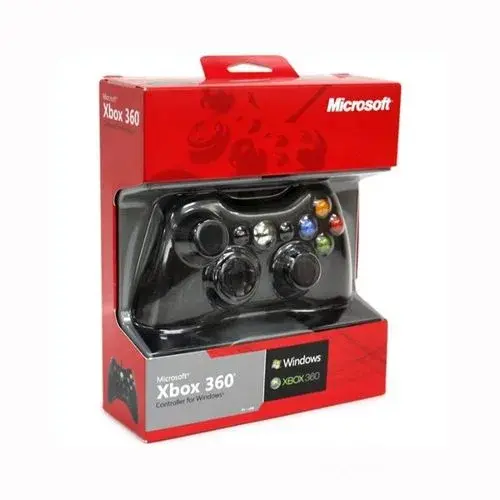
| Packaging | Microsoft retail box with a window showing the controller |
| Available from | City Gadgets Kenya, Nairobi CBD |
What's in the box
The retail pack holds the Xbox 360 wired controller with its attached USB cable, sealed in Microsoft's red packaging. A controller like this does not need batteries or a charger. Because contents can vary by pack, we confirm what is in the box for your unit before you pay, and you can inspect it at our shop.
Why the Xbox 360 controller is still the standard PC gamepad
When PC games add controller support, the Xbox 360 controller is usually the first one they support. Microsoft's XInput system, which most modern PC games use for gamepads, was built around it. That means a huge number of games recognise it instantly, show the correct button prompts on screen and need no special configuration. Later controllers from Microsoft work in much the same way, but the Xbox 360 wired controller remains popular because it is simple, tough and easy to replace.
In practical terms, that gives you:
- Instant recognition. Plug it in and Windows usually does the rest.
- Correct on-screen prompts. Games show "Press A" or "Hold RT", and those match your controller.
- Wide support. Steam, many game launchers and many emulators recognise it.
- A layout you can find anywhere. If you have played on an Xbox 360, you already know it.
- A stable wired connection. No pairing, no lag from wireless and no dead battery in the middle of a match.
Key features explained
Wired USB connection
The controller connects to your PC with a USB cable. Microsoft's listings give a cable length of about 2.5 metres for this controller, and we confirm the exact cable per unit. That is enough to sit back from a desk or reach a sofa from a TV-connected laptop. Because power comes through the cable, you never need to charge it or buy batteries. For students and gamers in Kenya, where a dead battery or a charging problem can interrupt a gaming session, that simplicity is a real advantage.
Familiar button layout
The controller has the same layout used across Xbox 360 games:
- Left analogue stick, used for movement in most games. You can also click it down as a button.
- Right analogue stick, used for the camera or aiming. It also clicks down.
- D-pad, used for menus, weapon selection, and in fighting and platform games.
- A, B, X and Y buttons, the main action buttons, with their familiar colours.
- Left and right bumpers (LB and RB), on the front edge.
- Left and right triggers (LT and RT), which are analogue, so they can read how far you press. That is useful in racing games for gentle acceleration and braking.
- Start and Back buttons, for menus and maps.
- Guide button, the central Xbox button. On a PC, it may open the Xbox or game overlay, depending on your Windows version and software.
Rumble feedback
Inside the grips are vibration motors that give you feedback in games that support it. In a racing game, you feel bumps and the engine. In football games, you feel tackles and shots. In action games, you feel hits and explosions. If you prefer to play without vibration, you can usually switch it off in the game's settings.
Comfortable grips
The grips are shaped to sit in your palms with your thumbs on the sticks and your index fingers on the triggers. Many players find the Xbox 360 shape comfortable for long sessions. Comfort is personal, and hand size matters, so ask to hold it in our shop if you can.
No batteries, no charging
Because it is wired, there is nothing to charge. This also means the controller is always ready and its weight is lower than a battery-powered pad. If you often play on a laptop on the move, you will want a USB port free, so we cover hubs later in this page.
Design and build quality
The controller is black and uses the familiar Xbox 360 shape: a curved body with two grips that rest in your palms, the two analogue sticks set at the classic offset positions and the D-pad on the lower left. The shell is moulded plastic with a matte finish on the grips, which helps when your hands are warm or damp. The buttons are coloured green, red, blue and yellow, so you can find them quickly. Weight is modest, which keeps long sessions comfortable, and the cable exits at the top centre, so it stays out of your way. Hand size and grip preference are personal, so if you can, pick the controller up in our shop and see how it feels before you buy.
Compatibility: will it work with my PC?
The controller is made for Windows PCs and laptops. The box shows the Windows logo and the Xbox 360 logo, so it is designed to work with both. For PC use, check the following.
| Check | What to look for |
|---|---|
| Operating system | Windows. Recent versions normally recognise it automatically. Older versions may need Microsoft's driver |
| USB port | A free USB-A port. If your laptop only has USB-C, use a USB-C to USB-A adapter or a hub |
| Game support | The game must support controllers. Many do, and most show controller options in the settings |
| Mac and Linux | May work with extra drivers or settings. We do not promise this, so ask us |
| Phones and tablets | Some Android devices can work through a USB OTG adapter, but it depends on the device and the game |
Because this is a Microsoft controller, its driver is built into recent versions of Windows. Plug it in, wait a few seconds, and Windows installs it. If it does not appear, see our troubleshooting table below.
How to set it up on Windows, step by step
- Unbox and inspect. Check the controller, cable and connector for damage.
- Plug it into a USB port on your PC or laptop. Use a port on the laptop itself for your first test, not a cheap hub.
- Wait for Windows to detect the controller. You may see a small notification.
- Open the Windows controller settings. Search for "Set up USB game controllers" in the Start menu, find the controller in the list and open Properties to test the buttons and sticks.
- Test in a game. Open a game with controller support, and check that the on-screen prompts show the Xbox buttons.
- Adjust settings. Many games let you change sensitivity, dead zones and vibration.
- Use Steam Input if you use Steam. Steam recognises the controller and lets you remap buttons for each game.
If the controller is recognised but a game ignores it, check the game's control settings. Some games need you to select "Controller" as the input method.
XInput and DirectInput: why some old games need a tweak
Windows games read gamepads in two main ways. XInput is the modern method, and the Xbox 360 controller uses it, so most recent games just work. DirectInput is an older method used by some older games and by many third-party gamepads. A few older games only understand DirectInput, and they may not detect an XInput controller without help. In those cases, players use a free third-party tool such as an XInput wrapper, or they use Steam's controller configuration, to make the game recognise the pad. If you mostly play recent games, you will rarely meet this problem. If you play older PC games, ask us and we will tell you what to expect.
Games that suit the Xbox 360 controller
The controller works with any PC game that supports XInput controllers. Genres where it shines include:
Football and sports games
Football games such as FIFA and eFootball feel natural on a gamepad. The analogue sticks give precise movement and passing, the triggers and bumpers handle sprint and tactics, and the buttons handle shots and tackles. For many players in Kenya, football games are the main reason to buy a PC controller.
Racing games
The analogue triggers are well suited to racing. You can apply gentle throttle and brake, and the left stick steers smoothly. Rumble adds feel on kerbs and gravel.
Action and adventure games
Third-person action and adventure games are designed around a controller. Aiming with the right stick, dodging with a button press and using the bumpers for abilities are all comfortable.
Fighting games
The D-pad on the Xbox 360 controller is often discussed by fighting game players. Some prefer it for directional inputs, others prefer an arcade stick. If you play fighting games seriously, test the D-pad in the shop and decide if it suits you.
Platformers and indie games
Many indie games are designed for a gamepad. Precise jumping and quick movements feel more natural with a controller.
Emulators and retro games
Emulators and front-end programs commonly recognise the Xbox 360 controller. The D-pad, face buttons, bumpers and triggers can map to the buttons on older consoles. Remember to use only games and software you are allowed to use.
Local multiplayer and couch co-op
Plug two controllers into a PC with two USB ports, or a hub, and many games let two players play on the same screen. This is great for family game nights and for friends in a hostel room.
Xbox 360 wired controller vs other options
Wired vs wireless controllers
| Feature | Wired Xbox 360 controller | Wireless controller |
|---|---|---|
| Battery | None needed | Needs batteries or charging |
| Lag | Very low, direct cable | Low, but depends on the connection |
| Setup | Plug in | Pairing or a receiver |
| Freedom of movement | Limited by cable length | Free |
| Reliability | Very high | Depends on battery and signal |
| Best for | Desk gaming, competitive play | Sofa gaming, living room |
Controller vs keyboard and mouse
Keyboard and mouse are best for shooters, strategy and many PC-native games. A controller is best for football, racing, platformers, fighting and action games. Many players use both. The controller costs little compared with a gaming PC, and it can transform games you already own.
Xbox 360 controller vs newer Xbox controllers
Newer Xbox controllers add features such as improved grips, a share button and Bluetooth in some models. For wired PC gaming, the Xbox 360 controller does the core job, and it is simple and familiar. If you want wireless, Bluetooth or the newest design, ask us what we have in stock.
Xbox 360 controller vs PlayStation controllers on PC
PlayStation controllers can work on PC, and many games show PlayStation button prompts when they detect one. But the Xbox 360 layout has the broadest, simplest PC support, with no extra software in most cases. That is why many PC gamers start with an Xbox-style controller.
Genuine Microsoft vs third-party "compatible" pads
Third-party pads copy the Xbox 360 layout, and some are good. Many are cheap, with weaker sticks, mushy triggers and shorter life. The unit we describe here is in Microsoft's retail box, which is what you should look for if you want the real thing.
Xbox 360 controller at a glance against the alternatives
| Feature | This wired Xbox 360 controller | Wireless Xbox controller | PlayStation controller on PC | Keyboard and mouse |
|---|---|---|---|---|
| Setup on Windows | Plug in | Pairing or a receiver | Often needs extra software for full support | Built in |
| Battery | None | Needed | Needed | None |
| Game button prompts | Xbox prompts in most games | Xbox prompts | PlayStation prompts in some games | Keys |
| Best for | Football, racing, action, platformers | The same, from the sofa | Games with PlayStation support | Shooters, strategy |
| Cable needed | Yes | No | Optional | Yes or wireless |
Using it with Steam and other game launchers
Steam recognises the Xbox 360 controller as a standard gamepad. Open Steam, go to the controller settings, and you can see the connected controller, test the buttons and sticks, and create layouts for individual games. This is useful when a game does not offer its own button mapping, or when you want to swap two buttons to suit your style. Steam can also help with some older games that do not understand modern controllers, because it translates the controller's signals into the keyboard and mouse input the game expects. Other launchers and many emulator front ends also detect the controller automatically, and most show their own controller setup screen. If you use a launcher that does not detect it, check the launcher's input settings first, then try another USB port, and message us if the problem continues.
For everyday play, the simplest routine is to plug in the controller before you open the game. Some games only look for controllers when they start, so a controller plugged in after launch may not be picked up until you restart the game. If you have two controllers connected, check which one the game has assigned to player one, because the first one connected usually takes that slot.
Why wired still makes sense for Kenyan gamers
Power cuts, shared sockets and busy charging stations are part of daily life in many homes and hostels. A wired controller removes one more thing to charge. It does not need batteries, it does not need pairing and it is ready as soon as the laptop is on. When your laptop is plugged into a power bank or running on its battery, the controller takes only a small amount of power from the USB port. If you play for long sessions on battery, keep an eye on the laptop's charge, and remember that rumble uses slightly more power than playing with vibration off.
Using the controller with a laptop: USB ports and hubs
Many modern laptops have only a small number of USB ports, and some have only USB-C. A few tips:
- Use a laptop port first. Plug the controller straight in when you test it, so you know the controller and the port work.
- USB-C laptops need an adapter or hub. A USB-C to USB-A adapter or a USB-C hub gives you a standard port. We stock hubs in our accessories category.
- Avoid very cheap hubs. Poor hubs can drop the connection or give too little power, so the controller disconnects mid-game.
- Use a powered hub for several devices. If you plug in two controllers, a mouse and a drive, a powered hub is more stable.
- Keep the cable tidy. Do not pull the cable hard, wrap it tightly around the controller or trap it in a closed laptop.
If you want to play on a TV, you can connect your laptop to the TV by HDMI and sit back with the controller. Check the cable length, and use a longer HDMI cable if needed.
Playing on a TV with a laptop
Many gamers in Kenya connect a laptop to a TV for a bigger screen. The controller works the same way. Connect the laptop to the TV with an HDMI cable, set the display to the TV, and sit back with the controller plugged into the laptop. Check the cable length first: the controller's cable and the HDMI cable together decide how far you can sit. If you want more freedom, a USB extension cable can help, but avoid very long, cheap extensions because they can cause drop-outs. Check the TV's game mode too, if it has one, to reduce delay.
Latency: why wired still matters
Latency is the delay between pressing a button and seeing the result on screen. A wired controller sends its signals straight down a cable, so there is no wireless link to add delay, no interference from nearby devices and no pairing to fail. For most casual play, a good wireless controller is fine. But in football games, fighting games and fast platformers, where a split second decides a pass or a jump, many players prefer the certainty of a cable. The rest of the delay comes from your screen, your PC's performance and the game itself, so a controller cannot fix a slow laptop. If a game is running at a low frame rate, lowering graphics settings will help more than any controller.
Getting the best from your controller: settings that matter
Most players never change a setting, but a few tweaks can make a difference.
- Dead zone. This is the small area around the centre of a stick where movement is ignored. If your character drifts, increase the dead zone in the game. If it feels sluggish, lower it.
- Sensitivity. Many games let you change how fast the camera moves with the right stick. Start in the middle and adjust.
- Vibration. Turn it off if you find it distracting or if you want to save a little power on a laptop.
- Trigger behaviour. In racing games, check whether the game uses the triggers for throttle and brake or the bumpers.
- Button remapping. In Steam and many games, you can change what each button does.
- Controller prompts. If a game shows keyboard keys on screen, switch the input to controller in the options.
Caring for your controller
A controller is handled many times a day, and a little care extends its life.
- Do not yank the cable. Pulling the cable from the controller or the PC is the most common way to damage it.
- Keep it dry. Do not use it with wet hands, and keep drinks away. Spilled sugary drinks can make buttons sticky.
- Clean gently. Switch it off by unplugging it, then wipe the shell with a slightly damp, well-wrung soft cloth. Do not pour liquid on it, and do not use strong chemicals.
- Keep dust out. Store it in a drawer or bag, away from dust.
- Avoid heat. Do not leave it in a hot car or in direct sun.
- Do not force the sticks. Pushing them sideways while holding them can wear the mechanism.
- Store the cable loosely. A loose coil is better than a tight wrap.
Troubleshooting: when it does not work
| Problem | Likely cause | What to try |
|---|---|---|
| Controller not detected | Port or cable issue | Try another USB port, without a hub, and restart the PC |
| Windows does not install it | Driver not installed | Run Windows Update, or install Microsoft's driver for the controller |
| Game ignores the controller | Game does not support it, or uses old input | Check the game's controller settings, try Steam Input, or ask us about older games |
| Buttons do the wrong thing | Wrong profile or layout | Reset the controller layout in the game or Steam |
| Stick drift | Dust, wear or dead zone too low | Increase the dead zone, clean around the stick, or ask us to check it |
| Vibration does not work | Game setting off or driver issue | Enable vibration in the game and check the Windows test screen |
| Controller disconnects | Loose cable or poor hub | Use a different port, check the cable and avoid cheap hubs |
| Triggers feel odd | Calibration or game setting | Check the trigger settings in the game and in the Windows test screen |
If none of these help, bring the controller to our shop. Our repair desk can check it, and you can learn more on our repair service page.
Who This Controller Is Right For
Students and young gamers
A controller is an affordable way to get more from the PC games you already own. It does not need batteries, so it fits a student budget and a hostel room.
Football fans
If you love FIFA or eFootball, a controller makes the game far easier to play than a keyboard. It is also good for playing with friends in the same room.
Casual and family gamers
The layout is friendly, and the controller feels the same as a console pad. Many families use it for couch co-op.
PC gamers who want a reliable backup
Wireless controllers run out of battery. A wired Xbox 360 controller is always ready, which makes it a good spare.
Emulator and retro fans
The standard layout, D-pad and analogue triggers make it a good controller for retro games and front ends.
Gift buyers
A controller is a simple, useful gift for someone who already has a gaming laptop or PC. Check that they have a free USB port, and ask us if you are unsure.
Accessories that go well with it
A controller is only part of a comfortable PC gaming setup. A few additions are worth considering:
- A USB hub or USB-C adapter, if your laptop has few ports or only USB-C.
- A second controller, for local multiplayer on one screen.
- An HDMI cable, to play on a TV from your laptop.
- A laptop stand to lift the screen to eye level.
- A gaming headset or earbuds for game audio and voice chat.
- A mouse, for the many games and menus that work better with one.
We stock accessories in our accessories category, and our team can recommend a combination that fits your laptop and budget.
How to recognise the genuine Microsoft controller
The Xbox 360 controller is widely copied, so check what you are given. The boxed unit we describe has red Microsoft packaging with a clear window showing the black controller, the Microsoft logo at the top, "Xbox 360 Controller for Windows" printed on the front and the Windows and Xbox 360 logos on the box.
- Packaging: sharp printing, clean edges and consistent colours. Blurry logos, spelling mistakes and flimsy plastic are warning signs.
- Seal: a re-taped or torn box suggests an opened or reused pack.
- Label: a printed model label on the back of the controller, which should match the box. We confirm it per unit.
- Build: firm triggers, sticks that return smoothly to centre and no rattling parts.
- Cable: thick and well made, with a connector that fits firmly.
- Test: on Windows it should be recognised as an Xbox 360 controller, and the test screen should show every button, stick and trigger working, with even vibration.
- Price and seller: a price far below normal, no receipt and no shop address are red flags.
If you are unsure, bring it to New Alnoor Exhibition, Second Floor, Shop C7, Accra Road, and we will help you check it.
Why Buy From City Gadgets Kenya
Genuine, authentic Microsoft product, not a replica, checked before it reaches you. A real shop at New Alnoor Exhibition, Second Floor, Shop C7, Accra Road, Nairobi CBD, opening from 9:00 AM, so you can test the controller on a laptop before you pay. Same-day delivery in Nairobi and next-day delivery outside Nairobi through reputable courier companies. M-Pesa payment and clear receipts. Honest advice, including telling you if your game needs extra setup or a different controller suits you better. Browse USB hubs, adapters and cables in our accessories category, get help through our repair service, trade in a device on our sell page or message us on WhatsApp.
Frequently Asked Questions
Is the Xbox 360 wired controller compatible with PC? Yes. This is the Microsoft Xbox 360 Controller for Windows, designed to work with Windows PCs and laptops over USB.
Do I need to install a driver? Recent versions of Windows usually install it automatically. Older versions may need a driver, and we can guide you.
Does it need batteries? No. It is powered through the USB cable.
Is it wireless? No. It is a wired controller.
Can I use it on a console? The box shows both Windows and Xbox 360 logos. If you plan to use it on a console, ask us to confirm for your setup.
Can I use it with a Mac or on Linux? Possibly, with extra drivers or settings. We do not promise it. Ask us before you buy.
Does it work with FIFA and eFootball? Games that support controllers work well with it. Check the game's control settings.
Can I play with two controllers? Yes, if the game supports local multiplayer and you have two USB ports or a hub.
Why is my game not detecting it? The game may not support controllers, or it may use an older input method. Check the settings, try Steam Input, or ask us.
How long is the cable? Microsoft lists about 2.5 metres, and we confirm the exact length per unit.
Can I use it with a phone or tablet? Some Android devices work through a USB OTG adapter, but it depends on the device and the game.
Can I pay by M-Pesa? Yes.
Where can I buy it in Nairobi? At City Gadgets Kenya, Shop C7, Second Floor, New Alnoor Exhibition, Accra Road, Nairobi CBD.
Do you deliver? Yes, same day within Nairobi and next day outside Nairobi.
Order Your Xbox 360 Wired Controller Today
Available now at City Gadgets Kenya, guaranteed genuine. Tell us your laptop or PC model and the games you play on WhatsApp, and we will confirm the controller suits your setup, or browse our accessories category.
Specifications
- Brand
- MICROSOFT
- Condition
- New
Frequently Asked Questions
How much does the Xbox 360 Wired Controller for Windows (PC) in Kenya | City Gadgets Kenya cost in Kenya?
The Xbox 360 Wired Controller for Windows (PC) in Kenya | City Gadgets Kenya is priced at Ksh 2,000 at City Gadgets. You can pay via M-Pesa, card or cash on delivery.
Is the Xbox 360 Wired Controller for Windows (PC) in Kenya | City Gadgets Kenya available in Kenya?
Yes — the Xbox 360 Wired Controller for Windows (PC) in Kenya | City Gadgets Kenya is in stock at City Gadgets, ready for same-day delivery in Nairobi and countrywide shipping across Kenya.
Is the Xbox 360 Wired Controller for Windows (PC) in Kenya | City Gadgets Kenya genuine and does it have a warranty?
Every Xbox 360 Wired Controller for Windows (PC) in Kenya | City Gadgets Kenya we sell is 100% genuine brand-new stock and comes with a 12-month official brand warranty.
Do you deliver the Xbox 360 Wired Controller for Windows (PC) in Kenya | City Gadgets Kenya in Nairobi?
Yes. We offer fast same-day delivery within Nairobi and fast, affordable delivery to the rest of Kenya — order online or on WhatsApp.
Customer Reviews
No reviews yet
Be the first to review this product.
Rate us on Google
Your review helps other shoppers find us
Reviews from verified buyers will appear here.
Buying guides
Straight advice for shoppers picking between the models above.
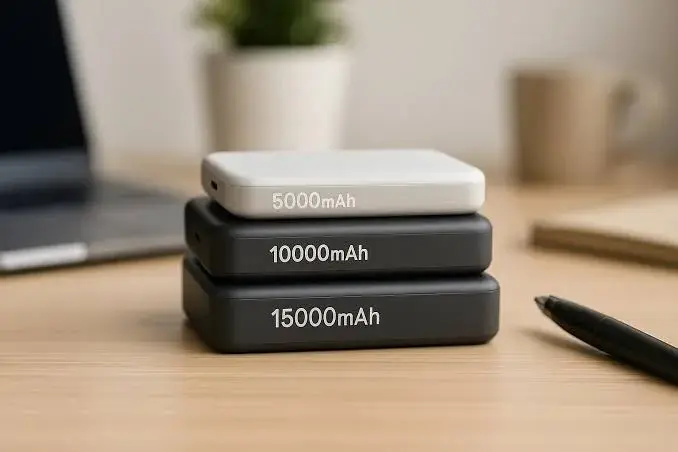
Power Bank Capacity Guide for Kenya: How Many mAh Do You Really Need for Phones, Laptops, Routers and Travel?
Power Bank Capacity Guide for Kenya: How Many mAh Do You Really Need for Phones, Laptops, Routers and Travel?
Read the guide
Best Fast Charger in Kenya: Samsung 25W and 45W, Anker Nano 45W, CMF 100W — USB-C PD, PPS and How to Choose
Best Fast Charger in Kenya: Samsung 25W and 45W, Anker Nano 45W, CMF 100W — USB-C PD, PPS and How to Choose
Read the guide
Best GaN Charger in Kenya: What GaN Really Means, CMF 100W, Anker Nano and How to Avoid Fake GaN Chargers
Best GaN Charger in Kenya: What GaN Really Means, CMF 100W, Anker Nano and How to Avoid Fake GaN Chargers
Read the guide