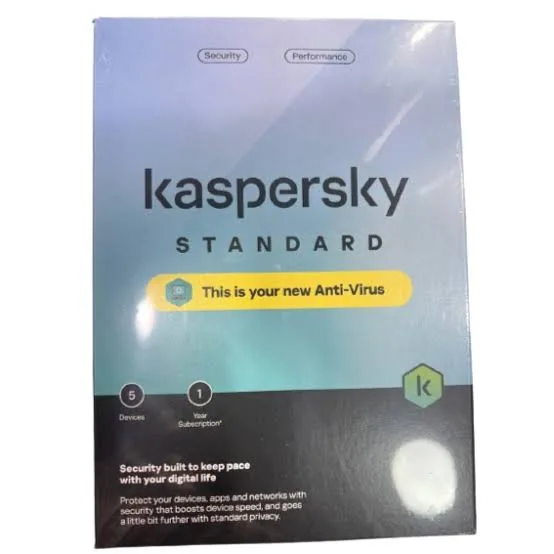
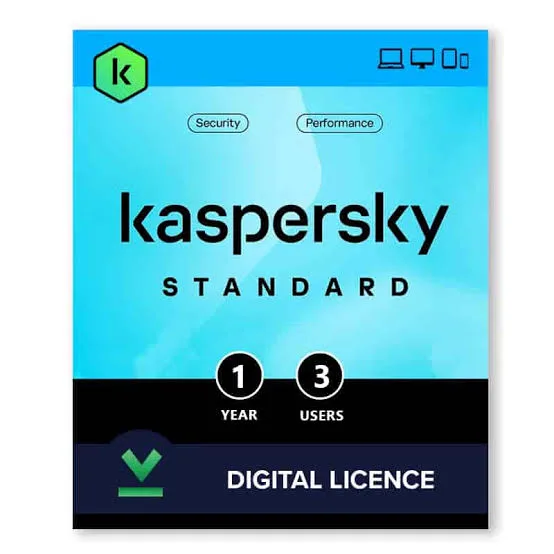
Kaspersky Standard 3 Devices Antivirus and Anti-Ransomware in Kenya | City Gadgets Kenya
Same-day delivery in Nairobi by 10 Oct – 11 Oct
Comes with
Description
Buy genuine Kaspersky Standard for up to 3 devices with antivirus, anti-ransomware, anti-phishing, online payment protection and performance tools for Windows, Mac, Android and iOS in Kenya from City Gadgets Kenya. Kaspersky Standard 3 user price in Kenya, antivirus for laptops in Nairobi.
Kaspersky Standard 3 Devices Antivirus and Anti-Ransomware in Kenya
Genuine Kaspersky | Digital Licence | Up to 3 Devices | Antivirus and Anti-Ransomware | Anti-Phishing and Web Protection | Online Payment Protection | Device Cleanup and Performance Tools
Searching for Kaspersky Standard 3 user price in Kenya, a low-cost antivirus for three computers in Nairobi, or a step up from the free antivirus built into Windows? Kaspersky Standard is Kaspersky's entry paid security subscription. For up to three devices, it gives you real-time antivirus and anti-ransomware protection, anti-phishing and web protection, protection for online payments, and tools that clean up and speed up your device, across Windows, macOS, Android and iOS. It's available from City Gadgets Kenya as a licence with delivery across Kenya. Buyers also search for it as Kaspersky Standard, Kaspersky Standard 3 devices, Kaspersky Standard 3 user, Kaspersky Standard antivirus, Kaspersky Anti-Virus 3 PC, a cheap antivirus for 3 devices, an antivirus for Windows 11, or an antivirus for a family laptop.
This guide is written to help you decide honestly whether you need a paid antivirus at all, what Standard adds, and when Plus is the better buy. If you'd like to talk it through, message us on WhatsApp.
The short verdict
Kaspersky Standard for three devices is the value pick for people who want more than the minimum, without paying for extras they won't use. It covers the essentials: real-time antivirus and anti-ransomware, anti-phishing and web protection, online-payment protection for banking and shopping, and cleanup and performance tools. It doesn't include the unlimited VPN, the password manager or the data leak checker that Kaspersky Plus adds. If your devices are mostly at home, you use strong passwords already and you don't often use public Wi-Fi, Standard covers the main risks at a lower price. If you travel, work from cafes or reuse passwords, Plus is the better choice. We also include an honest note below about where Kaspersky is restricted, and an honest answer to the question many people ask, whether Windows' built-in protection is enough.
Do you need a paid antivirus? An honest answer
It's a fair question, so here is a straight answer.
- Windows includes Microsoft Defender, a free antivirus built into Windows 10 and 11, which is decent for many people.
- A paid antivirus can add extra layers: stronger web and phishing protection, protection for online payments, anti-ransomware safeguards, cleanup tools and support across several operating systems.
- Phones and Macs are different. Defender doesn't protect Android phones, iPhones or Macs, so a cross-platform subscription covers them.
- The biggest risks are human. Clicking fake links, installing pirated software and reusing passwords cause more losses than missing antivirus does.
- If you manage three devices of different types, one subscription is simpler than separate tools.
- If you have only one Windows laptop, you're careful, and you keep it updated, Defender plus good habits is a reasonable choice.
We'd rather tell you that than sell you something you don't need.
What's in Kaspersky Standard
Retail and distributor listings describe these features.
- Real-time antivirus and anti-malware, to block viruses, trojans, spyware and ransomware.
- Anti-ransomware, to protect your files from locking attacks.
- Anti-phishing and web protection, to warn about fake sites, such as fake bank and mobile money pages.
- Online-payment protection, which opens banking and shopping sites in a protected way, on supported systems.
- Device cleanup and app management, to free space and remove unwanted apps.
- Performance tools, to speed up and tidy your device.
- Support for Windows, macOS, Android and iOS, though the features vary by system.
- A My Kaspersky account, to manage your licence and devices.
It doesn't include the unlimited VPN, the password manager or the data leak checker. Those are in Plus.
Standard versus Plus
A short comparison helps you choose.
Standard (this licence)
- Antivirus, anti-ransomware, anti-phishing and payment protection.
- Cleanup and performance tools.
- A lower price.
Plus adds
- An unlimited VPN.
- A password manager and secure vault.
- A data leak checker.
- Webcam and microphone protection and an ad blocker.
Choose Standard if:
- Your devices are mostly at home.
- You already use a password manager or a good password habit.
- You rarely use public Wi-Fi.
- You want the lowest price for real protection.
Choose Plus if:
- You use public Wi-Fi, travel or work remotely.
- You reuse passwords or have many accounts.
- You want a VPN included.
Who this is for
It suits you if:
- You have up to three devices, such as two laptops and a phone.
- You want solid protection and performance tools at a modest price.
- You do online banking, mobile money and shopping on your devices.
- You want one subscription for Windows, Mac and Android.
- You're a student, a family or a household with a few devices.
Look elsewhere if:
- You have four or five devices. See Kaspersky Standard for 5 devices in our range.
- You want a VPN and a password manager. See Kaspersky Plus.
- You run a business with several computers. Ask us about business security options.
- Your workplace doesn't allow Kaspersky.
An honest note about Kaspersky
It's worth being open about a point that affects some buyers.
- Kaspersky is a global security company with Russian origins, and it sells in many countries, including Kenya.
- Some governments have restricted its use or sale. For example, the United States restricted sales of Kaspersky products in 2024, and some organisations keep it off government systems.
- We're not aware of any such restriction in Kenya.
- If you work for a government body, a regulated company or a client with a strict security policy, check whether Kaspersky is allowed before you buy.
- If you're an individual, the choice is yours, and we'll help you compare with other security products if you prefer.
How you receive the licence
Software licences are digital, and it helps to know what to expect.
- A digital activation code is usually delivered by email or WhatsApp, or as a code on a card. We confirm the format for the licence you order.
- You activate it through the Kaspersky app or your My Kaspersky account.
- Check the subscription dates and the device count after activation.
- Standard subscriptions are normally for one year from activation. We confirm the term.
- Genuine licences come from authorised sources, and we tell you what's included.
- Keep your receipt and code safe.
Installing Kaspersky Standard: step by step
- Back up your important files, as a precaution.
- Decide which three devices to protect, such as your main laptop, your phone and a family laptop.
- Uninstall any old antivirus first, since two antivirus programs fight each other. Restart if asked. Windows' built-in Defender steps aside automatically when another antivirus is active.
- Create or sign in to your My Kaspersky account.
- Enter your activation code, or use the link we provide.
- Download and install the Kaspersky app on each device.
- Sign in, and let it update.
- Run a full scan, which may take an hour or more the first time.
- Check the settings, such as scheduled scans and automatic updates.
- Note the expiry date, and set a reminder.
Using the cleanup and performance tools
Standard includes tools to keep devices tidy.
- App management helps you spot and remove apps you don't use or that look suspicious.
- Cleanup tools clear temporary files and free space.
- Performance tools can reduce startup items and speed up a slow computer.
- Don't expect miracles. An old computer with a failing hard drive or too little memory still needs hardware help, such as an SSD or more RAM. Ask us.
- Don't delete things you don't understand.
- Back up before a big cleanup.
Protecting online payments
Many people use Standard mainly for safer banking and shopping.
- Online-payment protection opens supported banking and shopping sites in a protected way, which helps against fake pages and some keystroke-stealing malware.
- It doesn't protect you from scams where you hand over a PIN or a code yourself.
- Never share your M-Pesa PIN or one-time codes.
- Check the address of banking sites, and bookmark them.
- Use your bank's official app, and keep it updated.
- Turn on two-step verification.
- Avoid banking on public Wi-Fi, or use a VPN, which Plus includes.
Staying safe from scams in Kenya
Software helps, and habits matter more.
- Be wary of messages claiming to be from M-Pesa, your bank, KRA or a delivery company.
- Check the sender and the link before you click.
- Be careful with job offers, prizes and loans that ask for fees.
- Don't install pirated or cracked software, which often carries malware.
- Keep your devices updated.
- Use strong, unique passwords, and two-step verification.
- Back up your files to the cloud and an external drive, such as a SanDisk or WD drive from our range.
A worked example: a student household with three devices
A concrete example shows how three slots can be used.
- The household: two siblings at university and a parent, sharing a flat in Nairobi.
- The devices: a laptop for each sibling and the parent's phone, which holds mobile money and banking.
- The setup: a My Kaspersky account on the parent's email, the app on all three devices, automatic updates on and a weekly scan.
- The habits: no pirated software, since students are often tempted by cracked programs. Two-step verification on email and banking. A SanDisk external drive for monthly backups of coursework.
- The scam rule: nobody sends money or a code after a message without calling to check.
- The cost per device: far less than one repair bill after an infection, and far less than losing an assignment or a thesis.
- The upgrade path: when the siblings start travelling or working remotely, move to Plus for the VPN and the password manager.
Protecting a student's laptop
Students' laptops carry their work and are often infected through downloads.
- Install antivirus before the first download spree.
- Avoid cracked software, key generators and "free" paid apps, which commonly carry malware.
- Use official sources for textbooks, apps and software, and your university's licensed software.
- Beware of USB drives from friends and print shops, which spread infections. Scan them before opening.
- Back up thesis work daily, to the cloud and an external drive.
- Use a strong password and lock the screen.
- Don't leave the laptop unattended in a library or a hostel.
- Keep Windows and your apps updated.
Windows Defender and Kaspersky together
It's worth knowing how they interact.
- Windows Defender is built into Windows, and it's on by default.
- When you install another antivirus, Windows normally switches Defender's real-time protection off, so the two don't clash.
- If you uninstall Kaspersky later, Defender switches back on automatically.
- Don't install two third-party antivirus programs at once.
- If Defender shows as off, and you don't have another antivirus, turn it on in Windows Security.
- If your licence expires, renew it or let Defender take over, rather than going unprotected.
When your computer is the real problem
Antivirus can't fix everything, and an honest answer helps.
- A slow computer is often caused by a nearly full or failing hard drive, too little RAM, or too many startup programs.
- An SSD upgrade can make an old laptop feel new. Ask us what suits your model.
- More RAM helps with many tabs and apps. Check what your laptop supports.
- A cleanup tool helps a little, and hardware helps a lot.
- An old computer that can't run current Windows won't get security updates, and is a risk. Consider replacing it. See the laptops in our range.
- Dust and heat slow a computer. Clean the vents, or ask us about servicing.
Keeping your security up to date
- Renew before expiry, since an expired licence stops updates.
- Keep the app, the system and your browsers updated.
- Review your passwords a few times a year.
- Keep backups current.
- Learn from new scams, and share what you learn with family.
- Keep the activation code and receipt in a safe place.
Common problems and simple fixes
The installer won't run. Uninstall any old antivirus completely, restart and try again.
The activation code is rejected. Check you typed it correctly, and that you're using it in the right region. Message us with a photo of the code.
The device limit is reached. Remove a device you no longer use from the account.
The computer feels slower. The first scan uses resources. Wait for it to finish, and schedule scans for idle times.
A website or app is blocked. Check whether it's genuinely risky. If you're sure it's safe, add an exception.
A false alarm blocks a program you trust. Check the file first, then add an exception only if you're sure.
Windows says another antivirus is installed. That's normal when Kaspersky is active.
If a problem continues, message us on WhatsApp.
Questions to ask before you buy security software
- How many devices do I need to protect?
- Which operating systems do they run?
- Do I need a VPN and a password manager? If yes, choose Plus.
- How long does the licence last, and when does it renew?
- How will I receive the licence, and who supports it?
- Is the vendor allowed by my workplace or school?
- Would the built-in protection do?
- Can I get help before I pay?
We're glad to answer all of these on WhatsApp or in the shop before you pay.
Support and after-sales: what to ask
A software licence has no box to return, so ask us what support applies, how long the subscription lasts and how to move devices. Keep your receipt and activation code. If you have a problem installing or activating, message us on WhatsApp first, and we'll tell you the quickest way to get it sorted.
Understanding the terms: a quick glossary
- Antivirus. Software that finds and removes malicious programs.
- Anti-ransomware. Protection against programs that lock your files for payment.
- Phishing. Fake messages and sites that trick you into giving up information.
- Malware. Any harmful software, including viruses, trojans and spyware.
- Real-time protection. Scanning files and sites as you use them, not only on demand.
- Two-step verification. A second proof of identity, such as a code, on top of your password.
- Licence or subscription. Your right to use the software for a set time on set devices.
- My Kaspersky account. The online account where you manage your licence and devices.
Safe habits that matter more than any software
Security software is a safety net, and your habits are the real protection.
- Think before you click. Most infections begin with a click.
- Keep everything updated, including Windows, your browser and your apps.
- Use unique passwords, and a password manager if you can.
- Turn on two-step verification for email, banking and social media.
- Install software only from official sources.
- Avoid pirated software, movies and games from unofficial sites.
- Back up your files, so a bad day isn't a disaster.
- Lock your screen when you walk away.
- Teach everyone in the house the same rules.
Choosing between 3 and 5 devices
Device count is the main choice within Standard.
- Count every device that holds money or sensitive data: laptops, desktops, phones and tablets.
- Three devices (this licence) suit most small households and students.
- Five devices suit families with several phones, or a small home office. See Kaspersky Standard for 5 devices.
- Remember that renewal is per licence, so buy the number you'll really use.
- If you have more devices, combine licences, or ask us for the best mix.
What to do if you think you're infected
Don't panic, and follow a few steps.
- Disconnect from the internet by switching off Wi-Fi or unplugging the cable.
- Don't enter passwords or banking details on the device.
- Run a full scan with Kaspersky, and follow the prompts to remove threats.
- Change your important passwords from a different, clean device.
- Check your bank and mobile money for odd activity, and call your provider if needed.
- Restore from a backup if files are damaged or locked.
- Tell us if the problem continues, and we can advise on cleaning or a fresh installation.
- Learn from it, and ask what let the infection in.
Using security software in Kenya
Pirated software is a top source of malware. Use genuine software, and keep it updated.
Shared and cafe computers. Log out, and don't save passwords.
Phones. Install apps only from Google Play or the App Store.
Power cuts. A UPS protects your computer from sudden shutdowns that corrupt files. See the UPS range.
Old computers. Security software uses resources. If your computer is very old or slow, ask us whether an upgrade would help.
Support. Ask us what support applies to the licence you order, and keep your receipt and code.
How it compares with other options in our range
| Kaspersky Standard 3 devices | Kaspersky Standard 5 devices | Kaspersky Plus 1 device | Kaspersky Plus 5 devices | |
|---|---|---|---|---|
| Devices | Up to 3 | Up to 5 | 1 | Up to 5 |
| Antivirus and anti-ransomware | Yes | Yes | Yes | Yes |
| Payment protection | Yes | Yes | Yes | Yes |
| Cleanup and performance tools | Yes | Yes | Yes | Yes |
| Unlimited VPN | No | No | Yes | Yes |
| Password manager | No | No | Yes | Yes |
| Best for | A few devices on a budget | Several devices on a budget | One person who wants a VPN | Families who want a VPN |
Honest pros and cons
Pros
- Antivirus, anti-ransomware and phishing protection.
- Online-payment protection for banking and shopping.
- Cleanup and performance tools.
- Three devices on one licence.
- Windows, macOS, Android and iOS support.
- A lower price than Plus.
Cons
- No unlimited VPN, password manager or data leak checker.
- Features vary by system, and iPhones get a more limited set.
- It's a subscription, and needs renewing.
- Windows' built-in Defender already gives free basic protection.
- Kaspersky is restricted in some countries and organisations.
- No security software replaces careful habits.
What to check after you buy
- The edition and device count match what you ordered.
- You receive the activation code, with instructions.
- The licence activates, and shows the right expiry date.
- The app installs on each device and updates.
- A first scan completes.
- You keep your receipt and code safe.
Frequently asked questions
What is the Kaspersky Standard 3 user price in Kenya? We confirm the current price when you message us on WhatsApp, because supplier prices change. We tell you the price and what's included before you pay.
Where can I buy Kaspersky Standard in Nairobi? At City Gadgets Kenya, New Alnoor Exhibition, Second Floor, Shop C7, Accra Road, Nairobi CBD, or by delivery.
How many devices does it cover? Up to three.
Does it include a VPN or a password manager? No. Those are in Kaspersky Plus.
Do I need it if I have Windows Defender? Not necessarily. Defender gives free basic protection, and Standard adds extra layers and covers Mac and phones.
Does it work on phones and Macs? Yes, Windows, macOS, Android and iOS. Features vary by system.
How long does it last? Normally one year. We confirm the term for the licence you order.
Is Kaspersky allowed in Kenya? We're not aware of any restriction in Kenya. Some governments and organisations restrict it, so check any workplace policy.
Can you deliver it? Yes, the licence can be delivered the same day in Nairobi and the next day elsewhere, digitally or on a card.
Can I pay via M-Pesa? Yes.
Why buy from City Gadgets Kenya
Genuine Kaspersky licences. We're at New Alnoor Exhibition, Second Floor, Shop C7, Accra Road, Nairobi CBD, and you're welcome to ask us about the right edition before you buy. Message us on WhatsApp with your devices and how you use them, and we'll tell you honestly whether Standard, Plus or the built-in Windows protection is enough. We confirm what's included before you pay.
Order your Kaspersky Standard 3 devices licence today
Available now at City Gadgets Kenya. Message us on WhatsApp.
Specifications
- Brand
- Kaspersky
- Condition
- New
Frequently Asked Questions
How much does the Kaspersky Standard 3 Devices Antivirus and Anti-Ransomware in Kenya | City Gadgets Kenya cost in Kenya?
The Kaspersky Standard 3 Devices Antivirus and Anti-Ransomware in Kenya | City Gadgets Kenya is priced at Ksh 4,500 at City Gadgets. You can pay via M-Pesa, card or cash on delivery.
Is the Kaspersky Standard 3 Devices Antivirus and Anti-Ransomware in Kenya | City Gadgets Kenya available in Kenya?
Yes — the Kaspersky Standard 3 Devices Antivirus and Anti-Ransomware in Kenya | City Gadgets Kenya is in stock at City Gadgets, ready for same-day delivery in Nairobi and countrywide shipping across Kenya.
Is the Kaspersky Standard 3 Devices Antivirus and Anti-Ransomware in Kenya | City Gadgets Kenya genuine and does it have a warranty?
Every Kaspersky Standard 3 Devices Antivirus and Anti-Ransomware in Kenya | City Gadgets Kenya we sell is 100% genuine brand-new stock and comes with a 12-month official brand warranty.
Do you deliver the Kaspersky Standard 3 Devices Antivirus and Anti-Ransomware in Kenya | City Gadgets Kenya in Nairobi?
Yes. We offer fast same-day delivery within Nairobi and fast, affordable delivery to the rest of Kenya — order online or on WhatsApp.
Customer Reviews
No reviews yet
Be the first to review this product.
Rate us on Google
Your review helps other shoppers find us
Reviews from verified buyers will appear here.
Buying guides
Straight advice for shoppers picking between the models above.