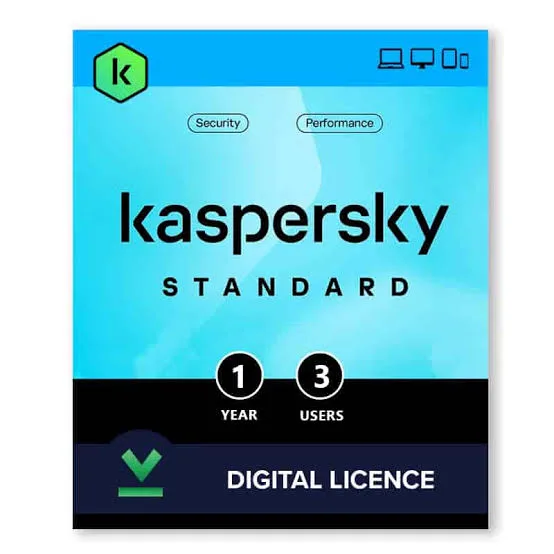
Kaspersky Plus 5 Devices Family Antivirus, VPN and Password Manager in Kenya | City Gadgets Kenya
Same-day delivery in Nairobi by 10 Oct – 11 Oct
Comes with
Description
Buy genuine Kaspersky Plus for up to 5 devices with antivirus, unlimited VPN, password manager and data leak checker for Windows, Mac, Android and iOS in Kenya from City Gadgets Kenya. Kaspersky Plus 5 user price in Kenya, family antivirus Nairobi.
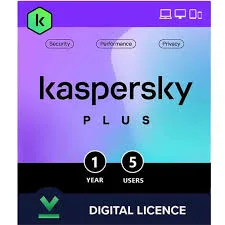
Kaspersky Plus 5 Devices Family Antivirus, VPN and Password Manager in Kenya
Genuine Kaspersky | Digital Licence | Up to 5 Devices | Antivirus and Anti-Ransomware | Unlimited VPN | Password Manager | Data Leak Checker | Windows, macOS, Android and iOS
Looking for Kaspersky Plus 5 user price in Kenya, a family antivirus in Nairobi, or one security subscription to cover the laptops, phones and tablets in your home? Kaspersky Plus for up to five devices gives you real-time antivirus and anti-ransomware protection, phishing and web protection, an unlimited VPN, a password manager and secure vault, a data leak checker, webcam and microphone protection, an ad blocker and performance tools, across Windows, macOS, Android and iOS. One licence, five devices, one account to manage them. It's available from City Gadgets Kenya with delivery across Kenya. Buyers also search for it as Kaspersky Plus 5 devices, Kaspersky Plus 5 user, Kaspersky Plus Internet Security 5 devices, a family antivirus, antivirus for several devices, antivirus for phones and laptops, a 5-device VPN and password manager, or the best antivirus for a family in Kenya.
This guide is written to help you protect a whole household sensibly. We explain what the licence covers, how to share it among family members, which devices to protect first, and how Plus compares with Standard and with the 1-device Plus. If you'd like to talk it through, message us on WhatsApp.
The short verdict
Kaspersky Plus for five devices is the sensible family and small-household pick. A typical Kenyan home now has a laptop or two, several phones, perhaps a tablet and a work computer, and each one holds banking, mobile money, photos and passwords. Five devices on one subscription costs only a little more than the single-device licence, so the cost per device falls sharply. You get antivirus and anti-ransomware, anti-phishing and web protection, an unlimited VPN for public Wi-Fi, a password manager and vault so every family member can use strong unique passwords, and a data leak checker. Kaspersky's more child-focused parental tool, Safe Kids, belongs to the Premium tier or a separate product, not to Plus, so ask us if parental controls are your main need. It's a subscription, usually for one year, and it needs an internet connection to activate and update.
What's in the licence
Retail and distributor listings describe these features for Plus.
- Real-time antivirus and anti-malware for each device.
- Anti-ransomware and anti-phishing, to block locking attacks and fake sites.
- A firewall on Windows.
- An unlimited VPN, a fast, encrypted connection for public Wi-Fi.
- A password manager and secure vault, with cross-device access.
- A data leak checker, to see if family accounts have been exposed.
- Webcam and microphone protection on supported systems.
- An ad blocker.
- Performance and cleanup tools.
- Windows, macOS, Android and iOS apps, though features vary by system.
You manage the licence from a single My Kaspersky account, where you can add or remove devices.
Which devices to protect first
With five slots, choose wisely.
- The main laptop or desktop with banking, work files and family photos.
- Your phone, which holds mobile money, WhatsApp and email.
- A partner's or a parent's phone, often the target of scams.
- A teenager's laptop or phone, where risky downloads and links are common.
- A shared family tablet or a work laptop.
Tablets used only for children's videos in a protected kids space need less protection than a laptop used for banking.
A mix of devices: what you get on each
It's honest to say that protection differs by system.
- Windows computers get the fullest set: antivirus, firewall, anti-ransomware, VPN, password manager and tools.
- Macs get antivirus, anti-phishing, VPN and the password manager.
- Android phones and tablets get malware protection, anti-theft tools, app checks, VPN and password manager.
- iPhones and iPads get a more limited set, because Apple restricts what security apps can do. Expect VPN, password manager, phishing protection and some privacy tools, not a full antivirus scanner.
- Features change with updates, so we'll tell you what applies to your devices.
For an iPhone, good habits and updates matter even more than an app.
Plus 5 devices, Plus 1 device or Standard
A short comparison helps you choose.
- Kaspersky Plus 1 device: one person, one device, with the VPN and the password manager.
- Kaspersky Plus 5 devices (this licence): a household or a small team, with the same features, spread across five devices.
- Kaspersky Standard 3 or 5 devices: antivirus and performance tools without a VPN or password manager, at a lower price.
- Premium: adds identity protection, Safe Kids and remote IT support, at a higher price.
If you have more than two devices, the 5-device Plus is almost always better value than buying 1-device licences.
Who this is for
It suits you if:
- You have a family with several phones, laptops and tablets.
- You want one subscription and one account for the household.
- You want strong passwords for the whole family, with a shared tool.
- You use public Wi-Fi, or work from cafes and travel.
- You want to protect older relatives from scams.
- You run a very small business from home, with a couple of devices.
Look elsewhere if:
- You only need basic antivirus on a few PCs. See Kaspersky Standard in our range.
- You need dedicated child safety and location tools. Ask us about Safe Kids and Premium.
- You manage many computers or servers. Ask us about business security options.
- Your workplace doesn't allow Kaspersky.
An honest note about Kaspersky
It's worth being open about a point that affects some buyers.
- Kaspersky is a global security company with Russian origins, and it sells in many countries, including Kenya.
- Some governments have restricted its use or sale, for example the United States restricted sales in 2024, and some organisations keep it off their systems.
- We're not aware of any such restriction in Kenya.
- If anyone in your household uses a work or school device with a strict security policy, check before installing Kaspersky on it.
- If you'd rather use a different product, we'll help you compare.
How licence sharing works
Sharing a licence among family members is simple, with a few rules.
- One licence, up to five devices, each activated through the same account or code.
- Create a My Kaspersky account with an email that you control, such as a family email.
- Install the app on each device, and sign in with the account.
- Keep track of which devices use the slots, in a note or in the account.
- Remove a device from the account when it's sold or lost, to free a slot.
- Don't share the code publicly, since each slot is valuable.
- Don't resell or lend it outside your household.
- Renew for everyone at once, before it expires.
How you receive the licence
Software licences are digital, and it helps to know what to expect.
- A digital activation code is usually delivered by email, WhatsApp, or as a code on a card. We confirm the format for the licence you order.
- You activate it through the Kaspersky app or your My Kaspersky account.
- Check the subscription dates and the device count after activation.
- Genuine licences come from authorised sources, and we tell you what's included.
- Keep your receipt and code safely.
Installing Kaspersky Plus on a family's devices
- Make a list of the devices, and decide which five to protect.
- Create a My Kaspersky account with a family email.
- Redeem the activation code in the account.
- On each Windows or Mac computer, uninstall any old antivirus, restart, and install the Kaspersky app. Sign in.
- On each phone or tablet, install the app from Google Play or the App Store, and sign in.
- Run a first scan on computers, and check the results.
- Turn on the VPN for phones, and set auto-protection on unknown Wi-Fi if available.
- Set up the password manager, starting with a strong master password for each person, or one family account, depending on your needs.
- Show every family member what the alerts mean.
- Record the setup in a note, with the renewal date.
Passwords for a whole family
A password manager works best with a plan.
- Each adult should have a strong master password that they remember, and never share.
- Let the manager generate unique passwords for every account.
- Turn on two-step verification for email, banking and social media.
- Teach older relatives to use the manager's fill feature, instead of writing passwords in a book.
- Keep a printed emergency copy of the master password in a safe place, in case someone forgets.
- Don't store the M-Pesa PIN in the manager, and never share it.
- Check the data leak checker every few months, and change exposed passwords.
Protecting children and teenagers
Plus isn't a parental-control product, and it still helps.
- Antivirus and web protection reduce risky downloads and fake sites.
- For real parental controls, use the device's built-in tools, such as Google Family Link or Apple Screen Time, and consider Safe Kids from Kaspersky.
- Talk about scams, strangers online and sharing photos.
- Set screen-time rules, and keep devices out of bedrooms at night.
- Check app permissions, especially camera, microphone and location.
- Keep the system updated.
- Be a good example.
Protecting older relatives
Older family members are often scam targets.
- Install the app, and set it up for them, with automatic updates.
- Teach them simple rules: never share a PIN or a code, call you if a message asks for money, and don't click links from strangers.
- Use the password manager for their accounts, or write a safe plan.
- Set up scam call and message filters on their phones, if available.
- Keep their phone updated.
- Check in now and then, without lecturing.
Staying safe from scams in Kenya
Software helps, and habits matter more.
- Be wary of messages claiming to be from M-Pesa, your bank, KRA or a delivery company.
- Never share your M-Pesa PIN or one-time codes.
- Check the sender and the link before you click.
- Be careful with job offers, prizes and loans that ask for fees.
- Don't install apps from unknown links or outside the official store.
- Keep every device updated.
- Back up your files to the cloud and an external drive, such as a SanDisk or WD drive from our range.
A worked example: a family of five
A concrete example shows how five slots can be used.
- The household: two parents, two school-age children and a grandparent who visits often.
- The devices: a shared family laptop, the father's work laptop, the mother's phone, the father's phone and the grandmother's phone.
- The choice: the five slots go to the devices that hold money and sensitive data. The children's tablet runs a restricted kids profile and is protected with built-in controls.
- The setup: a My Kaspersky account on the mother's email, the app on all five devices, and the VPN on for public Wi-Fi.
- The passwords: each adult has a manager with a strong master password. The grandmother's accounts are set up for her with a printed emergency copy kept in a safe.
- The habits: updates on, a weekly scan on the laptops, two-step verification on email and banking, and a monthly backup to a SanDisk external drive and the cloud.
- The scam talk: the family agrees one rule, that nobody sends money or a code after a message without a phone call to check.
- The result: five devices protected for a small fraction of what a single scam can cost.
When one licence isn't enough
Sometimes five slots run out.
- You can add another licence for extra devices, at a low cost.
- A mix of licences works, such as a 5-device Plus plus a 3-device Standard.
- Prioritise devices that hold money and sensitive data, and leave devices that only show videos for last.
- Remove old devices to free slots.
- Ask us for the best combination for your household.
Updates and renewals
A security subscription is only useful while it's valid.
- Note the expiry date in your phone's calendar, with a reminder a month ahead.
- Renew before it expires, since an expired licence stops updates and leaves you exposed.
- Renewal prices can differ from first-year prices, so ask us.
- Auto-renewal may apply on some purchase routes. Check how your licence was bought, and manage it in your account.
- Keep the app updated, and the operating system.
- When you replace a device, remove the old one from the account and add the new one.
Safe browsing habits for the whole family
- Use the VPN on public Wi-Fi.
- Check for the padlock on sites you log in to, though it's not proof of safety.
- Don't download apps or programs from random links.
- Update browsers and extensions.
- Remove browser extensions you don't recognise.
- Don't use the same password twice.
- Log out of shared computers.
- Be wary of free Wi-Fi that asks for personal details.
- Check app permissions, and remove ones you don't need.
Common problems and simple fixes
The installer won't run. Uninstall any old antivirus completely, restart and try again.
The activation code is rejected. Check you typed it correctly, and that you're using it in the right region. Message us with a photo of the code.
The device limit is reached. Remove a device you no longer use from the account.
A phone feels slow after installing. Check which features are on, and reduce background scans, if the app allows.
The VPN drains mobile data. Turn it off on mobile data, and use it only on public Wi-Fi.
The iPhone app has fewer features. That's normal, because of Apple's restrictions.
The password manager won't fill on an app. Update the app and the manager, and try again.
A false alarm blocks a program you trust. Check the file first, then add an exception only if you're sure.
If a problem continues, message us on WhatsApp.
Questions to ask before you buy security software
- How many devices do I need to protect?
- Which operating systems do they run?
- Do I need a VPN and a password manager?
- Do I need parental controls? If yes, ask about Safe Kids.
- How long does the licence last, and when does it renew?
- How will I receive the licence, and who supports it?
- Is the vendor allowed by my workplace or school?
- Can I get help before I pay?
We're glad to answer all of these on WhatsApp or in the shop before you pay.
Support and after-sales: what to ask
A software licence has no box to return, so ask us what support applies, how long the subscription lasts and how to move devices. Keep your receipt and activation code. If you have a problem installing or activating, message us on WhatsApp first, and we'll tell you the quickest way to get it sorted.
Understanding the terms: a quick glossary
- Antivirus. Software that finds and removes malicious programs.
- Anti-ransomware. Protection against programs that lock your files for payment.
- Phishing. Fake messages and sites that trick you into giving up information.
- VPN. A virtual private network that encrypts your internet connection.
- Password manager. A vault that creates, stores and fills passwords.
- Two-step verification. A second proof of identity, such as a code, on top of your password.
- Data leak checker. A tool that checks whether your details appear in known breaches.
- Licence or subscription. Your right to use the software for a set time on set devices.
- My Kaspersky account. The online account where you manage your licence and devices.
Backing up: the other half of security
Antivirus reduces risk, and backups remove the damage.
- Follow the 3-2-1 idea: three copies of your data, on two kinds of storage, with one copy kept elsewhere.
- Use the cloud for photos and documents.
- Use an external drive, such as a SanDisk or WD drive from our range, for a full copy.
- Disconnect the external drive after backing up, so ransomware can't reach it.
- Back up phones to the cloud, including WhatsApp chats.
- Test restoring a file once in a while.
- Back up before installing big updates or repairs.
Families who back up rarely lose anything, whatever happens.
Using security software in Kenya
Pirated software and cracked programs are a top source of malware. Use genuine software.
Public Wi-Fi. Use the VPN, and avoid banking on unknown networks.
Shared and cafe computers. Log out, and don't save passwords.
Power cuts. A UPS protects your computer from sudden shutdowns that corrupt files. See the UPS range.
Mobile data. The VPN uses data, so on a small bundle, use it only when needed.
Support. Ask us what support applies to the licence you order, and keep your receipt and code.
How it compares with other options in our range
| Kaspersky Plus 5 devices | Kaspersky Plus 1 device | Kaspersky Standard 3 devices | Kaspersky Standard 5 devices | |
|---|---|---|---|---|
| Devices | Up to 5 | 1 | Up to 3 | Up to 5 |
| Antivirus and anti-ransomware | Yes | Yes | Yes | Yes |
| Unlimited VPN | Yes | Yes | No | No |
| Password manager | Yes | Yes | No | No |
| Data leak checker | Yes | Yes | No | No |
| Best for | Families and small households | One person | A few PCs on a budget | Several PCs on a budget |
Honest pros and cons
Pros
- Five devices on one licence, at a low cost per device.
- Antivirus, anti-ransomware and phishing protection.
- An unlimited VPN and a password manager for the whole family.
- A data leak checker, webcam protection and an ad blocker.
- Windows, macOS, Android and iOS support.
- One account to manage everything.
Cons
- Features vary by system, and iPhones get a more limited set.
- It's a subscription, and needs renewing.
- No full parental controls, since Safe Kids is a separate or Premium product.
- A VPN can slow your connection and use data.
- Kaspersky is restricted in some countries and organisations.
- No security software replaces careful habits.
What to check after you buy
- The edition and device count match what you ordered.
- You receive the activation code, with instructions.
- The licence activates, and shows the right expiry date and device count.
- The app installs on each device and updates.
- The VPN and the password manager work.
- You keep your receipt and code safe.
Frequently asked questions
What is the Kaspersky Plus 5 user price in Kenya? We confirm the current price when you message us on WhatsApp, because supplier prices change. We tell you the price and what's included before you pay.
Where can I buy Kaspersky Plus 5 devices in Nairobi? At City Gadgets Kenya, New Alnoor Exhibition, Second Floor, Shop C7, Accra Road, Nairobi CBD, or by delivery.
How many devices does it cover? Up to five.
Does it work on iPhones? Yes, with a more limited feature set because of Apple's rules.
Does it include parental controls? Not the full Safe Kids product. Ask us about Premium or Safe Kids.
How long does it last? Plus subscriptions are normally for one year. We confirm the term for the licence you order.
Can family members share it? Yes, within the device limit, using one My Kaspersky account.
Is Kaspersky allowed in Kenya? We're not aware of any restriction in Kenya. Some governments and organisations restrict it, so check any workplace policy.
Can you deliver it? Yes, the licence can be delivered the same day in Nairobi and the next day elsewhere, digitally or on a card.
Can I pay via M-Pesa? Yes.
Why buy from City Gadgets Kenya
Genuine Kaspersky licences. We're at New Alnoor Exhibition, Second Floor, Shop C7, Accra Road, Nairobi CBD, and you're welcome to ask us about the right edition before you buy. Message us on WhatsApp with the devices in your home, and we'll tell you honestly whether Plus 5, Standard or a different licence suits you better. We confirm what's included before you pay.
Order your Kaspersky Plus 5 devices licence today
Available now at City Gadgets Kenya. Message us on WhatsApp.
Specifications
- Brand
- Kaspersky
- Condition
- New
Frequently Asked Questions
How much does the Kaspersky Plus 5 Devices Family Antivirus, VPN and Password Manager in Kenya | City Gadgets Kenya cost in Kenya?
The Kaspersky Plus 5 Devices Family Antivirus, VPN and Password Manager in Kenya | City Gadgets Kenya is priced at Ksh 5,500 at City Gadgets. You can pay via M-Pesa, card or cash on delivery.
Is the Kaspersky Plus 5 Devices Family Antivirus, VPN and Password Manager in Kenya | City Gadgets Kenya available in Kenya?
Yes — the Kaspersky Plus 5 Devices Family Antivirus, VPN and Password Manager in Kenya | City Gadgets Kenya is in stock at City Gadgets, ready for same-day delivery in Nairobi and countrywide shipping across Kenya.
Is the Kaspersky Plus 5 Devices Family Antivirus, VPN and Password Manager in Kenya | City Gadgets Kenya genuine and does it have a warranty?
Every Kaspersky Plus 5 Devices Family Antivirus, VPN and Password Manager in Kenya | City Gadgets Kenya we sell is 100% genuine brand-new stock and comes with a 12-month official brand warranty.
Do you deliver the Kaspersky Plus 5 Devices Family Antivirus, VPN and Password Manager in Kenya | City Gadgets Kenya in Nairobi?
Yes. We offer fast same-day delivery within Nairobi and fast, affordable delivery to the rest of Kenya — order online or on WhatsApp.
Customer Reviews
No reviews yet
Be the first to review this product.
Rate us on Google
Your review helps other shoppers find us
Reviews from verified buyers will appear here.
Buying guides
Straight advice for shoppers picking between the models above.