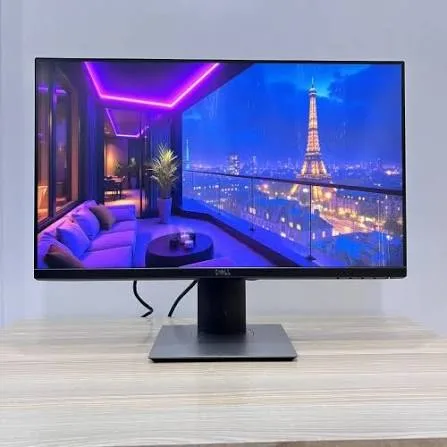
Dell P2425H 24-Inch Full HD IPS 100Hz Monitor with USB Hub in Kenya | City Gadgets Kenya
Same-day delivery in Nairobi by 9 Oct – 10 Oct
Comes with
Description
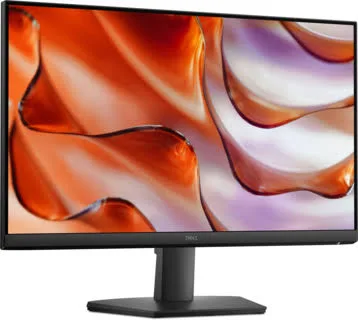
Buy the genuine Dell P2425H 23.8-inch Full HD IPS 100Hz monitor with height-adjustable stand, USB hub, DisplayPort, HDMI and VGA in Kenya from City Gadgets Kenya. Dell P2425H price in Kenya, office monitor Nairobi, 24 inch IPS monitor.
Dell P2425H 24-Inch Full HD IPS 100Hz Monitor with USB Hub in Kenya
Genuine Dell | Brand New | 23.8-Inch Full HD (1920 x 1080) IPS | 100 Hz | Height-Adjustable Stand | USB Hub | Comfort View Plus
Searching for the Dell P2425H price in Kenya, a 24-inch office monitor in Nairobi, or an IPS monitor with a USB hub and a height-adjustable stand? The Dell P2425H is a brand-new, genuine 23.8-inch Full HD IPS monitor from Dell's P-series business range. It has a 100 Hz refresh rate, TÜV-certified eye comfort, a stand that adjusts for height, tilt, swivel and pivot, and a built-in USB hub with DisplayPort, HDMI, VGA and USB-C connections. It's available from City Gadgets Kenya with delivery across Kenya. Buyers also search for it as a Dell P2425H monitor, a Dell 24 inch monitor, a Dell P-series monitor, a 24 inch IPS monitor with USB hub, a height-adjustable monitor, a monitor for accountants and office work, or the best 24 inch monitor for a Dell or Lenovo laptop.
This guide explains the monitor in plain language: what each feature means for daily work, how it pairs with a laptop or desktop, how it compares with Dell's cheaper SE-series and the HP and Lenovo monitors in our range, and where it's limited. If you'd like to talk it through, message us on WhatsApp.
The short verdict
The Dell P2425H is the monitor to buy when you'll sit in front of it all day. It's an IPS panel, so colours and viewing angles are consistent. It runs at 100 Hz, which makes scrolling and cursor movement feel smoother than on a standard 60 Hz screen. The stand adjusts for height, tilt, swivel and pivot, which matters more for comfort than almost any other spec. Dell's ComfortView Plus reduces blue light in the panel itself without tinting the screen yellow, and the monitor carries TÜV Rheinland's four-star eye comfort certification. A built-in USB hub with a USB-C port and three USB-A ports turns it into a tidy docking point for a laptop, and the box includes DisplayPort, HDMI and USB cables. It's Full HD, so it won't impress as much as a QHD or 4K screen at larger sizes, and the USB-C port is data-only with 15 W charging, not a full laptop dock. For an office, a study or a home desk, it's an excellent working monitor.
Who this monitor is for
It suits you if:
- You work at a desk for hours: accounting, admin, coding, writing, design basics or study.
- You want a monitor you can set to the right height, to protect your neck and eyes.
- You want a USB hub on the monitor, so keyboards, mice and drives plug in tidily.
- You connect a laptop, and want one cable for the display and accessories.
- You want eye-comfort features for long days.
Look elsewhere if:
- You want a lower price. The Dell SE2425HM in our range costs less, with a simpler stand and fewer ports.
- You want a bigger screen. See the Dell 27-inch SE2725HM or the HP 27-inch models.
- You need high-end colour accuracy for professional photo or video work.
- You want a fast gaming monitor with 144 Hz or more.
Specifications in plain English
| Feature | Detail | What it means for you |
|---|---|---|
| Model | Dell P2425H | Dell's 24-inch P-series business monitor |
| Screen size | 23.8 inches viewable | The standard 24-inch size |
| Resolution | Full HD (1920 x 1080), 16:9 | Sharp for documents and video at this size |
| Panel type | IPS | Wide 178-degree viewing angles and consistent colour |
| Refresh rate | 100 Hz | Smoother scrolling and motion than 60 Hz |
| Response time | About 5 ms | Quick enough for office use and casual gaming |
| Colour | About 99% sRGB | Good colour for office and web work |
| Eye comfort | ComfortView Plus and TÜV Rheinland four-star certification | Easier on the eyes over long days |
| Video inputs | DisplayPort 1.2, HDMI and VGA | Works with new and old computers |
| USB hub | 1 USB 3.2 Gen 1 Type-B upstream, 3 Type-A downstream and 1 Type-C downstream (data only, up to 15 W) | Tidy connections for accessories |
| Stand | Height, tilt, swivel and pivot adjustment | Set it to suit you |
| In the box | Power cord, DisplayPort cable, USB-A to USB-B cable and HDMI cable, per a retailer listing | Ready to connect |
| Pixel density | About 92.5 pixels per inch | Comfortable text at this size |
These figures come from Dell and retailer listings of the P2425H. Ask us to confirm what's in the box and the warranty for the unit you order.
Why IPS matters
The panel type is one of the biggest differences between monitors at similar prices.
- IPS (in-plane switching) panels keep colour and brightness consistent when you view them from the side or from above, with 178-degree viewing angles.
- Colour is more accurate than on typical VA or TN panels, which helps with web, document and light design work.
- It suits shared screens, where two people look at the monitor from different angles.
- Blacks are less deep than on VA panels, which matters little in a bright office.
For everyday office and study work, IPS is the safest choice, which is why the P2425H is a favourite for business use.
What 100 Hz gives you
The refresh rate tells you how many times the picture updates each second.
- 60 Hz is standard on older office monitors.
- 100 Hz updates 100 times a second, so scrolling through a long document, a web page or a spreadsheet feels smoother, and the mouse pointer tracks more naturally.
- It helps casual gaming and video, though 100 Hz isn't a gaming monitor's 144 Hz or 240 Hz.
- You need to enable it. Windows sets the refresh rate in Display settings, and your computer and cable must support it.
- HDMI and DisplayPort both carry 100 Hz at Full HD.
It's a small upgrade that you notice every day, and it costs little.
Ergonomics: why the stand matters
A monitor you can't adjust is a monitor that hurts your neck.
- Height. Set the top of the screen at or slightly below eye level.
- Tilt. Angle the screen back a little, so you look slightly down at it.
- Swivel. Turn the screen to share it with a colleague, or to avoid glare.
- Pivot. Rotate the screen to portrait for reading long documents, coding or web pages.
- Distance. Sit about an arm's length away.
- Posture. A good chair and a keyboard at elbow height matter as much as the monitor.
If you work with long documents, the pivot option is a real productivity gain, because a portrait screen shows far more of a page.
Eye comfort features
Long days at a screen strain the eyes, and Dell builds in help.
- ComfortView Plus reduces harmful blue light in the panel's own hardware, so it works all the time and doesn't tint the picture yellow, unlike a software filter.
- TÜV Rheinland four-star eye comfort certification confirms low blue light and flicker-free performance.
- Flicker-free backlight reduces eye fatigue.
- Anti-glare finish cuts reflections.
- Habits still matter. Follow the 20-20-20 rule: every 20 minutes, look at something 20 feet away for 20 seconds. Keep the room lit, and take breaks.
Connecting a laptop or a desktop
The P2425H's ports give you several ways to connect.
- DisplayPort 1.2. The best choice for a desktop or a laptop that has it, with a good-quality cable in the box.
- HDMI. Works with almost every laptop and desktop.
- VGA. For older computers and projectors.
- USB hub. Connect the upstream USB-B port to your computer, and the monitor's USB ports become extra ports for a mouse, keyboard, flash drive or external drive.
- USB-C downstream port. It's a data port with up to 15 W of power, so it charges a phone and connects a drive, and it doesn't carry video or charge a laptop. If you need one-cable laptop docking with video and 65 W or more charging, ask us about Dell's USB-C monitors.
A tidy setup uses DisplayPort or HDMI for video and the USB-B cable for the hub, so your keyboard and mouse plug into the monitor.
Setting up a dual-monitor desk
Two monitors can raise productivity, and a pair of P2425H monitors suits it.
- Place the monitors side by side, with the bezels meeting in the middle, at the same height.
- Connect each by DisplayPort or HDMI to your computer's two video outputs.
- Set the arrangement in Windows Display settings, with the correct left and right order.
- Use the thin bezels to keep the gap small.
- Use one as the main screen for work, and the other for reference, email and chat.
- Match the heights with the stand's height adjustment.
If your computer has only one video output, ask us about a USB-C hub or adapter.
Choosing monitor size and resolution
Screen size and resolution work together, and a short guide helps you choose.
- 24 inches at Full HD is the sweet spot for most desks. Text is sharp, and the screen fits a normal desk.
- 27 inches at Full HD is bigger, with slightly softer text, and suits people who sit further back or share the screen.
- 27 inches at QHD (2560 x 1440) gives sharper text and more working space, at a higher price.
- 32 inches and 4K suit designers and people who want a very large workspace, and need a more powerful computer.
- Ultrawide monitors suit spreadsheets, timelines and multitasking.
- Your viewing distance matters. An arm's length away suits a 24-inch screen. Further back suits a larger one.
For most offices and students, a 24-inch Full HD IPS monitor like the P2425H is the right balance of price, sharpness and desk space.
Setting the monitor up for the best picture
A few settings improve any monitor.
- Set the resolution to 1920 x 1080, the native setting.
- Set the refresh rate to 100 Hz in Windows Display settings.
- Use a good cable. DisplayPort and HDMI cables carry the full picture.
- Adjust brightness to suit the room. A bright room needs a brighter screen, and a dim room a softer one.
- Use the monitor's preset modes for work, reading or movies, if you like them.
- Turn on Night Light in Windows for evening work.
- Keep the screen clean with a soft, dry microfibre cloth.
A guide to cables and adapters
Choosing the right cable avoids frustration.
- DisplayPort to DisplayPort. The best choice if your computer has it, and the monitor includes one.
- HDMI to HDMI. Works with almost every laptop and TV.
- VGA. Older, analogue, and lower quality. Use it only for old computers or projectors.
- USB-C to DisplayPort or HDMI. Many modern laptops need an adapter or a cable to connect to this monitor's video ports, because the monitor's USB-C port is data-only.
- USB-B to USB-A. The upstream cable that powers the monitor's USB hub from your computer.
- Cable length. Choose a length that reaches comfortably without strain.
If you're not sure what your laptop needs, message us the model, and we'll tell you the right cable or adapter.
Common problems and simple fixes
No picture. Check the power, the cable and the input source. Use the monitor's menu to select the right input, and try a different cable or port.
The picture looks blurry. Check that the resolution is set to 1920 x 1080 and scaling is correct.
The refresh rate won't go to 100 Hz. Check the cable (use DisplayPort or HDMI), the computer's graphics settings and the driver.
The USB hub doesn't work. Make sure the upstream USB-B cable is connected to the computer.
Flickering or lines. Try another cable and port, and check for loose connections.
Backlight bleed or dead pixels. Check the screen in a dark room on a black picture. If you find problems, tell us straight away, with a photo.
If a problem continues, message us on WhatsApp.
Questions to ask before you buy any monitor
- What size and resolution do I need?
- What panel type is it? IPS gives the best viewing angles.
- What refresh rate does it have?
- Does the stand adjust for height and pivot?
- Which ports does my computer need? DisplayPort, HDMI or USB-C.
- Does it include the right cables?
- What warranty is included, and who honours it? Get it in writing, and ask about the dead-pixel policy.
- Can I see it before I pay? A trustworthy seller says yes.
We're glad to answer all of these on WhatsApp or in the shop before you pay.
Looking after the monitor for years
- Clean the screen gently with a soft, dry microfibre cloth, and a little water if needed, never with harsh chemicals.
- Keep it out of direct sun and away from moisture.
- Use a surge protector, and a UPS if you also protect your computer.
- Lift it with two hands, and never press on the screen.
- Keep the box if you move or sell it.
- Update your graphics driver if you see odd behaviour.
Warranty and after-sales: what to ask
A monitor is a long-term purchase, so ask us what warranty covers the unit you order, how long it lasts and what it covers. Retail listings for Dell monitors show warranties of up to three years on some markets, and Kenyan terms may differ. Check the policy on dead pixels, because brands differ. Keep your receipt, the serial number and the box. If a fault appears, message us on WhatsApp first, and we'll tell you the quickest way to get it sorted.
Pairing the P2425H with the computers in our range
A monitor is part of a system, and it helps to know what pairs well.
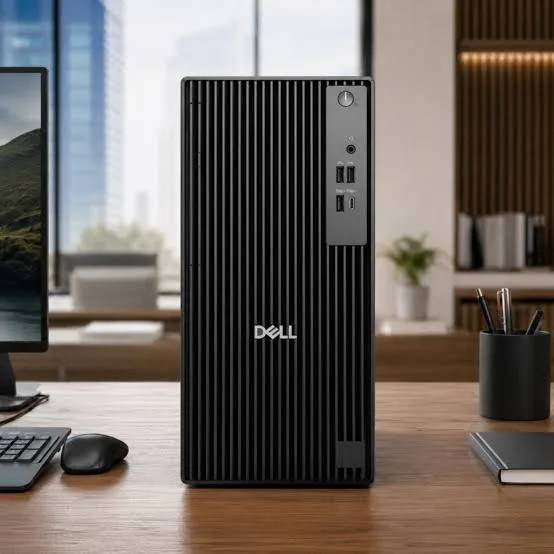
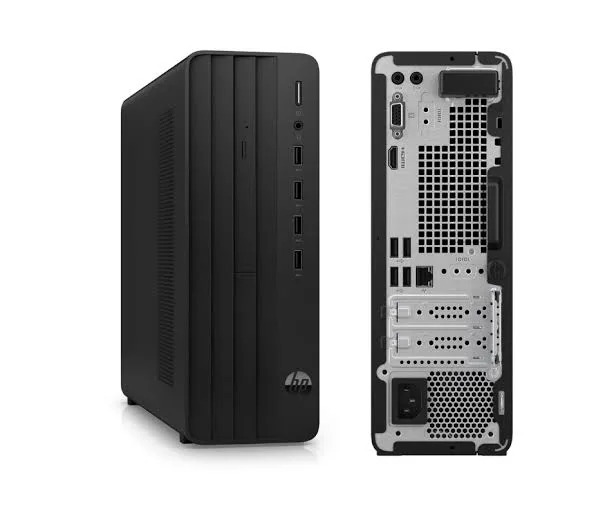
- Dell Pro Tower and HP Pro 290 G9 desktops. These "CPU only" desktops need a monitor, and the P2425H's DisplayPort and HDMI inputs connect straight to them.
- Lenovo ThinkCentre neo 50t. The same, with DisplayPort and HDMI outputs.
- Business laptops such as the HP ProBook, Lenovo ThinkBook and ThinkPad models. Connect by HDMI or a USB-C to DisplayPort cable, and the USB hub gives you a tidy desk.
- Home laptops. HDMI is simplest.
- A second screen for a laptop. Place the laptop beside or below the monitor for extra space.
If you're buying a computer and a monitor together, tell us, and we'll recommend a matching setup.
A typical day with the P2425H
It helps to picture the monitor in real use. In the morning, you plug your laptop into the monitor with one video cable and the USB cable, and the keyboard, mouse and flash drive connect through the monitor's hub. You set the height so the top of the screen is at eye level. During the day, spreadsheets and documents scroll smoothly at 100 Hz, and the IPS panel keeps colours consistent when a colleague leans in to look. When you read a long report, you rotate the screen to portrait. In the evening, you switch on Night Light, and the ComfortView Plus hardware filter keeps blue light low. Nothing here is flashy, and that's the point: the monitor removes small frustrations from a long working day.
Total cost and value
A monitor's value shows over years, not weeks.
- A good monitor outlasts several computers, so spending a little more on an adjustable IPS panel pays back.
- Ergonomics save money by preventing neck and eye strain.
- A USB hub saves buying a separate dock for simple setups.
- Low power use keeps electricity costs small.
- Dell's business build is meant to last through years of use.
If you're equipping an office, a standard monitor model across all desks simplifies support and spares. Message us on WhatsApp if you're buying several, and we'll advise on quantities and delivery.
Using a monitor in Kenya
Power protection. Monitors can be damaged by surges. Use a surge protector, and connect the monitor to the same UPS as your computer.
Dust and heat. Keep vents clear, and wipe the screen gently with a soft, dry microfibre cloth.
Placement. Keep the monitor away from direct sunlight, which causes glare and heats the panel.
Transport. Keep the original box if you may move the monitor. Carry it with two hands, supporting the panel and the stand.
Warranty. Ask us for the warranty that applies to the unit you order, and keep the receipt and box. Retail listings show Dell warranties of three years on some markets, and Kenyan terms may differ.
How it compares with other options in our range
| Dell P2425H | Dell SE2425HM | HP Series 5 527sf (27") | Lenovo ThinkVision E24-40 | |
|---|---|---|---|---|
| Size | 23.8-inch | 23.8-inch | 27-inch | 23.8-inch |
| Panel | IPS | Listings vary | IPS | IPS |
| Refresh rate | 100 Hz | 100 Hz | 100 Hz | 60 Hz class |
| Height adjustment | Yes | No (tilt only) | No (tilt only) | Confirm |
| USB hub | Yes | No | No | No |
| Inputs | DisplayPort, HDMI, VGA, USB-C data | HDMI, VGA | HDMI x2, VGA | HDMI, DisplayPort or VGA (confirm) |
| Best for | All-day office work | Budget everyday use | Bigger screen at a low price | Value business use |
Against the Dell SE2425HM: the SE costs less, with HDMI and VGA only and a simpler stand. The P2425H adds height and pivot adjustment, a USB hub and DisplayPort.
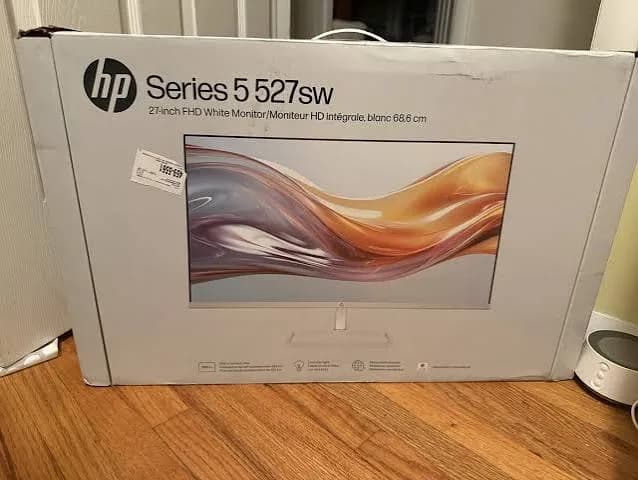
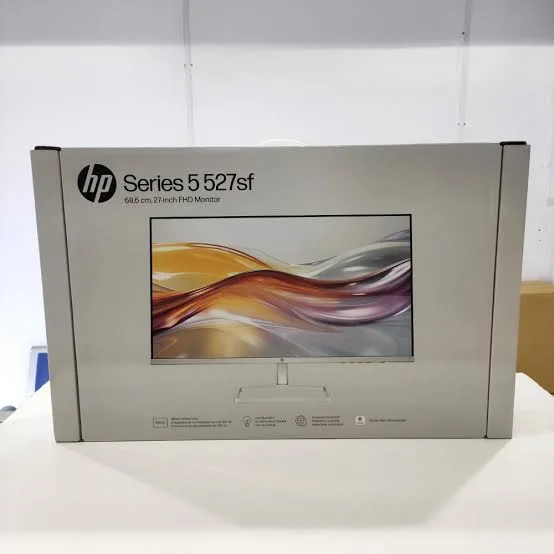
Against the HP Series 5 527sf: the HP is a bigger 27-inch screen at the same Full HD resolution, with a tilt-only stand.
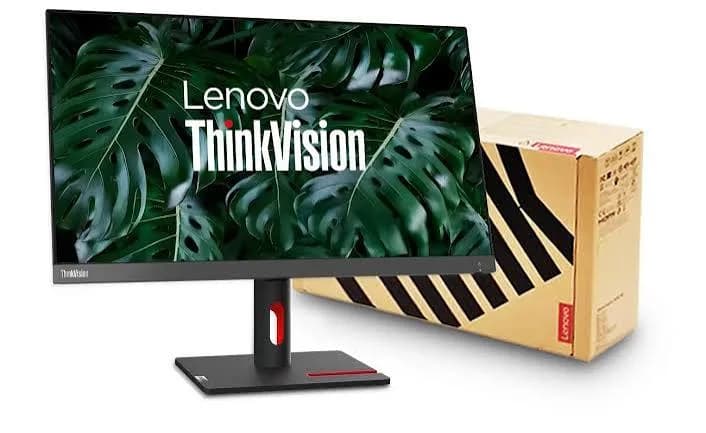
Against the Lenovo ThinkVision E24-40: a close business rival. Ask us for a comparison based on your needs.
Honest pros and cons
Pros
- IPS panel with wide viewing angles and about 99% sRGB colour.
- 100 Hz refresh rate.
- A stand with height, tilt, swivel and pivot adjustment.
- ComfortView Plus and TÜV four-star eye comfort.
- A USB hub with USB-C, USB-A and USB-B ports.
- DisplayPort, HDMI and VGA inputs, with cables in the box.
- A trusted brand with business-grade build.
Cons
- Full HD only, which is soft at larger sizes.
- The USB-C port is data-only with 15 W, not a full laptop dock.
- No built-in speakers.
- A higher price than basic 24-inch monitors.
- Not made for high-end colour work or serious gaming.
What to check when it arrives
- The box model matches Dell P2425H.
- The monitor, stand, power cord and cables are in the box.
- The screen has no dead pixels, scratches or backlight bleed. Display a white, black and coloured screen to check.
- The stand adjusts smoothly for height, tilt, swivel and pivot.
- DisplayPort, HDMI and the USB hub work.
- The refresh rate is set to 100 Hz in Windows.
- You get a receipt with the serial number and warranty details in writing.
Frequently asked questions
What is the Dell P2425H price in Kenya? We confirm the current price when you message us on WhatsApp, because supplier prices change. We tell you the price and what's in the box before you pay.
Where can I buy the Dell P2425H in Nairobi? At City Gadgets Kenya, New Alnoor Exhibition, Second Floor, Shop C7, Accra Road, Nairobi CBD, or by delivery.
Is it a 24-inch monitor? Yes, 23.8 inches viewable, which is sold as a 24-inch monitor.
Does it have a USB hub? Yes, with USB-A, USB-B and USB-C ports.
Can it charge my laptop over USB-C? No. The USB-C port is a data port with up to 15 W, which suits phones and accessories.
Is it height adjustable? Yes, with tilt, swivel and pivot as well.
Does it have speakers? No.
Is it good for gaming? It's fine for casual gaming at 100 Hz, though dedicated gaming monitors are faster.
What warranty does it have? Ask us for the warranty that applies to the unit you order.
Can you deliver it? Yes, same day in Nairobi and next day outside Nairobi.
Can I pay via M-Pesa? Yes.
Why buy from City Gadgets Kenya
Genuine, brand-new Dell monitor. We're at New Alnoor Exhibition, Second Floor, Shop C7, Accra Road, Nairobi CBD, and you're welcome to see the monitor before you buy. Message us on WhatsApp with what you'll use it for, and we'll tell you honestly whether the P2425H is right or a cheaper or larger monitor would suit you better. We confirm what's in the box before you pay.
Order your Dell P2425H today
Available now at City Gadgets Kenya. Message us on WhatsApp.
Specifications
- Brand
- DELL
- Condition
- New
Frequently Asked Questions
How much does the Dell P2425H 24-Inch Full HD IPS 100Hz Monitor with USB Hub in Kenya | City Gadgets Kenya cost in Kenya?
The Dell P2425H 24-Inch Full HD IPS 100Hz Monitor with USB Hub in Kenya | City Gadgets Kenya is priced at Ksh 29,000 at City Gadgets. You can pay via M-Pesa, card or cash on delivery.
Is the Dell P2425H 24-Inch Full HD IPS 100Hz Monitor with USB Hub in Kenya | City Gadgets Kenya available in Kenya?
Yes — the Dell P2425H 24-Inch Full HD IPS 100Hz Monitor with USB Hub in Kenya | City Gadgets Kenya is in stock at City Gadgets, ready for same-day delivery in Nairobi and countrywide shipping across Kenya.
Is the Dell P2425H 24-Inch Full HD IPS 100Hz Monitor with USB Hub in Kenya | City Gadgets Kenya genuine and does it have a warranty?
Every Dell P2425H 24-Inch Full HD IPS 100Hz Monitor with USB Hub in Kenya | City Gadgets Kenya we sell is 100% genuine brand-new stock and comes with a 12-month official brand warranty.
Do you deliver the Dell P2425H 24-Inch Full HD IPS 100Hz Monitor with USB Hub in Kenya | City Gadgets Kenya in Nairobi?
Yes. We offer fast same-day delivery within Nairobi and fast, affordable delivery to the rest of Kenya — order online or on WhatsApp.
Customer Reviews
No reviews yet
Be the first to review this product.
Rate us on Google
Your review helps other shoppers find us
Reviews from verified buyers will appear here.
Buying guides
Straight advice for shoppers picking between the models above.

Best Laptops for Programmers and Developers in Kenya 2026 (Complete Guide) | City Gadgets Kenya
Best Laptops for Programmers and Developers in Kenya 2026: A Complete Guide
Read the guide
Best Lightweight and Ultraportable Laptops in Kenya 2026 (Complete Guide) | City Gadgets Kenya
Best Lightweight and Ultraportable Laptops in Kenya 2026: A Complete Guide
Read the guide
Best Laptops for University Freshers in Kenya 2026 (KUCCPS Season Guide) | City Gadgets Kenya
Best Laptops for University Freshers in Kenya 2026: The Complete KUCCPS Season Guide
Read the guide