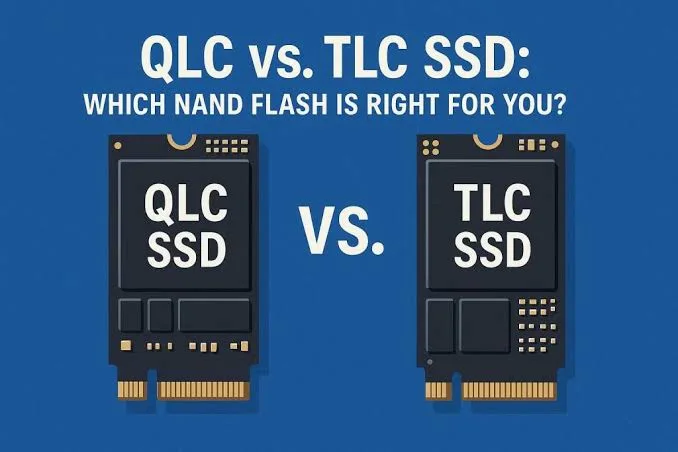
Shop for an SSD and sooner or later you will see letters like TLC, QLC, 3D NAND and SLC cache. Two SSDs with the same capacity and the same headline speed can differ widely in price, and the reason is often the type of flash memory inside. This guide to TLC vs QLC NAND explains what those letters mean, how they affect speed, lifespan and price, which type suits which user, and how to avoid fake SSDs. We keep the language plain and hedge where figures vary by product.
We are City Gadgets Kenya, at New Alnoor Exhibition, Second Floor, Shop C7, Accra Road, Nairobi CBD, with same-day Nairobi delivery and next-day delivery outside Nairobi. Message us on WhatsApp for advice or today's price. We confirm per unit the flash type and endurance rating of any SSD we sell.
The short version
- NAND flash is the memory chip type used in SSDs, USB flash drives, memory cards and phones.
- SLC, MLC, TLC, QLC and PLC describe how many bits each memory cell stores: 1, 2, 3, 4 and 5.
- More bits per cell means more capacity for the money, but lower speed and endurance.
- TLC is the mainstream sweet spot for most consumer SSDs.
- QLC is cheaper per gigabyte and fine for read-heavy storage, but slower when writing a lot and less durable.
- Controllers, cache and firmware matter as much as the NAND type. A good QLC drive can beat a poor TLC drive.
- Check TBW (terabytes written) or the warranty. These tell you the maker's endurance promise.
- Fake SSDs exist. They show false capacity and fail quickly.
| Type | Bits per cell | Relative speed | Relative endurance | Relative cost per GB | Typical use |
|---|---|---|---|---|---|
| SLC | 1 | Fastest | Highest | Highest | Enterprise, caching |
| MLC | 2 | Fast | High | High | Prosumer, older drives |
| TLC | 3 | Good | Good | Moderate | Mainstream consumer SSDs |
| QLC | 4 | Lower sustained | Lower | Lower | Large, budget, read-heavy drives |
| PLC | 5 | Lowest | Lowest | Lowest | Emerging, capacity-focused |
What is NAND flash?
NAND flash is a type of non-volatile memory, meaning it keeps data without power. It stores data in tiny cells made from transistors that trap an electrical charge. The amount of charge in a cell represents the data. A solid-state drive (SSD) is a controller chip plus several NAND chips (and often a small DRAM chip) on a circuit board. USB flash drives, SD and microSD cards and phone storage use the same technology.
The cells are organised into pages and blocks. You can read and write at the page level, but you must erase at the block level, which is one reason SSD firmware is complex and why wear-levelling and garbage collection matter. We cover those ideas in our blog on how wear levelling works.
What do SLC, MLC, TLC and QLC mean?
The letters describe how many bits each cell stores.
- SLC (Single-Level Cell): one bit per cell, so two voltage levels (0 and 1).
- MLC (Multi-Level Cell): two bits per cell, four voltage levels.
- TLC (Triple-Level Cell): three bits per cell, eight voltage levels.
- QLC (Quad-Level Cell): four bits per cell, sixteen voltage levels.
- PLC (Penta-Level Cell): five bits per cell, thirty-two voltage levels.
Think of a cell as a glass of water. In SLC, you only need to tell whether the glass is empty or full. In QLC, you must tell apart sixteen different water levels. It is easier to make a mistake, it takes longer to measure accurately and small changes in the glass over time can confuse the reading. That is why more bits per cell means lower speed and lower endurance.
Why more bits per cell is cheaper
If a chip can store four bits per cell instead of three, the same silicon holds one-third more data. That lowers the cost per gigabyte, which is why QLC drives are cheaper at the same capacity. The trade-offs are:
- Speed: writing to a QLC cell takes longer because the controller must place the charge precisely.
- Endurance: fine voltage levels are harder to read as the cell wears, so the number of program/erase cycles the cell can survive is lower.
- Error correction: the controller works harder to correct errors, which uses more resources.
3D NAND and layers
Modern NAND is 3D NAND, where memory cells are stacked vertically in many layers. Early flash used a single flat layer ("planar" NAND), which hit limits as cells shrank. Stacking layers lets manufacturers increase capacity without making cells smaller, which improves endurance and speed compared with old planar QLC or TLC. This is why modern TLC and QLC are far better than early versions. When you read "176-layer" or "232-layer", that refers to the stacking height. More layers generally means more density, but it does not directly tell you speed or endurance. The controller, firmware and design matter too.
Endurance: program/erase cycles, TBW and DWPD
Flash cells wear out because each write and erase stresses the cell's insulating layer. The number of program/erase (P/E) cycles a cell can survive depends on the type. Very roughly, and varying by manufacturer and generation:
| Type | Typical P/E cycles (rough) |
|---|---|
| SLC | Tens of thousands |
| MLC | Several thousand to ten thousand |
| TLC | Roughly one thousand to a few thousand |
| QLC | Roughly a few hundred to about a thousand |
These are indicative only. Real drives add spare capacity, error correction and wear levelling to extend life, so actual lifespan in normal use is usually far longer than a raw cell figure suggests.
Manufacturers express endurance in two common ways:
- TBW (terabytes written): the total amount of data the maker promises the drive can handle during its warranty. A 1 TB drive with 600 TBW means 600 terabytes of writes.
- DWPD (drive writes per day): how many times you could write the full capacity every day during the warranty period.
For typical consumer use, such as browsing, office work, photos and games, a modern SSD's TBW is rarely reached. You might write 20 to 50 GB per day on a busy day, which is far below what a mainstream TBW allows over five years. Heavy video editing, large database work and constant downloads change that picture.
SLC cache: why QLC and TLC drives are faster than their cells
If TLC and QLC cells are slow, why do modern SSDs reach very high benchmark speeds? The answer is the SLC cache. Controllers temporarily write incoming data to part of the drive using only one bit per cell (SLC mode), which is much faster. Later, in the background, the drive moves that data to its final TLC or QLC form.
This has practical consequences:
- Short bursts are fast. Copying a few gigabytes or loading a game feels quick because it lands in the SLC cache.
- Long, sustained writes slow down. If you write more than the cache can hold, the drive falls back to the native speed of the flash, which on QLC can be much lower than the headline figure, sometimes comparable to a good hard drive on cheaper models.
- Cache size varies. Some drives use a dynamic cache that shrinks as the drive fills. Others have a fixed cache.
- A nearly full drive is slower. Less free space means a smaller dynamic cache.
For most people this is invisible. You notice it when you copy a very large file, such as a 100 GB video project, onto a nearly full QLC drive.
DRAM cache and DRAM-less SSDs
Many SSDs include a small DRAM chip that stores the map between logical addresses and physical locations in the flash. A DRAM-less SSD skips this chip to save cost. Some DRAM-less SSDs use a portion of the computer's memory (Host Memory Buffer, or HMB) over NVMe to compensate. DRAM-less drives can perform well for light use but may be slower under heavy random workloads, and may be less consistent when full.
DRAM and SLC cache are different things. DRAM caches the mapping table. SLC cache is a fast write area in the flash itself. Both influence how a drive feels.
The controller and firmware
The controller is the brain of the SSD. It manages wear levelling, garbage collection, error correction, encryption and the SLC cache. A strong controller with good firmware can make QLC feel excellent in everyday use. A weak controller can make TLC feel mediocre. This is why you should not judge a drive by NAND type alone. Look at independent reviews, the manufacturer's reputation, the warranty and the endurance rating.
TLC vs QLC in practice
| Question | TLC | QLC |
|---|---|---|
| Everyday boot, apps, office | Excellent | Excellent |
| Gaming | Excellent | Good to excellent |
| Large sustained writes | Better | Can slow noticeably |
| Heavy video editing | Better | Less ideal |
| Read-heavy storage (media library) | Excellent | Excellent, often cheaper |
| Endurance | Higher | Lower |
| Price per GB | Moderate | Lower |
| Best for | Main system drive | Secondary, bulk or budget storage |
Who should choose TLC?
- Anyone who wants one drive for the operating system, apps and daily work.
- Content creators and people who write large files often.
- Buyers who keep the drive for many years.
- People who run virtual machines, databases or heavy multitasking.
Who can choose QLC?
- Buyers on a tight budget who want large capacity.
- People who mostly read data, such as a photo or movie library.
- Users who need a secondary or backup drive.
- Light users with a laptop or desktop who rarely write large files.
If you use QLC, leave some free space (many experts suggest 10 to 20 percent), keep important data backed up and avoid using the drive near 100 percent full.
Gaming and consoles
Games mostly read data from the drive, which suits QLC well. Level loading and installs are fast on both TLC and QLC. For consoles and handheld devices, follow the maker's recommended specifications, and our consoles category lists current options. Compatibility and speed requirements depend on the console, and we confirm per unit.
Laptops and desktops
A laptop's internal SSD is usually TLC or QLC depending on price. If you buy a laptop, ask what type of SSD it has. Our laptops category lists models, and we confirm per unit the drive type, capacity and speed. Upgrading an SSD is often easy on desktops and many laptops, but some laptops have soldered storage.
External drives, flash drives and memory cards
The same NAND logic applies to portable SSDs, USB flash drives and memory cards. Cheap flash drives and cards often use lower-grade NAND, which wears faster. For cameras and dashcams, high-endurance cards are built for heavy writing. See our guides on microSD speed classes and how flash drives fail.
NVMe vs SATA: a different question
The NAND type is one question. The interface is another. SATA SSDs use an older interface with a ceiling around 550 MB/s. NVMe SSDs use PCIe and can reach several thousand MB/s. A TLC SATA SSD and a QLC NVMe SSD are different trade-offs. NVMe is faster for large transfers, while for ordinary tasks the difference is less noticeable than the jump from a hard drive to any SSD. Check that your laptop or desktop has the right slot and supports the standard. Our USB versions naming confusion explained guide is useful if you are choosing an external enclosure.
How long will an SSD last?
Most consumer SSDs last many years in normal use. The warranty and TBW give you a minimum promise. Real life depends on:
- How much you write: daily writes of a few tens of gigabytes are easy for any modern SSD.
- Free space: more free space helps wear levelling.
- Heat: hot environments can shorten life and cause throttling.
- Power loss: sudden power cuts can corrupt data, so consider a UPS for desktops where outages are common. See our UPS guides.
- Firmware quality.
SSDs usually give warning signs: reallocated sectors, increasing errors, slowing speed or SMART warnings. Monitor drive health with the manufacturer's tool or a SMART utility, and back up regularly.
Reading a spec sheet
When you compare SSDs, look at:
- Capacity.
- Interface: SATA, NVMe PCIe 3.0, 4.0 or 5.0.
- NAND type: TLC or QLC (the maker may or may not state it plainly).
- Sequential read/write: headline numbers, usually best case.
- Random read/write (IOPS): more relevant to daily feel.
- TBW or DWPD.
- DRAM or DRAM-less.
- Warranty length.
- Form factor: 2.5-inch, M.2 2280 and so on.
- Brand and reviews.
If the maker hides the NAND type, that is a signal to look deeper. Sometimes manufacturers change NAND or controllers between production batches without changing the model name, so independent reviews should be read with care. We confirm per unit.
Common myths
"QLC is bad." Not true. QLC is fine for many uses, and modern QLC drives are far better than early ones.
"SSDs die suddenly after a fixed number of writes." Endurance ratings are conservative. Most drives outlive the rating in normal use.
"More layers means a faster drive." Not necessarily. Layers affect density and cost, not speed on their own.
"A fast headline speed means a fast drive in all situations." Sustained speeds and random performance matter too.
"I should defragment my SSD." No. It adds wear and no benefit.
"Filling the SSD to the brim is fine." Performance and endurance suffer when a drive is nearly full.
Example scenarios
These scenarios are illustrative, not customer records.
A student with a budget laptop. A QLC or entry TLC SSD is fine for coursework, browsing and light gaming, as long as there is free space and backups.
A video editor. A TLC NVMe SSD, ideally with a large capacity, handles big files and sustained writes better.
A family wanting a big media library. A large QLC SSD or a hard drive for bulk storage and a smaller TLC SSD for the system makes sense.
A shop owner with a point-of-sale PC. A reliable TLC SSD, a UPS to protect against power cuts and regular backups keep the till running.
A gamer. A TLC or good QLC NVMe SSD with enough capacity for a few big games.
A closer look at voltage levels and errors
To see why more bits per cell is harder, picture the numbers. SLC needs to distinguish two voltage states. TLC needs eight. QLC needs sixteen. The voltage window available is roughly fixed, so each level gets a narrower slice. As a cell wears, its charge leaks or drifts slightly. In SLC, a small drift is harmless because the two states are far apart. In QLC, the same drift can push a cell into the next state, creating a read error.
To cope, controllers use error-correcting codes (ECC), sophisticated maths that detect and fix bit errors. QLC drives rely more heavily on ECC and on read retries, where the controller re-reads a cell with slightly adjusted voltage thresholds to recover data. This is mostly invisible but costs time, and it is one reason QLC reads can slow down on worn or very old data. Good firmware also refreshes old data by rewriting it, which uses some of the endurance budget.
Data retention is related. Flash cells slowly lose charge over time, especially when the drive is unpowered, hot or heavily worn. A drive left in a drawer for several years may lose data, particularly low-grade QLC or heavily used drives. For long-term archives, rely on regular backups and refresh your archives, instead of trusting a single SSD in a drawer.
Over-provisioning and spare area
SSDs set aside spare flash that the user cannot see. This over-provisioning gives the controller room to move data around, replace worn blocks and keep write speeds steady. A drive sold as 1 TB may hold slightly more physical flash than that. Enterprise drives reserve more spare area for higher endurance. You can also leave part of a consumer drive unpartitioned to act as extra over-provisioning, which can help sustained performance and lifespan if you write heavily.
Why some drives change components
Manufacturers sometimes change NAND chips or controllers during a product's life because of supply or cost, while keeping the same model name. The new version may perform differently from reviews of the earlier version. This is not always a fraud; it is a known industry practice, though it frustrates buyers. To protect yourself, buy from a seller who can confirm what they stock, check recent reviews for the current revision and test the drive after buying. We confirm per unit what we can.
The cost of capacity: when bigger helps
Larger SSDs are often faster and last longer than smaller ones in the same range, because they have more flash chips working in parallel and more room for cache and spare area. A 1 TB drive may outperform a 256 GB drive of the same model in sustained writes, and its TBW is usually higher. If your budget allows, buying more capacity than you need is not just about space, it also helps performance and endurance. If your budget is tight, a smaller TLC drive can still be a better main drive than a larger, slower QLC one for heavy work.
Looking after your SSD
- Keep free space. Aim to leave at least 10 to 20 percent free, especially on QLC.
- Keep firmware updated using the manufacturer's tool.
- Monitor health with SMART tools or the manufacturer's software.
- Keep it cool. Good airflow or a heatsink on fast NVMe drives avoids throttling.
- Back up regularly. No SSD is a backup. See our blog on the 3-2-1 backup rule.
- Protect against power cuts. Sudden outages can corrupt data. A UPS helps. Read our how long will a UPS run calculation.
- Do not defragment. Leave maintenance to the operating system.
- Use TRIM. Modern operating systems do this automatically.
What happens when an SSD wears out?
When cells wear, the controller retires bad blocks and uses spare capacity. Eventually the drive may run out of spare blocks and become read-only, or fail to respond. A well-designed drive often goes read-only as a safety measure so you can copy your data. A poorly designed or counterfeit drive may fail suddenly and unpredictably. This is another reason to buy genuine drives with a clear warranty, and to keep backups.
Warranty and support
A longer warranty and a clear TBW are signs of manufacturer confidence. Keep your receipt, note the serial number and register the product if the maker offers it. If a drive develops errors, stop writing to it, copy off your data and contact the seller. If you bought from us, message us on WhatsApp.
Upgrading an old laptop or desktop with an SSD
If your computer still uses a hard drive, replacing it with any SSD is the single biggest speed upgrade you can make. Boot times drop from minutes to seconds and applications open almost instantly. For the upgrade, check:
- Which interface your machine supports: 2.5-inch SATA, M.2 SATA or M.2 NVMe. The slot shape and keying matter.
- Whether the drive is soldered or removable. Many thin laptops use soldered storage.
- Your capacity needs, with headroom for growth.
- Cloning or reinstalling. You can clone your old drive to the new one with software, or do a fresh install of the operating system.
- Backups before you start.
If you are unsure, bring your laptop to us and we will check what it supports. Our repair service can help with installation.
SSDs and power cuts in Kenya
Power cuts and surges are a fact of life, and sudden power loss is one of the biggest threats to data on any drive. A desktop that loses power mid-write can corrupt files or, in the worst case, the file system. Enterprise SSDs have power-loss protection capacitors. Most consumer drives do not. A UPS gives a desktop time to shut down cleanly, and a surge protector or AVR protects against spikes. Our guides on power surges and AVR in Kenya and line-interactive vs online UPS explain your options. Laptops, with their own batteries, are naturally better protected.
A final word
TLC and QLC are not good and bad. They are different trade-offs between cost, speed and endurance. For a main system drive and heavy work, TLC is the safer choice. For bulk, read-heavy or budget storage, QLC is a perfectly sensible way to get more space. What matters most is the whole drive: the controller, firmware, cache, warranty and the seller. Buy genuine, test it, leave free space and back up what matters.
Questions to ask any seller before you pay
- Is the SSD new, sealed and genuine?
- Is the NAND TLC or QLC, and does it have a DRAM cache?
- What are the TBW and the warranty period?
- Which interface does it use, and will it fit my device?
- Can I see the serial number and check it matches the box?
- Can I test it before I leave?
- Where do I go if something goes wrong?
A seller who answers these plainly knows the product. If a seller dodges the NAND question, be careful.
Benchmarks: reading them honestly
Benchmark numbers on a box or a review chart can mislead if you read them carelessly. A short test copies a small file that fits entirely in the SLC cache, so even a QLC drive posts a huge number. A longer test exhausts the cache and shows the real sustained speed. Random 4K performance, measured in IOPS, predicts how snappy a drive feels for everyday tasks better than sequential speed does. When you compare drives, look for sustained write graphs, random performance and behaviour when the drive is half full or nearly full. And remember that your computer, cables and other components limit what you actually see.
How to spot a fake SSD
Fake SSDs are a real problem: a small, slow, low-quality chip reprogrammed to report a large capacity. They may work briefly, then lose data when the real capacity fills. Use these ten checks.
- Price that is too good. A 2 TB NVMe SSD at the price of a 256 GB drive is a red flag.
- Capacity test. Use H2testw (Windows) or F3 (Linux and macOS) to write and verify the full capacity. A fake fails or reports errors.
- Speed test. Run a benchmark. A drive that claims thousands of MB/s but delivers a tiny fraction is suspect. Remember that SLC cache can make short tests look better than sustained ones, so test with a large transfer.
- Check the controller and NAND. Tools like CrystalDiskInfo show the model and firmware. Mismatched or generic names are suspicious.
- Inspect the label. Genuine labels have crisp printing, accurate model names, serial numbers and certification marks. Misspellings, blurry text and mismatched fonts are red flags.
- Inspect the PCB. For M.2 drives, a genuine board has neat soldering and the right chips. Empty pads, few chips and sloppy soldering suggest a fake. Do this only if you are comfortable opening the product, and note that opening a sealed drive can void the warranty.
- Check the weight and build. A 2.5-inch drive that feels hollow or has loose parts is suspicious.
- Verify the serial on the brand's site. Many brands offer warranty checking by serial number.
- Check the packaging. Poor print quality, resealed boxes and missing holograms or tamper seals are warning signs.
- Check the seller. No shop address, no receipt and no returns are red flags.
If you are unsure, bring the drive to us at New Alnoor Exhibition, Second Floor, Shop C7, Accra Road, and we will help you test it. We will not pretend a fake is genuine.
Why buy your SSD from City Gadgets Kenya
- Genuine products, checked before they reach you.
- Clear specifications, with "we confirm per unit" wherever a spec can vary.
- A real shop at New Alnoor Exhibition, Second Floor, Shop C7, Accra Road, Nairobi CBD.
- Same-day delivery in Nairobi and next-day delivery outside Nairobi.
- M-Pesa payment and clear receipts.
- Honest advice, including recommending QLC for light use and TLC for heavy use.
- Laptops and accessories in our laptops and accessories categories.
- Support and repairs through our repair service.
- WhatsApp help on +254745575931.
Quick buying checklist
- I know what I will use the drive for.
- I chose TLC for heavy writes or QLC for light and read-heavy use.
- I checked the interface (SATA or NVMe) and my device's support.
- I checked TBW and warranty.
- I checked whether it has DRAM.
- I will leave free space.
- I will test the capacity and speed after buying.
- I have a receipt and a backup plan.
Frequently asked questions
What is the difference between TLC and QLC? TLC stores three bits per cell, QLC four. QLC is cheaper per gigabyte but slower for sustained writes and less durable.
Is QLC bad for an SSD? No. It is fine for light and read-heavy use. Choose TLC for heavy writing.
Which is better for gaming? Both work well. Games mostly read data.
What is SLC cache? A fast write area using part of the flash in single-bit mode to speed up short writes.
What is TBW? Terabytes written: the maker's endurance promise during the warranty.
Does a DRAM-less SSD matter? It can matter under heavy random workloads. For light use it is often fine.
How long will an SSD last? Many years in normal use. Back up regardless.
Should I defragment an SSD? No.
How do I know if my SSD is fake? Use the ten checks above and run a capacity test.
Where can I buy a genuine SSD in Nairobi? At City Gadgets Kenya, Shop C7, Second Floor, New Alnoor Exhibition, Accra Road.
Ready to choose a drive?
Tell us your device and how you use it, and we will recommend the right drive. Message us on WhatsApp or visit the shop.
Related reading: How flash drives fail · exFAT, FAT32 and NTFS explained · microSD speed classes explained · Backup 3-2-1 rule explained