"Does it have 120 Hz?" is now one of the first questions people ask about phones, tablets, monitors and TVs. Gaming monitors advertise 144 Hz, 165 Hz and 240 Hz. Office monitors, including several we stock, quietly advertise 100 Hz. Phone makers boast about 120 Hz screens, and some tablets use 90 Hz. But what does refresh rate actually do, who benefits, and when is a bigger number just marketing? This guide to refresh rate explained answers those questions in plain language. It covers what refresh rate is, how it differs from frames per second and response time, what you will feel at 60, 100, 120, 144 and 240 Hz, what hardware and cables you need to use it, and how to avoid paying for a number you will never see.
We hedge where specifications vary and say "we confirm per unit" for details that should be checked on the actual display. We are City Gadgets Kenya, at New Alnoor Exhibition, Second Floor, Shop C7, Accra Road, Nairobi CBD, with same-day Nairobi delivery and next-day delivery outside Nairobi. Message us on WhatsApp for advice or today's price.
The short version
- Refresh rate is how many times per second a screen updates its picture, measured in hertz (Hz). 60 Hz means 60 updates a second.
- A higher refresh rate makes motion look smoother and cursor movement and scrolling feel more responsive.
- The jump from 60 Hz to about 100 or 120 Hz is the most noticeable. Beyond about 144 Hz, gains shrink and mainly matter to fast competitive gamers.
- Your content and hardware must keep up. A 144 Hz monitor shows a smoother picture only if your computer produces enough frames per second.
- Refresh rate is not response time. They are related but different.
- Cables, ports and settings matter. You must enable the higher rate in your computer's display settings.
- Office work benefits at 100 Hz or more, mostly in scrolling and mouse feel. Many office monitors now offer 100 Hz, such as models in our range.
- For movies, 60 Hz is enough. Films are 24 frames per second.
| Refresh rate | Time between updates | Typical use |
|---|---|---|
| 60 Hz | 16.7 ms | Standard monitors, most TVs, basic laptops |
| 75 Hz | 13.3 ms | Budget upgrades |
| 90 Hz | 11.1 ms | Some phones and tablets |
| 100 Hz | 10 ms | Modern office monitors |
| 120 Hz | 8.3 ms | Phones, tablets, premium TVs, consoles |
| 144 Hz | 6.9 ms | Gaming monitors |
| 165 Hz | 6.1 ms | Gaming monitors |
| 240 Hz | 4.2 ms | Competitive gaming monitors |
What is refresh rate?
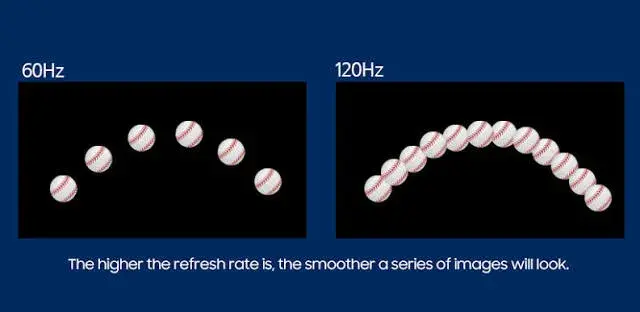
A screen does not show a continuous picture. It shows a rapid series of still images, replacing one with the next. The refresh rate is how many times per second the screen updates. At 60 Hz, a new image appears every 16.7 milliseconds. At 120 Hz, every 8.3 milliseconds. At 240 Hz, every 4.2 milliseconds.
More updates per second mean smaller steps between images, so moving objects look smoother and movement of a mouse pointer or scrolling text appears less choppy.
Refresh rate vs frames per second (FPS)
People mix these up, and the difference matters.
- Refresh rate is what the screen can show, in Hz.
- Frames per second (FPS) is what your computer, console or video produces, in frames.
A 144 Hz monitor can display up to 144 different images per second, but only if your computer sends it 144 frames per second. If your game runs at 60 FPS, a 144 Hz monitor still shows 60 different frames per second, though it can be smoother in other ways. If your video is 24 frames per second, no refresh rate makes it more than 24 distinct frames.
So to benefit from a high refresh rate, you need content and hardware that deliver high frame rates. Desktop work and scrolling can run at the refresh rate easily. Games depend on your graphics hardware. Films and TV are fixed.
Refresh rate vs response time
Response time is how quickly a pixel changes colour, usually in milliseconds. It decides how much smearing or ghosting you see on moving objects. A screen can have a high refresh rate but slow pixels, in which case motion still smears. Conversely, a fast panel at 60 Hz still updates only 60 times a second.
Good motion needs both: a high enough refresh rate and fast enough pixels. Manufacturers' response-time numbers such as "1 ms" often describe a best-case measurement between certain greys, not typical performance, so treat them as a rough guide. Panel type matters as well. See our post on IPS vs VA vs OLED.
What you notice at each level
60 Hz
The standard. Fine for documents, browsing, video and casual gaming. Motion is smooth enough for most people, until you compare it with something faster.
75 Hz
A small step up, found on some budget monitors. A slight smoothness gain.
90 Hz
Found on some phones and tablets, including some Lenovo tablets in our range. A visible improvement in scrolling and touch response.
100 Hz
A sweet spot for office and general use. Scrolling, window dragging and mouse movement feel noticeably smoother than 60 Hz. Several monitors in our range, such as the Dell P2425H and HP Series 5 models, offer 100 Hz, which gives office users a smoother daily experience at a sensible price per the listings.
120 Hz
A clear step up in smoothness. Common on phones, premium tablets, consoles and TVs. Gamers on consoles that support 120 Hz and capable PCs enjoy the difference.
144 Hz and 165 Hz
The gaming standard. Fast action and mouse aiming feel more responsive and precise. Visible to most people moving from 60 Hz, with strong returns if your PC can produce the frames.
240 Hz and above
For competitive esports players with powerful hardware. The difference from 144 Hz is small for most people, and many cannot tell in blind tests, though top players value any edge.
Diminishing returns. The jump from 60 to 120 Hz halves the time between frames by 8.4 ms. The jump from 144 to 240 Hz reduces it by only 2.7 ms. That is why the early gains feel big and the later ones feel subtle.
Who benefits from a high refresh rate?
Office workers and students
Higher refresh rates make scrolling documents, spreadsheets and web pages smoother and mouse movement feel crisper. A 100 Hz monitor is a nice, affordable upgrade over 60 Hz, though not essential. Comfort features matter just as much, such as a height-adjustable stand and good panel. See our home office setup guide.
Gamers
The biggest beneficiaries, especially in fast shooters and competitive titles. You need a graphics card or console that produces high frame rates. For casual or slower games, 60 to 100 Hz is fine.
Phone and tablet users
A 90 or 120 Hz display makes scrolling and animations feel fluid. It uses more battery in some cases, and many phones adapt the refresh rate automatically to save power.
Movie and TV viewers
Films use 24 frames per second, and most TV broadcasts use 25 or 30 (in some regions 50 or 60 fields). A higher TV refresh rate does not add real frames, though it helps with consistent playback and with gaming consoles. Marketing terms such as "motion rate" are not the same as native refresh rate.
Designers and photographers
Refresh rate matters less than colour accuracy and panel quality. A good IPS panel at 60 Hz is often better for colour work than a gaming panel at 144 Hz.
Creators and editors
Smoother timelines and previews are pleasant, but resolution and colour usually matter more.
What do you need to actually get the higher rate?
Buying a 144 Hz monitor does not automatically give you 144 Hz. Check each link in the chain.
- The monitor must support the rate at your resolution.
- The cable must carry it. HDMI and DisplayPort versions have different limits. An old HDMI cable may cap you at 60 Hz at higher resolutions.
- The port on your computer must support the rate. Some laptops' HDMI ports are limited.
- The graphics hardware must be capable of outputting the signal and producing the frames.
- The operating system must be set to the higher rate. Computers often default to 60 Hz.
- The content must run at a high frame rate, such as a game or a smooth desktop.
How to set the refresh rate
Windows. Right-click the desktop, choose Display settings, then Advanced display, and choose the refresh rate for your display. Check that the monitor is selected and the highest available rate is chosen.
Mac. Open System Settings, then Displays, and choose a refresh rate if available.
Phones and tablets. Look in Display settings for a smooth or high refresh rate option. Some use adaptive rates.
Consoles. Check the video output settings.
If the higher option does not appear, check the cable, the port and the driver. We are happy to help you troubleshoot if you message us on WhatsApp.
Variable refresh rate (VRR): FreeSync, G-Sync and friends
When your game's frame rate fluctuates, a fixed refresh rate causes visible problems.
Screen tearing. The screen shows parts of two different frames at once, creating a horizontal tear.
Stutter. If the screen waits to show a frame in sync, uneven timing looks jerky.
Variable refresh rate lets the screen adjust its refresh rate to match the frames your computer produces, within a range. The result is smoother play without tearing. Technologies include AMD FreeSync, NVIDIA G-Sync and the standard HDMI VRR support found on many modern consoles and TVs. Support depends on both the display and your graphics hardware, and the range matters, so we confirm per unit. If you game regularly, VRR is worth looking for. For office work, you can ignore it.
V-sync and frame caps
V-sync locks the game's frame rate to the refresh rate to prevent tearing, at the cost of added delay and possible stutter when frames fall short. VRR is a better solution if available. A frame cap limits your frame rate to just below the refresh rate, which reduces delay. If you have an older monitor without VRR, V-sync is a sensible fallback for single-player games.
Motion blur on LCD and OLED
Even at a given refresh rate, you may see motion blur. There are two causes.
Pixel response. Slow pixels smear. OLED pixels are very fast, so they smear little.
Sample-and-hold blur. Most modern screens hold each frame for the whole refresh interval. Your eyes track moving objects while the image stays still, and that causes perceived blur. A higher refresh rate shortens the hold time and reduces the blur. Some screens use backlight strobing or black-frame insertion to cut blur further, at the cost of brightness and sometimes flicker.
That is why a 120 Hz screen looks clearer in motion than a 60 Hz one, even with the same panel.
Input lag
Input lag is the delay between your action and the result on screen. A higher refresh rate reduces part of it, but display processing, wireless connections and game settings matter too. On TVs, a "game mode" turns off heavy processing to cut lag. If you play competitive games, check for low input lag and use a wired connection. We confirm per unit.
Refresh rate on TVs: be careful with marketing
TV makers use terms such as "motion rate", "motion clarity index" or "effective refresh rate", which combine the native refresh rate with processing tricks such as backlight scanning, and produce numbers like 240 or 480 that do not equal a real 240 Hz or 480 Hz panel. The native refresh rate is usually 60 Hz or 120 Hz. Look for the native figure in the specifications, and ask us to confirm. For gaming on a console that supports 120 Hz, you need a native 120 Hz panel and an HDMI input that supports it. See our post on HDR, HDR10 and Dolby Vision for other TV labels.
Motion smoothing and the "soap opera effect"
Many TVs can insert artificial frames between real ones to make 24-frame movies look smoother. This is called motion smoothing, interpolation or by brand names. Some people like it for sport. Many dislike it for films, because it makes cinema look like a cheap video, the so-called soap opera effect. You can usually turn it off in the picture settings. If movies look oddly fast or fake on your TV, check this setting first.
Refresh rate and battery life
On phones, tablets and laptops, higher refresh rates draw more power. Many devices use adaptive refresh rates, dropping to a low rate for static content and rising for scrolling or games. If battery life matters, choose an adaptive setting or lock to 60 Hz when you need to save power. On a desktop monitor, power use differences are small.
Refresh rate and eye comfort
Some people find higher refresh rates more comfortable, because motion looks more natural and flicker is less noticeable. Others notice no difference. Comfort depends more on brightness, posture, breaks and flicker-free backlights. If you get headaches, check brightness and flicker settings, and see a health professional if they persist.
Resolution vs refresh rate: the trade-off
Higher resolutions need more bandwidth and more graphics power, so high refresh rates at high resolutions are harder to achieve. A 4K screen at 144 Hz needs a capable computer and a cable with enough bandwidth. If your hardware is modest, a Full HD or quad-HD screen at a higher refresh rate often feels better in games than a 4K screen at 60 Hz. See our blog on 4K upscaling explained.
Phones and tablets: what to know
Many modern phones offer 90 or 120 Hz displays, and some tablets, such as the Lenovo Idea Tab Plus in our range with a 90 Hz screen per the listing, offer smooth scrolling and drawing. Adaptive refresh rate settings balance smoothness and battery. When comparing devices, look at the actual refresh rate and whether it is adaptive, and check how it behaves in the apps you use most. We confirm per unit.
Laptops: refresh rate and gaming laptops
Many laptops are 60 Hz, and gaming laptops offer 120, 144 or 165 Hz and more. A higher refresh rate laptop is smoother for scrolling and games but may reduce battery life. If you plan to play fast games on a laptop, check that the graphics hardware can produce the frames. See our laptops category or message us for advice.
Consoles: 60, 120 and what games support
Modern consoles support 120 Hz in some games, usually at reduced resolution or detail. You need a TV or monitor that supports 120 Hz over HDMI, the right cable and the right setting. Many games still run at 30 or 60 frames per second. Check which of your games support high frame rates before paying extra.
Choosing a refresh rate by budget and use
| Use | Sensible refresh rate |
|---|---|
| Office and study | 60 to 100 Hz |
| General home use | 60 to 100 Hz |
| Casual gaming | 60 to 120 Hz |
| Competitive gaming | 144 to 240 Hz |
| Console gaming (modern consoles) | 60 to 120 Hz, check support |
| Movies and TV | 60 Hz is enough |
| Phones and tablets | 90 to 120 Hz adaptive |
| Photo and colour work | 60 Hz is fine, prioritise panel quality |
A worked example: why 60 to 120 Hz feels bigger than 144 to 240 Hz
Imagine a ball crossing the screen in one second. At 60 Hz, the screen shows 60 snapshots of the ball, each 16.7 milliseconds apart. At 120 Hz, it shows 120 snapshots, 8.3 milliseconds apart, so each jump of the ball between snapshots is half as large. Your eye sees smoother movement. Now move from 144 Hz to 240 Hz. The gap shrinks from 6.9 to 4.2 milliseconds, a reduction of 2.7 milliseconds, far smaller than the 8.4 milliseconds you saved going from 60 to 120. The relationship follows a simple pattern: frame time is 1000 divided by the refresh rate. Because it is a reciprocal, each extra hertz buys less improvement than the one before. That is why most people say the first step up is dramatic and the later ones are subtle.
Screen tearing, in plain language
A screen updates from top to bottom. If your computer delivers a new frame halfway through an update, the top half of the screen shows the old frame and the bottom half the new one, with a visible seam where they meet. That seam is tearing. It is most visible in fast horizontal movement. Higher refresh rates make tearing less noticeable because each update is shorter, and VRR removes it by keeping the screen and the computer in step. If you see tearing, check your game's V-sync setting, your cable and whether VRR is turned on in both the monitor menu and the graphics settings.
Monitor menus, overdrive and other settings that affect motion
Many monitors have an "overdrive" or "response time" setting that makes pixels change faster. Too little leaves smears, and too much creates bright halos, called overshoot or inverse ghosting. A medium setting is usually best. Some monitors also have a motion-blur reduction or strobing mode, which can look clearer in games but dims the picture and may cause flicker. Try the default first, adjust one setting at a time and trust your eyes. Reset to defaults if you get confused. If your monitor has a "game mode" or low-latency mode, try it for gaming and keep your standard mode for office work and movies.
Refresh rate and video content: matching frame rates
Video comes in fixed frame rates, commonly 24, 25, 30 and 60 frames per second. If a screen's refresh rate is not an even multiple of the video's frame rate, it must repeat some frames more than others, causing a slight judder, most visible in slow camera pans. A 120 Hz screen handles both 24 and 30 and 60 evenly, which is one reason 120 Hz TVs are popular among film fans. A 60 Hz screen shows 24 frames per second with uneven timing, a pattern called 3:2 pulldown. Many TVs and players have a setting to match the refresh rate to the video, which smooths things out. If movies look slightly jerky on your TV, check for this setting.
Choosing between a faster monitor and a better monitor
If your budget is limited, ask which matters more to you: speed or quality. A fast TN-style gaming monitor may suit an esports player but disappoint everyone else. A well-made IPS monitor at 100 Hz with good colour, a height-adjustable stand and flicker-free backlight suits most people better. A better panel at 60 Hz may serve a designer better than a faster but poorer one. Describe your use to us on WhatsApp, and we will tell you honestly where to spend.
One more check: your eyes are the final test
Specifications describe potential, but only your eyes tell you whether a screen suits you. Spend five minutes at a screen before you buy. Scroll a long web page, drag a window, play a short clip with fast movement, and compare two refresh rates if the screen offers them. If you cannot tell the difference, save your money. If you can, you will enjoy it every day. We would rather you buy the screen that feels right than the one with the biggest number on the box.
Common myths about refresh rate
"A higher number always looks better." Only if your content and hardware can use it.
"240 Hz makes you win games." It may help a little, but practice and hardware matter more.
"The human eye cannot see more than 60 Hz." False. Many people see the difference at 120 Hz and beyond, especially in motion and mouse control.
"TV 'motion rate' equals refresh rate." No. Check the native refresh rate.
"Movies look better at higher refresh rates." Films are 24 frames per second. Interpolation can make them look unnatural.
"Any cable will do." Cables and ports limit refresh rates at higher resolutions.
"Refresh rate and response time are the same." They are different.
Common mistakes when buying
- Paying for 240 Hz with hardware that cannot reach it.
- Forgetting to enable the higher refresh rate.
- Using an old cable or the wrong port.
- Ignoring the panel. A fast but poor panel is a poor buy.
- Believing TV marketing numbers.
- Buying a 4K high-refresh monitor for a modest PC.
- Ignoring VRR if you game.
- Forgetting battery impact on phones and laptops.
- Skipping a test in the shop.
Example scenarios
These are illustrative, not customer records.
Scenario 1: An accountant's monitor. She upgrades from a 60 Hz to a 100 Hz IPS monitor and notices smoother scrolling in spreadsheets, but her reason for choosing it was panel comfort and the adjustable stand.
Scenario 2: A competitive gamer. He plays fast shooters on a capable PC and buys a 144 Hz monitor. At first nothing changes, until he enables 144 Hz in the display settings.
Scenario 3: A console player. She wants 120 Hz gaming, but her TV and HDMI cable support only 60 Hz at 4K. She learns to check her TV's HDMI input and the game's support.
Scenario 4: A film fan. He sees "motion rate 240" on a TV box and wonders about movies. We explain native refresh rate and show him how to turn off motion smoothing.
Scenario 5: A phone upgrader. She notices her new phone is smoother and sets an adaptive refresh rate to protect battery life.
How to test a display's refresh rate in the shop
- Open the display settings and look at the refresh rates offered.
- Select the highest rate and confirm the screen stays stable.
- Move a window or scroll a page, comparing 60 Hz and the higher rate.
- Run an online motion test that shows moving objects, if internet is available.
- Check the cable and port you will use at home.
- Test with your own device if you can.
Questions to ask any seller before you pay
- What is the native refresh rate, at what resolution?
- Which ports and cable are needed to achieve it?
- Does it support variable refresh rate, and over which ports?
- What is the panel type and response time, realistically?
- Is it brand new and sealed?
- What is the exchange and dead-pixel policy?
- Will I get a receipt, and where is your shop?
How to spot a fake or misdescribed display
Refresh rate claims are easy to inflate. A display may be sold as "144 Hz" when it only accepts a 144 Hz signal at low resolution, or as "native 120 Hz" when it uses frame interpolation. Use these ten checks together.
- Verify the model number and serial. They should match on the box, the back label and the on-screen menu, and be verifiable on the maker's website.
- Check the specification sheet for native refresh rate, at which resolution and over which ports.
- Confirm the rate in display settings. The option should appear, and the screen should run stably.
- Test with the correct cable. If the higher rate appears only with an unusual setting, ask why.
- Test motion. Use a motion test to see whether the screen genuinely updates faster.
- Check the panel type against the claim.
- Check for dead pixels and uniformity with solid-colour screens.
- Check the packaging and seals. Re-taped or damaged boxes may mean a used unit sold as new.
- Check the warranty and receipt. A genuine seller gives clear terms.
- Check the seller and price. An unrealistically low price, no shop address and no receipt are red flags.
If you are unsure, bring the display to New Alnoor Exhibition, Second Floor, Shop C7, Accra Road, and we will help you check it.
Why buy your monitor from City Gadgets Kenya
- Genuine products, checked before they reach you.
- A real shop at New Alnoor Exhibition, Second Floor, Shop C7, Accra Road, Nairobi CBD.
- Same-day delivery in Nairobi and next-day delivery outside Nairobi.
- M-Pesa payment and clear receipts.
- Honest advice, including telling you when 60 or 100 Hz is all you need.
- Cables, hubs and accessories in our accessories category.
- Support and repairs through our repair service.
- Trade-ins through our sell page.
- WhatsApp help on +254745575931.
Your refresh-rate checklist
- I know my main use and which refresh rate suits it.
- My computer or console can produce high frame rates.
- My cable and port support the rate.
- I will enable the rate in display settings.
- I checked panel type and response time, not only Hz.
- I checked the native refresh rate on any TV.
- I have a receipt and know the warranty terms.
Frequently asked questions
What is refresh rate? How many times per second a screen updates its picture, measured in hertz.
Is 144 Hz worth it? For gaming with capable hardware, yes. For office work, 100 Hz is already smooth.
Is 100 Hz better than 60 Hz for office use? It feels smoother for scrolling and the mouse, though not essential.
Does a higher refresh rate help movies? Not really. Films are 24 frames per second.
Do I need a special cable? Possibly. The cable and port must support the rate and resolution.
What is VRR? Variable refresh rate, which matches the screen to your frame rate to reduce tearing and stutter.
Is 240 Hz noticeable? To some competitive players, yes. Many people see little difference from 144 Hz.
Does refresh rate affect battery? On phones and laptops, yes, though adaptive rates help.
How do I know it is genuine? Use the ten checks above.
Where can I buy a monitor in Nairobi? At City Gadgets Kenya, Shop C7, Second Floor, New Alnoor Exhibition, Accra Road.
Need help choosing?
Message us on WhatsApp with how you will use the screen, your computer and your budget, and we will recommend the right display.
Related reading: IPS vs VA vs OLED explained · HDR, HDR10 and Dolby Vision explained · 4K upscaling explained · Best gaming mouse