Mi Security Camera Storage Guide for Kenya: microSD Cards, Cloud and NAS Explained
A security camera is only as useful as the footage it keeps. A camera that shows a clear picture live, but fails to record the moment that mattered, has not done its job. In Kenya, there are extra reasons for caution: power cuts that interrupt recording, theft of the camera itself, weak internet that makes cloud uploads unreliable, and poor-quality memory cards that fail quietly.
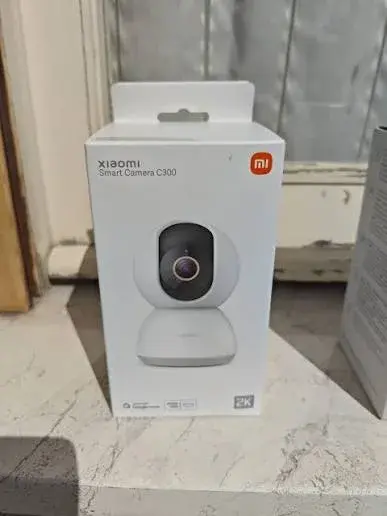
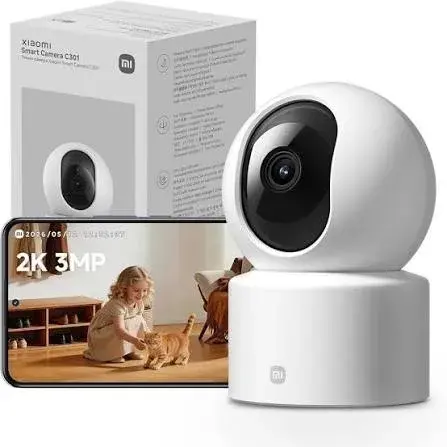
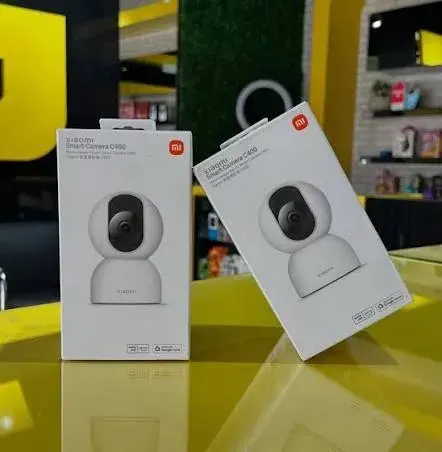
This guide, from the team at City Gadgets Kenya in Nairobi, explains how storage works for the Xiaomi Mi 360° home security cameras: the C201, C300, C301, C400 and C500 Pro. We cover the three ways to store footage (a microSD card, cloud storage and network-attached storage), how to choose a card, how long footage lasts, what loop recording does, why recordings go missing and how to protect your evidence. We leave figures out of this guide, because they change, and we keep to what the manufacturer publishes.
If you are still choosing a camera, read our buying guide. If you have just bought one, our setup guide shows you how to put it in place.
The three places footage can live
| Option | Where it is stored | Needs internet to record? | Survives camera theft? |
|---|---|---|---|
| microSD card | Inside the camera | No (the camera records locally) | No, the card goes with the camera |
| Cloud storage | On the provider's servers | Yes | Yes |
| Network-attached storage (NAS) | A device on your home network | Needs your home network | Yes, if the NAS is elsewhere in the home |
Each option has its strengths, and many people use more than one.
What the manufacturer publishes
- C201: microSD cards from 8 GB to 256 GB, not included, plus cloud storage. A rolling 7-day cloud period is mentioned, and we confirm the current offer.
- C300: microSD up to 256 GB (U1 or Class 10 or faster recommended), network-attached storage backups, and 7 days of free rolling cloud storage for motion clips, recorded as about 10-second clips.
- C301: microSD from 8 GB to 256 GB, which may need formatting, plus cloud storage with a 7-day rolling period mentioned.
- C400: local microSD with loop recording up to 256 GB (cards of 64 GB and above may need formatting in the camera first), plus cloud storage. A period of free rolling cloud storage after activation is published, saving a 9-second alarm video, with longer storage as a paid extra.
- C500 Pro: microSD from 8 GB to 256 GB, NAS storage, paid cloud storage, and H.265 and H.264 encoding.
Cloud offers, including free periods, depend on the region and change over time, so we confirm the current terms rather than quote them.
Option 1: The microSD card
How it works
A microSD card slots into the camera and records video locally. The camera writes video to the card, and when the card is full, loop recording overwrites the oldest video so that you always have the latest footage. You watch recordings through the app.
Strengths
- Works without cloud or subscription.
- Records even if your internet drops, as long as the camera is powered.
- Keeps full or event-based video, depending on your settings.
- Simple to set up.
Weaknesses
- It goes with the camera. If a thief takes or destroys the camera, the evidence goes too.
- Cards fail. Poor-quality cards can corrupt silently.
- Cards fill up. You must choose a size that matches your needs.
- Power matters. If the camera loses power, recording stops.
Choosing a microSD card
Size
The published range is 8 GB to 256 GB. How long footage lasts depends on the resolution, the recording mode and the camera's settings, which differ between models. The figures below are an illustration of the arithmetic, not a promise about any camera.
Suppose a camera records continuously at an average of 1 Mbps. That is about 10.8 GB per day. A 128 GB card would hold about 12 days of footage before loop recording begins overwriting the oldest. If the average rate were 4 Mbps, which is more typical of a sharper picture, the same card would last about 3 days. Event-based recording uses far less, because the camera records only when it detects something.
| Card size | Rough fit |
|---|---|
| 32 GB | Event recording in a small room, short history |
| 64 GB | Event recording, or short continuous history |
| 128 GB | A balanced choice for most homes |
| 256 GB | Longest history, sharper cameras, continuous recording |
A larger card does not make the camera better, and it is not always needed. If you record only events, a 64 GB or 128 GB card can last for weeks. If you record continuously with a high-resolution camera, a 256 GB card gives more history.
Speed class
The manufacturer recommends U1 or Class 10 or faster for some models. Use a card marked for video recording and long-term use. Cards labelled for high endurance are designed for continuous writing, which is exactly what a security camera does, and they typically last longer than ordinary cards.
Quality and source
This is where Kenyan buyers get caught. Unbranded or counterfeit cards often claim a large capacity but hold much less, and they fail without warning. Buy from a seller you trust, check that the card is genuine and keep the receipt. At City Gadgets Kenya, we can supply cards that suit your camera, and test them with you.
Formatting
Some cards, particularly 64 GB and above, may need formatting in the camera or app first. Formatting erases the card, so do it before you rely on it. The camera or the app can do it. Do not format a card that holds footage you need.
Loop recording explained
Loop recording means that when the card is full, the camera overwrites the oldest footage with the newest. It prevents you from running out of space, and means you never have to delete anything by hand. The catch is that old footage disappears. If something happens and you do not look for a few days, the footage may already be gone.
To protect important footage:
- Download or save the clip to your phone as soon as you notice an event.
- Use a larger card if you need a longer history.
- Use event recording to make the card last longer.
- Use cloud storage or NAS for an extra copy.
Option 2: Cloud storage
How it works
With cloud storage, the camera uploads clips, usually triggered by motion or detection, to servers run by the provider. You can view them in the app even if the camera is gone.
Strengths
- Survives camera theft or damage.
- Accessible from anywhere.
- Frees you from card failures.
- Encrypted, with the manufacturer stating AES-128 encryption for cloud data and encrypted transmission.
Weaknesses
- Depends on your internet. A weak or interrupted connection delays or loses uploads.
- Uses data. On capped mobile data, uploads add up.
- Terms change. Free periods end, paid plans vary, and availability depends on the region.
- Short clips. The published figures mention short event clips, such as about 9 or 10 seconds, rather than continuous footage.
When cloud makes sense
- You want a safety copy of important events in case the camera is stolen.
- You travel often and want to check events from anywhere.
- You have good, uncapped internet with a decent upload speed.
When it may not
- Your internet is slow or capped.
- You prefer to keep your footage at home for privacy reasons.
- You do not want an ongoing plan.
Ask us for the current cloud terms for your region before you decide.
Option 3: Network-attached storage (NAS)
What it is
A NAS is a small storage device, or a computer, on your home network that stores files. Some Xiaomi cameras, including the C300 and C500 Pro as published, can back up video to a NAS.
Strengths
- Large storage at a lower rate per gigabyte than many cloud plans.
- Footage stays at home, under your control.
- Survives camera theft, because the NAS is a separate device.
Weaknesses
- Needs setup. NAS configuration needs technical comfort.
- Needs your home network and power. A power cut stops it.
- Needs a separate device, which you must buy and maintain.
- It can be stolen too, if it is in the same room as the camera.
Who it suits
NAS suits tech-comfortable users, families with several cameras and small businesses that want a local archive. If you do not already have a NAS, a memory card and a cloud plan are simpler.
Recording modes
Cameras generally let you choose how they record.
| Mode | What it does | Storage use | Good for |
|---|---|---|---|
| Continuous | Records all the time | Highest | Full coverage, small spaces |
| Event or motion | Records when something is detected | Lowest | Most homes |
| Scheduled | Records at chosen times | Medium | Night and away hours |
For many homes, event recording with human detection gives the best balance: you capture what matters, and the card lasts longer. Continuous recording makes sense in a shop or where a full timeline matters.
H.265 and H.264
The C500 Pro supports H.265 and H.264 encoding. These are ways of compressing video. H.265 generally produces smaller files at similar quality, so it can store more footage on the same card, but it needs compatible playback. If your camera lets you choose, H.265 is usually the better choice for storage, and H.264 for compatibility. Ask us which suits your setup.
Why recordings go missing
When people tell us "my camera did not record," the cause is usually one of these.
- No card inserted, or the card is not recognised.
- A failed or counterfeit card.
- The card is full and loop recording has overwritten the footage.
- The camera was off, because of a power cut or an unplugged cable.
- Recording was set to events only, and detection did not trigger.
- The camera was offline, and cloud upload failed.
- The wrong time zone or date, which makes footage look missing.
- The card was not formatted properly.
Check each in turn.
A simple storage routine
- Choose a good-quality, high-endurance card within the published range.
- Format it in the camera or app.
- Choose your recording mode.
- Test it, by walking in front of the camera and playing back the clip.
- Check the card monthly, by viewing a recent recording.
- Replace the card periodically, since cards wear out under constant writing. Ask us how often is sensible for your use.
- Save important clips to your phone straight away.
- Add cloud or NAS if you need an off-camera copy.
Protecting evidence
If you ever need to give footage to the police or an insurer, the way you handle it matters.
- Save the clip immediately and keep the original.
- Note the date, time and camera name.
- Do not edit the clip.
- Avoid posting it online, which can compromise a case and the privacy of others.
- Report the incident promptly, and ask what format the authorities need.
Power cuts and storage
A camera records only while it is powered. During a power cut, recording stops. A small UPS for the camera and the router keeps both running through short outages, which keeps recording and cloud upload going. Without one, expect gaps. A surge-protected extension protects the camera and the card when power returns.
Privacy and storage
Stored footage shows people in their homes. Treat it carefully.
- Protect your account with a strong password and extra security.
- Do not share clips of other people online.
- Delete footage you no longer need.
- Tell people that recordings are made.
- Check the legal duties that apply to you, particularly for business premises.
Our privacy and security guide goes further.
Buying the right card from us
When you buy a card from City Gadgets Kenya, we recommend a size and type that suits your camera and your recording needs, we check that it is genuine, and we help you format and test it. Bring your camera, or tell us the model, and we will advise.
Worked examples for sizing a card
Using the illustrative arithmetic above, here are a few examples. They show how to think, and they are not promises about any particular camera, since real bitrates depend on the model, the resolution and the settings.
Example 1: Event recording in a small bedroom
The camera records only when it detects a person, and a typical day has a few short events. The card could last for weeks or months before loop recording begins overwriting, and a 64 GB card is probably plenty.
Example 2: Continuous recording in a lounge
The camera records all day at a moderate bitrate. If it averages 2 Mbps, that is about 21.6 GB per day. A 128 GB card holds roughly 6 days, and a 256 GB card roughly 12 days.
Example 3: Continuous recording at high quality in a shop
The camera records all day at a higher quality, say an average of 4 Mbps, which is about 43 GB per day. A 256 GB card holds about 6 days. If you want longer, use event recording, or add a NAS.
Example 4: Mixed use
The camera records continuously at night and by events in the day. A 128 GB card gives a good balance, and you can check the app to see how many days it holds, then adjust.
The simplest way to learn your real numbers is to look in the app after a week, and see how many days of footage the card holds.
How to test a memory card
Counterfeit cards often show a large capacity but hold much less. Before you rely on a card:
- Buy from a trusted seller, and check that the packaging looks right.
- Insert it in a computer and check that the capacity shown matches the label.
- Run a capacity test, using a free tool designed to detect fake cards, which writes data across the whole card and reads it back.
- Check the speed class markings.
- Format it in the camera, and record a test clip.
- Play the clip back from the app.
If a card fails any of these, return it. When you buy from us, we can test the card with you.
Looking after the card
- Avoid removing the card while the camera is recording. Switch the camera off first, or use the app's eject option if there is one.
- Keep the slot clean and dry.
- Avoid heat. A camera in a hot spot can shorten a card's life.
- Replace the card periodically. Constant writing wears flash memory. Ask us how often to replace it for your use.
- Keep a spare if the camera matters to you.
- Do not use the card in other devices and then put it back without formatting.
Backing up important clips
If an event matters, do not leave it on the card, where it may be overwritten.
- Open the clip in the app and save it to your phone.
- Copy it to a second place, such as a computer or a trusted cloud account you control.
- Note the date, time and camera.
- Keep the original, and do not edit it.
- Share copies only with the people who need them.
A cloud decision worksheet
Answer these questions to decide whether cloud storage is worth it for you.
- Is it likely that someone could steal or destroy the camera? If yes, cloud is more valuable.
- Do I travel and need to check events from anywhere?
- How good is my upload speed? If it is poor, cloud will struggle.
- Is my data capped? If yes, uploads may use a large share.
- What are the current terms for my region? Ask us.
- Do I mind my footage being on someone else's servers?
- Would a NAS or a second card meet my needs more simply?
If you answer yes to questions 1 and 2, with a good connection, cloud is worth considering. If your connection is weak and your data capped, a card is usually the better answer.
NAS basics for beginners
If you are curious about a NAS, here is the short version.
- A NAS is like a small private cloud at home. It sits on your network and stores files.
- The camera sends video to it over your network. The C300 and C500 Pro list NAS support.
- Setup needs care. You choose a folder, set permissions and enter the details in the camera's app.
- Keep it secure. Use strong passwords, and keep its software updated.
- Protect it from power cuts with a UPS, and from theft by placing it out of sight.
- Plan backups. A NAS can fail too, and important data is safest in two places.
If this sounds like too much, a card, plus an occasional cloud copy of key clips, is simpler.
Recording quality versus storage
Many cameras let you lower the recording quality to save space. The trade-off is simple: lower quality means less detail but longer history. A practical approach is to record at a quality that lets you recognise a person and read a face or a label in the area that matters, and no higher. Test by viewing a recording and zooming in. If it is good enough, you do not need more.
A short glossary
Bitrate: how much data per second the video uses. Higher bitrate means more detail and more storage.
Cloud storage: footage stored on the provider's servers.
Endurance card: a memory card designed for constant writing.
Event recording: recording only when the camera detects something.
Format: erasing a card and preparing it for use.
NAS: network-attached storage, a device on your home network that stores files.
Speed class: a marking showing how fast a card can write.
How storage fills: a simple table
The table below shows how many gigabytes per day a camera uses at different average bitrates, if it records continuously. It is illustrative arithmetic, and real cameras vary.
| Average bitrate | Approximate use per day | 64 GB lasts about | 128 GB lasts about | 256 GB lasts about |
|---|---|---|---|---|
| 1 Mbps | 10.8 GB | 6 days | 12 days | 24 days |
| 2 Mbps | 21.6 GB | 3 days | 6 days | 12 days |
| 4 Mbps | 43 GB | 1.5 days | 3 days | 6 days |
Event recording uses a fraction of this, depending on how often the camera detects activity. A quiet bedroom may record only a few minutes a day, while a busy shop may record much more.
Storage for more than one camera
Each camera needs its own memory card, since each records locally. If you have several cameras, plan the following.
- Use the same card size and type, so that your replacement and testing routine is simple.
- Label each card with the camera name and the date you installed it.
- Check each camera in your monthly routine.
- Think about cloud or NAS if you want all footage in one place.
- Watch your upload speed, because several cameras uploading to the cloud at once can overload a weak connection.
A theft scenario
Suppose someone breaks into a home and takes the camera. Here is what you have.
- With a memory card only: nothing, unless the camera was set to upload clips to the cloud before it was taken.
- With cloud storage: the clips uploaded before the theft, such as the moment someone entered, are safe.
- With a NAS: the clips copied to the NAS before the theft, as long as the NAS is elsewhere and not also stolen.
This is why people who care about evidence add a second copy. For many households, an event-based cloud copy of key clips is enough. For businesses, combining a card, a NAS and a cloud plan gives better protection.
Retention: how long should you keep footage?
Keeping footage forever is neither practical nor kind to the people recorded. A sensible approach:
- Keep routine footage for a short period, such as the length of your card's loop.
- Keep clips of real incidents until the matter is resolved, in a safe place.
- Delete clips of ordinary days that you do not need.
- Businesses should decide a retention period and follow it, and take advice on what is appropriate.
Common memory card myths
Myth: "A bigger card is always better." A larger card gives longer history, but it does not improve picture quality, and is not needed for event recording.
Myth: "Any card will do." Cards differ in endurance and speed. Constant writing wears out ordinary cards.
Myth: "My card will last forever." Flash memory wears out with use. Replace it periodically.
Myth: "Cloud storage replaces the card." It can, but only if your internet is reliable. Many people use both.
Myth: "If I format the card, I lose nothing." Formatting erases everything. Back up clips you need first.
Myth: "The camera records everything I see in the app." Live viewing and recording are separate. A camera can show a live picture while recording is off or the card is full.
Replacing or removing a card safely
- Switch off the camera, or use the app's option to safely remove the card.
- Unplug the camera from power.
- Remove the card gently.
- Insert the new card the right way round.
- Power the camera on, and format the new card if asked.
- Test a recording and play it back.
- Keep the old card safe, if it holds footage you need, or erase it before you dispose of it.
Disposing of an old card
A card that held recordings may still hold footage after you format it. Before you give away or throw out a card, erase it properly, or physically destroy it. Treat it like a document with private information on it.
A storage checklist
- The card is a good-quality, high-endurance card within the published size range.
- I formatted it in the camera or app.
- I chose a recording mode that suits the room.
- I checked that recordings play back.
- I know roughly how many days of footage the card holds.
- I save important clips to my phone straight away.
- I have a plan for a second copy, if I need one.
- I have a plan for power cuts.
- I replace the card periodically.
Questions to ask before choosing a storage plan
Before you settle on a card size, cloud plan or NAS, ask yourself a few plain questions.
- What do I need the footage for? Peace of mind, a record of visitors, evidence for the police or an insurer, or checking on a child?
- How quickly would I notice a problem? If you check daily, a short history is enough. If you travel for weeks, you need a longer history or a cloud copy.
- How reliable is my power and internet? If both are patchy, a local card is your most dependable base, and a UPS protects it.
- How many cameras do I have? More cameras mean more cards to manage, and more upload if you use cloud.
- How comfortable am I with technology? A card is simplest, cloud is easy but needs an account and a plan, and a NAS needs patience.
- What are the risks of theft in my area? If the risk is real, an off-camera copy is worth having.
Write down your answers, and bring them to the shop. We can recommend a card size and a plan that fit, and set it up with you.
A final word on storage
Good storage is boring, and that is the point. A reliable card, a sensible recording mode, a monthly check and a habit of saving important clips straight away will serve you better than any clever feature. Test your setup before you need it, because the worst time to discover that a camera was not recording is the moment after something has happened.
Frequently asked questions
Does the camera come with a memory card?
The published information we read does not list a memory card as included, so we sell it separately and confirm per unit.
What is the biggest card the camera supports?
The published maximum is 256 GB.
Can I use a card from my phone?
Many cards work, but a card used heavily in a phone may be worn. Use a new card marked for continuous recording.
How long will the footage last?
It depends on resolution, recording mode and card size. Event recording lasts much longer than continuous recording. See the illustration above.
Can I view the footage on a computer?
You can generally view and save clips through the app. Some people remove the card and read it on a computer, but formats and compatibility vary, so check first.
Is cloud storage free?
Published offers mention free periods in some cases, with paid plans for longer storage. Terms depend on the region and change, so we confirm the current offer.
What if the camera is stolen?
Footage on the card is lost with it. Cloud or NAS storage keeps a copy elsewhere.
Do I need both a card and cloud?
No. A card alone works. Add cloud or NAS if you want an off-camera copy.
Can I pay by M-Pesa?
Yes. We accept M-Pesa, and shop collection is free.
How to get advice
Call Sales on 0745 575 931 or write to sales@citygadgetskenya.co.ke. Visit us at New Alnoor Exhibition, Shop 7, Second Floor, Taveta Road (at the Taveta and Accra Road junction), Nairobi CBD, open Monday to Friday 9am to 7pm and Sunday 11am to 4pm, closed Saturday. In Nairobi, orders placed before 3pm are delivered the same day, and courier delivery elsewhere in Kenya takes one to three business days. Customer Relations is on 0794 488 806.