HDMI is the cable that connects almost everything to your screen: laptops, consoles, streaming sticks, Blu-ray players, set-top boxes, projectors and monitors. For years the standard did not seem to matter. Then came HDMI 2.1, and with it a flood of labels on TVs, monitors, cables and consoles: "4K 120Hz", "VRR", "eARC", "48 Gbps", "Ultra High Speed". Unfortunately the labels are also a minefield. A TV may have one port that supports the full set of features and three that do not. A cable may look the part and fail at the bandwidth you need. A hub may quietly cap your resolution at 4K 30Hz.
This guide gives HDMI 2.1 explained in plain language, with the bandwidth arithmetic worked out, so you can decide what you actually need and avoid paying for what you do not.
We are City Gadgets Kenya, at New Alnoor Exhibition, Second Floor, Shop C7, Accra Road, Nairobi CBD, with same-day delivery in Nairobi and next-day delivery outside Nairobi. We stock monitors, projectors, streaming devices, hubs and cables. HDMI features vary by device and port, so we describe them generally, "per the maker", and we confirm per unit.
The short version
- HDMI 2.1 is a newer version of the HDMI standard with much more bandwidth (up to 48 Gbps, versus 18 Gbps for HDMI 2.0). It enables features such as 4K at 120 Hz, 8K, variable refresh rate (VRR), auto low-latency mode (ALLM) and eARC.
- A device or port that says HDMI 2.1 may not support every HDMI 2.1 feature. Check which features and which ports.
- You only need HDMI 2.1 if your source (such as a recent console or powerful PC) and your screen both support its features and you want them, such as 4K at 120 Hz.
- Cables matter. For HDMI 2.1 features you need a certified Ultra High Speed cable.
- For ordinary TV, streaming and office use, HDMI 2.0 or even older is enough.
| Version | Bandwidth | Typical top mode | Notes |
|---|---|---|---|
| HDMI 1.4 | About 10.2 Gbps | 4K at 30 Hz | Older laptops, hubs and adapters |
| HDMI 2.0 | 18 Gbps | 4K at 60 Hz | Common on TVs, monitors, sticks |
| HDMI 2.1 | 48 Gbps | 4K at 120 Hz, 8K | Newer TVs, consoles, graphics cards |
Bandwidth figures are from the HDMI specifications as generally published. Features depend on the exact device.
What is HDMI, and what does "version" mean?
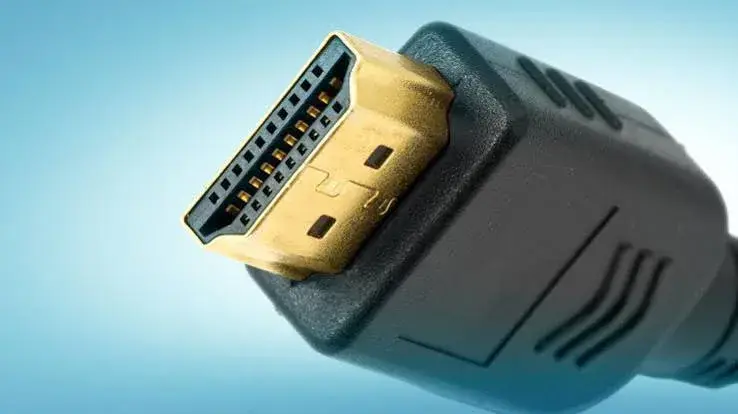
HDMI (High-Definition Multimedia Interface) carries digital video and audio through one cable. The same connector shape has been used across versions, which is convenient and confusing: you cannot tell the version by looking at the plug.
The version describes what the ports and chips inside the devices support, and what the cable can carry. When two devices connect, the connection works at the best speed that both devices and the cable can handle. A fast console connected to a slower TV will be limited by the TV. A fast TV connected with a weak cable will be limited by the cable.
Why HDMI 2.1 exists: bandwidth
Every picture is data. A higher resolution, a higher refresh rate and richer colour need more bits per second. We can estimate the raw pixel data for common modes by multiplying width × height × refresh rate × bits per pixel. These are our calculations of the pixel data alone, before the extra overhead of blanking intervals and encoding, which raise the real figure.
| Mode | Raw pixel data (approx.) |
|---|---|
| 1080p at 60 Hz, 8-bit colour | 3 Gbps |
| 4K at 30 Hz, 8-bit | 6 Gbps |
| 4K at 60 Hz, 8-bit | 12 Gbps |
| 4K at 60 Hz, 10-bit (HDR) | 15 Gbps |
| 1440p at 144 Hz, 8-bit | 12.7 Gbps |
| 4K at 120 Hz, 10-bit (HDR) | 30 Gbps |
| 8K at 60 Hz, 10-bit | 60 Gbps |
HDMI 2.0's 18 Gbps carries around 14.4 Gbps of actual data once encoding overhead is removed, so 4K at 60 Hz fits, but 4K at 60 Hz with full 10-bit colour for HDR gets very tight and often uses reduced colour detail (called chroma subsampling) to fit. 4K at 120 Hz with HDR needs far more than HDMI 2.0 can give, which is where HDMI 2.1's 48 Gbps comes in. 8K at 60 Hz needs more than even 48 Gbps in raw form, so HDMI 2.1 uses compression called DSC (Display Stream Compression) for the highest modes.
This arithmetic explains many everyday puzzles: why a hub that supports only "4K at 30 Hz" feels laggy, why some TVs limit HDR to certain ports, and why a cable that works for 1080p fails at 4K 120 Hz.
The key HDMI 2.1 features
4K at 120 Hz (and higher refresh rates)
The headline feature for gamers. A 120 Hz picture updates twice as often as 60 Hz and looks and feels smoother, particularly in fast action. Recent consoles and powerful PCs can output 4K at up to 120 Hz in supported games, per their makers. It also needs a screen that supports 120 Hz at 4K on the right port. For the basics of refresh rates, read our refresh rate explained article.
8K support
HDMI 2.1 can carry 8K video, with compression for the highest modes. 8K screens and sources are rare and expensive, and very little 8K content exists. For most buyers, 8K is not a reason to care about HDMI 2.1.
VRR (variable refresh rate)
VRR lets the screen match its refresh rate to the frame rate the console or PC produces, reducing tearing and stutter. It is a gaming feature, and it needs support in both the source and the screen. Some displays also support VRR technologies from graphics-card makers over HDMI, and details vary.
ALLM (auto low-latency mode)
ALLM lets a console tell the TV to switch to its game mode automatically, which lowers the delay between pressing a button and seeing the result, then switch back when you stop playing. It is convenient, especially for people who forget to change the TV's mode.
eARC (enhanced audio return channel)
eARC sends audio from the TV back to a sound bar or amplifier through one HDMI cable, with enough bandwidth for high-quality formats. It is part of HDMI 2.1, but some HDMI 2.0 devices have ARC or eARC too. If you want to send high-quality audio from a TV to a sound bar, check the specific port, usually labelled ARC or eARC, on both the TV and the sound bar.
QMS and QFT
Quick Media Switching (QMS) avoids the brief blank screen when the refresh rate changes, for example when a streaming app switches to a film's frame rate. Quick Frame Transport (QFT) reduces delay by sending frames faster. They matter to enthusiasts, and support is not universal.
Dynamic HDR
HDMI 2.1 supports dynamic HDR metadata, which formats such as Dolby Vision and HDR10+ use to adjust the picture scene by scene. See our HDR, HDR10 and Dolby Vision explained article.
DSC (Display Stream Compression)
DSC compresses the video signal lightly so high resolutions and refresh rates fit in the available bandwidth. It is designed to be visually lossless in most cases. It is a technical detail that helps the highest modes.
HDMI 2.0 vs HDMI 2.1: do you need the upgrade?
You can stay with HDMI 2.0 if:
- You watch TV, streaming and films, which top out at 4K 60 Hz in practice.
- You use a laptop for office work and presentations.
- You use a streaming stick or box such as the Apple TV 4K, Fire TV Stick 4K Plus or Xiaomi TV Stick 4K, which are designed for streaming content, not 4K 120 Hz gaming. We confirm per unit what each supports.
- You have a modest console or PC that does not output 4K 120 Hz.
You should care about HDMI 2.1 if:
- You own a recent console or a powerful gaming PC and a screen that can show 4K at 120 Hz.
- You want VRR and ALLM for gaming.
- You use a sound bar and want eARC.
- You buy an 8K screen or plan to use very high refresh rates at high resolution.
- You are buying a premium TV or monitor and want it to be future-proof.
If you are not sure, tell us what you connect to what, and we will advise. It is easy to overpay for a feature you never use.
The port problem: not every HDMI port is equal
Here is the single most useful thing to know when buying a TV or monitor: the HDMI ports are often not identical. A TV may have four HDMI ports, but only one or two support the full set of features such as 4K at 120 Hz, and one is the eARC port for the sound bar. Makers often mark the capable ports with labels such as "4K 120", "eARC/ARC" or "HDMI 2.1". Others are limited to HDMI 2.0.
Practical consequences:
- Read the labels beside the ports, and the manual.
- Plug your console or gaming PC into the capable port. Plug older devices into the others.
- Keep the eARC port for your sound bar. If that port is also the only full-speed one, you may need to choose between them, or use a different approach. Check your model.
- Check the settings. Some TVs need an option such as "enhanced HDMI" or "HDMI ultra HD deep colour" switched on for a port before it supports the full signal.
- Do not assume. A screen sold as "HDMI 2.1" may have only some HDMI 2.1 features. Ask which, on which ports, at what resolution and refresh rate.
On monitors, the same applies. A monitor may offer a mix of HDMI and DisplayPort inputs with different capabilities. A gaming monitor may support its top refresh rate only over DisplayPort, or only on one HDMI port.
"HDMI 2.1" labelling: why it is confusing
The HDMI specification organisation has said that devices can be described as HDMI 2.1 even if they support only some of the new features, and some older HDMI 2.0 features were rolled into the 2.1 specification. This means a device labelled "HDMI 2.1" is not guaranteed to support 4K at 120 Hz. The only reliable way to know is to check the features and modes listed in the specification: which resolutions at which refresh rates, which colour depth, whether VRR and eARC are supported, and on which ports.
When you shop, ask:
- Which exact modes does the port support? For example, 4K at 120 Hz with 10-bit colour.
- Does it support VRR and ALLM?
- Does it support eARC?
- Which ports are full-speed?
If a seller cannot answer, be cautious.
Cables: Ultra High Speed and the rest
HDMI cables are certified into categories according to the bandwidth they carry.
| Cable category | Bandwidth | Good for |
|---|---|---|
| Standard | Low | Old 720p and 1080i content |
| High Speed | About 10.2 Gbps | 1080p, 4K at 30 Hz |
| Premium High Speed | 18 Gbps | 4K at 60 Hz with HDR |
| Ultra High Speed | 48 Gbps | 4K at 120 Hz, 8K, HDMI 2.1 features |
For HDMI 2.1 features, use a certified Ultra High Speed cable. The certification includes a label with a hologram and a QR code that you can scan to verify the cable, per the HDMI licensing body's certification programme. Many ordinary cables claim "8K" or "4K 120Hz" with no certification, and some fail.
Cable length matters. Longer cables carry less bandwidth reliably. A 1 to 2 metre cable is safest for the highest modes. For longer runs, consider certified active or optical cables, which are designed for distance.
Signs of a cable problem:
- Sparkles (white dots) or flickering on the screen.
- The picture drops out or goes black briefly.
- The refresh rate or HDR option is missing in the settings.
- The picture works at 1080p but not at 4K.
If you see these, try a shorter or certified cable before blaming the TV.
Hubs, docks and adapters: the hidden cap
Many laptops connect to a screen through a USB-C hub or adapter with an HDMI port. The hub's HDMI capability may be lower than your screen's. For example, the Anker 5-in-1 and 7-in-1 USB-C hubs in our range output 4K at up to 30 Hz over HDMI, per Anker. That is fine for documents and video, but it limits the refresh rate on a 4K monitor. At full HD, the limit is not an issue in the same way, and you can expect smoother output, though we confirm per unit. If you want 4K at 60 Hz or higher from a laptop, you may need a different hub or dock, a direct cable from a compatible port, or a DisplayPort connection. Read our best USB-C hub guide.
Be careful with cheap adapters labelled "4K 120Hz" or "8K". Check the specification and the reviews. If you only need to connect a laptop to a projector, a basic hub is fine.
HDMI and DisplayPort: which to use on a monitor
Monitors often offer both. DisplayPort is common on PCs and can carry high refresh rates and adaptive sync on many gaming monitors. HDMI is more common on TVs, consoles and projectors. For a PC and monitor, DisplayPort is a good default if the monitor supports it, unless your device lacks it. USB-C ports on laptops can carry DisplayPort signals to monitors with USB-C or via adapters. Check your devices. For the practical side of monitor choice, read our IPS vs VA vs OLED explained article.
Consoles, PCs and HDMI 2.1 gaming
For console and PC gamers, a typical HDMI 2.1 gaming chain is:
- A console or graphics card that supports 4K at 120 Hz, VRR and ALLM.
- A TV or monitor with an HDMI 2.1 port supporting those features.
- An Ultra High Speed cable.
- Settings switched on in the console, the TV and the game.
- A game that supports the mode. Not all games run at 4K 120 Hz.
Games may offer a performance mode (high frame rate, sometimes lower resolution) and a quality mode (higher resolution, lower frame rate). A 120 Hz screen helps in the performance mode. Even with the right chain, powerful hardware is needed to reach high frame rates at 4K. Many players find a smooth 60 or 120 frames per second more noticeable than 4K sharpness. Read our 4K upscaling explained article for how resolution is scaled.
Sound bars and eARC
If you use a sound bar:
- Use the ARC or eARC port on the TV, and the matching port on the sound bar.
- Use a cable that supports eARC. An Ultra High Speed or a certified cable with Ethernet is advised, per the standard.
- Check the TV audio settings to send audio to the external device.
- Enable HDMI control (CEC) if you want one remote to control both. Names vary by brand.
If audio drops out or sync is off, try another cable, update firmware and check the sound bar's input.
Streaming sticks and HDMI
Streaming sticks, such as the Xiaomi TV Stick 4K, Amazon Fire TV Stick 4K Plus and Select, and Apple TV 4K boxes, connect through HDMI. They are mainly designed for 4K streaming at standard frame rates, with HDR formats, per their makers. They do not need HDMI 2.1 to work well. Plug them into any HDMI port that supports 4K and HDR on your TV. If the stick is physically bulky, an HDMI extension cable helps it fit behind the TV; Xiaomi includes one in the box, per its product details. Read our smart TV platforms explained article for which stick suits which platform.
HDMI and projectors
Projectors usually have one or two HDMI inputs. For classrooms and offices, HDMI 1.4 or 2.0 is normally enough. Long cable runs to ceiling-mounted projectors may need a good certified cable or an extender. If you carry a laptop between rooms, a USB-C hub with HDMI makes connections easy. Our projectors category has what we stock, including models like the LG ProBeam 4K laser projector and Epson models. We confirm HDMI features per unit.
HDMI CEC: one remote for everything
HDMI carries a control channel known as CEC, which lets devices send commands to each other. When it works, switching on a streaming stick can wake the TV and select the right input, and the TV remote can control the volume of a sound bar. Brands give CEC different names, such as Anywhere, Simplink or Bravia Sync, so look for the setting in your TV's menu. CEC can be temperamental. If devices wake unexpectedly or lose control, disable CEC on the troublesome device or update firmware. It is a convenience, not a requirement.
Future-proofing: how much should you pay for it?
Buying "for the future" is tempting, but electronics change quickly. A sensible approach:
- Buy for what you use today and in the next two or three years. If you game at 4K 120 Hz now, or plan to within a year, HDMI 2.1 ports are worth having. If you do not, you are paying for headroom you may never use.
- Prioritise picture quality first. A good panel on HDMI 2.0 usually beats a basic panel with HDMI 2.1 labels.
- Buy cables once. A certified Ultra High Speed cable of the right length costs a little more but avoids repeated purchases.
- Keep an eye on ports. If you have many devices, count the ports that support your top mode, not only the total.
- Use a switch or receiver if you have more devices than ports, and check that it supports the modes you need.
Switches, splitters and extenders
If your TV has too few good ports, you may be tempted by an HDMI switch or splitter. Basic switches work for 1080p and 4K 60 Hz, but cheap ones can break HDR, HDCP copy protection or high refresh rates. If you want 4K 120 Hz, you need a switch that explicitly supports it. Splitters that copy one source to two screens must also support the same modes. Extenders for long runs, such as in a church or a classroom, should be chosen for the distance and the resolution you need. When in doubt, test before you install, and keep the receipt. We can advise on what works with your devices.
HDCP: why some content refuses to play
HDCP is a copy protection system carried over HDMI. If a link in the chain, such as an old splitter, a cheap capture device or a faulty cable, does not handle HDCP correctly, protected content such as streaming apps and discs may show a black screen or an error. If you see a message about copy protection, try connecting the player directly to the TV with a different cable, and then add devices back one at a time. HDCP issues are a common reason why a setup that works for a laptop fails for a streaming app.
Troubleshooting HDMI problems
No picture. Check the input, reseat the cable at both ends, try another port and another cable, and restart both devices.
Picture but no sound. Check the sound output setting on the source, the TV's audio output, and mute or volume. Try a different HDMI port.
Sparkles or flicker. Usually a cable or port bandwidth problem. Use a shorter certified cable.
Wrong resolution or refresh rate. Check the display settings on the source and the port's capabilities. Enable enhanced HDMI mode on the TV if available.
HDR not working. Check the content, the app and the TV's HDMI setting. See our HDR article.
No VRR or 120 Hz option. Make sure you use the full-speed port, the right cable and updated firmware.
Lag in games. Switch the TV to game mode.
Sound bar not working. Use the ARC/eARC port, enable the right audio output and try another cable.
Device not detected after sleep. Switch the HDMI input off and on, or restart the source.
If you have tried these steps and still have problems, bring your devices to New Alnoor Exhibition, Second Floor, Shop C7, Accra Road, and we will test the chain.
Example scenarios
These are illustrative scenarios, not customer records.
The family with a streaming stick and a 4K TV. They stream at 4K 60 Hz at most. HDMI 2.0 and a decent cable are enough, and they should plug the stick into a port that supports 4K HDR.
The gamer with a new console. They buy a TV that supports 4K at 120 Hz on one port, an Ultra High Speed cable, and plug the console into that port. They enable the modes in the console and TV.
The sound bar owner. They connect the sound bar to the eARC port. Their game console uses a different port. They check that the cable supports eARC.
The office with a projector. They connect laptops through hubs with HDMI. 4K at 30 Hz is fine for slides and video.
The video editor. They want a 4K monitor at 60 Hz from a laptop. They avoid a 4K 30 Hz hub and use a direct connection or a suitable dock.
Questions to ask any seller before you pay
- Which exact HDMI features does this screen or cable support?
- Which ports are full speed, and which has eARC?
- Does the screen support 4K at 120 Hz, VRR and ALLM?
- Is the cable certified Ultra High Speed, and how can I verify it?
- What length is the cable, and is it suited to the distance?
- Will this hub or adapter support the resolution and refresh rate I need?
- What warranty applies, and who services it?
- Is the box sealed, and will I get a receipt?
How to spot a fake or misdescribed HDMI 2.1 cable, port or device
HDMI cables and "HDMI 2.1" labels are widely misused. A cable may claim certification it does not have, a hub may claim 4K 60 Hz and deliver 30, and a TV may be sold as HDMI 2.1 with only some features. Use these ten checks together.
- Look for the certification label. Genuine Ultra High Speed cables carry a certification label with a hologram and a QR code that can be verified through the HDMI licensing body's tools. A missing or unscannable label is a red flag.
- Check the packaging. Genuine packaging has accurate text and sharp printing. Spelling mistakes and exaggerated claims such as "16K" or "unlimited" are warnings. No consumer HDMI cable makes such claims credibly.
- Check the cable build. A cable that is very thin and light for its claimed capability may be poorly made. Genuine long cables may be thicker or use active components.
- Check the connectors. They should be firm, well-finished and fit snugly.
- Test with your devices. Set 4K at the refresh rate you want. If the option is missing, flickers or sparkles appear, the cable or port may not meet the claim.
- Check the device specification sheet for the exact HDMI modes and which ports support them.
- Check the on-screen information. Many TVs and monitors can display the incoming signal, including resolution and refresh rate.
- Check hubs and adapters against the maker's published specifications, such as 4K at 30 Hz for the Anker hubs in our range, per Anker.
- Check the seller and warranty. A genuine seller has a shop address, gives a receipt and states the warranty.
- Check the price. A price far below normal for a certified Ultra High Speed cable or a branded hub is a red flag.
If you are unsure, bring the cable or device to New Alnoor Exhibition, Second Floor, Shop C7, Accra Road, and we will help you check it.
Why buy your cables, hubs and screens from City Gadgets Kenya
- Genuine products, checked before they reach you.
- A real shop at New Alnoor Exhibition, Second Floor, Shop C7, Accra Road, Nairobi CBD, opening from 9:00 AM.
- Same-day delivery in Nairobi and next-day delivery outside Nairobi.
- M-Pesa payment and clear receipts.
- Honest advice, including telling you when you do not need HDMI 2.1.
- Compatibility checks. Tell us your devices and we will confirm what works.
- Hubs, cables and streaming devices in our accessories category.
- Support and repairs through our repair service.
- Trade-ins through our sell page.
- WhatsApp help on +254745575931.
Your HDMI checklist
- I know the highest resolution and refresh rate my source can output.
- I know which port on my screen supports that mode.
- I have a cable of the right category and length, with certification where it matters.
- I checked whether a hub or adapter caps the mode.
- I enabled the right settings on the source and the screen.
- I used the eARC port for my sound bar, if I have one.
- I checked labels and specifications for signs of a misdescribed product.
- I have a receipt and know the warranty terms.
Frequently asked questions
What is HDMI 2.1? A newer HDMI standard with up to 48 Gbps of bandwidth, enabling 4K at 120 Hz, 8K, VRR, ALLM and more.
Do I need HDMI 2.1? Only if your devices and your use case benefit, such as gaming at 4K 120 Hz.
Is HDMI 2.1 backward compatible? Yes. It works with older HDMI devices at their lower capabilities.
Do I need a special cable for HDMI 2.1? For the full features, a certified Ultra High Speed cable.
Is every port on an HDMI 2.1 TV HDMI 2.1? Not necessarily. Check the labels.
What is eARC? A way to send high-quality audio from the TV to a sound bar or receiver through HDMI.
What is VRR? Variable refresh rate, which matches the screen to the frame rate for smoother gaming.
Will my streaming stick need HDMI 2.1? Typically no. It works at standard streaming modes.
Why is my 4K monitor stuck at 30 Hz? A hub, adapter or cable may be limiting it. Check the specifications.
How do I know it is genuine? Use the ten checks above.
Can I pay by M-Pesa? Yes.
Where can I buy HDMI cables and hubs in Nairobi? At City Gadgets Kenya, Shop C7, Second Floor, New Alnoor Exhibition, Accra Road.
Need help choosing?
Message us on WhatsApp with your screen, source device and the mode you want, and we will help you pick the right cable and setup.
Related reading: Refresh rate explained · 4K upscaling explained · HDR, HDR10 and Dolby Vision explained · Best USB-C hub in Kenya