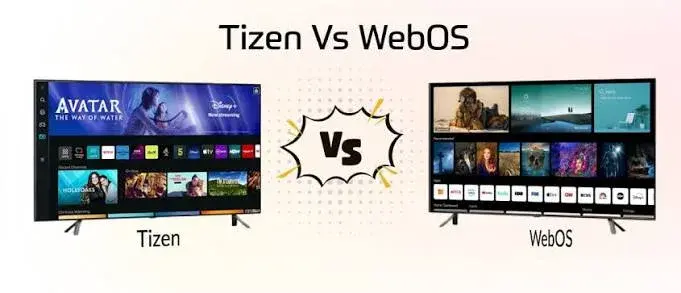
When you buy a TV today, the screen is only half the decision. The other half is the smart TV platform: the software that shows your apps, handles the remote, receives updates and decides whether Netflix, YouTube, Showmax and the rest work well or not. Samsung calls its software Tizen. LG calls its software webOS. Many other brands use Google TV or Android TV. Some TVs use Roku, VIDAA or Fire TV software. Each one feels different, and each one has strengths and weaknesses.
This guide gives smart TV platforms explained in plain language. We compare the main platforms, explain what matters when you choose, and show how a cheap streaming stick or box can rescue a slow or limited smart TV. We also explain how to spot misdescribed smart TVs and fake streaming devices.
We are City Gadgets Kenya, at New Alnoor Exhibition, Second Floor, Shop C7, Accra Road, Nairobi CBD. We stock streaming devices from Apple, Amazon and Xiaomi, with same-day delivery in Nairobi and next-day delivery outside Nairobi. Platform features change with software updates and differ by country and model, so details below are general, "per the maker", and we confirm per unit.
The short version
- A smart TV platform is the operating system of the TV. It decides which apps you get, how fast the menus are and how long the TV is supported.
- Google TV / Android TV: the broadest app choice and Google Assistant, found on many brands and on the Xiaomi TV Stick 4K.
- Samsung Tizen: Samsung's own system, usually smooth, with a good app set, but only on Samsung TVs.
- LG webOS: LG's system, known for a simple pointer-style menu and good app support, only on LG TVs.
- Fire TV software: Amazon's system, on Amazon's sticks and some TVs. Newer Amazon sticks may use different software, so check.
- Apple tvOS: Apple's system, on the Apple TV 4K box.
- A slow or limited smart TV can be fixed by plugging in a streaming stick or box that has its own, faster platform.
| Platform | Found on | Strengths | Watch out for |
|---|---|---|---|
| Google TV / Android TV | Many TV brands, Xiaomi TV Stick 4K | Large app catalogue, Chromecast built-in, voice search | Cheap TVs with little memory can be slow |
| Samsung Tizen | Samsung TVs | Smooth and polished, good app set | Tied to Samsung; some apps may be missing |
| LG webOS | LG TVs | Easy menu, good app support | Tied to LG; app availability varies by region |
| Fire OS | Amazon Fire TV Stick 4K Plus | Large app catalogue, Alexa | Amazon-centric interface |
| Vega OS | Amazon Fire TV Stick 4K Select | Cheap, fast for basics | Fewer apps, no sideloading, per our catalogue notes |
| tvOS | Apple TV 4K | Smooth, Apple ecosystem, long support history | Costs more; best with Apple devices |
What a smart TV platform actually does
Underneath every smart TV is a small computer with a processor, memory and storage. The platform is the software that runs on that computer. It handles:
- The home screen with rows of apps and recommendations.
- Apps, such as Netflix, YouTube, Prime Video, Showmax, DStv and others, subject to availability.
- The remote, including voice search on supported models.
- Settings, such as picture, sound and network.
- Updates, which bring new features and security fixes.
- Casting and screen sharing from phones, tablets and laptops.
- Voice assistants, such as Google Assistant, Alexa or Bixby, depending on the platform.
- Advertising and personalisation. Many platforms show recommendations and ads on the home screen.
The hardware matters as much as the software. A platform that feels fast on a premium TV can feel sluggish on a budget model with little memory. That is why the same operating system can be pleasant on one TV and frustrating on another.
Google TV and Android TV
Google's platform is used by many TV makers and by streaming sticks and boxes. Google TV is the newer interface that brings content from different apps into one place, with recommendations and a watchlist. Android TV is the older platform on which Google TV is based, and many TVs and devices still use the Android TV name.
Strengths:
- Large app choice through the Google Play Store, including most major streaming apps.
- Chromecast built-in, so you can send video from your phone or laptop to the TV.
- Google Assistant voice search on supported remotes.
- Many brands use it, so you can choose by price and screen quality.
- Regular app updates through the store.
Weaknesses:
- Performance depends on hardware. A budget TV with low memory can lag.
- Home screen recommendations and ads may be busy.
- Update support varies by brand and model. Some TVs stop receiving major updates after a few years.
In our range: the Xiaomi TV Stick 4K (2nd generation) runs Google TV, with Chromecast built-in, per Xiaomi. It lets you add Google TV to a TV that has a different, slower or older platform.
Samsung Tizen
Tizen is Samsung's own TV platform, found on Samsung TVs. It is generally regarded as smooth, with a well-organised home screen and a good app set.
Strengths:
- Smooth operation on most models.
- Good integration with Samsung phones and smart-home features.
- Wide app support for popular streaming services.
- Long software support on many models, though it varies.
Weaknesses:
- Only on Samsung TVs. You cannot install it on another brand.
- Fewer niche apps than Android-based platforms. If you need an unusual app, check first.
- Ads and recommendations on the home screen.
LG webOS
webOS is LG's TV platform. It is known for a clean launcher bar and a pointer-style remote on many models.
Strengths:
- Simple, easy-to-learn menus.
- Good app support for major services.
- Pointer remote on some models for quick navigation.
- Good integration with LG smart-home features.
Weaknesses:
- Only on LG TVs.
- App availability varies by region and model.
- Ads and promoted content on the home screen.
Fire TV: Fire OS and Vega OS
Amazon sells streaming sticks and also licenses its software to some TV makers.
Fire OS is Amazon's Android-based platform. The Amazon Fire TV Stick 4K Plus in our range runs Fire OS 8, based on Android 11, and offers the full Fire TV app catalogue, including apps from outside the Amazon Appstore where sideloading is allowed, per our product notes and published comparisons.
Vega OS is Amazon's newer, Linux-based platform. The Amazon Fire TV Stick 4K Select in our range runs Vega OS, which means only apps from Amazon's own Appstore, no sideloading and a more limited app catalogue, since apps must be rebuilt for Vega. If you depend on particular apps, check that they are available on Vega before you buy, or choose the 4K Plus. Tell us the apps you want and we will advise.
Strengths of Fire TV:
- Low entry cost for a 4K stick.
- Alexa voice remote.
- Integration with Amazon services.
Weaknesses:
- Amazon-centric home screen, with promoted content.
- The Select's limited app catalogue compared with Fire OS or Google TV.
- Different devices behave differently, so the name Fire TV does not tell you which operating system a model uses.
Apple tvOS and the Apple TV 4K
tvOS is the platform on the Apple TV 4K box. It is a separate device you connect to the TV by HDMI. Our range includes the Apple TV 4K 64GB Wi-Fi model and the 128GB Wi-Fi plus Ethernet model, per our product notes.
Strengths:
- Smooth, fast interface.
- Strong integration with iPhone, iPad and Mac, including mirroring content to the TV.
- A clean home screen with fewer ads than many platforms.
- Powerful hardware compared with most budget sticks.
Weaknesses:
- Higher cost than sticks.
- Most useful in the Apple ecosystem. Non-Apple users can still use it for streaming.
- Some regional apps may be limited. Ask our team about the apps you want.
The 128GB model has more storage and an Ethernet port, which helps if your Wi-Fi is weak where your TV sits.
Roku, VIDAA and other platforms
Other platforms you may meet include Roku, which is popular in some countries but less common in Kenya, and VIDAA, used by some Hisense TVs, among others. Some budget TVs ship with a custom or basic platform with few apps. When you shop, ask exactly which platform the TV uses and which apps it supports. If the platform is unfamiliar, check its app list before you buy. A stick can add a better platform to any TV with an HDMI port.
How to choose a platform
Ask yourself these questions.
- Which apps do I need? Netflix, YouTube and Prime Video are widely supported, but local and niche apps vary. Check the list for your exact TV or device.
- How fast is the interface? Try it in the shop. Press buttons, open apps and watch for lag.
- How long will the TV be supported? Ask the maker about update support.
- Do I use Apple, Google or Amazon products? Integration with your phone and smart home can matter.
- Do I want voice search? Check which assistant the remote supports.
- Do I mind ads on the home screen? Most platforms show some.
- Can I add a stick later? Yes, almost always. That keeps your options open.
Updates and security
Smart TVs are small computers, and they need security updates like a phone does. A TV that no longer receives updates can develop security weaknesses and stop working with new versions of apps. Before buying, ask how long the maker supports updates. If your TV is old, a streaming stick or box with current software is a cheap way to refresh the experience.
Keep your TV updated, use a strong Wi-Fi password and be careful what you install, especially on platforms that allow sideloading.
Privacy: what your TV may collect
Smart TVs and streaming devices can collect data about what you watch and which apps you use, and use it for recommendations and advertising. Practical steps:
- Review the privacy and advertising settings when you set up the device.
- Turn off features you do not need, such as voice recording, if you prefer.
- Do not log in to sensitive accounts on a shared TV unless you log out afterwards.
- Cover or disable cameras and microphones if your TV has them and you do not use them.
- Set a PIN for purchases and for age-restricted content.
Settings differ by platform and update, so look at your TV's privacy menu.
Why a smart TV gets slow, and how a streaming stick helps
Many people buy a TV with a built-in platform and find, a couple of years later, that menus take seconds to respond, apps crash or new apps are not available. Common causes include:
- Limited memory and a modest processor in budget TVs.
- Apps growing heavier with every update, while the TV's hardware stays the same.
- Full storage, from cached data and installed apps.
- Stopped updates, so new app versions no longer support the TV.
- Weak Wi-Fi, which makes everything feel slow.
A streaming stick or box plugs into an HDMI port and runs its own platform on its own hardware, so the TV acts as a display. It is often the cheapest way to refresh an older TV, add 4K and HDR support, or switch to a platform you prefer. The TV's own platform stays in the background.
A stick will not fix a poor screen, but it will fix a poor interface. For the screen side, read our QLED vs OLED vs mini-LED explained and HDR, HDR10 and Dolby Vision explained articles.
Streaming devices in our range
We confirm the exact model, version and what is in the box per unit. The details below come from our product notes, which draw on the makers' published information and reviewers.
Xiaomi TV Stick 4K (2nd generation)
- Platform: Google TV, with Chromecast built-in.
- Video: 4K output with Dolby Vision, HDR10 and HDR10+.
- Hardware: 2 GB RAM and 8 GB storage, Wi-Fi 6 and Bluetooth 5.2.
- Audio: Dolby Atmos, DTS:X and DTS-HD support.
- Preinstalled: Netflix, Amazon Prime Video and YouTube.
- Best for: adding Google TV to a TV with a slow or limited platform, at a modest cost.
Amazon Fire TV Stick 4K Plus
- Platform: Fire OS 8, based on Android 11.
- Video: 4K with Dolby Vision, HDR10, HDR10+ and HLG.
- Hardware: 8 GB storage and Wi-Fi 6.
- Apps: the full Fire TV catalogue, including sideloading where allowed.
- Best for: buyers who want a big app catalogue and Alexa, at a moderate cost.
Amazon Fire TV Stick 4K Select
- Platform: Vega OS, Amazon's new Linux-based system, not Android.
- Video: 4K with HDR10+, no Dolby Vision.
- Apps: Amazon Appstore only, no sideloading, and a smaller catalogue.
- Best for: budget buyers who only need the main streaming apps. Check your apps first.
Apple TV 4K (64GB Wi-Fi, and 128GB Wi-Fi with Ethernet)
- Platform: tvOS.
- Connection: the 64GB model uses Wi-Fi, and the 128GB model adds more storage and an Ethernet port.
- Best for: Apple users, and anyone who wants a smooth, high-quality box with strong long-term support.
- Note: you only see 4K quality on a TV that supports it, but the interface improvement shows on any TV.
For picture quality questions across these devices, our 4K upscaling explained article explains how the screen handles content, and our HDMI 2.1 explained article explains ports and cables.
Which streaming device should you choose?
| If you... | Consider |
|---|---|
| Want Google TV and Chromecast at a low cost | Xiaomi TV Stick 4K |
| Want a big app catalogue and Alexa | Amazon Fire TV Stick 4K Plus |
| Only need the main apps and want the cheapest 4K stick | Amazon Fire TV Stick 4K Select, after checking apps |
| Use iPhone, iPad or Mac and want the smoothest box | Apple TV 4K |
| Have weak Wi-Fi near the TV | Apple TV 4K 128GB with Ethernet, or run a cable or use a hub |
| Need an unusual app | Ask us, and check the app on the platform before you buy |
Setting up a streaming stick
- Plug the stick into an HDMI port on the TV. Use the port that supports 4K and HDR on your TV, usually marked on the TV.
- Power it from the supplied adapter. Some TVs' USB ports cannot supply enough power, so use the supplied adapter where possible.
- Select the HDMI input on the TV.
- Pair the remote following the on-screen instructions.
- Connect to Wi-Fi and sign in to your account.
- Install your apps and sign in to each.
- Set the resolution and HDR options in the device's display settings, matching your TV.
- Turn on any settings your TV needs for HDR on that input.
If the picture is blank, try another HDMI port or cable, restart both devices, and check the input.
Casting and screen sharing
Casting sends video or your screen from a phone, tablet or laptop to the TV.
- Chromecast built-in is available on Google TV devices such as the Xiaomi stick, per Xiaomi, and many apps include a cast button.
- AirPlay is Apple's way to send video and mirror a screen to Apple TV and compatible TVs.
- Miracast and similar standards exist on some devices, but behaviour varies.
- Cables still work. A laptop with a hub and an HDMI cable is the most reliable option for presentations. See our best USB-C hub guide.
If casting fails, make sure both devices are on the same Wi-Fi network and the app is up to date.
Troubleshooting a slow or misbehaving smart TV
- Restart the TV by unplugging it for a minute.
- Free up storage. Remove apps you do not use and clear app caches.
- Update the TV software and the apps.
- Check the Wi-Fi. Test the speed with a phone near the TV, and consider moving the router or using a cable.
- Switch off unnecessary features, such as motion smoothing or voice listening, if they slow the experience.
- Reset the TV as a last step, after noting your settings. This returns it to factory state.
- Add a streaming stick if the TV is still slow.
Remotes, voice control and smart-home features
The remote is how you touch the platform every day, so it deserves attention. Some remotes use a pointer you wave at the screen, some use directional buttons, and many include a microphone for voice search. Voice search is genuinely useful for finding titles without typing, but its quality depends on the platform and language support, so test it with the words and names you use. Smart-home features, such as controlling lights or viewing a camera on the TV, work best when the TV platform matches your other devices: Google Home with Google TV, Alexa with Fire TV, Apple Home with Apple TV, and Samsung's or LG's own apps with their TVs. If you do not use smart-home features, do not pay extra for them.
A practical tip: keep spare batteries for the remote and know how to control the TV from a phone app. A dead remote is the most common reason people think a TV has failed.
Gaming on smart TVs and streaming boxes
Smart TVs and boxes can run casual games, and some platforms offer game streaming services. For serious gaming, a console or a gaming PC is the right tool, and the TV's job is to display it well, with low delay. Look for a game mode on the TV, check which HDMI port supports the features your console uses and read our HDMI 2.1 explained and refresh rate explained articles. A streaming stick is not a gaming device, though the Apple TV 4K is more capable than most sticks for casual games, per Apple.
Language, regional content and local apps
Platform app stores are organised by country. A streaming service available in one country may not be available in another, and some apps appear on one platform but not another in Kenya. Before you buy, list the apps and services you actually use, including local broadcasters and music apps, and check each one on the platform you are considering. If you travel, remember that content libraries differ by country. Voice assistants and search also vary by language, so check that your preferred language is supported.
Wired or wireless: getting a stable connection
Streaming depends on your network more than on the device. For stable 4K streaming:
- Place the router centrally and avoid hiding it behind metal or in a cupboard.
- Prefer the 5 GHz band for TVs near the router, since it is faster, and the 2.4 GHz band for longer range through walls, though it is slower and more crowded.
- Use Ethernet where possible. A wired connection is the most stable. The Apple TV 4K 128GB model has an Ethernet port, per Apple. For sticks without Ethernet, an adapter may be available for some models. Ask us.
- Avoid peak congestion by limiting other heavy downloads while streaming.
- Upgrade your plan if several people stream at once.
- Test the speed at the TV's location, not just beside the router.
Sideloading, "fully loaded" boxes and piracy risk
You may meet sellers offering Android TV boxes "fully loaded" with free premium channels. Be careful. Many such boxes rely on pirated streams, which are illegal, unreliable and sometimes laced with malware or intrusive adverts. They can also expose your home network and accounts. A box that stops working when the stream is blocked wastes your money. We recommend legitimate devices and subscriptions. Sideloading apps is a legitimate feature on some platforms, but only install apps from sources you trust.
Example scenarios
These are illustrative scenarios, not customer records.
The family with a three-year-old budget TV that has become slow. The TV's screen is fine, but menus lag and an app no longer updates. A Xiaomi TV Stick 4K or an Amazon Fire TV Stick 4K Plus gives them a faster, current platform at a modest cost.
The Apple household. They already use iPhones and a MacBook, and want AirPlay and a smooth interface. The Apple TV 4K fits.
The student in a hostel with a basic TV. The TV has no smart features. A cheap 4K stick adds streaming and works when they move.
The church or small business with a screen for videos. They need a reliable way to play media. A stick or box, a power backup and a hub or laptop for presentations cover it. Our projectors category lists what we stock for bigger rooms.
Questions to ask any seller before you pay
- Which platform does this TV or device run, and which version?
- Which of my apps does it support? Please show me.
- How long will the maker provide updates?
- How much memory and storage does it have?
- Does it support the HDR formats my TV supports?
- Which HDMI port should I use?
- What is in the box?
- What warranty applies, and who services it?
- Is the box sealed, and will I get a receipt?
How to spot a fake streaming stick or a misdescribed smart TV
Streaming devices and smart TVs are easy to misdescribe. A cheap unbranded box may be sold as an "Android TV" or "Fire Stick", a stick may be sold as 4K when it is not, and TVs may be sold as "smart" with a very limited system. Use these ten checks together.
- Check the packaging. Genuine boxes have sharp printing, accurate model names and clean seals. Misspellings, blurry logos and re-taped seals are red flags.
- Check the model number on the device and box against the maker's website.
- Check the platform on screen. The system information screen should show the operating system and version you were promised. A box claiming Google TV should show the proper Google TV interface and Play Store.
- Check what is in the box. Remote, power adapter and cables should match the maker's list.
- Check the remote. It should pair quickly and its buttons, including voice buttons where promised, should work.
- Check the specifications on screen. Memory, storage and Wi-Fi standards shown in settings should match the claim.
- Test 4K and HDR with a known 4K HDR video on a compatible TV.
- Check for preinstalled junk or odd apps, which suggests an unofficial image.
- Check the seller and warranty. A genuine seller has a shop address, gives a receipt and states the warranty.
- Check the price. A price far below normal is a red flag.
If you are unsure, bring the device to New Alnoor Exhibition, Second Floor, Shop C7, Accra Road, and we will help you check it.
Why buy your streaming device from City Gadgets Kenya
- Genuine products from Apple, Amazon and Xiaomi, checked before they reach you.
- A real shop at New Alnoor Exhibition, Second Floor, Shop C7, Accra Road, Nairobi CBD, opening from 9:00 AM.
- Same-day delivery in Nairobi and next-day delivery outside Nairobi.
- M-Pesa payment and clear receipts.
- Honest advice, including telling you when your TV does not need a stick.
- App checks. Tell us the apps you need and we will advise which platform suits.
- Cables and accessories in our accessories category.
- Support and repairs through our repair service.
- Trade-ins through our sell page.
- WhatsApp help on +254745575931.
Your smart TV platform checklist
- I know which platform my TV or device runs.
- I checked that my must-have apps are available on it.
- I asked about update support.
- I considered a streaming stick if the TV is slow or limited.
- I matched the stick to my TV's HDMI port, HDR and 4K support.
- I reviewed privacy and advertising settings.
- I checked the box, model and platform on screen.
- I have a receipt and know the warranty terms.
Frequently asked questions
What is a smart TV platform? The operating system of the TV, which controls apps, menus, remote and updates.
Is Google TV the same as Android TV? Google TV is the newer interface built on Android TV. Many devices still use the Android TV name.
Which is better, Tizen or webOS? Both are polished. The better choice depends on which TV you prefer, since each only runs on its own brand.
Can I install Google TV on a Samsung or LG TV? Not directly, but you can plug in a Google TV stick such as the Xiaomi TV Stick 4K.
Is the Fire TV Stick 4K Select the same as the 4K Plus? No. The Select runs Vega OS with fewer apps and no sideloading, while the Plus runs Fire OS with a larger catalogue.
Do I need a streaming stick if I have a smart TV? Only if your TV is slow, limited or missing an app.
Does a stick give me 4K? Only on a 4K TV. The stick can output 4K, but the TV must support it.
Will a stick work on an old TV? If the TV has an HDMI port, yes.
How do I know it is genuine? Use the ten checks above.
Can I pay by M-Pesa? Yes.
Where can I buy a streaming device in Nairobi? At City Gadgets Kenya, Shop C7, Second Floor, New Alnoor Exhibition, Accra Road.
Need help choosing?
Message us on WhatsApp with your TV model and the apps you use, and we will recommend the right stick or box.
Related reading: HDMI 2.1 explained · HDR, HDR10 and Dolby Vision explained · 4K upscaling explained · TV panel sizes and viewing distance