Open any monitor, laptop or phone specification and you meet a row of colour claims: "99% sRGB", "95% DCI-P3", "100% Adobe RGB", "1.07 billion colours", "Delta E under 2", "factory calibrated". They sound impressive, and they are often used to justify a higher price. But what do they actually mean, and which ones matter for what you do? If you only write emails and spreadsheets, most of them do not matter at all. If you edit photos, design for print or grade video, they matter a great deal, and the wrong screen can cost you work.
This guide gives colour gamut explained in plain language, with the arithmetic where it helps, so you can read a specification sheet confidently and avoid paying for colour you do not need.
We are City Gadgets Kenya, at New Alnoor Exhibition, Second Floor, Shop C7, Accra Road, Nairobi CBD, with same-day delivery in Nairobi and next-day delivery outside Nairobi. We stock monitors, projectors and tablets, and we explain screens honestly. Specifications below are general, "per the maker", and we confirm per unit.
The short version
- Colour gamut is the range of colours a screen can show. A wider gamut can show more saturated colours.
- sRGB is the standard for the web, office software and most everyday content. A screen with good sRGB coverage is right for most people.
- DCI-P3 is wider than sRGB and is used in cinema and by many modern phones, laptops and TVs for richer colour and HDR video.
- Adobe RGB is wider in the greens and cyans and is used in some photography and print workflows.
- Rec.2020 is a very wide standard for future HDR video, which almost no screen fully covers.
- Gamut is not accuracy. A wide-gamut screen that is not accurate or calibrated can show wrong colours. Accuracy, measured as Delta E, matters for professional work.
- For office work, sRGB at 99 to 100 per cent is plenty. For creative work, look at accuracy, calibration and the gamut your work needs.
| Standard | Typical use | Compared with sRGB |
|---|---|---|
| sRGB | Web, office, most photos, games | The baseline |
| DCI-P3 | Cinema, HDR video, modern phones and laptops | Wider, commonly quoted as roughly 25 per cent larger |
| Adobe RGB | Photography and print workflows | Wider, especially in greens and cyans |
| Rec.2020 | Future HDR video | Much wider; hard for real screens to cover |
Comparisons are commonly quoted approximations, and exact figures depend on how the area is measured.
What is a colour gamut?
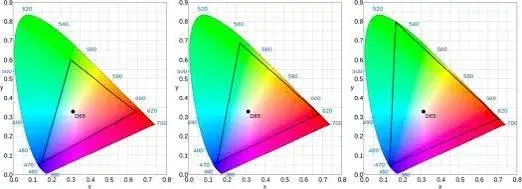
Every screen makes colours by mixing red, green and blue light. The purest red, green and blue that a screen can produce define the corners of a triangle on a colour chart, and every colour the screen can show lies inside that triangle. The area of the triangle is the screen's gamut. A bigger triangle means the screen can show more vivid colours, for example a deeper green or a more intense red.
A colour standard such as sRGB, DCI-P3 or Rec.2020 is also a triangle, defined by agreed primaries. When a monitor says "99% sRGB", it means its triangle covers about 99 per cent of the sRGB triangle. When it says "95% DCI-P3", it covers about 95 per cent of the P3 triangle.
Two different measures appear in specifications, and they are not the same:
- Coverage says how much of a standard's triangle the screen covers. 100 per cent coverage of sRGB means every sRGB colour can be shown, though the screen may be able to show more.
- Volume or area compares the size of the screen's triangle to the standard's triangle, and can exceed 100 per cent for a wide-gamut screen, even if some colours inside the standard are missing.
Coverage is the more useful number for matching a standard. Be cautious when a specification uses "NTSC" figures, an older standard. A figure such as 72 per cent NTSC is commonly said to be roughly equivalent to 100 per cent sRGB, but the comparison is approximate, and a spec sheet using NTSC is sometimes making a number look larger. Ask for the sRGB coverage.
sRGB: the standard that matters most
sRGB was created in the 1990s as a common colour space for monitors, printers and the internet. Almost all web pages, office documents, most photos and many games are designed for sRGB. If you view sRGB content on a screen that covers sRGB well, you see the colours as the creator intended.
For most users, a monitor with about 99 to 100 per cent sRGB coverage is excellent. It will show web pages, documents, photos and video accurately. Going beyond that brings no benefit for content that is already sRGB, and can even cause trouble, because a wide-gamut screen showing sRGB content without colour management makes colours look oversaturated.
DCI-P3: wider colour for cinema and modern devices
DCI-P3 was developed for digital cinema, and it adds more saturated reds and greens than sRGB. Many modern phones, tablets, laptops and TVs advertise coverage of DCI-P3 or a close variant used in consumer devices, because it makes HDR video and some photos look richer.
Where P3 matters:
- Watching HDR films and series on a capable screen.
- Editing video for HDR or cinema delivery.
- Viewing photos taken on modern phones, which may use wide colour.
- Some design work for digital media.
Where it does not matter: most web content, spreadsheets and ordinary documents, which are sRGB. A P3 screen displays them fine when it has proper colour management, but you gain little. See our HDR, HDR10 and Dolby Vision explained article for how colour and brightness combine.
Adobe RGB: for photography and print
Adobe RGB extends sRGB mainly in the greens and cyans. It was designed so that printers, which can reproduce some colours that sRGB cannot, could use more of their range. Some photographers shoot in Adobe RGB, and some print workflows use it.
Where it matters: professional photography with print output, and workflows that explicitly use Adobe RGB. Where it does not: if you only share photos online, since the internet is sRGB, and Adobe RGB images shown without colour management look dull.
If you are not sure whether you need Adobe RGB, you probably do not. Ask your print provider or client which colour space they work in.
Rec.709 and Rec.2020: the video standards
Rec.709 is the standard for HD video, with primaries essentially the same as sRGB. Rec.2020 is the standard for 4K and HDR video, with a very wide gamut that today's screens cannot fully reach. Rec.2020 is a container for future screens, and you will see "covers 70 per cent of Rec.2020" claims on premium screens. For practical purposes, treat Rec.2020 as a direction, not a requirement.
Gamut is not accuracy
A wide gamut is about range. Colour accuracy is about whether the screen shows the right colour when it is told to. A screen can have a wide gamut and poor accuracy, so reds look wrong, skin tones look off or greys have a tint. Accuracy is measured as Delta E (ΔE), the difference between the colour a screen shows and the colour it should show.
How to read Delta E:
- ΔE below 1: the difference is generally not visible.
- ΔE between 1 and 2: very small; a trained eye may see it under close comparison.
- ΔE between 2 and 3: noticeable on close comparison, but good enough for many tasks.
- ΔE above 3 to 5: visible; not suitable for colour-critical work.
These are widely used rules of thumb. Some makers quote an average ΔE, others a maximum, and the test colours differ, so compare like with like. "ΔE under 2" on a spec sheet is a good sign for a creative monitor, especially if the maker includes a calibration report with the unit. We confirm per unit what is claimed.
Bit depth: how many shades
Bit depth describes how many shades each colour channel can show. An 8-bit panel shows 256 levels per channel, which gives 256 × 256 × 256 = 16,777,216 colours, about 16.7 million. A 10-bit panel shows 1,024 levels per channel, which gives 1,024 × 1,024 × 1,024 = 1,073,741,824 colours, about 1.07 billion. These are our calculations.
Many monitors that advertise 1.07 billion colours use an 8-bit panel with a technique called FRC (frame rate control) that flickers between shades to imitate 10-bit, called "8-bit plus FRC". It can work well. A true 10-bit panel is more expensive. More bits help with smooth gradients, such as skies, and reduce visible banding, which matters in photo and video work and HDR. For office use, 8-bit is fine.
To use 10-bit end to end you also need software, a graphics output and a cable or port that support it. See our HDMI 2.1 explained article for the bandwidth side.
What makes a screen's gamut wide or narrow?
Gamut comes from the light source and the filters. In an ordinary LCD, a white LED backlight shines through red, green and blue colour filters, and the purity of those colours depends on the filters and the backlight spectrum. Cheaper screens have filters and backlights that produce less pure colours, so the gamut is narrower, sometimes less than full sRGB. Wide-gamut LCDs use better phosphors, special LEDs or quantum-dot layers that produce purer red and green light. OLED screens emit their own coloured light and can reach wide gamuts too.
That is why premium TVs and monitors often use quantum dots or OLED for P3 coverage. For the technologies, read our QLED vs OLED vs mini-LED explained article. Panel type also affects accuracy and viewing angles, which we cover in our IPS vs VA vs OLED explained article. IPS panels are popular for colour work because colours hold up from different angles.
Gamma, white point and brightness
Gamut is one of several things that determine how colours look. Three others matter:
Gamma describes how brightness steps are spread from dark to light. Most office and web work uses a gamma of about 2.2. A screen with wrong gamma makes pictures look washed out or too dark.
White point is the colour of white, usually 6500 K (called D65), which is a neutral daylight white. If white looks yellow or blue, the white point is off. Many screens offer warm, normal and cool presets.
Brightness should suit the room. Colour work is often done at moderate brightness (around 100 to 120 nits for typical office lighting), but this is a rule of thumb that depends on your room and standard. Too bright makes everything look washed out, and eye strain rises.
A screen can have a wide gamut and still look poor if these are wrong. A calibration sets them.
Colour management: the invisible part
Colour management is how your computer and software translate colours between devices. Each image carries a colour profile (such as sRGB or Display P3), the operating system has a profile for your monitor, and colour-aware software uses both to show the right colours.
Why it matters: a wide-gamut monitor showing sRGB content without colour management stretches the colours to the screen's full range, making everything look oversaturated. Modern operating systems and many apps handle colour management, but not all do. Many browsers do it well, but some apps and games do not.
Practical tips:
- Use the sRGB mode on a wide-gamut monitor for everyday work, if it has one.
- Use the wide-gamut mode for content and software that are colour-managed for P3 or Adobe RGB.
- Do not mix modes without knowing which your software expects.
- Keep the right profile loaded. If you calibrate, the calibration profile should be active.
- Export files in the right colour space. For the web, sRGB. For print, follow your printer's instructions.
Calibration: making a screen accurate
Even good screens drift and vary from unit to unit. Calibration measures what the screen shows and corrects it.
Factory calibration. Some monitors are calibrated at the factory, with a report. It is a good starting point, and it can drift over time.
Software calibration. The operating system's built-in tools adjust the screen by eye. They help a little, but are not accurate.
Hardware calibration. A colorimeter or spectrophotometer measures the screen and creates a precise profile. This is the proper method for colour-critical work. Some professional monitors store the calibration inside the monitor.
How often? Many professionals calibrate monthly or when the work demands it, and let the screen warm up for about half an hour before calibrating. For casual use, calibration is optional.
Ambient light matters. A calibrated screen in a bright room, or with a strong colour cast from the walls, will not look right. Use neutral lighting and avoid direct sunlight on the screen.
Which gamut do you need? Use cases
Office work, study and general use
Need: sRGB coverage of about 99 to 100 per cent is a comfortable target, and decent brightness and viewing angles. Wide gamut is not needed.
Our range: the Dell P2425H, the Dell SE2425HM, the HP Series 5 monitors and the Lenovo ThinkVision E24-40 are office-oriented IPS and general-purpose monitors, per their makers. We confirm their exact colour specifications per unit. See our monitors category.
Photography for the web and social media
Need: a screen with good sRGB coverage and accuracy. If you edit on a wide-gamut screen, remember to export in sRGB.
Photography for print
Need: high sRGB coverage at minimum, and for demanding print work, wider coverage (Adobe RGB where your workflow uses it), good uniformity and calibration. Soft-proofing, where you preview how the print will look, helps.
Graphic design and branding
Need: accurate sRGB, and good calibration. Print jobs need the right profile for the press.
Video editing and colour grading
Need: coverage of the standard you deliver in: Rec.709 for SDR video, P3 for HDR and cinema, and bit depth, accuracy and reference monitoring. Colour grading for professional delivery is best done on a reference-grade display.
Gaming and entertainment
Need: a bright, vivid screen is nice. Wide gamut makes games and HDR content look richer when the game supports it. Refresh rate and response time often matter more. See our refresh rate explained article.
Presentations and projectors
Need: enough brightness for the room and reasonably natural colours. A projector's colour is affected by room light, the wall or screen and the lamp or laser. Our projectors category lists what we stock, including the LG ProBeam 4K laser model and Epson models, and we confirm colour modes per unit.
Phones and tablets
Many phones and tablets use wide-gamut OLED screens that cover P3 or a similar range, with colour management in the operating system. Check the specification of the exact model, and ask us to confirm.
Reading a monitor's colour specifications
When you read a spec sheet, ask these questions:
- What gamut standard, and is it coverage or volume? "99% sRGB" is coverage. "120% sRGB" is usually volume.
- Is the figure typical or minimum? Typical numbers are optimistic.
- What is the colour depth, and is it true 10-bit or 8-bit plus FRC?
- What is the Delta E, average or maximum, and measured against what?
- Is it factory calibrated, and is a report included?
- Does it have an sRGB mode that clamps wide gamut to sRGB?
- What is the uniformity, meaning how even the brightness and colour are across the screen?
- What is the panel type and viewing angle?
- What is the brightness range?
- What does the warranty cover, including dead pixels?
If a listing gives only a marketing phrase such as "vivid colours" or "cinema colour", ask for the numbers.
Common myths about colour
"More colours means better." Not for sRGB content, where a wider gamut can look oversaturated without management.
"1.07 billion colours means a true 10-bit panel." Not always. It may be 8-bit plus FRC.
"HDR means wide gamut." HDR is mainly about brightness range, but HDR content usually uses wider gamuts too. Check both.
"A higher price guarantees accuracy." Not necessarily. Check Delta E and calibration.
"Colours look the same on every screen." Never exactly. Even two identical models can differ, and viewing conditions change what you see.
"My phone shows brighter colours than my monitor, so my monitor is poor." Phones often use wide-gamut OLED and vivid default modes. That is not the same as being accurate.
"Calibrating once is enough." Screens drift, and lighting changes.
Practical tips for getting good colour on any screen
- Let the screen warm up for 15 to 30 minutes before critical work.
- Use a neutral desktop background, such as mid-grey, while you edit.
- Control room light. Avoid strong colour casts and glare.
- Reduce brightness to a comfortable level.
- Choose the sRGB mode for general work.
- Use the right viewing angle, facing the screen squarely.
- Avoid night-shift or blue-light filters during colour-critical work, because they shift white.
- Compare with a known good screen or a printed proof.
- Keep drivers and software updated.
- Calibrate if your work depends on it.
Printing, photo labs and "it looked different on screen"
A common complaint is that a printed photo looks different from the screen. Several things cause it. A screen emits light and a print reflects it, so a print can never be as bright or glowing. Printers use ink (cyan, magenta, yellow and black) with their own gamut, which differs from a screen's. Paper type changes colour and contrast. And an uncalibrated screen that is too bright makes prints look dark by comparison.
To get closer:
- Calibrate the screen and keep the room lighting neutral.
- Lower the brightness to a level that matches the print under good light.
- Ask the lab for its colour profile and use soft-proofing in your editing software.
- Send files in the colour space the lab asks for, usually sRGB for consumer labs.
- Print a test strip before a large job.
Even with all this, expect small differences. If colour accuracy in print is vital to your business, talk to your printer and invest in calibration.
Colour on phones, laptops and tablets
Phone and laptop screens vary widely. Many phones default to a vivid mode that stretches colours to look punchy, and offer a natural mode for accuracy. Laptops range from basic panels that barely cover sRGB to premium screens that cover P3. If colour matters, check the specification of the exact model and test in the shop. When you edit photos on a phone or laptop, remember that viewing conditions change throughout the day, so your colours will not always look the same. For tablets, look for an accurate mode, and for comparisons use the same image on each. We confirm display details per unit, so ask us on WhatsApp.
Eye comfort and colour
Warm colour modes and blue-light filters can reduce eye strain at night for some people, and they shift white away from neutral. Use them for reading and relaxing, and switch them off for colour-critical work. Our office monitors such as the Dell P2425H include eye-comfort features like ComfortView Plus, per Dell, which reduce blue light emissions in hardware. Whether these features help you is personal, and good lighting, breaks and sensible brightness matter just as much.
Testing colour yourself in the shop
You do not need a laboratory to spot obvious problems. Bring a USB drive with a few test images, or ask us to open some on the display.
- A smooth grey ramp from black to white. Look for banding (visible steps) and tints (a green or pink cast).
- A photo you know well, with skin tones, sky and foliage. Do faces look natural?
- A solid red, green and blue screen. Do they look pure and even?
- A dark image with detail in the shadows. Can you see it, or is it crushed?
- A white screen. Is it neutral and evenly lit, with no yellow patches at the edges?
- Move to the side and watch how colours shift.
Compare two screens with the same images. This quick test will not replace a measurement, but it catches many misdescribed or poor panels. Ask us to help, we are glad to.
Example scenarios
These are illustrative scenarios, not customer records.
The accountant. They work in spreadsheets and email. A reliable IPS office monitor with good sRGB coverage is more than enough, and a wide gamut would add cost with no benefit.
The wedding photographer. They edit photos for online galleries and for printed albums. They need a screen with high sRGB coverage, good accuracy, a calibration tool and a consistent room, and they should export online images in sRGB.
The video editor. They deliver for YouTube and for HDR clients. They need a screen with strong P3 coverage, accuracy and ideally 10-bit, along with a proper workflow.
The graphic designer. They design for print and web. They need accurate sRGB, a calibration routine and the right print profiles.
The student. They watch films and write assignments. A standard IPS screen is fine, and they should spend any extra money on a better chair and a backup drive.
Questions to ask any seller before you pay
- What is the sRGB coverage, and is that coverage or volume?
- Does the screen cover DCI-P3 or Adobe RGB, and by how much?
- What is the colour depth, and is it true 10-bit or 8-bit plus FRC?
- What is the Delta E, and is it factory calibrated?
- Does the monitor have an sRGB mode?
- What is the panel type and viewing angle?
- Can I see it side by side with another model?
- What warranty applies, including dead-pixel policy?
- Is the box sealed, and will I get a receipt?
How to spot a fake or misdescribed colour claim
Colour claims are among the easiest specifications to inflate. A monitor may be sold as "100% sRGB" or "wide colour gamut" without proof, an NTSC figure may be used to look larger, and a colour-critical claim may rest on a typical number. Use these ten checks together.
- Verify the model number and serial. They should match on the box, the back label and the on-screen menu, and be verifiable on the maker's website.
- Read the maker's specification sheet for the exact gamut, depth and accuracy claims. Do not rely on the shop sticker.
- Check what the percentage means. Coverage or volume? sRGB, DCI-P3 or NTSC? Typical or minimum?
- Beware of NTSC-only claims. Ask for the sRGB number.
- Ask for a calibration report if the screen is sold as factory calibrated, and check that its serial number matches the monitor.
- Check the bit depth claim. "1.07 billion colours" may be 8-bit plus FRC. Ask which.
- Look at test images. Gradients should be smooth and greys neutral. Obvious banding or tinted greys suggest a weak panel.
- Check viewing angles and uniformity with solid-colour screens. Patches and colour shifts are warnings.
- Check the packaging and seals. Re-taped or damaged boxes can mean a used or swapped unit.
- Check the warranty, receipt and seller. A genuine seller has a shop address and clear terms. A price far below normal is a red flag.
If you are unsure, bring the screen to New Alnoor Exhibition, Second Floor, Shop C7, Accra Road, and we will help you check it.
Why buy your monitor from City Gadgets Kenya
- Genuine products, checked before they reach you.
- A real shop at New Alnoor Exhibition, Second Floor, Shop C7, Accra Road, Nairobi CBD, opening from 9:00 AM.
- Same-day delivery in Nairobi and next-day delivery outside Nairobi.
- M-Pesa payment and clear receipts.
- Honest advice, including telling you when an office monitor is enough.
- Monitors, projectors and accessories in our monitors category and accessories category.
- Support and repairs through our repair service.
- Trade-ins through our sell page.
- WhatsApp help on +254745575931.
Your colour checklist
- I know what I use the screen for: office, photos, print, video or games.
- I chose the gamut and accuracy that match, instead of buying the biggest number.
- I checked whether the percentage is coverage or volume, and for which standard.
- I know whether the panel is true 10-bit or 8-bit plus FRC.
- I will use an sRGB mode or colour management where needed.
- I plan to calibrate if my work depends on colour.
- I checked the model and claims for signs of misdescription.
- I have a receipt and know the warranty terms.
Frequently asked questions
What is colour gamut? The range of colours a screen can show.
What is the difference between sRGB and DCI-P3? DCI-P3 is wider than sRGB, with richer reds and greens, and is used in cinema and many modern devices.
Do I need DCI-P3 for office work? No. sRGB is enough.
Is Adobe RGB better than sRGB? It is wider in some colours, and matters for certain print workflows. For web work, sRGB is the standard.
What is Delta E? A measure of colour error. Lower is better, and below 2 is good for most work.
Is 8-bit plus FRC bad? Not necessarily. It can work well, but true 10-bit is better for demanding work.
Does a wide-gamut screen look better? Often more vivid, but only accurate if colour management works.
Do I need to calibrate? For casual use, no. For professional colour work, yes.
Do projectors have colour gamuts too? Yes, though room light and the surface strongly affect what you see.
How do I know it is genuine? Use the ten checks above.
Can I pay by M-Pesa? Yes.
Where can I buy a monitor in Nairobi? At City Gadgets Kenya, Shop C7, Second Floor, New Alnoor Exhibition, Accra Road.
Need help choosing?
Message us on WhatsApp with your work and budget, and we will help you pick a screen with the colour performance you need and nothing you do not.
Related reading: IPS vs VA vs OLED explained · QLED vs OLED vs mini-LED explained · HDR, HDR10 and Dolby Vision explained · Monitor response time explained