
You are choosing an external SSD, a laptop dock or a flash drive, and the box says "USB 3.2 Gen 2". The laptop spec says "USB 3.1 Gen 1". Another product says "SuperSpeed 10Gbps" and a third says "USB4". Are these the same? Which one is fast? Does it matter that the port is USB-C? This guide to USB versions explained untangles the naming, shows what each name means in real speed, and explains how to choose ports, cables and storage in Kenya without paying for speed you will never get.
We are City Gadgets Kenya, at New Alnoor Exhibition, Second Floor, Shop C7, Accra Road, Nairobi CBD, with same-day Nairobi delivery and next-day delivery outside Nairobi. Message us on WhatsApp for advice or today's price. Specifications differ between products, so we confirm per unit.
The short version
- USB-C is a connector shape. It says nothing about speed. A USB-C port can be USB 2.0 speed or 40 Gbps.
- USB 3.0, USB 3.1 Gen 1 and USB 3.2 Gen 1 are the same thing: 5 Gbps.
- USB 3.1 Gen 2 and USB 3.2 Gen 2 are the same thing: 10 Gbps.
- USB 3.2 Gen 2x2 is 20 Gbps and needs USB-C at both ends.
- USB4 is 20 or 40 Gbps (and newer versions up to 80 Gbps), uses USB-C and is closely related to Thunderbolt.
- Thunderbolt 3 and 4 run at 40 Gbps over USB-C, with stricter requirements than plain USB4.
- Gbps are not MB/s. Divide by eight for a rough idea, then expect real-world results to be lower.
- The slowest part wins: the port, the cable and the device all limit the speed.
| Name on the box | Modern marketing name | Speed | Real-world file copy (rough) |
|---|---|---|---|
| USB 2.0 | Hi-Speed | 480 Mbps | About 30 to 40 MB/s |
| USB 3.0 / 3.1 Gen 1 / 3.2 Gen 1 | SuperSpeed USB 5Gbps | 5 Gbps | About 400 MB/s |
| USB 3.1 Gen 2 / 3.2 Gen 2 | SuperSpeed USB 10Gbps | 10 Gbps | About 900 to 1,000 MB/s |
| USB 3.2 Gen 2x2 | SuperSpeed USB 20Gbps | 20 Gbps | About 1,800 to 2,000 MB/s |
| USB4 (Gen 3) | USB 40Gbps | 40 Gbps | Depends on device |
| Thunderbolt 3 / 4 | Thunderbolt | 40 Gbps | Depends on device |
Real-world figures depend on the drive, the controller, the cable and the host, so treat the last column as a rough guide only.
Why the naming is so confusing
USB has gone through several rounds of renaming that confused almost everyone, including some manufacturers. Here is the story in plain terms.
- USB 2.0 arrived in 2000 at 480 Mbps and was marketed as Hi-Speed.
- USB 3.0 arrived in 2008 at 5 Gbps, branded SuperSpeed.
- USB 3.1 arrived in 2013 and added a faster 10 Gbps mode. The old 5 Gbps mode was renamed USB 3.1 Gen 1, and the new one became USB 3.1 Gen 2.
- USB 3.2 arrived in 2017 and renamed again: 5 Gbps became USB 3.2 Gen 1, 10 Gbps became USB 3.2 Gen 2, and a new 20 Gbps mode using two lanes became USB 3.2 Gen 2x2.
- USB4 arrived in 2019, with 20 or 40 Gbps, built on Thunderbolt 3 technology.
- Later updates added higher speeds and simpler consumer-facing names such as "USB 5Gbps", "USB 10Gbps", "USB 20Gbps", "USB 40Gbps" and "USB 80Gbps".
So an "old" USB 3.0 port is now officially called USB 3.2 Gen 1, which is why a laptop released today can advertise "USB 3.2" while actually having 5 Gbps ports. The version number alone does not tell you the speed. The Gen or the Gbps figure does.
The USB Implementers Forum has encouraged makers to use the Gbps names on packaging because they are clearer. When you see "5Gbps", "10Gbps" or "20Gbps" on a product, trust that number over a vague version name.
USB-C is not a speed
This is the most common confusion. USB-C is the small, reversible, oval connector used on modern phones, tablets, laptops and accessories. It is a physical shape. What travels through it depends on the device and the cable.
- A USB-C port on a cheap phone may be USB 2.0 speed only.
- A USB-C port on a laptop may be 10 Gbps, 20 Gbps or 40 Gbps.
- A USB-C cable may carry only charging and USB 2.0 data, or full 40 Gbps data and 240 W power.
- A USB-C port may or may not support video output, Power Delivery or Thunderbolt.
Never assume a USB-C port is fast. Check the specification. Our USB-C cable types, speeds and watts guide goes deeper on cables.
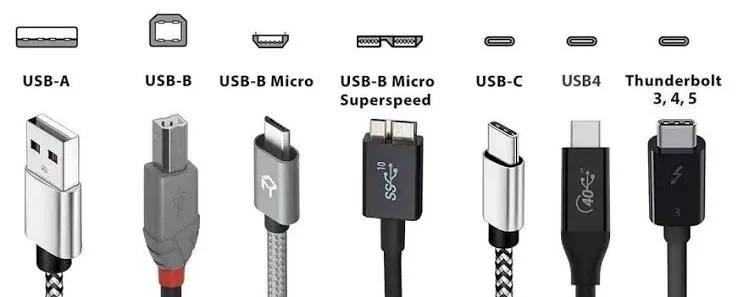
USB-A, USB-B, micro-USB and USB-C connectors
Connectors and speeds are separate. A quick map:
| Connector | Typical use | Speed possibilities |
|---|---|---|
| USB-A (rectangular) | Computers, chargers, flash drives | USB 2.0 to 3.2 Gen 2 |
| USB-B (square) | Printers, some audio gear | USB 2.0 to 3.x |
| Micro-USB | Older phones and accessories | USB 2.0, or USB 3.0 on the wide Micro-B variant |
| Mini-USB | Old cameras, devices | USB 2.0 |
| USB-C | Modern phones, laptops, tablets, drives | USB 2.0 up to 80 Gbps |
A USB-A port on a computer is often blue inside if it is USB 3.x, and black or white if it is USB 2.0, but colours are not a guarantee. Read the specification or the symbols next to the port.
Understanding Gbps vs MB/s
Port speeds are quoted in gigabits per second (Gbps). File transfers are shown in megabytes per second (MB/s). One byte is eight bits, so you divide by eight.
- 480 Mbps ÷ 8 = 60 MB/s theoretical (real world, 30 to 40 MB/s).
- 5 Gbps ÷ 8 = 625 MB/s theoretical (real world, about 400 to 500 MB/s).
- 10 Gbps ÷ 8 = 1,250 MB/s theoretical (real world, about 900 to 1,000 MB/s).
- 20 Gbps ÷ 8 = 2,500 MB/s theoretical (real world, about 1,800 to 2,000 MB/s).
- 40 Gbps ÷ 8 = 5,000 MB/s theoretical, but the device is usually the limit.
Overheads such as encoding, protocol and controller limits reduce the real figure, and the drive itself is often the true limit. A hard drive tops out at around 100 to 200 MB/s, so a 10 Gbps port will not make it faster. A fast external SSD can use a 10 Gbps port fully.
USB 2.0: still everywhere
USB 2.0 is slow by modern standards, but it is perfectly fine for keyboards, mice, printers, card readers for light use, headsets and charging. Many cheap phone cables, power bank cables and accessory cables are USB 2.0 only because they are built for charging. If you use one of those to connect an SSD or transfer a big video file, the transfer will crawl. Match the cable to the job.
USB 3.x: the family explained
USB 3.2 Gen 1 (also called USB 3.0 or USB 3.1 Gen 1)
5 Gbps. This is the entry level of modern USB. It is more than enough for ordinary flash drives, hard drives, webcams and many docks. It is the speed of most older blue USB-A ports.
USB 3.2 Gen 2 (also called USB 3.1 Gen 2)
10 Gbps. This is the sweet spot for external SSDs and fast flash drives. A good portable SSD on a 10 Gbps port can transfer files several times faster than a hard drive. Both the port and the cable should support 10 Gbps.
USB 3.2 Gen 2x2
20 Gbps. This uses two lanes of 10 Gbps each and requires a USB-C connection at both ends. It was never widely adopted, and many devices skipped straight to USB4. Check carefully if a product claims it. We confirm per unit.
USB 3.2 Gen 1x2
A rarely seen mode of 10 Gbps using two lanes at 5 Gbps. It is mostly a curiosity, but it explains some of the odd names you may find.
USB4 and Thunderbolt
USB4
USB4 is built on the Thunderbolt 3 protocol and uses USB-C only. It supports 20 Gbps and 40 Gbps, depending on the device, and a newer version supports up to 80 Gbps. It can tunnel data, video (DisplayPort) and, in some implementations, PCIe for fast external storage. A USB4 port is not guaranteed to be 40 Gbps, so check the specification. Many laptops advertise USB4 and then specify 20 Gbps or 40 Gbps in the fine print.
Thunderbolt 3, 4 and 5
Thunderbolt is Intel's high-speed standard, which uses the USB-C connector. Thunderbolt 3 and 4 run at 40 Gbps. Thunderbolt 4 sets stricter minimum requirements than USB4: 40 Gbps, support for two 4K displays or one 8K display, PCIe data for storage, and wake-from-sleep from a dock. Thunderbolt 5 raises the speed further. A Thunderbolt port is also a USB4 port and works with USB-C devices, but a plain USB-C port is not a Thunderbolt port.
| Feature | USB 3.2 Gen 2 | USB4 | Thunderbolt 4 |
|---|---|---|---|
| Speed | 10 Gbps | 20 or 40 Gbps | 40 Gbps |
| Connector | USB-A or USB-C | USB-C | USB-C |
| Video | Optional | Optional | Required |
| Daisy chaining | No | Limited | Yes |
| Typical use | SSDs, drives | Docks, fast SSDs | Pro docks, displays, fast storage |
If you do not need these features, you do not need to pay for them. A student who copies documents does not need Thunderbolt. A video editor with multiple 4K displays and a fast external drive might.
How to find out what your ports really support
- Look at the symbols. USB ports may show "SS" with a number (SuperSpeed 5, 10 or 20), a lightning bolt for Thunderbolt, or a small "DP" for DisplayPort support.
- Read the specifications. Your laptop or motherboard manual or product page lists port speeds. Look for "Gbps".
- Check your computer's settings. Windows Device Manager and System Information list USB controllers. macOS System Information shows the speed of connected devices.
- Test with a benchmark. Copy a large file to a fast SSD and measure.
- Ask us. Bring your device to the shop and we will help identify the ports.
Our laptops category lists models, and we confirm per unit the port speeds on each.
The cable matters
A fast port and a fast device connected with a slow cable run at the speed of the cable. Charging cables are often USB 2.0 inside, regardless of the connector. For 10 Gbps or 20 Gbps USB, use a cable that is marked for it. For 40 Gbps, use a certified Thunderbolt or USB4 cable. Longer cables have tighter limits: 40 Gbps passive cables are typically limited to about 0.8 metres, while longer ones are active or run at lower speeds.
A quick rule: if you are moving data fast, use the cable that came with the drive or a certified one. If a transfer is slower than expected, change the cable first.
For a deeper look, read our USB-C cable types, speeds and watts guide.
Power Delivery and USB versions
Charging power is separate from data speed. USB Power Delivery (PD) lets USB-C carry 20 V and, in the latest specification, up to 240 W. A cable can be fast for power and slow for data, and the reverse. A 100 W laptop charger cable may have only USB 2.0 data lines. Read our USB Power Delivery explained guide and our GaN charging guide for charger choice.
Backward compatibility
USB is designed to be backward compatible. A USB 3.x device works in a USB 2.0 port, but at USB 2.0 speed. A USB 2.0 device works in a USB 3.x port, at USB 2.0 speed. A USB4 port is meant to work with USB 3.x and USB 2.0 devices. In practice, you may hit oddities with older devices or hubs, but the principle holds: the connection settles at the highest speed that all the parts support.
Choosing storage for your ports
| Your port | Good match |
|---|---|
| USB 2.0 | Mouse, keyboard, printer, light file transfers |
| USB 3.2 Gen 1 (5 Gbps) | Hard drives, flash drives, card readers, webcams |
| USB 3.2 Gen 2 (10 Gbps) | Portable SSDs, fast flash drives, docks |
| USB 3.2 Gen 2x2 (20 Gbps) | High-end SSDs on supported hardware |
| USB4 / Thunderbolt (40 Gbps) | Pro SSDs, docks, multiple displays |
For memory cards, the reader and the card speed class both count. See our microSD speed classes explained guide. For file systems, see exFAT, FAT32 and NTFS explained.
Docks, hubs and adapters
A hub adds ports to one port, and they share its bandwidth. A 10 Gbps hub with an SSD, a display and a card reader all running at once splits the bandwidth. Docks add power, Ethernet, displays and more through a single USB-C or Thunderbolt connection. Pay attention to:
- Upstream speed: the link between the dock and the computer.
- Power Delivery pass-through: the wattage the dock can send to the laptop.
- Display support: the number and resolution of screens.
- Compatibility: some docks need Thunderbolt or specific USB-C features.
A cheap hub can overheat or cut speeds. Choose one from a reputable brand, and ask us for today's price on hubs and docks in our accessories category.
Phones, tablets and consoles
Phones and tablets often use USB 2.0 speeds over USB-C, even if the connector is USB-C. A few high-end phones support 5 Gbps or 10 Gbps. If you plan to transfer lots of video from a phone, check the specification. Consoles such as handhelds and home consoles have their own USB capabilities, and the manual tells you the speeds and the formats they support. Our phones category and consoles category list devices, and we confirm per unit.
Common mistakes
- Assuming USB-C means fast. It does not.
- Using a charging cable for data. Many charging cables are USB 2.0 only.
- Buying a fast SSD and plugging it into a slow port. The SSD is held back.
- Believing "USB 3.2" means 20 Gbps. It may be 5 Gbps.
- Paying for Thunderbolt that you cannot use. Your laptop must support it.
- Ignoring cable length. Long cables can cut speeds.
- Using unbranded hubs. They can be unstable or unsafe.
- Not testing. A simple copy test reveals real speed.
- Blaming the drive. Often the cable or port is the culprit.
- Buying from sellers who cannot state the Gbps. If they cannot say, be cautious.
Example scenarios
These scenarios are illustrative, not customer records.
A student with a budget laptop and a portable hard drive. The drive is limited to about 100 to 150 MB/s by its mechanics, so a 5 Gbps port is plenty.
A photographer copying large RAW files from a fast card reader to a laptop. A 10 Gbps reader, a 10 Gbps cable and a 10 Gbps port give much faster transfers than USB 2.0 ever could.
A video editor with an external SSD and two screens. A Thunderbolt or USB4 dock and a certified cable make sense.
A home user who just wants to back up photos occasionally. A basic USB 3.2 Gen 1 external drive is fine.
A traveller who bought a "USB 3.2" cable at a roadside stall and sees slow copies. The cable may be USB 2.0 inside. A branded cable fixes it.
Video over USB-C: DisplayPort Alt Mode
Many USB-C ports can send video to a monitor or TV, using a feature called DisplayPort Alternate Mode (often shortened to DP Alt Mode). Thunderbolt and USB4 ports also carry video. But not every USB-C port supports video. A budget laptop or phone may have a USB-C port that only does data and charging. If you plan to connect a monitor with a single USB-C cable, look for a DisplayPort or Thunderbolt symbol near the port, or check the specification. We confirm per unit.
Video cables and adapters add more confusion. A USB-C to HDMI cable works only if the port supports video output, and the maximum resolution and refresh rate depend on the port, the cable and the display. If your screen flickers or limits you to a low resolution, the cable or the port version is a likely culprit.
Speed limits you may not expect
Even when the port and cable are right, other factors limit real speed:
- The drive itself. A hard drive cannot exceed its mechanical limits. A cheap SSD can slow down when its cache fills.
- The controller. A bridge chip inside an enclosure may limit speed.
- The file system. Many small files copy more slowly than one large file.
- The computer. A busy or slow computer can bottleneck transfers.
- Heat. Some SSDs slow down when hot.
- Shared bandwidth. Hubs and docks share one link between many devices.
This is why a benchmark result lower than the headline number is normal, and a result far lower is a clue that something in the chain is wrong.
OTG and connecting USB devices to phones
USB On-The-Go (OTG) lets a phone act as a host so you can connect a flash drive, card reader, keyboard or wired headset. Most modern Android phones support OTG over USB-C. You need a USB-C flash drive or a USB-A to USB-C adapter. Phone power output is limited, so power-hungry drives such as some portable hard drives may not spin up. A powered hub or an SSD usually works better. File systems matter here too: Android generally reads FAT32 and exFAT, and may not read NTFS. Our exFAT, FAT32 and NTFS explained guide covers this.
How USB speed affects daily life
For many people, USB speed only matters when moving big things: backing up a laptop, copying a photo library, offloading video from a camera or loading a game from an external SSD. In those moments, the gap between USB 2.0 and 10 Gbps is the gap between waiting an hour and waiting a few minutes. For smaller everyday uses, such as a mouse, keyboard, headset or printer, nothing changes.
A sensible approach: identify the one or two tasks where speed matters to you, buy the right speed for them, and do not pay for speed everywhere else.
Planning an upgrade
If you are thinking about replacing your laptop or buying a dock, check these things about ports:
- How many USB-C and USB-A ports does it have?
- What speed is each port?
- Does any port support Thunderbolt or USB4?
- Does a port support charging, video or both?
- Is there an SD card reader or HDMI port so you do not need adapters?
Ask us to help you read the specifications. Our laptops category has models with different port layouts, and we confirm per unit which ports do what.
A final word
USB naming is messy because the standard grew in layers and the names were rewritten along the way. You do not need to memorise the history. Remember three rules: the connector does not set the speed, the Gbps number is the truth, and the slowest link in the chain decides the result. With those, you can read any box, ignore the marketing and buy the right product.
Reading a real specification sheet
Consider a laptop listing that says: "2 x USB 3.2 Gen 1 Type-A, 1 x USB 3.2 Gen 2 Type-C with DisplayPort and Power Delivery, 1 x Thunderbolt 4." Here is how to read it.
- The two USB 3.2 Gen 1 Type-A ports are 5 Gbps rectangular ports. They suit flash drives, mice and hard drives.
- The USB 3.2 Gen 2 Type-C port is 10 Gbps, can send video to a monitor and can charge the laptop. It suits a portable SSD or a monitor.
- The Thunderbolt 4 port is 40 Gbps with the strictest feature set. It suits docks, fast storage and multiple displays.
Now consider a different listing: "1 x USB-C, 2 x USB 2.0". That laptop is limited. The USB-C port speed is unspecified, which should prompt a question to the seller, and the USB 2.0 ports are slow for storage. We would rather you ask before you buy than discover it afterwards.
When a listing does not say the speed, ask. A seller who knows the product can tell you quickly.
Common labels on boxes and what to ask
- "SuperSpeed" alone: could be 5, 10 or 20 Gbps. Ask which.
- "USB 3.2" alone: could be Gen 1 (5 Gbps), Gen 2 (10 Gbps) or Gen 2x2 (20 Gbps). Ask which.
- "USB4" alone: could be 20 or 40 Gbps. Ask which.
- "Thunderbolt compatible": may only mean it works with Thunderbolt ports at USB speeds.
- "Fast transfer": meaningless without a number.
- "Up to": the best case, not the typical case.
Looking after your USB ports and cables
Ports and cables take a lot of daily wear, and a worn connector causes more "mystery" problems than any standard. Keep ports free of lint and dust, which collects especially in phone and laptop USB-C ports. Never force a plug in, and pull cables out by the connector, not the wire. Avoid sharp bends near the plug, where wires break inside the sleeve. If a device charges only at a certain angle, or a drive disconnects when the cable moves, the port or cable is failing. Replace the cable first, since it is the cheaper part, and if the problem persists, our repair service can inspect the port.
How to spot a fake USB product
Fake USB products range from drives with false capacity to cables that claim speeds they cannot deliver, and hubs with counterfeit chips. Use these ten checks.
- Price that is too good. A "40 Gbps" cable or a 1 TB flash drive at a very low price is a warning.
- Speed claims without detail. A product that says "high-speed USB" without a Gbps figure, version or Gen is hiding something.
- Measure the speed. Copy a large file and time it. A drive or cable that claims 10 Gbps but delivers USB 2.0 speeds is not what it says.
- Capacity test for drives. Use H2testw (Windows) or F3 (macOS and Linux) to test the full capacity. Fakes fail.
- Cable thickness and weight. A genuine high-speed cable has multiple shielded wires inside and feels more substantial. A very thin, light cable that claims 40 Gbps is suspicious.
- Connector quality. Loose fit, rough edges, misaligned pins and discolouration are signs of poor manufacturing.
- Printing and markings. Genuine products have clear logos, accurate model numbers and proper certification marks. Misspellings, blurry print and missing details are red flags. Remember that marks themselves can be forged.
- Certification. For Thunderbolt and USB-IF certified products, check the brand's listing or the certification database where possible.
- Heat. A cable, hub or charger that gets very hot in light use is unsafe.
- Seller. No shop address, no receipt and no returns are red flags. A trustworthy seller can tell you the Gbps and the chipset.
If you are unsure, bring the product to us at New Alnoor Exhibition, Second Floor, Shop C7, Accra Road, and we will help you check it.
Why buy your USB products from City Gadgets Kenya
- Genuine products, checked before they reach you.
- Clear speed information, with "we confirm per unit" wherever a spec can vary.
- A real shop at New Alnoor Exhibition, Second Floor, Shop C7, Accra Road, Nairobi CBD.
- Same-day delivery in Nairobi and next-day delivery outside Nairobi.
- M-Pesa payment and clear receipts.
- Honest advice, including telling you when a cheaper USB speed is enough.
- Compatible laptops and accessories in one place. See our laptops and accessories categories.
- Support and our repair service.
- WhatsApp help on +254745575931.
Quick checklist before you buy
- I know the Gbps of my port.
- I know the Gbps of the device I want to buy.
- My cable matches the speed.
- I do not assume USB-C means fast.
- I checked power needs and Power Delivery if charging matters.
- I will test speed after buying.
- The seller states clear specifications.
- I have a receipt and know where to get support.
Frequently asked questions
Is USB 3.0 the same as USB 3.2 Gen 1? Yes. Both are 5 Gbps. The name changed over time.
Is USB 3.1 Gen 2 the same as USB 3.2 Gen 2? Yes. Both are 10 Gbps.
Is USB-C faster than USB-A? Not by itself. The connector does not set the speed.
Is USB4 the same as Thunderbolt? They are closely related. USB4 can be 20 or 40 Gbps, while Thunderbolt 4 guarantees 40 Gbps and other minimums.
Will a USB 3 device work in a USB 2 port? Yes, at USB 2 speed.
Why is my fast SSD slow? Check the port, the cable and the file system. A USB 2.0 cable or port is a common cause.
What is the best USB speed for an external SSD? 10 Gbps is a good match for most portable SSDs.
What does SuperSpeed mean? The marketing name for USB 3.x speeds. The Gbps number tells you which one.
Can I use any USB-C cable for charging and data? Not always. Cables differ in power and data capability.
How do I know my laptop's USB speed? Check the specification, the symbols near the ports and your system information, or ask us.
Where can I buy USB drives, cables and hubs in Nairobi? At City Gadgets Kenya, Shop C7, Second Floor, New Alnoor Exhibition, Accra Road.
Ready to choose?
Tell us your laptop, what you want to connect and how fast you need it to be, and we will recommend the right drive, cable or dock. Message us on WhatsApp or visit the shop.
Related reading: USB-C cable types, speeds and watts · USB Power Delivery explained · exFAT, FAT32 and NTFS explained · microSD speed classes explained








