
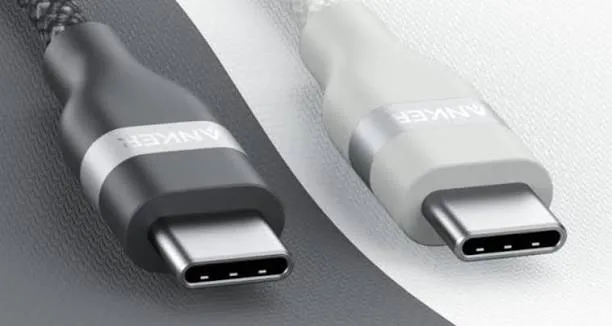
Pick up two USB-C cables and they look identical. Plug them into the same laptop and one charges it at full speed while the other crawls. One copies a 100 GB folder in a couple of minutes; the other takes half an hour. One drives a 4K monitor; the other does nothing. The plug is the same shape because USB-C is only a connector. What the cable can actually do depends on what is inside it. This guide gives you USB-C cable types explained in plain language: data speeds, power ratings, video support, Thunderbolt and USB4, cable length limits and the markings that tell you what you are holding, plus how to avoid fake cables.
If you are not sure which cable you need, message City Gadgets Kenya on WhatsApp with the device and the job (charging, backup, monitor, phone transfer), and we will recommend one.
The short version
- USB-C is a connector shape, not a speed or power rating. The cable's internal wiring and chips decide what it can do.
- Three things vary independently: data speed, charging power and video support.
- Charging power: standard cables carry up to 60W (3 amps); cables with an e-marker chip can carry up to 100W or 240W (5 amps).
- Data speed: from 480 Mbps (USB 2.0) up to 40 Gbps and beyond (USB4 and Thunderbolt).
- Many charging cables are USB 2.0 only, even if they charge fast. They are fine for phones and poor for fast drives.
- Longer cables are usually slower at high data speeds. Short, certified cables perform best.
- Fake and unmarked cables are a safety risk, especially at high wattage.
- Match the cable to the job. One high-quality 240W/40 Gbps cable can do everything, but costs more than most people need.
| Job | What the cable needs |
|---|---|
| Charge a phone or earbuds | Any decent USB-C cable; 60W is plenty |
| Charge a laptop at 65W | 60W cable is borderline; 100W e-marked is safer |
| Charge a laptop at 100W or more | e-marked 5A cable |
| Copy files to a portable SSD | USB 3.2 Gen 2 (10 Gbps) or faster cable |
| Connect a 4K monitor | Cable with DisplayPort Alt Mode / USB4 / Thunderbolt |
| Connect a Thunderbolt dock or eGPU | Certified Thunderbolt cable |
| Use Android Auto or CarPlay | A quality data cable; many charge-only cables fail |
Why USB-C cables are confusing
Older USB cables were easy: USB-A at one end, micro-USB or mini-USB at the other, and you could tell a fast cable from a slow one by the colour of the plastic inside. USB-C changed that. The connector has 24 pins and is symmetrical, with no right way up. Behind it can sit an enormous range of capabilities, and manufacturers do not always label them. Add to that the confusing way the USB standards have been named over the years, and you get a market full of cables that look the same and behave differently.
Think of a USB-C cable as a pipe bundle. It can contain a thin pair for slow data, extra pairs for fast data, thicker wires for high current, an optional chip that identifies its capabilities and extra lines for video. A cheap cable may include only some of these. A premium cable includes them all.
Data speed: the USB standards decoded
The USB Implementers Forum has renamed its standards several times, which is why you see "USB 3.0", "USB 3.1 Gen 1", "USB 3.2 Gen 1" and "USB 5Gbps" all describing the same speed. Here is the real picture.
| Marketing name (current) | Older names | Speed | Typical use |
|---|---|---|---|
| USB 2.0 | Hi-Speed USB | 480 Mbps | Charging cables, keyboards, basic phone transfer |
| USB 5Gbps | USB 3.0, USB 3.1 Gen 1, USB 3.2 Gen 1 | 5 Gbps | Flash drives, hard drives |
| USB 10Gbps | USB 3.1 Gen 2, USB 3.2 Gen 2 | 10 Gbps | Portable SSDs, docks |
| USB 20Gbps | USB 3.2 Gen 2x2 | 20 Gbps | Fast SSDs (limited device support) |
| USB4 40Gbps | USB4 Gen 3x2 | 40 Gbps | Docks, fast SSDs, displays |
| USB4 Version 2.0 | 80Gbps | 80 Gbps (120 Gbps asymmetric) | Newest high-end devices |
| Thunderbolt 3 / 4 | n/a | 40 Gbps | Docks, displays, eGPUs |
To put speeds in perspective, real-world throughput is lower than the headline numbers because of protocol overhead and the speed of the device itself:
- USB 2.0 moves roughly 35 to 40 MB per second. A 10 GB movie takes about four to five minutes.
- 5 Gbps moves roughly 400 to 450 MB per second. The same movie takes under half a minute, if the drive can keep up.
- 10 Gbps moves roughly 900 to 1,000 MB per second with a fast SSD.
- 40 Gbps can reach a few thousand MB per second with a very fast NVMe SSD in a suitable enclosure.
Your actual speed is set by the slowest link in the chain: the device, the port on your computer and the cable. A 1,000 MB/s portable SSD plugged in with a USB 2.0 charging cable will crawl at under 40 MB/s. For why drive and cable pairing matters, see our guides to the best portable SSD in Kenya and portable hard drive vs SSD.
Power: 60W, 100W and 240W cables
Charging power also depends on the cable. USB Power Delivery negotiates volts and amps between charger and device, and the cable must be able to carry the current. We explain the protocol in USB Power Delivery explained; here is what matters for cables.
- Standard USB-C cables are rated for 3 amps. At 20 volts that is 60 watts. They are perfect for phones, tablets and most small laptops.
- 5-amp cables contain a small chip, called an e-marker, that tells the charger and device the cable is safe at 5 amps. At 20 volts that is 100 watts, and with USB PD 3.1 Extended Power Range at 48 volts it is 240 watts.
- Unmarked high-claim cables are the danger. A thin, cheap cable labelled "100W" without an e-marker may not be able to carry that current safely. Wires heat up, voltage drops and in the worst case insulation fails.
A simple rule: for 60W and below, any quality USB-C cable. For 65W laptops, a 100W cable gives margin. For 100W and above, use a properly rated, e-marked 5A cable. An example in our range is the Anker USB-C to USB-C cable rated at 240W and 6 feet long. For everyday charging, the Anker 322 USB-C to USB-C cable at 3 feet and 60W is a sensible, compact choice.
Video: why some USB-C cables drive a monitor and some don't
USB-C can carry video, but only if both ends and the cable support it.
- DisplayPort Alt Mode sends a DisplayPort video signal over the USB-C cable. It is common on laptops and many phones.
- Thunderbolt and USB4 carry video along with data at high speed.
- HDMI Alt Mode exists but is rare. Most USB-C to HDMI adapters use DisplayPort Alt Mode inside.
- Charge-only and USB 2.0 cables do not carry video at all.
If you plug a monitor into your laptop with a USB-C cable and nothing appears, check three things. First, does the laptop's USB-C port support video output? Look for a DisplayPort or Thunderbolt logo beside the port or check the specification. Second, does the monitor's USB-C port accept video input? Third, is the cable a full-featured one? Many cables included with phones and power banks are charge and USB 2.0 only.
For a 4K monitor at 60 Hz, you need a cable that supports at least the DisplayPort bandwidth required, typically a USB 3.2 Gen 2 or better full-featured cable, or a Thunderbolt or USB4 cable. For multiple monitors through a dock, USB4 or Thunderbolt is best.
Thunderbolt vs USB4 vs USB 3.2
These names confuse almost everyone.
Thunderbolt is Intel and Apple's high-speed interface that uses the USB-C connector. Thunderbolt 3 and 4 run at 40 Gbps and carry data, video and power. Thunderbolt 4 sets stricter minimum requirements than Thunderbolt 3, such as support for two 4K displays and 32 Gbps PCIe data. Thunderbolt 5 raises speeds further.
USB4 is the USB-IF's standard based on Thunderbolt 3, with speeds of 20 or 40 Gbps (and 80 Gbps for Version 2.0). Thunderbolt devices are compatible with USB4 and vice versa, within feature limits.
USB 3.2 is the older family with speeds of 5, 10 and 20 Gbps. It does not include Thunderbolt-level video and PCIe tunnelling.
Practical advice:
- A Thunderbolt cable works as a USB cable and supports all lower speeds, so it is the "do everything" choice.
- Thunderbolt cables look like USB-C cables but carry a small lightning-bolt marking. They are more expensive and usually shorter at full speed.
- A USB-C cable without Thunderbolt certification will not reliably run Thunderbolt devices at their top speed.
- Check your port. A lightning-bolt symbol next to the USB-C port on a laptop means Thunderbolt support.
Cable length matters more than you think
At high data speeds the signal weakens quickly along a passive copper cable, so maximum lengths are limited.
| Speed | Typical maximum length for passive cable |
|---|---|
| USB 2.0 (480 Mbps) | about 4 to 5 metres |
| USB 5 Gbps | about 2 metres |
| USB 10 Gbps | about 1 metre |
| USB4 / Thunderbolt 40 Gbps | about 0.8 metres (passive); up to about 2 metres for certified cables |
| Longer at 40 Gbps | active cables with built-in electronics, or optical cables |
For charging, length matters less but still counts: very long, thin cables lose voltage, which can slow charging. A 1 to 2 metre cable of good gauge is usually fine for phones and laptops. For fast SSDs and docks, use the shortest cable that reaches comfortably, often 0.5 to 1 metre.
Charge-only and "data" cables
Some USB-C cables contain only the wires needed to charge and deliver USB 2.0 speeds, or even just power. They are cheaper and often come with earbuds, fans and small gadgets. They are perfectly fine for charging a device that needs nothing else. They will disappoint you with portable drives, Android Auto, CarPlay or file transfers.
How to tell:
- Check the packaging. A good cable states its data speed (for example 10 Gbps) and power rating (for example 100W).
- Look for logos. The USB-IF certification logos show speed and wattage.
- Test it. Plug a fast drive and check the speed, or use a USB power and data tester.
- Ask the seller. A trustworthy shop can tell you what a cable does.
If a cable has no information at all, treat it as a charging cable.
Cables for particular devices
Phones
Most phones charge perfectly well with a good USB-C to USB-C cable or a USB-A to USB-C cable. For Samsung fast charging, the cable must support the wattage; the Samsung 45W adapter in our range includes a suitable cable. iPhone 15 and later use USB-C, but non-Pro iPhones transfer data at USB 2.0 speeds, so a faster cable does not help them. Pro models support faster data with the right cable. Older iPhones use Lightning, and need certified Lightning cables.
Laptops
For 45W to 65W laptops, a 60W cable is borderline and a 100W cable is better. For 100W or above, an e-marked 5A cable is essential. For docks and monitors, a full-featured data and video cable (USB4 or Thunderbolt) is the right choice.
Portable drives and SSDs
Match the cable to the drive's speed. Using the supplied cable is usually best. A drive rated at 10 Gbps needs a 10 Gbps cable, ideally short. For a refresher on drive choice, see the best portable SSD guide.
Tablets, e-readers and gaming handhelds
Usually standard 60W cables are fine. Handheld PCs often charge at 45W to 65W and benefit from a 100W cable.
Cameras and drones
Check the manual; some need data cables that support specific speeds for tethering, and some use proprietary connectors.
Cars
Android Auto and CarPlay need a good data cable; a charge-only or poor-quality cable causes disconnects. Short cables work best.
USB-A to USB-C cables
Not everything has moved to USB-C at both ends. USB-A to USB-C cables connect older chargers and computers to newer devices. They are limited: USB-A ports and chargers generally supply lower power, so fast charging above 15W to 18W needs USB-C to USB-C and a PD charger. Data speeds depend on the USB-A port (USB 2.0 or 3.x). The Anker USB-A to USB-C cable in our range is a convenient 6-foot option for older chargers and desktop ports.
What do the markings mean?
Look closely at the connector shells and packaging for clues.
- SS with a number (SuperSpeed 5, 10, 20): USB data speed.
- Lightning bolt: Thunderbolt certification.
- DisplayPort logo: video support.
- Wattage numbers (60W, 100W, 240W): power rating.
- USB-IF certification logos: the cable has been tested against the standard.
- MFi: Apple's certification for Lightning cables.
- Model numbers: let you check the manufacturer's specifications.
If a cable has no markings and no packaging, you have no way to know what it does, which is a good reason to buy cables from sellers who stock proper products.
How to test a USB-C cable
You can check a cable with simple tools.
- USB power and data meter. A small inline device shows volts, amps and watts, and some show data speed. It reveals whether a cable delivers its claimed power.
- Drive speed test. Connect a fast SSD and run a speed test to see the actual data speed.
- Charge timing. Time a laptop's charge with a known charger and compare with the same charger and a known-good cable.
- Heat check. A cable that gets very warm at normal loads is poor.
- Visual inspection. Check the connector, strain relief and cable thickness.
Keep your best cable for demanding tasks, and label cables with tape so you can tell them apart.
Worked examples: matching real jobs to cables
Example 1: backing up photos to a portable SSD. Brian has a portable SSD rated at around 1,000 MB/s and a laptop with a 10 Gbps USB-C port. He grabs the thin black charging cable that came with his earbuds. The copy speed settles at about 35 MB/s, so 100 GB takes close to 50 minutes. Switching to the cable that came with the SSD, or any certified 10 Gbps cable, drops the time to a couple of minutes. The drive and the laptop were never the problem; the cable was.
Example 2: a 65W laptop on a phone cable. Faith's laptop wants 65W. She charges it with a 65W charger and a basic 60W cable. The cable is rated for 3 amps, so it can deliver 60W at most, which is almost enough when the laptop is idle but not when she is working with the screen bright. The battery percentage hardly moves. A 100W e-marked cable gives the charger and laptop headroom to negotiate the full 65W.
Example 3: a monitor that stays black. Kevin buys a USB-C monitor and connects his laptop with the cable that came with his power bank. Nothing appears. The cable is a charging and USB 2.0 cable with no video wires. Using the monitor's own cable, a full-featured one, brings the picture up immediately.
Example 4: Android Auto that keeps disconnecting. Mercy's phone drops the car's display every few minutes. The cable is a long, thin charge-focused one. A short, quality data cable fixes it. Car use is one of the harshest tests for cables because of vibration and heat, so a sturdier cable pays off.
Cable durability and care
USB-C cables fail in predictable ways. The weak points are the strain relief where the cable meets the connector, and the thin wires inside that break after repeated bending. Habits that extend life:
- Unplug by holding the connector, not by yanking the cable.
- Do not wrap the cable tightly around a charger or phone. Loose loops are gentler.
- Avoid sharp bends at the connector, especially when charging in bed or in a car.
- Keep connectors clean. Lint in the phone's port is a major cause of "loose" cables; clean gently with a wooden toothpick.
- Avoid heat. A cable left on a car dashboard degrades faster.
- Retire damaged cables. Exposed wire or a connector that gets hot is a fire risk.
- Keep different cables for different jobs, so your best data cable is not chewed by daily abuse.
Braided cables resist wear better than plain plastic ones, and reinforced strain relief helps, but no cable lasts forever. Treat cables as consumables, and replace them before they fail at a bad moment.
Why a USB-C port can feel loose, and what to do
Over time, a USB-C port in a phone or laptop can gather lint, and the small tongue inside can bend. Symptoms include a cable that charges only at certain angles, slow charging and intermittent data connections. Before blaming the cable, try a second cable. If the problem follows the device, power it off and carefully clean the port with a wooden toothpick or a soft brush; never use metal. If the port is damaged, avoid forcing cables and bring the device to our repair desk, where a port replacement is often a straightforward repair.
A short history, so the names make sense
USB began in the 1990s to replace a tangle of serial and parallel ports. USB 2.0 in 2000 gave 480 Mbps and became the long-lived standard. USB 3.0 arrived in 2008 with 5 Gbps, followed by faster generations that the USB-IF repeatedly renamed, which is the source of the "Gen 1, Gen 2, Gen 2x2" confusion. USB-C, introduced in 2014, solved the "which way up" problem and unified the connector, and the EU's common-charger rules and Apple's switch have made it nearly universal. USB4 and Thunderbolt added far faster speeds on the same connector. The result is a clean connector on top of a messy set of capabilities, which is why it pays to read the specification rather than trust the shape.
Glossary
- USB-C: the reversible 24-pin connector.
- USB PD: USB Power Delivery, the charging negotiation protocol.
- e-marker: a chip in a cable that identifies its capabilities.
- Gbps: gigabits per second, a measure of data speed.
- DisplayPort Alt Mode: a way to send video over USB-C.
- Thunderbolt: a high-speed interface using the USB-C connector.
- USB4: the USB standard based on Thunderbolt 3.
- Passive cable: a cable without built-in electronics.
- Active cable: a cable with built-in electronics to extend length at high speed.
- Charge-only cable: a cable that carries power but little or no data.
Building a sensible cable kit
You do not need a drawer full of cables. A small, well-chosen kit covers almost everything.
- One short 60W USB-C to USB-C cable for phones, earbuds and tablets, about one metre.
- One 100W (or 240W) e-marked cable for laptops and power banks, about one to two metres.
- One certified 10 Gbps (or faster) data cable for portable SSDs, short.
- One USB-A to USB-C cable for older chargers, cars and desktop ports.
- A spare for the bag, so a failure never leaves you stranded.
Label each with a piece of tape or a coloured band so you never confuse the data cable with the charging one. Ask us for a kit suggestion for your devices, and we will put it together honestly rather than selling you the most expensive version of everything.
Cables and safety in Kenya's power conditions
Voltage spikes and unstable supply are common in many parts of Kenya. A cable cannot protect against a surge, but a poor cable can make things worse by overheating or shorting. Use cables with proper insulation and chargers with protection circuits, plug into a surge-protected extension and avoid charging high-wattage devices on dodgy sockets. Unplug in electrical storms. And never use a cable that is warm to the touch at ordinary loads. For more on power protection at home and office, see our accessories category.
Troubleshooting USB-C problems quickly
Phone charges slowly. Try another cable first, then another charger. Check the port for lint. Remember some phones limit charging when hot.
Laptop says "charging slowly" or "plugged in, not charging". Check the charger wattage and use a 100W cable. Confirm the laptop's USB-C port supports charging.
Drive disconnects or is slow. Use the drive's own cable, plug directly into the computer rather than through a hub, and try another port.
Monitor flickers or shows nothing. Use a full-featured video cable, shorten the length and check the port supports video.
Device charges only at one angle. The cable or port is worn. Replace the cable, then check the port.
Cable gets hot. Stop using it. Replace with a rated cable.
Cable works with one device but not another. Different devices demand different features. Use a cable that meets the more demanding device's needs.
Common myths about USB-C cables
"All USB-C cables are the same." No. Power, data and video capability vary widely.
"A thicker cable is always better." Thickness helps with power, but data capability depends on internal construction and shielding.
"A fast charger needs a special cable." Only if the wattage exceeds 60W.
"USB4 and Thunderbolt are identical." They are compatible but not identical.
"Expensive cables sound better." Digital audio and data cables do not change quality in audible ways. Buy for capability and durability.
"Longer cables are fine for everything." At high data speeds, length matters.
"A 100W cable will damage my phone." No. The phone takes only what it needs.
How to spot fake and counterfeit USB-C cables
Cables are among the most counterfeited accessories because they are cheap to make and easy to mislabel. Fakes copy brand packaging and claim impossible ratings.
1. Price. A 240W cable for the price of a basic cable is not what it claims. Genuine e-marked high-wattage cables cost more because of the chip and the materials.
2. Thickness and flexibility. A genuine 100W or 240W cable is thicker and more robust than a basic cable. Thin, floppy cables claiming high wattage are suspicious.
3. Markings and packaging. Genuine cables state speed and wattage clearly and consistently. Spelling errors, blurry logos and impossible combinations ("240W 40Gbps 10 metres") are red flags.
4. Connector finish. Genuine connectors are well made, with tight tolerances and clean strain relief. Rough edges, loose fit and wobble are warning signs.
5. Performance. Test with a power meter or a charger and laptop. A cable that cannot deliver its claimed power is mislabelled or fake.
6. Heat. Excess heat at moderate loads indicates poor wiring.
7. Brand verification. Compare the product with the manufacturer's listing and, where offered, use the brand's authenticity tools.
8. Behaviour with devices. A genuine e-marked cable allows the charger and device to negotiate the full power. A fake may force a lower profile or cause intermittent charging.
9. Seller and warranty. A genuine seller offers a receipt and a warranty.
10. Avoid unlabelled bargain bins. Cables sold loose with no information are almost always basic charging cables regardless of what the seller says.
If you are unsure, send photos of the cable and its markings on WhatsApp, or bring it to the shop.
Why buy cables from City Gadgets Kenya
- Genuine Anker, Samsung and Apple cables, including USB-A to USB-C, USB-C to USB-C 60W and 240W options.
- We match the cable to the job. Tell us the device and the task and we confirm speed, wattage and length.
- Honest advice. If a basic 60W cable is enough, we do not sell you a 240W one.
- A real shop in Nairobi CBD at New Alnoor Exhibition, Second Floor, Shop C7, Accra Road, where you can see the cable and ask questions.
- Same-day delivery in Nairobi and next-day outside Nairobi, with M-Pesa payment.
- After-sales support for compatibility and faults.
- Message us for today's price. Prices change, so we quote the current price on WhatsApp.
Browse the full accessories category.
Quick buying guide
- Identify your use: charging, data, video or all three.
- Choose the wattage: 60W for phones, 100W for laptops, 240W for demanding laptops.
- Choose the data speed: 480 Mbps for charging only, 10 Gbps for SSDs, 40 Gbps for docks and monitors.
- Choose the length: short for speed, longer for convenience.
- Check for video support if connecting a monitor.
- Buy genuine with a receipt.
Frequently asked questions
What is the difference between USB-C and USB 3? USB-C is a connector. USB 3 is a speed standard. A USB-C cable can be USB 2.0 or USB 3 or faster.
Do all USB-C cables charge fast? Not necessarily. Charging power depends on the cable's rating.
What is an e-marked cable? A cable with a chip that declares its power capability, required for 5A and 240W charging.
Can I use any USB-C cable for my laptop? For 60W or less, yes. For 100W or more, use an e-marked 5A cable.
Why is my SSD slow? Possibly a USB 2.0 cable or a slow port. Use a cable matching the drive's speed.
Will a USB-C cable carry video? Only if the cable, the port and the device support DisplayPort Alt Mode, USB4 or Thunderbolt.
Is Thunderbolt the same as USB-C? It uses the same connector but is a faster, more capable interface.
How long can a USB-C cable be? Depends on speed. At 40 Gbps, passive cables are about 0.8 to 2 metres; at USB 2.0, several metres.
How do I know if my cable is fake? Check price, thickness, markings and performance, and buy from a trusted seller.
Do you sell 240W cables? Yes, including Anker's 240W USB-C to USB-C cable. Message us for today's price.
Ready to choose?
Tell us the devices you want to connect and what you want them to do, and we will recommend the right cable and confirm it before you pay.
WhatsApp: wa.me/254745575931 Visit: New Alnoor Exhibition, Second Floor, Shop C7, Accra Road, Nairobi CBD. Same-day delivery in Nairobi; next-day outside Nairobi.
Related reading: USB Power Delivery explained, what is GaN charging, power bank mAh vs Wh explained.








