
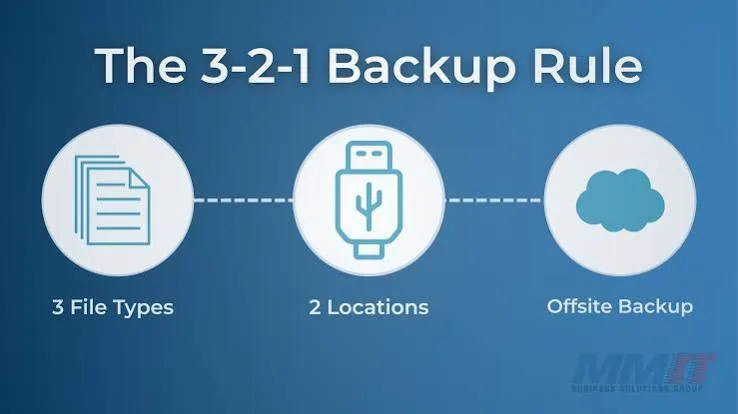
Everyone has a story about lost files: a laptop stolen on the way home, a phone dropped in a bucket, a flash drive that stopped working the night before a deadline, a ransomware message on the office computer or a power surge that took out the machine and the external drive together. In almost every story, the loss was avoidable. The 3-2-1 backup rule is the simplest, best-known plan for making sure that one accident, one theft or one fault never costs you everything. This guide explains the rule in plain language, shows practical setups for phones, laptops and small businesses in Kenya and helps you avoid fake storage.
We are City Gadgets Kenya, at New Alnoor Exhibition, Second Floor, Shop C7, Accra Road, Nairobi CBD, with same-day Nairobi delivery and next-day delivery outside Nairobi. Message us on WhatsApp for advice or today's price. We confirm per unit the capacity and type of any drive we sell.
The short version
- 3 copies of your data: the original and two backups.
- 2 different types of media: for example the internal drive plus an external drive, or an external drive plus cloud storage.
- 1 copy off-site: away from the building, so fire, flood or theft cannot take everything.
- Automate it. A backup you must remember to do will eventually not happen.
- Test it. A backup you have never restored from is a hope, not a plan.
- Sync is not backup. Services that mirror changes can also mirror deletions and ransomware.
- Encrypt backups that leave your home or office.
| Number | Meaning | Example |
|---|---|---|
| 3 | Three copies of the data | Laptop + external drive + cloud |
| 2 | Two different media types | Internal SSD + external HDD |
| 1 | One copy off-site | Cloud storage or a drive at a relative's house |
Why the rule works
Any storage device can fail. Drives fail, phones fall, laptops are stolen, fires and floods happen, ransomware encrypts files and people delete things by mistake. The question is not whether something will fail but when. The 3-2-1 rule works because it separates failure causes:
- Three copies mean a single failure leaves two copies.
- Two media types mean a flaw in one technology (a bad batch of drives, say) does not hit both copies.
- One off-site copy protects against events that hit a whole location, such as theft, fire, flood and power surges that damage everything plugged in at once.
Each part covers a different risk. Skip one and there is a gap.
What counts as a copy?
A copy is an independent, complete duplicate of your data that you could restore from if the original vanished. Not everything that looks like a copy counts.
- Counts: a full backup on an external drive, a cloud backup, a copy on a NAS, a drive stored at another location.
- Does not count (alone): a second folder on the same drive, a shortcut, a file in the Recycle Bin or Trash.
- Careful with: cloud sync (OneDrive, Google Drive, iCloud) when files are synced to a folder. If you delete or corrupt a file, the sync can delete or corrupt it everywhere. Many services keep version history for a limited time, which helps, but check how long and how it works.
- Careful with: RAID. RAID protects against a drive failing, but it does not protect against deletion, ransomware, theft or fire. RAID is not backup. See our blog on RAID and NAS basics for small businesses.
Backup vs sync vs archive
These three words are often confused.
| Purpose | Example | |
|---|---|---|
| Backup | Restore after loss or damage | Scheduled backup of a laptop to an external drive |
| Sync | Keep the same files across devices | Google Drive folder on phone and laptop |
| Archive | Long-term storage of finished work | Old projects moved to a drive and stored safely |
Sync is convenient, but because it mirrors changes it is not protection against mistakes or ransomware. Use sync for convenience and backup for safety. Archives should themselves be backed up, because "put it on a drive and forget it" leaves a single copy.
Two media types: what are your options?
Common media for backup include:
- Portable or desktop hard drives (HDD): cheap per terabyte, good for bulk backup. See our blog on portable SSD vs HDD reliability.
- Portable SSDs: fast and tough, good for active backups on the move.
- USB flash drives and memory cards: convenient but not suited to being your only backup. Read our blog on how flash drives fail.
- NAS (network-attached storage): a small box with one or more drives on your network, good for homes and small offices.
- Cloud storage: off-site by nature, accessible from anywhere, subject to internet speed, data costs and subscription.
- Optical discs: rarely used now, but long-lived when stored well for small archives.
- Tape: used in large organisations.
For most people in Kenya, a good combination is an external drive (HDD or SSD) plus cloud storage. Together they cover local failure and off-site protection.
The off-site copy: practical options in Kenya
Off-site does not have to be fancy. Options include:
- Cloud backup: the easiest off-site option, though upload speed and data costs matter. Back up essentials first, such as documents, photos and business files, then bigger items.
- A drive at another location: a portable drive kept at a relative's or a trusted colleague's house, swapped every month or so.
- A drive at the office or at home, if your other copy is at the other place.
- A bank safe deposit box for very important archives, though access is less convenient.
Encrypt any off-site drive so that if it is lost or stolen, your data stays private. See our blog on how to encrypt USB drives with BitLocker.
Setting up 3-2-1 on a laptop (Windows or Mac)
- Work out what you must protect. Documents, photos, business files, email archives, project folders. The operating system and programs can be reinstalled, but your files cannot.
- Buy an external drive with at least twice the size of the data you want to protect, so you can keep several versions.
- Turn on the built-in backup tool. Windows has File History and backup options. macOS has Time Machine. Point them at the external drive.
- Add a cloud backup for essential folders, using a backup service or your cloud storage with version history.
- Check it runs automatically. Plug in the drive regularly if it is not always connected.
- Test a restore. Open a few files from the backup and try restoring a file to a new location.
- Set a monthly reminder to check that backups are completing and that the drive is healthy.
For laptops, remember that a backup drive left in the same bag as the laptop is not protected against theft. Keep the backup drive at home and carry the laptop.
Setting up 3-2-1 on a phone
Phones hold photos, contacts, chats and sometimes the only copy of important documents.
- Turn on the built-in cloud backup (Google backup on Android, iCloud on iPhone) for contacts, settings and photos.
- Back up chat apps using their built-in options, and check the backup date.
- Copy photos and videos to a computer regularly, and to an external drive.
- Use a second cloud service or a drive at home for off-site copies.
- Check storage limits. Free cloud tiers fill quickly, and a full cloud account silently stops backing up.
- Keep your account recovery details (email, phone number) safe, because losing access to the account can mean losing the backup.
If you are upgrading phones, back up before the switch. Our phones category lists devices, and we can help you transfer data when you buy.
Setting up 3-2-1 for a small business
A shop, clinic, school or office usually has accounting data, customer records, photos and documents on one or two computers. A sensible setup:
- Identify critical data: accounting files, stock lists, customer records, point-of-sale databases, contracts.
- Centralise it on a file server, NAS or at least a single well-organised folder structure.
- Back up automatically every night to a local drive or NAS.
- Replicate off-site to cloud storage or a rotating set of external drives, taken home by the owner.
- Protect against power problems with a UPS and surge protection. See our blogs on power surges and AVR in Kenya and line-interactive vs online UPS.
- Protect against ransomware with at least one backup that is disconnected or immutable, so malware cannot encrypt it.
- Encrypt backups that leave the premises.
- Document the restore process, and test it twice a year.
- Assign responsibility to a named person.
For larger needs, see our blog on RAID and NAS basics for small businesses. Browse the laptops category and accessories category for computers, drives and UPS accessories, and message us for today's price.
Ransomware and why offline copies matter
Ransomware encrypts your files and demands payment. If your backup drive is permanently connected to the computer, ransomware can encrypt that too. Similarly, a cloud sync folder can sync encrypted files across devices. Protection comes from:
- An offline or disconnected backup: an external drive that is only plugged in during backup.
- Cloud backup with version history, so you can roll back to a clean copy.
- Up-to-date software and antivirus.
- Careful email and download habits.
- Not paying the ransom as a first response. Payment does not guarantee recovery.
This is why the "one off-site" and "two media types" parts of 3-2-1 matter. They give you a clean copy that malware cannot reach.
How often should you back up?
Choose a frequency based on how much work you can afford to lose.
| Data | Suggested frequency |
|---|---|
| Business accounting and sales | Daily (automatic) |
| Work documents | Daily or continuous |
| Personal photos | Weekly, or automatic from phone |
| Family archive | Monthly or after big events |
| Old archives | Check twice a year |
The question to ask is: "If I lose everything since my last backup, how bad is it?" If the answer is "very bad", back up more often.
Backup software: what to look for
Good backup software should:
- Run automatically on a schedule.
- Keep versions, so you can restore an earlier copy.
- Back up to more than one destination.
- Verify backups and alert you on failure.
- Encrypt data when requested.
- Be simple enough that you will actually use it.
Built-in tools (Time Machine, File History) are fine for many users. Third-party tools offer more control. Avoid unknown "free backup" programs from untrusted websites, which are a common route for malware.
Cloud backup: pros and cons
Pros: off-site by default, accessible from anywhere, automatic, protects against local disasters.
Cons: needs internet and data, upload can be slow, ongoing cost, depends on a provider and account security, and privacy matters.
Tips for Kenya: start by backing up essentials, schedule uploads at night when connectivity is better, use Wi-Fi rather than mobile data, enable two-step verification on your account and keep your recovery information safe.
Common backup mistakes
- One copy only.
- Backup drive in the same bag or room as the original.
- Relying on sync as backup.
- Never testing a restore.
- Not noticing that the backup stopped working.
- A full backup drive that silently stops saving.
- Backing up only some folders and missing others.
- Using flash drives as the only backup.
- Leaving the backup permanently connected to a vulnerable computer.
- Unencrypted backups lost or stolen.
- Forgetting phones and chat apps.
- Buying fake or very cheap drives for backup.
Example scenarios
These scenarios are illustrative, not customer records.
A freelance designer. She works on a laptop, backs up nightly to an external SSD at her desk, syncs current projects to cloud storage and swaps a monthly archive drive with a relative. If the laptop is stolen, she loses nothing.
A small shop. The owner's accounting file is copied nightly to a NAS and weekly to an external drive taken home. After a power surge damages the till computer, the shop restores from the NAS within hours.
A family. Their photos are backed up from phones to the cloud, copied to a home external drive each month and a second drive lives with a grandparent. When a phone is lost, the photos are safe.
A student. His thesis lives on his laptop, a flash drive and cloud storage. When the flash drive fails the week before submission, nothing is lost.
A clinic. Patient records are backed up nightly, encrypted and kept both on-site and off-site, with a restore test twice a year.
Beyond 3-2-1: 3-2-1-1-0
Some experts extend the rule to 3-2-1-1-0: three copies, two media types, one off-site, one offline or immutable copy (protected from ransomware) and zero errors after verification. The extra parts address modern threats. An offline copy cannot be encrypted by malware. Verification catches silent corruption. If you handle important business data, this is a worthwhile upgrade. For most households, plain 3-2-1 with regular testing is already a huge improvement over what most people do.
How to test your backup
Testing is the step most people skip.
- Pick a few files from different folders.
- Restore them to a different location, not over the originals.
- Open them and confirm they are complete and uncorrupted.
- Check the backup log for errors or skipped files.
- Do a larger test once or twice a year, restoring a whole folder or even a full system to a spare machine.
- Write down the steps so someone else could do it.
A backup that restores is real. A backup that has never been restored is a guess.
Keeping your backup drive healthy
Backup drives are not immortal. Check their health occasionally using the manufacturer's tool or SMART utilities. Replace drives that are several years old, show errors or make unusual noises. Keep them cool, dry and protected from knocks, and store them away from the computer if they are offline copies. Do not leave a backup drive in a hot car or on top of a hot computer. Buy genuine drives with a warranty. Our blog on how flash drives fail explains the common causes of failure.
Power cuts and surges: protecting the backup process
Power problems are one of the main threats to computers and drives in Kenya. A sudden outage during a backup can corrupt the backup, and a surge can damage both the computer and the connected drive. A UPS gives a desktop time to finish and shut down safely, and surge protection or an AVR reduces damage from spikes. Our blogs on how long a UPS will run and earthing and wiring for UPS in Kenya explain sizing and safe installation. Wiring should be checked by a qualified electrician.
Privacy and encryption
Backups contain everything: personal photos, financial records, client data. Protect them. Use strong passwords on cloud accounts and turn on two-step verification. Encrypt external drives that travel or live off-site. Keep recovery keys somewhere safe but separate from the drive. And when you retire a backup drive, erase it securely before selling, giving away or discarding it.
Backup for different devices
Windows laptops and desktops: File History or a third-party backup tool, plus cloud.
Macs: Time Machine to an external drive, plus cloud.
Android phones: Google backup for settings and contacts, a photo backup service, and periodic copies to a computer.
iPhones: iCloud backup, plus copies to a computer.
WhatsApp and chat apps: use the in-app backup and check the date.
Cameras and memory cards: copy cards to two places before reformatting.
Mobile money and banking records: keep statements and important messages saved in your documents.
Email: most webmail keeps copies, but export important mail for archives.
A weekend plan to get started
If your backups are a mess, do not try to fix everything at once. Use this simple plan.
Saturday morning: find your important data. List where your files live: laptop folders, phone photos, chat apps, flash drives, email, memory cards. Decide what you cannot afford to lose.
Saturday afternoon: set up copy two. Plug in an external drive and turn on the built-in backup tool. Let it run. Copy phone photos and videos to the computer.
Sunday morning: set up copy three and the off-site part. Turn on a cloud backup for your most important folders and phone photos. Alternatively, copy an encrypted archive to a second drive and take it to a relative.
Sunday afternoon: test. Restore a few files. Fix anything that fails. Write a short note on how to restore, and tell someone where it is.
Then: put a monthly reminder in your calendar to check that backups are running and the drives are healthy.
This is not perfect, but it is enormously better than a single copy. You can refine it later.
How much backup storage do you need?
Add up the size of the data you want to protect. Include photos, videos, documents and project files. Then multiply by two or three to allow for versions and growth. A person with 200 GB of data should consider a 1 TB backup drive. A photographer with 2 TB of data should consider 4 to 8 TB. Do not forget the cloud: free tiers are small, and a paid plan sized to your essentials is often worth it.
Backing up a shared or family computer
If several people use the same computer, make a plan for each. Set up separate user accounts, make sure each person's folders are included in the backup and tell family members where to save files. Keep the backup drive somewhere safe from children and visitors. Explain that deleting a file does not mean it is gone, because the backup keeps older versions, but that nobody should unplug the backup drive during a backup.
A final word
The 3-2-1 rule is easy to remember and easy to do in steps. You do not need to be technical. You need three copies, two kinds of storage and one copy in a different place. Add automation, an occasional test and genuine hardware, and the next time a phone falls in water, a laptop is stolen or a drive goes silent, your reaction will be mild annoyance rather than panic.
Questions to ask yourself about your current setup
- If my laptop were stolen tonight, what would I lose?
- If my phone fell in water tomorrow, what would I lose?
- If my backup drive and my computer were both damaged by a surge, what would I lose?
- If ransomware encrypted everything connected to my computer, what would I lose?
- When did I last open a file from my backup?
- Does anyone else know where my backups are and how to restore them?
If any answer worries you, you have found your first improvement. Fix that one thing this week, and then the next.
Disasters, theft and Kenya-specific risks
Local conditions shape the risks. Power cuts and surges can corrupt files and damage hardware. Theft of laptops and phones is a real risk in crowded places and on public transport. Floods, roof leaks and fires happen. Dust and humidity affect equipment. Extended internet outages limit cloud backup at times. A good plan accounts for these: a UPS or surge protection for desktops, a backup that stays at home while the laptop travels, an off-site copy that does not sit in the same building, and a mix of local and cloud storage so that a connectivity problem does not leave you without any option.
Backup and data protection for businesses
Businesses that hold customer or employee data have extra responsibilities. Data protection laws in Kenya require reasonable measures to protect personal data, and a lost or leaked backup can create legal and reputational problems. Encrypt backups, restrict who can access them, keep a record of where copies are held and delete old copies securely when they are no longer needed. If you are unsure about your legal obligations, take advice from a qualified professional. We can help with the hardware side, such as drives, NAS and UPS equipment.
Keeping backups going over time
The hardest part of backup is not the setup, it is the habit. Backups fail quietly: a drive fills up, a password expires, a cable is unplugged, a subscription lapses. Build small checks into your routine. Glance at the last backup date each time you plug in the drive. Read the notification emails from your backup service instead of deleting them. When you buy a new computer or phone, set up backup on the first day, not the first month. When you change your email or phone number, update your cloud account recovery details. And every year, review the whole plan: is the data still growing, are the drives still healthy, is the off-site copy still in a different place?
Backing up photos and videos specifically
Photos and videos are what most people grieve over when they lose them. They are also large and grow fast. Keep originals, not only compressed copies. Back up phone photos automatically to the cloud, then copy them monthly to a computer and an external drive. After events such as weddings, graduations and trips, copy the camera card to two places before you reformat it. Label folders by date and event so you can find things later. For precious family archives, consider keeping a copy on a drive stored with a trusted relative and refreshing it yearly.
Questions to ask any seller before you buy a backup drive
- Is the drive new, sealed and genuine?
- Is it an SSD or an HDD, and what is the real capacity?
- What cable and USB speed does it use?
- Can I test it before I leave?
- What is the warranty and who honours it?
- Where do I go if it fails?
One last thought
Perfect backup is not the goal. Good enough, done consistently, is. Start with what you have, add one improvement a month and keep going.
How to spot a fake backup drive
Fake storage is a risk for backups because it fails silently. Use these ten checks.
- Price that is too good. A large-capacity branded drive at a tiny price is almost certainly fake.
- Capacity test. Use H2testw (Windows) or F3 (macOS and Linux) to write and verify the full capacity. Fakes fail.
- Speed test. Run a benchmark. A drive that claims high speeds but delivers tiny ones is suspect.
- Check the device information. Disk tools show model and controller details. Generic or mismatched names are warning signs.
- Inspect the printing. Genuine drives have crisp logos and text. Blurry or misspelt print is a red flag.
- Check weight and build. Hollow, rattling or flimsy enclosures are suspicious.
- Check the packaging. Poor print quality, resealed boxes and missing tamper seals are red flags.
- Check the serial number on the brand's warranty page where available.
- Check the cable and connector. Loose connectors and weak cables are warning signs.
- Check the seller. No shop address, no receipt and no returns mean no recourse.
If you are unsure, bring the drive to us at New Alnoor Exhibition, Second Floor, Shop C7, Accra Road, and we will help you test it. We will not pretend a fake is genuine.
Why buy your backup drive from City Gadgets Kenya
- Genuine products, checked before they reach you.
- A real shop at New Alnoor Exhibition, Second Floor, Shop C7, Accra Road, Nairobi CBD.
- Same-day delivery in Nairobi and next-day delivery outside Nairobi.
- M-Pesa payment and clear receipts.
- Honest advice, including telling you when you do not need to spend more.
- Help with setup: we can help you configure your first backup.
- Laptops, phones and accessories in our laptops, phones and accessories categories.
- Support and repairs through our repair service.
- WhatsApp help on +254745575931.
Your 3-2-1 checklist
- I have the original and two backups.
- The backups use two different media types.
- One backup is off-site.
- My backups run automatically.
- I tested a restore in the past six months.
- I have an offline or protected copy against ransomware.
- Off-site and portable backups are encrypted.
- My backup drives are genuine and healthy.
- My phone is backed up too.
- Someone else knows how to restore if I cannot.
Frequently asked questions
What is the 3-2-1 backup rule? Three copies of your data, on two different media types, with one copy off-site.
Is cloud sync a backup? Not by itself, because it mirrors deletions and corruption.
Is RAID a backup? No. RAID protects against drive failure, not against deletion, theft or fire.
How big should my backup drive be? At least twice the size of your data.
How often should I back up? As often as the data changes in ways you cannot afford to lose. Daily for business data.
Is a flash drive a good backup? Only as an extra copy, not as your only one.
Do I need cloud storage? An off-site copy is essential, and cloud is the easiest way. A drive kept at another location also works.
How do I protect backups from ransomware? Keep an offline copy and use cloud versioning.
How do I know my backup drive is fake? Use the ten checks above and run a capacity test.
Where can I buy a genuine backup drive in Nairobi? At City Gadgets Kenya, Shop C7, Second Floor, New Alnoor Exhibition, Accra Road.
Ready to set up your backup?
Tell us your devices and how much data you have, and we will recommend the right drives and a simple plan. Message us on WhatsApp or visit the shop.
Related reading: Portable SSD vs HDD reliability · How flash drives fail · RAID and NAS basics for small business · Data recovery: what to do in Kenya








