
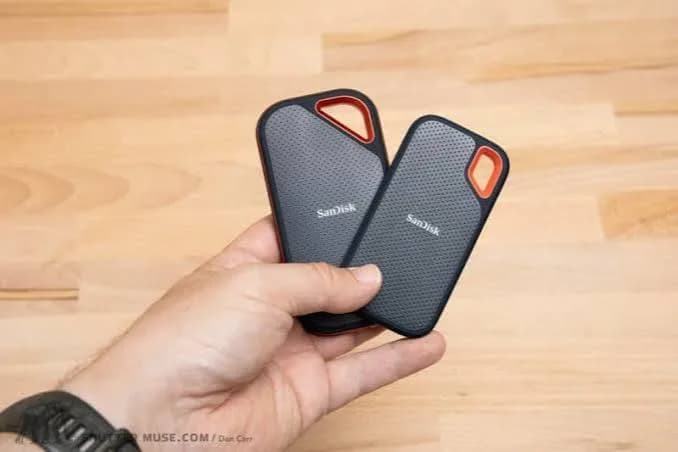
Customers hold two small, similar-looking SanDisk drives and ask the same question: "Is the PRO really worth the extra?" The honest answer is "sometimes", and the cost of getting it wrong runs both ways. Buy the Extreme PRO (E81) when your laptop cannot use its speed and you have paid for performance you will never see. Buy the Extreme (E61) when you edit 4K video from the drive all day and you are slowed down every hour. This guide compares the SanDisk Extreme vs Extreme PRO portable SSD in detail: real speeds on real ports, the difference a faster interface makes, heat and sustained performance, durability ratings, encryption, capacity ranges, which cameras and workflows benefit, what each does on a PlayStation, Xbox, phone or Mac, how to avoid fake SanDisk drives, and a decision guide you can follow in two minutes.
For the wider picture, read our best portable SSD guide. We do not print prices in guides because they follow the exchange rate, so message us on WhatsApp for today's price on either drive.
The verdict first
| Question | Extreme (E61) | Extreme PRO (E81) |
|---|---|---|
| Typical headline speed | About 1,050 MB/s read, 1,000 MB/s write | Up to about 2,000 MB/s read and write |
| Interface | USB 3.2 Gen 2 (10 Gbps) | USB 3.2 Gen 2x2 (20 Gbps) |
| Needs a special port for full speed? | Standard USB-C at 10 Gbps | USB 3.2 Gen 2x2, or compatible Thunderbolt/USB4 |
| Capacity options | 1 TB, 2 TB, 8 TB (and others) | 1 TB, 2 TB, 4 TB |
| Build | Compact, dust and water resistant, carry loop | Forged aluminium chassis that acts as a heatsink |
| Hardware encryption | Software password options | 256-bit AES hardware encryption with password protection |
| Best for | Photos, documents, backups, general use, light editing | 4K/RAW video editing, big projects, speed-sensitive work |
| Our verdict | The right drive for most people | The right drive only if your computer can use it |
Short version: buy the Extreme E61 unless you know your computer has a 20 Gbps-capable port and you move very large files regularly. If you do, the PRO pays for itself in saved time.
What the specification sheets actually say
These figures come from SanDisk and retailer listings. Ask us to confirm the version, rating and cable set of the unit you order, as retail revisions differ.
| Specification | Extreme E61 | Extreme PRO E81 |
|---|---|---|
| Series name | SanDisk Extreme Portable SSD (E61) | SanDisk Extreme PRO Portable SSD (E81) |
| Read speed | Up to about 1,050 MB/s | Up to about 2,000 MB/s |
| Write speed | Up to about 1,000 MB/s | Up to about 2,000 MB/s |
| Interface | USB 3.2 Gen 2, USB-C | USB 3.2 Gen 2x2, USB-C |
| Dust and water resistance | IP55 or IP65 depending on version | IP55 or IP65 depending on version |
| Drop protection | Listed around two metres on retail listings | Listed up to about three metres |
| Encryption | Password protection through software | 256-bit AES hardware encryption with password protection |
| Chassis | Compact, with a carry loop on many versions | Forged aluminium, designed to shed heat |
| Cables | USB-C to USB-C and USB-C to USB-A, typically | USB-C to USB-C and USB-C to USB-A, typically |
Two honest cautions. First, retailers list IP55 or IP65 for both drives depending on version; the difference is that IP65 offers stronger water-jet protection. Do not assume. Second, the "up to" speeds are best-case figures on suitable ports with a suitable cable and good conditions.
Speed: what changes in real life
A faster interface only matters if every link in the chain can use it.
On a standard USB-C port (10 Gbps)
Most modern laptops and phones with USB-C offer USB 3.2 Gen 2 (10 Gbps) at best. On such a port, both drives run at roughly the same speed, around 1,000 MB/s, because the port is the limit. The E81 does not magically go faster. In this case the PRO costs more for little benefit, apart from the hardware encryption and the heat-shedding case.
On a USB 3.2 Gen 2x2 (20 Gbps) port
Gen 2x2 ports exist on some desktop motherboards, some laptops and some add-in cards. Here the E81 reaches its headline speeds, near 2,000 MB/s, and the E61 stays near 1,000 MB/s. This is the scenario where the PRO is nearly twice as fast.
On Thunderbolt 3, Thunderbolt 4 or USB4 ports
Thunderbolt and USB4 ports are generally backwards-compatible with USB drives, but support for the Gen 2x2 mode specifically varies by host. Some Thunderbolt hosts run the E81 at 20 Gbps, others fall back to 10 Gbps. If you have a MacBook Pro or high-end Windows laptop, ask us your model and we will help you work out what you will get.
On a USB 3.0 / 5 Gbps port
Both drives fall to about 400-450 MB/s, which is still far quicker than any hard drive.
On a USB 2.0 port
Both fall to roughly 30-40 MB/s. Avoid it.
| Your port | E61 speed (approx.) | E81 speed (approx.) | Is the PRO worth it? |
|---|---|---|---|
| USB 2.0 | 30-40 MB/s | 30-40 MB/s | No |
| USB 3.0 (5 Gbps) | 400-450 MB/s | 400-450 MB/s | No |
| USB 3.2 Gen 2 (10 Gbps) | About 1,000 MB/s | About 1,000 MB/s | No (unless you want encryption or heat design) |
| USB 3.2 Gen 2x2 (20 Gbps) | About 1,000 MB/s | Up to about 2,000 MB/s | Yes, for heavy work |
| Thunderbolt/USB4 | Depends on host | Depends on host | Check your model |
If you are not sure what your laptop supports, send us the model name and we will check.
Sustained speed, heat and why the aluminium case matters
Headline speeds are measured over a short burst. Real work involves long copies, and long copies make SSDs hot. When the controller and memory chips heat up, the drive reduces its speed to protect itself (thermal throttling). A drive that starts at 1,000 MB/s can slip to a few hundred MB/s during a copy of several hundred gigabytes, depending on the case and ambient temperature.
The E81's forged aluminium chassis is designed as a heatsink, spreading heat across a bigger surface so the drive holds its speed for longer. In Nairobi's warm offices, a car interior or an outdoor shoot in the sun, this matters more than it might in a cool showroom. The E61 is built for portability and is less aggressive at shedding heat; it performs well in ordinary use but may throttle sooner on very long copies.
Practical tips for both:
- Place the drive where air can flow around it, not under a laptop's exhaust or inside a bag.
- On long copies, expect warmth. Hot to the touch is normal; too hot to hold is not.
- Do not leave either drive in a parked car.
- If your speeds fall off mid-copy, let the drive cool and try again before concluding it is faulty.
Video editing: who really needs the PRO?
Video is the use case where speed matters most, but it is easy to overestimate what you need.
Data rates are lower than you think. Typical video recording formats produce data at rates well below even a basic SSD's speed. A 4K video from a mirrorless camera at a common bit rate is around 100-200 Mbps (12-25 MB/s). Higher-quality professional codecs such as ProRes 422 HQ at 4K can reach several hundred Mbps (roughly 90-100 MB/s or more depending on frame rate). Raw formats can be higher still. Even these are comfortably below 1,000 MB/s.
Multiple streams add up. A multi-camera edit with several 4K streams playing at once can demand several hundred MB/s. Proxies and cache reduce that need.
Scrubbing and responsiveness. An SSD's low latency makes timelines feel responsive even when raw throughput is not the limit.
Copy times matter more than playback. Offloading and backing up large amounts of footage is where the PRO's higher speed saves hours.
Our practical view:
| Your video workflow | Which drive |
|---|---|
| Wedding or event videographer, 4K H.264/H.265 footage | E61 is enough; E81 only if copy time is a bottleneck and your port supports it |
| ProRes or raw video editing from the drive | E81 on a Gen 2x2 or Thunderbolt port is worth it |
| Multi-camera editing from one drive | E81 if your port supports it |
| YouTube creator editing 4K from the drive | E61, with proxies if needed |
| Archiving finished work | Neither: use a cheaper large hard drive for archive |
See our guide to external storage for photographers and videographers for more workflow detail.
Photography: speed matters less than you think
Photographers offload memory cards and move large RAW files, but a card reader is usually the bottleneck, not the SSD. A fast UHS-I card reads at around 100-200 MB/s, so the drive is rarely the limit. An E61 handles RAW photography easily. The PRO's advantage appears only when you move whole libraries between drives or edit directly from the SSD with huge catalogues. For most photographers, the E61 in a larger capacity is the better use of money. See our guide to SD cards for cameras.
Encryption and security: the PRO's quiet advantage
The E81 includes 256-bit AES hardware encryption with password protection, per SanDisk's listings. Hardware encryption means the drive's own controller encrypts data on the fly, without taxing your computer, and the data on the chips is unreadable without the password. If you lose the drive or it is stolen, a stranger cannot simply plug it in and browse your files.
The E61 offers password protection through software. That is helpful, but software-based protection depends on the computer running the software, and its security guarantees differ from hardware encryption. In both cases:
- Set a strong password and store it safely. A forgotten password usually means permanently lost data.
- Do not rely on a drive password as your only protection for highly sensitive data. Use full-disk encryption such as BitLocker (Windows Pro) or FileVault/APFS encryption on a Mac, or encrypted containers.
- Keep a second copy. Encryption protects against strangers, not against failure.
Who benefits most from the E81's hardware encryption? Accountants, lawyers, clinics, NGO field workers, researchers, journalists, photographers holding client images and anyone carrying data that is private or regulated. For these users the encryption alone can justify the PRO, even on a 10 Gbps port. Ask us about the specific software that applies to the unit you buy.
Durability: ratings in plain English
Both drives are marketed as rugged. Retail listings give an IP55 or IP65 rating (depending on version) and drop protection of around two to three metres.
- IP55: protected from dust ingress (to a degree) and low-pressure water jets.
- IP65: dust-tight and protected against water jets from any direction.
- Drop ratings come from tests onto a hard surface from a set height. They indicate resilience, not invincibility.
In practice, both drives survive the knocks of a camera bag, a laptop sleeve, a dusty site visit or a rainy walk to the matatu, which would kill a portable hard drive. Neither is meant to be submerged, and neither will survive being stepped on or dropped repeatedly onto concrete. The E81's metal body feels more solid and takes scuffs better; the E61 is lighter and easier to carry.
The cable matters too. A drive is only as rugged as its connector. Avoid yanking the cable, and replace damaged cables rather than using them. See our guide to USB-C cables.
Capacity: choose carefully
| Capacity | Extreme E61 | Extreme PRO E81 | Typical user |
|---|---|---|---|
| 1 TB | Yes | Yes | Students, office users, light creators |
| 2 TB | Yes | Yes | Photographers, creators, small businesses |
| 4 TB | Not typical | Yes | Video editors, heavy users |
| 8 TB | Yes | Not typical | Big archives, studios |
Availability varies by market and stock; ask us what we have. Our advice: buy about twice what you currently need. Data grows fast, and a full SSD slows down. Moving from a 1 TB drive to a 2 TB drive often costs far less than buying a second drive later.
Be especially careful with large-capacity claims. A "8 TB" or "4 TB" SanDisk drive sold at a suspiciously low price is a classic fake. Genuine 8 TB portable SSDs exist but are expensive; if the price seems too good, it is. See the fake-checking section below.
Using the drives with PlayStation, Xbox, phones and Macs
PlayStation and Xbox
External SSDs can store and, in some cases, run games, but the rules are set by Sony and Microsoft and change with updates. Broadly, a USB external drive can run older-generation games and store newer-generation ones, while current-generation games usually need to be on the console's internal drive or a console-specific expansion. Check the current rules for your console before buying. A fast USB SSD makes loading older-generation games and moving files quicker than a hard drive; the E61 is enough, and the E81's extra speed is not used by consoles with 10 Gbps ports or less.
Phones
Android phones with USB-C and OTG can read both drives. Recent iPhones with USB-C can use external drives through the Files app, and some can record video directly to an external SSD in supported camera modes. Power draw can be higher than a phone wants to supply, so the drives may not work with every phone. The SanDisk Creator Phone SSD is designed for this job and attaches magnetically to compatible phones. Ask us for your model before relying on a drive with your phone.
Macs
Both drives work with macOS. Format as APFS for Mac-only use or exFAT for sharing with Windows. They work as Time Machine destinations, but remember that Time Machine on an SSD will fill it with backup history. A dedicated hard drive is cheaper for that job. Apple silicon MacBooks have Thunderbolt/USB4 ports; check whether the Gen 2x2 mode is used.
Windows laptops
Both work out of the box. Install SanDisk's software if you want to set a password. Windows may need drivers on very old versions.
Reliability and warranty
SanDisk portable SSDs are widely used and have a reasonable reputation. Retailer listings show warranty periods of several years for the Extreme range, commonly five years; terms differ by region and seller, so ask us what applies. Warranty typically covers manufacturing defects, not loss, theft or physical abuse, and not data. Two consistent rules apply to any SSD: keep a second copy of important data, and avoid filling the drive to the brim.
Which should you buy? A decision guide
Answer these in order. Stop when a question gives you a clear answer.
- Does your computer have a USB 3.2 Gen 2x2 or compatible Thunderbolt/USB4 port that supports 20 Gbps, and do you move more than 50 GB at a time regularly? If yes, buy the E81.
- Do you need hardware encryption for sensitive data? If yes, buy the E81.
- Do you work in hot or demanding conditions with long, sustained copies? The E81's heat design helps.
- Do you mostly back up photos, documents and ordinary files, and edit light video? The E61 is plenty.
- Is your budget tight, or do you want more capacity for the same money? The E61, in a larger size.
- Are you buying for a student, a family or a small office? The E61.
- Still unsure? Message us with your laptop model and what you do, and we will tell you.
Five buyers, five answers
A university student with a mid-range laptop. E61, 1 TB. The laptop's port tops out at 10 Gbps, and the student's files are modest.
A wedding photographer with a recent Windows laptop and a card reader. E61, 2 TB. The card reader is the bottleneck. She keeps a second copy on a large hard drive.
A YouTube creator with a MacBook Pro. It depends on the model's ports and workflow. If he edits ProRes from the drive, E81; if he edits H.265 with proxies, E61.
An accountant carrying client data. E81 for the hardware encryption, even though the speed is wasted.
A video studio with a Gen 2x2 desktop. E81, 2 TB or 4 TB, one per project, and a big hard drive for archive.
Copy-time comparison: what the speed difference saves
These are rough best-case estimates, assuming a suitable port and large sequential files. Real-life figures are lower, and small files are slower.
| Job | Hard drive (about 110 MB/s) | Extreme E61 (about 1,000 MB/s) | Extreme PRO E81 on a 20 Gbps port (up to about 2,000 MB/s) |
|---|---|---|---|
| 50 GB wedding footage | About 8 minutes | About 50 seconds | About 25 seconds |
| 200 GB project folder | About 30 minutes | About 3.5 minutes | About 1.7 minutes |
| 1 TB full library | About 2.5 hours | About 17 minutes | About 8-9 minutes |
The step from a hard drive to either SSD saves hours across a month. The step from the E61 to the E81 saves minutes per job and only on a suitable port. That is the honest shape of the decision: the first jump is huge, the second is a refinement, worth paying for only if you do enough heavy transfers to feel it.
Setting up either drive for best results
- Use the supplied cable, and plug directly into the computer, not into a hub.
- Choose the right port. On a laptop with several USB-C ports, check which supports the highest speed.
- Format for your system. exFAT for Mac and Windows sharing, APFS for Mac-only, NTFS for Windows-only.
- Set the password in SanDisk's software if you will carry sensitive data.
- Run the capacity and speed tests on day one.
- Update firmware if SanDisk offers an update for your model.
- Label the drive and set up a regular copy to a second location.
Troubleshooting speed and connection problems
The drive is slower than advertised. Check the port, cable and file types, and run a speed test with a large file. Try the drive on another computer to isolate the cause.
The drive disconnects during large copies. Replace the cable, avoid hubs, check the laptop's power settings (USB selective suspend), and keep the drive cool.
The drive is not recognised. Try another port and cable, then another computer. Check Disk Management on Windows, where an unformatted drive may need initialising. Do not format a drive that holds data you need.
The drive is read-only on a Mac. It may be formatted as NTFS. Copy the data to another drive before reformatting.
The drive gets hot. Warmth is normal. Excessive heat, with falling speeds, suggests the drive needs to cool or the copy is very long.
If problems persist, message us with your computer model and what you see, and we will advise.
Five myths about the Extreme and the Extreme PRO
"PRO means professional-grade reliability, so it never fails." The PRO is faster and better cooled with stronger security. Reliability depends on use, heat, handling and luck. Any SSD can fail, so back up.
"The Extreme is a cheaper, worse drive." It is a very good drive, simply slower, and for most real jobs the difference is not felt.
"I need the PRO to edit 4K." Many 4K workflows run happily from an E61 or even a hard drive with proxies. Check your codec and workflow.
"A faster drive makes my laptop faster." An external drive does not change your laptop's own speed. It only speeds up work on files stored on it.
"Hardware encryption means the drive is unhackable." It means your data is protected against ordinary theft and casual access. Strong passwords and sensible handling still matter.
If you would like a second opinion on a specific workflow, send us the details and we will tell you honestly whether the PRO would help.
What about the cheaper SanDisk portable SSDs?
SanDisk's range also includes the Portable SSD E10 (rated at about 600 MB/s), which suits everyday backups, and the Creator Phone SSD for phone filming. If you do not need the Extreme's ruggedness and speed, the E10 is a sensible, less expensive choice. We confirm its specification for each unit, so ask before ordering. Our guide to the best portable SSD in Kenya compares the whole range.
How to spot a fake SanDisk Extreme or Extreme PRO SSD
SanDisk is among the most counterfeited storage brands in the world, and Extreme-branded portable SSDs have been faked often. The most dangerous fakes report a large capacity but contain a tiny flash chip, or even a USB flash drive inside an SSD-style shell. They look right and pass a casual glance, then fail when you fill them.
1. Check the price and seller
A 4 TB Extreme PRO or an 8 TB Extreme at a fraction of the normal price is almost certainly fake. Buy from a seller with a shop, a receipt and a reputation.
2. Inspect the packaging
Genuine retail packaging is sealed, with sharp printing, accurate model numbers (SDSSDE81 for the PRO, SDSSDE61 for the Extreme) and capacity details. Look for blurry logos, spelling errors, loose seals and mismatched labels.
3. Feel the drive
The E81's forged aluminium case should feel solid, with good weight and a cool, metallic feel. A light, plasticky "aluminium" drive is suspect. Check that the rubber bumpers, the carry loop (where present) and the printing are neat and symmetrical.
4. Check what the computer sees
Plug the drive in and look at how the computer identifies it. On Windows, open Device Manager or Disk Management; on Mac, open System Information. A genuine drive reports an NVMe/USB SSD device with believable details. A device that identifies as a generic flash drive, or reports an odd capacity, is a red flag.
5. Run a full-capacity test
Use H2testw on Windows or F3 on Mac and Linux to write and verify data across the whole drive. A fake drive fails, shows errors or reports far less real capacity. Do this before storing anything valuable.
6. Run a speed test
Use CrystalDiskMark or Blackmagic Disk Speed Test on a suitable port with the supplied cable. A genuine E61 on a 10 Gbps port should reach the high hundreds of MB/s or around 1,000 MB/s. A drive that tops out at 100 MB/s is not performing as advertised. Test with another cable and port first.
7. Check the software and encryption
The E81 should work with SanDisk's password and encryption software. If the software is missing, does not install or does not recognise the drive, be suspicious.
8. Check the serial and warranty
Use the serial number on the drive and box when checking warranty with SanDisk. A serial number that cannot be verified is a warning sign.
9. Watch for "used as new"
A drive with scratches, fingerprints, files already on it or opened packaging may be a returned or used unit.
10. Buy where you can test
A trustworthy seller will let you check the drive before you pay.
The bottom line
For most Kenyan buyers the Extreme (E61) is the sensible choice, and the savings can go into more capacity or a second drive for backup. The Extreme PRO (E81) earns its place for people with a 20 Gbps-capable port, heavy video or raw workflows, a need for hardware encryption, or a habit of long, hot, sustained copies. Neither is a backup on its own. Whichever you choose, buy it sealed from a seller you trust, test it on day one, and keep a second copy of anything you cannot replace.
Why buy your SanDisk SSD from City Gadgets Kenya
- Genuine sealed SanDisk Extreme and Extreme PRO drives, with version, rating and cable set confirmed for the exact unit.
- Port-level advice. Tell us your laptop or desktop model and we will say whether the PRO's speed is usable on your machine, so you never pay for speed you cannot use.
- Honest comparisons. If the E61 is right for you, we say so, even though the PRO costs more.
- A real shop in Nairobi CBD: New Alnoor Exhibition, Second Floor, Shop C7, Accra Road, where you can test the drive before you leave.
- Same-day delivery in Nairobi and next-day outside Nairobi, with M-Pesa payment.
- After-sales help with formatting, passwords and speed problems.
Browse our accessories category and our laptops.
Frequently asked questions
Is the Extreme PRO twice as fast as the Extreme? Only on a port that supports 20 Gbps. On a standard 10 Gbps USB-C port, both run at around the same speed.
Will the PRO work on my laptop? Yes, on any USB-C or compatible USB port. It runs at the speed your port allows.
Does the PRO need a special cable? Use the supplied cable. A poor cable can limit speed.
Which drive is better for video editing? The PRO, if your computer supports its speed and you work with high-bitrate or raw video. Otherwise the Extreme is enough.
Is the Extreme PRO more durable? Its aluminium case is tougher, though both are dust and water resistant and drop-tested. Ratings vary by version.
Does the Extreme have encryption? It offers password protection through software; the PRO adds 256-bit AES hardware encryption.
Can I use them with a PS5 or Xbox? They can work for storage and older-generation games, but rules depend on the console. Ask us for your console.
What capacity should I buy? Roughly twice what you need now.
How do I know it is genuine? Buy from a trustworthy seller, check the packaging, and run H2testw or F3 plus a speed test.
Can you confirm the exact version before I order? Yes. Message us the capacity and we will confirm the version, rating and cable set.
Ready to decide?
Tell us your computer model and what you do, and we will recommend the Extreme or the Extreme PRO.
WhatsApp: wa.me/254745575931 Visit: New Alnoor Exhibition, Second Floor, Shop C7, Accra Road, Nairobi CBD. Same-day delivery in Nairobi; next-day outside Nairobi.
Related reading: best portable SSD in Kenya, portable hard drive vs SSD, USB versions explained.








