Our dedicated 16GB RAM buying guide mentioned that some laptops support future RAM upgrades while others don't, without going deep into the mechanics. This piece explains genuinely how RAM upgrades work, which laptop designs support them, how to perform one safely if your laptop allows it, and — just as importantly — how to recognise when it's genuinely not possible, before you waste money on RAM modules that won't fit your specific configuration, sourced through City Gadgets Kenya or elsewhere.
The Two Genuine RAM Installation Approaches
Laptop manufacturers use one of two fundamentally different approaches to installing RAM, and understanding which approach your laptop uses is the single most important thing to confirm before considering any upgrade.
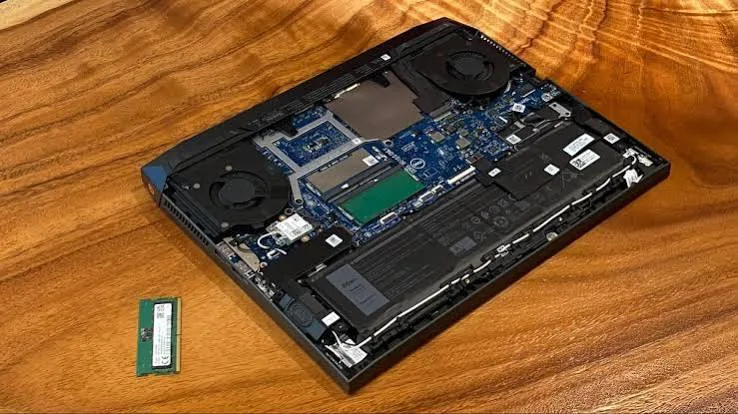
Removable SO-DIMM modules are small, standardised memory sticks that slot into dedicated sockets on the laptop's motherboard, accessible through a removable panel on the laptop's underside in most designs using this approach. This is genuinely the more upgrade-friendly design, since these modules can be removed and replaced with higher-capacity equivalents without specialised tools or soldering equipment.
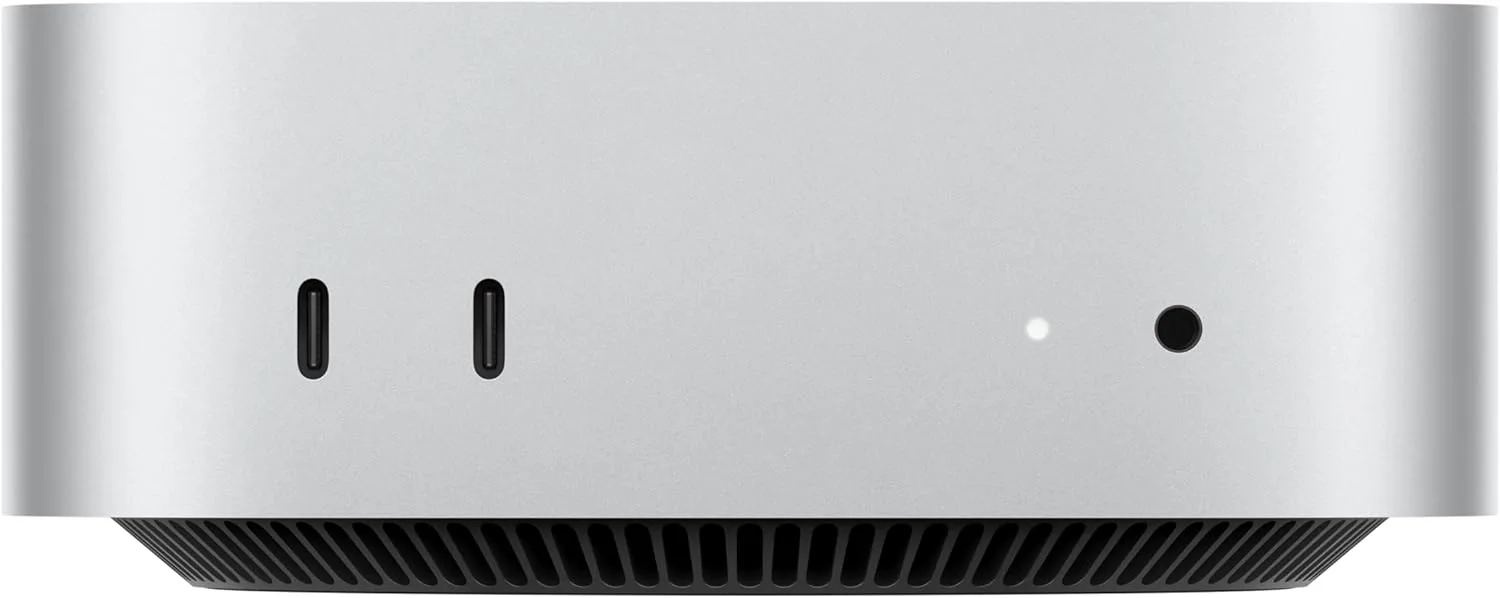
Soldered memory is permanently attached directly to the motherboard during manufacturing, with no removable module or upgrade path whatsoever. This approach, increasingly common on newer, thinner ultrabooks and virtually universal on Apple silicon MacBooks as discussed in our dedicated Apple silicon piece, genuinely cannot be upgraded by any means short of a full motherboard replacement — not a practical or cost-effective option for a standard consumer.
Why Manufacturers Choose Soldered Memory Despite Reducing Upgrade Flexibility
It's worth explaining the genuine engineering trade-off manufacturers navigate here, since soldered memory isn't simply a way to force future purchases, as some buyers assume. Soldered memory allows for a more compact physical design, since it eliminates the space needed for removable module sockets and connectors — a genuine factor in achieving the thinnest possible chassis designs discussed throughout our lightweight laptop buying guide. It can also offer marginally better performance in some cases, since the shorter, more direct electrical connection between soldered memory and the processor can reduce signal delay compared to a removable module's socket connection — a technical benefit, though usually a minor one for typical use, more relevant to specialised high-performance computing scenarios than everyday business use.
Which Business Laptops in Kenya's Refurbished Market Genuinely Support RAM Upgrades
Based on the patterns discussed throughout our brand-focused buying guides, it's worth offering practical, genuinely useful guidance for Kenyan buyers navigating this question.
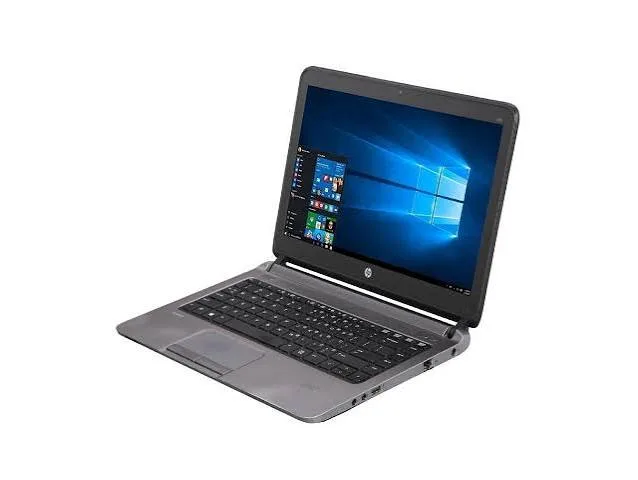
Many ThinkPad, EliteBook, and Latitude generations from roughly the mid-2010s and earlier commonly use removable SO-DIMM memory, reflecting an era when business laptop design generally prioritised serviceability and upgrade flexibility over achieving the absolute thinnest possible chassis — directly connecting to the repairability discussion in our ThinkPad-focused durability piece.
More recent premium ultrabook configurations — including newer ThinkPad X1 Carbon generations, Dell XPS 13 configurations, and similar ultra-thin premium laptops — increasingly use soldered memory, prioritising the thinness and portability discussed throughout our lightweight laptop buying guide over upgrade flexibility.
The practical takeaway: if RAM upgrade flexibility genuinely matters to your buying decision — perhaps because you're purchasing at a lower RAM tier now with plans to upgrade as budget allows later — this is worth confirming specifically and directly with your seller for the exact model and generation you're considering, rather than assuming based on brand alone, since this capability varies meaningfully even within the same brand's product line across different generations and specific models.
How to Safely Perform a RAM Upgrade Yourself, If Your Laptop Supports It
For laptops confirmed to use removable SO-DIMM memory, the process is genuinely straightforward for anyone reasonably comfortable with basic hands-on tasks, though it's worth walking through the key steps and precautions carefully.
Power down completely and disconnect the charger. Never attempt any internal laptop work while powered on or connected to charging power — this is a basic but genuinely important safety precaution.
Ground yourself to avoid static discharge. Static electricity can genuinely damage sensitive electronic components — touching a grounded metal object, or using a proper anti-static wrist strap if available, discharges any static buildup on your body before handling internal components.
Locate and remove the correct access panel. Most upgradeable laptops have a specific panel on the underside providing access to RAM slots — consult your specific model's service manual, often available from the manufacturer's support website, to identify the correct panel and removal method, since incorrect panel removal can damage retaining clips or screws.
Identify the correct RAM specification for your laptop. Not all RAM modules are interchangeable — you need to match your laptop's specific supported RAM type (commonly DDR4 in recent business laptops, though older models may use DDR3), speed rating, and physical form factor exactly, information typically available in your laptop's official specifications or service manual.
Carefully release and remove the existing module, if replacing rather than adding to existing RAM. SO-DIMM modules are typically secured by small retaining clips on either side that release the module at an angle when pressed outward, allowing it to be gently removed.
Insert the new module at the correct angle, then press down firmly until the retaining clips click into place, confirming a secure, fully-seated connection.
Replace the access panel and power on to confirm the system recognises the new RAM capacity, checking through your operating system's system information settings, as discussed in our dedicated 16GB RAM buying guide.
Common Mistakes to Avoid
Buying RAM without confirming exact compatibility first. As emphasised above, RAM type, speed, and form factor must match your specific laptop's requirements — purchasing incompatible RAM wastes money and won't function, or in some cases may not physically fit the available slots at all.
Assuming maximum RAM capacity without checking your laptop's actual supported ceiling. Every laptop model has a maximum RAM capacity it can physically address, regardless of how much RAM you might attempt to install — check your specific model's documented maximum before purchasing upgrade RAM.
Forcing a module that doesn't seem to fit correctly. If a RAM module doesn't seat and click into place smoothly, stop and double-check compatibility rather than forcing it, which risks damaging both the module and the delicate socket connectors on your motherboard.
Understanding Dual-Channel Memory: Why Two Matched Modules Often Outperform One Larger Module
It's worth explaining a genuinely useful technical concept for anyone planning a RAM upgrade specifically: many laptops perform noticeably better when RAM is installed as two matched modules running in "dual-channel" mode, compared to a single module of the same total capacity. Dual-channel configuration allows the processor to communicate with two RAM modules simultaneously via separate data pathways, effectively doubling available memory bandwidth compared to single-channel operation with just one module. This is precisely why, when planning a RAM upgrade for a laptop with two available slots, installing two matched 8GB modules (for 16GB total) genuinely often outperforms installing a single 16GB module, even though the total capacity is identical — a detail worth considering when planning your specific upgrade purchase, and worth asking about specifically if buying upgrade RAM through a knowledgeable retailer.
Checking Your Laptop's Exact Maximum Supported RAM Capacity
It's worth emphasising this specific verification step in more detail, since exceeding a laptop's genuine maximum supported capacity is a common, avoidable mistake. Every laptop's motherboard chipset has a documented maximum RAM capacity it can actually recognise and use, regardless of how much physical RAM you might attempt to install beyond that ceiling — installing RAM beyond this limit typically results in the system either not booting correctly, or simply failing to recognise and use the RAM beyond its supported maximum, wasting money on unusable capacity. This maximum is typically documented in the manufacturer's official specifications for your exact model and generation, and is worth confirming before purchasing any upgrade RAM, particularly for older business laptop generations that may have lower maximum ceilings than more recent models within the same product family.
When to Seek Professional Help Instead of a DIY Upgrade
While the process described above is genuinely accessible for many users, it's worth acknowledging when professional assistance is the more sensible choice — if you're uncertain about any step, if your specific laptop model's access panel removal seems unusually complex or risks damaging other components, or if your laptop is still under an active warranty period where opening the chassis yourself might void that coverage. Many computer repair shops across Kenya can perform this upgrade quickly and affordably if you'd prefer not to attempt it yourself, particularly worthwhile if you've sourced compatible RAM but want confident, professional installation.
Frequently Asked Questions
How can I check whether my specific laptop supports RAM upgrades before buying replacement RAM? Check your laptop's official service manual or specifications page from the manufacturer, or ask your seller directly, as emphasised throughout this piece — this confirmation should always come before purchasing any RAM upgrade.
Is it safe to mix different RAM module brands or speeds in the same laptop? Generally best avoided — while sometimes technically functional, mixing mismatched RAM modules can occasionally cause stability issues or force the system to run at the slower of the two speeds; matching modules, ideally purchased together, is the safer, more reliable approach.
Does upgrading RAM myself void my laptop's warranty? This depends on your specific warranty terms — confirm with your seller before opening the chassis if your unit is still under an active warranty period you want to preserve.
Can I add more RAM without removing my existing module, if I have an empty second slot? Yes, if your laptop has an available empty slot — many business laptops include two SO-DIMM slots, sometimes with one already populated and one empty, allowing a straightforward capacity addition rather than requiring you to remove and replace existing RAM.
Is it worth paying more upfront for a laptop with soldered memory at a higher initial RAM capacity, versus a cheaper unit with removable memory at a lower capacity? Depends on your budget flexibility and confidence in your future needs — if you're certain you'll want more RAM eventually and value the flexibility to upgrade incrementally as budget allows, a removable-memory laptop offers genuine long-term flexibility that a soldered-memory laptop, however capable at purchase, simply cannot match later.
Where can I buy compatible RAM modules in Kenya for a business laptop upgrade? Computer hardware retailers across Kenya, including electronics markets and dedicated computer shops, typically stock common RAM specifications — worth confirming exact compatibility with your specific laptop model before purchasing, as emphasised throughout this piece.
Get RAM Upgrade Guidance at City Gadgets Kenya
City Gadgets Kenya can confirm whether any specific laptop in our catalog supports future RAM upgrades before you buy. Browse our laptops category or message us on WhatsApp to discuss your current and future RAM needs.