
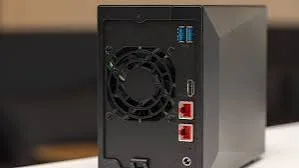
A small business runs on files: invoices, stock lists, customer records, designs, photos, contracts and the accounting database. At first these live on one computer. Then there are two or three computers, someone asks "where is the latest version?", the shared folder becomes a mess and a single drive failure threatens the lot. That is the moment people start asking about a NAS (network-attached storage) and RAID. This guide to RAID and NAS basics for small business explains what they are, what each RAID level does, what they do not do, how to choose drives and how to protect the whole setup in Kenya's conditions.
We are City Gadgets Kenya, at New Alnoor Exhibition, Second Floor, Shop C7, Accra Road, Nairobi CBD, with same-day Nairobi delivery and next-day delivery outside Nairobi. Message us on WhatsApp for advice or today's price. This article is general education. For a business-critical setup, take advice from a qualified IT professional who can assess your specific needs. We confirm per unit the specifications of any equipment we sell.
The short version
- A NAS is a small computer dedicated to storing and sharing files over your network. It holds one or more hard drives or SSDs.
- RAID combines several drives into one logical unit to improve speed, capacity or protection against drive failure.
- RAID is not backup. It protects against a drive failing. It does not protect against deletion, ransomware, theft, fire, flood or power surges.
- RAID 1 (mirror) is the simplest protection for two drives.
- RAID 5 and RAID 6 use parity to protect larger arrays. RAID 10 combines mirroring and striping for speed and protection.
- RAID 0 is fast but has no protection and is risky for business data.
- Use NAS-rated drives, a UPS and a proper backup plan. Follow the 3-2-1 backup rule.
| Level | Minimum drives | Protection | Usable capacity | Typical use |
|---|---|---|---|---|
| RAID 0 | 2 | None | All | Speed only, temporary data |
| RAID 1 | 2 | One drive can fail | Half | Small offices, simple protection |
| RAID 5 | 3 | One drive can fail | All but one drive | General file storage |
| RAID 6 | 4 | Two drives can fail | All but two drives | Larger arrays, more safety |
| RAID 10 | 4 | One per mirror pair can fail | Half | Speed and protection, databases |
What is a NAS?
A NAS is a compact box with a processor, memory, network ports and bays for drives. It runs its own operating system and connects to your router or switch. Anyone on your network, with permission, can open folders on it as if it were a drive on their own computer. Many NAS units also offer:
- User accounts and permissions, so staff only see what they should.
- Automatic backups from computers and phones.
- Remote access over the internet (with care).
- Snapshots, point-in-time versions that help you roll back mistakes.
- Media servers, photo libraries and surveillance software.
- Replication to another NAS or to the cloud.
A NAS replaces the "someone's computer is the server" approach with a dedicated, always-on, central place for files. That makes collaboration easier and protection more consistent, but it also concentrates your data in one box, so you must protect that box.
NAS vs external drive vs cloud
| External drive | NAS | Cloud storage | |
|---|---|---|---|
| Users | One computer | Many, over the network | Many, over the internet |
| Setup | Plug and play | Some setup | Account setup |
| Protection from drive failure | None (single drive) | Yes, with RAID | Provider handles |
| Off-site | Only if moved | Only if replicated | Yes |
| Running cost | Low | Moderate (power, drives) | Subscription and data |
| Best for | Personal backup | Shared files for a small team | Off-site copy, remote work |
Many businesses use all three: a NAS for daily shared files, an external drive or second NAS for local backup and cloud for off-site protection.
What is RAID?
RAID stands for Redundant Array of Independent (or Inexpensive) Disks. It treats several physical drives as one volume using three basic techniques:
- Striping: splitting data across drives so reads and writes happen in parallel (faster).
- Mirroring: writing the same data to two drives (protection).
- Parity: storing calculated information that lets the array rebuild lost data if a drive fails (efficient protection).
Different RAID levels combine these techniques in different ways.
RAID 0: striping (fast, no protection)
RAID 0 splits data across two or more drives. Reads and writes are fast, and all the capacity is usable. But if any one drive fails, all the data is lost, because every file is spread across all drives. The more drives, the greater the chance that one fails. RAID 0 is suitable only for temporary or easily recreated data, such as scratch space for video editing, and never for important business files.
RAID 1: mirroring (simple protection)
RAID 1 writes the same data to two drives. If one fails, the other holds a complete copy, and the system carries on while you replace the failed drive. Capacity is half the total: two 4 TB drives give 4 TB usable. Read speed can improve, while write speed is about the same as a single drive. RAID 1 is ideal for small offices with modest storage needs, and many two-bay NAS units default to it.
Limitations: it protects against one drive failing, not against deletion, corruption or ransomware, because the mistake is mirrored to both drives. It also costs half your raw capacity.
RAID 5: striping with parity (efficient protection)
RAID 5 needs at least three drives. It stripes data across them and stores parity information distributed across all drives. If one drive fails, the array can rebuild its contents from the remaining drives and parity. Usable capacity is the total minus one drive: four 4 TB drives give 12 TB usable.
Strengths: good capacity efficiency, good read performance, protection against one drive failure.
Limitations:
- Write performance is lower because parity must be calculated.
- Rebuilds are stressful. When a drive fails and you replace it, the array reads every bit from the remaining drives to rebuild. With large drives, this can take many hours or days, and a second failure or an unreadable sector during the rebuild can destroy the array.
- It does not protect against deletion, ransomware or disasters.
RAID 5 is popular, but with very large drives many experts now prefer RAID 6 or RAID 10 for important data.
RAID 6: double parity (more safety)
RAID 6 needs at least four drives and stores two independent sets of parity, so two drives can fail without data loss. Usable capacity is the total minus two drives: six 4 TB drives give 16 TB usable. It is slower on writes than RAID 5 and less capacity-efficient, but it is much safer during long rebuilds. For larger arrays and bigger drives, RAID 6 is often a sensible choice for business data.
RAID 10: mirrors then stripes (speed and protection)
RAID 10 (also written 1+0) needs at least four drives. It mirrors drives in pairs and then stripes data across the pairs. Usable capacity is half. It offers fast reads and writes and fast rebuilds, since only the mirror partner needs to be copied. It can survive one failure per mirror pair, though two failures in the same pair destroy the array. RAID 10 suits databases, virtual machines and workloads that need speed and resilience, at the cost of capacity.
Other options you may meet
- JBOD (Just a Bunch Of Disks): drives presented separately or concatenated, with no protection.
- SHR (Synology Hybrid RAID) and other vendor schemes: flexible RAID-like setups that let you mix drive sizes.
- RAID 50 and 60: combinations used in larger systems.
- Hot spare: an extra drive that sits idle and takes over automatically when a drive fails.
- ZFS and Btrfs: advanced file systems with built-in redundancy and data integrity features, found in some NAS systems.
RAID is not backup
This is the most important sentence in this article. RAID keeps your system running when a drive fails. It does not:
- Protect against accidental deletion. Delete a file, and it is deleted from all drives.
- Protect against ransomware. Encrypted files are written to every drive.
- Protect against file corruption caused by software bugs or power loss.
- Protect against theft, fire, flood or lightning. The whole NAS can be lost.
- Protect against a controller or NAS failure, or user error such as pulling the wrong drive.
A real backup is a separate copy, ideally in a different place. Even a four-drive RAID 6 NAS needs a backup on another device and an off-site copy. Read our blog on the 3-2-1 backup rule for the full picture.
Choosing capacity and RAID level
A simple approach for a small business:
- Estimate your data now and in three years.
- Choose a RAID level that matches your risk and budget:
- Two drives, simple needs: RAID 1.
- Three or four drives, mostly file storage: RAID 5, or RAID 6 with four or more for extra safety.
- Four drives, speed matters: RAID 10.
- Calculate usable capacity and check it meets your needs with room to grow.
- Plan the backup separately, and size it to hold your full data.
| Drives | Drive size | RAID 1 | RAID 5 | RAID 6 | RAID 10 |
|---|---|---|---|---|---|
| 2 | 4 TB | 4 TB | n/a | n/a | n/a |
| 3 | 4 TB | n/a | 8 TB | n/a | n/a |
| 4 | 4 TB | n/a | 12 TB | 8 TB | 8 TB |
| 6 | 4 TB | n/a | 20 TB | 16 TB | 12 TB |
Usable capacity is a little lower in practice because of formatting and system overhead. We confirm per unit what a given NAS and drive set provides.
Choosing drives for a NAS
Not all drives suit RAID and 24/7 operation.
- Use NAS-rated drives. They are tuned for continuous running, vibration in multi-drive enclosures and RAID behaviour such as limited error recovery time.
- Avoid SMR drives in RAID arrays, where possible. Shingled recording can cause very slow rebuilds and write stalls. CMR drives are generally preferred for NAS use. Ask us, and we confirm per unit when we can.
- Buy drives of the same size (and ideally from different batches, to reduce the risk of simultaneous failure).
- Check the warranty and workload rating.
- Consider SSDs for caching or speed, but for bulk storage, hard drives are cheaper per terabyte. Our blog on portable SSD vs HDD reliability compares the two types.
- Keep spare drives or arrange fast replacement.
Network and setup basics
A NAS is only as good as the network it sits on.
- Use a wired connection to the NAS, preferably gigabit Ethernet or faster.
- Use a decent switch or router. A slow or unstable network makes the NAS feel slow.
- Set a fixed IP address or reservation so that computers always find the NAS.
- Create user accounts and give each person only the access they need.
- Change default passwords and turn on two-step verification where available.
- Keep firmware updated.
- Be careful with remote access. Exposing a NAS directly to the internet is a major security risk. Use a VPN or the manufacturer's secure relay, and keep software patched.
- Disable services you do not use.
Power, surges and UPS: the Kenyan reality
A NAS with several spinning drives is vulnerable to power cuts and surges. A sudden outage during a write can corrupt the file system or the RAID array. A surge can damage drives and the NAS itself. For any business NAS in Kenya, a UPS is not optional, it is part of the system.
- Size the UPS to the NAS, router and switch. Our blog on how long a UPS will run shows the calculation.
- Use a UPS with USB or network signalling so the NAS shuts down cleanly when the battery runs low. See line-interactive vs online UPS explained.
- Add surge protection or an AVR for unstable supply. Read our blog on power surges and AVR in Kenya.
- Check the earthing and wiring. Poor earthing undermines every protective device. See earthing and wiring for UPS in Kenya, and use a qualified electrician for any wiring work.
- Place the NAS in a cool, ventilated spot, away from dust and moisture.
Monitoring and maintenance
- Enable alerts by email or app for drive errors, temperature and array status.
- Check SMART health regularly.
- Run scheduled scrubs or integrity checks if your NAS supports them.
- Replace failed drives promptly, and never leave a degraded array unattended for long.
- Keep spare capacity. A nearly full NAS slows down and is harder to repair.
- Test restores from the backup of the NAS, not just the NAS itself.
- Keep a log of drive purchase dates and replacements.
What to do when a drive fails
- Do not panic and do not pull random drives. Identify the failed drive using the NAS interface.
- Check your backup is current before you start a rebuild.
- Replace the failed drive with the same size or larger, ideally the same model class.
- Start the rebuild and keep the NAS powered, ideally on a UPS.
- Avoid heavy use during the rebuild.
- Monitor until the array is healthy.
- Look at the other drives. If they are the same age and batch, consider replacing them soon.
If the array fails outright, stop and do not initialise or recreate it, which can destroy data. Seek professional help. See our blog on data recovery: what to do in Kenya.
Common mistakes
- Treating RAID as backup.
- No UPS or surge protection.
- Using RAID 0 for important data.
- Using cheap desktop or SMR drives in a RAID array.
- Ignoring alerts.
- No spare drive or plan.
- Exposing the NAS directly to the internet.
- Never testing a restore.
- Filling the NAS to the brim.
- Buying fake or unreliable drives.
- Using the default passwords.
- Putting the NAS where it overheats.
Why rebuilds are risky: a closer look
When a drive in a RAID 5 array fails, the array runs in a degraded state. You insert a replacement and the NAS reads every sector of every surviving drive to recreate the missing data. With large modern drives, this can take many hours or days, during which the surviving drives work hard and any unreadable sector can interrupt the rebuild. Hard drives specify an unrecoverable read error (URE) rate, such as one error per so many bits read, and large arrays can come uncomfortably close to those figures. This is why many administrators choose RAID 6 or RAID 10 for large drives and why having a current backup before a rebuild is so important.
Practical consequences:
- Keep a tested backup before you start a rebuild.
- Do not reboot or power off the NAS during a rebuild unless instructed.
- Do not run heavy workloads during a rebuild.
- If the array has been degraded for a while, treat other drives from the same batch with suspicion.
- Consider a hot spare so the rebuild starts without delay.
Snapshots, versioning and recycle bins
Many NAS systems offer snapshots: frozen, space-efficient copies of your data at a point in time. If a user deletes a folder or ransomware encrypts files, you can roll back to an earlier snapshot. A recycle bin on shared folders catches simple deletions. These features are valuable, but they live on the same NAS, so they do not replace an independent backup. Configure sensible schedules, for example hourly snapshots kept for a day, daily snapshots for a month, and weekly snapshots for a few months, and check how much space they use.
Planning for growth
Data grows. Plan for at least double your current data within three years. Choose a NAS with spare bays, or choose larger drives from the start. Check whether the NAS allows you to expand the array by replacing drives one at a time with larger ones, or by adding drives, since the options vary by system and RAID level. Do not buy a NAS with only the exact number of bays you need today unless you are happy to replace it in a couple of years.
Heat, noise, dust and placement
A NAS with several drives generates heat and some noise. Place it in a cool, ventilated spot, off the floor and away from direct sun, dust, damp and cleaning splashes. Do not shove it into a closed cupboard. Heat is a leading cause of early drive failure. Check the fan and clean dust filters periodically. In a shop, keep it somewhere secure from theft and accidental knocks.
Remote work and access from home
Many owners want to reach files from home or on the road. Direct exposure of a NAS to the internet has caused many data breaches and ransomware infections. Safer approaches include a VPN into your office network, the manufacturer's secure relay service with strong passwords and two-step verification, or using cloud storage for files that need external access. Keep the NAS software updated and never use default credentials. If you are unsure, ask a qualified IT professional to set up remote access.
Example scenarios
These scenarios are illustrative, not customer records.
A two-person design studio. They need shared project files and protection against a single drive failure. A two-bay NAS with RAID 1, a UPS and a nightly backup to an external drive that goes home with the owner does the job.
A small clinic. Patient records require safety and privacy. A four-bay NAS with RAID 6 or RAID 10, encrypted backups, a UPS, strict user accounts and an off-site encrypted copy fit the need.
A shop with three computers. The shop wants central accounting and stock files. A two-bay NAS in RAID 1, daily backups to a second drive and cloud backup of the accounting folder are enough.
A school computer lab. The school wants shared teaching resources. A NAS with RAID 5, quotas and regular backups works, with a UPS to ride through outages.
A photography business. Large files grow quickly. A larger NAS with RAID 6 or RAID 5, fast networking, a separate backup NAS or drives and cloud storage for current jobs make sense.
NAS alternatives for very small setups
A NAS is not always the answer. If you have one or two computers and modest data, a good external drive with automatic backup plus cloud storage might be enough. If you have a few users and simple sharing needs, a shared folder on a reliable desktop PC with scheduled backups can work, though it ties the shared files to that PC being on. Cloud storage and collaboration tools reduce the need for local servers, but depend on internet access. A NAS shines when you have several users, lots of data and a need for local control. Our laptops category and accessories category list computers, drives and networking accessories, and we confirm per unit.
Security basics for a business NAS
- Strong, unique passwords for all accounts.
- Two-step verification for admin accounts where available.
- Least privilege: staff only access what they need.
- Disable the default admin account if possible, and rename it.
- Keep firmware and apps updated.
- Do not expose the NAS to the internet without a secure method.
- Enable encryption for sensitive shares or volumes.
- Take snapshots to roll back from ransomware or mistakes.
- Keep an offline or off-site backup that malware cannot reach.
- Log and review access periodically.
Hardware RAID, software RAID and NAS-managed RAID
RAID can be implemented in different ways. Hardware RAID uses a dedicated controller card. Software RAID is managed by the operating system. NAS-managed RAID is handled by the NAS operating system itself, and for small businesses this is the most common and the easiest. A practical warning: if a NAS or RAID controller fails, you may need the same or a compatible device to read the array. Keep a note of your RAID level, drive order and configuration, and ideally keep an independent backup so you are never dependent on one controller. Motherboard "fake RAID" options on consumer PCs are less reliable than a proper NAS.
What to ask a supplier or IT professional
- How many users and how much data do I realistically have?
- Which RAID level fits my risk and budget, and why?
- Which drives are NAS-rated and CMR?
- How will the NAS be backed up, and where is the off-site copy?
- What UPS and surge protection do I need?
- How will remote access work securely?
- Who monitors alerts and replaces failed drives?
- What is the restore plan, and has it been tested?
If a supplier cannot answer these, find a better one. We are happy to help you think through the hardware side.
A final word
RAID and NAS are tools, not guarantees. A NAS with RAID keeps your team working when a drive fails and keeps files in one organised place. It does not replace a backup, a UPS, good passwords or a restore test. Start with your risks, choose a simple design you can maintain, buy genuine NAS-rated drives, protect the power and keep a separate copy somewhere else. Do that, and a drive failure becomes a routine repair instead of a crisis.
Budgeting sensibly
Without quoting prices, think of the total cost of ownership: the NAS box, the drives (often the biggest part), a UPS, networking gear, a backup drive or cloud plan and some time for setup and maintenance. Spending a little more on NAS-rated drives, a proper UPS and a real backup is usually cheaper than a single data loss. Message us for today's price on drives, UPS units and accessories, and we will help you build a setup that fits your budget without skipping the essentials.
How to spot a fake hard drive or SSD for your NAS
Fake and relabelled drives are a real risk, particularly for large capacities. Use these ten checks.
- Price that is too good. A large-capacity NAS drive at a very low price is a red flag.
- Check the model and serial on the brand's site. Most manufacturers offer warranty checking by serial number.
- Inspect the label. Genuine labels have crisp printing, correct model numbers and matching serials. Misspellings and misaligned text are warnings.
- Check the packaging. Anti-static bags, tamper seals and professional printing are signs of authenticity. Resealed boxes and poor print are red flags.
- Check the SMART data. A "new" drive should show very few power-on hours and no reallocated sectors. High hours mean a used or refurbished drive sold as new.
- Check the reported model and capacity in the NAS or a disk tool. Mismatched or generic names are warnings.
- Test capacity and speed. For SSDs and flash devices, use H2testw or F3. For hard drives, run a surface test and a speed test. Poor speeds or errors are red flags.
- Check weight and build. A hard drive that feels too light, or an enclosure that rattles, is suspicious.
- Check the drive type. Confirm CMR or SMR and NAS rating from the manufacturer's data sheet.
- Check the seller. No shop address, no receipt and no returns mean no recourse.
If you are unsure, bring the drive to us at New Alnoor Exhibition, Second Floor, Shop C7, Accra Road, and we will help you check it. We will not pretend a fake is genuine.
Why buy your storage from City Gadgets Kenya
- Genuine products, checked before they reach you.
- A real shop at New Alnoor Exhibition, Second Floor, Shop C7, Accra Road, Nairobi CBD.
- Same-day delivery in Nairobi and next-day delivery outside Nairobi.
- M-Pesa payment and clear receipts.
- Honest advice, including telling you when you do not need a NAS yet.
- UPS, laptops and accessories in one place. See our accessories category and laptops category.
- Support and repairs through our repair service.
- WhatsApp help on +254745575931.
Quick checklist
- I estimated my data now and in three years.
- I chose a RAID level that matches my risk and budget.
- I chose NAS-rated, preferably CMR, drives.
- I have a UPS and surge protection.
- I have a separate backup and an off-site copy.
- I set up user accounts and strong passwords.
- I enabled alerts and monitor drive health.
- I tested a restore.
- I bought genuine drives with a receipt and warranty.
Frequently asked questions
What is the difference between RAID and NAS? RAID is a way of combining drives. A NAS is a device that stores and shares files over a network, often using RAID.
Is RAID a backup? No. It protects against drive failure only.
Which RAID level is best for a small business? RAID 1 for two drives, and RAID 5, 6 or 10 for four or more, depending on your needs and risk.
How many drives do I need? Two for RAID 1, three for RAID 5, four for RAID 6 or RAID 10.
Can I use normal desktop drives in a NAS? It can work, but NAS-rated drives are better for continuous use and RAID.
Do I need a UPS for a NAS? Yes, in Kenya especially. Power cuts and surges are a major risk.
What happens if two drives fail in RAID 5? The array fails and data is lost unless you have a backup.
Can ransomware affect a NAS? Yes. Use snapshots, offline backups and good security.
How do I know my drive is fake? Use the ten checks above.
Where can I buy genuine drives in Nairobi? At City Gadgets Kenya, Shop C7, Second Floor, New Alnoor Exhibition, Accra Road.
Ready to plan your storage?
Tell us how many users you have, how much data and how critical it is, and we will recommend drives, a UPS and a backup plan. Message us on WhatsApp or visit the shop.
Related reading: Backup 3-2-1 rule explained · Portable SSD vs HDD reliability · Power surges and AVR in Kenya · Data recovery: what to do in Kenya








