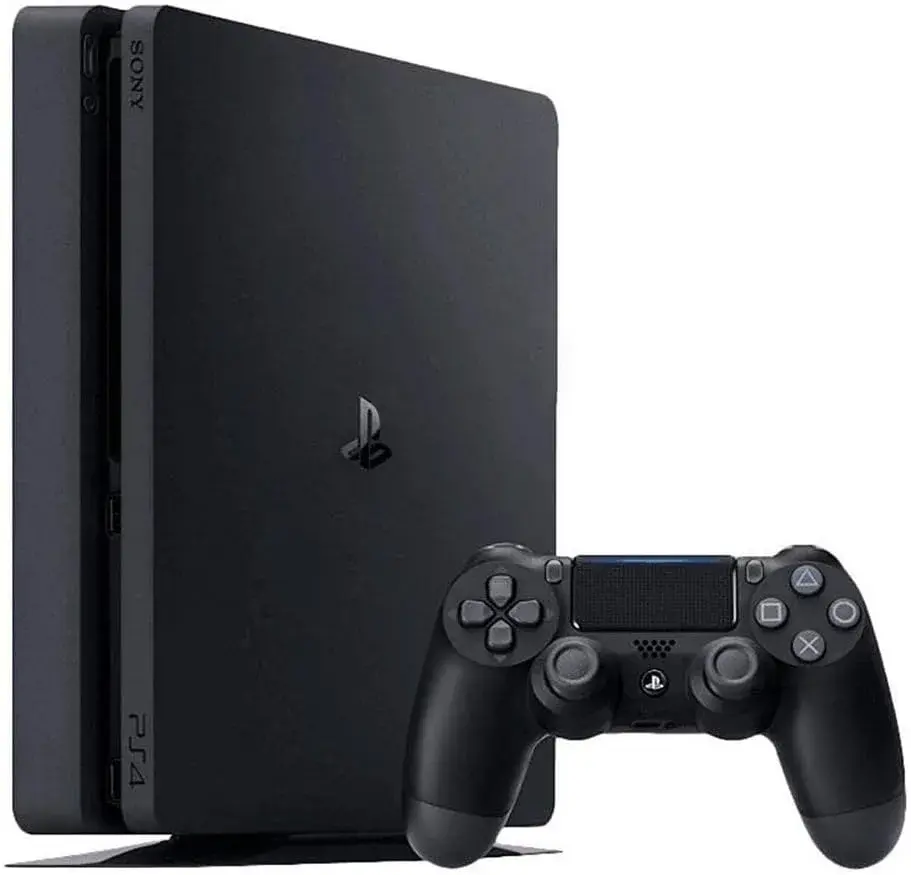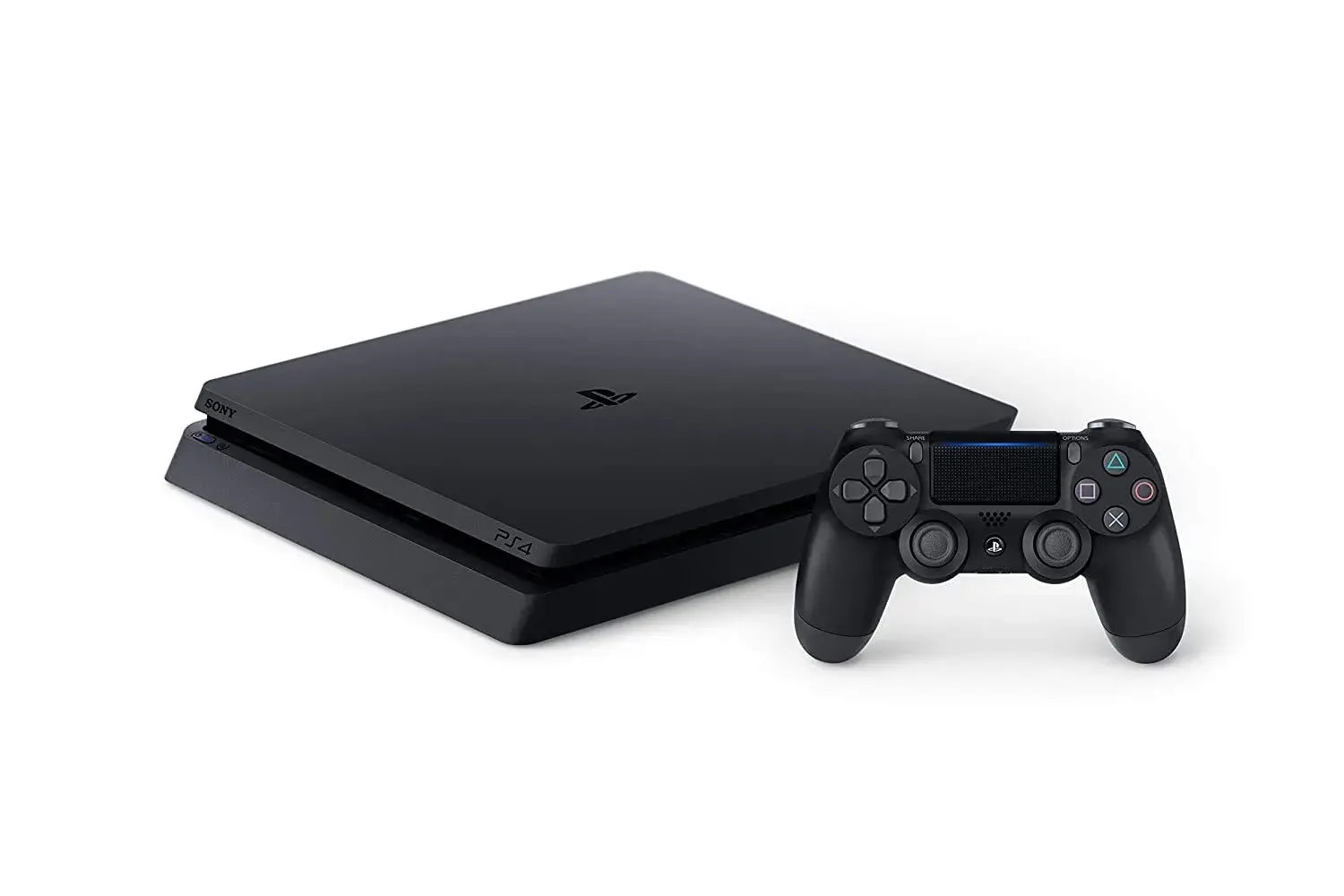
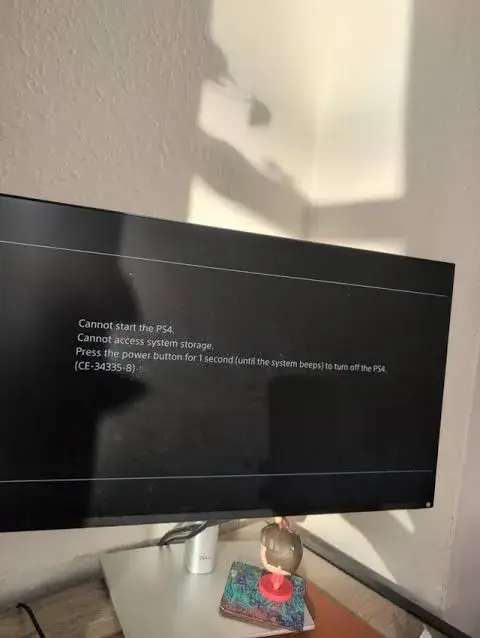
You turn your PS4 on expecting the familiar startup screen, and instead you're met with a black screen and a blunt, unwelcome message: "Cannot start the PS4. Cannot access system storage." Underneath it, usually, sits an error code — CE-34335-8. It's one of the more alarming errors a PS4 owner can run into, mainly because it doesn't just affect a game or an app — it stops the console from starting at all. This guide breaks down exactly what's behind this error, what it means for your data, what you can safely try at home, and when it's time to hand the console to a professional rather than keep experimenting yourself.
What This Error Actually Means
At its core, this message is your PS4 telling you it cannot read or communicate with its internal hard drive or SSD — the component storing the console's entire operating system, your installed games, applications, and saved data. Because the operating system itself lives on this drive, a failure to access it doesn't just block one feature; it prevents the console from booting into its main menu at all, leaving you stuck at that black startup screen with error code CE-34335-8 displayed.
It's worth understanding immediately that this error falls into two broad categories with very different implications: a software-level communication problem (often fixable, without any data loss) or a genuine hardware-level drive failure (more serious, and potentially involving data loss). Distinguishing between the two is exactly what the troubleshooting steps below are designed to help you do.
Why This Happens: The Real Causes
1. Corrupted system files. If the PS4's core system software becomes corrupted — commonly due to an interrupted software update, a sudden power loss during a critical write operation, or a general software malfunction — the console can lose the ability to properly communicate with its own storage, even though the physical drive itself may be completely fine.
2. A loose or disturbed hard drive connection. The PS4's internal drive connects via a SATA cable and connector, and if this connection has come slightly loose — from the console being moved, jostled, or from a previous hard drive swap that wasn't fully seated — the system simply can't establish a reliable connection to read from it.
3. Dust accumulation and improper seating. Beyond a fully loose connection, dust buildup around the drive bay or a drive that isn't perfectly seated in its slot can cause intermittent or complete read failures, particularly in consoles that haven't been serviced or cleaned in a long time.
4. Genuine hard drive failure or bad sectors. This is the more serious end of the spectrum. Mechanical hard drives — which many PS4 models still use — are subject to real wear over time, developing bad sectors or outright mechanical faults, particularly in older consoles that have been in heavy use for years. Once a drive genuinely fails, no amount of software troubleshooting resolves it, since the hardware itself can no longer reliably store or return data.
5. Removing the hard drive while the console was in use. Some documented cases of this error trace directly back to a drive being disconatlnected or removed while a game was actively running or downloading — an abrupt disruption that can leave the drive's file system in a state the console can no longer properly read afterward.
6. An incomplete or failed system update. If a system software update is interrupted partway through — due to a power outage, an accidental restart, or a connectivity drop — the console can be left with a partially updated, inconsistent system state that manifests as a storage access failure on the next boot.
What You Can Safely Try at Home
Work through these in order. A genuinely useful share of "cannot access system storage" cases resolve through the earlier, lower-risk steps here — it's worth being patient and methodical rather than jumping straight to the most drastic option.
Step 1: A Careful Physical Check
Turn the console off completely and unplug all cables. If you're comfortable doing so, remove the hard drive cover (a simple, tool-free process on most PS4 models — consult your specific model's manual if unsure), gently remove the drive, wipe both the drive's connector and the console's internal port with a dry, lint-free cloth to clear any dust, and reseat it firmly, making sure it clicks properly into place. Reconnect everything and power the console back on to see if this alone resolves the issue — a surprising number of cases trace back to nothing more than a drive that wasn't perfectly seated.
Step 2: Try Safe Mode
Connect your DualShock or DualSense controller to the console directly via USB cable (wireless won't work for this), then press and hold the power button until you hear a second beep, which boots the console into Safe Mode. From here, a few options are worth trying in order of how much they risk your data:
- Rebuild Database — scans and repairs the internal drive's file structure without erasing your saved data, and is worth trying before anything more drastic.
- Update System Software — if the console can detect a connected USB drive with the correct update file, this can resolve issues stemming from a previously failed or interrupted update.
- Initialize PS4 (Reinstall System Software) — this reinstalls the system software while keeping the drive's other data structure, and resolves many software-level causes of this error. It's a meaningfully bigger step than rebuilding the database, so treat it as your next option if the gentler steps don't work.
Step 3: Back Up Before You Go Further
If Safe Mode's initial options don't resolve the issue, stop before attempting a full initialize or format and prioritize backing up your data first if at all possible. If the console can be coaxed into Safe Mode enough to connect an external drive, back up saved game data before proceeding to more drastic steps — full initialization or formatting erases the drive's data entirely, and you want to be certain you've preserved what you can before taking that step.
Step 4: Full Initialization as a Last Home-Attempted Step
If rebuilding the database and reinstalling system software haven't worked, a full "Initialize PS4" (factory reset) from Safe Mode is the final software-level option available to you at home. This wipes the drive back to factory settings and can resolve deeper file system corruption — but it also means starting completely fresh, so this genuinely is a last resort after you've backed up whatever you can.
When You Should Stop and Get It Looked At Professionally
A few clear signs indicate you've moved past what's reasonably fixable through home troubleshooting:
None of the Safe Mode options resolve it, including a full initialization. Once you've worked through rebuilding the database, reinstalling system software, and a full factory reset without success, the problem has very likely moved from software corruption into genuine hardware failure — the drive itself no longer reliably functioning, regardless of what you do to the software layer sitting on top of it.
The error keeps returning even after a successful fix. If reinstalling system software temporarily resolves the issue, only for the same "cannot access system storage" error to reappear days or weeks later, this pattern strongly suggests a physically failing drive rather than a one-off software glitch — the underlying hardware issue hasn't actually been fixed, just temporarily masked.
You hear unusual clicking, grinding, or repetitive mechanical noise from the console when it's attempting to start up. This is a classic warning sign of a failing mechanical hard drive specifically, and continuing to power the console on and off repeatedly in this state risks making data recovery harder rather than easier.
You need your saved data recovered and can't access it through Safe Mode. If the drive has failed to the point where you can't even get it into a state to back up your saves before it's wiped, professional data recovery tools and expertise offer a meaningfully better chance of recovering that data than continued attempts at home — every additional power cycle on a genuinely failing drive reduces the odds of successful recovery.
Your console is relatively new and this has happened with normal use. A drive failing this early, without an obvious cause like a recent hard knock or interrupted update, points toward a manufacturing or component issue rather than expected wear — worth having diagnosed properly, both to fix it correctly and to check whether it's still covered under warranty.
Why Drive Replacement Is Worth Professional Handling
If your troubleshooting points toward genuine hard drive failure rather than a software fix, replacing the drive is technically something a confident home user can attempt — PS4 internal drives are more accessible than most console components. But it's worth understanding what a professional repair actually adds here beyond simply swapping a part: a proper diagnosis distinguishes cleanly between a fixable software issue and true hardware failure before any drive is replaced, meaning you're not paying for or performing an unnecessary swap when a simpler fix would have worked. It also means correctly transferring or attempting recovery of your existing data during the process — something considerably harder to get right without the proper tools and experience, and considerably more consequential to get wrong, since a botched attempt can mean permanently losing saved games, trophies, and progress that a careful professional recovery attempt might otherwise have preserved.
Preventing This From Happening Again
Once your PS4 is back up and running, a few habits genuinely reduce the odds of hitting this error again:
Always shut down properly rather than pulling the plug or using the physical switch abruptly. Use the controller or console button to initiate a proper shutdown whenever possible — this gives the system time to close files and write data cleanly, rather than risking an interrupted write that can corrupt system files the next time you try to boot.
Avoid disconnecting or moving the console while a game is installing or updating. As covered above, this is a documented trigger for exactly this error — let downloads and installs finish fully before powering off or relocating the console.
Keep the console in a stable position and avoid unnecessary movement. Every time a console with a mechanical hard drive is moved, especially while powered on, there's a small risk of disturbing the drive's connection or, in rare cases, the drive itself — keeping it in one stable, ventilated spot reduces this risk considerably.
Don't ignore a slow or struggling console. If your PS4 has been taking noticeably longer to boot, load games, or save data in the weeks before this error appeared, that's often an early warning sign of a drive beginning to degrade — worth having checked before it progresses to a full access failure.
Consider a routine backup habit for anything irreplaceable. Periodically backing up saved data to a USB drive or cloud save (where supported) means that even if this error does eventually strike, your progress isn't entirely dependent on a single aging internal drive.
Get It Looked at Properly
If you've worked through the Safe Mode options above and your PS4 still can't access its system storage — or if you'd rather not risk your saved data attempting a drive swap or full initialization yourself — City Gadgets Kenya's Repairs category offers proper diagnosis before any repair work begins. A thorough assessment identifies exactly whether you're dealing with a fixable connection or software issue, or genuine drive failure requiring replacement, and handles data recovery attempts with the care this kind of repair genuinely requires.
Frequently Asked Questions
What does PS4 error code CE-34335-8 mean? It indicates your PS4 cannot read or communicate with its internal hard drive or SSD, preventing the console from booting into its main menu — the cause can range from a simple loose connection to genuine drive failure.
Will I lose my saved games if I get this error? Not necessarily, especially if caught early. Software-level fixes like rebuilding the database or reinstalling system software often preserve your data. Data loss becomes a real risk mainly with a full initialization/factory reset, or if the underlying drive has genuinely failed — which is exactly why backing up before attempting drastic fixes matters.
Can I fix this myself at home? Basic steps — reseating the drive, cleaning connections, and working through Safe Mode options like rebuilding the database or reinstalling system software — are reasonably safe for most users to attempt. A full drive replacement or advanced data recovery is better left to a professional, particularly if preserving your existing saved data matters to you.
Why does this happen on a relatively new PS4? While less common than on older, heavily used consoles, a drive can fail early due to a manufacturing defect, a poor connection from the factory, or damage from mishandling during shipping — worth having diagnosed to both fix it and check warranty eligibility.
Is this the same as the PS5 disc drive or overheating issues? No — this is specifically about the console's internal storage drive rather than the disc drive mechanism or thermal system. If you're also experiencing disc drive or overheating issues, our companion guides on PS5 overheating and PS4/PS5 disc drive problems cover those separately.
Where can I get my PS4 diagnosed and repaired in Kenya? City Gadgets Kenya's Repairs category provides professional diagnosis, drive replacement, and data recovery support for this exact issue — reach out via WhatsApp to describe what you're seeing and get guidance on the right next step.
Final Word
"Cannot access system storage" is one of the more intimidating PS4 errors precisely because it stops the console from starting at all — but it's genuinely not always the hardware disaster it first appears to be. A meaningful share of cases trace back to a loose connection, dust, or software corruption that Safe Mode's built-in tools can resolve without any data loss at all. The key is working through the fixes in the right order, backing up before attempting anything drastic, and recognizing the point where continued home troubleshooting risks doing more harm than good — particularly if your saved data matters to you and the drive shows signs of genuine failure.
If your PS4 is still stuck on this error after working through the steps above, get it looked at through City Gadgets Kenya's Repairs category, or reach out on WhatsApp to describe what's happening and find out the best next step for your console.