
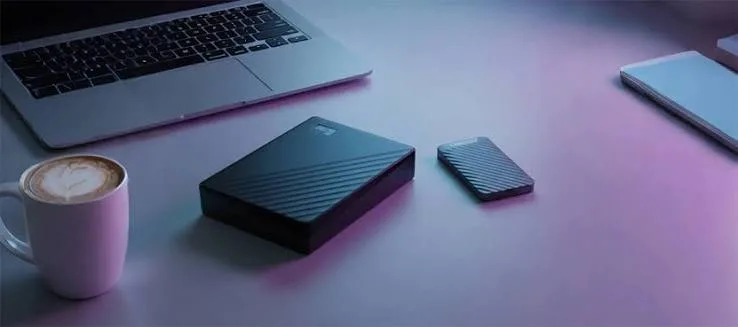
You are buying an external drive to carry photos, work files or a backup. The shop shows you two options that look alike: a small, light, fast portable SSD, and a bigger, cheaper portable hard drive (HDD) with more capacity. The question we hear most is: which one is more reliable? This guide to portable SSD vs HDD reliability explains how each fails, how they behave in Kenyan conditions, how to choose by use, and why neither should ever be your only copy. We keep the language plain and hedge where figures vary by product.
We are City Gadgets Kenya, at New Alnoor Exhibition, Second Floor, Shop C7, Accra Road, Nairobi CBD, with same-day Nairobi delivery and next-day delivery outside Nairobi. Message us on WhatsApp for today's price. We confirm per unit the capacity, speed and type of any drive we sell.
The short version
- Portable SSDs have no moving parts, so they survive drops, vibration and bumps much better than portable HDDs.
- Portable HDDs are cheaper per terabyte, so they suit large archives and backups where speed matters less.
- Neither is permanently reliable. Both can fail without warning. Reliability comes from backups, not from the drive type.
- HDDs often give warning signs such as clicking, slowdowns and bad sectors, but not always. SSDs may fail more suddenly, often with no warning, though wear-related failures are rare in typical use.
- SSDs are much faster, which makes copying, editing and restoring far quicker.
- Heat, power cuts, bad cables and unsafe removal harm both.
- Fake drives exist in both categories.
| Portable SSD | Portable HDD | |
|---|---|---|
| Moving parts | None | Spinning platters and moving heads |
| Shock resistance | High | Low when running, moderate when off |
| Speed | Fast | Slower |
| Noise | Silent | Audible spin and clicks |
| Capacity per money | Lower | Higher |
| Power draw | Low | Higher |
| Failure style | Often sudden | Sometimes gradual, sometimes sudden |
| Best for | Travel, editing, everyday carry | Large archives and bulk backup |
How a portable HDD works and why it is fragile
A hard disk drive stores data magnetically on spinning platters. A read/write head floats a tiny distance above the surface, moving back and forth to access data. When the drive is running, a sharp knock or drop can cause the head to touch the platter, damaging the surface and the head. This is called a head crash. Even when the drive is off, a hard fall can misalign parts.
Portable HDDs are built to resist small shocks, with parking mechanisms that move the heads away when the drive stops, but they are still the most fragile common storage device. Typical HDD failure modes include:
- Head crash or head failure, often caused by a drop or knock.
- Motor or spindle failure, where the platters stop spinning.
- Bad sectors, areas of the platter that can no longer hold data reliably.
- Firmware or controller board failure, which makes the drive undetectable even though the platters are intact.
- Wear and ageing, since moving parts wear down over years.
- Power problems, because HDDs draw more current and can misbehave on weak ports or with cheap cables.
Warning signs include clicking, grinding or beeping sounds, long pauses when opening folders, files that fail to copy, a drive that disappears and reappears and growing numbers of bad sectors in health tools.
How a portable SSD works and why it is tougher
A solid-state drive stores data in NAND flash chips with no moving parts. That makes it silent, light and far more tolerant of drops, vibrations and knocks. This is why portable SSDs suit people who travel, commute, shoot photos or videos on location or carry a drive in a bag. For more detail on the flash itself, see our blog on TLC vs QLC NAND.
SSDs have their own failure modes:
- Controller failure, where the drive stops responding.
- Firmware bugs, which can corrupt data or lock the drive.
- Flash wear, after many writes, cells wear out, though this takes a long time in typical use.
- Power loss during writes, which can corrupt data or, in rare cases, damage the mapping table.
- Heat, which can cause throttling and, in extreme cases, shorten life.
- Connector or board damage, especially on tiny portable models.
- Data retention loss, where an unpowered, heavily worn drive can gradually lose data over a long time.
SSDs often fail abruptly: one day the drive is fine, the next it is not detected. That is partly why backups are essential. Wear-related warnings, such as SMART alerts, exist but are not always visible to ordinary users.
So which is more reliable?
The honest answer: it depends on the situation, and the difference is smaller than marketing suggests.
For physical robustness, a portable SSD wins. If you carry the drive in a bag, drop it occasionally or use it in a car, an SSD is much less likely to suffer mechanical damage.
For long-term sitting on a shelf, both can work, but powered-off SSDs can lose data over many years, particularly if worn or stored hot, while HDDs can suffer from stiction, bearings that seize and ageing electronics. For archives, you still need multiple copies and periodic checks.
For heavy daily writing, a good portable SSD handles it well within its endurance rating. A portable HDD handles it as well but is slower.
For warning before failure, HDDs often (not always) give audible and performance clues. SSDs can fail with little warning.
For overall data safety, backups matter more than drive type. A single copy on the most reliable drive is less safe than two copies on cheap ones.
Speed, capacity and cost
Portable SSDs are dramatically faster. A portable HDD typically transfers at around 80 to 160 MB/s in real use. A portable SSD on USB 3.2 Gen 2 can reach roughly 900 to 1,000 MB/s or more. For large transfers such as video projects, photo libraries or system backups, that difference saves minutes or hours. Our blog on USB versions naming confusion explained explains how ports and cables affect these speeds.
Portable HDDs offer more capacity for the money. If you need several terabytes for a media archive or a full-system backup, an HDD is often the sensible budget choice. SSDs cost more per terabyte, though the gap has narrowed. Message us for today's price on both.
Power, noise and heat
Portable HDDs draw more power than SSDs. A weak USB port or a cheap cable can cause an HDD to fail to spin up or to disconnect. Some laptops and phones cannot power an HDD reliably. SSDs draw little power and are silent. Both generate heat, but SSDs can throttle if they overheat in sustained transfers, and a small metal-cased portable SSD may feel warm. Avoid leaving any drive in a hot car.
SMR vs CMR: a hidden HDD issue
Many portable HDDs use SMR (shingled magnetic recording), which overlaps tracks to increase capacity. SMR drives can be slow when writing large amounts of data, because they must rewrite neighbouring tracks. CMR (conventional magnetic recording) drives write more consistently. For backups of modest size, SMR is usually fine. For heavy, continuous writes, such as large video projects, CMR performs better. Manufacturers do not always state the recording type clearly on portable drives. Ask us, and we confirm per unit when we can.
File systems and compatibility
Both drive types need a file system suited to your devices. Windows-only drives often use NTFS. Drives shared between Windows and Mac use exFAT. Some TVs and consoles require FAT32 or exFAT. See our blog on exFAT, FAT32 and NTFS explained. Formatting erases the drive, so back up first.
Which should you buy? A decision guide
- Do you travel or carry the drive often? Choose an SSD.
- Do you work with large video or photo files and need speed? Choose an SSD.
- Do you need several terabytes at a low price? Choose an HDD.
- Is the drive mainly an archive that sits on a shelf? An HDD can be fine, and you need a second copy.
- Do you want a drive that survives knocks? Choose an SSD.
- Do you have a weak laptop or phone port? An SSD is easier to power.
- Are you on a very tight budget? An HDD gives more space for less, as long as you handle it carefully.
| If you are... | Consider |
|---|---|
| A photographer or videographer on the move | Portable SSD |
| A student carrying files daily | Portable SSD or a good flash drive |
| A family archiving photos and videos | Portable HDD plus a second copy |
| An office needing a bulk backup | Portable HDD, or a NAS for larger setups |
| A traveller or commuter | Portable SSD |
| A gamer extending console storage | Check the console manual; an SSD is often better |
Message us for today's price on both types. We will tell you plainly if the cheaper option will do.
Using a portable drive as your backup: be careful
A portable drive is a good place for one backup copy, but it has weaknesses as a backup: it can be lost, stolen, dropped or damaged, and it often lives next to the computer it backs up, so a fire, theft or flood can destroy both. Follow the 3-2-1 backup rule: three copies of your data, on two different types of media, with one copy off-site. A portable SSD or HDD can be one of those copies, but not the only one.
Also remember that a backup is only useful if you can restore from it. Test it occasionally by opening files from the drive. For businesses with several computers, a NAS or RAID setup may be more suitable. Our blog on RAID and NAS basics for small businesses explains the options.
Protecting your portable drive
- Eject safely every time.
- Use a good cable. A damaged or cheap cable causes disconnects and corruption.
- Avoid moving an HDD while it is running. Wait for it to spin down.
- Carry it in a padded case, especially HDDs.
- Keep it cool and dry. Do not leave it in a hot car.
- Do not plug it into unknown computers.
- Encrypt sensitive data. See our blog on how to encrypt USB drives with BitLocker.
- Protect against power problems with a surge protector or UPS for desktops. See our guides on power surges and AVR in Kenya and line-interactive vs online UPS.
- Check health occasionally with the manufacturer's tool or a SMART utility.
- Replace drives that are several years old, especially if they are important.
Reliability myths
"SSDs always die faster than HDDs." Not true. In normal use, modern SSDs last many years, and they survive physical shocks that kill HDDs.
"HDDs are always more reliable because they are older technology." Mechanical parts are a weakness, especially for portable use.
"A new drive cannot be fake or faulty." New drives can arrive defective, and fake drives exist.
"If it still works, it is fine." A drive can work for months with silent errors.
"Freezing a failed drive will fix it." This internet myth can cause more damage.
"One backup is enough." One copy is a single point of failure.
What the numbers really say
Large studies of data-centre drives have reported annualised failure rates for hard drives that vary by model and age, often in the range of a percent or two per year, with higher rates in older drives. SSDs in similar studies often show comparable or lower failure rates, although results vary and the conditions of a data centre differ from a backpack in Nairobi traffic. Rather than rely on one headline figure, treat both kinds of drive as items that will eventually fail and plan accordingly. Portable use makes physical risks more important than statistical ones: a dropped HDD is far more likely to fail than a dropped SSD.
Capacity planning
Choose capacity with headroom. A drive that is nearly full is slower and more error-prone, especially an SSD. As a rough rule, buy at least double the size of the data you want to store now, so you have room to grow and room to keep multiple backup versions. For photo and video work, remember that files are large and libraries grow quickly.
Example scenarios
These scenarios are illustrative, not customer records.
A wedding photographer. She carries drives in a camera bag, copies cards to two drives on location and then to a computer at home. Portable SSDs survive the travel, and a bulk HDD at home holds the archive.
A university student. He carries coursework and projects daily. A small portable SSD or good flash drive survives the commute, and he keeps a copy on his laptop and in the cloud.
A small shop owner. She backs up the accounting files weekly. An HDD for the weekly backup, kept off-site on alternate weeks, plus a cloud copy, covers theft and fire.
A family archiving ten years of photos. They buy a large portable HDD and a second copy on another drive kept at a relative's house.
A video editor. He edits from a fast portable SSD, then archives finished projects to an HDD and a second copy.
Using portable drives with phones, tablets and consoles
Phones with USB-C ports can connect to portable drives, which is handy for offloading photos and videos. Power is the limiting factor. A portable SSD draws little power and usually works. A portable HDD may not spin up or may disconnect because the phone cannot supply enough current. A powered hub or a Y-cable can help, but an SSD is simpler. File systems matter too: Android usually reads exFAT and FAT32, and iPhones read exFAT, FAT32 and APFS through the Files app. Consoles each have their own rules for external storage. Check the manual, or ask us. Our consoles category lists current devices, and we confirm per unit.
Vibration, buses, matatus and real life
Portable drives live a harder life than desktop drives. They ride in bags on buses and matatus, sit on desks that get bumped and are plugged and unplugged dozens of times. An HDD running while you carry the laptop, for example when you walk with the drive spinning in your lap, is especially at risk. Good habits help: wait for an HDD to stop spinning before you move it, use a padded pouch, avoid squeezing a drive between heavy items and never pull it by the cable. For an SSD, the main risks are the connector, heat and losing the drive, so use a short cable and keep it secured. In both cases, encryption protects your data if the drive is lost. See our blog on how to encrypt USB drives with BitLocker.
Heat, dust and humidity in Kenya
Kenya's climate varies from cool highlands to hot, humid coast. Heat shortens the life of electronics. A drive left in a parked car can reach temperatures well beyond its design limits, damaging the controller or battery-like components, and causing HDD lubricant and electronics problems. Dust gets into ports and connectors and can cause poor contact. Humidity promotes corrosion on contacts. Store drives in a cool, dry place, use a case that keeps dust out, and clean connectors gently with a dry, soft brush. If a drive gets wet, do not plug it in. Let it dry thoroughly.
What to do if your portable drive fails
- Stop using it. Do not keep plugging it in or writing to it.
- Try another cable, port and computer. Many "failures" are cables or ports.
- Listen. Clicking or grinding from an HDD means a mechanical problem. Switch it off and avoid further attempts.
- Check whether it is detected in Disk Management or Disk Utility.
- Copy off what you can if it is readable.
- Do not format or "repair" blindly if you need the data.
- Seek professional help for important data. See our blog on data recovery: what to do in Kenya.
- Replace the drive and restore from backup.
Our repair service can advise on options.
Reading specifications
When you compare portable drives, look at:
- Type: SSD or HDD.
- Capacity.
- Interface and speed: USB 3.2 Gen 1, Gen 2, USB4 and so on. Prefer Gbps figures.
- Sequential read/write and, if available, sustained write.
- Durability claims: drop resistance, water and dust ratings, if any.
- Encryption features.
- Cable included and type (USB-C to C, C to A).
- File system as shipped.
- Warranty length.
- Brand and reviews.
If a seller cannot tell you the type, speed or warranty, be careful. We confirm per unit.
Monitoring drive health
Both drive types report health through SMART, a built-in self-monitoring system. Tools from drive makers and free utilities can read SMART data. For HDDs, useful indicators include reallocated sectors, pending sectors and spin-up problems. For SSDs, look at percentage of life used, available spare, media errors and temperature. Not all portable drives expose SMART data through USB enclosures, so absence of data is not proof of health. Run a check every few months on drives that matter, and treat any rising error count as a sign to replace the drive and keep your backups current.
Encryption and security
A portable drive is easy to lose, so it makes sense to protect sensitive files. Windows BitLocker To Go, macOS encrypted volumes and third-party tools can encrypt a drive. Some drives have built-in hardware encryption with a PIN pad or software. Remember to store your recovery key somewhere safe, because losing it means losing the data. Encryption protects against casual theft but does not replace backup.
Longevity: how long should you expect a drive to last?
No honest seller can promise an exact life. As a rough planning guide, treat a portable drive as something to replace every three to five years if it holds important data, sooner if it is used heavily or shows warning signs. An archive drive that stays on a shelf should be checked at least once or twice a year, and the data copied to fresh media every few years. Warranty length is a useful signal of the maker's confidence, but it is not a prediction of life.
Moving data between old and new drives
When you replace a drive, copy the data to the new one and verify the copy before you wipe the old one. Compare file counts and sizes, open a sample of files and, for critical data, use a checksum or compare tool. Keep the old drive for a while as an extra copy if it still works. Then erase it properly before you sell or discard it, because deleting files does not remove them completely.
A final word
If you carry your drive, buy an SSD. If you store a lot for little money, buy an HDD. If the data matters, buy two of something and keep one copy somewhere else. Reliability is not a property of a single drive, it is a property of your habits: backups, safe ejection, gentle handling, good cables and genuine hardware from a seller you can walk back to.
Cables, ports and adapters: the hidden reliability factor
Many "drive failures" are really cable or port problems. A worn USB cable, a loose port or a cheap adapter can cause disconnections mid-copy, which corrupt files and file systems. For portable HDDs, a weak cable may deliver too little power, causing clicking and failed spin-ups that look like a dying drive. Use the cable that came with the drive, or a certified one of the same type and length. Avoid long cables and unpowered hubs for important transfers. If a drive misbehaves, swap the cable first, then the port, then the computer, before you assume the drive is dead. Our blog on USB-C cable types, speeds and watts explains how to pick a good cable.
Questions to ask any seller before you pay
- Is the drive new, sealed and genuine?
- Is it an SSD or an HDD, and is the HDD SMR or CMR?
- What are the real capacity and the USB speed?
- What cable comes in the box?
- Can I test it before I leave?
- What is the warranty, and who honours it?
- Where do I go if it fails?
A seller who answers these plainly knows the product. At City Gadgets Kenya, we answer them in the shop or on WhatsApp.
Choosing between a portable drive and a NAS or cloud
A portable drive suits one person with one computer. If several people need the same files, or you want automatic backups of multiple computers, a NAS (network-attached storage) is a better fit, and cloud storage adds off-site protection. Many users combine them: a portable SSD for work in progress, a NAS or HDD for the main archive and cloud for the off-site copy. Read our blog on RAID and NAS basics for small businesses for the next step up.
When an HDD is the smarter buy
It is easy to say "SSDs are better" and stop there, but an HDD is still the right tool for several jobs. A large photo and video archive that you open occasionally does not need speed, it needs space and a second copy. A scheduled overnight backup does not care whether it finishes in one hour or three. A drive that sits on a desk and rarely moves faces few of the shock risks that make HDDs fragile. In these cases, the savings per terabyte can pay for a second drive, and two HDDs are more reliable than one SSD. We would rather help you build a sensible backup with two affordable drives than sell you one expensive drive and a false sense of security.
When an SSD is clearly worth it
Choose an SSD when you carry the drive daily, work directly from it (for example editing video or running virtual machines), copy large files regularly, plug it into a phone or tablet, or simply hate waiting. The speed gain is not a luxury if you move hundreds of gigabytes at a time, and the toughness saves you from the anxious moment of a dropped drive. For many people, a smaller SSD for active work plus a bigger HDD for archive is the best mix.
How to spot a fake portable drive
Fake portable drives include counterfeit branded SSDs, drives with false capacity, and ordinary USB flash chips packaged as "SSDs". Use these ten checks.
- Price that is too good. A 2 TB portable SSD at a very low price is almost certainly fake.
- Capacity test. Use H2testw (Windows) or F3 (macOS and Linux) to write and verify the full capacity. Fakes fail.
- Speed test. Run a benchmark with a large file. A drive that claims SSD speeds but behaves like a flash stick is suspect.
- Weight and feel. An SSD enclosure that rattles or feels hollow, or an HDD with no sense of internal weight, is suspicious.
- Check the device information. Disk tools show the model and controller. Generic or mismatched names are warnings.
- Inspect the label and printing. Blurry logos, misspellings and inconsistent fonts are red flags.
- Check the packaging. Poor print, missing tamper seals and resealed boxes are warning signs.
- Check the serial on the brand's website where a warranty check is available.
- Check the cable and connector. Loose connectors and flimsy cables are warning signs.
- Check the seller. No shop address, no receipt and no returns mean no recourse.
If you are unsure, bring the drive to us at New Alnoor Exhibition, Second Floor, Shop C7, Accra Road, and we will help you test it. We will not pretend a fake is genuine.
Why buy your portable drive from City Gadgets Kenya
- Genuine products, checked before they reach you.
- A real shop at New Alnoor Exhibition, Second Floor, Shop C7, Accra Road, Nairobi CBD.
- Same-day delivery in Nairobi and next-day delivery outside Nairobi.
- M-Pesa payment and clear receipts.
- Honest advice, including telling you when an HDD is enough and when an SSD is worth it.
- Help with setup and formatting when you buy.
- Compatible accessories in our accessories category and laptops category.
- Support and repairs through our repair service.
- WhatsApp help on +254745575931.
Quick checklist
- I chose SSD or HDD based on how I will use the drive.
- I checked the speed, capacity and interface.
- I have a quality cable that suits my ports.
- I have a second copy of everything important.
- I tested the drive's capacity and speed.
- I eject safely and carry the drive carefully.
- I bought from a seller with a receipt and support.
Frequently asked questions
Is a portable SSD more reliable than an HDD? For physical shocks, yes. For overall data safety, backups matter more than drive type.
Do SSDs fail without warning? They can. That is why backups are essential.
Do HDDs always warn before they fail? Not always, though noises and slowdowns are common signs.
How long do portable drives last? Many years with care. Treat every drive as temporary.
Can I use a portable HDD with a phone? Often not, because of power needs. An SSD is easier.
What is SMR? A recording method that boosts capacity but can slow large writes.
Should I buy an HDD or an SSD for backup? An HDD for bulk backup, an SSD if you need speed and robustness. Keep a second copy either way.
How do I know if my drive is fake? Use the ten checks above and run a capacity test.
Can I recover files from a failed drive? Sometimes. Stop using it and seek help.
Where can I buy a genuine portable drive in Nairobi? At City Gadgets Kenya, Shop C7, Second Floor, New Alnoor Exhibition, Accra Road.
Ready to choose a drive?
Tell us what you store and how you carry it, and we will recommend the right drive and backup plan. Message us on WhatsApp or visit the shop.
Related reading: Backup 3-2-1 rule explained · How flash drives fail · TLC vs QLC NAND explained · USB versions naming confusion explained








