
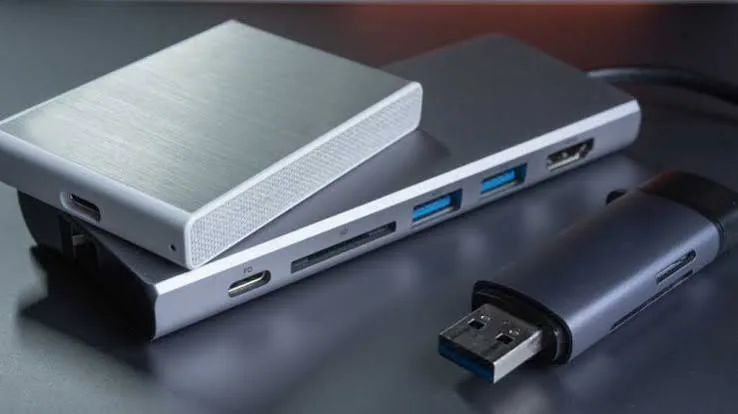
The portable hard drive vs SSD question comes up at our counter almost every day, and it deserves an honest answer rather than a sales pitch. Both are good products. Both can protect your photos, schoolwork, business records and videos. But they are built differently, behave differently, and suit different people. This guide compares the WD, Seagate, Toshiba and Transcend portable hard drives we stock with the SanDisk portable SSDs we also sell, so you can decide on facts: speed, durability, capacity per shilling, noise, power use, lifespan, and what happens when something goes wrong. We finish with the checks that expose a fake external drive, because counterfeit and mislabelled storage is a real problem in Nairobi.
If you already know you want the fast option, read our guide to the best portable SSD in Kenya. If you are still deciding, keep going. We do not put prices in our guides because they change with the exchange rate, so message us on WhatsApp for today's price on any drive.
The one-minute answer
| Question | Hard drive (HDD) | Solid-state drive (SSD) |
|---|---|---|
| Speed | Roughly 80-130 MB/s in everyday use | Roughly 400 to 2,000 MB/s depending on model and port |
| Durability when moved | Weaker: spinning parts dislike knocks while running | Much stronger: no moving parts |
| Capacity for the money | Excellent: 1, 2, 4 TB and more are affordable | Good but costs more per terabyte |
| Noise | Faint hum and occasional clicks | Silent |
| Weight and size | Heavier and thicker | Smaller and lighter |
| Best use | Bulk backup, archive, media library | Daily carry, editing, quick transfers |
| Our usual advice | Buy for storage you rarely touch | Buy for files you use and carry |
If you want one rule: an SSD for what you use, a hard drive for what you keep. If you can only afford one drive, choose by how often you will move data and how much you must store.
How each technology works, in plain language
The portable hard drive
Inside a portable hard drive is a small spinning disc (a platter) coated with magnetic material, and a tiny arm that moves a read/write head across it. Data is stored as magnetic patterns. The disc spins at around 5,400 revolutions per minute in portable drives, which is slower than the 7,200 rpm common in desktop drives, so it uses less power and runs cooler. The drive is powered through the USB cable and needs no separate adapter.
Because it is mechanical, a hard drive takes a moment to "spin up", has to physically move the head to find data, and is vulnerable if jolted while running: the head can touch the platter, causing damage called a head crash. That is why the number one rule with a hard drive is do not move it while it is working.
The portable SSD
An SSD has no moving parts. It stores data in flash memory chips (NAND), the same technology in your phone, and a controller chip manages reads, writes and wear. Everything is electronic, so access is near-instant, there is no spin-up, and it tolerates movement. It is also quieter, lighter and, in most cases, more power-efficient during short transfers.
For deeper technical background, see our tech blogs on why SSD, not HDD and TLC and QLC NAND.
Speed: what the difference feels like
Speed numbers on a box are abstract. Here is what they mean in practice, using typical figures.
| Task | Portable hard drive (about 110 MB/s) | SanDisk E10 (about 600 MB/s) | SanDisk Extreme E61 (about 1,000 MB/s) | Extreme PRO E81 (up to about 2,000 MB/s on a fast port) |
|---|---|---|---|---|
| Copy 10 GB of photos | About 1.5 minutes | About 17 seconds | About 10 seconds | About 5-10 seconds |
| Copy a 50 GB video folder | About 7-8 minutes | About 1.5 minutes | About 50 seconds | About 25-50 seconds |
| Copy 500 GB of archive | About 75 minutes | About 14 minutes | About 8 minutes | About 4-8 minutes |
| Open a large project from the drive | Often slow, may stutter | Smooth | Smooth | Very smooth |
These are estimates; real speeds depend on file sizes (many small files are slower than one large file), the cable, your computer's port, and the drive's condition. The point is that a portable SSD turns waiting into barely noticing. If you move data once a month, you may never care. If you do it daily, you will care a great deal.
Durability: where SSDs win clearly
Kenyan life is hard on electronics. Backpacks get dropped, matatus jolt, handbags get crushed, and dust gets everywhere. A hard drive that is running when it is dropped is at real risk. An SSD is far more forgiving. SanDisk quotes drop protection of roughly two to three metres on its Extreme range, with dust and water resistance in the IP55-IP65 range depending on version.
There is one honest exception: the Transcend StoreJet is a rugged hard drive designed specifically to resist knocks. Transcend describes a three-stage shock protection system, with a silicone outer shell, an internal suspension damper and a reinforced hard casing, and states that it passed the US military MIL-STD-810G drop test. If you want a hard drive for carrying and you are tight on budget, it is the one we point to. It is still a hard drive, though: the protection reduces risk, it does not remove it.
Capacity and cost: where hard drives win
Hard drives remain the cheapest way to store a lot of data. We stock 1 TB, 2 TB and 4 TB portable hard drives from WD, Seagate, Toshiba and Transcend, and the cost per terabyte rises less steeply than with SSDs. If you have 3 TB of family video or a business archive that grows steadily, a 4 TB hard drive is a sensible and economical home for it. Buying that capacity in portable SSD form costs considerably more.
That makes the practical split simple. If you must store a lot and rarely touch it, hard drive. If you must move a moderate amount fast and often, SSD.
The hard drive brands we stock, and how they differ
Brand differences matter less than model differences, so ask us to confirm the exact model line when you order. Here is what each range generally offers, based on manufacturer and retailer listings.
WD (Western Digital) portable drives
WD's portable range is built around the My Passport line, a 2.5-inch drive over USB 3.0 / USB 3.2 Gen 1. My Passport adds password protection with 256-bit AES hardware encryption (using WD Security software) and WD Backup software. WD also sells a simpler Elements line without that encryption software, so confirm which you are getting. Warranty on retail listings is commonly two to three years depending on region.
Seagate portable drives
Seagate's most common line is Expansion Portable: plug and play with no software required, USB 3.0, powered through the cable. Seagate's datasheet lists a warranty that varies by region (the figures differ between the Americas, Europe-Middle East-Africa and Asia-Pacific), and some models include data recovery services. The One Touch range adds backup software and optional password protection.
Toshiba Canvio
The Canvio range is slim, with a textured finish. The Canvio Advance, for example, offers password protection through Toshiba Storage Security Software, Toshiba Backup software and a two-year limited warranty on retail listings. Canvio Basics and Canvio Ready are simpler, with different features.
Transcend StoreJet
The StoreJet line is the rugged one, with the shock protection described above, a one-touch backup button on supported models and a three-year limited warranty listed by Transcend. If you carry a drive in a bag every day and want a hard drive, this is the one to look at first.
| Brand and line | Typical strength | Typical limit |
|---|---|---|
| WD My Passport | Encryption and software, widely known | Elements version lacks the encryption software |
| Seagate Expansion | Simple, no software, good value | Basic features; One Touch adds software |
| Toshiba Canvio Advance | Slim, good software, password protection | Check range, as Basics and Ready are simpler |
| Transcend StoreJet | Rugged shock protection, longer warranty | Thicker and heavier than slim rivals |
| SanDisk portable SSD | Fast, silent, tough | Costs more per terabyte |
Reliability and lifespan: the honest truth
Neither technology lasts forever, and neither is "safe" as a sole copy of your data. Hard drives fail through mechanical wear, shock and age; failures can be sudden, sometimes preceded by clicking sounds. SSDs fail through flash wear (a finite number of write cycles, which ordinary users rarely exhaust) or controller faults; failures are often abrupt, with the drive suddenly not being detected. A quality SSD used for normal backup and file transfer will usually outlast the computer it serves, but data loss is a matter of when, not whether, for any single device.
This is why every serious guide ends in the same place: keep two copies. We explain the logic in our blog on the 3-2-1 backup rule. If you only have one copy of your data on one external drive, you do not have a backup. You have a single point of failure.
Which should you buy? Ten real situations
1. A first-year university student. You carry assignments, software, a few films. Files are small, speed matters little, but the bag takes abuse. Either works; a 1 TB hard drive is cheap and plentiful, a 1 TB SSD is tougher and quicker. If the budget allows, SSD, because you will drop your bag.
2. A family wanting to back up phone photos. You rarely touch the backup, and capacity matters more than speed. A 2 TB hard drive from WD, Seagate or Toshiba is ideal, plus a second copy elsewhere.
3. A wedding or event photographer. You offload cards after every event and need speed and toughness. SSD, no argument. Keep a large hard drive at home as the archive of finished jobs.
4. A video editor. SSD for active projects. The speed difference decides whether editing is pleasant. A big hard drive for finished projects.
5. A small business owner (shop, clinic, school, church office). Your accounts, customer records and scanned documents matter more than any gadget. Use one SSD or hard drive with encryption, a second copy kept off-site, and a routine. Our UPS guide helps protect desktop PCs during power cuts.
6. Someone with an old laptop that is full. Move photos and videos to a hard drive and free up internal space. If the laptop itself is slow, upgrading its internal drive to an SSD improves speed more than any external drive. See our SSD upgrade guide.
7. A gamer. For storing games on a console or PC, speed matters. On PlayStation, an external USB hard drive can store PS5 games but you cannot play PS5 games from it; PS4 games can run from an external drive. Check your console's current rules before buying, because the details change with software updates.
8. A content creator filming on a phone. SanDisk's Creator Phone SSD is built for this and snaps onto compatible iPhones magnetically. A hard drive is not a good match for phone recording.
9. A traveller or NGO field worker. Rugged and encrypted is the priority. The Transcend StoreJet if budget-limited; a SanDisk Extreme SSD with a protective case if you can. Encrypt the drive in case it is lost.
10. A person who just wants a safe copy of everything, once. Buy a hard drive large enough, copy everything, test it, store it safely, and set a reminder to refresh the copy every few months.
Compatibility: will it work with my devices?
Windows laptops and desktops. Both types work out of the box. Newer laptops often have USB-C ports only, so check whether your drive's cable matches. Many portable hard drives ship with a micro-B or USB-A cable; a USB-C adapter or cable is inexpensive. See our guide to USB-C hubs and USB-C cables.
Macs. Drives formatted exFAT work on both Mac and Windows. Drives formatted NTFS are read-only on a Mac by default, so reformat if you use only a Mac. Time Machine works best with a drive formatted for Mac.
Android phones. Many Android phones support USB-C storage via OTG; some need an adapter. Hard drives can draw more power than a phone is willing to supply, and may not spin up reliably. SSDs draw less power and are usually friendlier.
iPhones and iPads. USB-C models support external drives; older Lightning iPhones do not do so natively. Check with us for your exact model.
Smart TVs. Many TVs can play media from a USB drive, but support for formats, power and drive size varies. Some TVs cannot power a hard drive from the USB port; you may need a powered hub.
Cameras and drones. These use memory cards, not external hard drives, in operation. A drive is for storing footage afterwards. See our guides to microSD cards and SD cards for cameras.
Setting up a new external drive properly
- Inspect first. Check the packaging, labels and serial numbers (see the fake-checking section below).
- Connect and test. Plug into a computer, confirm it shows the capacity you paid for, and run a full capacity test with H2testw (Windows) or F3 (Mac and Linux) before trusting it.
- Choose a format. exFAT for cross-platform use; NTFS for Windows only; APFS for Mac only.
- Name it clearly. "Backup Photos 2026" beats "New Volume".
- Add encryption if the data is sensitive. BitLocker (Windows Pro), FileVault or a drive's own password software.
- Copy your data, then verify. Open a sample of files from the drive to confirm they work.
- Store a second copy elsewhere. The most common regret we hear is "I thought the drive was the backup".
Care tips that actually extend drive life
- Always eject properly. Unplugging mid-write corrupts files and, on hard drives, risks the file system.
- Do not move a running hard drive. Wait for it to stop spinning and eject before picking it up.
- Use a short, quality cable. A damaged cable causes disconnections that look like drive failure.
- Keep it cool and dry. Avoid parked cars and damp rooms.
- Do not fill it to the brim. Leave around 10-20% free for better performance and fewer problems.
- Check it regularly. Open a few files every few months to confirm the data is still readable.
- Replace aging drives. If a hard drive is over four or five years old and holds irreplaceable data, copy it to a new drive before it fails.
Warning signs your drive is failing
For a hard drive: clicking, grinding or repeated spin-up noises; very slow copying; the drive disconnecting at random; files that refuse to open. For an SSD: disappearing from the computer; becoming read-only; sudden file errors. In every case, stop writing to the drive, copy what you can to another device, and message us on WhatsApp. If the data is truly important, stop using the drive entirely and consider professional data recovery; continued use can make recovery harder. See our blog on what to do when you lose data.
Ports, cables and power: the small details that cause big headaches
Most "my drive is broken" messages we receive turn out to be cable, port or power problems, so it is worth understanding them.
Cable types. Portable hard drives from WD, Seagate and Toshiba commonly ship with a short cable that has a micro-B connector on the drive end (a wide, two-part plug) and USB-A on the computer end. Some newer models use USB-C. SSDs mostly use USB-C on the drive end. If your laptop only has USB-C ports, you need either a USB-C cable or a small adapter. A cable is cheap, but a poor one is the most common cause of disconnections.
Power. A 2.5-inch portable hard drive draws its power from the USB port and needs a certain amount of current to spin up. Desktop front-panel ports, old USB hubs, TV ports and some phones cannot always provide it. Symptoms are the drive clicking, restarting or not appearing at all. Plug into a rear port directly on the computer or use a powered hub. SSDs draw less during idle and are usually easier on weak ports.
Speed ceilings. A drive can only go as fast as its slowest link. A 1,000 MB/s SSD on a 5 Gbps port reaches around 400 MB/s. A hard drive is limited by its mechanics long before the port matters, which is why a hard drive on a fast port does not feel faster.
Hubs and docks. Plugging a fast SSD into a cheap hub that shares bandwidth between several devices will slow it. Plug fast drives directly into the computer when it matters.
Five myths we hear at the counter
Myth 1: "SSDs lose data if you leave them unplugged for a long time." There is some truth here, since flash cells can slowly lose charge over very long periods without power, particularly on worn drives and in hot storage. For a drive left in a drawer for a year or two, the risk is small. For archives you intend to leave untouched for many years, hard drives, plus periodic checking, or multiple copies, are the safer plan. Either way, check your archives now and then.
Myth 2: "A bigger hard drive is always the better deal." Only if you use the capacity. A half-empty 4 TB drive does nothing that a 2 TB drive would not have done, and one large drive concentrates all your data in a single point of failure. Two smaller drives, holding two copies, are safer.
Myth 3: "Defragmenting an external SSD speeds it up." It does not; it simply wears the flash. Do not defragment SSDs. Hard drives can benefit occasionally, though modern operating systems handle this automatically.
Myth 4: "My drive says 'Genuine' on the box, so it must be real." The word on a box proves nothing. Counterfeiters copy boxes perfectly. Testing and trustworthy sellers are what protect you.
Myth 5: "Cloud storage makes external drives obsolete." Cloud backup is excellent as one of your copies, but uploads in Kenya depend on your connection speed and data cost. A local drive restores a lot of data in minutes and does not depend on bandwidth. The best arrangement uses both. See cloud vs external drive backups.
How to think about cost without chasing the lowest number
When comparing options, think in three ways rather than one.
- Cost per terabyte favours hard drives, particularly in the 2 TB and 4 TB sizes.
- Cost of failure favours SSDs for anything carried around, because losing wedding footage or a client's project costs far more than a drive.
- Cost of time favours SSDs if you move data weekly. Twenty minutes saved each week adds up to many hours a year.
A balanced buyer often ends up with a modest SSD for daily use and a large hard drive for the archive, which is a better use of money than one huge drive of either kind. Message us on WhatsApp with your budget and your workload and we will build the sensible combination with you.
A quick pre-purchase checklist
Before you pay for any external drive, run through these questions. They take two minutes and prevent most returns.
- What will I store, and how much of it exists today? Add up your photos, videos and documents, then double it.
- Will I carry it? If yes, lean towards an SSD or the rugged Transcend StoreJet.
- Which port does my computer have? USB-A, USB-C, Thunderbolt? Match the cable, or ask us for the right one.
- Do I need encryption? If the drive will hold client data, ID scans or accounts, choose a model with password protection, or plan to use BitLocker or FileVault.
- Which warranty applies? Ask us to confirm the warranty on the exact unit, since listings vary by model and region.
- Where will the second copy live? If you do not have an answer, you probably need to buy two drives or add a cloud service.
- Will I test it? Plan to run H2testw or F3 on the day you buy. If you want help, bring it to the shop and we will show you.
If you can answer all seven, you are ready to buy with confidence, and your choice between a portable hard drive and a portable SSD will usually make itself.
How to spot a fake external hard drive or SSD
Fake external storage is common because it is easy to make: a small, cheap chip is loaded with firmware that lies about its capacity. These fakes report "2 TB" or "4 TB" to your computer, accept data happily, and then overwrite or lose it as you pass the real capacity. Some "hard drives" turn out to contain nothing more than a USB flash memory board in a hard-drive casing. Learn the checks.
1. Price and seller. An unusually cheap 4 TB drive from a roadside seller or an anonymous online listing is the classic trap. Genuine drives from WD, Seagate, Toshiba and Transcend have a reasonably narrow price range among legitimate sellers. A deep discount is a red flag.
2. Weight. A genuine 2.5-inch portable hard drive has noticeable weight because of the platters and motor. A suspiciously light "hard drive" may be a flash board in a shell.
3. Packaging and labels. Look for blurry printing, spelling errors, loose seals, or missing serial numbers. The model number on the box should match the one on the drive.
4. How the drive behaves. A hard drive should make a faint spin-up sound and vibrate slightly. A "hard drive" that makes no sound and feels dead may be an SSD or a flash fake, which is not necessarily bad if you paid for an SSD, but a problem if the box said HDD.
5. What the computer says. On Windows, open Device Manager or a tool such as CrystalDiskInfo to see the model name and reported details. Generic names or odd capacities are warning signs.
6. The full-capacity test. Use H2testw (Windows) or F3 (Mac and Linux). The test writes data across the entire drive and verifies it. A fake drive fails, reports far less usable space, or shows errors. This is the single best test.
7. Speed sanity check. A genuine portable hard drive typically reads and writes at around 80-130 MB/s. If a "hard drive" runs at 400 MB/s, it is likely a flash drive in disguise. If an SSD claiming 1,000 MB/s manages 30 MB/s, check cable and port first, then suspect the drive.
8. Warranty and registration. The brand's website lets you check warranty using the serial number. If the serial number is not recognised, ask questions.
9. Used sold as new. Check for scratches, fingerprints, a drive that already holds files, or high power-on hours in a SMART tool like CrystalDiskInfo.
10. Buy from someone who stands behind it. If a seller will not let you test the drive or give a receipt, walk away.
Why buy your portable drive from City Gadgets Kenya
- Genuine WD, Seagate, Toshiba, Transcend and SanDisk stock, sealed, with the model line confirmed before you order.
- Honest advice, even when it costs us a sale. If a 4 TB hard drive suits you better than a pricier SSD, we say so.
- A physical shop in Nairobi CBD: New Alnoor Exhibition, Second Floor, Shop C7, Accra Road. Come in, hold the drive, and test it.
- Same-day delivery within Nairobi and next-day delivery outside Nairobi through reputable couriers.
- Easy M-Pesa payment and WhatsApp support before and after you buy.
- Help with setup. Not sure about formatting, ports or cables? Ask us.
Explore our accessories category for more storage, charging and audio products.
Frequently asked questions
Is a portable SSD worth the extra cost over a hard drive? If you move data often, travel with the drive or edit from it, yes. If it will sit in a drawer as a backup, a hard drive often makes more sense.
Which is more reliable, SSD or HDD? SSDs tolerate knocks better; hard drives can last long if they are not jolted. Neither replaces a second copy of your data.
How much storage should I get? Buy about twice what you currently need. For family photos, 2 TB is a comfortable start; for video work, 2-4 TB.
Can I use a hard drive with my TV? Often yes for playing videos and photos, but compatibility varies. Some TVs cannot power a hard drive; a powered USB hub helps.
Does a hard drive work with a Mac? Yes, but format it for Mac or exFAT. NTFS drives are read-only on a Mac without extra software.
Why does my 2 TB drive show about 1.81 TB? Manufacturers count in decimal and your computer in binary, so 2 TB shows as about 1.81 TB. This is normal.
What does the clicking sound mean? Clicking can mean a failing hard drive. Stop using it, copy off what you can, and message us.
Can I use one drive for both Windows and Mac? Yes, format it as exFAT.
Are the WD, Seagate and Toshiba drives genuine? Yes. We sell authentic stock and confirm the model line, colour and warranty of the unit you order.
How often should I replace an external drive? Hard drives every four to five years if the data is important; SSDs last longer for typical use. Check the health regularly and always keep two copies.
Ready to choose?
Tell us how much data you have, how often you move it, and what you will connect the drive to, and we will recommend the right one, hard drive or SSD, with no pressure.
WhatsApp: wa.me/254745575931 Visit: New Alnoor Exhibition, Second Floor, Shop C7, Accra Road, Nairobi CBD. Same-day delivery in Nairobi; next-day outside Nairobi.
Related reading: best portable SSD in Kenya, best backup drive for home and office, best storage for students.








