NVMe vs SATA SSD: Why It Matters More Than You Think
"It has an SSD" has become a genuinely reassuring phrase in laptop shopping — and rightly so, since the leap from a traditional spinning hard drive to any solid-state drive is one of the single biggest improvements a laptop buyer can make, as emphasised throughout nearly every buying guide in our catalog. But "SSD" isn't actually one single technology — there's a genuine, meaningful performance difference between SATA SSDs and NVMe SSDs that most casual buyers, and even many sellers, don't explain clearly. This piece breaks down exactly what that difference is, why it genuinely matters for daily laptop use, and how to think about it when shopping in Kenya's refurbished laptop market through City Gadgets Kenya.
Starting With the Basics: What SSD Actually Means
Before distinguishing SATA from NVMe, it's worth a brief, clear explanation of what "SSD" means in the first place, since this foundational understanding makes the more advanced distinction easier to grasp. A Solid-State Drive stores data on flash memory chips with no moving mechanical parts, unlike a traditional Hard Disk Drive (HDD), which physically spins a magnetic platter and moves a mechanical read/write head across it to access data — genuinely similar in basic principle to an old vinyl record player. This mechanical difference is precisely why SSDs are dramatically faster than HDDs for virtually every task: there's no physical component that needs to physically move and settle into position before data can be read or written, the single largest source of delay in traditional hard drive performance.
The Genuine Difference Between SATA and NVMe: It's About the Connection, Not Just the Storage
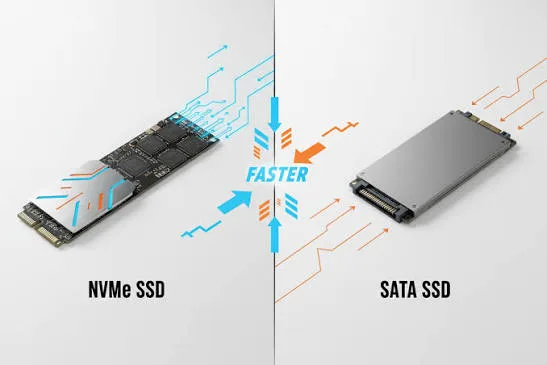
This is the part most buying advice skips over, and it's worth explaining clearly. Both SATA and NVMe SSDs use the same fundamental flash memory storage technology — the genuine difference lies in how that flash memory connects to and communicates with the rest of the laptop.
SATA (Serial ATA) SSDs connect using the same interface standard originally designed for traditional hard drives decades ago. This interface has a genuine, hard physical speed limit — roughly 600 megabytes per second maximum theoretical throughput — because the SATA standard itself was engineered in an era when even the fastest mechanical hard drives couldn't approach this ceiling, so no one anticipated needing more headroom. When SSDs began replacing hard drives, using the existing SATA interface was the practical, immediately compatible choice, but it meant SSD speed was genuinely capped by an interface designed for a much slower predecessor technology.
NVMe (Non-Volatile Memory Express) SSDs use a fundamentally different connection method — typically the PCIe (Peripheral Component Interconnect Express) interface, the same high-bandwidth connection standard used for graphics cards and other demanding internal components. NVMe was specifically designed from the ground up for flash storage's genuine capabilities, without the legacy constraints SATA carries from its hard-drive-era origins. This translates into dramatically higher real-world speed — often 3,000 to 7,000+ megabytes per second, several multiples faster than SATA's hard ceiling.
Why This Speed Difference Genuinely Matters in Daily Use
It's worth translating these abstract numbers into concrete, felt daily experience, since raw throughput figures alone don't convey why this matters practically.
Boot and wake times. An NVMe-equipped laptop genuinely boots from a cold start, or wakes from sleep, noticeably faster than an equivalent SATA SSD configuration — often the difference between waiting several seconds versus feeling nearly instantaneous, a small but genuinely felt daily quality-of-life difference multiplied across every single day of ownership.
Large file transfers. Moving substantial files — video footage for the editors covered in our video editing buying guide, large design files for our graphic design guide's audience, or bulk document transfers for business users — completes considerably faster on NVMe storage, directly saving real, measurable time for anyone regularly working with large files.
Application loading, particularly for demanding software. As detailed in our developers, video editing, and graphic design buying guides, launching resource-heavy applications and loading large project files benefits directly from NVMe's superior throughput, reducing the friction of waiting for software to become responsive.
Multitasking responsiveness under memory pressure. As explained in our dedicated 16GB RAM buying guide, when a system's RAM is genuinely exhausted and begins using storage as an emergency substitute (paging), NVMe's dramatically higher speed makes this fallback scenario meaningfully less painful than it would be on SATA SSD, and vastly less painful than on a traditional HDD.
How to Tell Which Type a Laptop Actually Has
This is genuinely important for Kenyan buyers navigating the refurbished market, since "SSD" alone doesn't specify which type, and the practical performance difference is substantial enough to be worth confirming directly.
Ask your seller directly and specifically. As emphasised throughout our buying checklist guide, always ask whether the storage is SATA or NVMe specifically, not just "SSD" — a knowledgeable, reputable seller should be able to answer this directly.
Check via Windows system tools. The Disk Management or Device Manager utility in Windows can reveal the specific drive model, which can then be looked up to confirm its interface type if the seller's own information is unclear.
Understand that physical drive size can be a rough (though not definitive) hint. NVMe drives are commonly found in the compact M.2 physical format, though M.2 format alone doesn't guarantee NVMe, since some M.2 drives still use the SATA protocol — this is precisely why direct confirmation matters more than physical appearance alone.
Does This Distinction Matter Equally for Every Kenyan Buyer?
It's worth being honest that the practical impact of NVMe versus SATA varies by use case, similar to how our various profession-specific buying guides calibrate recommendations to genuine workload demands rather than applying one universal standard to everyone.
For light, everyday use — browsing, document editing, email — the difference between SATA and NVMe SSD is genuinely less dramatic than the difference between either SSD type and a traditional HDD, meaning buyers with genuinely light workloads shouldn't feel that SATA SSD represents an inadequate compromise.
For the demanding workloads covered throughout our video editing, graphic design, developers, and CAD buying guides, the throughput difference becomes considerably more noticeable and genuinely worth prioritising — large file transfers, project loading, and heavy multitasking all benefit meaningfully from NVMe's superior speed.
For buyers on the tightest budgets, prioritising simply having any genuine SSD over a traditional HDD remains the single most important decision, as emphasised throughout our budget-tier buying guides — the SATA-versus-NVMe distinction is a genuine but secondary refinement once that foundational SSD-versus-HDD decision is settled.
A Concrete Benchmark Comparison: What the Numbers Actually Look Like
It's worth grounding this discussion in specific, illustrative figures rather than only abstract description, since concrete numbers often clarify the practical difference more effectively than qualitative description alone.
| Storage Type | Typical Sequential Read Speed | Typical Sequential Write Speed | Approximate Time to Transfer a 10GB File |
|---|---|---|---|
| Traditional HDD | 80-160 MB/s | 80-160 MB/s | 60-120+ seconds |
| SATA SSD | 450-550 MB/s | 450-550 MB/s | 18-22 seconds |
| Entry NVMe SSD | 1,500-2,000 MB/s | 1,000-1,500 MB/s | 5-7 seconds |
| Modern NVMe SSD | 3,000-7,000+ MB/s | 2,500-6,000+ MB/s | 2-4 seconds |
What this table makes concrete: the jump from HDD to SATA SSD is already dramatic — roughly three to four times faster in this simplified example — but the further jump from SATA SSD to NVMe is, in many cases, an equally large or even larger relative improvement. This is precisely why treating "has an SSD" as the end of the storage conversation, without asking which type, leaves genuine performance on the table for buyers with workloads that would benefit from it.
Real-World Scenario: A Video Editor's Storage Bottleneck, Illustrated
To make this genuinely concrete rather than abstract, consider a scenario directly relevant to our video editing buying guide's audience: a Kenyan content creator working with 4K footage, exporting a ten-minute finished video. On a traditional HDD, the sheer act of reading source footage during editing and writing the final export file can become a genuine bottleneck, with visible stuttering during playback and noticeably long export waits — often minutes longer than the same task on faster storage, compounding across every single project across a working week. On a SATA SSD, this improves substantially, with much smoother playback and meaningfully faster exports. On NVMe storage specifically, the improvement compounds further still, with export times that can be a fraction of the HDD scenario — genuinely translating into more completed projects per week for a professional video editor, precisely the kind of concrete, cumulative time savings our video editing and content creator buying guides emphasise when discussing hardware investment priorities.
Understanding PCIe Generations: Why "NVMe" Alone Doesn't Tell the Whole Story
It's worth one further layer of technical nuance for genuinely curious readers, though this level of detail matters more to enthusiasts and demanding professionals than casual buyers. NVMe drives connect via PCIe, and PCIe itself has evolved through multiple generations (commonly PCIe 3.0 and PCIe 4.0 in laptops relevant to Kenya's refurbished market), each roughly doubling the maximum theoretical bandwidth available to the connected drive. This means two drives both genuinely described as "NVMe" can still differ meaningfully in real-world speed depending on which PCIe generation they and the laptop's motherboard support — a further, secondary refinement beyond the basic SATA-versus-NVMe distinction this piece primarily addresses, worth knowing about if you're specifically comparing multiple NVMe-equipped configurations for a demanding professional workload rather than choosing between NVMe and SATA as the primary decision.
Storage Upgrades: Can You Add NVMe Storage to an Older Laptop?
This is worth addressing directly, since it's a genuinely practical question for buyers considering a refurbished laptop with SATA storage and wondering about future upgrade paths. Whether a laptop supports adding or upgrading to NVMe storage depends entirely on whether its motherboard includes a genuine PCIe-connected M.2 slot, a hardware feature that must be physically present on the laptop's board — this isn't something that can be added to a laptop that wasn't originally designed with this capability. Many business laptops from the mid-2010s onward, including several ThinkPad, EliteBook, and Latitude generations covered throughout our catalog, do include this capability, making a storage upgrade to NVMe a genuine, practical option worth asking your seller about directly if you're considering a unit with SATA storage but want the flexibility to upgrade later.
The Broader Pattern: Why Understanding Interface Standards Matters Beyond Just Storage
It's worth noting that this SATA-versus-NVMe distinction reflects a broader pattern worth understanding across computer hardware generally: the underlying component technology (flash memory, in this case) often advances faster than the connection standards built around it, creating exactly this kind of situation where two products can share the same basic label ("SSD") while offering meaningfully different real-world performance based on how they connect to the rest of the system. This same principle applies to other hardware distinctions covered throughout our buying guides — understanding the specific interface or generation, not just the broad category label, is consistently the deeper, more reliable way to evaluate genuine hardware capability.
Frequently Asked Questions
Is NVMe always better than SATA SSD, or are there trade-offs? NVMe is genuinely faster in virtually every practical measure, though SATA SSD remains vastly superior to a traditional HDD and entirely adequate for lighter everyday computing — the "trade-off," where one exists, is typically price rather than any genuine downside to NVMe's performance itself.
How can I tell if my current laptop has SATA or NVMe storage? Check via Windows' Device Manager or Disk Management utility, which will show the specific drive model — this can then be looked up online to confirm its exact interface type if not immediately obvious from the model name.
Is it worth paying more for a refurbished laptop specifically because it has NVMe rather than SATA SSD? Worth it if your workload involves the demanding tasks covered throughout our video editing, developer, and design-focused buying guides; less critical if your use is genuinely light, everyday computing where the SSD-versus-HDD distinction matters far more than the specific SSD type.
Can I upgrade a SATA SSD laptop to NVMe myself? Only if the laptop's motherboard includes a genuine PCIe-connected M.2 slot — this is a hardware capability that must have been designed into the laptop originally, not something addable to any laptop regardless of age or model.
Does NVMe storage affect battery life differently than SATA SSD? Marginally — NVMe drives can draw slightly more power during intensive use, though the difference is generally small relative to other laptop components and rarely a decisive factor in overall battery life compared to screen brightness, processor load, or dedicated graphics use.
Is it easy to confirm SATA vs NVMe when buying a refurbished laptop in Kenya? Yes, when buying from a reputable seller — City Gadgets Kenya can confirm exact storage type and specifications directly, part of the same transparent specification disclosure emphasised throughout our buying checklist guide.
Does PCIe generation matter as much as the SATA vs NVMe distinction itself? Generally less so for most buyers — the jump from SATA to any NVMe drive is the larger, more universally noticeable improvement; PCIe generation differences within NVMe drives matter primarily to demanding professionals already benefiting from NVMe's baseline speed advantage.
Will upgrading from SATA to NVMe storage genuinely improve my laptop's overall speed, or just file transfers? Both — while file transfer speed is the most obvious benefit, overall system responsiveness (application launching, multitasking under memory pressure, and general day-to-day snappiness) genuinely improves too, since storage speed affects far more of a computer's operation than simply moving files between folders.
Is there a price premium for NVMe-equipped refurbished laptops in Kenya compared to SATA SSD equivalents? Often a modest premium exists, reflecting NVMe's generally newer, more advanced technology and typically appearing in slightly more recent laptop generations — worth weighing against your specific workload needs as detailed throughout this piece.
Should budget-conscious buyers worry about this distinction, or focus purely on getting any SSD? For genuinely tight budgets, prioritising any SSD over a traditional HDD remains the single most important decision, as emphasised throughout our budget-tier buying guides — the SATA-versus-NVMe refinement matters more once that foundational choice is already secured.
Shop Laptops With Confirmed Storage Specifications at City Gadgets Kenya
Every laptop at City Gadgets Kenya has its exact storage type and capacity confirmed and clearly stated, and is backed by a genuine 6-month warranty. Browse our laptops category or message us on WhatsApp to confirm the exact storage specification that matters for your workload.