
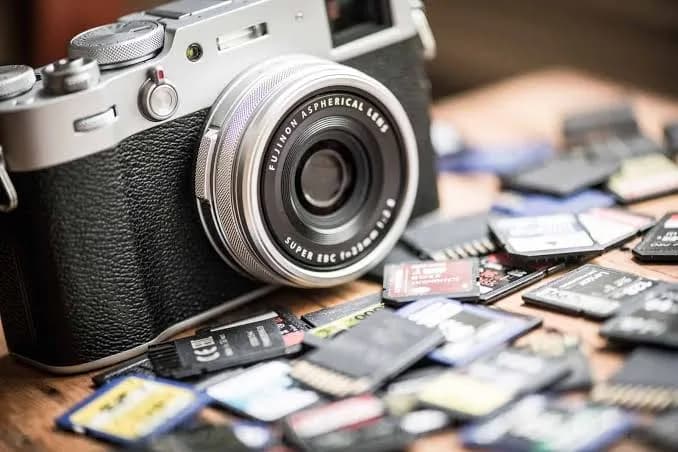
Turn over almost any microSD card and you will see a small collection of symbols: a "10" inside a C, a "U3" in a tick-like shape, "V30", "A2", "UHS-I" and a capacity figure. These marks are microSD speed classes, and they tell you what the card can do. They also tell you what it cannot do, which is why buying the wrong class gives you dropped video, slow apps or a card that stops recording in the middle of a drone flight.
This guide explains each symbol in plain language, which class you need for phones, action cameras, drones, dashcams, security cameras and gaming handhelds, and how to spot a fake card. We are City Gadgets Kenya, at New Alnoor Exhibition, Second Floor, Shop C7, Accra Road, Nairobi CBD, with same-day Nairobi delivery and next-day delivery outside Nairobi. Message us on WhatsApp for today's price on memory cards.
The short version
- Class 10, U1 and U3 describe the minimum sustained write speed, which matters for video recording.
- V30 is a video speed class meaning a minimum sustained write speed of 30 MB/s. V60 and V90 are higher.
- A1 and A2 are application performance classes. They describe random read and write performance for running apps from the card.
- UHS-I and UHS-II describe the bus interface. UHS-I is the common one for microSD cards.
- The headline "up to" speed on the package is a maximum read speed, not a guarantee of what you get when recording.
- Capacity is separate from speed. A big card can be slow, and a small card can be fast.
- Fake cards are common. A card that claims 512 GB or 1 TB for a tiny price is almost certainly fake.
| Mark | What it describes | Typical use |
|---|---|---|
| Class 10 | Minimum sustained write of 10 MB/s | Full HD video, general use |
| U1 | Minimum sustained write of 10 MB/s | Full HD video |
| U3 | Minimum sustained write of 30 MB/s | 4K video |
| V30 | Minimum sustained write of 30 MB/s | 4K video |
| V60 | Minimum sustained write of 60 MB/s | High bit-rate 4K, some 8K |
| V90 | Minimum sustained write of 90 MB/s | Professional video |
| A1 | App performance, lower tier | Apps on phones and handhelds |
| A2 | App performance, higher tier | Faster app loading, gaming handhelds |
Why speed classes exist
A memory card has two jobs: store data and move it quickly. Different devices need different speeds. A phone saving photos does not need the same speed as a drone recording high-bit-rate 4K video. If a card cannot write fast enough, a camera drops frames, stops recording or shows an error. If a card is slow at small random reads and writes, apps feel sluggish.
The speed class system gives manufacturers a way to promise a minimum speed, and gives you a way to choose a card that meets your device's needs. Understanding it saves money, because you do not need to buy the most expensive class for every task.
Speed Class (the "C" mark): Class 2, 4, 6 and 10
The oldest marking is the Speed Class, shown as a number inside a letter C. Class 10 means the card guarantees a minimum sustained write speed of 10 MB/s. Lower classes (2, 4, 6) guarantee 2, 4 and 6 MB/s. Class 10 is the most common today, and it is suitable for Full HD video recording and general use.
The key word is minimum sustained write. It is not the top speed. It is the speed the card can maintain while recording without dropping below it. That is why it matters for video.
UHS Speed Class (the "U" mark): U1 and U3
The UHS Speed Class is shown as a number inside the letter U. U1 means a minimum sustained write of 10 MB/s, the same as Class 10. U3 means 30 MB/s. U3 is the class you want for 4K video recording in many phones and cameras. If your device manual says "U3 recommended", buy U3 or better.
Video Speed Class (the "V" mark): V6, V10, V30, V60 and V90
The Video Speed Class was introduced for higher resolution video. The number is the minimum sustained write speed in MB/s.
| Video class | Minimum sustained write | Typical use |
|---|---|---|
| V6 | 6 MB/s | Standard definition |
| V10 | 10 MB/s | Full HD |
| V30 | 30 MB/s | 4K |
| V60 | 60 MB/s | High bit-rate 4K, some 8K |
| V90 | 90 MB/s | Professional 8K and high frame-rate video |
For a typical action camera, drone or phone recording 4K video, V30 is the sweet spot. V60 and V90 cards are mostly for professional cameras and very high bit-rate recording. Many are UHS-II cards, which need a compatible device to reach their full speed.
Application Performance Class: A1 and A2
The A mark is different. It describes performance for running apps from the card, which relies on random reads and writes of small chunks of data, measured in IOPS (input/output operations per second). Sequential speed, the measure used for video, is a different thing.
- A1: minimum 1,500 random read IOPS and 500 random write IOPS.
- A2: minimum 4,000 random read IOPS and 2,000 random write IOPS.
Why does this matter? If you install apps or games on a microSD card, such as on an Android phone with adoptable storage, on a handheld gaming device or on a tablet, an A2 card feels faster. A2 performance, however, can depend on device support. Some older devices do not support the features that A2 cards need, and the card then performs like an A1. We confirm per unit what your device supports.
For video recording, the A mark makes little difference. Choose the V or U class for that.
UHS-I, UHS-II and UHS-III: the bus
The UHS bus describes the electrical interface between the card and the device. It sets a ceiling on how fast data can travel.
| Bus | Theoretical maximum | Notes |
|---|---|---|
| UHS-I | Up to 104 MB/s | Most common on microSD |
| UHS-II | Up to 312 MB/s | Extra pins, needs a compatible device |
| UHS-III | Up to 624 MB/s | Rare on microSD |
A UHS-II card in a UHS-I device still works, but at UHS-I speeds. So paying for UHS-II makes sense only if your device supports it. Most phones, drones and action cameras use UHS-I.
What "up to 170 MB/s" on the package really means
The big number on a package is usually maximum read speed. Cards also have a write speed, often lower, and a sustained write speed that is lower still and varies with the card's condition. Marketing prefers the biggest number.
When you read a package, look for:
- The class marks (U3, V30, A2), which are guaranteed minimums.
- The write speed if listed.
- The capacity and the format (microSDHC, microSDXC).
- The brand and model so you can look up independent reviews.
A card that says "up to 100 MB/s" and carries only a Class 10 mark may not sustain 100 MB/s writing. It may be perfectly fine for photos and Full HD video, but not for sustained 4K.
Capacity and card types: microSD, SDHC, SDXC and SDUC
Capacity and card type go together.
| Type | Capacity range | Default format |
|---|---|---|
| microSD | Up to 2 GB | FAT |
| microSDHC | Over 2 GB to 32 GB | FAT32 |
| microSDXC | Over 32 GB to 2 TB | exFAT |
| microSDUC | Over 2 TB to 128 TB | exFAT |
A device must support the card type. Older devices that support only microSDHC cannot read microSDXC cards properly. Always check your device's maximum supported capacity. Our guide on exFAT, FAT32 and NTFS explained covers the file system side in depth.
Which microSD card for which device?
| Device | What it needs | Suggested class |
|---|---|---|
| Android phone (photos, files) | Reliable, moderate speed | Class 10 / U1, A1 or better |
| Android phone (4K video) | Sustained write | U3 / V30 |
| Phone with apps on the card | Random performance | A2, U3 |
| Action camera (4K) | Sustained write, heat tolerance | U3 / V30, A2 |
| Drone (4K) | Sustained write, reliability | U3 / V30 |
| Dashcam | Endurance, constant rewriting | High-endurance card |
| Security camera | Endurance, 24/7 recording | High-endurance card |
| Nintendo Switch and handhelds | Fast loading | UHS-I, U3, A1 or A2 |
| Raspberry Pi | Random performance | A1 or A2, reliable brand |
| Tablets and e-readers | General use | Class 10 / U1 |
Always follow your device's manual. If the manual recommends a certain class, treat it as a minimum.
Phones
For everyday phone use, a Class 10 or U1 card is enough for photos, music and files. If your phone records 4K video, choose U3 or V30. If you plan to install apps or games on the card, choose A2 if your phone supports it. Remember that many modern phones have no microSD slot, so check yours first.
Action cameras and drones
These record high bit-rate video for long periods, and the card gets warm. Choose a reputable U3 / V30 card, and format it in the device before use. A card that is slow or unreliable can corrupt a recording, which is painful if the footage was a once-only moment. For drones, a card failure mid-flight can mean lost footage. Buy from a seller you trust.
Dashcams and security cameras
These write constantly, overwriting old footage in a loop. Standard cards wear out under this workload. High-endurance cards are designed for continuous recording, with cells and firmware tuned for long life. Using a regular card in a dashcam is one of the most common reasons for card failure. Choose a high-endurance card and replace it every year or two if the camera records constantly, and check the footage occasionally to be sure it is recording.
Nintendo Switch and gaming handhelds
Consoles and handhelds generally need a card that supports UHS-I. For Nintendo Switch, a U1 or U3 card is typical. A larger capacity helps store more games. Check your device's supported capacity and format. Our consoles category lists consoles and handhelds, and we confirm per unit what they support.
Raspberry Pi and single-board computers
An operating system running from a microSD card relies heavily on random read and write performance, so an A1 or A2 card from a good brand makes a big difference. Reliability matters more than raw sequential speed. Cheap cards often fail after months of use.
Choosing the right capacity
Do not buy the biggest card by default. Consider:
- How much you really need. A 64 GB card is enough for most phone users, a 128 GB card suits people who record video, and larger cards suit heavy users.
- Your device's limit. Check the maximum supported capacity.
- Backups. A bigger card means more at risk if it fails. Back up important files regularly.
- File system. Large cards use exFAT by default. Some older devices do not read exFAT.
We confirm per unit the capacity and speed class of each card in stock. Message us for today's price.
Sequential speed vs random speed
Think of reading a book. Sequential speed is how quickly you can read from the first page to the last. Random speed is how quickly you can open the book at random pages. Video recording is mostly sequential, which is why the U and V classes matter. Running apps is mostly random, which is why the A class matters.
A card can be good at one and poor at the other. Some cheap cards have decent sequential speed but poor random performance, which makes apps slow. Some cards have excellent random performance but only moderate sustained writing. Understanding the difference helps you buy the right card for the job.
Speed vs price
Higher classes cost more. You should pay for the speed you will use, not the speed on the box.
- If you only store photos and music, a Class 10 card is fine.
- If you record 4K video, pay for U3 / V30.
- If you use the card as app storage, pay for A2.
- If you record constantly, pay for endurance.
- If you use a pro camera, pay for V60 or V90 and a matching reader.
Overbuying wastes money. Underbuying causes errors and lost footage. Ask us for today's price on the class that suits your device, and we will tell you plainly if a cheaper card will do.
Card readers and transfer speed
A fast card is only as fast as the reader. A cheap USB 2.0 reader limits transfers to a fraction of what the card can do. For UHS-I cards, a USB 3.0 reader is a good match. For UHS-II cards, you need a UHS-II reader. Many laptops have built-in SD readers, and microSD cards need an adapter. Our guide on USB versions naming confusion explained helps you choose a reader and cable that do not bottleneck the card. See the accessories category for readers.
Formatting and care
- Format in the device. Use the device's own format function, not only the computer, to set the right file system and cluster size.
- Eject safely. Remove cards only after the device finishes writing.
- Do not fill to the brim. A nearly full card can slow down and cause errors.
- Keep it cool and dry. Heat, moisture and static damage cards.
- Keep it in a case. microSD cards are small and easy to lose or bend.
- Back up often. All memory cards eventually fail.
- Replace old cards. Flash memory has finite write cycles.
Common problems and fixes
"Card is slow". Check the class, the reader and the file system. Format it in the device. If it is old, it may be worn out.
"Camera says card error". Try formatting in the camera. If errors continue, replace the card and copy off any footage you can.
"Phone does not see the card". Check that the card is seated properly, that the phone supports the capacity, and try another reader to test the card.
"Card shows less capacity than advertised". Cards use decimal gigabytes, while computers often report binary, so a 64 GB card shows about 59 GB. If it shows far less, it may be fake.
"Video recording stops after a few minutes". The card may not sustain the write speed, or it may be overheating, or it is fake.
"Files disappear or corrupt". This is a classic sign of a fake or failing card. Stop using it and back up what remains.
Example scenarios
These scenarios are illustrative, not customer records.
A drone pilot recording 4K. Buys a U3 / V30 card from a reputable brand, formats it in the drone, carries a spare and offloads footage after each flight.
A shop owner with a security camera. Replaces a standard card that keeps failing with a high-endurance card, and sets a reminder to check the recording monthly.
A student with a low-cost Android phone. Uses a Class 10 card for music and photos and does not pay for speeds the phone cannot use.
A gamer with a handheld. Buys a larger UHS-I card with A2, checks that the handheld supports the capacity, and keeps the most-played games on it.
A hobbyist with a Raspberry Pi. Chooses an A1 or A2 card from a known brand and keeps a backup image of the operating system.
microSD vs other storage options
A microSD card is convenient, but it is not always the best choice.
| Option | Strengths | Limits |
|---|---|---|
| microSD card | Cheap, tiny, removable | Slower, can fail, easy to lose |
| USB flash drive | Plug-and-play on computers | Bulkier, variable quality |
| External SSD | Fast, durable | Costs more |
| Cloud storage | Accessible anywhere | Needs data and subscription |
| Internal storage | Fastest, built-in | Fixed capacity |
For important footage, such as weddings or events, we recommend recording to a reliable card and copying it to two places immediately after the event. Cards are not archives. Browse our accessories category for cards, readers and storage options.
How to test your card's real speed
You do not have to trust the package. A simple test tells you what your card actually does.
- Copy a large file. Copy a file of around 1 GB to the card and time it. Divide the size by the seconds to estimate write speed. This is rough, but it shows whether the card is in the right range.
- Use a benchmark tool. Free tools such as CrystalDiskMark on Windows, or similar utilities on other systems, measure sequential and random speeds. Compare the results with the class marks. A U3 card should sustain at least 30 MB/s writing, and an A2 card should show strong random performance on a device that supports it.
- Test in the actual device. Record a few minutes of the highest quality video your camera supports. If it stops, drops frames or shows an error, the card is not suitable.
- Test the full capacity. Fill the card with test data and read it back to check for errors. This takes time, but it catches fake capacity.
Do these tests soon after buying, while you can still return the card if it fails.
Understanding wear and endurance
Flash memory cells wear out after a number of write cycles. Consumer microSD cards use cells that tolerate fewer cycles than high-endurance ones. For a phone used occasionally, wear is not a concern for years. For a dashcam or security camera that rewrites the entire card repeatedly, wear becomes the main failure cause.
High-endurance cards are designed and tested for long recording hours, with ratings such as thousands of hours of full HD video. They cost more than ordinary cards of the same capacity, but they last longer in demanding use. A larger capacity also spreads writes over more cells, which helps lifespan. We confirm per unit the endurance rating on each card.
Signs that a card is wearing out include slow write speeds, files that will not save, random errors, and a device that reports the card as read-only. When you see these signs, copy off your data and replace the card.
Data recovery basics
If a card stops working, stop using it immediately. Writing more data can overwrite what you want to recover. Try the card in another reader or computer. If it is recognised but files are missing, recovery software may help, and the earlier you try the better. If the card is physically damaged or not recognised at all, professional recovery is a possibility but is not guaranteed. The best protection is backup: copy important photos and videos to a second place as soon as you can.
Environmental factors
microSD cards are tough for their size, but not indestructible. Many are rated as waterproof, shockproof, temperature-proof and X-ray-proof, and this is helpful, but it does not make them immune to wear or to being lost. Dry them off before use after exposure to water, avoid extreme heat in cars, and keep them away from strong magnets and static. A card in a drone or action camera also experiences vibration, so choose a card from a brand that tests for it.
Reading a card label, line by line
Imagine a card that carries these marks: "microSDXC", "128 GB", "UHS-I", "U3", "V30", "A2", "Class 10" and "up to 170 MB/s". Here is the translation.
- microSDXC and 128 GB: a card in the large-capacity family, using exFAT by default.
- UHS-I: the bus type, with a ceiling of roughly 104 MB/s in theory, which is lower than the "up to" figure may suggest. Real read speeds on UHS-I cards often come close to that ceiling.
- U3 and V30: at least 30 MB/s sustained writing, so it can handle 4K video.
- A2: strong app performance on supported devices.
- Class 10: at least 10 MB/s sustained, which is already covered by the higher marks.
- "Up to 170 MB/s": a maximum read speed. Check whether the card genuinely supports it in your device. If a card labelled UHS-I claims a speed beyond the UHS-I ceiling, it is worth checking the brand and the claim with care. We confirm per unit.
When several marks appear together, the most demanding one tells you the most. Do not be misled by a long list of symbols. A card with many marks is not necessarily better than a card with the right marks for your device.
Mistakes people make when buying microSD cards
- Buying by capacity alone. A huge, slow card frustrates 4K recording.
- Ignoring the device limit. A phone that supports 256 GB may not read a 1 TB card.
- Using a regular card in a dashcam. It often fails within months.
- Trusting the lowest price. If it looks too cheap, it often is a fake.
- Skipping the format. Always format a new card in the device that will use it.
- Not backing up. Cards fail, and the footage is gone.
- Using a slow reader. The card is blamed for a bottleneck in the reader.
- Buying from roadside sellers with no receipt and no returns.
- Mixing up SD and microSD adapters. Use a proper adapter and check it fits.
- Never testing. Test your card soon after buying.
How to spot a fake microSD card
Fake microSD cards are among the most common counterfeits. A typical fake is a small, slow card with firmware that lies about its capacity. It reports 512 GB or 1 TB to your computer, accepts files until the real capacity fills, then silently overwrites or loses data. Use these ten checks.
- Suspiciously low price. A name-brand 512 GB or 1 TB card at a fraction of the normal price is almost certainly fake.
- Capacity test. Use a verification tool such as H2testw (Windows), F3 (Linux and macOS) or similar to write and read back data across the full capacity. A fake fails the test.
- Speed test. Run a benchmark. A card marked U3 / V30 that only writes at 5 MB/s is not what it claims.
- Printing quality. Genuine cards have crisp, accurate printing. Blurry text, smudges, wrong fonts and misaligned logos are red flags.
- Package quality. Look at the blister pack or box. Poor printing, misspellings and flimsy materials are suspicious.
- Serial and batch codes. Genuine cards often have serial or batch numbers on the packaging or card. Check that the format looks consistent with the brand.
- Pins and edges. The contacts should be clean and evenly finished. Rough edges or uneven gold contacts suggest poor manufacturing.
- Brand verification. Some brands provide verification pages or apps. Use them.
- Check reported capacity vs expected. A genuine 64 GB card shows about 59 to 60 GB in Windows. A 128 GB card shows about 119 GB. Wrong numbers are a warning.
- Seller reliability. Roadside sellers, unverified online shops and sellers with no shop address, no receipt and no return policy are high risk.
If you are unsure, bring the card to us at New Alnoor Exhibition, Second Floor, Shop C7, Accra Road. We can help you test it, and we will not claim a fake is genuine.
Why buy your microSD card from City Gadgets Kenya
- Genuine products, checked before they reach you.
- Clear class and capacity information, with "we confirm per unit" wherever a spec can vary.
- A real shop at New Alnoor Exhibition, Second Floor, Shop C7, Accra Road, Nairobi CBD.
- Same-day delivery in Nairobi and next-day delivery outside Nairobi.
- M-Pesa payment and clear receipts.
- Honest advice, including telling you when a cheaper class is enough.
- Compatible devices: see our phones and consoles categories.
- Support and our repair service.
- WhatsApp help on +254745575931.
Quick buying checklist
- I know my device's required class and maximum capacity.
- I chose U3 / V30 for 4K video, or high endurance for constant recording.
- I chose A2 if I run apps from the card and my device supports it.
- I checked the card reader speed.
- I checked the packaging and printing.
- I will test the card's capacity and speed after buying.
- I have a receipt and know where to go for support.
- I have a backup plan for important files.
Frequently asked questions
What does U3 mean on a microSD card? A minimum sustained write speed of 30 MB/s, suitable for 4K video in many devices.
Is V30 the same as U3? They both guarantee 30 MB/s minimum sustained write, but they come from different class systems. For practical purposes, they are equivalent for 4K.
What does A2 mean? A higher tier of application performance, with better random read and write, useful for running apps from the card.
Is Class 10 good enough? For photos, music and Full HD video, yes. For 4K, choose U3 / V30.
Do I need UHS-II? Only if your device and reader support it and you need very high speeds.
Why does my 128 GB card show 119 GB? Decimal vs binary measurement. This is normal.
Can I use a microSD card in a dashcam? Yes, but use a high-endurance card.
Will a faster card make my phone faster? Not for most tasks. It helps with 4K video and with apps on the card.
How do I know if my card is fake? Use the ten checks above and test it with a verification tool.
How long do microSD cards last? It varies by use and quality. Back up important files and replace cards that are old or show errors.
Where can I buy a genuine microSD card in Nairobi? At City Gadgets Kenya, Shop C7, Second Floor, New Alnoor Exhibition, Accra Road.
Ready to choose a card?
Tell us your device and what you will record or store, and we will recommend the right class and capacity. Message us on WhatsApp or visit the shop.
Related reading: exFAT, FAT32 and NTFS explained · USB versions naming confusion explained · USB-C cable types, speeds and watts








