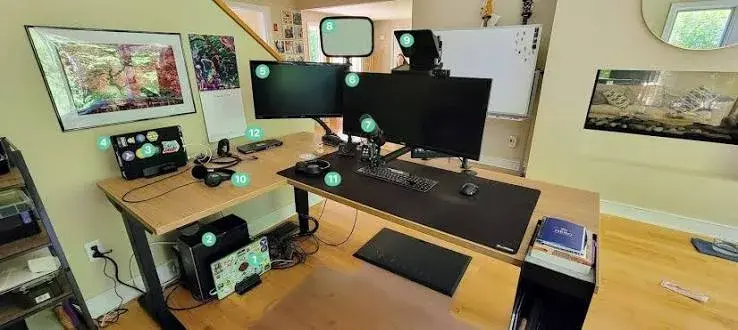
Working from home is now normal for many people in Nairobi, Mombasa, Kisumu and beyond: consultants, accountants, designers, developers, teachers, customer-support agents, small-business owners and students. But a laptop on a dining table with a phone propped against a water bottle is not a home office. It is a recipe for a sore neck, poor video calls and lost work when the power flickers. This guide to home office setup in Kenya walks you through every layer of a good setup, from the desk and chair to the monitor, keyboard, webcam, power backup and data safety, with honest advice on where to spend and where to save.
We are City Gadgets Kenya, at New Alnoor Exhibition, Second Floor, Shop C7, Accra Road, Nairobi CBD. We stock laptops, monitors, keyboards, mice, webcams, headsets, hubs, storage and power accessories, with same-day delivery in Nairobi and next-day delivery outside Nairobi. Specifications are described "per the maker", and we confirm details per unit. Prices change, so message us on WhatsApp for today's price.
The short version
- Start with comfort, not gadgets. A good chair, a desk at the right height and a monitor at eye level matter more than any single device.
- Add a second screen if you work in spreadsheets, documents or code. It is the biggest productivity upgrade for the money.
- Use a proper keyboard and mouse. Your laptop's built-in ones are for travel, not for eight hours a day.
- Fix your video calls with a webcam, a headset and light from the front.
- Protect your work with a backup drive and a UPS or power backup, because outages and surges are real.
- Buy genuine accessories, because counterfeit chargers, hubs and memory are common.
| Layer | Essential | Comfortable | Premium |
|---|---|---|---|
| Screen | Laptop on a stand | One external monitor | Two monitors or a larger monitor |
| Input | Wireless mouse and keyboard | Keyboard and mouse combo | Logitech MX Keys S and an ergonomic mouse |
| Calls | Headset | Webcam and headset | Webcam, headset and a lighting setup |
| Connectivity | Cable and adapter | USB-C hub | Dock or hub with wired internet |
| Safety | Flash drive backup | Portable drive backup | Portable SSD plus cloud backup, and a UPS |
Step 1: The space, desk and chair
Choose a space you can leave
If possible, use a corner or room you can close the door on. Working from your bed or sofa blurs rest and work, and it is bad for your back. If space is tight, a fold-away desk or a corner table is better than nothing.
Desk height and depth
A standard desk is about 72 to 75 cm high. Your forearms should rest roughly parallel to the floor when typing, with elbows near 90 degrees. If the desk is too high, raise your chair and use a footrest. If it is too low, add risers. Make sure the desk is deep enough to put the monitor at least an arm's length away.
The chair
A chair that supports your lower back, with adjustable height, is a worthwhile investment. Your feet should rest flat on the floor, your knees about level with your hips, and your back supported. If you cannot afford a premium office chair, add a firm cushion or lumbar roll to a basic chair, and take breaks often.
Lighting the room
Light your workspace so the screen is not facing a bright window directly behind or in front of you. Window light from the side is ideal for video calls. Add a desk lamp so you are not working in a dim room with a bright screen, which tires the eyes.
Step 2: The computer
Your laptop or desktop is the heart of the setup. A few principles help.
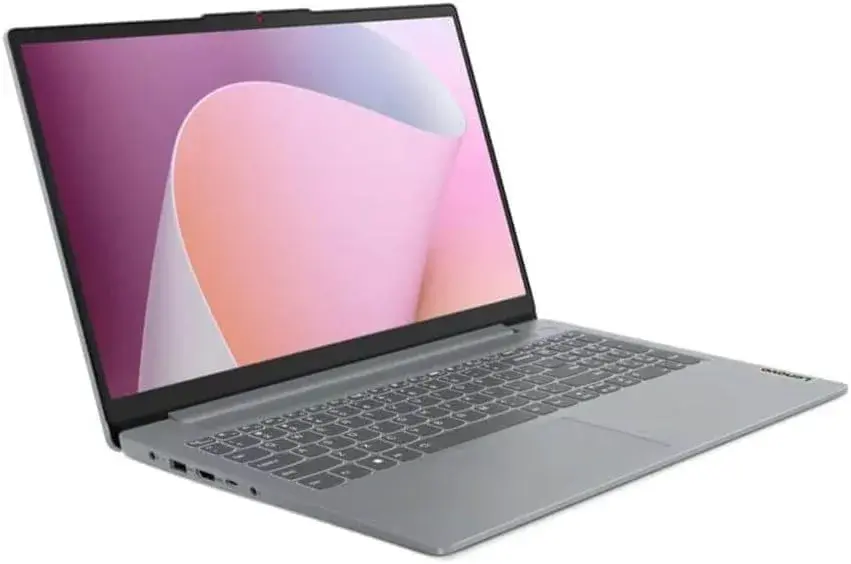
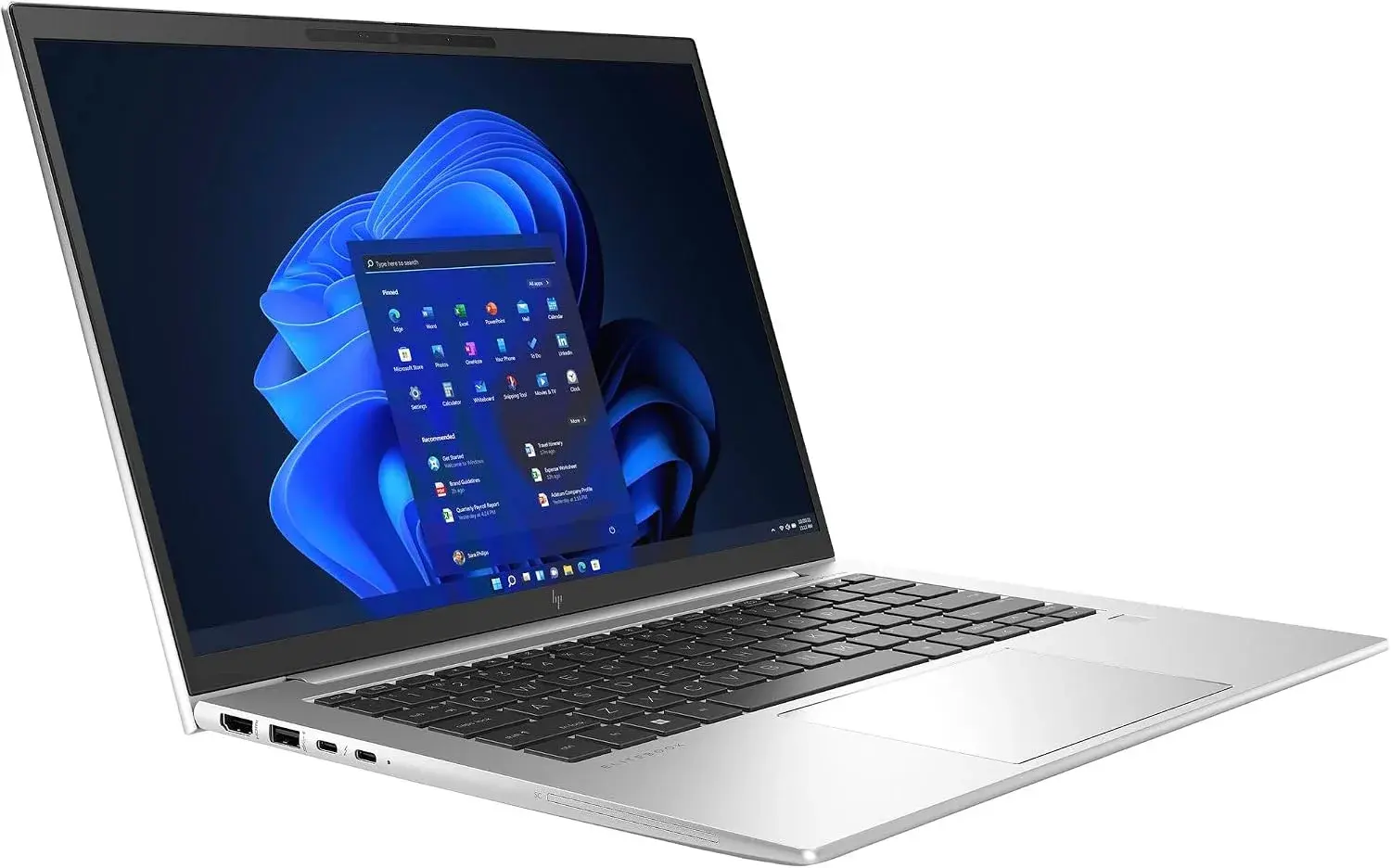
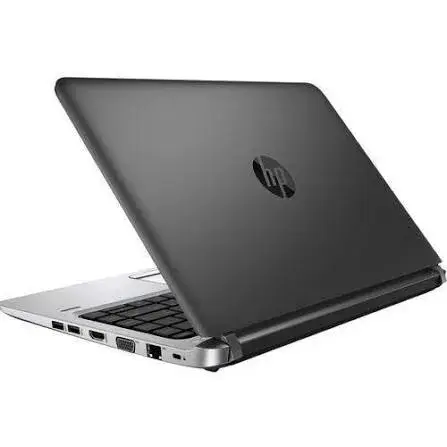
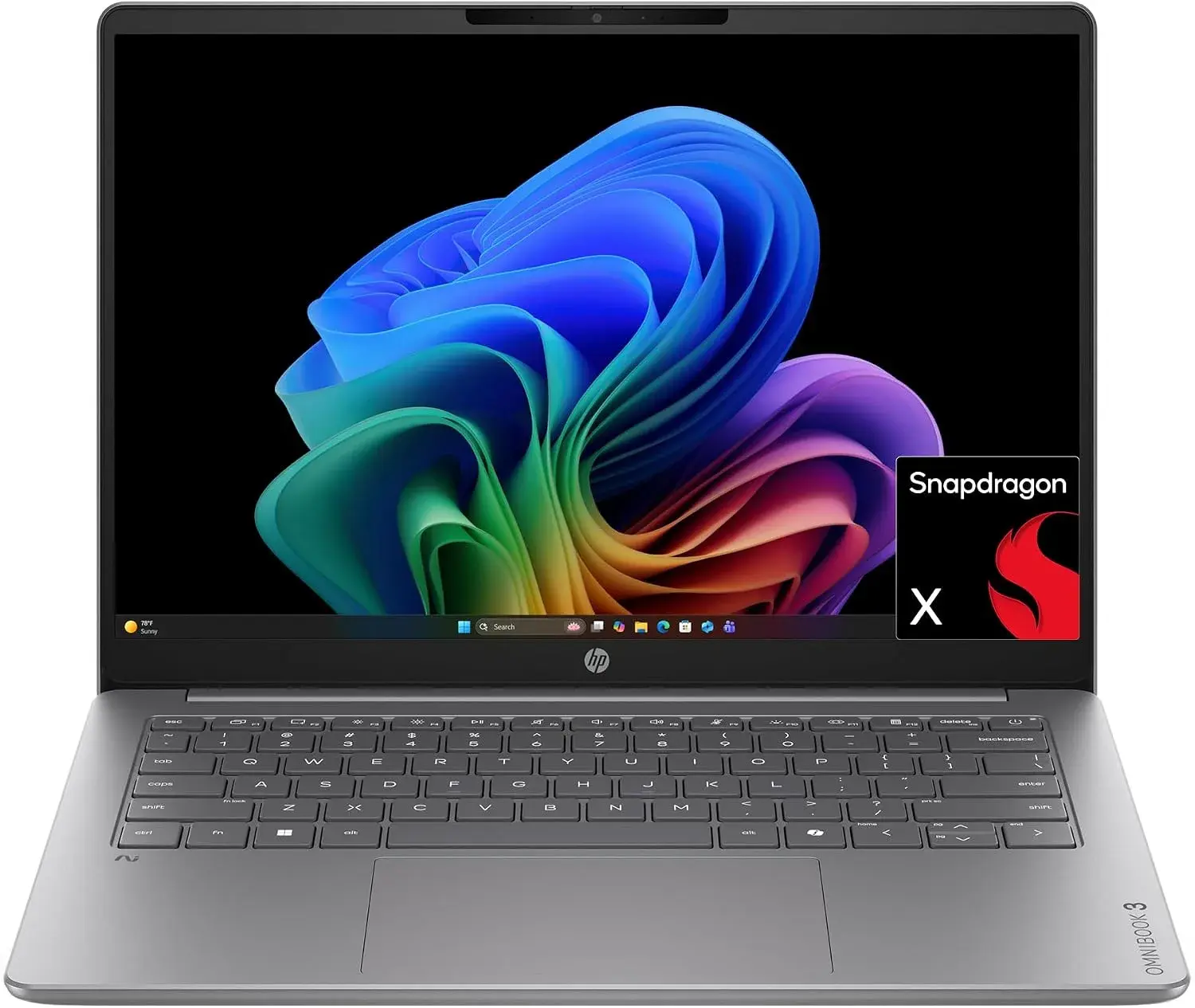
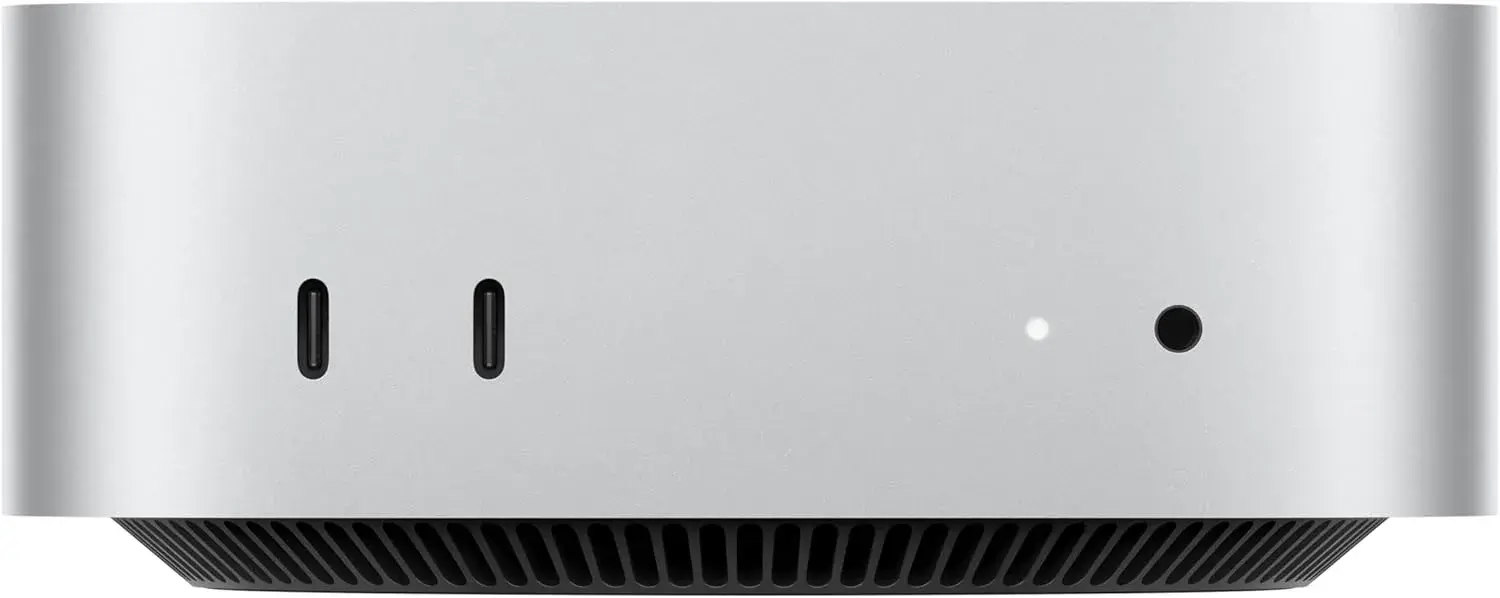
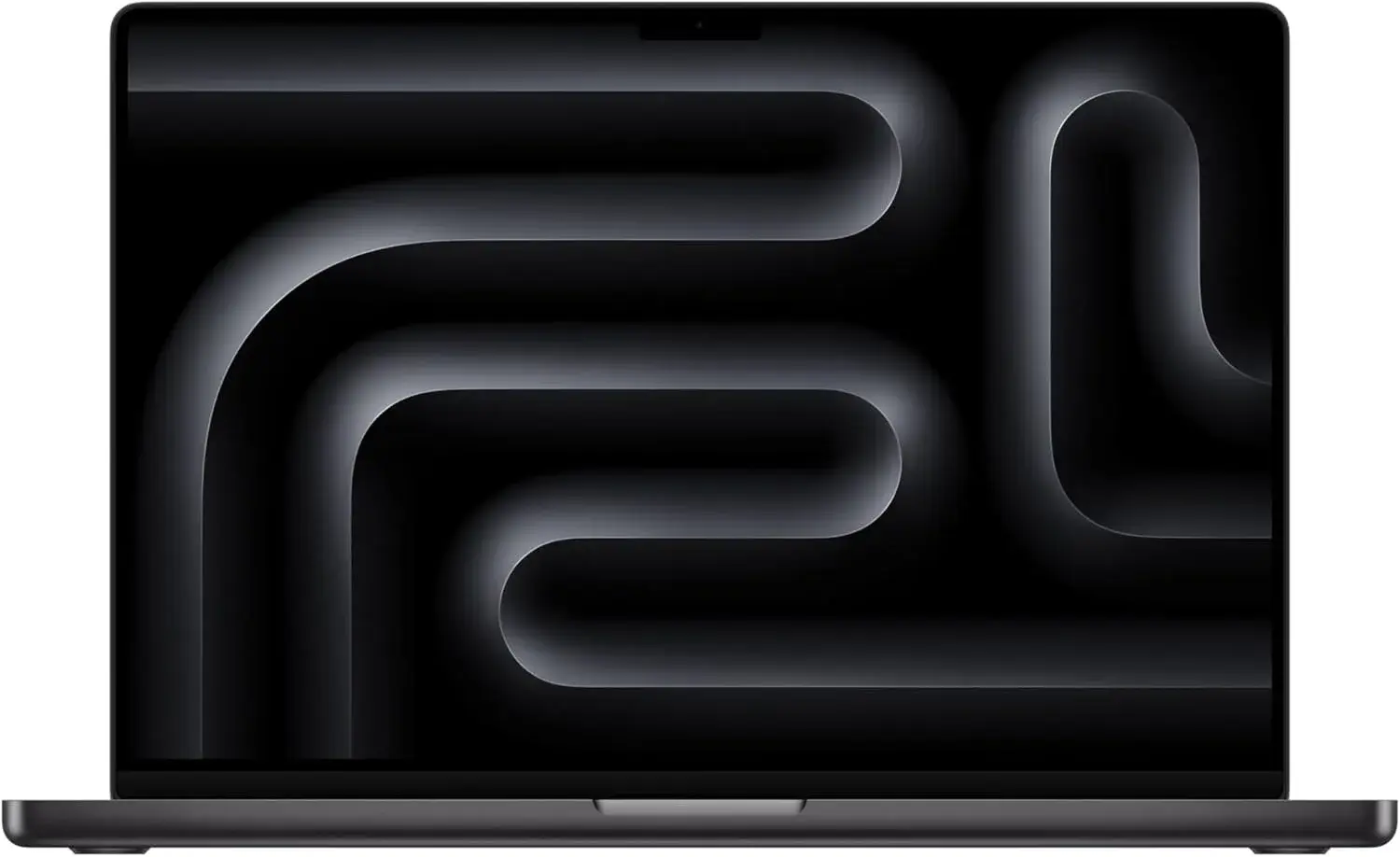
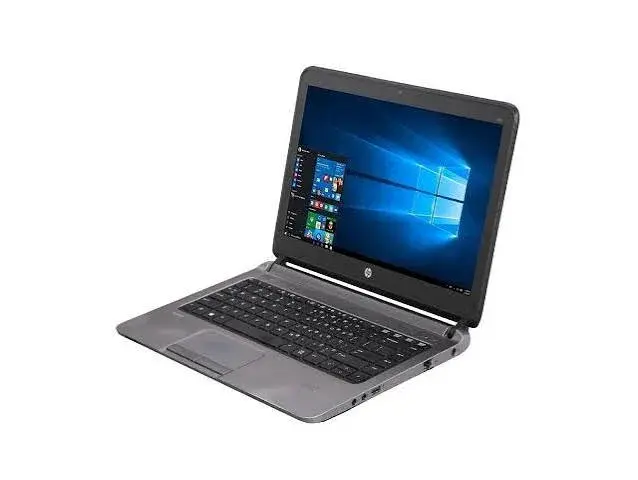
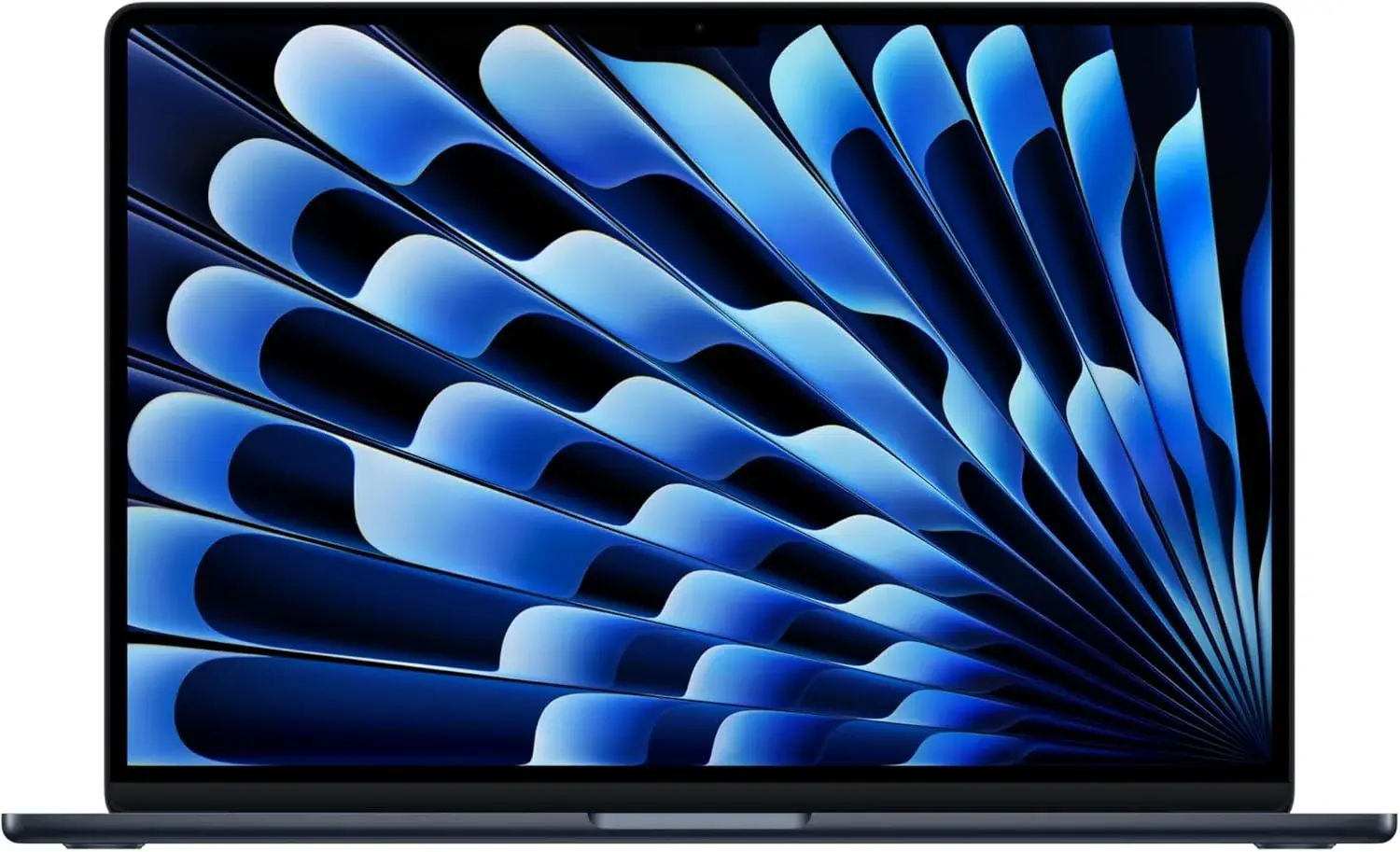
Match the machine to the work. Documents, email, web apps and video calls need a reliable modern laptop with enough memory and a solid-state drive. Heavy spreadsheets, development, design or video editing need more power. We confirm the exact specifications per unit, and our team can advise on processor generation, memory and storage. See our laptops category.
Prefer an SSD. A solid-state drive makes everything feel faster, from start-up to opening files.
Memory matters. More memory helps with many browser tabs and multitasking.
Check ports. Thin laptops with only USB-C ports need a hub, which we cover below.
Consider warranty and repairs. A laptop is your livelihood. A seller with a real shop and a repair service is worth more than a few shillings saved. Our repair service is available if something goes wrong.
Step 3: The monitor
If you buy one thing beyond the laptop, make it a monitor.
Why: a laptop screen is small and sits too low, so you hunch. An external monitor lets you raise the screen to eye level, see more at once and reduce neck strain.
Size and resolution. For most home offices, a 24 to 27 inch full HD IPS monitor is a sensible choice. Models in our range include the Dell P2425H (23.8 inch, full HD IPS, 100 Hz, with a USB hub and ComfortView Plus eye-comfort feature, per Dell), the Dell SE2425HM, the HP Series 5 monitors (IPS, 100 Hz, per HP) and the Lenovo ThinkVision E24-40. We confirm the exact specifications per unit. See our monitors category.
Panel type. IPS panels offer good viewing angles and colours, which suits office work. Read our IPS vs VA vs OLED explained article.
Refresh rate. 60 Hz is fine for office work, and 100 Hz feels smoother for scrolling and the mouse. Read our refresh rate explained article.
Do you need 4K? For general office use, usually not. Our 4K upscaling explained article explains when it helps.
Ports. Check the monitor has the input your laptop can drive: HDMI is the most common. Some monitors, like the Dell P2425H, include a USB hub, which can reduce cable clutter.
Position. The top of the screen should be at or just below eye level, an arm's length away. Tilt it slightly back. If you use two monitors, place the main one directly in front of you and the second to the side at the same height.
Laptop as a second screen. If you use the laptop screen alongside the monitor, raise the laptop on a stand so both are at similar heights.
Step 4: Keyboard and mouse
Typing on a laptop keyboard for long periods is tiring, and a laptop's trackpad is slow for precise work. Add a proper keyboard and mouse.
Budget and simple. Logitech combos such as the MK120 (wired), MK220, MK235 and MK270 are reliable for everyday office work. See our keyboard and mouse combo guide.
Premium typing. The Logitech MX Keys S is a premium keyboard with multi-device switching and a comfortable feel, per Logitech. Our Logitech MX and Pebble guide compares the options.
Slim and quiet. The Logitech Pebble Keys 2 K380s and Pebble 2 Combo are slim Bluetooth options for tablets and laptops.
Mechanical. If you prefer a clicky feel, see our mechanical keyboard guide.
Mouse. Choose one that fits your hand. The Logitech M185 and M171 are everyday choices, the M196 is Bluetooth, the M240 Silent is quiet for shared spaces, and the Logitech Lift is a vertical ergonomic mouse for people who want a more neutral wrist position. See our wireless mouse guide and ergonomic mouse guide.
Posture tips. Keep the keyboard close to the edge of the desk, wrists straight and relaxed, and avoid resting your wrists on a hard edge while typing.
Step 5: Video calls, webcam, headset and audio
For many remote jobs, how you look and sound on a call matters as much as your work.
Webcam
A laptop webcam works, but it often sits too low and looks up your nose. An external webcam at eye level looks better. The Logitech C270 is the webcam in our range, a simple HD webcam aimed at everyday calls and lessons. See our webcam guide. Place it at eye level on top of the monitor.
Lighting
Face a window or a lamp. Do not sit with a bright window behind you, or you become a silhouette. A soft lamp slightly above and in front of you, shining on your face, makes a big difference. Avoid harsh overhead light that casts shadows.
Headset
A headset with a microphone near your mouth sounds far clearer than a laptop microphone. Options in our range include the Logitech H340 USB headset, the H390 USB-C headset and the H111. They suit calls, online classes and general work. A headset also cuts background noise for you and your colleagues. Pick USB or USB-C according to your laptop's ports, or the 3.5 mm jack for the H111, per Logitech, and we confirm per unit.
Background and noise
Pick a tidy background or a plain wall. Close windows if there is traffic noise. Tell family when you are on a call. Mute when you are not speaking.
Speakers
For music and general listening, a small speaker is nice, but use the headset for calls so your microphone does not pick up the speakers.
Step 6: Ports, hubs and cables
Many thin laptops have few ports. A USB-C hub adds HDMI, USB-A ports and charging. The Anker 5-in-1 hub (4K HDMI at 30 Hz, two USB-A ports, a USB-C data port, up to 85W pass-through) suits most people, and the Anker 7-in-1 adds SD and microSD slots. See our best USB-C hub guide.
Cables matter too. A decent HDMI cable for the monitor, a USB-C cable that can carry the power your laptop needs, and short cables to avoid clutter all help. Anker's USB-C cables are in our accessories category. Read our best USB-C cable guide when it goes live.
Cable management is a small touch that makes the desk feel professional: velcro ties, a cable tray under the desk, and labels on chargers.
Step 7: Internet
Your internet is your lifeline. Consider:
- A reliable home connection from a provider that serves your area well.
- Wi-Fi placement. Put the router in a central, open place. Walls and distance weaken the signal.
- A wired connection if your laptop or hub supports Ethernet, which is more stable than Wi-Fi for video calls.
- A backup. Many remote workers keep a mobile data bundle or a phone hotspot ready when the fibre goes down.
- A power backup for the router. If the power goes, so does your internet unless the router has backup power. A UPS can keep it running through short outages.
Step 8: Power, outages and surges
Power cuts and surges are a real risk in Kenya. A sudden outage can lose unsaved work, corrupt files and damage equipment. A surge can destroy a charger or a monitor.
Surge protection. A surge-protected extension protects against small spikes. Plug your monitor, laptop charger and router into it rather than into a bare multi-plug.
UPS. An uninterruptible power supply keeps your equipment running for a few minutes or longer when the power goes, giving you time to save and shut down properly. We stock UPS units, and the exact models depend on stock, so ask us. Our UPS guides will explain how to choose, including UPS VA vs watts and power surges and AVR in Kenya.
Laptop battery. A laptop has its own battery, which helps. But your monitor, router and external drives do not.
Power banks. A power bank can keep your phone, and in some cases your laptop, going during an outage. Our best power bank guide explains which suits you.
Earthing and wiring. Poor wiring makes everything worse. Have your electrician check the earthing for the sockets you use.
Step 9: Storage and backup
Losing your work is the worst thing that can happen to a home office. Use the 3-2-1 idea: keep three copies of important data, on two different kinds of storage, with one copy somewhere else.
- Portable SSD or hard drive. A SanDisk portable SSD is fast and tough. WD, Seagate, Toshiba and Transcend portable hard drives offer more space for the money. See our best portable SSD guide.
- Cloud backup. A cloud service keeps a copy off-site, protecting you from theft, fire and flood. See our cloud vs external drive backup article.
- Flash drives for quick transfers, not for the only copy of anything.
- Encryption. Protect sensitive drives. Read our how to encrypt USB drives with BitLocker article.
- Data recovery. If you lose files, stop using the drive and read our data recovery guide.
Step 10: Security and software
- Updates. Keep your operating system and apps updated.
- Antivirus. We stock Kaspersky antivirus options, which you can see in our software category.
- Passwords and two-step verification. Use a password manager and enable two-step verification on email, banking and work accounts.
- Lock your screen when you step away.
- Be careful with public Wi-Fi, and avoid sensitive logins on unknown networks.
- Licensed software. Genuine software avoids many security and reliability problems.
Step 11: Ergonomics and wellbeing
Good habits protect your body and focus.
- Follow the 20-20-20 idea: every 20 minutes, look at something 20 feet (about 6 metres) away for 20 seconds.
- Stand and move every hour.
- Set the monitor at eye level.
- Keep wrists neutral.
- Drink water and take proper lunch breaks.
- Keep a routine. Set start and finish times, and close the laptop at the end of the day.
- Keep the room ventilated and reduce glare.
If you have pain, numbness or tingling, see a health professional, and consider ergonomic equipment such as a vertical mouse and a better chair.
Working with a team: shared files, meetings and etiquette
A home office is more than hardware. A few habits make remote work smoother for you and the people you work with.
Meetings. Join a few minutes early to check your camera and sound. Keep your camera at eye level, mute when not speaking and use headphones to avoid echo. If your connection is unstable, turn off your camera rather than let the audio break up.
Shared files. Agree with your team where files live, such as a shared drive, and avoid emailing different versions of the same document. Keep a local backup of anything critical.
Availability. Tell colleagues your working hours and when you are on calls. A visible status helps family and colleagues alike.
Noise and privacy. If you handle confidential information, keep screens out of view of visitors, lock your screen and avoid speakerphone in shared spaces.
Security at home. Do not share your work laptop with family accounts. Keep work and personal files separate, and use an updated antivirus.
Setting up for different jobs
Different work means different priorities.
Accountants and finance staff. Large spreadsheets benefit from a second monitor, a numeric keypad (full-size keyboard) and reliable backup. Surge protection is important because of the value of the data.
Writers and students. A comfortable keyboard, a monitor at eye level and quiet surroundings. A slim Bluetooth keyboard works well with a tablet.
Developers and IT staff. A strong laptop, a large or dual monitor setup, a mechanical or premium keyboard, fast storage and a UPS to avoid corrupted work.
Designers and photographers. A monitor with good colour, a portable SSD for large files, a card reader (the Anker 7-in-1 hub helps) and plenty of backup.
Customer-support agents and teachers. A clear headset, a webcam, stable internet and a backup power plan matter most.
Small-business owners. A dependable laptop, a printer if needed, secure backups and a power plan for opening hours. Our team can advise on bundles.
Budget thinking: where to spend and where to save
You do not need to buy everything at once, and you do not need the most expensive version of everything. A sensible approach is:
Spend more on: the chair, the monitor, the keyboard and mouse you touch all day, backup, and power protection. These affect your health and your income directly.
Save on: a very high refresh-rate monitor for office work, a 4K screen you do not need, gaming-style accessories and decorative extras.
Never save on: chargers, power strips and cables. A bad charger can damage a laptop or start a fire. Buy genuine.
Buy once, carefully. A mid-range, genuine item that lasts years is better value than a cheap one replaced twice. Ask us on WhatsApp and we will tell you honestly what is worth paying for.
A weekend plan to set everything up
If you are building from scratch, a simple order of work avoids frustration.
Saturday morning: space and furniture. Choose the spot, set the desk and chair, and check the lighting. Sit for twenty minutes and adjust until your shoulders and neck feel relaxed.
Saturday afternoon: screen and input. Place the monitor at eye level, connect it by HDMI (through a hub if needed), set the resolution in display settings, then pair or plug in the keyboard and mouse. Adjust the keyboard distance until your wrists are straight.
Sunday morning: calls and sound. Mount the webcam, test the headset in a trial call, and move the lamp until your face is evenly lit. Record yourself for a minute and watch it back. Small fixes here pay off in every meeting.
Sunday afternoon: power and backup. Plug sensitive equipment into surge protection or a UPS, set up your backup drive, and start your first cloud backup. Write down where your recovery keys and passwords are stored.
The following week: refine. Notice what annoys you. A cable in the way, glare on the screen, a chair that tires your back. Fix one thing each day. A good home office is built by small adjustments rather than a single purchase.
Maintenance: keeping your setup healthy
- Clean the screen and keyboard monthly with a soft cloth. Avoid spraying liquid directly onto the screen.
- Check cables and chargers for fraying or heat.
- Test your backups every few months by restoring a file.
- Update software when prompts appear.
- Replace batteries in wireless mice and keyboards before they die mid-meeting.
- Review your UPS battery condition, because UPS batteries age.
- Reassess ergonomics if you feel new aches.
Home office or co-working space?
Some people ask whether they should skip the home setup and rent a desk in a co-working space. Both work, and many people combine them. A home office saves commuting time and money and gives control over your environment, but it needs investment in equipment and discipline. A co-working space offers fast internet, backup power and company, but it costs monthly and you still need a laptop, a headset and a way to carry your gear. If you split your week, a light portable kit (a laptop, a slim Bluetooth keyboard and mouse, a headset and a hub) works in both places, and a fuller desk setup stays at home. We can help you choose the pieces that travel.
Kids, shared spaces and small homes
Many Kenyan homes are shared, and a quiet corner is not always available. A few practical ideas help. Use a headset with a microphone so background noise matters less. Choose a quiet mouse such as the Logitech M240 Silent so clicks do not disturb others. Set a clear schedule with the household for calls. Use a folding desk that can be stored away at the end of the day, so the space returns to family use. A laptop stand and a compact keyboard turn a small table into a workable desk in minutes. Keep chargers and cables in a box so nothing is lost or tangled, and keep drinks away from equipment.
Three example setups
These are illustrative setups, not customer records.
1. The essential setup (keeping it simple)
A laptop on a stand or a pile of books, a wireless keyboard and mouse, a headset and a flash drive for backups. This costs little and makes a big difference to comfort compared with working on the laptop alone. Add a surge-protected extension.
2. The comfortable setup (best for most people)
A laptop, one external IPS monitor such as the Dell P2425H or an HP Series 5, a Logitech keyboard and mouse combo, a Logitech C270 webcam, a headset, an Anker 5-in-1 hub, a portable drive for backups and a surge-protected extension or small UPS for the router and laptop charger.
3. The premium setup (for all-day professionals)
A capable laptop, a larger or second monitor, a Logitech MX Keys S, an ergonomic mouse, a webcam, a good headset, an Anker 7-in-1 hub or dock, a portable SSD plus cloud backup and a UPS with enough capacity for the monitor, laptop charger and router.
How to choose what to buy first
If you cannot buy everything at once, buy in this order:
- Keyboard and mouse, so you stop typing on the laptop.
- A stand or monitor, so the screen is at eye level.
- A headset, so calls are clear.
- A backup drive, so you never lose work.
- Surge protection or a UPS, so outages do not hurt you.
- A hub, so cables are tidy.
- A webcam and lighting, so you look professional.
Common home office mistakes
- Working from the sofa or bed.
- Putting the screen too low.
- Using one copy of important files.
- Plugging everything into a cheap multi-plug with no surge protection.
- Buying fake chargers and cables because they are cheaper.
- Ignoring lighting on video calls.
- Not taking breaks.
- Buying a 4K or gaming monitor for plain office work, then not having a laptop that can drive it.
Questions to ask any seller before you pay
- Is this product genuine, and is the box sealed?
- What is the exact model and specification?
- Is it compatible with my laptop's ports and charging?
- What warranty applies and who services it?
- Can I test it before I pay?
- Will I get a receipt?
- Is there a shop where I can bring it if there is a problem?
How to spot a fake home office accessory
The accessories on a desk are all copied by counterfeiters: chargers, cables, hubs, mice, keyboards, flash drives, memory cards and headsets. Use these ten checks together.
- Check the packaging. Genuine boxes have crisp printing and consistent branding. Spelling mistakes, blurry logos and re-taped seals are red flags.
- Check model numbers. The number on the product should match the box and the maker's website.
- Check the weight and build. A fake charger or hub is often unusually light, with rough seams.
- Check the print and logos for sharpness and alignment.
- Test storage capacity. Fake flash drives and memory cards claim large capacities but hold much less. Test with a capacity checking tool before trusting your data.
- Check connector fit. Plugs should fit snugly, not wobble.
- Test performance. A genuine hub, mouse or headset works as described and does not overheat.
- Check software and registration, where the brand offers it, such as Logitech software for supported products.
- Check the seller. A physical address, a receipt and a clear warranty are good signs.
- Check the price. A price far below normal is a red flag.
If you are unsure, bring your accessory to New Alnoor Exhibition, Second Floor, Shop C7, Accra Road, and we will help you check it.
Why buy your home office gear from City Gadgets Kenya
- Genuine products, checked before they reach you.
- A real shop at New Alnoor Exhibition, Second Floor, Shop C7, Accra Road, Nairobi CBD, opening from 9:00 AM.
- Same-day delivery in Nairobi and next-day delivery outside Nairobi.
- M-Pesa payment and clear receipts.
- One place for the whole desk: laptops, monitors, peripherals, storage and power accessories.
- Honest advice, including telling you what you can skip.
- Compatibility checks. Tell us your laptop and we will confirm what works.
- Support and repairs through our repair service.
- Trade-ins through our sell page.
- WhatsApp help on +254745575931.
Your home office checklist
- I have a dedicated space, a desk at a comfortable height and a supportive chair.
- My monitor is at eye level, an arm's length away.
- I use a proper keyboard and mouse.
- My webcam, light and headset make me look and sound clear.
- My ports and cables suit my laptop, with a hub if needed.
- My internet has a backup plan.
- My equipment is protected from surges, and my router or laptop is on a UPS where it matters.
- My work is backed up in more than one place.
- My accessories are genuine and I have receipts.
Frequently asked questions
What do I need for a home office in Kenya? A laptop or desktop, a monitor, a keyboard and mouse, a headset, reliable internet, backup storage and power protection.
Do I need an external monitor? It is the most valuable upgrade for comfort and productivity.
Which keyboard and mouse should I buy? Logitech combos for budgets, the MX Keys S for premium typing, and the Lift for an ergonomic mouse.
Do I need a UPS? If outages would lose work or interrupt your income, yes, or at least surge protection.
How do I back up my work? Use a portable drive plus cloud storage, and keep one copy away from your desk.
Is a webcam necessary? For frequent calls, an external webcam at eye level looks better than a laptop's.
Can I use a TV as a monitor? You can, but TVs vary at close range. A monitor is usually better for text.
Do you offer same-day delivery? In Nairobi, yes. Next-day delivery outside Nairobi.
Can I pay by M-Pesa? Yes.
How do I know accessories are genuine? Use the ten checks above, or buy from a trusted shop.
Where can I buy home office equipment in Nairobi? At City Gadgets Kenya, Shop C7, Second Floor, New Alnoor Exhibition, Accra Road.
Ready to build your setup?
Message us on WhatsApp with your work, your space and your budget, and we will put together a setup that makes sense.
Related reading: Best USB-C hub in Kenya · Best webcam for working from home · Best keyboard and mouse combo · Best portable SSD in Kenya