
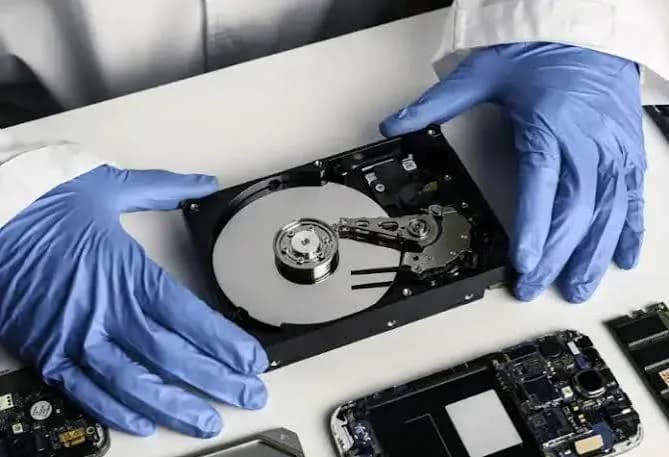
It usually happens at the worst moment. The thesis folder will not open. The flash drive with every wedding photo shows as empty. The external hard drive clicks and the computer does not see it. The phone will not switch on and the photos were never backed up. In the first minutes after discovering lost data, people make the most important decisions: some of them save the files, and some of them destroy any chance of getting them back. This guide to data recovery Kenya readers can follow explains what has actually happened to your files, what to do first, which free steps are safe, which "fixes" make things worse, and when to stop and call a specialist. It also explains how to prevent the problem next time.
A few honest limits first. We are a retailer and repair shop, not a clean-room data recovery laboratory. We can help you assess a problem, check whether a drive is detected, advise on safe next steps and point you to appropriate specialists. No guide, and no person, can promise a recovery in advance. Success depends on what failed, what has been written since and how quickly you stopped using the device. Where a detail depends on the specific device, we say "we confirm per unit".
City Gadgets Kenya is at New Alnoor Exhibition, Second Floor, Shop C7, Accra Road, Nairobi CBD, with same-day Nairobi delivery and next-day delivery outside Nairobi. Message us on WhatsApp for advice.
The short version
- Stop using the device immediately. Every new file written can overwrite the data you want back.
- Do not format, reinitialise or reset when the computer offers to.
- Do not run repair tools on a drive that clicks, beeps or disappears. That is possible physical failure.
- Never recover files onto the same drive you are recovering from.
- Work on a copy where you can. Cloning a failing drive to another drive is safer than repeated attempts on the original.
- Check the easy places first: the recycle bin, cloud trash, file history, previous versions and backups.
- Physical damage needs a specialist. Do not open a hard drive yourself.
- Prevent the next loss with the 3-2-1 backup rule.
| Situation | Likely cause | First move |
|---|---|---|
| File deleted by accident | Logical | Check recycle bin and backups, stop writing |
| Drive asks to format | File-system damage | Do not format, try read-only recovery |
| Drive not detected, clicking | Physical failure | Power off, do not retry, call a specialist |
| Flash drive or SD card unreadable | Logical or failing flash | Stop, do not reformat, try recovery on a copy |
| Water damage | Physical and corrosion | Power off, do not charge or dry with heat |
| Ransomware | Malicious encryption | Disconnect from network, do not pay, seek help |
| Phone will not boot | Software or hardware | Do not repeatedly reset, check cloud backups |
Why deleted files can often come back
When you delete a file normally, the computer rarely wipes the data. It marks the space as free and removes the file from the index. The data stays until something new is written on top. That is why quick action matters: the longer you keep using the device, the more likely the old data is overwritten.
Not every device behaves the same way. On many solid-state drives and phones, a feature called TRIM tells the drive that deleted blocks are free and may erase them in the background, which can make recovery harder or impossible. On flash drives and SD cards the picture varies. On hard drives, deleted data often remains for a long time unless overwritten. The honest summary is that recovery is sometimes possible and sometimes not, and speed helps.
Logical failure vs physical failure
Everything in recovery starts with one question: is the problem in the data or in the device?
Logical failure
The hardware works, but the data structure is damaged or the files are gone. Examples:
- Accidental deletion or formatting.
- A corrupted file system after unplugging a drive without ejecting.
- A virus or ransomware.
- A partition that disappeared.
- A "RAW" drive that asks you to format it.
Logical failures are often recoverable with software, if you act carefully and do not overwrite.
Physical failure
The hardware itself is faulty. Examples:
- A hard drive that clicks, grinds, beeps or is not detected at all.
- A drive that spins up and spins down repeatedly.
- A flash drive with a broken connector or a dead controller.
- A drive damaged by a fall, liquid, fire or a power surge.
- An SSD that suddenly vanishes from the computer.
Physical failures usually need specialist equipment and sometimes a clean-room environment. Repeatedly powering on a physically failing hard drive can make damage worse. If you hear clicking, stop.
Mixed and "in-between" cases
Sometimes a failing drive shows both: slow, with bad sectors, and sometimes readable. Treat it as physical. Copy what you can quickly, then stop.
What to do in the first five minutes
- Stop. Close programs that might write to the device. Do not install recovery software onto the affected drive.
- Safely remove or power down. If it is an external drive or flash drive, unplug it. If it is the computer's only drive and it is failing, shut the computer down and do not reboot repeatedly.
- Note what happened. Write down what you were doing, any error messages and the device model. This helps a specialist.
- Check other copies. Look in the recycle bin, cloud trash, email attachments, messaging apps, previous devices and backups.
- Decide: logical or physical? If the drive is detected and readable but files are missing, treat it as logical. If it clicks, vanishes or does not appear, treat it as physical.
- Do not panic-reformat. The computer's prompt to "format the disk" is the wrong answer.
Easy places to check first
Before any recovery tool, look here. Surprisingly often, the file is simply somewhere else.
Recycle Bin or Trash. Files deleted normally go here. Restore them.
Cloud trash. Google Drive, OneDrive, Dropbox and iCloud keep deleted files for a period. Check the trash or "recently deleted" section.
Version history. Many apps and cloud services keep earlier versions of documents. Right-click the file or check the app's history.
Windows File History or Previous Versions. If it was switched on, you may be able to restore an earlier version of a folder.
Time Machine on a Mac. If you have a backup drive, open Time Machine and browse.
Email attachments and chat apps. You may have sent the file to someone. Search your sent mail and WhatsApp chats.
Other devices. Check phones, tablets and old laptops.
Search by file type. Search your computer for the file extension. The file may have been moved.
If you find it, copy it to a safe place straight away and then think about prevention.
Safe do-it-yourself recovery for logical problems
If the drive is healthy but files are missing, software recovery may work. Follow these rules.
Rule 1: Install recovery software on a different drive. Never install onto the affected drive.
Rule 2: Recover to a different drive. Save recovered files to another disk, not the original.
Rule 3: Use read-only scanning first. A scan reads the drive without changing it. Review the results before recovering.
Rule 4: Be careful with free tools from unknown websites. Some are fake and carry malware. Use well-known tools from the official developer.
Rule 5: Do not run repair commands blindly. Tools that "fix" the file system can rewrite structures and make recovery harder. If the data is important, clone first.
Rule 6: Stop if you hear noises or see the drive disappear. That suggests physical failure.
Typical steps for a deleted-file scan are: connect the drive, run the recovery program, choose the drive, run a scan, preview files, select the ones you want and recover them to a different drive. Deep scans can take hours on large drives. Let them run.
Understanding file systems and why they matter
The file system is the index that tells the computer where each file lives. Common ones are NTFS, exFAT, FAT32, APFS and ext4. When a file system is damaged, the data may still be there, but the index is broken. Recovery tools can rebuild or scan for file signatures to find the data. Names and folders are sometimes lost, and files appear as numbered items. Our blog on exFAT, FAT32 and NTFS explains the differences.
Recovering from specific devices
Flash drives and SD cards
If a flash drive or memory card shows as empty, asks to be formatted or reports a wrong size, stop using it. Do not take more photos on a camera card you want to recover. Remove the card and use a card reader. Run a read-only scan with recovery software and save to another drive. If the card is not detected, it may have failed. Cards fail more often than people expect, which we explain in our post on how flash drives fail.
External hard drives
If the drive is detected and spins smoothly, treat it as logical. If it clicks, grinds or is not detected, treat it as physical. Do not shake, tap or freeze it. Do not repeatedly plug it in.
Internal laptop drives
If the laptop will not boot, do not keep forcing it. Removing the drive and connecting it to another computer through an adapter is often the safest route for reading it. If it is an SSD that will not appear, it may be a controller issue, and a specialist is needed.
Portable SSDs
SSDs fail differently from hard drives. They often work until they suddenly do not. If detected, copy immediately. If not, a specialist may help, but success varies. Read our guide on SSD vs HDD reliability.
Phones
If the phone will not switch on, charge it with a known good cable and charger for a while. Try a force restart for your model. Check cloud backups, such as Google, iCloud or Samsung Cloud. Do not reset the phone if you need the data, because a factory reset erases it. For water damage, power off and do not charge. Bring it to us for assessment at our repair service.
Memory cards in CCTV and dashcams
These cards are written constantly and wear out. If a card stops recording or shows errors, remove it and avoid writing to it. Make a read-only copy before recovery attempts. See our memory card guide for CCTV and dashcams.
What NOT to do: mistakes that destroy recoverable data
- Formatting "to fix it." Quick formatting wipes the index. Full formatting on some systems can overwrite data.
- Running CHKDSK or disk repair on a failing drive. On a drive with physical problems, intensive repair can stress it and rewrite structures.
- Saving recovered files back onto the same drive. You overwrite the very data you are trying to rescue.
- Opening a hard drive. Dust ruins the platters. Never open a drive outside a clean room.
- Freezing or heating a drive. Old tricks from the internet can cause condensation and further damage.
- Hitting or shaking a drive. Impact worsens head damage.
- Repeatedly power cycling. Each attempt can cause more wear on a failing drive.
- Installing recovery software on the affected drive. It can overwrite lost files.
- Trusting random "recovery" downloads. Many are malware.
- Continuing to use a camera card. New photos overwrite old ones.
- Doing a factory reset on a phone when you need the data.
- Paying ransomware criminals without advice. Payment does not guarantee recovery and funds crime.
Cloning: the professional habit worth copying
Professionals rarely work on the original failing drive. They make a sector-by-sector copy, called a clone or image, onto a healthy drive, then recover from the copy. That way, if a recovery attempt goes wrong, the original is untouched. For logical problems on a healthy drive, you can use cloning or imaging tools to make a copy before you try anything risky. You need a destination drive at least as large as the source. For physically failing drives, cloning with ordinary tools can be risky, because reading every sector stresses a weak drive. In that case, a specialist with proper equipment is the right answer.
When to call a specialist
Contact a professional data recovery service if:
- The drive clicks, grinds, beeps or will not spin.
- The drive is not detected by any computer.
- The data is truly valuable, such as business records, legal documents or irreplaceable family photos, and you are not confident.
- The drive has been in water, fire or heavy impact.
- A first recovery attempt failed.
- An SSD or phone vanished with no warning.
- A RAID or NAS has lost multiple drives. See our post on RAID and NAS basics for small business.
Ask any provider these questions: Do you assess first, and is there a fee for the assessment? What happens if you cannot recover anything? Do you work in a clean-room environment for physical failures? How will you return the data, and on what drive? How do you protect confidentiality? Who will have access to my files? Get the answers in writing. Beware of anyone who promises a guaranteed recovery before seeing the device.
Cost, time and realistic expectations
Recovery costs vary widely with the type of failure. A simple logical recovery with software may cost only your time. A physical recovery in a laboratory is a specialist service with its own pricing, and we do not quote figures here because they change and depend on the case. Time ranges from hours for simple scans to days or weeks for complex physical cases. Success is never guaranteed. Partial recovery is common: you may get most files but not all, or files may be recovered without names.
A useful way to think about it: ask what the data is worth and how irreplaceable it is, then decide how much to invest. If the data is easy to recreate, do not overspend. If it is priceless, do not risk it on guesses.
Ransomware: a special case
Ransomware encrypts your files and demands payment. If you see a ransom message:
- Disconnect from the network and Wi-Fi to stop it spreading.
- Do not pay without professional advice. Payment funds crime and does not guarantee a working decryption key.
- Do not delete the encrypted files. Decryption tools may exist for some strains.
- Check your backups. An offline or off-site backup is your best recovery path.
- Seek professional help from an IT security professional.
- Report it according to your organisation's rules and applicable law.
- Rebuild securely. Reinstall systems and change passwords before restoring clean backups.
The best defence is backups kept offline or versioned. Read our post on the 3-2-1 backup rule.
Water, fire and power damage
Water. Power the device off immediately. Do not charge it, do not use a hairdryer and do not put it in rice. Rice does not dry electronics reliably and can introduce particles. Bring it to a repair professional quickly, since corrosion progresses. Saltwater and sewage water are worse than clean water.
Fire or heat. A drive exposed to fire may still hold data on its platters or chips, but handling it is delicate. Do not power it on. Pass it to a specialist.
Power surges. A surge may damage the drive's circuit board while the data remains intact. Do not keep trying. A specialist may be able to repair the board or transplant components. Read about prevention in our post on power surges and AVR in Kenya.
Why drives fail in the first place
Understanding failure helps you prevent it.
Hard drives are mechanical. Heads float over spinning platters, so impact, vibration, heat, age and power problems cause failures. Portable drives are especially vulnerable to drops.
SSDs and flash drives have no moving parts but wear out as cells are written, controllers fail and firmware bugs occur. Heat, power loss and cheap components shorten life. See TLC and QLC NAND explained.
Memory cards are heavily used in cameras, phones and CCTV. Cheap or counterfeit cards are a frequent source of "my card died".
Human error is the biggest cause of all: deleting the wrong folder, unplugging without ejecting, spilling tea on a laptop, losing a flash drive.
Prevention: the plan that makes recovery unnecessary
The best recovery is the one you never need.
- Follow 3-2-1: three copies, two media types, one off-site.
- Automate backups so they happen without remembering.
- Test restores at least twice a year.
- Eject drives properly before unplugging.
- Replace ageing drives before they fail, especially portable ones.
- Use a UPS or surge protector for desktops and external drives.
- Keep software updated and use reputable antivirus protection.
- Encrypt sensitive backups that leave the office. See how to encrypt USB drives.
- Label drives and keep a simple log of what is where.
- Buy genuine storage from a trusted seller.
Data recovery for businesses
Businesses lose data in particular ways: a single server drive failing, a staff member deleting a shared folder, ransomware, a stolen laptop. A business should keep documented backups, restore tests and a contact list for emergencies. Do not store the only copy of important records on one PC. Use a NAS with sensible redundancy and also an off-site copy. Remember that RAID is not a backup. See our post on RAID and NAS basics.
When an incident happens, appoint one person to coordinate. Stop staff from poking at the failing system. Document what happened. Keep devices powered down and labelled until a specialist or your IT provider arrives. Check that any recovered data is checked for integrity before use.
Privacy and confidentiality when someone else recovers your data
When you hand a device to anyone, you also hand over everything on it. Before you do:
- Ask about confidentiality and who will have access.
- Remove or encrypt what you can, if the device works.
- Sign out of accounts where possible.
- Change passwords afterwards for important accounts.
- Ask how the recovered copy and any working files are deleted after the job.
- Prefer a provider with a physical address and a record you can trust.
Example scenarios
These are illustrative, not customer records.
Scenario 1: The accidentally deleted folder. A student deletes a project folder and empties the recycle bin. She stops using the laptop, installs a reputable recovery tool on a flash drive, scans the laptop's drive in read-only mode and recovers the folder to the flash drive. Most files are recovered.
Scenario 2: The clicking external drive. A photographer's portable hard drive starts clicking. He switches it off and does not retry. He takes it to a specialist for assessment. Recovery is not guaranteed, but not powering it again gives the specialist the best chance. He later adopts 3-2-1.
Scenario 3: The camera card that asks to be formatted. A wedding photographer's card shows an error. She stops shooting on it, uses a card reader and scans a copy. Some images return, others are damaged. She switches to genuine cards and a two-card workflow.
Scenario 4: The laptop that won't boot. An accountant's laptop shows a drive error. A technician removes the drive, connects it as an external drive to another computer and copies the files to a healthy disk before attempting any repair.
Scenario 5: The ransomware office. A small office sees locked files. They disconnect from the network, call an IT professional, restore from an off-site backup and change all passwords.
Questions to ask yourself before attempting recovery
- Is the device detected and does it sound normal?
- What was the last thing I did before the loss?
- Do I have any other copy of the files?
- How valuable and irreplaceable is the data?
- Do I have a healthy drive to recover onto?
- Am I comfortable with the risk of trying myself?
- Is it time to call a specialist?
A calm checklist for the day it happens
- I stopped using the device.
- I did not format or reset it.
- I checked recycle bin, cloud trash, history and backups.
- I decided whether it is logical or physical.
- I will recover onto a different drive.
- I will not run repair tools on a clicking drive.
- I called a specialist if the data is valuable and the drive is failing.
- I will set up proper backups afterwards.
Cloud and phone data: what recovery looks like
Not all loss happens on a drive. If you lose access to an account, accidentally delete photos from a cloud service or change phones without transferring data, the recovery path is different. Most cloud services keep deleted items in a trash or "recently deleted" area for a limited period, so act quickly. For lost accounts, use the provider's official recovery process and never pay a stranger who claims they can "hack back" an account, which is a common scam. On a new phone, restore from the backup of your old one before you set up as a fresh device, because setting up fresh can make the restore option disappear. Keep your recovery email and phone number current so you can regain access.
Photos, videos and the memories that matter most
Of all the data people want back, photos and videos cause the most distress, because they cannot be recreated. Wedding albums, a child's early years, a late relative's last pictures: these deserve the strongest protection. Keep at least one copy of precious photos somewhere that is not a phone or a single drive. Print the very best. Share albums with family so copies exist in more than one place. If a card or phone with irreplaceable photos fails, stop using it at once and ask for help, rather than trying several tools in a panic. Our guide to external storage for photographers covers dependable workflows.
A note on "recovery" scams
Sadly, distress attracts opportunists. Be cautious of anyone who contacts you first offering to recover data, services that demand full payment before looking at the device, websites that promise guaranteed results for any drive, and people who ask for passwords to your accounts. Genuine providers assess first, explain the risks and give clear terms. Choose a provider with a physical address you can visit.
Keeping a recovery kit ready
A little preparation makes a bad day less bad. Keep a healthy spare drive, at least as large as your main one, for cloning and recovering. Keep a USB-to-SATA adapter or enclosure for reading laptop drives, and a good card reader for memory cards. Keep your recovery software of choice downloaded from the official site on a separate flash drive. Write down your important account recovery details and store them safely. None of this costs much, and it turns a crisis into a procedure.
How to spot a fake storage device (and avoid the next failure)
Many data loss stories start with a counterfeit drive or memory card that reports a capacity it does not have. These fake devices accept files until their real, tiny storage fills, and then silently overwrite or lose data. Use these ten checks together.
- Test the real capacity. Use a trusted capacity test tool to write and verify data across the whole drive. A fake reports a large size but fails the test.
- Check the packaging. Genuine boxes are clean and accurate. Spelling mistakes and poor print are warning signs.
- Check the model number and serial. They should match on the box and device and be verifiable on the maker's site.
- Inspect the casing. Rough seams, misaligned logos and cheap plastic suggest a fake.
- Check the speed. A fake often copies slowly or in odd bursts.
- Check the price. If it looks too good to be true, it probably is.
- Check the seller. No shop address, no receipt and no return policy are warnings.
- Check the connector. Loose or rough connectors suggest poor manufacture.
- Check the software. Genuine branded drives are recognised by the maker's tools.
- Check that it formats to the right size. A fake may show an unusual capacity after formatting.
If you are unsure, bring the device to New Alnoor Exhibition, Second Floor, Shop C7, Accra Road, and we will help you check it. See our guides to the best portable SSD and best backup drive.
Why buy your storage from City Gadgets Kenya
- Genuine products, checked before they reach you.
- A real shop at New Alnoor Exhibition, Second Floor, Shop C7, Accra Road, Nairobi CBD.
- Same-day delivery in Nairobi and next-day delivery outside Nairobi.
- M-Pesa payment and clear receipts.
- Honest advice, including telling you when a problem needs a specialist.
- Backup drives, SSDs and memory cards in our accessories category.
- Assessment and repairs through our repair service.
- Trade-ins through our sell page.
- WhatsApp help on +254745575931.
Frequently asked questions
Can deleted files be recovered? Often, if you stop using the device quickly and the data has not been overwritten. SSDs and phones with TRIM or encryption can make it harder.
Should I format a drive that says it needs formatting? No. Stop and try read-only recovery or seek advice.
Is it safe to use free recovery software? Use reputable tools from the official developer, install them on a different drive, and recover to another drive.
My external hard drive clicks. What should I do? Switch it off, stop retrying and consult a specialist.
Can water-damaged phones be recovered? Sometimes. Power off, do not charge and get it checked quickly.
Will a factory reset delete my data? Yes. Do not reset if you need the data.
Can you guarantee recovery? No honest provider can. Beware of guarantees before assessment.
How do I avoid losing data again? Follow the 3-2-1 rule, automate backups and test restores.
Where can I get help in Nairobi? Message City Gadgets Kenya on WhatsApp or visit Shop C7, Second Floor, New Alnoor Exhibition, Accra Road.
Need help or a safer setup?
Message us on WhatsApp with what happened and what device it is, and we will advise honestly on the safest next step.
Related reading: The 3-2-1 backup rule · How flash drives fail · Portable SSD vs HDD reliability · How to encrypt USB drives








