
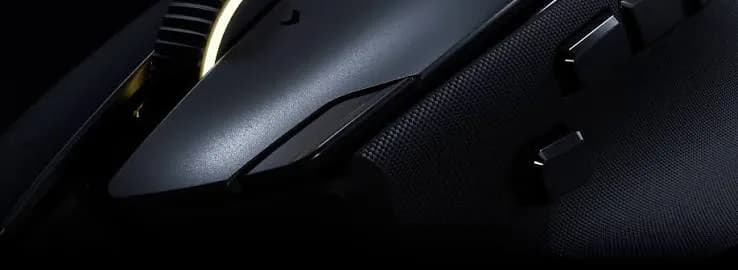
A mouse is one of the cheapest accessories you will ever buy and one of the ones you touch the most. If you work on a laptop or desktop for several hours a day, a good wireless mouse makes the work faster, more comfortable and less tiring than a trackpad. A bad one drops its connection, eats batteries, gives you a sore hand, or clicks so loudly your colleagues glare at you. This guide to the best wireless mouse Kenya buyers can choose from compares the Logitech wireless range and the Apple Magic Mouse that we stock, explains the difference between a USB receiver and Bluetooth, helps you choose the right size, and tells you how to avoid fakes.
We hedge where specifications vary and say "we confirm per unit" for details that should be checked on the actual item. Prices change, so message us on WhatsApp for today's price.
City Gadgets Kenya is at New Alnoor Exhibition, Second Floor, Shop C7, Accra Road, Nairobi CBD, with same-day Nairobi delivery and next-day delivery outside Nairobi.
The short version
- Best simple all-rounder: Logitech M185 or M171, compact wireless mice with a USB receiver.
- Best for larger hands and desk work: Logitech M190, a full-size wireless mouse.
- Best for USB-C laptops, tablets and no receiver: Logitech M196 Bluetooth.
- Best for quiet offices, libraries and calls: Logitech M240 Silent Bluetooth.
- Best for Mac users who like gestures: Apple Magic Mouse.
- Best for sore wrists: see our ergonomic mouse guide.
- Best for gaming: see our gaming mouse guide.
| Mouse | Connection | Size | Best for | Notable point |
|---|---|---|---|---|
| Logitech M171 | USB receiver | Compact | Students, travel | Simple, affordable, carry-friendly |
| Logitech M185 | USB receiver | Compact | Office, home | A long-established everyday mouse |
| Logitech M190 | USB receiver | Full-size | Desk, larger hands | Curved shape for comfort |
| Logitech M196 | Bluetooth | Compact | USB-C laptops, tablets | No receiver to lose |
| Logitech M240 Silent | Bluetooth | Compact | Quiet spaces | Quiet clicks |
| Apple Magic Mouse | Bluetooth | Slim | Mac users | Touch surface gestures |
Ask us for today's price on any model. If you also need a keyboard, read our keyboard and mouse combo guide.
Why use a wireless mouse at all?
A laptop trackpad is fine for quick tasks, but for spreadsheets, editing, design and long documents a mouse is faster and more precise. It also reduces strain on your fingers and wrist because your whole forearm can move naturally. A wireless mouse adds the freedom of no cable, which means a tidier desk, easier packing and no snagging.
Speed and accuracy. A mouse lets you point and click quickly, select text precisely and scroll smoothly.
Comfort. A mouse that fits your hand lets you work longer with less tension.
Portability. Compact mice slip into a laptop bag.
Tidy desks. No cable to tangle with chargers and headphones.
Compatibility. Mice work with Windows, Mac, Chromebooks and many tablets, depending on the connection type.
USB receiver vs Bluetooth: the first decision
This choice decides which mice suit your devices.
USB receiver (also called a dongle). A tiny plug goes into a USB-A port and the mouse talks to it over a dedicated wireless link. It is simple, reliable and works as soon as you plug it in. The downside is that you need a free USB-A port, and the receiver can be lost. Many modern thin laptops only have USB-C ports, so you may need an adapter. The Logitech M171, M185 and M190 use a receiver.
Bluetooth. The mouse pairs directly with your device, so there is no receiver and no port needed. It works with USB-C-only laptops, tablets and many phones. The downside is that pairing is slightly more involved, and Bluetooth can occasionally lag or drop if there is interference. The Logitech M196, M240 Silent and Apple Magic Mouse use Bluetooth.
| USB receiver | Bluetooth | |
|---|---|---|
| Needs a USB-A port | Yes | No |
| Works with USB-C-only laptops | With an adapter | Yes |
| Works with tablets | Rarely | Often |
| Easy to lose a part | Yes, the receiver | No |
| Setup | Plug and go | Pair once |
| Reliability | Very steady | Steady, can vary |
If you use a modern laptop or tablet, choose Bluetooth. If you use an older laptop or a desktop with plenty of USB ports, a receiver mouse is fine and often a little cheaper.
How to choose a wireless mouse
Size and hand fit
A mouse that is too small causes cramped fingers. A mouse that is too large causes the hand to stretch. Measure your hand from wrist crease to the tip of the middle finger. Small to medium hands suit compact mice such as the M171, M185, M196 and M240. Larger hands suit the M190. If you are unsure, bring your hand to our shop and try them.
Grip style
Palm grip: your whole palm rests on the mouse. Larger, curved mice like the M190 suit this.
Claw grip: fingers arch while the palm touches the back. Medium mice suit this.
Fingertip grip: you only touch with fingertips. Small light mice suit this.
Battery
Most Logitech wireless mice use a replaceable battery and are designed for long battery life per the maker. We confirm per unit. Keep a spare battery in your bag. Some mice have an on/off switch on the underside, so turn it off when travelling to save the battery.
Noise
Standard clicks can be loud. If you work in a shared space, study in a library or take many calls, a silent mouse like the M240 Silent keeps the peace.
Compatibility
Check your operating system and ports. A receiver mouse needs USB-A. A Bluetooth mouse needs Bluetooth on your device. Tablets and phones vary in how they support mouse input, so ask us to confirm before you buy.
Price and value
Wireless mice are among the best-value accessories. Spending a little more on the right size and connection saves frustration.
The mice compared in detail
Logitech M171
The M171 is a compact wireless mouse that connects through a small USB receiver. It suits typing, browsing, documents and general office and study work. It is small enough to carry in a laptop bag, which is why students and mobile workers like it. Keep the receiver plugged in when you travel so it does not get lost. A laptop with only USB-C ports may need an adapter. It uses a replaceable battery, so keep a spare.
Logitech M185
The M185 is one of Logitech's best-known everyday wireless mice, a dependable choice for office and home. It connects through a USB receiver, needs no software and is comfortable for long stretches of office work. Many offices buy it in numbers for staff because it is simple and easy to replace. The M185 and M171 are very similar, and the differences are in design details rather than function. If you are unsure which to choose, pick by availability and colour, or ask our team.
Logitech M190
The M190 is a full-size wireless mouse with a curved shape, made for people who find compact mice cramped. It is designed for desk use more than travel. If you work at a desk for hours, a mouse that fills your hand reduces tension. It connects through a USB receiver and runs on a replaceable battery. It is the one to pick if you have larger hands.
Logitech M196 Bluetooth
The M196 is a compact wireless mouse that connects over Bluetooth, so no receiver is needed. That matters for thin laptops with only USB-C ports and for tablets with no USB-A port. It is small and light, suiting students, remote workers and travellers. You pair it once in your device's Bluetooth settings and it reconnects afterwards. Support for tablets and phones depends on the device, so we confirm before you buy.
Logitech M240 Silent
The M240 Silent is a Bluetooth mouse designed to click quietly. Standard clicks can bother colleagues in an open-plan office, students in a library, people on video calls and family members in a shared home. A silent-click mouse reduces that noise while keeping a click feel. It is compact, light and easy to carry. If you take many calls or work in shared spaces, it is a small change that other people will thank you for.
Apple Magic Mouse
The Magic Mouse is Apple's slim Bluetooth mouse with a smooth touch surface instead of a scroll wheel. You scroll and swipe by gliding a finger across the top, which feels natural if you use gestures on a Mac. It works best with Macs and also pairs with other devices that support Bluetooth mice, though gesture support depends on the operating system. It is flat, which some people find less comfortable than a curved mouse for long sessions, so try it if you can. Charging details depend on the generation, and we confirm per unit.
Head-to-head comparisons
M171 vs M185
Nearly identical in purpose. Both are compact, receiver-based and affordable. Choose by what we have in stock and the colour you like.
M185 vs M190
The M185 is compact and travels well. The M190 is full-size and more comfortable at a desk. If you carry your mouse daily, choose the M185. If it stays on a desk, choose the M190.
M185 vs M196
The M185 needs a USB-A port. The M196 does not. If your laptop has USB-C only, the M196 is easier. If you have USB-A ports, the M185 is a fine, simple choice.
M196 vs M240 Silent
Both are Bluetooth and compact. The M240 clicks quietly. If noise is not a concern, the M196 is simpler. If you work around other people, the M240 Silent is the better choice.
Logitech vs Apple Magic Mouse
The Magic Mouse suits Mac users who love gestures and a sleek look. Logitech mice are more ergonomic for long desk sessions and usually cheaper. Many Mac users happily use a Logitech Bluetooth mouse such as the M196 or M240 Silent.
Which mouse should you buy? A decision guide
- What is your laptop's port situation? USB-A free: receiver mouse works. USB-C only: Bluetooth.
- Do you carry it daily? Choose compact: M171, M185, M196, M240.
- Do you work at a desk with large hands? Choose the M190.
- Do you work in a quiet space? Choose the M240 Silent.
- Do you use a Mac and love gestures? Consider the Magic Mouse.
- Do you have wrist pain? Look at an ergonomic vertical mouse.
- Do you game? Look at a gaming mouse.
Setting up your wireless mouse
With a USB receiver
- Install the battery, noting the polarity marks inside.
- Switch the mouse on using the switch underneath.
- Plug the receiver into a USB-A port. On a desktop, a rear port is steadier, but a front port is fine.
- Wait a few seconds. Windows, macOS and Chromebooks usually install the driver automatically.
- Move the mouse. If the pointer does not move, try another port, replace the battery, or bring the mouse closer to the receiver.
With Bluetooth
- Install the battery and switch the mouse on.
- Press and hold the pairing button until the light blinks. The location varies by model, and we show you in the shop.
- On your laptop, open Bluetooth settings and choose to add a device.
- Select the mouse from the list.
- Once paired, it reconnects automatically when you switch it on.
Tips
Keep a clear line between the mouse and receiver. Metal desks and USB hubs can weaken the signal. Move the receiver to a front or nearby port if the pointer lags. Update your laptop's Bluetooth drivers if pairing fails.
Getting the best from your mouse
Use a mouse mat. A mat gives a consistent surface and protects the sensor. Optical sensors struggle on glass and highly glossy surfaces.
Adjust the pointer speed. In your system settings, choose a speed that lets you reach the screen edges with a comfortable motion.
Learn the extra buttons. Many Logitech mice have forward and back buttons on the side. They save time in a browser.
Use scroll settings. You can change scroll direction and speed to match your habits.
Turn it off when travelling. The switch underneath saves battery in your bag.
Clean the sensor. Dust under the sensor causes jumpy pointers. Wipe it gently with a dry cloth.
Battery care
A replaceable battery lasts long, but it does run out, often at an awkward moment.
- Keep a spare in your bag or desk drawer.
- Use quality batteries, because cheap cells can leak and damage the mouse.
- Remove the battery if you will not use the mouse for months.
- Replace both cells together if the mouse takes two.
- Do not mix old and new batteries.
- Dispose of used batteries properly and never throw them into a fire.
If the pointer starts to stutter, the battery is the first thing to check.
Troubleshooting common wireless mouse problems
The pointer lags or jumps. Replace the battery. Move the receiver closer or to a different port. Remove other wireless devices nearby. Try a different surface.
The mouse does not connect. Check the switch. Try another USB port. For Bluetooth, remove the mouse from the paired list and pair again.
The mouse works then stops. Many laptops put USB and Bluetooth devices to sleep to save power. Disable power saving for the receiver in device settings. Click once to wake the mouse.
Clicks do not register. Clean around the buttons. If it is under warranty or recent, bring it to us.
Scroll wheel is erratic. Dust is often the cause. Gently clean around the wheel.
The mouse is not recognised on a tablet. Not every tablet supports mice the same way. Check your tablet's settings and tell us the model.
If a problem persists, message us on WhatsApp or visit the shop, and we will check whether the mouse or the setup is at fault.
Wireless mouse for different people
Students. Choose a compact, light mouse such as the M171, M185 or M196. A Bluetooth model frees a USB port and survives a rucksack. See our storage for students guide for the rest of your kit.
Office workers. The M185 and M190 are classic choices for staff. For open-plan offices, the M240 Silent is considerate.
Remote and hybrid workers. Bluetooth lets you pair a mouse with a laptop and tablet. A silent mouse helps on video calls.
Designers and editors. A comfortable, accurate mouse helps, but you may want a higher-end model with a precise sensor. Ask us about options.
Spreadsheet-heavy users. A full-size mouse like the M190 and a keyboard with a number pad speeds up work.
Travellers. A compact Bluetooth mouse such as the M196 or M240 Silent packs flat and needs no receiver.
Older users. A comfortable full-size mouse with easy clicks reduces strain. Consider a larger mouse and slow pointer speed.
Left-handed users. Most standard Logitech wireless mice are shaped for right hands, though they can be used with the left hand by switching buttons in settings. Ergonomic and some other models come in left-handed versions, and we confirm per unit.
Wireless mouse and laptop trackpad: do you need both?
A trackpad is fine for quick tasks and when you are on the move. For long sessions, a mouse is more comfortable and precise. Many people keep a small Bluetooth mouse in their bag for desk work and use the trackpad on the go. If your work involves a lot of selecting, dragging or scrolling, a mouse pays for itself in comfort.
Using a wireless mouse with different devices
Windows laptops and desktops. All the mice here work. Receiver mice need USB-A. Bluetooth mice need Bluetooth.
Macs. Receiver mice work if you have USB-A or an adapter. Bluetooth mice pair easily. The Magic Mouse offers gestures.
Chromebooks. Most mice work. Bluetooth is easiest.
iPads and Android tablets. Support varies by device and operating system. Bluetooth mice are generally the way to go, and we confirm compatibility before you buy.
Smart TVs and streaming boxes. Some support Bluetooth mice for browsing, though not all.
Phones. Some phones support Bluetooth mice for accessibility or desktop modes.
Common mistakes when buying a wireless mouse
- Forgetting the port. Buying a receiver mouse for a USB-C-only laptop without an adapter.
- Choosing the wrong size. A tiny mouse for large hands causes cramping.
- Ignoring noise. Loud clicks annoy others in shared spaces.
- Skipping spare batteries. Your mouse dies mid-task.
- Buying the cheapest unbranded mouse. Fakes and no-name mice often lag and break quickly.
- Using a glossy desk. Optical mice struggle on glass.
- Expecting gaming performance from an office mouse. Gamers need a gaming mouse.
- Losing the receiver. Always park it in the mouse's storage slot or in the port.
Example scenarios
These are illustrative, not customer records.
Scenario 1: A student with a thin laptop. Her laptop only has USB-C ports. She chooses a Logitech M196 Bluetooth mouse so she does not need an adapter, and it fits her laptop bag.
Scenario 2: An accountant with a desktop. He spends hours in spreadsheets and has large hands. He picks the Logitech M190 for a comfortable full-size grip at his desk.
Scenario 3: An open-plan office worker. She takes many calls and her colleagues complain about clicking. She switches to the Logitech M240 Silent.
Scenario 4: A Mac user. He enjoys gestures and a clean look and chooses the Apple Magic Mouse, adding a mat for steady tracking.
Scenario 5: A school computer lab. The school needs reliable, simple mice in numbers. The Logitech M185 is a well-known choice, and replacements are easy.
Wireless mouse safety and hygiene
A shared mouse collects germs. Wipe it with a slightly damp cloth, avoiding liquid near the sensor and scroll wheel. Do not use harsh chemicals. Dispose of batteries safely. Keep small parts, such as receivers and batteries, away from young children.
Keeping your wrist comfortable
Even a good mouse cannot fix bad posture. Keep your forearm roughly level with the desk and your wrist straight. Use your whole arm to move the mouse, not just the wrist. Take short breaks every thirty to sixty minutes. Stretch your fingers and wrists. If you have persistent pain, tingling or numbness, speak to a health professional and consider an ergonomic mouse. Our ergonomic mouse guide goes deeper, and our home office setup guide covers desk, chair and screen height.
Questions to ask any seller before you pay
- Is the mouse brand new and sealed?
- Which exact model is it?
- Does it use a receiver or Bluetooth?
- Does it work with my laptop's ports?
- Is a battery included?
- What is the exchange policy?
- Will I get a receipt, and where is your shop?
Is a branded mouse worth it over a cheap unbranded one?
An unbranded mouse can look identical for less money, but many lag, lose connection, have rough clicks and die early. Logitech mice are widely used and supported, and replacing a genuine mouse is simple. For a tool you hold every day, buying genuine is a sensible investment. The risk with a very cheap mouse is not just poor performance but receivers that interfere with other devices or batteries that leak.
DPI, sensors and what "office mouse" means
You will see DPI (dots per inch) on gaming mice, but office mice have it too, usually fixed at a sensible level. DPI is how far the pointer moves for a given hand movement. Higher DPI means a faster pointer. For office work, a moderate fixed DPI is fine, and you can fine-tune the pointer speed in your operating system. Optical sensors work on most matte surfaces. Very smooth glass, mirrors and some glossy desks confuse them. A cheap mouse mat solves the problem and makes the mouse feel more consistent.
Wireless range and interference
Receiver-based mice use a dedicated radio link that works comfortably across a desk and often several metres. Bluetooth works at similar ranges. Interference can come from Wi-Fi routers, microwave ovens, other wireless devices and large metal objects. If your pointer stutters, try moving the receiver to a front USB port or using a short USB extension. In a crowded office with many devices, Bluetooth and receiver mice generally cope well, but if you see lag, remove unneeded wireless gadgets from your desk.
How long should a wireless mouse last?
A good mouse should last years of regular use. The parts that wear are the buttons, the scroll wheel and the feet under the mouse. If clicks start double-registering or the wheel gets erratic, cleaning may help, and replacement is cheap enough that it rarely makes sense to spend long on repair. Batteries are the part you will replace most often. Treat a mouse as a small consumable tool, and buy a genuine one so that it lasts.
Environmental and cost-saving tips
Using rechargeable batteries in a mouse that takes AA or AAA cells saves money over time and reduces waste, if the mouse accepts them. Check the mouse's guidance. Switch the mouse off when you leave your desk for the day. Store spare batteries in a cool, dry place. If you replace a mouse, pass the old one to a family member or trade it in rather than throwing it away.
Buying for a team or a school
If you are buying several mice for an office, school or lab, choose one model for everyone. That makes spare parts, batteries and troubleshooting simple. The Logitech M185 is a common choice for teams, with the M190 for people who want full-size comfort. Use asset tags or a marker to label each mouse, and keep a small stock of spare batteries. Message us on WhatsApp for quantity arrangements, and we will confirm availability and pricing honestly.
A word on scroll wheels and side buttons
The scroll wheel is the part you use most after the buttons. A smooth, quiet wheel makes long documents and web pages easier. Some mice have a notched wheel that clicks as you scroll, which gives precise control. Others glide. Side buttons, where fitted, act as back and forward in a browser and can save a surprising amount of time. If you read and research a lot, look for them. If your work is mostly typing, a simple two-button-and-wheel mouse is plenty. Tell us what you do all day and we will point you to the model that fits.
How to spot a fake wireless mouse
Counterfeit mice copy the look of popular models, often with convincing packaging. A fake mouse may lag, disconnect, click harshly or fail within weeks. Use these ten checks together.
- Check the model name and print. Genuine Logitech models have clear, correct model names on the underside and box. Spelling errors and blurry printing are warning signs.
- Inspect the packaging. Genuine boxes are sturdy with sharp printing and correct details. Cheap, flimsy boxes are suspicious.
- Check the logo and finish. The Logitech logo should be crisp and evenly applied. Peeling or crooked logos suggest a fake.
- Inspect the receiver. Genuine receivers are neat with a clean finish. Rough edges and loose fit are warning signs.
- Look for the storage slot. Many genuine models include a slot for the receiver. Check it matches the model.
- Test the connection. A genuine mouse connects quickly and holds steady. A fake lags or drops.
- Test the clicks and scroll. A genuine mouse has consistent, crisp clicks and a smooth wheel. A fake feels rattly or sticky.
- Check the weight and build. Genuine mice feel solid and well-assembled. Hollow, creaky plastic is a red flag.
- Check compatibility claims. Be wary if a cheap mouse claims to do everything. A Bluetooth mouse is not a receiver mouse.
- Check the seller. An unrealistically low price, no shop address and no receipt are red flags.
If you are unsure, bring the mouse to New Alnoor Exhibition, Second Floor, Shop C7, Accra Road, and we will help you check it.
Why buy your wireless mouse from City Gadgets Kenya
- Genuine products, checked before they reach you.
- A real shop at New Alnoor Exhibition, Second Floor, Shop C7, Accra Road, Nairobi CBD.
- Same-day delivery in Nairobi and next-day delivery outside Nairobi.
- M-Pesa payment and clear receipts.
- Honest advice, including telling you when a cheaper mouse is enough.
- Keyboards, combos and hubs to build a full setup in our accessories category.
- Support and repairs for your laptop through our repair service.
- Trade-ins through our sell page.
- WhatsApp help on +254745575931.
Quick checklist
- I checked whether my laptop has USB-A or only USB-C.
- I chose receiver or Bluetooth to match.
- I picked a size that fits my hand.
- I decided whether I need silent clicks.
- I have a spare battery.
- I checked the model name, packaging and receiver.
- I have a receipt and know where to get support.
Frequently asked questions
What is the best wireless mouse in Kenya? For most people, the Logitech M185 or M171 for a receiver mouse, or the M196 for Bluetooth. For quiet places, the M240 Silent. For larger hands, the M190.
Do I need a USB port for a wireless mouse? Receiver mice need USB-A. Bluetooth mice do not.
Will it work on my USB-C laptop? A Bluetooth mouse will. A receiver mouse needs an adapter.
What is the difference between M171 and M185? They are very similar. Choose by availability and colour.
Which mouse is quietest? The Logitech M240 Silent.
Does the Magic Mouse work with Windows? It pairs over Bluetooth, but gestures depend on the operating system.
How long does the battery last? Long, per the maker, and depends on use. We confirm per unit.
Can I use a wireless mouse with a tablet? Often with Bluetooth, depending on the tablet. Ask us to confirm.
How do I know it is genuine? Use the ten checks above.
Where can I buy a wireless mouse in Nairobi? At City Gadgets Kenya, Shop C7, Second Floor, New Alnoor Exhibition, Accra Road.
Ready to choose?
Message us on WhatsApp with your laptop, your work and your budget, and we will recommend the right mouse.
Related reading: Best ergonomic mouse · Best gaming mouse · Best keyboard and mouse combo · Home office setup guide








