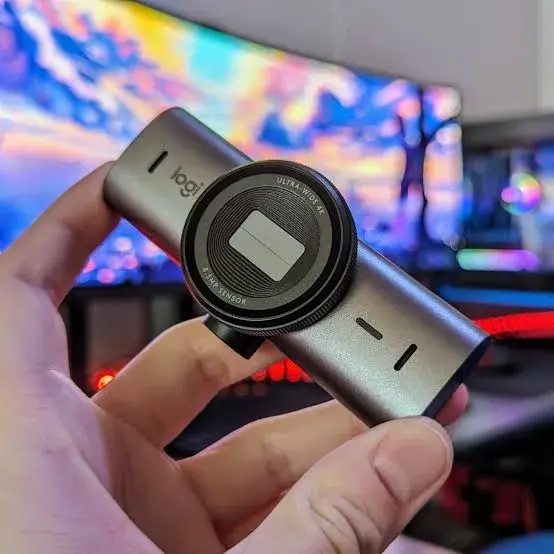
Video calls are now part of normal work and study in Kenya. Staff meetings on Zoom, client calls on Google Meet, interviews on Microsoft Teams, online classes, webinars, church and family calls: all of them depend on how you look and sound on the other side. Many people discover that their laptop camera makes them look grainy, shadowy and slightly sinister, or that their desktop computer has no camera at all. A good webcam fixes part of that, but it is only part. Lighting, camera height, background and sound matter at least as much. This guide to the best webcam work from home Kenya professionals and students can buy explains what the Logitech C270 offers, when your laptop's built-in camera is enough, and how to set up your whole video-call corner so you look and sound professional without spending much.
We hedge where specifications vary and say "we confirm per unit" for details that should be checked on the actual item. Prices change, so message us on WhatsApp for today's price.
City Gadgets Kenya is at New Alnoor Exhibition, Second Floor, Shop C7, Accra Road, Nairobi CBD, with same-day Nairobi delivery and next-day delivery outside Nairobi.
The short version
- The webcam we stock: Logitech C270, a dependable, affordable HD webcam that clips onto a laptop or monitor and works as soon as you plug it in.
- Best for: remote workers, students, small businesses and desktop users who have no camera or a poor one.
- A webcam is only part of the picture. Good light in front of you, a camera at eye level and clear audio improve a call more than a more expensive camera.
- Pair it with a headset for clearer sound. See the Logitech H340 and H390 options in our headset for Zoom calls guide.
- Check compatibility: it connects over USB-A, so USB-C-only laptops may need a hub or adapter. See our USB-C hub guide.
- Check your internet. A sharp camera still looks poor on a weak connection.
| Question | Short answer |
|---|---|
| Do I need a webcam? | If your laptop camera is poor or badly placed, or you use a desktop with no camera, yes. |
| What does the C270 do well? | Clear HD video for calls and classes, plug and play, clip-on mount. |
| Will it work with Zoom, Meet and Teams? | Yes, per the maker it is recognised by common calling apps. |
| Is it good for streaming or recording? | For basic use. Serious creators may want a higher-end camera. |
| What else improves my calls most? | Lighting, camera height, audio and a steady connection. |
Ask us for today's price. For your whole desk, read our home office setup guide.
Why buy a separate webcam?
Most laptops include a camera, but it is often a compromise. Laptop makers put very small, low-cost cameras into thin screens. They sit at the bottom or top of the display, which means that when you look at the screen, you are looking slightly away from the lens. In poor lighting they produce grainy, soft images.
A separate webcam helps in several ways.
Better position. A clip-on webcam sits on top of a monitor at eye level, so you appear to look at the people you are talking to. A laptop camera on a low desk often looks up at your chin.
Better image. A dedicated webcam usually handles a typical home room more gracefully than a weak built-in camera, though no webcam can fix poor lighting.
Desktops need one. A desktop computer usually has no camera at all.
Flexibility. You can raise it, aim it, move it to another computer or place it on a shelf for a wider shot.
Replaceable. If it breaks, you replace a small accessory, not the laptop.
When is a laptop camera enough?
Be honest with yourself before you spend. A built-in camera may be enough if:
- Your laptop was bought recently and the picture looks decent in good light.
- You take only occasional casual calls.
- Your room is bright and you place the laptop at eye level, perhaps on a stand.
- You do not need a wide shot.
It may be time for an external webcam if:
- Your image is grainy, dark or soft even in good light.
- You use a desktop or a laptop with the lid closed.
- You attend many calls, classes or interviews.
- You present to clients and want to look polished.
- Your laptop camera is broken or a webcam shutter is stuck.
The Logitech C270
The Logitech C270 is a dependable, affordable HD webcam built for video calls, online classes and meetings. It clips onto a laptop or monitor and works as soon as you plug it in.
HD video. It records and streams in HD, giving noticeably clearer video than many basic built-in laptop cameras. We confirm per unit the exact resolution and frame rate figures for the unit you order.
Plug and play. It connects over USB and works with most video calling software without separate drivers. Per the maker it is recognised automatically by Windows and common calling apps such as Zoom, Google Meet and Microsoft Teams.
Flexible mounting. The clip-on design attaches to the top of a laptop screen or an external monitor, with an adjustable angle so you can point it at your face rather than the ceiling or your desk.
Built-in microphone. The C270 includes a built-in microphone for basic calls. For better audio, use a headset. We confirm per unit the microphone details.
Who it suits: remote workers and students, anyone whose laptop camera is poor or awkwardly placed, desktop users with no camera, and small businesses setting up meeting room video calls.
Who may want something else: streamers and content creators who need higher resolution, wider fields of view, better low-light performance or autofocus features. The C270 is an everyday camera, not a studio one.
Pros: affordable, simple, widely compatible, clip-on, dependable. Cons: basic compared with premium cameras, modest in low light, USB-A connection.
What matters in a webcam
Resolution. HD is enough for most calls. Higher resolutions help for recording and presenting but need more bandwidth. Most video call apps compress video heavily, so the difference is smaller than the spec sheet suggests.
Frame rate. Smooth video needs a steady frame rate. Most calls run at modest rates.
Field of view. A narrower view frames one person. A wider view fits several people or a room. Standard webcams suit one person at a desk.
Low-light performance. Webcams are small cameras and struggle in dim rooms. Good lighting matters more than the camera.
Focus. Fixed-focus cameras are simple and sharp at typical desk distances. Autofocus helps if you move or show objects.
Microphone. Built-in webcam microphones are convenient but pick up room echo. A headset gives better results.
Connection. USB-A is the common type. A USB-C laptop may need an adapter or hub.
Mount. A clip should grip firmly, tilt and stay put. A tripod thread helps for creators.
Privacy. Some webcams have a shutter. If yours does not, a small cover is cheap and useful.
Software. Most webcams work without software. Some offer optional apps for settings.
Setting up a professional video-call corner
This is where the real improvement happens. You can make a basic camera look good, and make an expensive camera look poor, with the following steps.
1. Light your face
The most important rule in video is light. Place the main light in front of you, facing you, not behind you.
- Sit facing a window. Natural daylight from the front is flattering and free. Avoid sitting with a window behind you, which makes you a silhouette.
- Use a lamp if you have no window. A desk lamp bounced off a wall, or a small ring light or panel placed behind the screen, softens shadows.
- Avoid overhead-only light, which creates dark eye sockets.
- Avoid mixed colours. A warm bulb on one side and cool daylight on the other gives an odd colour cast.
- Do not rely on screen glow alone.
2. Raise the camera to eye level
Place the webcam on top of the monitor, or raise a laptop on a stand or a pile of books so that the camera is at eye level. Looking slightly down into the lens is fine, but looking up from below is unflattering.
3. Frame yourself well
Place your head and shoulders in the frame, with a little space above your head. Sit about an arm's length from the camera. Look at the lens when you speak, not only at faces on the screen.
4. Choose a tidy background
A plain wall, a neat shelf or a simple screen is best. Avoid clutter, laundry and open doors where family members may walk through. Most calling apps offer background blur or virtual backgrounds. Blur is more natural, but it needs processing power and can glitch around hair and hands.
5. Fix your sound
Bad audio is more irritating than bad video. People will forgive a grainy picture but not echoes and background noise.
- Use a headset with a microphone close to your mouth. Our headset for Zoom calls guide explains your options.
- Choose a quiet room and close the window if there is traffic noise.
- Use soft furnishings, such as curtains, a rug or a sofa, to reduce echo.
- Mute when not speaking in group calls.
6. Check your internet
A steady connection matters more than camera quality. Use Wi-Fi close to the router or an Ethernet cable if possible. Close other bandwidth-heavy apps and downloads during calls. If the video freezes, turn off your camera and keep audio on.
7. Test before important calls
Open your calling app's settings and preview your camera and microphone. Check light, framing and sound. Record a short test clip and watch it. Do this once and you will know what the other side sees.
Webcam settings for Zoom, Google Meet and Microsoft Teams
All three apps let you choose your camera and microphone in settings. Here are the general steps.
Zoom. Open Settings, then Video, choose your webcam in the camera list, and use the preview to check your image. Tick "touch up my appearance" if you like softer skin. Under Audio, choose your headset microphone and speaker.
Google Meet. Before joining, click the three dots or settings icon, choose Video and pick your webcam. Choose your microphone and speakers under Audio.
Microsoft Teams. In Settings, then Devices, choose your camera and microphone, and check the preview.
General tips:
- If the app shows the wrong camera, select the external webcam manually.
- If the camera does not appear, unplug it, plug it into another USB port, restart the app and check that the app has permission to use the camera in your system's privacy settings.
- Only one app can use the webcam at a time. Close other apps that might be holding it.
- Update the calling app regularly.
USB ports, hubs and USB-C laptops
The C270 connects over USB-A. Many modern laptops have only USB-C ports, so you may need an adapter or a hub. A hub also gives you extra ports for a mouse receiver, a headset and a flash drive. Plug the webcam directly into the computer or into a powered hub rather than into a cheap, overloaded one, because unreliable hubs cause flicker and dropouts. Our USB-C hub guide explains which hubs suit which laptops, and we confirm per unit.
Bandwidth: how much does a video call need?
Video calls need a stable connection in both directions, upload as well as download. Many home and mobile connections have much slower upload than download speeds. As a rough guide, a one-to-one HD video call needs a modest, steady connection, and group calls with many video tiles need more. The best test is practical: run a call and watch for freezes. If you struggle, try these steps.
- Move closer to the router or use Ethernet.
- Pause large uploads and downloads, including cloud backups. See our blog on cloud vs external drive backup.
- Lower the video quality in the app settings, or turn off video for large meetings.
- Use a dedicated router channel if you share Wi-Fi with many devices.
- Use mobile data as a backup, with a hotspot ready.
- Ask others in the house to avoid heavy streaming during important calls.
Data bundles and costs
On mobile data, video calls can use a lot of bundle. Switch to audio only if you do not need video, lower the video resolution, and use Wi-Fi where possible. A webcam does not use extra data by itself, but higher-quality video does.
Power cuts and keeping calls alive
Power interruptions can end an important call. Keep your laptop charged, keep a phone with data as a backup, and consider a small UPS for your router so the internet stays up when the grid drops. Our post on power surges and AVR in Kenya explains how to protect your equipment.
Webcam for online classes and students
Students need a camera for lessons, exams that require proctoring, group projects and interviews. The C270 suits all of these. A few tips:
- Check whether your institution allows or requires a specific camera or software.
- Position the camera so that your face and workspace are visible if required for proctored exams.
- Use a stable surface, because a wobbling camera is distracting.
- Test the camera before the exam day.
- Keep a spare cable or a second USB port available.
- Tell family members when you are in an exam to avoid interruptions.
Webcam for small business and meeting rooms
A small meeting room can use a webcam placed on a screen or a shelf for client calls. The C270 is designed for single-person or small-group use. For a large room with many people, you may need a wider camera and a speakerphone, and we are happy to advise. Place the camera at the end of the table, so that people face it, and ensure that the light comes from the front.
Webcam for interviews and presentations
First impressions count. For a job interview or client presentation:
- Test your setup the day before.
- Dress as you would in person, from head to toe, in case you stand.
- Light your face from the front.
- Raise the camera to eye level.
- Use a headset and a quiet room.
- Close other apps, silence notifications and put your phone away.
- Have a backup plan, such as a phone with a hotspot.
Webcam for church services, training and events
Many churches, trainers and organisers stream or record events. For simple streams, a clip-on webcam on a laptop is fine, but a steady tripod placement, good lighting and a separate audio source help far more than a camera upgrade. For serious streams, consider a better camera and microphone, and ask us for advice.
Webcam vs smartphone camera
A modern smartphone camera is often better than a basic webcam, and many people use phones as webcams with apps. The trade-offs are practical: a phone needs a stand, a cable for power, and you cannot use it for other tasks while it is on a call. A dedicated webcam stays in place, works with every calling app and needs no setup once plugged in. For regular calls, a dedicated webcam is more convenient. For one-off high-quality recordings, a phone on a tripod can be great.
Privacy and security
Webcams raise reasonable privacy concerns.
- Cover the camera when not in use. A small sliding cover costs little.
- Unplug an external webcam when you are not on calls.
- Check app permissions. Allow only trusted apps to use the camera.
- Keep your system and apps updated.
- Use strong passwords on meeting links and accounts.
- Be careful with meeting links from unknown senders.
- Check your background for personal documents, ID cards or addresses.
- Do not leave live video running accidentally.
Troubleshooting common webcam problems
The camera does not appear. Try another USB port. Restart the computer. Check that the camera is not disabled in settings or blocked by privacy permissions. Close other apps that may be using it.
The image is dark or grainy. Add light in front of you. Clean the lens. Check the app's brightness and low-light settings.
The image is blurry. Clean the lens with a soft cloth. Check the distance. A fixed-focus camera is sharpest at normal desk distance.
The video freezes. Check your internet. Close other apps. Try a different USB port, avoiding overloaded hubs.
The camera flickers. Indoor lights can cause flicker. Change the power-line frequency setting in the camera software or app if available, or change the lighting.
The sound is poor. Use a headset microphone. Check the selected microphone in the app.
The clip does not hold. Position the camera on a flat top or use a small stand. We can advise on mounts.
The webcam is hot. Unplug it for a while. A genuine camera does not usually overheat in normal use.
Cleaning and care
Wipe the lens gently with a clean microfibre cloth. Avoid touching the lens with fingers. Keep the cable from bending sharply. Store the webcam in a dry place, away from direct sun. When travelling, protect the lens and take the camera with you in a padded pouch.
Common mistakes when buying and using a webcam
- Expecting a webcam to fix bad lighting.
- Placing the camera below eye level.
- Sitting with a window behind you.
- Ignoring audio.
- Buying a USB-A webcam for a USB-C laptop without an adapter.
- Buying a fake or unbranded camera. Many cheap webcams advertise HD but deliver far less.
- Leaving the camera uncovered in private rooms.
- Using a weak, shared connection for important calls.
- Cluttered backgrounds.
- Not testing before the call.
- Forgetting about permissions.
Example scenarios
These are illustrative, not customer records.
Scenario 1: A remote accountant. She works at a desktop with no camera and attends client calls daily. She buys a Logitech C270, clips it to her monitor, moves her desk to face a window, and adds a headset. Clients comment on how clear she looks and sounds.
Scenario 2: A university student. He attends online lectures from a hostel room with a weak laptop camera. A C270 and a tidy corner improve his image, and a headset reduces noise from the corridor.
Scenario 3: A small business owner. He holds weekly calls with suppliers from a small meeting room. A C270 on a monitor works well for a few people around a table.
Scenario 4: A job seeker. She prepares for a video interview by raising her laptop on a stand, adding a desk lamp in front of her and using a headset. She spends little but looks polished.
Scenario 5: A church tech volunteer. He streams a small service from a laptop. He places the webcam on a tripod, uses a separate microphone and fixes the lighting. He upgrades the camera later if needed.
Camera angle, distance and body language on video
Small adjustments change how you come across. Keep the camera at eye level so your gaze appears natural. Sit upright, with your shoulders relaxed, and keep your hands in view when you gesture, but avoid waving them in front of your face. Nod and smile slightly when others speak, because video flattens reactions. Speak a little more slowly and clearly than in person, since audio delay and compression make fast speech harder to follow. When you share your screen, close personal tabs and notifications first. Looking directly at the lens for key points makes the other person feel you are speaking to them. If you take notes, tell people so they do not think you are distracted.
Colour, white balance and exposure
Most webcams adjust brightness and colour automatically. In a room with mixed lighting, they may produce an orange or blue tint. If your image looks too warm or too cool, change the bulb colour so it matches daylight, or add a lamp with a neutral tone. If your face looks too bright or washed out, reduce direct light or move back. If you look too dark, add a lamp in front of you rather than raising screen brightness. Some calling apps include a "low light adjustment" setting, which helps in dim rooms but can add a soft look. A short test recording shows you what the other side sees.
Using a webcam with a laptop in clamshell mode
Some people use a laptop with the lid closed, connected to an external monitor, keyboard and mouse, as a desktop. In that setup, the built-in camera is blocked, so an external webcam is essential. Check your laptop's power and sleep settings so that closing the lid does not put it to sleep, and make sure it has enough ventilation, because a closed laptop can run hot. Our home office setup guide explains this arrangement and the accessories that go with it.
Sharing a webcam between computers
If you use a personal laptop and a work desktop, the same webcam can move between them. Unplug it from one and plug it into the other, and it is recognised automatically. Keep the cable tidy and avoid pulling the camera by the cable. A small USB switch can share a webcam, mouse and keyboard between two computers, though cheap switches may cause dropouts, so choose carefully and ask us for advice.
Questions to ask any seller before you pay
- Is the webcam brand new and sealed?
- Which exact model is it?
- What resolution and frame rate does it support?
- Does it work with my computer's ports and operating system?
- Does it have a microphone, and how good is it?
- What is the exchange policy?
- Will I get a receipt, and where is your shop?
Is a branded webcam worth it over a cheap unbranded one?
Unbranded webcams often claim HD or Full HD but use poor sensors and lenses, so the picture is soft and dark. Some have unreliable drivers, stutter or fail within weeks. A genuine Logitech webcam is widely used and supported, and replacing a faulty one is simple. For a device that represents you in every meeting, buying genuine is a sensible investment.
How to spot a fake webcam
Counterfeit webcams copy popular models and may carry convincing packaging. A fake may produce a poor image, fail to be recognised, stutter or die quickly. Use these ten checks together.
- Check the model name and print. A genuine Logitech C270 shows the correct model name on the box and the underside. Spelling errors and blurry printing are warning signs.
- Inspect the packaging. Genuine boxes are sturdy with sharp printing and correct details. Flimsy boxes are suspicious.
- Check the logo and finish. The Logitech logo should be crisp and evenly applied. Peeling or crooked logos suggest a fake.
- Inspect the lens and body. A genuine webcam has a clean, centred lens and a neat body. Off-centre lenses, rough seams and loose clips are red flags.
- Check the cable and plug. Genuine cables are neat and sturdy. Thin, stiff cables and rough connectors are warning signs.
- Test it in several apps. A genuine webcam is recognised automatically by Windows and by Zoom, Meet and Teams. A fake may not be recognised or may need odd drivers.
- Check the actual image. Compare the picture with the advertised HD claim. A fake often delivers a blurry, low-resolution picture.
- Check the microphone. Test whether it appears as an input and records properly.
- Check the weight and build. Genuine webcams feel solid. Very light, creaky ones are suspicious.
- Check the seller. An unrealistically low price, no shop address and no receipt are red flags.
If you are unsure, bring the webcam to New Alnoor Exhibition, Second Floor, Shop C7, Accra Road, and we will help you check it.
Why buy your webcam from City Gadgets Kenya
- Genuine products, checked before they reach you.
- A real shop at New Alnoor Exhibition, Second Floor, Shop C7, Accra Road, Nairobi CBD.
- Same-day delivery in Nairobi and next-day delivery outside Nairobi.
- M-Pesa payment and clear receipts.
- Honest advice, including telling you when your laptop camera and better lighting are enough.
- Headsets, hubs and accessories in our accessories category.
- Support and repairs for your laptop through our repair service.
- Trade-ins through our sell page.
- WhatsApp help on +254745575931.
Quick checklist
- I decided whether my laptop camera is enough.
- I checked my computer's USB ports.
- I have good light in front of me.
- The camera is at eye level.
- I have a headset for clear audio.
- I tested my setup in my calling app.
- I checked the model name, packaging and image.
- I have a receipt and know where to get support.
Frequently asked questions
What is the best webcam for working from home in Kenya? The Logitech C270 is a dependable, affordable HD webcam for calls, classes and meetings.
Does the C270 work with Zoom, Meet and Teams? Per the maker, it is recognised by common calling apps.
Does the C270 have a microphone? It includes a built-in microphone. A headset gives clearer sound.
Will it work on my USB-C laptop? It uses USB-A, so you may need an adapter or hub.
Do I need drivers? Normally no. It works as plug and play.
Is a webcam better than my phone? A phone can look great, but a webcam is more convenient for daily calls.
Why do I look dark on calls? Usually lighting. Face a window or lamp.
Can I use it for streaming? For basic streams yes. Serious creators may want a better camera.
How do I know it is genuine? Use the ten checks above.
Where can I buy a webcam in Nairobi? At City Gadgets Kenya, Shop C7, Second Floor, New Alnoor Exhibition, Accra Road.
Ready to choose?
Message us on WhatsApp with your computer, your room and your calls, and we will recommend the right setup.
Related reading: Best headset for Zoom calls · Home office setup guide · Best USB-C hub · Best keyboard and mouse combo