
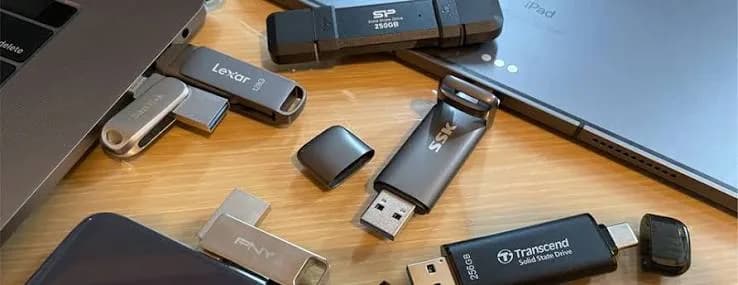
Every Kenyan office, school, church and cyber café runs on flash drives. They carry CVs to the printer, lecture notes to the next class, church slides to the projector, quotations to a client, wedding songs to the DJ, and photos between a phone and a laptop. Yet the best USB flash drive in Kenya is not the one with the biggest number on it, and the cheapest one in a roadside stall is often the most expensive in the end. A slow drive wastes time. A fake drive loses documents. A drive that only has a USB-A plug will not fit your new laptop. This guide compares the SanDisk Cruzer Blade, Cruzer Glide, Cruzer Fit, Ultra Flair, Ultra Luxe and Type-C flash drives we stock, explains USB 2.0 versus USB 3.0 in plain language, tells you which capacity to buy, and shows you how to spot a fake flash drive before you trust it with your work.
We do not print prices in guides because they follow the exchange rate. Message us on WhatsApp for today's price.
The short answer
| You are... | Best drive | Why |
|---|---|---|
| A student printing and sharing assignments | SanDisk Cruzer Blade 32-64 GB | Light, simple, enough for documents |
| An office worker moving files daily | SanDisk Ultra Flair or Ultra Luxe 64-128 GB | USB 3.x speed saves time every day |
| Someone who loses small things | SanDisk Cruzer Fit | Tiny enough to live in a laptop port, but easy to lose when removed |
| Someone who hates caps | Cruzer Glide or Ultra Luxe (sliding, capless) | Nothing to lose |
| A phone and laptop user | SanDisk Type-C flash drive | Both USB-C and USB-A connectors |
| Someone moving large video files | Ultra Flair or Ultra Luxe 128 GB+, or consider a portable SSD | Higher speed, more space |
| Someone storing sensitive files | Any with SecureAccess, plus your own backup | Password protection, but not a vault |
If you need to move or store files larger than about 100 GB regularly, a portable SSD is a better tool than a flash drive.
What a flash drive actually is
A USB flash drive is a small circuit board with flash memory chips, a controller and a USB connector. It has no moving parts, draws power from the port, and appears on your computer as a removable disk. It is convenient, cheap and universal, which explains its popularity. It is also very small, easily lost, easily damaged by static or being yanked out mid-copy, and the cheapest products are routinely counterfeit.
Flash drive vs memory card vs portable SSD
- Flash drive: for carrying and sharing everyday files between computers. Good up to a few hundred GB.
- Memory card: for cameras, phones and drones, where the device writes to it. See our guides to microSD and SD cards.
- Portable SSD: for large, fast, important data and for editing from the drive.
USB 2.0, USB 3.0 and USB-C: the part everyone gets wrong
This is the single biggest source of confusion, and it affects what you should buy.
The connector is not the speed
The rectangular connector on most flash drives is called USB Type-A. The small oval reversible one on newer laptops and phones is USB Type-C. Both are just shapes. The speed depends on the standard behind them:
| Standard | Common name | Maximum theoretical speed | Typical flash drive result |
|---|---|---|---|
| USB 2.0 | Hi-Speed | 480 Mbps (about 60 MB/s) | About 10-30 MB/s |
| USB 3.0 / 3.1 Gen 1 / 3.2 Gen 1 | SuperSpeed | 5 Gbps (about 625 MB/s) | About 30-150 MB/s depending on the drive |
| USB 3.1 Gen 2 / 3.2 Gen 2 | SuperSpeed+ | 10 Gbps | Rare in flash drives |
A USB 3.0 drive in a USB 2.0 port works, at USB 2.0 speed. A USB 2.0 drive in a fast port still runs at USB 2.0 speed. The slowest link wins.
What this means in practice
Copying a 4 GB movie takes roughly 3-5 minutes on a typical USB 2.0 drive and perhaps 40-90 seconds on a USB 3.x drive, depending on its write speed. If you move files daily, that is a lot of waiting.
Most drives list their read speed (such as 150 MB/s) prominently. Write speed, which is what you feel when saving files to the drive, is usually lower. Be sceptical of any flash drive that does not state which standard it uses.
Our technical blog on USB naming goes deeper.
The SanDisk flash drives we stock, explained
SanDisk Cruzer Blade (16, 32, 64, 128 GB): the basic workhorse
The Cruzer Blade is a compact, lightweight USB 2.0 Type-A drive. It is the simple, affordable choice that has been a staple for years. SanDisk lists SecureAccess password-protection software for its Cruzer drives, using 128-bit AES encryption. Because it is USB 2.0, it is not fast, and we say so plainly, but for documents, assignments and presentations it is perfectly fine.
Best for: students, printing at cyber cafés, church slides, CVs, documents and small files. Not for: large video files, frequent heavy transfers, or anyone who values speed.
SanDisk Cruzer Glide (16, 32, 64, 128 GB): the capless sliding drive
The Cruzer Glide has a retractable connector that slides in and out, so there is no cap to lose. Depending on the version, it is either USB 2.0 (the Cruzer Glide SDCZ60) or USB 3.0 (Cruzer Glide 3.0). We confirm which we have in stock before you order. The Glide 3.0 is listed with a five-year limited warranty, and SecureAccess password protection is included. It suits people who treat drives roughly, because the connector slides away into the body.
Best for: people who lose caps, and office users who want a tidy design. Check: whether the unit is the USB 2.0 or the USB 3.0 version.
SanDisk Cruzer Fit (32, 128 GB): the tiny one
The Cruzer Fit is a USB 2.0 Type-A drive that is just over 2 cm long and weighs about 1.4 g. It sits almost flush in a laptop's USB port, which makes it handy for extra permanent storage, for TV media playback, or for car stereos that read MP3 files. SecureAccess is listed. A UK retailer lists a five-year warranty; we confirm what applies.
Best for: leaving in a laptop, TV or car stereo. Honest caution: because it is so small, it is easy to lose when you pull it out. It is also USB 2.0, so it is slow.
SanDisk Ultra Flair (32, 64, 128, 256, 512 GB): fast and metal
The Ultra Flair is a USB 3.0 Type-A drive with a metal casing, backwards compatible with USB 2.0. SanDisk lists read speeds up to about 150 MB/s (some smaller capacities at 130 MB/s), with lower write speeds. It includes SecureAccess (128-bit AES password protection) and RescuePRO Deluxe file recovery software on many listings, and a five-year limited warranty on retailer listings. It is a good step up for office and daily use.
Best for: people who copy files daily, work documents, photos, and bigger files.
SanDisk Ultra Luxe (32, 64, 128, 512 GB): sleek, capless and quick
The Ultra Luxe uses USB 3.1 Gen 1 (5 Gbps), Type-A, with a full cast metal body and a capless design. It is backwards compatible with USB 3.0 and USB 2.0, with read speeds up to about 150 MB/s and SecureAccess password protection, and a five-year limited warranty on most retailer listings. It is one of the most solid-feeling flash drives in the range.
Best for: professionals who want a durable, good-looking drive that also performs.
SanDisk Type-C flash drive (32, 64, 128 GB): for phones and new laptops
This is a dual-connector design, with a reversible USB Type-C connector and a traditional USB Type-A connector on a swivel, so the same drive plugs into a new phone or laptop and an older computer. It uses USB 3.1 Gen 1 with read speeds up to about 150 MB/s (write speeds are lower and vary by capacity), has a keyring hole, and works with the SanDisk Memory Zone app for backing up phone photos. Phones need a USB-C port with OTG support, and SanDisk has a compatible-devices list. We cover this class in detail in our guide to the best USB-C flash drives.
Best for: moving photos and files between a phone and a laptop without cloud data costs.
Comparison table
| Drive | Interface | Top read speed | Design | Best for |
|---|---|---|---|---|
| Cruzer Blade | USB 2.0 Type-A | Basic | Compact, light | Documents, students |
| Cruzer Glide | USB 2.0 or 3.0 (confirm) | Version-dependent | Retractable, capless | No-cap convenience |
| Cruzer Fit | USB 2.0 Type-A | Basic | Tiny, near-flush | TVs, car stereos, laptops |
| Ultra Flair | USB 3.0 Type-A | Up to about 150 MB/s | Metal casing | Daily office use |
| Ultra Luxe | USB 3.1 Gen 1 Type-A | Up to about 150 MB/s | Cast metal, capless | Durable, professional use |
| Type-C flash drive | USB 3.1 Gen 1, Type-C + Type-A | Up to about 150 MB/s | Swivel dual connector | Phones and new laptops |
Speeds are from SanDisk and retailer listings. Write speeds are lower than read speeds and vary by capacity. We confirm the exact version of the unit you order.
How much capacity do you need?
Flash drives are sold from 16 GB up to 512 GB and beyond. More is not always better, for reasons we explain below.
| What you carry | Typical size | Suggested capacity |
|---|---|---|
| Documents, CVs, assignments, slides | A few GB at most | 16-32 GB |
| Documents plus some photos and music | 10-30 GB | 32-64 GB |
| Photos and short videos | 30-100 GB | 64-128 GB |
| Movies, large video files, software installers | 100 GB or more | 128-256 GB, or a portable SSD |
| Bootable installers (Windows, Linux) | 8-16 GB per installer | 16-32 GB dedicated drive |
| Car stereo or TV music and videos | Depends on library | 32-128 GB |
Why very large flash drives are a risk. The bigger the capacity, the more the drive tends to cost and the more the convenience encourages you to keep your only copy of important files on it. A 512 GB flash drive that is lost, damaged or fake takes everything with it. For large collections, a hard drive or SSD with a backup is a better design.
File size limits. Drives of 32 GB and below are often formatted FAT32, which cannot store a single file larger than 4 GB. If you plan to copy large video files, format the drive as exFAT (see our blog on exFAT, FAT32 and NTFS).
Using a flash drive in real Kenyan situations
At the cyber café and print shop
This is where most Kenyan flash drives meet their end. Public computers are full of viruses and malware that spread by USB. To protect your drive, never open your files by double-clicking when you plug in at a shared computer. Keep your master copy at home and use the drive only as a transport copy. If a computer behaves oddly, scan the drive on your own machine with an antivirus before opening anything. See our guide to antivirus software. A drive with a write-protect option, or one with password protection through SecureAccess, adds a layer of safety for sensitive files.
In schools and universities
Students share assignments, past papers and software. Label your drive, put your name and number in a text file on it (a readable "if found, call" message gets drives returned more often than you would expect), and keep a copy on your laptop or in the cloud.
In churches and events
A church sound desk, projector or media laptop is a constant stream of flash drives from different people. Format the drive in the format the equipment understands (usually FAT32 or exFAT), test it on the actual equipment ahead of time, and carry a spare. If your church uses a projector that reads media directly, check the supported formats.
In the car and on the TV
Car stereos and many TVs read media from USB. The Cruzer Fit is ideal because it stays in the port. Use a simple format (FAT32 is the most widely supported), keep folder structures simple, and avoid very large capacities, since some older players cannot read drives above 32 GB or 64 GB.
For installing Windows or Linux
A 16 GB or 32 GB drive makes a good bootable installer. USB 3.x drives make installations much quicker. A dedicated installer drive, labelled, is a good tool for anyone who repairs computers or refurbishes laptops. See our refurbished laptops for equipment that benefits from a fresh install.
For taking files to a client
Business owners often hand over files on a drive: brochures, product catalogues, quotation packs. A branded or good-looking metal drive makes a better impression than a cheap plastic one, and the Ultra Luxe's metal build does that job.
Security: what SecureAccess does and does not do
Many SanDisk drives come with SanDisk SecureAccess software, which lets you create a password-protected, encrypted vault on the drive using 128-bit AES encryption. It is a useful basic protection if you lose the drive: someone who finds it cannot simply open your files. But honesty matters here:
- It protects only what you put into the vault, not the whole drive.
- It needs the software to be available on the computer where you open the vault; some systems restrict running programs from USB drives.
- If you forget your password, the files are not recoverable.
- It is not a substitute for a backup.
For truly sensitive data, use full-disk encryption such as BitLocker on Windows or the built-in encryption on a Mac, and keep a separate backup. See our guide to backup drives.
Keeping a flash drive alive
- Eject before you pull. Yanking a drive mid-write is the commonest cause of corrupted files. Use the "Safely Remove" option, especially after copying large files.
- Do not leave it plugged into a public computer. Viruses and accidents both happen to drives left behind.
- Keep it dry and out of heat. Flash memory hates heat, and a drive in a hot car or a jeans pocket in the wash does not survive.
- Do not use it as your only copy. Flash drives are lost, stolen and broken constantly.
- Do not edit files directly from a slow drive. Copy to the computer, edit, then copy back. Editing a document directly on a flash drive and then pulling it out is a recipe for corruption.
- Scan it regularly. Run an antivirus scan if it has been used on public computers.
- Replace old drives. A drive that is several years old and used daily should be retired for important work.
Signs a flash drive is failing
- Files copy slowly, stall, or fail partway
- The drive disappears from the computer or appears as 0 bytes
- Files that opened yesterday are corrupted today
- The computer says "You need to format the disk"
- The drive becomes read-only
If this happens, stop writing to the drive, copy off whatever you can to a computer, and message us. For irreplaceable data, avoid trying repeated fixes, which can make recovery harder.
Flash drive or cloud storage? An honest comparison
Many people ask whether flash drives are obsolete now that Google Drive, OneDrive and WhatsApp exist. In Kenya the honest answer is: not yet, and perhaps not for a long time.
Where flash drives win. They need no internet, so they work when your bundles run out, when the office Wi-Fi is down, or when you are at a venue with poor signal. They are quicker for large files on a local copy: moving 8 GB of event photos onto a laptop from a flash drive takes a couple of minutes, whereas uploading the same files over a typical mobile connection takes far longer and costs data. They also work with printers, projectors, car stereos, TVs and public computers that have no cloud sign-in.
Where cloud wins. It does not get lost, it can be reached from any device, it keeps version history, and it can be shared by link. For documents you edit on several devices, cloud storage is more convenient and safer against loss.
The sensible approach. Use cloud storage as your main working and backup copy of documents, and use a flash drive as the physical transport for printing, presenting and moving large files. Never let the flash drive be the only home of a file you cannot afford to lose. For a deeper look at this question, see cloud vs external drive backups.
A simple buying checklist
- What are you carrying? Documents need little; video needs capacity and speed.
- What ports do your devices have? USB-A only, or USB-C as well? If you have a phone or a new laptop, consider the Type-C drive.
- Do you care about speed? If you move large files daily, buy USB 3.x. If you only carry assignments, USB 2.0 is fine.
- Do you hate caps? Choose a Glide or Ultra Luxe.
- Will you leave it plugged in? Choose a Cruzer Fit.
- Is the data sensitive? Use SecureAccess or full-disk encryption, and keep a backup.
- Will you test it? Run H2testw or F3 on the day you buy it.
What to do with an old drive
Before you sell, give away or throw out a flash drive, wipe it. A simple "quick format" leaves most files recoverable. For a thorough wipe, use a full format (not quick), or a tool that overwrites the drive. If the drive held sensitive business, financial or personal information, physically destroying it is the safest option. Remember that an old drive that is still working can serve as a bootable installer or a spare for non-critical files.
Five mistakes we see again and again
Buying on capacity alone. A huge drive that is slow and USB 2.0 is a frustrating tool. Pair sensible capacity with the right speed.
Assuming a blue plug means USB 3.0. It is a hint, not a guarantee. Check the product listing and, if possible, test the speed.
Keeping the only copy on the drive. Flash drives are the most-lost, most-broken, most-stolen storage item there is. Treat them as transport, not archive.
Using the drive on every computer without scanning. Shared computers spread malware by USB. Scan before you open files from a drive that has been on public machines.
Pulling the drive out the moment the progress bar finishes. Operating systems sometimes cache writes. Eject first, then pull. This one habit prevents most corruption.
If you have already made one of these mistakes and files have gone missing, message us on WhatsApp before you do anything else with the drive. Often there is something we can try.
Warranty and what it really covers
SanDisk lists limited warranties on many of its flash drives, commonly up to five years on retailer listings for the Ultra Flair, Ultra Luxe, Type-C drives and the Glide 3.0. Warranty terms vary by product, region and the channel through which a drive was sold. A limited warranty generally covers manufacturing defects, not loss, physical damage, or the data on the drive. That is another reason to keep your files in more than one place. Ask us what applies to the specific unit you are buying, and keep your receipt and the packaging until you have tested the drive.
How to spot a fake flash drive
Fake flash drives are everywhere in Kenya's informal markets and online listings, and they are the most common counterfeits in all of storage. The most harmful kind is the fake-capacity drive: a tiny memory chip, often 2-16 GB, programmed to report itself to your computer as 64 GB, 128 GB or even 1 TB. It accepts files until the real space is full, then quietly overwrites or discards data. People discover the problem when documents open as blank or corrupted, often after they have already deleted the originals. Here is how to protect yourself.
1. Price and place
A "128 GB" drive at a price that makes you laugh is almost certainly not 128 GB. Genuine drives from authorised sellers have a narrow price range. Streets, buses and anonymous sellers are the usual source of fakes.
2. Packaging and printing
Genuine retail packaging is sealed, cleanly printed and consistent. Check for blurred logos, misspellings (for instance, a brand name with a letter changed), poor colour, loose seals and incorrect model numbers. A drive sold loose with no packaging should raise suspicion.
3. The drive itself
- Build quality: the metal drives (Ultra Flair, Ultra Luxe) should feel solid and cold in the hand. A light, plasticky "metal" drive is suspicious.
- Printing and markings: the logo and capacity should be sharp and evenly printed. Fakes often have rough, uneven or oversized printing.
- Connector: look inside the USB-A connector. A USB 3.0 plug has an extra row of pins (blue plastic inside is a common but not guaranteed indicator). A "USB 3.0" drive with only four pins is USB 2.0.
- Weight and moving parts: on a Glide or Ultra Luxe, the slide mechanism should be smooth and firm, not loose or rattly.
4. The capacity test (the most important one)
Use H2testw on Windows or F3 on Mac and Linux. These tools write test data to the whole drive and read it back. A fake drive shows errors, or reports far less real capacity. Do this before storing anything you care about. The test takes time on larger drives, but it is the only reliable way to catch fake-capacity drives.
5. The speed test
Use CrystalDiskMark or the Blackmagic Disk Speed Test on a USB 3.0 port. A drive sold as USB 3.0 with 150 MB/s read speed that tops out around 15 MB/s is not performing as advertised. Test in a different port to rule out the port.
6. The software and identification check
Plug the drive in and check how the computer describes it. On Windows, Device Manager and tools such as ChipGenius or CrystalDiskInfo (for some drives) can show the controller and reported details. A drive that identifies with a generic or random name, or a name different from its label, is suspicious. Genuine drives from major brands show consistent identification.
7. The "autorun" or strange files warning
A new drive should be empty or contain only the brand's standard software (such as SecureAccess). A drive with unknown programs, shortcuts, or hidden files is a security risk. Do not run them.
8. Beware of "too good" capacity claims
Capacities like 1 TB, 2 TB or 4 TB on a small flash drive at a low price are almost always fake. Real high-capacity flash drives exist, but they cost far more than a fake claims.
9. Keep your receipt
If you test within a few days and the drive fails, you can return it. Test promptly.
10. Buy where you can return it
A reliable seller will let you test a drive and will stand behind it. If a seller refuses to let you test the product in front of them, be suspicious.
Why buy your flash drive from City Gadgets Kenya
- Genuine SanDisk flash drives, sealed, with the version confirmed: whether the Glide is USB 2.0 or 3.0, and the exact capacity.
- Straight advice on which one you actually need. If a Cruzer Blade is enough for your documents, we will not sell you an Ultra Luxe. If a portable SSD suits your video files better, we will say so.
- A real shop in Nairobi CBD: New Alnoor Exhibition, Second Floor, Shop C7, Accra Road. You can see, hold and test the drive before leaving.
- Same-day delivery in Nairobi, next-day outside Nairobi through reputable courier companies.
- M-Pesa payment and WhatsApp support afterwards.
- A wider range of tech. When you need more than a flash drive, our accessories category and laptops are a click away.
Frequently asked questions
What is the best USB flash drive in Kenya for students? The SanDisk Cruzer Blade in 32 or 64 GB covers assignments, notes and printing. If you also move large files, the Ultra Flair is worth the upgrade.
Is USB 3.0 worth it? Yes, if you move large files or copy daily. If you only carry small documents, USB 2.0 is fine.
Will a USB 3.0 drive work in an old computer? Yes. It works in a USB 2.0 port at USB 2.0 speed.
Can I use a flash drive with my phone? Yes, with a USB-C OTG-capable phone and a Type-C or OTG-adapted drive. Our Type-C flash drive has both connectors.
What does SecureAccess do? It lets you create a password-protected encrypted vault on the drive using 128-bit AES encryption. Remember the password: forgotten passwords cannot be recovered.
Why does my 64 GB drive show about 58 GB? Capacity is counted in decimal by manufacturers and binary by Windows, and some space is used by formatting. Around 57-58 GB is normal for a genuine 64 GB drive. A 64 GB drive showing 8 GB is fake.
Can I store a movie larger than 4 GB? Not on a FAT32-formatted drive. Reformat to exFAT or NTFS.
What should I do if my drive asks me to format it? Do not format it straight away. Try another port and computer, and run a recovery tool. Formatting can make recovery harder.
How long does a flash drive last? Years, with light use, but they are easy to lose and break. Keep a second copy of anything important.
Can you confirm the model and warranty before I order? Yes. Message us your capacity and type and we will confirm exactly what we have in stock.
Ready to buy?
Tell us what you carry, which devices you plug into, and how often you move files, and we will recommend the right drive.
WhatsApp: wa.me/254745575931 Visit: New Alnoor Exhibition, Second Floor, Shop C7, Accra Road, Nairobi CBD. Same-day delivery in Nairobi; next-day outside Nairobi.
Related reading: best USB-C flash drives, USB versions explained, best storage for students.








