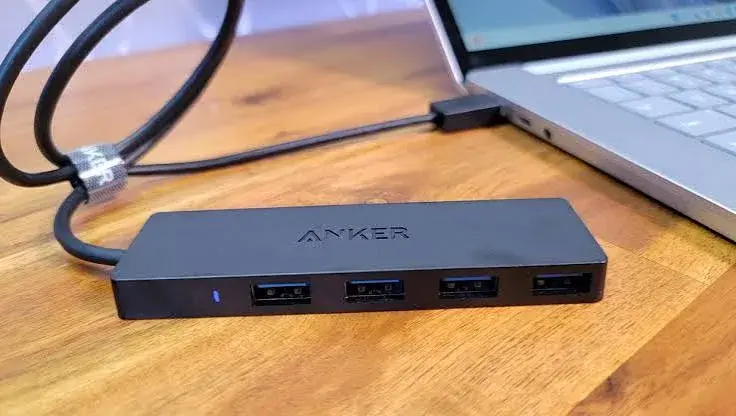
Modern laptops are getting thinner and their ports are disappearing. A MacBook or a slim Windows ultrabook may offer only two USB-C ports, and your flash drive, wireless mouse receiver, external monitor and charger all want a place to plug in. A USB-C hub fixes that by turning one port into several. But the market is crowded, and cheap unbranded hubs can run hot, drop connections, fail to output video or even damage a port. This guide helps you choose the best USB-C hub in Kenya for your laptop, explains the specifications that matter, compares the Anker 5-in-1 and 7-in-1 hubs we stock, and shows you how to avoid fakes.
We are City Gadgets Kenya, at New Alnoor Exhibition, Second Floor, Shop C7, Accra Road, Nairobi CBD, with same-day delivery in Nairobi and next-day delivery outside Nairobi. Specifications below come from the maker's published information and retailer listings, and we say "we confirm per unit" where details vary. Prices change, so message us on WhatsApp for today's price.
The short version
- Best all-round hub for most people: the Anker 5-in-1 USB-C hub, with 4K HDMI, two USB-A ports, a USB-C data port and up to 85W pass-through charging.
- Best hub for photographers and creators: the Anker 7-in-1 USB-C hub, which adds SD and microSD card readers.
- Check first: that your laptop's USB-C port supports video output. Not every USB-C port does.
- Expect 4K at 30 Hz on these hubs. That is fine for documents, video and presentations, but not as smooth as 60 Hz for fast motion.
- You need a charger for pass-through charging, and it is not included.
| Anker 5-in-1 | Anker 7-in-1 | |
|---|---|---|
| Video | 4K HDMI, up to 30 Hz | 4K HDMI, up to 30 Hz |
| USB ports | Two USB-A, one USB-C data | Two USB-A, one USB-C data |
| Card readers | None | SD and microSD |
| Pass-through charging | Up to 85W | Up to 85W |
| Best for | Desk setups, students, office | Photographers, content creators |
Both entries reflect Anker's published information and retailer listings. Anker sells several 7-in-1 variants, and some include Ethernet, so we confirm the exact ports on the unit you order.
What a USB-C hub actually does
A hub is a small adapter that plugs into one USB-C port on your laptop and splits the connection into several ports. Inside is a chip that shares the laptop port's bandwidth between the devices attached: video, data, and power. Because all the devices share one connection, the hub is a compromise. It is excellent for the everyday jobs of a laptop on a desk, but it is not a replacement for a full dock or for the fast native ports of a high-end workstation.
The three jobs a hub does are:
- Adds ports. USB-A for older flash drives, mice and keyboards, HDMI for monitors and projectors, card readers for cameras.
- Carries video. If your laptop's USB-C port supports video output, the hub can send a picture to a monitor, TV or projector over HDMI.
- Passes power through. You plug your laptop charger into the hub, and the hub feeds most of that power to the laptop while you use the other ports.
Will a hub work with your laptop?
This is the most important question, and many buyers overlook it.
USB-C is a connector, not a promise. A USB-C port can support data only, data plus charging, or data plus charging plus video. Many laptops, including MacBooks and most recent Windows ultrabooks, support video over USB-C. Some budget laptops and a few tablets do not. Anker lists devices such as the Nintendo Switch and some older laptops that cannot output video through a USB-C hub.
How to check:
- Look for a DisplayPort or Thunderbolt logo beside the port, or a small monitor symbol.
- Check the laptop's specifications for "DisplayPort Alt Mode" or "USB-C video output".
- Check the maker's support page for your exact model.
- Or message us your laptop model on WhatsApp and we will confirm.
Also check the charging. If you plan to charge through the hub, the laptop must support USB-C charging, and your charger must be strong enough. A hub can only pass on what the charger gives it.
Understanding the specifications
HDMI and 4K at 30 Hz
Both Anker hubs output 4K over HDMI at up to 30 Hz, per Anker's published information. That means the screen refreshes its picture 30 times per second. For documents, slides, web pages, video and presentations, 30 Hz is perfectly usable. Where it shows is in mouse movement and fast scrolling, which can feel slightly less fluid than at 60 Hz, and in fast gaming. If you want 4K at 60 Hz, you will need a hub or dock built for it, and a laptop and monitor that support it. At 1080p, the limit does not apply in the same way, and a hub like this will give a smooth 60 Hz picture on a full HD monitor, but check the maker's specifications for the exact modes. Read our refresh rate explained article for why this matters, and our 4K upscaling explained article for how resolution affects the picture.
USB data speeds
The USB-A and USB-C data ports on both hubs run at up to 5 Gbps, per Anker. That is fast enough for flash drives, many external hard drives, mice, keyboards, webcams and printers. A fast external SSD may be limited by the hub's 5 Gbps ceiling, so if you move very large files regularly, connect the SSD directly to the laptop's port where possible. See our portable SSD guide for drive choices.
Power delivery and pass-through charging
Pass-through charging lets you plug your laptop charger into the hub's power port. The hub uses some of the power itself and passes the rest to the laptop. Anker states up to 85W of pass-through from a 100W charger. So, for example, a laptop that wants 65W will charge normally, while a laptop that wants 100W would charge more slowly or not at full speed. The charger is not included, so make sure you have one that suits your laptop. If you have lost or damaged the original, see our laptop chargers.
Card readers
The 7-in-1 hub adds SD and microSD slots. Anker quotes up to 104 MB/s through the SD slot. That suits transferring photos and video from a camera or drone without carrying a separate reader. For understanding card speed labels, read our SD card video speed classes explained article.
Size, weight and build
The 5-in-1 hub weighs about 50 g and is about 12 mm thin, per Anker's launch notes. That makes it easy to carry in a laptop bag. Metal-bodied hubs shed heat better than all-plastic ones, which matters because hubs warm up when carrying video and power.
Anker 5-in-1 USB-C hub in detail
The Anker 5-in-1 is the hub we recommend to most people because it covers the everyday jobs and costs less than the 7-in-1.
Ports: 4K HDMI, two 5 Gbps USB-A ports, one 5 Gbps USB-C data port, and a USB-C power-in port rated up to 100W, per Anker.
Who it suits:
- Students and office workers who connect a monitor, a mouse dongle and a flash drive.
- MacBook, Dell XPS and HP users who need HDMI and USB-A.
- Travellers who want something light.
- Presenters who need to connect to a projector or a TV.
Things to know:
- Only the HDMI port carries video. The USB-C data port on the hub does not output a picture.
- 4K runs at 30 Hz.
- You need your own charger for pass-through charging, and the laptop gets up to 85W.
- It has no card reader.
Anker 7-in-1 USB-C hub in detail
The 7-in-1 builds on the same idea and adds card slots.
Ports (Anker 341, 7-in-1): 4K HDMI, one USB-C data port, two USB-A ports, a USB-C power-in port, an SD slot and a microSD slot, per Anker. Anker sells variants with slightly different port sets, and some include Ethernet, so we confirm the exact unit.
Who it suits:
- Photographers and videographers who move files from SD cards.
- Drone and action-camera users with microSD cards.
- Content creators who want everything in one adapter.
- Anyone who wants a single hub for their desk.
Things to know: it shares the same video, data and charging behaviour as the 5-in-1. If you do not use memory cards, the 5-in-1 is the better value.
5-in-1 vs 7-in-1: which should you buy?
Choose the 5-in-1 if you mostly need HDMI, USB-A and charging. Choose the 7-in-1 if you regularly use SD or microSD cards. If you are unsure, tell us what you connect and we will advise. Do not pay for ports you will not use, and do not buy a hub that lacks the one port you need every day.
Hub, dock or adapter: what is the difference?
Single-purpose adapter. A small dongle that does one job, such as USB-C to HDMI. Cheap and compact.
Hub. A multi-port adapter that draws its power from the laptop and may pass charging through. Good for desks and travel.
Dock. A larger, often mains-powered unit that offers many ports, faster video (including two monitors or 4K at 60 Hz), wired Ethernet and strong charging. Better for a permanent desk, but bulkier and dearer.
If you need two external monitors at high refresh rates, or you use a high-end laptop with lots of devices, ask us about a dock. For single-monitor use and portability, a good hub is enough.
Using a hub with a MacBook, Windows laptop, Chromebook or tablet
MacBook. Recent MacBooks support external displays over USB-C, and the hub's HDMI port works with them. Check how many external displays your specific model supports, because this varies by chip. Pass-through charging works with the MacBook's USB-C charger as long as the charger's wattage is adequate.
Windows ultrabook. Most recent thin Windows laptops support video over USB-C. Look for the DisplayPort or Thunderbolt logo, or check the specification page.
Chromebook. Many Chromebooks support USB-C video and charging. Check your model.
iPad and Android tablets. Some tablets with USB-C can output video and use a hub for storage, mice and keyboards. Support depends on the tablet and its software, so ask us before you buy. Our tablet keyboard guide covers accessories for tablets.
Phones. Some phones can output video through USB-C hubs. Many cannot. Check first.
Games consoles and handhelds. Some devices, such as certain handheld consoles, do not work with every hub. Anker lists exceptions, so tell us your device.
Setting up a hub at your desk
- Plug the hub into a USB-C port on the laptop. If your laptop has more than one USB-C port, use one that supports charging and video, which is usually marked.
- Connect your charger to the hub's power-in port, then the HDMI cable to your monitor.
- Plug in your mouse receiver, keyboard receiver or flash drive.
- In display settings, choose to extend or mirror the screen, and set the resolution.
- If the monitor is blank, try another HDMI cable, another HDMI input on the monitor, or unplug and reconnect the hub.
For a complete desk, see our home office setup guide.
Troubleshooting common hub problems
No picture on the monitor. Check the laptop's USB-C port supports video, the cable is firmly seated, and the monitor is on the right input. Try a different HDMI cable.
Picture at the wrong resolution. Set the resolution in display settings. If 4K looks choppy, that is the 30 Hz limit, and a lower resolution may feel smoother.
Laptop not charging, or charging slowly. Check the charger's wattage and that it is plugged into the hub's power port. A charger that is too weak will drain the battery under load.
Flash drive or mouse disconnects. The hub may be warm or the port may be loose. Try a different port, and avoid overloading the hub with power-hungry devices.
Hub gets hot. Some warmth is normal while carrying video and power. If it is too hot to touch, unplug it and contact us.
USB drive is slow. Check that it is a fast drive and plugged into a 5 Gbps port.
Wireless mouse laggy near the hub. USB 3 ports can produce radio interference near 2.4 GHz wireless receivers. Use a USB extension cable to move the receiver away, or use a Bluetooth mouse.
Safety: why a cheap hub is a false economy
A hub sits between your laptop and your charger, which means it handles power. A badly made hub can overheat, fail to regulate power properly or short-circuit. Your laptop's USB-C port is expensive to repair. We recommend buying hubs from established brands with clear warranty terms. Anker is a widely used accessories brand, and we stock genuine units. Avoid unbranded hubs sold without a receipt, especially those with extravagant claims such as "100 Gbps" or "8K" on a tiny low-priced adapter.
Connecting to monitors, TVs and projectors
The HDMI port is the reason many people buy a hub, so it pays to understand what it can drive.
Monitors. Most office monitors have HDMI inputs. Models in our range such as the Dell P2425H, the Dell SE2425HM, the HP Series 5 monitors and the Lenovo ThinkVision E24-40 are full HD office monitors, per their makers, so a hub drives them comfortably at their native resolution, and we confirm per unit what each supports. A full HD monitor does not need 4K, so the 30 Hz limit is not an issue there.
TVs. Plugging a laptop into a TV is a common way to watch films or present at home. Use the TV's HDMI input and set the laptop to extend or mirror the display. TVs often apply picture processing, so look for a "game" or "PC" mode, which reduces blur on text.
Projectors. Classrooms, churches and meeting rooms rely on HDMI. A hub means you never need to hunt for a dongle at the last minute. Keep the hub in your laptop bag with a spare HDMI cable. Our projectors category covers what we stock.
Cable quality. Use a decent HDMI cable. A damaged or very long cheap cable can cause flicker or dropouts. If you see sparkles or a blank screen, try another cable before blaming the hub.
Audio. HDMI carries sound as well as picture, so a TV or projector with speakers will play your laptop's audio when selected as the output device. If you hear nothing, check the sound output setting in your operating system.
Power budgeting: how to avoid a flat battery while plugged in
Pass-through charging confuses many buyers, so here is a simple way to think about it.
Your laptop wants a certain amount of power when it is working hard. Your charger can give a certain amount. The hub uses a small share of that for itself, and anything you plug into its USB ports (a hard drive, a phone) takes some more. What is left goes to the laptop.
For example, a laptop that comes with a 65W charger will usually be happy with a 65W charger through a hub, but if you also charge a phone from the hub, the laptop gets a little less. A powerful laptop that normally uses a 100W charger may charge slowly under heavy load through the hub, because up to 85W reaches it, per Anker. This is not a fault. It is a limit.
Tips:
- Use the charger that came with the laptop, or one with the same or higher wattage.
- Do not charge several power-hungry devices from the hub at once.
- If your battery drains while plugged in under heavy work, connect the charger directly to the laptop for demanding sessions.
- Do not use a phone charger as the hub's power source for a laptop.
Our accessories category includes chargers and cables, and our best power bank guide covers portable power.
Travel: using a hub on the road
A light hub is one of the most useful things in a work bag. For travel:
- Keep the hub in a small pouch with a short HDMI cable.
- Pack your laptop charger and a spare USB-C cable.
- Check the hotel or conference room TV for HDMI inputs, and carry the hub even if you think there is a VGA connection. Most modern screens have HDMI.
- Keep the hub cool and dry, and do not wrap its cable tightly around it.
- Do not leave it plugged into a laptop in a bag, where it may bend the port.
Care and long-term use
- Do not bend the cable sharply near the connector.
- Unplug by the connector, not by pulling the cable.
- Keep dust out of ports with a closed pouch.
- Avoid heat. Do not leave the hub in a hot car or under a laptop's exhaust.
- Do not force a connector. If a plug does not fit, check the orientation or port type.
- Keep the receipt and warranty details. If it fails, bring it to us.
Common mistakes when buying a hub
- Assuming every USB-C port outputs video.
- Buying on port count alone and ignoring quality.
- Expecting 4K at 60 Hz from a hub rated for 30 Hz.
- Forgetting the charger, then discovering pass-through needs one.
- Buying an unbranded hub with inflated claims.
- Plugging a fast SSD into a shared port and expecting full speed.
- Ignoring the warranty.
Wired internet, flash drives and everyday USB devices
A hub often becomes the place where the rest of your desk connects. A few practical points help.
Flash drives. Most flash drives work in the USB-A ports. If a drive is blue-tabbed or labelled USB 3, it will run faster than an old USB 2 drive, though real-world speed depends on the drive itself. Encrypt sensitive drives, and see our how to encrypt USB drives with BitLocker article.
Mouse and keyboard receivers. Wireless receivers use USB-A. If your Logitech mouse or combo uses a receiver, the hub lets a USB-C-only laptop use it without sacrificing your only port. Our keyboard and mouse combo guide helps you pick one. Bluetooth models need no receiver at all.
Printers and scanners. Many still use USB cables. A hub's USB-A port handles them, but a printer is best connected to a port that is not overloaded.
Webcams and headsets. USB webcams and headsets work on a hub, but they take bandwidth. If video freezes during a call, move the webcam to the USB-C data port or directly to the laptop. The Logitech C270 is covered in our webcam guide.
Wired internet. The Anker 5-in-1 has no Ethernet port. Some 7-in-1 variants do, so if wired internet matters for stable video calls, confirm the exact unit with us. Otherwise, a separate USB-C Ethernet adapter can be added.
External drives. A portable hard drive will work, but remember that spinning drives draw power and the hub shares what the laptop provides. A drive that clicks or disconnects may need to be plugged directly into the laptop.
When a hub is not enough
A hub is a fine answer for most desks, but it has limits. Consider a dock or a different approach if:
- You need two or more external monitors.
- You need 4K at 60 Hz from a laptop and monitor that support it.
- You use multiple high-speed devices at the same time, such as several SSDs.
- You want a permanent single-cable desk with wired internet, audio and charging at higher wattage.
- You use a gaming laptop with a proprietary charger that a hub cannot supply.
Ask us on WhatsApp and we will tell you honestly whether a hub or a dock fits.
Reading a hub's box and listing carefully
Marketing around hubs can be confusing, so here is how to read it.
"5-in-1" and "7-in-1" count ports, not performance. The number tells you how many connections the hub offers, not how fast they are. Two hubs with the same count can differ greatly in video support, data speed and heat handling.
"4K" needs a refresh rate. If the listing says 4K without giving the refresh rate, assume 30 Hz on a hub of this class and ask.
"100W" may refer to the power-in port. It does not mean the laptop gets 100W. Look for the pass-through figure, which Anker states as up to 85W for these hubs.
"5 Gbps" is a ceiling. Real transfer speeds depend on the drive, the cable and what else is using the hub.
"Plug and play" usually means no driver needed, but some features may need a laptop that supports them.
"Compatible with all laptops" is a warning sign. Compatibility depends on the laptop's USB-C capabilities.
If a listing hides these details, ask the seller. A good seller answers clearly, as we do.
A note on warranty and after-sales care
Hubs are small and often last for years, but they can fail through bending, heat or faulty chargers. A genuine product from a seller with a real shop gives you somewhere to go when something goes wrong. At City Gadgets Kenya we state warranty terms for the unit you order, and you can bring a faulty hub to Shop C7 at New Alnoor Exhibition. Keep your receipt and the box where possible, and avoid opening or modifying the hub, which may void the warranty.
Buying checklist: what to ask the seller
- Is it a genuine Anker unit, and is the box sealed?
- Which model exactly: 5-in-1 or 7-in-1, and which version?
- Does it support my laptop's video output?
- What wattage of charger do I need for pass-through?
- What warranty applies, and who services it?
- Can you test it with my laptop in the shop?
Example scenarios
These are illustrative scenarios, not customer records.
A student with a thin ultrabook. They need HDMI for the lecture-hall projector, a USB-A port for a flash drive and a charger. The 5-in-1 covers it.
A wedding photographer. They offload SD cards to a laptop after every event. The 7-in-1 saves carrying a separate reader. If they move very large files daily, they may also want a fast SSD connected directly.
A remote worker with a monitor. They connect a monitor, keyboard and mouse dongle every day. The 5-in-1 on the desk becomes a one-cable setup, with the charger plugged in so the laptop stays powered.
A presenter. They carry the hub in a laptop bag and use HDMI for client meetings. A light 5-in-1 suits them.
How to spot a fake Anker USB-C hub
Anker is a popular brand, which makes it a target for counterfeits. Use these ten checks together.
- Check the packaging. Genuine boxes have sharp printing, clean text and consistent branding. Blurry logos, spelling errors and re-taped seals are warning signs.
- Check the model number. The hub's label should match the box and the maker's website, such as the Anker 332 or 341, though we confirm model details per unit.
- Check the print on the hub. Logos and port labels should be crisp and evenly applied.
- Check the weight and feel. A genuine hub feels solid, with a tidy finish. A very light, rattly unit is suspect.
- Check the ports. They should fit snugly, with no wobble, and match the listed specifications.
- Test with your laptop. Plug it in with a monitor and a charger. Genuine hubs work as described, though warmth is normal.
- Check the claimed specifications. Be wary of claims that exceed what the class of hub can do.
- Check the warranty. A genuine seller states the warranty period and how to claim it.
- Check the seller. A physical shop address, a receipt and a way to contact them are good signs.
- Check the price. A price far below normal for a branded hub is a red flag.
If you are unsure, bring the hub to New Alnoor Exhibition, Second Floor, Shop C7, Accra Road, and we will help you check it.
Why buy your USB-C hub from City Gadgets Kenya
- Genuine Anker products, checked before they reach you.
- A real shop at New Alnoor Exhibition, Second Floor, Shop C7, Accra Road, Nairobi CBD, opening from 9:00 AM.
- Same-day delivery in Nairobi and next-day delivery outside Nairobi.
- M-Pesa payment and clear receipts.
- Honest advice, including telling you when you do not need the 7-in-1.
- Compatibility checks. Tell us your laptop model and we will confirm video and charging.
- Chargers, cables and accessories in our accessories category.
- Support and repairs through our repair service.
- Trade-ins through our sell page.
- WhatsApp help on +254745575931.
Your USB-C hub checklist
- My laptop's USB-C port supports video output.
- I know which ports I use every day.
- I chose the 5-in-1 or 7-in-1 based on whether I need card readers.
- I have a charger strong enough for pass-through charging.
- I accept 4K at 30 Hz, or I will run a lower resolution.
- I checked the box, label and ports for signs of a fake.
- I have a receipt and know the warranty terms.
Frequently asked questions
What is the best USB-C hub in Kenya? For most people, the Anker 5-in-1. For photographers and creators, the Anker 7-in-1.
Will it work with my MacBook? Yes, if the MacBook's USB-C port supports video, which recent models do. Tell us your model.
Does it charge my laptop? Yes, with pass-through charging of up to 85W from a suitable charger, which you supply.
Can I use two monitors? These hubs have one HDMI port. For two monitors, ask us about a dock.
Is 4K at 30 Hz okay? For documents, video and presentations, yes. For fast gaming or fluid scrolling, 60 Hz is better.
Does it have an SD card slot? The 7-in-1 does. The 5-in-1 does not.
Does it have Ethernet? Some 7-in-1 variants do. We confirm the ports on the unit you order.
Will it work with my phone or tablet? Sometimes. It depends on whether the device supports USB-C video and accessories. Ask us.
Can I pay by M-Pesa? Yes.
How do I know it is genuine? Use the ten checks above.
Where can I buy a USB-C hub in Nairobi? At City Gadgets Kenya, Shop C7, Second Floor, New Alnoor Exhibition, Accra Road.
Ready to choose?
Message us on WhatsApp with your laptop model and what you plug in, and we will recommend the right hub.
Related reading: Home office setup guide · Best portable SSD in Kenya · Best USB-C cable in Kenya · HDMI 2.1 explained