
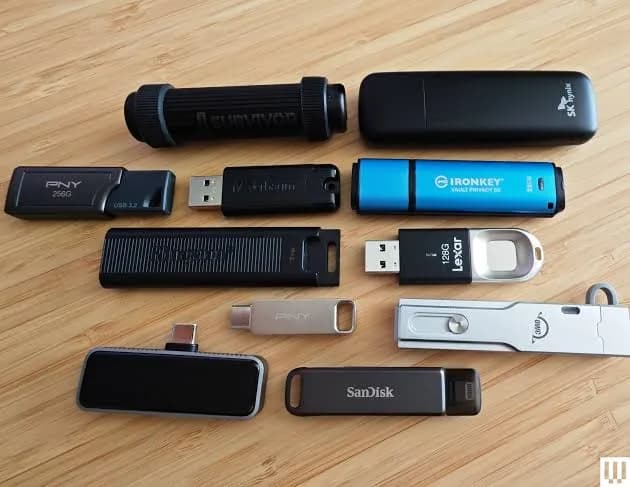
Five years ago, a flash drive meant a rectangular plug that fitted every computer. Today, many people carry a laptop with only USB-C ports, a phone that charges and transfers files through USB-C, and a printer or TV that still wants the old rectangular plug. That mismatch is why the best USB-C flash drive in Kenya is a different purchase from an ordinary flash drive. This guide explains USB-C in plain language, what OTG means for Android phones, which iPhones can use a flash drive, how Mac, Windows and Chromebook handle them, how fast a USB-C flash drive really is, and how to choose between a dual-connector drive such as the SanDisk Type-C flash drive, a plain USB-A drive with an adapter, and a small portable SSD. We finish with how to spot fake USB-C flash drives, which are as common as fake ordinary ones.
We do not print prices in guides because they follow the exchange rate; message us on WhatsApp for today's price. If you want the general flash-drive overview first, read our guide to the best USB flash drives in Kenya.
The short answer
| You have... | Best choice | Why |
|---|---|---|
| An Android phone and a laptop | SanDisk Type-C flash drive (dual connector) | Plugs into both without adapters |
| An iPhone 15 or newer | A USB-C drive, used through the Files app | Newer iPhones have USB-C and support external storage |
| An older Lightning iPhone | A Lightning-compatible drive or cloud backup | USB-C drives will not plug in without special hardware |
| A MacBook with only USB-C ports | USB-C or dual-connector drive | No adapter to lose |
| An older laptop plus a new phone | Dual-connector drive | One drive for everything |
| Large video files or heavy transfers | A portable SSD instead | Flash drives slow down on big files |
| Mostly printing and TV playback | A normal USB-A drive | Printers and TVs mostly want USB-A |
If you are unsure what port your phone or laptop has, send us the model and we will tell you before you buy.
What USB-C actually is (and what it is not)
USB-C is a connector shape. It is the small, oval, reversible plug that fits either way up. It does not tell you the speed, the power or the features. The same USB-C plug can carry slow USB 2.0 data or fast USB 3.2 or Thunderbolt data. We cover this properly in our blog on USB naming. The practical rule: look for the standard behind the plug, such as USB 3.1 Gen 1 (5 Gbps), not just the shape.
USB-A is the larger rectangular plug on most flash drives, older laptops, printers, TVs, car stereos, power banks and desktop computers.
A dual-connector drive solves the mismatch by carrying both plugs on one body. SanDisk's Type-C flash drive uses a swivel design: a reversible USB Type-C connector at one end and a traditional USB Type-A connector at the other, with a swivel cover that protects whichever one you are not using.
OTG: the word that decides whether your Android phone works
USB OTG (On-The-Go) is the feature that lets a phone act as the "host" and read a USB drive, rather than only being a device that plugs into a computer. Most modern Android phones with USB-C support it, but support is not universal, and some budget phones disable it or limit it. SanDisk publishes a compatible-devices list for its Type-C drives, and we recommend checking it, or asking us, before you buy.
What to check on your phone:
- Does it have a USB-C port? Older phones with micro-USB need a different adapter.
- Does it support OTG? Plug a drive in. If a notification or file-manager entry appears, it does.
- Does it have a file manager? Most Androids have a "Files" or "My Files" app that shows external storage.
- Does it supply enough power? A flash drive needs very little, but a failing port or a very low battery can cause errors.
If your phone refuses to read the drive, try a different file manager app, restart the phone, and check the drive on a computer to see whether the drive or the phone is the problem.
iPhones and iPads: what you need to know
Apple moved the iPhone 15 and later to USB-C. Those iPhones can connect to external storage, and you can browse, copy and open files through the Files app. Practical points:
- The drive should be formatted in a format iOS understands, usually exFAT, FAT32 or APFS. NTFS drives are generally not writable.
- Copying photos from the iPhone to the drive works through the Photos or Files app, depending on what you want to move.
- Very large drives and drives needing more power may not work reliably without extra power; a small flash drive is usually fine.
- iPads with USB-C have supported external drives for longer.
- Older iPhones with Lightning ports cannot use a USB-C flash drive directly. They need a Lightning-compatible drive, a Lightning-to-USB adapter or a cloud backup.
Some features that SanDisk's app offers on Android, such as automatic photo backup, may differ or be unavailable on iPhone. Ask us what applies to your phone model.
Mac, Windows and Chromebook
MacBooks. Recent MacBooks have only USB-C (Thunderbolt) ports, so a USB-C or dual-connector drive is the neat solution. Format it as exFAT to share with Windows, or APFS for Mac-only use.
Windows laptops. Many new Windows laptops have a mix of USB-A and USB-C. A dual-connector drive is useful when you move between old and new machines, such as the office desktop and your personal laptop.
Chromebooks. These handle exFAT and FAT32 well. Test your drive before depending on it.
Printers, TVs and car stereos. These almost always want the USB-A plug and a FAT32 drive of modest size. A dual-connector drive's Type-A end handles this, but keep the drive formatted accordingly (see our blog on exFAT, FAT32 and NTFS).
The SanDisk Type-C flash drive explained
SanDisk's dual-connector USB Type-C flash drive is the model we stock. It is sold in 32, 64 and 128 GB capacities. According to SanDisk and retailer listings:
| Feature | Detail |
|---|---|
| Connectors | Reversible USB Type-C and USB Type-A on a swivel design |
| Interface | USB 3.1 Gen 1 (5 Gbps) |
| Read speed | Up to about 150 MB/s; write speeds are lower and vary by capacity |
| Phone use | Needs a USB-C port with OTG support; SanDisk publishes a compatible-devices list |
| App | SanDisk Memory Zone, for automatic photo backup and file management on Android |
| Other | Keyring hole; swivel protects the connectors |
| Warranty | Retailer listings show a five-year limited warranty; we confirm what applies |
Strengths: two connectors in one body, decent speed for everyday use, a physical design that protects the plugs, and a respected brand with a long warranty.
Limits to be honest about: it is a flash drive, not an SSD. Sustained writes of large files slow down, write speeds are well below the headline read speed, and it will not replace a portable SSD for video editing. It is also physically bulkier than a plain USB-C stick, and a swivel mechanism is a moving part that can loosen over years of hard use. See our guide to portable SSDs when speed matters.
Alternatives to a dual-connector drive
A USB-A drive plus a USB-C adapter
A tiny adapter converts a standard USB-A flash drive to USB-C. It is cheap and lets you use any USB-A drive with a new laptop or phone. The downsides: adapters are small and easy to lose, they add leverage on the port, and cheap ones can be unreliable. If you already own good USB-A drives, an adapter is a sensible stopgap.
A USB-C-only drive
Compact drives with only a USB-C plug exist. They are the smallest option and suit someone who only uses USB-C devices. They will not work in a printer, TV or old computer without an adapter.
A portable SSD
If you move large files, such as video or RAW photos, a portable SSD with a USB-C cable is faster and sturdier than any flash drive. The SanDisk Creator Phone SSD, for instance, is designed to attach magnetically to compatible phones.
Cloud storage
Cloud services avoid cables altogether. They cost data and need a connection, which is why many Kenyans keep a physical drive as the local copy. See our comparison of cloud vs external drive backups.
| Option | Speed | Convenience | Best for |
|---|---|---|---|
| Dual-connector USB-C/A drive | Moderate | Highest | Mixed old and new devices |
| USB-A drive plus adapter | Moderate | Medium | Existing drives and tight budgets |
| USB-C-only drive | Moderate | High for USB-C users | Modern laptops and phones only |
| Portable SSD | High | Medium (a cable) | Big files, video, serious backup |
| Cloud | Depends on internet | High | Documents and light backup |
Why USB-C confuses everyone: cables, chargers and data
USB-C is also the connector for charging, video output and docks, which creates a lot of confusion. A few clarifying points help when you buy a drive.
Not every USB-C cable carries data. Some cheap cables are charge-only. They do not matter for a flash drive, which plugs in directly, but they matter if you also use a portable SSD with a cable. See our guide to the best USB-C cables.
Not every USB-C port is equal. On a laptop, one USB-C port may support Thunderbolt and fast data while another supports only charging and USB 2.0. Check your laptop's specification or the small symbols beside each port.
Power matters on phones. When a phone is the host, it supplies power to the drive. With a low battery, or a phone that limits OTG power, a drive may not appear. Charge the phone and try again.
Hubs and docks. Plugging a drive into a hub may share bandwidth with other devices. For the fastest transfers, plug directly into the computer. Our guide to USB-C hubs covers when a hub makes sense.
Charging while using the drive. Phones with a single USB-C port cannot charge and use a drive at once unless you use a hub that supports power pass-through. Plan for that on long copies.
Three buyers, three decisions
Mercy, a teacher with an Android phone and an old school laptop. She moves lesson plans and photos between her phone, her laptop and the school's printer. The printer and old laptop need USB-A; her phone needs USB-C. A 64 GB dual-connector drive covers all three. She formats it as exFAT, keeps her marking sheets in an encrypted vault, and copies the folder to her laptop weekly.
Brian, a designer with a MacBook Air and an iPhone 15. Both are USB-C only. He needs to move client files and phone videos quickly. A USB-C or dual drive works, but he also edits video, so he buys a portable SSD for large files and keeps a small flash drive for documents. He formats the flash drive as exFAT so it also works on his clients' Windows machines.
Achieng, a student with a budget phone and a shared hostel PC. Her phone has USB-C and OTG, and the hostel PC has only USB-A. She buys a 32 GB dual drive, uses the phone to move photos off when storage fills, and uses the Type-A end for assignments. She runs an antivirus scan on the drive after using the hostel PC.
If your situation resembles one of these, you are probably choosing correctly. If not, message us and we will work through it.
A buying checklist
- List your devices and their ports. USB-A, USB-C, Lightning, micro-USB.
- Decide whether you need both connectors. If any device you use needs USB-A, buy a dual-connector drive.
- Choose capacity. 32 GB for documents, 64 GB for documents plus photos, 128 GB for photos and videos.
- Check phone compatibility. OTG for Android, iPhone 15 or newer for iPhone.
- Decide whether you need speed. For regular big transfers, buy an SSD instead.
- Decide whether you need encryption. If yes, plan to use the vault software or built-in disk encryption.
- Plan the second copy. Never leave the flash drive as your only copy.
- Buy from a seller who lets you test. Run the capacity test on the day you buy.
How fast is a USB-C flash drive really?
The headline number, up to about 150 MB/s read, is the best case for reading large files. Several things change what you actually see.
Read vs write. Writing to flash memory is slower than reading. A drive that reads at 150 MB/s may write at 20-60 MB/s, depending on capacity. Larger-capacity drives usually write faster because they use more memory chips in parallel.
Large files vs many small files. Copying one 4 GB video is quick. Copying 10,000 small photos or documents is far slower, because every file has overhead.
Sustained copying. Some flash drives start fast and slow down after a few gigabytes when their fast cache fills and the controller has to write directly to the slower memory.
The port. A USB 3.x drive in a USB 2.0 port runs at USB 2.0 speed. Some phones' USB-C ports run at USB 2.0 speed, which caps any drive at roughly 30-40 MB/s in practice. Do not blame the drive if the phone is the limit.
Heat. Drives slow down when they get hot, as flash controllers reduce speed to protect themselves.
| Task | Typical time on a USB 3.x flash drive | Typical time on a portable SSD |
|---|---|---|
| Copy 1 GB of photos | About 10-30 seconds | About 3-5 seconds |
| Copy a 4 GB video | About 1-3 minutes | About 5-10 seconds |
| Copy a 32 GB folder | About 8-20 minutes | About 40-60 seconds |
| Copy 10,000 small documents | Several minutes | Faster, but still slower than one big file |
These are estimates, and real numbers depend on the drive, the devices and the files. They show why we recommend flash drives for documents, photos and moderate files, and SSDs for heavy lifting.
Common uses in Kenya and which drive suits them
Freeing phone storage. Many Kenyan phones fill up with WhatsApp media, videos and photos. A USB-C drive lets you move them off the phone to free space, without paying for cloud storage. Copy first, check the files open on another device, and only then delete from the phone.
Moving photos from phone to laptop. Plug in, copy and plug into the laptop. No cable hunt, no Bluetooth waiting, no data cost.
Taking documents to be printed. Cyber cafés and print shops still use USB-A computers. The Type-A end of a dual drive handles that. Remember to scan the drive for viruses afterwards.
Presenting from a phone or laptop. Churches, schools and offices often show slides from a flash drive. Test the drive on the equipment ahead of time.
Watching videos on a TV. Many TVs read video files from USB-A. Keep the drive formatted as FAT32 or exFAT, and check which video formats your TV supports.
Backing up important documents. A small drive holding scans of IDs, certificates, contracts and receipts is a good emergency kit, as long as you keep it encrypted and in a safe place.
Student life. Assignments, past papers, software installers and a few movies. A 64 GB drive covers most students.
Business use. Sharing brochures, price lists and quotations with clients. A metal or branded drive makes a better impression than a battered plastic one.
Security: protecting what you carry
A flash drive is easy to lose. Treat anything sensitive accordingly.
- Use encryption. Many SanDisk drives include SecureAccess software for a password-protected vault (128-bit AES on SanDisk's Cruzer line; ask us to confirm what your Type-C unit includes). On a Mac, you can encrypt a drive in Disk Utility. On Windows Pro, use BitLocker To Go.
- Keep a copy elsewhere. Never let a flash drive be the only copy of anything important.
- Scan drives that visit public computers. Cyber café machines spread malware. See our guide to antivirus software.
- Label it with contact details in a readable text file in the root of the drive. Honest finders do return drives.
- Wipe before disposal. A quick format leaves files recoverable. Use a full format or a secure erase tool.
- Be careful with unknown drives. Never plug in a drive you found in a car park or received unexpectedly. It could carry malware.
Formatting: the quiet source of most problems
Drives come formatted for general use, but your devices have preferences.
| Format | Works on | Limit |
|---|---|---|
| FAT32 | Almost everything: TVs, cars, printers, cameras, old phones | Files larger than 4 GB not allowed; drives above 32 GB often cannot be formatted to FAT32 by Windows |
| exFAT | Windows, Mac, modern Android and iPhone (Files app), many TVs | A few old devices do not read it |
| NTFS | Windows (read and write); Mac and iPhone read-only or unsupported | Poor compatibility with phones and TVs |
| APFS / HFS+ | Mac only | Windows cannot read without extra software |
For a flash drive that you use with phones and different computers, exFAT is the best default. If your TV or car stereo refuses it, use FAT32 on a smaller drive and keep files under 4 GB.
Setting up a new USB-C flash drive
- Inspect the packaging and the drive for signs of tampering or poor build.
- Plug it into a computer and check the capacity shown.
- Run a full-capacity test with H2testw on Windows or F3 on Mac and Linux. This catches fake-capacity drives.
- Test it on your phone to confirm OTG or iPhone compatibility.
- Format it in the file system that suits your devices.
- Install the app (SanDisk Memory Zone, on Android) if you want automatic backups.
- Copy a test folder, open the files on another device and confirm everything works.
- Create your encrypted vault if you will carry sensitive files.
Caring for a dual-connector drive
- Swivel gently. Do not force the swivel past its stops, and do not carry the drive on a keyring in a way that levers it against the swivel.
- Keep both plugs clean. Lint in a USB-C plug stops it seating; clean with a wooden toothpick or a soft brush, never metal.
- Do not plug and unplug constantly with a loose port. Worn laptop ports damage drives.
- Eject before removing. Always.
- Avoid heat and moisture. A phone-pocket in the sun or a trip through the wash will not end well.
- Do not drag a drive hanging from the phone. A heavy keyring on a phone port can damage the port.
Warning signs of trouble
The drive is detected and then disappears; files copy and then show as zero bytes; the phone says the drive is unsupported while a computer reads it fine (often a power or format issue); the swivel is loose and the plug wiggles; and capacity reported is wrong. When any of these happen, copy off what you can and message us.
Troubleshooting: the drive works on one device but not another
Works on a laptop, not on the phone. Check OTG support, try another file manager, restart the phone, and make sure the drive is formatted as exFAT or FAT32. Very large capacities formatted as NTFS will not mount on most phones.
Works on the phone, not on the car stereo or TV. These devices often accept only FAT32, small capacities (32 GB or less on older units) and specific file types. Use a separate small drive for them.
Slow on the phone, fast on the laptop. The phone's USB-C port may run at USB 2.0 speed. This is a limit of the phone, not a fault.
Files vanish after ejecting. Copying was not finished. Large copies need time after the progress bar completes, and you must eject properly before removing the drive.
Drive gets hot. Mild warmth is normal during large copies. A drive that becomes too hot to touch should be unplugged and checked.
Memory Zone app will not recognise the drive. Update the app and the phone's software, and check the drive is the Type-C model the app supports. Ask us if you are unsure.
"You need to format the disk." Do not format. Try another port and computer. Formatting makes recovery harder. Message us first.
When a flash drive is the wrong tool
Be honest about what flash drives cannot do. They are not designed for long-term archiving, for running programs, for video editing or for being your only backup. They are also fragile in the sense that they are small, easy to lose and prone to failure after heavy use. If any of the following describes you, look at the alternatives:
- You move more than about 50 GB at a time: a portable SSD.
- You need a large, cheap archive: a portable hard drive. See portable hard drive vs SSD.
- You shoot lots of phone video: an SSD designed for phones, or cloud storage if your connection allows.
- You need guaranteed backup: a mix of local and cloud copies, as in our blog on the 3-2-1 backup rule.
A flash drive is a superb tool for what it is: a pocket-sized, convenient way to carry and share files. Use it for that, and let other tools handle the rest.
How to spot a fake USB-C flash drive
Fake flash drives claim big capacities from tiny chips, and USB-C versions are no exception. A "128 GB" fake may hold only 8 GB, yet it will accept files until the real memory is full and then silently overwrite or discard data.
- Price and seller. Impossible prices from unverified sellers are the number one clue. Genuine SanDisk drives from authorised sources have a fairly narrow price range.
- Packaging. Sealed, crisp printing, accurate model numbers and capacities. Blurry logos, spelling mistakes and loose seals are warning signs.
- The drive itself. The swivel should be smooth and firm. Printing should be sharp. Check the USB-A plug: a USB 3.x plug has an additional row of pins; a USB-A plug with only four pins is USB 2.0.
- Capacity test. Run H2testw (Windows) or F3 (Mac and Linux). A fake shows errors or a much smaller real capacity. This is the single best test.
- Speed test. Use CrystalDiskMark or Blackmagic Disk Speed Test. A drive sold at around 150 MB/s read that reads at 15 MB/s is suspicious. Test on a known USB 3.x port.
- The app. The SanDisk Memory Zone app and SecureAccess software should install and run correctly. Missing or broken software is a warning sign.
- How the computer identifies it. Generic or odd names, or a capacity that does not match the label, are red flags.
- Unexpected files. A new drive should be empty or contain only the brand's software. Unknown programs are a security risk.
- Receipt and warranty. A genuine seller can explain the warranty and give a receipt.
- Buy where you can test. If a seller will not let you check the drive, walk away.
Why buy your USB-C flash drive from City Gadgets Kenya
- Genuine SanDisk drives, sealed, with the capacity, connector type and warranty confirmed for the exact unit.
- Phone-compatibility advice. Tell us your phone model and we will say whether OTG and the drive will work together, before you pay.
- Honest recommendations. If a portable SSD, an adapter or cloud storage suits you better, we say so.
- A real shop in Nairobi CBD at New Alnoor Exhibition, Second Floor, Shop C7, Accra Road, where you can test the drive in front of us.
- Same-day delivery in Nairobi and next-day outside Nairobi, with M-Pesa payment.
- After-sales help if a phone or laptop refuses to read the drive.
Browse more in our accessories category and our phones.
Frequently asked questions
What is the best USB-C flash drive in Kenya? For most people with mixed devices, a dual-connector drive such as the SanDisk Type-C flash drive, because it works with USB-C and USB-A without adapters.
Will it work with my phone? Most Android phones with USB-C and OTG support, and iPhones from the iPhone 15 onwards. Send us your model to confirm.
Does it work with older iPhones? Not directly. Lightning iPhones need a Lightning-compatible drive or adapter.
Is a USB-C flash drive faster than a normal one? Not automatically. Speed depends on the standard behind the plug, not the shape.
Can I use it to back up WhatsApp? You can copy WhatsApp media folders to the drive on Android. WhatsApp's own chat backup uses cloud services; ask us if you need help with the options.
Why does my phone say the drive is not supported? Usually OTG is off, the format is not supported, or the phone cannot power the drive. Try another file manager app and check the format.
What format should I use? exFAT for most mixed use, FAT32 for TVs and car stereos with small files.
Can I edit video from the drive? It is better to copy video to your computer or use a portable SSD. Flash drives slow down on large sustained work.
How do I know it is genuine? Buy from a trustworthy seller, inspect the packaging and run H2testw or F3.
Does it come with a warranty? Retail listings show a five-year limited warranty on SanDisk Type-C flash drives. We confirm what applies to your unit.
Ready to buy?
Tell us your phone and laptop models and what you want to move, and we will recommend the right drive.
WhatsApp: wa.me/254745575931 Visit: New Alnoor Exhibition, Second Floor, Shop C7, Accra Road, Nairobi CBD. Same-day delivery in Nairobi; next-day outside Nairobi.
Related reading: best flash drives in Kenya, best portable SSD in Kenya, best USB-C hubs.








