
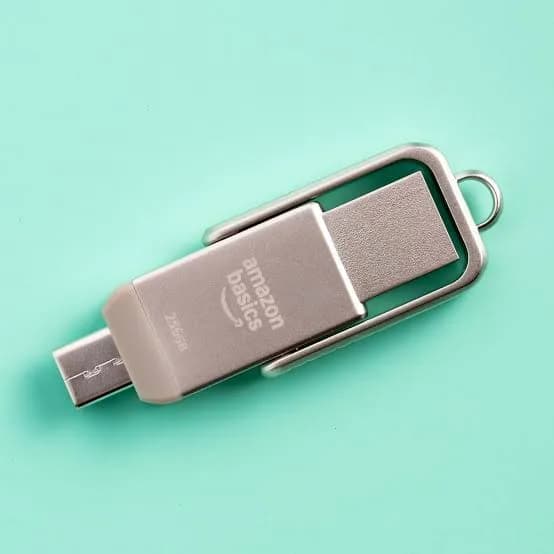
Every semester the same story repeats in Kenyan campuses: a final-year student loses a project on the morning of submission because the only copy lived on a flash drive that stopped working. Or a design student runs out of laptop space halfway through a portfolio. Choosing the right storage is one of the cheapest ways to protect your coursework, and the best storage devices for students in Kenya are not always the most expensive ones. They are the ones that match your course, your laptop and your habits.
This guide walks you through flash drives, portable hard drives, portable SSDs and microSD cards, tells you which course needs what, explains the one backup rule that saves theses, and shows how to avoid fake drives. When you want a second opinion, message City Gadgets Kenya on WhatsApp with your course, laptop model and budget.
The short version
- Every student needs two things: a small, reliable flash drive for moving files, and a larger drive for backup. One device is not a backup.
- Most students do well with a 64 GB to 128 GB flash drive plus a 1 TB portable hard drive. It is cheap, simple and enough for years of notes, slides and assignments.
- Design, architecture, film, media and engineering students should consider a portable SSD, because working files are large and speed saves hours.
- A microSD card expands a phone, tablet or camera, and is also a cheap way to carry documents with an adapter.
- Follow the 3-2-1 rule: three copies of important work, on two different kinds of storage, with one copy somewhere else (such as cloud storage).
- Buy genuine. Fake drives that claim a size they do not have are common near campuses, and they destroy files silently.
| Student type | Best everyday setup | Upgrade if needed |
|---|---|---|
| Arts, business, education, social sciences | 64 GB flash drive + 1 TB portable hard drive | Cloud storage for a third copy |
| Medicine, nursing, law | 128 GB flash drive + 1 TB to 2 TB portable hard drive | Portable SSD for recorded lectures and images |
| Computer science, IT | 128 GB flash drive + 500 GB to 1 TB portable SSD | Larger SSD for virtual machines |
| Engineering, architecture, design | 256 GB flash drive or SSD + 1 TB to 2 TB portable SSD | 4 TB hard drive for archives |
| Film, photography, media | 1 TB to 2 TB portable SSD + large hard drive archive | microSD or SD cards for cameras |
| Phone-first students | Large microSD card + flash drive | Portable drive for backups |
First, understand what each device does
USB flash drives
A flash drive is a small, cheap, plug-and-play device for moving files between computers. It is ideal for printing at a cyber café, handing in work, moving slides to a lecture hall computer or transferring a few gigabytes to a friend. Drives like the SanDisk Cruzer and Ultra families are common choices, and USB-C versions suit modern laptops and phones. For details see our guides to the best flash drive in Kenya and the best USB-C flash drive.
Strengths: pocket-sized, cheap, works anywhere. Weaknesses: easy to lose, easy to damage, and cheap ones are slow and unreliable. A flash drive is a courier, not a vault.
Portable hard drives
A portable hard drive (HDD) stores data on spinning disks. Capacity is generous and the price per gigabyte is low, so it is the best value for backups and large libraries of lecture recordings, ebooks and photos. WD, Seagate, Toshiba and Transcend StoreJet drives in 1 TB, 2 TB and 4 TB sizes are the usual picks.
Strengths: large capacity, low cost per gigabyte. Weaknesses: slower than SSDs, sensitive to drops while running, and heavier.
Portable SSDs
A portable solid state drive has no moving parts. It is fast, quiet and far more resistant to knocks, which suits anyone who carries a bag across town every day. SanDisk's portable SSD range spans entry models to rugged ones. Our guide to the best portable SSD in Kenya goes deeper.
Strengths: speed, durability, small size. Weaknesses: higher price per gigabyte than hard drives.
microSD cards
A microSD card expands the storage of phones, tablets, cameras and handheld devices, and with a USB reader it doubles as a tiny flash drive. See our best microSD card guide.
Strengths: tiny, cheap, ideal for phones and cameras. Weaknesses: easy to lose, and it needs a card slot or adapter.
Cloud storage
Cloud services such as Google Drive and OneDrive are not products you buy from us, but they belong in every student's plan. They give you the off-site copy that protects against theft, fire and flooding. Free tiers are limited, so most students combine cloud storage for documents with a physical drive for large files.
The backup rule that saves theses: 3-2-1
Storage fails. Drives are dropped, laptops are stolen and flash drives go through the wash. The simplest protection is the 3-2-1 rule:
- 3 copies of anything important (the original plus two backups).
- 2 different types of storage (for example the laptop and an external drive).
- 1 copy off-site (cloud storage, or a drive kept at home while you carry the laptop).
For a student, this can be as simple as:
- Work on your laptop.
- Copy your project folder to a portable hard drive every evening.
- Sync your documents folder to cloud storage.
That is three copies, two storage types and one off-site. It takes a minute a day, and it is the difference between a disaster and an inconvenience when your laptop is stolen from a hostel.
A flash drive is not a backup. If your only copy of a dissertation lives on a flash drive, you do not have a backup, you have a single point of failure that is easy to lose. Use it to move files, not to keep them.
Choosing a flash drive for campus life
For a student, the best flash drive is the one that survives a bag, a hostel and a cyber café.
Capacity. 32 GB is enough for documents and slides. 64 GB to 128 GB gives comfortable room for projects and recorded lectures. 256 GB suits those who carry larger files such as design assets.
Speed. USB 3.0 or newer is worth having. Copying a 5 GB folder takes minutes on a USB 3 drive and far longer on a USB 2.0 drive. Check the box, because some models in a range use older USB standards; we confirm the version before you buy.
Connector. USB-A fits most lecture-hall computers and printers. USB-C fits modern laptops and phones. A dual-connector drive covers both. If your laptop has only USB-C ports, a USB-C drive saves you carrying an adapter.
Build. A metal body or a retractable connector protects against bumps. A keyring hole stops you losing it. Avoid flimsy plastic.
Security. If you carry personal data or an unpublished thesis, use the drive's encryption software or your operating system's built-in encryption. A lost unencrypted drive is a privacy problem as well as an inconvenience.
Virus hygiene. Public computers and shared printers spread malware. Scan the drive on your own machine, and avoid opening files directly from the drive in a public cyber café; copy them across first.
Choosing a portable hard drive for backup
A portable hard drive is the best-value backup for most students.
Capacity. 1 TB holds well over a hundred thousand documents or a few hundred hours of lectures; it is plenty for most courses. 2 TB suits those storing photos, videos and software. 4 TB suits archivists, media students and anyone keeping many years of work.
Brand. WD, Seagate, Toshiba and Transcend StoreJet are well known. Transcend StoreJet drives have a reputation for toughness. Whichever you choose, buy a genuine unit with a proper warranty.
Handling. Hard drives do not like being moved while spinning. Eject properly, place the drive on a stable surface and avoid carrying it while it is plugged in. A soft case helps with bumps in a bag. See our guide on portable hard drives vs SSDs for the full comparison.
Format. New drives are often formatted for Windows. If you use a Mac or share files between systems, format as exFAT, which works on both. We will help you choose the right format when you collect the drive.
Power. Most portable drives run from the USB port. Use a good cable and avoid unpowered hubs, which cause disconnects and file corruption.
When a student really needs a portable SSD
A portable SSD costs more per gigabyte, but for some courses it pays back quickly.
- Architecture and design. Large CAD, 3D and Adobe files take forever to open from a hard drive. An SSD cuts waiting time sharply.
- Film, photography and media. Editing video straight from the drive is realistic on an SSD and painful on a hard drive.
- Computer science and engineering. Virtual machines, datasets and containers benefit from speed.
- Anyone who travels a lot. SSDs survive knocks better than spinning drives.
- Laptops with small internal storage. An SSD can serve as a fast second drive for projects.
For a typical arts or business student, a hard drive is usually enough and costs less. We will say so plainly rather than sell you an SSD you do not need.
Storage by course: what each student really needs
Medicine, nursing and health sciences
Lecture slides, textbooks as PDFs, anatomy images and recorded clinical sessions add up quickly. A 128 GB flash drive for daily movement and a 1 TB to 2 TB portable hard drive for the full library covers most needs. If you record lectures or ward demonstrations, a portable SSD makes browsing large video files painless. Keep patient-related material off personal drives unless your institution's rules explicitly allow it, and always encrypt anything sensitive.
Law and humanities
Mostly documents, PDFs and research notes. A 64 GB flash drive plus a 1 TB hard drive is ample. The priority here is backup discipline, because a dissertation or long essay is a single large file that cannot be recreated.
Business, commerce and economics
Spreadsheets, presentations and case studies. A 64 GB flash drive and a 1 TB hard drive suffice. If you run a small business on the side, add cloud backup of your accounts files.
Computer science and IT
Projects, code repositories, virtual machines and datasets. A 128 GB flash drive, plus a 500 GB to 1 TB portable SSD, keeps virtual machines responsive. Use Git for code, and treat the SSD as a working drive, not the only copy.
Engineering and architecture
CAD models, simulation data and rendering outputs are large. A 1 TB to 2 TB portable SSD for current projects and a 2 TB to 4 TB hard drive for archives is a sensible pairing. Keep dated project folders so you can recover earlier versions.
Film, photography, music and media
Video and raw photo files are enormous. Use fast cards in your camera (see our best SD card for cameras and external storage for photographers guides), offload to a portable SSD, then archive to a larger hard drive. Never keep your only copy on the card.
Education and teaching practice
Lesson plans, activity sheets and teaching resources. A 64 GB flash drive and a hard drive backup are enough. A microSD card in a tablet helps with classroom resources.
Phone-first students
If most of your study happens on a phone or tablet, a large microSD card extends the device's storage, and a USB-C flash drive lets you move files to a lecture-hall computer without a laptop. Check that your phone has a microSD slot before buying; many do not.
How much storage do you actually need?
A rough guide to what common files take up:
| File type | Typical size | How many in 128 GB |
|---|---|---|
| Word document | 0.1 to 1 MB | over 100,000 |
| PDF textbook | 5 to 50 MB | about 2,500 to 25,000 |
| PowerPoint with images | 10 to 50 MB | about 2,500 to 12,000 |
| Phone photo | 3 to 8 MB | about 16,000 to 40,000 |
| One hour of recorded lecture (audio) | 30 to 60 MB | about 2,100 to 4,200 |
| One hour of recorded lecture (video, 720p) | 0.5 to 1.5 GB | about 85 to 250 |
| 4K video, one hour | 10 to 20 GB | about 6 to 12 |
Documents take almost nothing; video eats everything. If your course is document-heavy, buy for reliability and backup, not capacity. If it is video- or design-heavy, buy for speed and size.
Comparison: the main storage options for students
| Device | Capacity range | Speed | Durability | Best use |
|---|---|---|---|---|
| USB flash drive | 32 GB to 512 GB | Medium to fast | Medium | Moving files |
| Portable hard drive | 1 TB to 4 TB | Medium | Medium (sensitive to drops) | Backups and archives |
| Portable SSD | 500 GB to 2 TB and up | Very fast | High | Working files, big projects |
| microSD card | 16 GB to 512 GB | Medium to fast | Medium | Phones, tablets, cameras |
| Cloud storage | Free tiers to paid plans | Depends on internet | High (off-site) | Off-site copy of documents |
Protecting your files: habits that matter more than hardware
- Eject before unplugging. Pulling a drive during a write is the number one cause of corrupted files.
- Name files sensibly. Use dates and version numbers ("Dissertation_v3_2026-05-12") so you can recover an earlier draft.
- Back up before deadlines, not after. Do not make your only backup the night before submission.
- Keep a second drive at home if you carry the laptop daily; one theft should not take both.
- Use antivirus and scan drives that visited public computers.
- Avoid cheap, unbranded drives. The few shillings saved are not worth a lost thesis.
- Label your drive with your name or contact. A kind finder may return it.
- Replace old drives. Flash drives and hard drives wear out; replace a drive that has been dropped, makes noises or has errors.
- Test restores. A backup you have never opened is a hope, not a backup.
What to do when a drive fails
If a flash drive or hard drive stops being recognised:
- Stop using it. Further writes can make recovery harder.
- Try another port and cable before assuming the worst.
- Do not format it if the computer offers to; formatting erases the index of your files.
- Do not open a hard drive yourself. Dust and fingerprints ruin the platters.
- Bring it to a specialist early. Our repair desk can advise on what is recoverable.
Recovery is never guaranteed, which is why backups come first.
Our student storage picks
We keep prices out of this guide because they change; message us for today's price.
- SanDisk Cruzer and Ultra flash drives: the everyday choice. Compact and reliable, with USB-C options.
- SanDisk portable SSDs: the fast pick for design, media and computer science. Different models trade speed for ruggedness; we confirm the model that fits your use.
- WD, Seagate, Toshiba and Transcend StoreJet portable hard drives (1 TB, 2 TB, 4 TB): the best-value backup. StoreJet is a strong pick if your bag takes a beating.
- SanDisk microSD cards: for phones, tablets and cameras. See the best microSD guide.
- Laptop upgrade: if your laptop itself is short of space, a SSD upgrade may be the cheapest fix.
Buying a laptop for studies too?
Storage and laptop choice go together. A laptop with a fast internal SSD and enough memory makes student life easier, and an external drive then becomes a backup rather than a crutch. Browse our laptops category, or message us for a recommendation that fits your course and budget.
Stretching a student budget
Students rarely have unlimited funds, so spend in the right order.
First priority: a backup drive. If you can only buy one thing beyond your laptop, buy a 1 TB portable hard drive. It protects the thing that cannot be replaced, which is your work.
Second priority: a reliable flash drive. A branded 64 GB drive moves files between home, campus and the cyber café. Buying a second small drive is cheap insurance.
Third priority: a portable SSD, but only if your course needs it. If you are unsure, start with the hard drive and add an SSD later when you know where the pain is.
Share the cost with a friend, carefully. Some students share a large drive for course resources such as past papers and recorded lectures. That works for reference material, but never share the only copy of your own coursework.
Buy once, buy genuine. A fake or unbranded drive that fails costs you the drive and the data. A genuine drive with a warranty is the cheaper option over the length of a degree.
Ask about sensible sizes. Do not pay for 4 TB when 1 TB covers your course. Equally, do not buy 32 GB if your course produces video; you will outgrow it in a month.
Group projects: sharing files without chaos
Group assignments are where files get lost and overwritten. A few habits help.
- Choose one master folder that everyone treats as the source of truth, whether it is on cloud storage or a shared drive.
- Add version numbers and initials to file names so you do not overwrite a teammate's edits.
- Do not pass a single flash drive around. Each handover is a chance to lose or corrupt the file.
- Back up the master folder to a separate drive before big merges and the night before submission.
- Test the final file on another computer before the deadline, so formatting and fonts do not betray you in the lecture hall.
Using storage with your phone
Many students do much of their reading on a phone. If yours has a microSD slot, a large card can hold downloaded textbooks, recorded lectures and offline videos. A USB-C flash drive plugs straight into many modern phones for quick transfers. Remember that phone storage is not a backup: if the phone is lost, so are the files unless they are also on a drive or in the cloud.
Common mistakes students make with storage
- Relying on one flash drive. The most common cause of lost coursework.
- Never ejecting drives properly. This corrupts file tables and eventually the drive.
- Keeping the laptop and backup drive in the same bag. One theft takes both.
- Buying the cheapest unbranded drive. Often fake, slow or unreliable.
- Working directly from a flash drive. Opening and saving large files straight on a flash drive stresses it. Copy to the laptop, work, then copy back.
- Forgetting about the deadline-night backup. Panic is the enemy of good file management.
- Ignoring warning signs. Slow copies, disconnects and strange file names mean a drive is failing. Replace it now.
- Forgetting passwords on encrypted drives. Write down the recovery key somewhere safe.
A worked example: three students, three setups
Wanjiru, second-year business student. Her coursework is documents, spreadsheets and slides, about 20 GB in total. She buys a branded 64 GB flash drive for printing and a 1 TB portable hard drive. Each evening she copies her semester folder to the hard drive and keeps the drive at home. Total storage spend is modest, and her work exists in three places: laptop, hard drive and cloud.
Brian, third-year architecture student. His project folders include large CAD files and renders that exceed 200 GB. A hard drive made opening files slow, so he adds a 1 TB portable SSD for current work and keeps a 2 TB hard drive as the archive. He saves a dated copy of each project at every milestone, so a corrupted model never costs more than a day.
Achieng, final-year medical student. She carries a 128 GB flash drive for slides, a 2 TB hard drive for the textbook library and recorded teaching sessions, and a microSD card in her tablet for offline reading. Patient-related notes stay encrypted. Her routine is simple: copy on Sunday night, check the backup opens once a month.
None of these setups is exotic. Each is matched to the work, and each follows the same rule: more than one copy, on more than one kind of storage.
How to spot a fake flash drive or hard drive
Fake storage is a real problem near campuses and online. The classic fake is a small, cheap chip reprogrammed to report a larger capacity than it really has. It looks fine when you plug it in, accepts files up to its true size, then silently overwrites or loses data. By the time you find out, the file is gone.
1. Be suspicious of price. A 512 GB or 1 TB flash drive sold for the price of a small one is fake. Genuine storage has a floor price set by the cost of memory chips.
2. Check the packaging and printing. Genuine retail packs have clean printing, correct logos, sealed blister or box, and a warranty card. Spelling errors, blurry logos and loose packaging are red flags.
3. Inspect the drive. Genuine SanDisk, WD, Seagate, Toshiba and Transcend products have crisp engraving or printing, tight seams and well-finished connectors. Rough edges, loose connectors and smudged text are warning signs.
4. Test the real capacity. This is the definitive test. Use H2testw on Windows or F3 on macOS and Linux to write to the full advertised capacity and read it back. A fake will report errors or a smaller real size.
5. Test the speed. A drive sold as USB 3.0 that writes at USB 2.0 speeds, or a hard drive that crawls, is suspect. A quick benchmark tool will show you.
6. Check the model and serial number against the manufacturer's website where checks are offered. Mismatched or missing numbers deserve caution.
7. Check the drive's properties. On Windows, look at the drive's reported manufacturer and model in Device Manager. Fakes often show generic or unrelated names.
8. Be cautious with loose drives sold without packaging. Hawkers and unlabelled stalls are the main source of counterfeit drives.
9. Buy from a seller who gives a receipt and warranty. A genuine product comes with someone who stands behind it.
10. Keep your receipt and packaging for warranty claims.
If you are unsure about a drive, bring it to our shop or send photos to us on WhatsApp, and we will check it with you.
Why buy student storage from City Gadgets Kenya
- Genuine SanDisk, WD, Seagate, Toshiba and Transcend storage, the brands students actually trust.
- We match the device to your course and laptop. No upselling: if a flash drive and a hard drive are enough, that is what we recommend.
- We confirm the details that matter, such as USB version, connector type and file system, before you pay.
- A real shop in Nairobi CBD at New Alnoor Exhibition, Second Floor, Shop C7, Accra Road, where you can see and test the product.
- Same-day delivery in Nairobi and next-day outside Nairobi, with M-Pesa payment, which suits students away from the city.
- After-sales help with formatting, backup setup and fault diagnosis.
- Message us for today's price. Prices change, so we quote current prices on WhatsApp.
Browse the accessories category for the full storage range.
Student storage checklist
- A flash drive (64 GB to 128 GB) for moving files.
- A portable hard drive (1 TB or more) for backups.
- A portable SSD if your course involves large or heavy files.
- A microSD card if your phone or camera needs it.
- Cloud storage for your off-site copy.
- A routine: copy your work to the backup drive every evening.
- A tested restore, done once, so you know it works.
Frequently asked questions
What is the best storage device for a student in Kenya? For most students, a 64 GB to 128 GB flash drive for moving files and a 1 TB portable hard drive for backups. Add a portable SSD for design, media or computing courses.
How much storage do I need for university? Documents take little space. A 1 TB drive covers most courses; video, design and engineering students may want 2 TB or more.
Is a flash drive enough for backing up my thesis? No. A flash drive is easy to lose and fail. Keep at least two other copies, including one off-site.
Is a portable SSD worth it for a student? If your course involves large files, video or virtual machines, yes. For documents only, a hard drive is more economical.
Which is better, SanDisk or Seagate? Different products. SanDisk is strong in flash drives, SSDs and memory cards; Seagate, WD, Toshiba and Transcend are strong in portable hard drives. We recommend by use, not by logo.
What is exFAT and do I need it? exFAT is a file system that works on Windows and macOS and supports large files. It is a good choice if you use both systems.
Can I use a memory card as a flash drive? Yes, with a USB card reader. It is convenient but easier to lose.
How do I know if my flash drive is fake? Check the price and packaging, then test it with H2testw or F3. Buy from a seller who can support you.
How long do flash drives last? Years of normal use, but they can fail suddenly. Never rely on one as your only copy.
Should I encrypt my drive? If it holds personal or unpublished work, yes. Use your operating system's encryption tools.
Do you deliver outside Nairobi? Yes, next-day delivery outside Nairobi, with M-Pesa payment.
Can you help me set up backups? Yes. Visit us or message us, and we will walk you through a simple routine.
Ready to choose?
Tell us your course, your laptop and your budget, and we will recommend a simple, honest setup and confirm compatibility before you pay.
WhatsApp: wa.me/254745575931 Visit: New Alnoor Exhibition, Second Floor, Shop C7, Accra Road, Nairobi CBD. Same-day delivery in Nairobi; next-day outside Nairobi.
Related reading: best flash drive in Kenya, portable hard drive vs SSD, best backup drive for home and office.








