
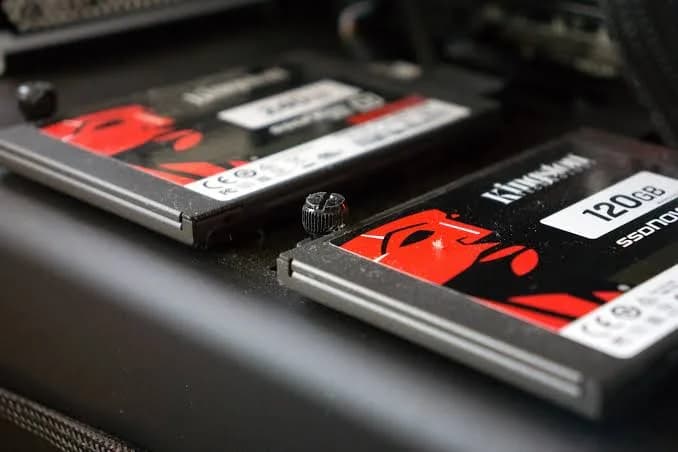
If your five-year-old laptop takes four minutes to boot, freezes whenever Chrome opens and sounds like it is chewing gravel, the cheapest, most effective fix is rarely a new computer. It is an SSD upgrade for an old laptop (or desktop): swapping the slow spinning hard drive for a solid-state drive. Done well, it turns a machine you were about to give up on into one that boots in under half a minute and opens programs almost instantly. Done carelessly, it wastes money on an SSD your computer cannot use, or loses your files. This guide walks through everything: whether an upgrade is worth it for your machine, how to find out which kind of SSD it takes (SATA 2.5-inch, M.2 SATA or M.2 NVMe), how to choose capacity, the SanDisk Optimus 5100 NVMe option we stock, how to move your Windows and files across (cloning or a fresh install), the BIOS and driver details that trip people up, heat and warranty, and how to avoid the fake SSDs that circulate in Nairobi.
We do not print prices in guides because they follow the exchange rate; message us on WhatsApp for today's price. If a computer is beyond sensible upgrading, our refurbished laptops are a good alternative, and our blog on why SSD, not HDD explains the technology.
Is an SSD upgrade worth it for your computer?
Honest answer: usually yes, but not always. Use this checklist.
| Your computer | Worth upgrading? | Notes |
|---|---|---|
| Laptop or desktop with a hard drive, 4 GB RAM or more, a Core i3/i5/i7 (any generation from about 2nd gen on), or a comparable Ryzen | Yes | Biggest single improvement per shilling |
| Same, but with only 2 GB or 4 GB RAM | Yes, plus a RAM upgrade | See our RAM upgrade guide |
| Very old (Core 2 Duo, Pentium 4, early Atom) | Questionable | The CPU becomes the bottleneck; consider replacing the machine |
| Chromebook | Usually not | Storage is soldered or special |
| Modern laptop already with SSD | No | Upgrade capacity only if you need space |
| Sealed ultrabook with soldered storage | No | Cannot be replaced |
| MacBooks before around 2012 | Possible | Check the model |
| MacBooks with soldered storage | No | Not upgradeable |
| Computer that fails to run Windows 11 | Upgrade still helps Windows 10 or Linux | See our blog on Windows 11 on older hardware |
If the computer is more than about ten years old, has a broken screen or battery and a dying fan, put the money towards a better machine. If it is a decent business laptop (a ThinkPad, EliteBook or Latitude from the past decade), an SSD upgrade is one of the best investments you can make.
What an SSD will and will not fix
An SSD fixes storage speed. It will:
- Cut boot time from minutes to seconds.
- Make programs open much faster.
- Make Windows updates and installs less painful.
- Eliminate the hard-drive noise and make the laptop more resistant to knocks.
- Reduce power use slightly, helping battery life.
It will not:
- Make a slow processor fast. Video editing and heavy games remain limited by CPU and graphics.
- Fix too little RAM. If you have 4 GB and many browser tabs, add RAM too.
- Repair a failing battery, a cracked screen or a clogged fan.
- Recover from malware or a messy Windows install; a clean install helps.
Step one: find out what drive your computer takes
This is the most important step. Three physical types exist.
1. 2.5-inch SATA SSD
The same size and connector as a laptop hard drive. Works in most laptops made before about 2018 and in desktops with a 2.5-inch bay or an adapter. Speeds are around 500-550 MB/s, limited by the SATA interface. These are the right choice for older machines with a SATA slot.
2. M.2 SATA SSD
A small stick that plugs into an M.2 slot but uses SATA speed. Found in some mid-2010s laptops. The connector has a "B" key with two notches (B+M).
3. M.2 NVMe SSD
A small stick that plugs into an M.2 slot and uses the fast PCIe interface. Speeds from around 1,500 MB/s up to 7,000 MB/s or more. The connector has an "M" key with one notch. Found in most laptops from the late 2010s onwards and many recent desktops.
Critical warning: an M.2 slot can accept SATA drives only, NVMe drives only, or both. Plugging in the wrong type in a slot that does not support it simply will not work. Always check your computer's specification first.
How to find out
- Look up the exact model. The model number is on a sticker on the underside of a laptop or in Settings > System > About. Search the manufacturer's support page or service manual for "storage" or "hard drive".
- Use a free tool such as CPU-Z, Speccy or HWiNFO to see the current drive and sometimes the interface. Device Manager shows the existing drive's name; looking up that name tells you its type.
- Open the panel (after turning the machine off and unplugging it) to see the bay. A 2.5-inch drive in a caddy is SATA. A small bare stick under a screw is M.2.
- Ask us. Send the model number on WhatsApp and we will check the specifications.
Some computers have both a 2.5-inch bay and an M.2 slot, which lets you add an SSD alongside the old drive.
Choosing capacity
Don't buy too small. Windows and applications need room, and SSDs slow down and wear faster when nearly full.
| Your use | Suggested capacity |
|---|---|
| Office and browsing, cloud-based work | 256-512 GB |
| Student with documents, some media | 512 GB |
| General family computer | 512 GB-1 TB |
| Photographer, designer, video editor | 1 TB or more, plus an external drive |
| Gamer | 1 TB or more |
| Shared family computer with lots of photos | 1 TB, plus a backup drive |
Check how much space you are actually using (look at the used space on C:). Choose a drive at least 30% bigger than that, and bigger if you can. Remember to keep 10-20% free.
The SanDisk Optimus 5100 NVMe SSD
For computers with a compatible M.2 slot, we stock the SanDisk Optimus 5100 M.2 NVMe SSD (1 TB; other capacities exist). According to SanDisk and retailer listings:
| Feature | Detail |
|---|---|
| Form factor | M.2 2280 |
| Interface | PCIe 4.0 x4, NVMe, backwards compatible with PCIe 3.0 |
| Speed | Up to 7,100 MB/s read and 6,700 MB/s write |
| Flash | QLC 3D NAND, with nCache 4.0 caching technology |
| Warranty | 5-year limited |
| Software | SanDisk Dashboard (Windows) for monitoring and updates |
What the speed claim means for an old computer. The full 7,100 MB/s needs a PCIe 4.0 slot, found only on recent machines. An older laptop with a PCIe 3.0 slot will run it at roughly 3,000-3,500 MB/s, which is still around six times faster than a SATA SSD and thirty times faster than a hard drive. A slot that supports only SATA will not work with it at all. Be honest with yourself about what your computer can take: an NVMe drive is only the right buy if your computer has an NVMe-capable M.2 slot.
QLC explained. QLC (quad-level cell) flash stores four bits per cell, which keeps cost down and capacity high. The trade-off is lower endurance and slower sustained writes once the fast cache fills, compared with TLC drives. For ordinary use, such as office work, browsing, media and light editing, it is perfectly fine. Heavy daily write workloads, such as constantly copying hundreds of gigabytes, would suit a TLC drive better. See our blog on TLC and QLC NAND.
For older computers with a 2.5-inch SATA bay, ask us about SATA SSD options; we confirm what is in stock and what suits your model.
SATA or NVMe? The comparison
| Factor | 2.5-inch SATA SSD | NVMe M.2 SSD |
|---|---|---|
| Typical speed | About 500-550 MB/s | About 1,500-7,000 MB/s |
| Where it fits | Older laptops and desktops with a 2.5-inch bay | Laptops and desktops with an NVMe M.2 slot |
| Real-world difference vs hard drive | Huge | Huge (slightly more snappy than SATA) |
| Real-world difference between SATA and NVMe | Small in everyday use | Noticeable in large file copies and loading |
| Heat | Low | Higher; heavy use may need a heatsink |
| Ease of installation | Easy | Easy (a single screw) |
For most older computers, the difference between SATA and NVMe in daily tasks is smaller than people expect. Moving from a hard drive to any SSD is the big leap. The right SSD is the one your computer can use properly.
Two ways to move to the new SSD: clone or fresh install
Option A: Clone your existing drive
Cloning copies everything on the old drive (Windows, programs, files, settings) to the new SSD, so the computer starts exactly as before, only faster. You need:
- The new SSD.
- A way to connect it while the old drive is still in the computer: a USB-to-SATA cable or enclosure for a 2.5-inch drive, or a USB enclosure for M.2 drives. (If your computer has both a 2.5-inch bay and an M.2 slot, you can connect the new drive internally.)
- Cloning software. Free or low-cost tools exist from drive makers and third parties, and Linux-based tools such as Clonezilla are free. Check which tool is currently free and supported before you start; offers change.
Steps in outline:
- Back up everything first. Cloning is generally safe, but a mistake in selecting source and destination erases data.
- Check the used space on the old drive is smaller than the new SSD's capacity.
- Connect the new SSD and run the cloning software, choosing the old drive as the source and the new SSD as the destination.
- Let it finish without interruption (keep the laptop on charge).
- Shut down, swap the drives (or install the new SSD internally and remove the old one).
- Boot and check. If it does not boot, enter BIOS/UEFI and make sure the new SSD is the boot device.
- Keep the old drive untouched for a couple of weeks until you are sure everything works.
Option B: Fresh install of Windows
A clean install on the new SSD often gives the best result, particularly if the old installation was slow, full of junk or infected. You need:
- A Windows installation USB drive (8 GB or larger), created with Microsoft's media creation tool. See our guide to flash drives.
- Your Windows licence (often tied to the computer's hardware and reactivated automatically on the same machine).
- A backup of your files, and installers or licences for your programs.
- Drivers if needed (usually Windows installs most automatically).
Steps in outline:
- Back up your files to an external drive. See our backup drive guide.
- Create the installation USB.
- Swap in the new SSD (remove the old drive or disconnect it so you do not install onto the wrong one).
- Boot from the USB and follow the installer.
- Install updates and drivers, then your programs.
- Copy your files back from the backup.
A fresh install takes longer than cloning but leaves you with a clean system. If you are not confident, bring the computer to us or to a trusted technician. We also offer repair services.
Installing the SSD physically
Always shut down, unplug the charger and, if the battery is removable, remove it. Hold the power button for a few seconds to discharge. Ground yourself by touching a metal surface to avoid static.
Laptops. Remove the back panel (usually a few screws), find the drive bay, unscrew the old drive and slide it out. For a 2.5-inch drive, swap it, mount it in the same caddy or bracket and reconnect. For an M.2 drive, push it into the slot at an angle, press it down and secure it with the single screw. Replace the panel.
Desktops. 2.5-inch drives need a mounting bracket or adapter to fit a 3.5-inch bay, and a SATA data cable and a SATA power connector. M.2 drives plug into the motherboard slot and are secured with a screw; some boards also have a heatsink cover to remove first.
Warranty. Opening a laptop may affect the warranty on newer machines, though replacing storage is usually allowed by business laptops. Check your warranty terms. Many laptop makers allow user-replaceable storage without voiding warranty. Ask us if you are not sure.
If something looks different from what we describe, stop and look up your model's service manual. Forcing a drive into a slot that does not fit can damage the connector.
BIOS, drivers and settings that trip people up
The SSD is not detected. Enter BIOS/UEFI at startup (usually F2, F10, F12 or Delete) and check whether the drive is listed. If not, reseat the drive and check that the slot supports its type.
It will not boot after cloning. Make sure the BIOS boot mode (UEFI or legacy) matches the type of the cloned installation. The clone may need a repair using the Windows installer.
AHCI mode. SATA SSDs should run in AHCI mode, not IDE, for best performance. On older machines check the BIOS. Switching modes on an existing Windows install can cause boot errors; consult guidance for your Windows version before changing.
TRIM. Windows enables TRIM automatically for SSDs, helping them maintain performance. You can verify in Windows tools. Do not defragment an SSD; Windows treats SSDs correctly by optimising instead.
Drivers. Windows 10 and 11 include standard NVMe drivers. Very old Windows 7 installations may need drivers. If you are still on Windows 7, consider updating the system first, since it no longer receives security updates.
Secure Boot and Windows 11. If you are installing Windows 11, the computer must meet the requirements regardless of SSD. See our blog on Windows 11 on older hardware.
Firmware updates. SanDisk Dashboard (Windows) can monitor the drive and apply updates.
Heat and NVMe drives
NVMe drives run hotter than SATA drives. In a desktop with airflow, this is rarely a problem. In a thin laptop, the drive is usually designed to cope. If you add an NVMe drive to a desktop motherboard, use the motherboard's heatsink if provided. Under sustained heavy writes, hot NVMe drives throttle (slow down to protect themselves). For everyday use you will rarely notice.
What to do with the old hard drive
You have a few options.
- Keep it as a backup, after wiping or keeping the old Windows installation intact as a fallback for a few weeks.
- Turn it into an external drive with a low-cost USB enclosure. A 500 GB or 1 TB laptop hard drive becomes a handy extra backup or transfer drive.
- Wipe it before selling or discarding. A full format or secure erase removes your data. For drives with sensitive data, physical destruction is the safest option.
- Recycle properly at an e-waste facility.
Pair the SSD with the right extras
An SSD upgrade often works best as part of a mini-refresh:
- More RAM. 8 GB is a comfortable minimum for Windows 10 and 11 today; 16 GB if you multitask heavily. See our RAM upgrade guide.
- A fresh battery if the old one barely holds a charge.
- A clean fan and fresh thermal paste if the laptop runs hot. See our blog on laptop cooling.
- A good backup drive so you never need to rescue data again.
- A UPS for a desktop to protect the SSD and files from power cuts.
What to expect: before and after
Results depend on the machine, but these figures are typical for a laptop moving from a 5,400 rpm hard drive to an SSD with the same Windows installation.
| Task | Hard drive (typical) | SSD (typical) |
|---|---|---|
| Boot to a usable desktop | 1.5-4 minutes | 15-40 seconds |
| Open Chrome with several tabs | 10-30 seconds | 2-5 seconds |
| Open Microsoft Excel or Word | 8-20 seconds | 2-4 seconds |
| Install a large program | Many minutes | Much shorter |
| Windows updates | Painfully slow | Noticeably quicker |
| Copy a 10 GB folder internally | About 2 minutes or more | About 20-40 seconds on SATA |
| Wake from sleep or hibernate | Slow | Fast |
These are estimates, not promises. A machine with too little RAM or a worn-out CPU will still feel limited, and a cluttered Windows install may need a clean start to show its best.
Tuning Windows after the upgrade
Once the SSD is in, a few settings help it perform well and last long.
- Leave Windows to manage TRIM and optimisation. Do not run old-style defragmentation tools.
- Keep 10-20% of the drive free.
- Turn on Windows power settings that balance speed and battery; avoid aggressive "maximum performance" that wastes battery without need.
- Disable unnecessary startup programs from Task Manager's Startup tab; faster boots come from fewer programs starting.
- Keep Windows and drivers updated.
- Install the manufacturer's SSD tool (SanDisk Dashboard on Windows) to monitor health and update firmware.
- Create a restore point or backup after you have everything set up.
- Keep your files backed up. SSDs fail suddenly, with little warning.
Desktops, all-in-ones and mini PCs
Tower desktops are the easiest to upgrade. They usually have a 3.5-inch bay (sometimes with a 2.5-inch mount), SATA data and power connectors, and often an M.2 slot on newer boards. A 2.5-inch SSD may need a cheap mounting bracket. Check your power supply has a spare SATA power cable.
Small form factor business desktops (the compact models from HP, Dell and Lenovo common in refurbished markets) frequently take a 2.5-inch drive or an M.2 drive; some use proprietary mounts. Look up the model's service guide.
All-in-one PCs are often upgradeable but fiddly because of the glued or clipped screen; check a guide for your model before opening one.
Mini PCs commonly have an M.2 slot and sometimes a 2.5-inch bay.
Pre-built gaming PCs often have one or two M.2 slots and room for 2.5-inch drives, making them ideal for adding a second SSD for games.
For power protection on desktops, a UPS keeps data safe through outages. See our UPS guide.
Four upgrade stories
Joyce, an accountant with a seven-year-old Core i5 laptop and 8 GB RAM. Her laptop took three minutes to start and froze in Excel. Her model had a 2.5-inch SATA bay. A 512 GB SATA SSD, cloned from the old drive, cut her boot to 25 seconds. The laptop lasted another three years.
Omondi, a student with a mid-2010s laptop with 4 GB RAM. The laptop was crawling. We advised adding RAM first (to 8 GB) and an SSD. The two upgrades together transformed it, for far less than a new machine.
Peter, an office manager with six identical desktops. Each had a 500 GB hard drive. He cloned one SSD image to the rest, saving hours of setup. A UPS on the main machine protected the files.
Ann, who bought an NVMe SSD for a laptop that turned out to be SATA-only. She skipped the specification check, and the drive did not fit properly. She exchanged it and learned the lesson in this guide. Check first.
When to replace instead of upgrade
An SSD cannot rescue every machine. Consider replacing the computer when:
- The CPU is very old and struggles even to browse.
- The machine cannot run a supported operating system.
- The laptop has multiple faults (battery, screen, hinge, keyboard) and the repair total approaches the price of a better refurbished unit.
- You need modern ports or features (USB-C charging, fast Wi-Fi, a better screen) that no upgrade will add.
- You need to run demanding software such as video editing or CAD on a machine that was never built for it.
In those cases, a good refurbished business laptop often gives better value than a cheap new one. Our team will tell you honestly which side of the line your computer falls on. See our guides to new vs refurbished laptops and what to check in a refurbished laptop.
Common mistakes
Buying NVMe for a SATA-only slot. The most common and most expensive mistake. Check the specification first.
Buying too small. A 128 GB SSD in a computer that used 200 GB on its hard drive will not work.
Skipping the backup. Cloning and installs can go wrong. Back up first.
Cloning to a smaller drive with too much data. The new SSD must hold the used data.
Forgetting the mounting hardware. 2.5-inch SSDs in desktops may need a bracket.
Buying the cheapest unbranded SSD. Fake-capacity and low-quality SSDs lose data. Buy from a trusted seller.
Expecting a miracle on a very old CPU. An SSD fixes storage, not a processor from 2008.
Not checking BIOS settings. A boot problem after cloning is usually a settings issue.
Leaving the old drive connected as the boot device. Set the new SSD as the first boot option.
How to spot a fake SSD
Fake SSDs are common in markets and online listings. Many are tiny, cheap flash chips programmed to report large capacities, or low-grade drives relabelled with brand names. They may work for days or weeks, then corrupt data when the real memory fills, which is disastrous for a boot drive.
- Price. A 1 TB branded NVMe SSD at a price far below normal is almost always fake or counterfeit.
- Seller. Buy from a shop with a receipt and a reputation. Avoid anonymous online listings.
- Packaging and labels. Sealed packaging, crisp printing, correct model numbers and capacity. The SanDisk Optimus 5100 label should show matching part numbers on box and drive.
- Physical drive. The label should be neatly printed and aligned. M.2 SSDs should have clean solder and consistent components. A bare, shoddy board is a warning.
- Identify the drive. Use CrystalDiskInfo or SanDisk Dashboard to check the model name, capacity, firmware and health. A genuine SanDisk drive reports consistent identity.
- Full-capacity test. Before installing, test the drive in an enclosure with H2testw (Windows) or F3 (Mac and Linux). A fake shows errors or smaller real capacity.
- Speed test. Use CrystalDiskMark. An NVMe drive that tests at SATA speed in a PCIe slot (or far below its specification on a suitable slot) is suspicious. Remember your slot's limits when interpreting results.
- Check power-on hours. A new drive should show nearly zero power-on hours. High numbers mean a used drive.
- Warranty. Check the serial number with SanDisk and keep your receipt.
- Buy where you can return it. A seller who stands behind the product will test it with you.
The bottom line
Replacing a hard drive with an SSD is the most cost-effective upgrade you can make to an old laptop or desktop, provided the machine is worth upgrading and you buy the right type of drive for it. Find out whether your slot is SATA or NVMe, buy comfortably more capacity than you use, back up before you start, and test the new drive for authenticity. Send us your model number on WhatsApp and we will confirm what it takes before you spend anything.
Why buy your SSD from City Gadgets Kenya
- Genuine SanDisk SSDs, including the Optimus 5100 NVMe drive, with the version and warranty confirmed for what you order.
- Compatibility checks. Send us your computer's model and we will check whether it takes SATA or NVMe before you pay, so you never buy the wrong type.
- Honest advice. If your machine is too old to upgrade sensibly, we will say so, and show you refurbished alternatives.
- A real shop in Nairobi CBD at New Alnoor Exhibition, Second Floor, Shop C7, Accra Road, with repair and installation help available through our repair service.
- Same-day delivery in Nairobi and next-day outside Nairobi, with M-Pesa payment.
- After-sales support for cloning, BIOS and boot problems.
Browse our accessories category and our refurbished laptops.
Frequently asked questions
Is an SSD upgrade worth it for an old laptop? Usually yes. It is often the single best upgrade for speed, especially on machines with 4 GB or more RAM.
How do I know whether my laptop takes SATA or NVMe? Look up the model's specifications, check the existing drive's type or ask us with your model number.
Will an SSD make my laptop last longer? It makes it feel faster and sturdier, and extends its useful life, but it does not fix other ageing parts.
Can I install it myself? Many people can, with a screwdriver and a guide. If you prefer, our repair service can do it.
Do I have to reinstall Windows? No. You can clone the old drive. A fresh install is optional but often gives the best result.
How big an SSD do I need? At least 30% more than your used space; 512 GB or 1 TB suits most people.
Is QLC bad? Not for everyday use. It has lower endurance and sustained write speed than TLC, which matters only for heavy workloads.
Will my old computer use all of the Optimus 5100's speed? Only if its slot is PCIe 4.0. Older PCIe 3.0 slots run it at roughly half speed, which is still very fast.
Can I use the old hard drive afterwards? Yes, as an external drive in a USB enclosure.
Do you do installations? Contact us on WhatsApp for options and availability.
Ready to upgrade?
Send us your computer's make and model, and tell us what you use it for. We will confirm what SSD it takes and recommend the right one.
WhatsApp: wa.me/254745575931 Visit: New Alnoor Exhibition, Second Floor, Shop C7, Accra Road, Nairobi CBD. Same-day delivery in Nairobi; next-day outside Nairobi.
Related reading: NVMe vs SATA SSD explained, laptop RAM upgrades, new vs refurbished laptops.








