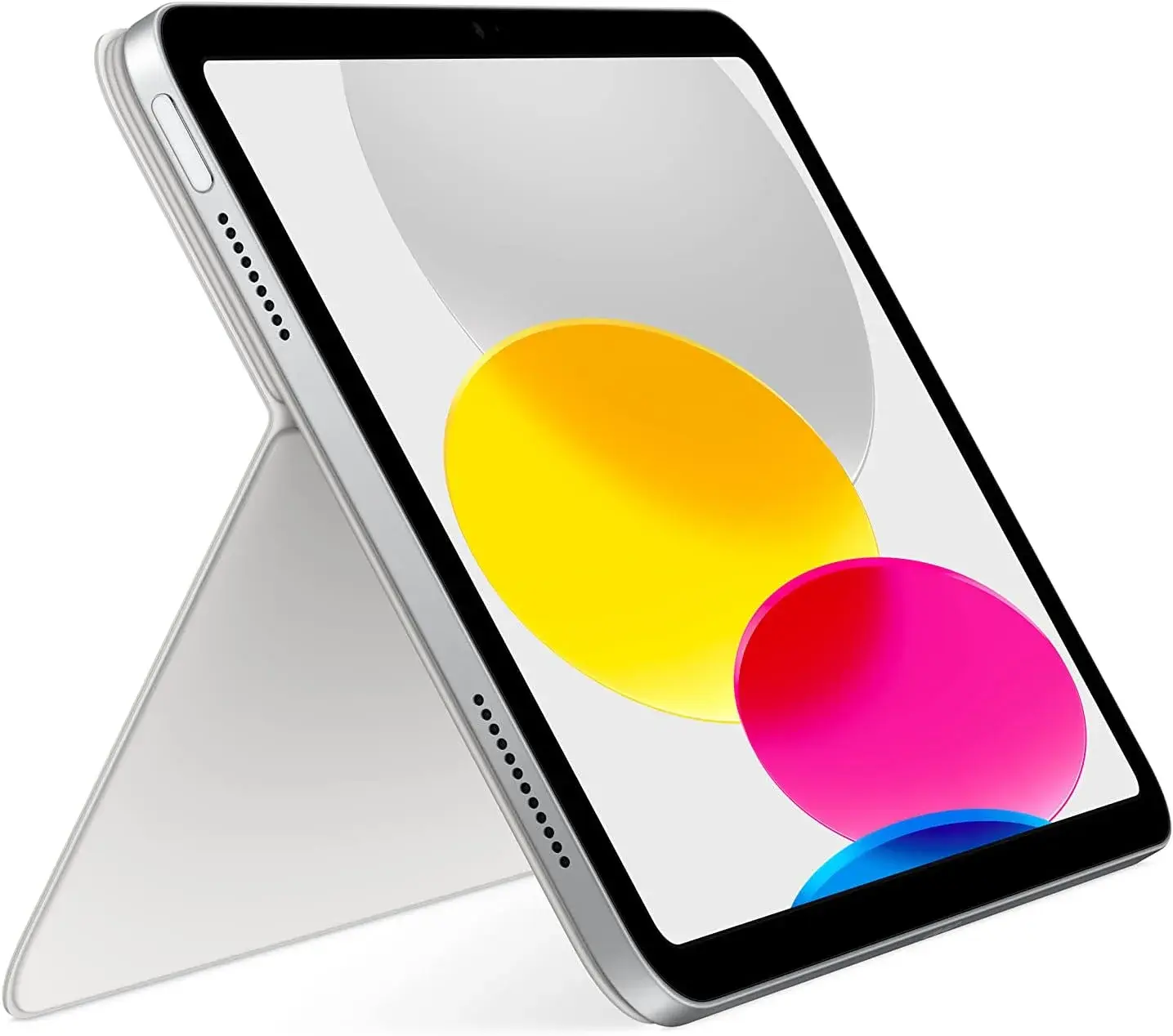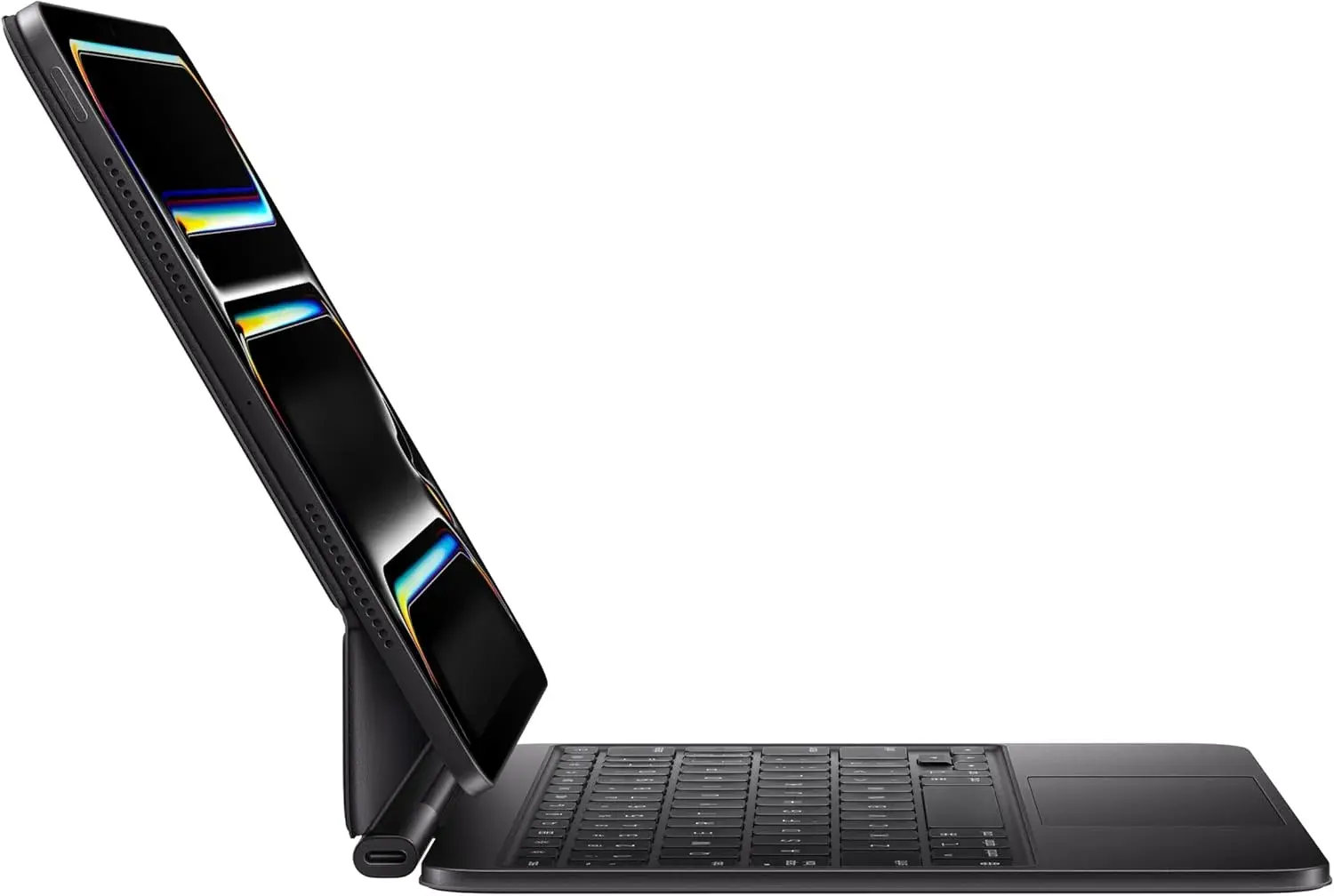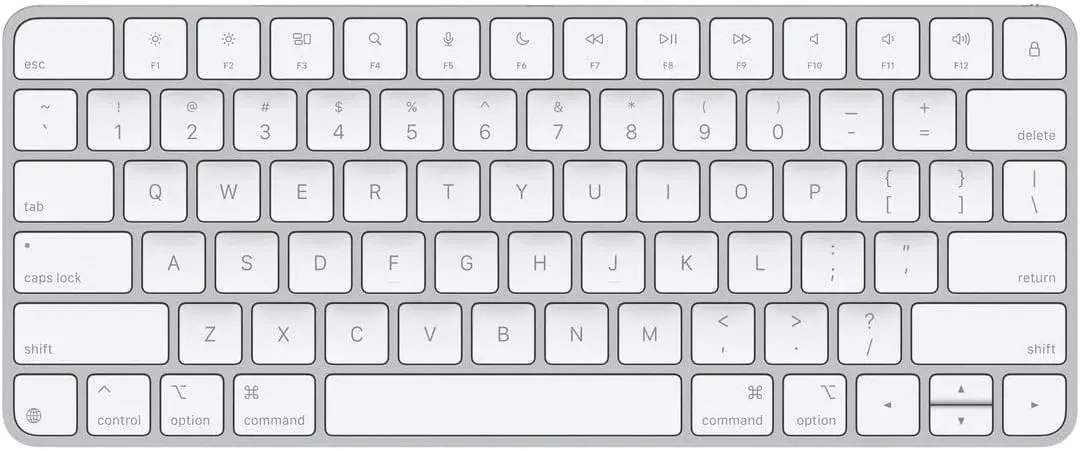
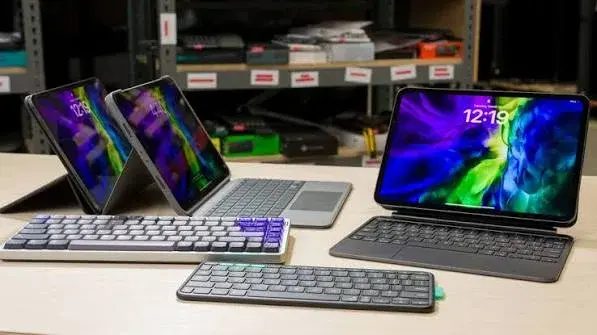
A tablet is wonderful for reading, watching and quick notes, but typing an essay, a report or a long email on a glass screen is tiring. Add a keyboard and a tablet becomes a light, portable work machine that fits in a bag, runs for hours and starts instantly. Students use them for lecture notes and assignments, sales staff use them for quotes in the field, writers use them in cafés, and many people use them as a second computer at home. This guide to the best keyboard for tablet Kenya buyers can choose covers the main types of tablet keyboards, compares the Logitech Bluetooth keyboards and the Lenovo tablet-and-keyboard bundles we stock, explains pairing, layout and compatibility, and gives honest advice about iPads and Android tablets.
We hedge where compatibility depends on your exact tablet and say "we confirm per unit" or "tell us your model" rather than guess. A keyboard that is perfect for one tablet can be awkward on another, so the model of your tablet matters.
City Gadgets Kenya is at New Alnoor Exhibition, Second Floor, Shop C7, Accra Road, Nairobi CBD, with same-day Nairobi delivery and next-day delivery outside Nairobi. Message us on WhatsApp with your tablet's exact model and we will confirm what works.
The short version
- Best slim Bluetooth keyboard for any tablet: Logitech Pebble Keys 2 K380s, thin, quiet and able to pair with more than one device.
- Best matching keyboard and mouse for a tablet: Logitech Pebble 2 Combo.
- Best full-size keyboard for a tablet used as a desk computer: Logitech MX Keys S, covered in our MX and Pebble guide.
- Best all-in-one for Android: Lenovo Idea Tab bundles that include a Folio Keyboard and a Tab Pen, so the keyboard is made for the tablet.
- For iPads: a Bluetooth keyboard works with most iPads, and keyboard cases are model-specific, so tell us your iPad model.
- Check three things: Bluetooth support, the keyboard's operating-system layout, and whether you need a stand or case to hold the tablet upright.
| Option | Type | Works with | Best for |
|---|---|---|---|
| Logitech Pebble Keys 2 K380s | Slim Bluetooth keyboard | Tablets, phones, laptops (Bluetooth) | Portable typing, shared spaces |
| Logitech Pebble 2 Combo | Slim keyboard and matching mouse | Bluetooth devices | A full portable desk |
| Logitech MX Keys S | Premium wireless keyboard | Multiple devices (we confirm per unit) | A tablet used as a desk computer |
| Lenovo Idea Tab with Folio Keyboard and Pen | Tablet bundle | That Lenovo tablet | Android users who want it all in one |
Ask us for today's price on any of them.
Why add a keyboard to a tablet?
Speed. On-screen typing is slow and uses half your screen. A keyboard gives you the full display and much faster typing.
Accuracy and comfort. Physical keys reduce errors and strain on your hands and neck.
Shortcuts. Many tablet apps support keyboard shortcuts, making work faster.
A laptop alternative. With a keyboard and a stand, a tablet works for emails, documents, spreadsheets, notes and video calls.
Portability. A tablet and slim keyboard weigh much less than most laptops.
Flexibility. You can detach the keyboard and use the tablet for reading or drawing.
The trade-off is that tablets have limits compared with a full computer, such as simpler file management and fewer professional programs. If your work needs heavy software, a laptop may suit better. Our laptops category has options, and we are happy to advise.
The main types of tablet keyboard
1. Bluetooth keyboards (separate)
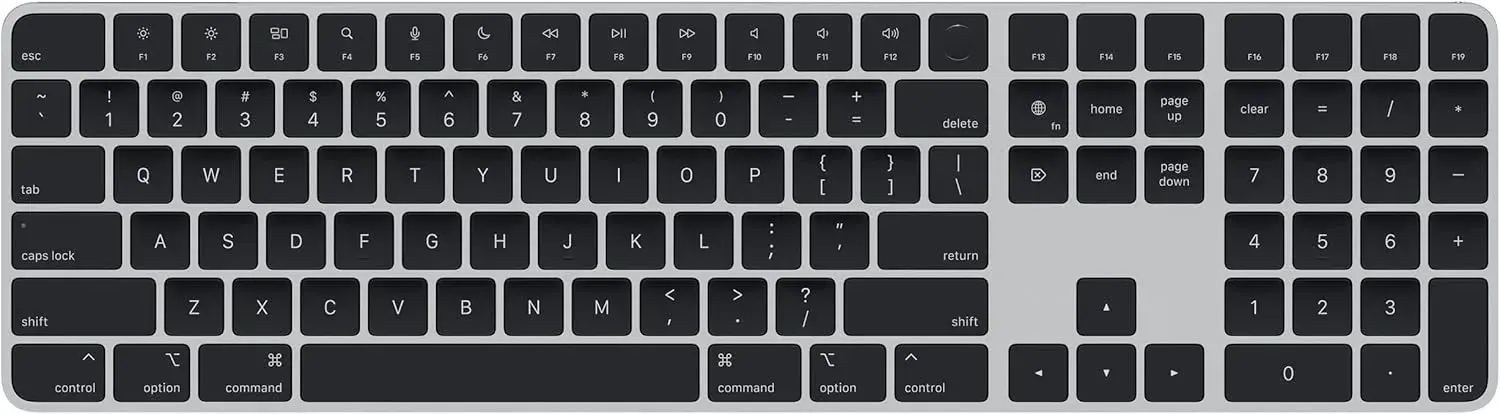
A standalone keyboard that connects wirelessly over Bluetooth, such as the Pebble Keys 2 K380s. It works with almost any tablet, phone or laptop that supports Bluetooth keyboards. You prop the tablet on a stand, a case or a book.
Pros: universal, flexible, easy to replace, usually affordable. Cons: you need a way to hold the tablet upright, and the setup is not as compact as a case keyboard.
2. Folio and case keyboards
A case that wraps the tablet with a keyboard built in or attached. It protects the screen, props the tablet up and gives you a keyboard in one piece. The Lenovo Idea Tab bundles include a Folio Keyboard made for that tablet.
Pros: compact, protective, made for the tablet, often connect automatically. Cons: tied to one tablet model, keys are often small, and replacements are model-specific.
3. Detachable keyboards with kickstands
The tablet has its own stand and a keyboard that clips on, common with some Android and Windows tablets.
4. Full-size wireless keyboards
A desk keyboard such as the MX Keys S, used when the tablet stays in one place, such as a home office desk.
5. Keyboards with trackpads
Some tablet keyboards include a trackpad, which helps with cursor control. Check that your tablet supports trackpads and mice, which most modern ones do to some extent.
How tablet keyboards connect
Bluetooth. The most common. Pair once in your tablet's Bluetooth settings, and the keyboard reconnects automatically. Multi-device keyboards let you switch between a tablet, phone and laptop.
Pogo pins or a smart connector. Some case keyboards connect through metal contact pins on the tablet, so no pairing or charging is needed. This is tablet-specific.
USB or USB-C. Wired connections work with some tablets through an adapter. It is less common.
Receiver. Rare on tablets, since most do not have USB-A ports.
If your tablet supports Bluetooth, a Bluetooth keyboard is almost always the easy answer.
What to look for
Compatibility. The most important factor. Check your tablet's operating system and model. Bluetooth keyboards generally work across iPadOS, Android and Windows tablets. Case keyboards are model-specific.
Layout. Many slim keyboards have dual or triple labels for Windows, Android, macOS and iOS keys. Check that special keys such as Home, Back and media controls work on your tablet.
Size. Smaller keyboards fit a bag but can feel cramped. A compact layout with decent key spacing is a good compromise.
Typing feel. Shallow, quiet keys suit shared spaces. Deeper keys suit long sessions.
Battery. Long-life batteries mean you do not worry about charging. Rechargeable keyboards charge over USB-C.
Multi-device pairing. Useful if you use a tablet, phone and laptop.
A stand. If the keyboard is separate, you need a way to hold the tablet upright. Many slim keyboards have a slot or a groove for a tablet or phone. Otherwise use a case, a stand or a folded cover.
Weight and portability. A keyboard that weighs more than your tablet is awkward to carry.
Noise. If you work in a library or on calls, quiet keys matter.
The options in detail
Logitech Pebble Keys 2 K380s
The Pebble Keys 2 K380s is a slim, quiet Bluetooth keyboard designed to pair across laptops, tablets and phones. It is built for people who want a minimal, portable keyboard rather than a full desktop setup. It typically supports pairing with more than one device, so you can type on a tablet, then switch to a laptop or phone. It is designed for quieter typing than a standard keyboard, runs on a battery designed for long life per the maker, and is thin and light enough to slip into a bag.
Best for: tablet owners who want a real typing experience, laptop users with USB-C-only ports who want Bluetooth, and people who work in shared quiet spaces.
Think about: you need a way to prop the tablet. We confirm per unit the battery type and device count.
Logitech Pebble 2 Combo
The Pebble 2 Combo pairs the slim Pebble keyboard with a matching compact Pebble mouse, both Bluetooth and quiet. It suits tablet owners who want a complete, portable setup with a mouse for precise cursor work, since most modern tablets support Bluetooth mice to some degree. If you only need the keyboard, the K380s alone is more affordable.
Best for: a portable desk, a tablet used for work in cafés, libraries and small desks.
Logitech MX Keys S
The MX Keys S is a premium full-size keyboard that can pair with more than one device. It is best when your tablet lives on a desk with a stand and you want a comfortable, accurate typing experience for long sessions. It is heavy for travel, and a tablet-only user may find the Pebble more practical. See our MX and Pebble guide.
Lenovo Idea Tab bundles with Folio Keyboard and Tab Pen
We stock Lenovo Idea Tab bundles that include a Folio Keyboard and a Tab Pen, so one tablet works for typing, handwriting and media. The Idea Tab Plus is a 12.1-inch 5G Android tablet with a 90 Hz screen, 12 GB of RAM and a big battery per the listing, while the Idea Tab TB336ZU is an 11-inch 5G tablet with 8 GB of RAM and 256 GB of storage. The keyboard is designed for the tablet, so it attaches and works without a separate stand. Ask us to confirm the keyboard layout and the exact pen model for the unit you order.
Best for: Android users who want an all-in-one set without choosing accessories.
Think about: the keyboard works only with that tablet model, and typing space is limited by the tablet's size.
iPads: what to know
We do not currently stock an iPad-specific keyboard case, so here is honest guidance.
Bluetooth keyboards work with most iPads. The Pebble Keys 2 K380s and MX Keys S pair over Bluetooth and generally work for typing and many shortcuts. Behaviour of special keys depends on your iPad's software version.
Case keyboards are model-specific. iPads come in several sizes and generations, and each needs its own case keyboard. If you want one, tell us your exact iPad model, and we will confirm availability and advise.
Mouse and trackpad support. Modern iPads support Bluetooth mice and trackpads. A Pebble mouse or other Bluetooth mouse works. See our wireless mouse guide.
Stand. Use a case with a stand, a folding cover, or a separate stand to hold the iPad.
Layout. iPad keyboards have keys specific to iOS and iPadOS. Slim keyboards with dual labels cover them.
If you are choosing between an iPad and another tablet, our team can help you compare. Message us on WhatsApp.
Android tablets: what to know
Bluetooth keyboards work with Android tablets. Pair in Bluetooth settings. Some special keys may map differently across brands.
Brand-specific folio keyboards, like the Lenovo bundles, attach to that tablet and often work without pairing.
Mouse support. Many Android tablets support Bluetooth mice.
Android versions. Keyboard shortcuts vary by version and by app.
Windows tablets
Windows tablets work with Bluetooth keyboards as a normal PC would. Some come with detachable keyboards.
Head-to-head comparisons
Pebble Keys 2 vs a folio keyboard case
The Pebble is flexible and works with many devices but needs a stand. A folio keyboard is compact and protective but is tied to one tablet. If you change tablets often, choose the Pebble. If you want one tidy package, a folio is convenient.
Pebble Keys 2 vs MX Keys S
The Pebble is slim, quiet and portable. The MX Keys S is a full-size premium keyboard for desk use. Choose by where you will type.
Pebble keyboard alone vs Pebble 2 Combo
The combo adds a matching mouse. If you do precise work such as spreadsheets and editing, a mouse helps. For notes and emails, the keyboard alone may do.
Lenovo Idea Tab bundle vs tablet plus Pebble
The bundle comes with a keyboard and pen made for the tablet, which is simple. A tablet plus a Pebble keyboard gives you a keyboard you can use with other devices, and you can choose a tablet freely.
How to set up a tablet for typing
- Hold the tablet upright. Use a case with a stand, a folding cover, a separate stand or the groove on some keyboards. Aim for the screen at a comfortable angle, slightly tilted back.
- Pair the keyboard. Switch it on, enter pairing mode, then add it in the tablet's Bluetooth settings.
- Check the layout. In the tablet's keyboard settings, choose the layout that matches your keyboard. Test special keys.
- Learn the shortcuts. Copy, paste, switch apps, take screenshots and search often have keyboard shortcuts.
- Add a mouse if you need precision. Pair it the same way.
- Adjust your posture. Raise the tablet if you can, so you are not looking down too far.
- Charge everything. Keep the tablet and keyboard charged for the day.
Pairing problems and fixes
The keyboard does not appear. Check that it is in pairing mode and close to the tablet. Turn Bluetooth off and on.
It paired but does not type. Remove the keyboard from the tablet's paired list and pair again. Restart the tablet.
It disconnects. Replace or charge the battery. Move away from interference. Update the tablet.
Keys give the wrong characters. Check the keyboard layout setting on the tablet, and the operating-system mode on the keyboard if it has one.
Special keys do nothing. Not every key works on every tablet. Check the keyboard's key legends and your tablet's shortcuts.
Typing lags. Low battery, interference or a busy tablet can cause lag.
The keyboard works on one device but not another. Many multi-device keyboards use numbered channels. Choose the right channel and re-pair if needed.
Battery and power
Slim Bluetooth keyboards use very little power and often last a long time between battery changes or charges per the maker, and we confirm per unit. Tablets are also efficient, so a tablet and keyboard can work through a long day. Some folio keyboards draw power from the tablet through contacts. To get the most:
- Switch off the keyboard when not in use.
- Charge both devices at night.
- Carry a spare battery if the keyboard uses replaceable cells.
- Use a quality charger and cable.
Typing comfort and posture on a tablet
A tablet on a table puts the screen low, which encourages hunching. Raise it on a stand, or place it on a stack of books, so the top of the screen is closer to eye level. If your keyboard and tablet are separate, you can position them independently, which is a real advantage over a laptop. Keep your wrists straight, take breaks and avoid typing for hours on a cramped keyboard. For long work sessions, a full-size keyboard such as the MX Keys S is more comfortable than a very small one. If you feel pain or tingling, see a health professional. Our home office setup guide and ergonomic mouse guide have more advice.
Tablet keyboards for different people
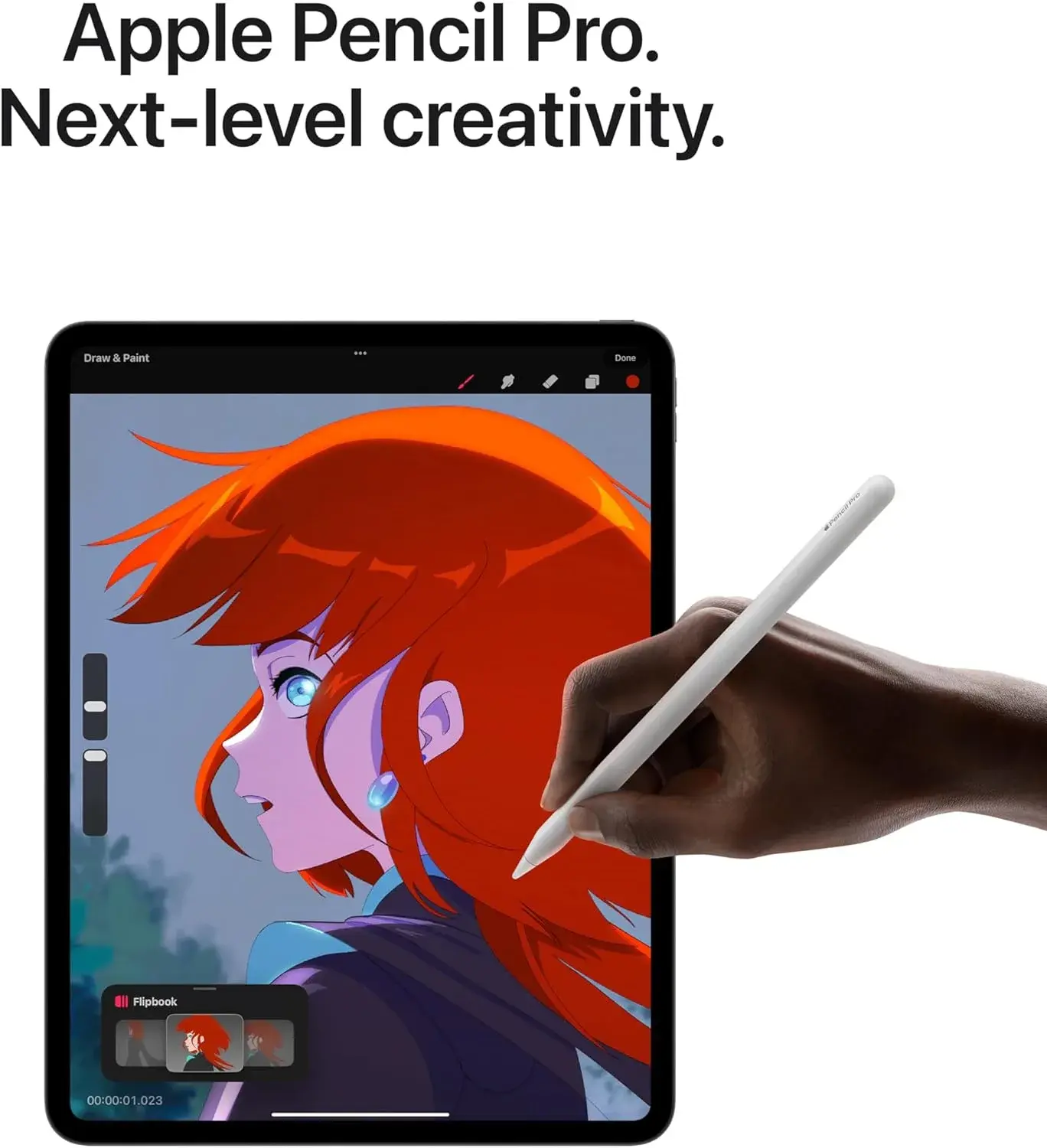
Students. A slim Bluetooth keyboard turns a tablet into a note-taking and assignment machine. Quiet keys are polite in lectures and libraries. Add a pen for handwriting, if your tablet supports one, such as the Lenovo bundles that include a Tab Pen.
Office workers and field staff. A tablet and slim keyboard fits in a bag for client visits, quotes and email. A mouse helps with spreadsheets.
Writers and bloggers. A comfortable keyboard and a stand make a tablet a quiet writing machine. For long sessions, consider the MX Keys S at a desk.
Teachers. A tablet and keyboard help with lesson plans, marking and presentations.
Traders and business owners. A tablet and keyboard handle inventory, quotes and messages on the go.
Designers and note-takers. A pen is as important as a keyboard. The Lenovo bundles include both.
Travellers. A slim keyboard weighs little and packs flat.
Older users. A larger display and a comfortable keyboard make email and video calls easier.
Tablet vs laptop: should you add a keyboard or buy a laptop?
A tablet with a keyboard is a great second device but not a full replacement for everyone.
| Tablet with keyboard | Laptop | |
|---|---|---|
| Portability | Very light | Heavier |
| Battery | Often long | Varies |
| Software | Apps, with limits | Full desktop software |
| File handling | Simpler | Full |
| Multitasking | Good, limited | Excellent |
| Typing comfort | Depends on keyboard | Built in |
| Touch and pen | Yes | Some models |
| Price | Varies | Varies |
If you mostly browse, read, write, take notes and join calls, a tablet and keyboard are enough. If you need heavy software, many windows, or programming tools, a laptop is better. We stock laptops too. See our laptops category or message us for advice.
Using a mouse and trackpad with a tablet
Most modern tablets support Bluetooth mice, with a small cursor that appears on screen. This makes spreadsheets, documents and web pages easier to handle. Pair the mouse like a keyboard. Behaviour depends on your tablet's software, and we confirm per unit. A compact Bluetooth mouse such as the Logitech M196 or M240 Silent suits tablets, as does the Pebble mouse in the Pebble 2 Combo. Our wireless mouse guide compares them.
Accessories that complete a tablet setup
- A stand or case to hold the tablet upright.
- A pen for note-taking and drawing, if supported.
- A screen protector for scratches.
- A protective case for travel.
- A USB-C hub for flash drives, cards and displays. See our USB-C hub guide.
- A charger and cable from a trusted brand.
- A headset for calls. See our headset for Zoom calls guide.
- A webcam, though most tablets have a camera. See our webcam guide.
Common mistakes when buying a tablet keyboard
- Not checking compatibility. A case keyboard for one model does not fit another.
- Forgetting a stand. A separate keyboard needs a way to hold the tablet.
- Buying a tiny keyboard with cramped keys for long typing.
- Ignoring the layout. Check that special keys work on your tablet.
- Skipping battery planning.
- Buying a fake or unbranded keyboard. Many cheap tablet keyboards have unreliable Bluetooth.
- Expecting a tablet to replace a laptop when your software needs are heavy.
- Choosing a heavy keyboard for travel.
- Not testing pairing before leaving the shop.
- Forgetting the mouse.
Example scenarios
These are illustrative, not customer records.
Scenario 1: A university student. She takes notes on a tablet and writes assignments in the library. A Pebble Keys 2 keeps typing quiet, and she props her tablet on its case.
Scenario 2: A sales rep. He visits clients with a tablet for quotes. A Pebble 2 Combo gives him a keyboard and mouse that fit in his bag.
Scenario 3: A writer. She uses a tablet at home on a stand with an MX Keys S for long writing sessions, switching to her laptop with a key press when she needs it.
Scenario 4: An Android user who wants it all in one. He chooses a Lenovo Idea Tab bundle with a Folio Keyboard and Tab Pen, which means no accessory shopping.
Scenario 5: An iPad owner. She tells us her iPad model, and we confirm whether a Bluetooth keyboard or a model-specific case keyboard suits her best.
Taking notes: keyboard, pen or both?
Typing is fast and searchable, while handwriting aids memory for some people and suits diagrams, equations and sketches. Many students use both: a keyboard for lectures with lots of text, and a pen for maths and diagrams. Tablets that support a pen, such as the Lenovo bundles that include a Tab Pen, let you switch between them. Use note apps that sync to the cloud so that your notes are safe if the tablet is lost, and keep a second copy. Our blog on cloud vs external drive backup explains how to protect your work.
Using a tablet for video calls with a keyboard
A tablet with a keyboard works well for calls. Prop the tablet at eye level, use a headset for clear audio and type notes while you listen. Check that the keyboard's noise does not carry into the microphone, since the Pebble's quiet keys help here. If your call app supports it, mute your microphone while typing. A stable stand matters more than anything else, because a tablet that wobbles as you type is distracting for everyone.
Protecting your tablet and keyboard on the move
Carry the keyboard and tablet in a padded sleeve or a bag with a compartment, so that keys and screens do not scratch each other. Avoid placing heavy items on top. Keep the set away from rain, spills and heat, and do not leave it in a car. Switch off the keyboard before packing to avoid keys being pressed in the bag. A screen protector and a case protect the tablet itself. If you travel often, insure valuable devices and keep your receipt. Backups matter as much as hardware.
Keeping your tablet secure
A tablet that holds work files and email deserves a passcode, biometric lock and updates. Use find-my-device features where available, keep your apps updated and be careful with public Wi-Fi in cafés and airports. When using Bluetooth keyboards in public places, remember that typing passwords is visible to people nearby, so cover your hands and use a password manager where possible. Remove paired devices you no longer use.
Writing documents and spreadsheets on a tablet
Productivity apps on tablets have improved enormously. Word processors, spreadsheet apps and presentation tools support keyboard shortcuts, and cloud storage keeps files in sync with your computer. A keyboard makes the difference between "I can read documents on my tablet" and "I can produce documents on my tablet". If your work involves large spreadsheets or complex formatting, test your key apps on the tablet before you commit, and keep a laptop as a backup for the heaviest tasks. Our team will gladly talk through what suits your workload.
Questions to ask any seller before you pay
- Is the keyboard brand new and sealed?
- Which exact model is it?
- Is it compatible with my tablet's exact model and software?
- How does it connect, and how many devices can it pair with?
- What is the battery type and life?
- What is the exchange policy?
- Will I get a receipt, and where is your shop?
Is a branded keyboard worth it over a cheap unbranded one?
Unbranded tablet keyboards often have flimsy keys, unreliable Bluetooth and poor battery life. Some fail within weeks. A genuine Logitech keyboard is widely used and supported, and the pairing, key feel and battery life are more dependable. For something you type on every day, buying genuine is a sensible investment.
How to spot a fake tablet keyboard
Counterfeit keyboards copy popular Logitech models, and many cheap "tablet keyboards" use brand-like names. A fake may fail to pair, lag, miss keystrokes or die quickly. Use these ten checks together.
- Check the model name and print. Genuine models show the correct name, such as Pebble Keys 2 or MX Keys S, on the box and underside. Spelling errors and blurry printing are warning signs.
- Inspect the packaging. Genuine boxes are sturdy with sharp printing and correct details. Flimsy boxes are suspicious.
- Check the logo and finish. The Logitech logo should be crisp and evenly applied. Peeling or crooked logos suggest a fake.
- Inspect the keys. Genuine keys are evenly spaced with crisp legends. Wobbly keys and uneven printing are warning signs.
- Test the pairing. A genuine keyboard pairs quickly and reconnects. A fake struggles or drops.
- Test the device switching. On a multi-device keyboard, switching between devices should be reliable.
- Check the weight and build. Genuine keyboards feel solid for their size. Very light, creaky boards are suspicious.
- Check the battery claims. A fake that claims months of life may die in days.
- Check the software. Where Logitech software supports the model, a genuine keyboard is recognised.
- Check the seller. An unrealistically low price, no shop address and no receipt are red flags.
If you are unsure, bring the keyboard to New Alnoor Exhibition, Second Floor, Shop C7, Accra Road, and we will help you check it.
Why buy your tablet keyboard from City Gadgets Kenya
- Genuine products, checked before they reach you.
- A real shop at New Alnoor Exhibition, Second Floor, Shop C7, Accra Road, Nairobi CBD.
- Same-day delivery in Nairobi and next-day delivery outside Nairobi.
- M-Pesa payment and clear receipts.
- Honest advice, including telling you when you should check compatibility first.
- Tablets, keyboards and accessories in our accessories category.
- Support and repairs through our repair service.
- Trade-ins through our sell page.
- WhatsApp help on +254745575931.
Quick checklist
- I know my tablet's exact model and operating system.
- I chose between a Bluetooth keyboard and a case keyboard.
- I have a way to hold the tablet upright.
- I checked the layout and special keys.
- I considered battery and charging.
- I checked the model name, packaging and pairing.
- I have a receipt and know where to get support.
Frequently asked questions
What is the best keyboard for a tablet in Kenya? The Logitech Pebble Keys 2 K380s is a slim, quiet Bluetooth keyboard that pairs with tablets, phones and laptops.
Does it work with an iPad? Bluetooth keyboards generally do. Case keyboards are model-specific, so tell us your iPad model.
Does it work with Android tablets? Yes, over Bluetooth.
Do I need a stand? Yes, if the keyboard is separate. A case or folding cover works.
Can I use a mouse with a tablet? Most modern tablets support Bluetooth mice, and we confirm per unit.
Can one keyboard pair with a tablet and a phone? Many can, and we confirm per unit how many devices.
Do tablet keyboards need charging? Some use batteries and some charge over USB-C. We confirm per unit.
Is the Lenovo Idea Tab keyboard universal? No, the Folio Keyboard is made for that tablet.
How do I know it is genuine? Use the ten checks above.
Where can I buy a tablet keyboard in Nairobi? At City Gadgets Kenya, Shop C7, Second Floor, New Alnoor Exhibition, Accra Road.
Ready to choose?
Message us on WhatsApp with your tablet's model, how you will use it and your budget, and we will recommend the right keyboard.
Related reading: Logitech MX and Pebble guide · Best keyboard and mouse combo · Best wireless mouse · Best USB-C hub