
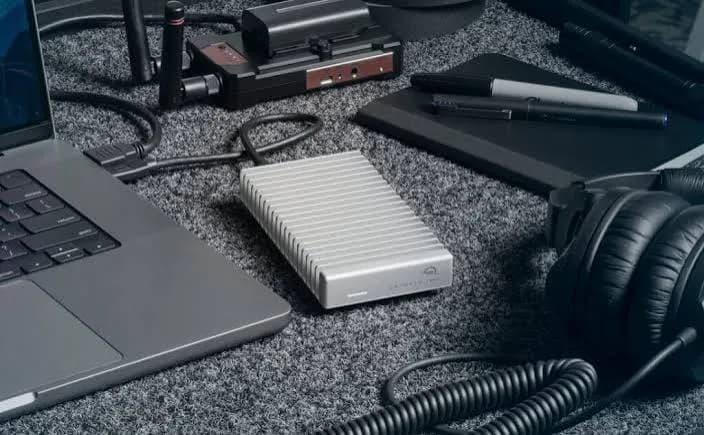
A photographer's real product is not the camera. It is the files. A wedding cannot be re-shot, a graduation cannot be repeated, a client's product launch happens once. Yet the way many Kenyan photographers and videographers store their work is a single drive in a laptop bag, perhaps with a second copy "somewhere". This guide sets out the best external storage for photographers and videographers in Kenya, not as a shopping list of gadgets but as a system: what kinds of drives to own, what each is for, how much capacity you need, how to move files from card to computer to archive without losing a frame, which of our drives fit which role, and how to avoid the fake storage that destroys careers. It applies to professionals, serious hobbyists, content creators and anyone who shoots things they cannot afford to lose.
We do not print prices in guides because they follow the exchange rate; message us on WhatsApp for today's price on any item mentioned.
The principle: storage has jobs, not just sizes
Beginners ask, "Which drive should I buy?" Professionals ask, "What jobs does my storage have to do?" The answer is usually four jobs, performed by different devices.
| Job | What it needs | Typical device |
|---|---|---|
| 1. Capture | Speed and reliability in the camera | SD, microSD or CFexpress cards |
| 2. Working storage | Speed and ruggedness for editing and carrying | Portable SSD |
| 3. Archive | Large capacity at low cost | Portable or desktop hard drives |
| 4. Offsite copy | Protection from theft, fire and flood | Second drive stored elsewhere, or cloud |
Spend your money in that order: reliable cards, a fast working SSD, large archive drives, and an offsite copy. A fancy SSD cannot compensate for a missing second copy.
Job 1: Capture (cards)
Your first storage is the memory card in the camera. A failing or fake card can ruin a shoot before any drive is involved.
- Use cards from a trusted seller, in sensible sizes, and rotate them through a shoot. See our guides to the best SD cards for cameras and best microSD cards for drones and action cameras.
- If your camera has two slots, record to both at once.
- Do not format or reuse cards until the footage exists in at least two other places.
Job 2: Working storage (portable SSDs)
Your working drive holds the project you are editing now. It needs speed, so projects open quickly and timelines scrub smoothly, and toughness, because it travels in your bag.
Recommended: SanDisk Extreme and Extreme PRO
The SanDisk Extreme Portable SSD (E61) is our default recommendation: about 1,050 MB/s read and 1,000 MB/s write on a 10 Gbps port, compact, dust and water resistant (IP55 or IP65 depending on version) and available in capacities up to 8 TB. The Extreme PRO (E81) reaches up to about 2,000 MB/s on a 20 Gbps-capable port, in a forged aluminium case that helps with sustained speed, and adds 256-bit AES hardware encryption. For a head-to-head, read our guide to SanDisk Extreme vs Extreme PRO.
Recommended for phone shooters: SanDisk Creator Phone SSD
If you film on a compatible phone, the Creator Phone SSD (about 1,000 MB/s read, MagSafe-compatible, about 54 g) lets you record to an external drive and offload later. Confirm your phone's support first.
How big should the working drive be?
Rule of thumb: working storage should hold your largest two or three active projects with room to spare. For a wedding photographer, 1-2 TB covers several weddings in progress. For a video editor working in high-quality 4K, 2-4 TB is a more comfortable starting point.
Job 3: Archive (hard drives)
Finished work must live somewhere cheaper than SSD. Portable hard drives from WD, Seagate, Toshiba and Transcend offer terabytes at a low cost per terabyte. We stock 1 TB, 2 TB and 4 TB models in each range. Their weakness is vulnerability to knocks while running, and the possibility of failure with age, so an archive drive is best kept in a safe place, not carried daily. See our guide to portable hard drives vs SSDs.
The Transcend StoreJet is the rugged choice for a hard drive that will travel: Transcend describes a three-stage shock protection system and states that it passed the US military MIL-STD-810G drop test. The WD My Passport adds password protection with 256-bit AES encryption through WD Security software; Toshiba's Canvio Advance and Seagate's One Touch ranges also offer software and optional protection. Ask us to confirm the model line of the unit you order.
How many archive drives?
At least two, holding identical copies, kept in different places. A common arrangement among our customers: archive drive A stays in the studio or at home; archive drive B lives at a family member's house or in a safe deposit box, refreshed every month or two.
Job 4: Offsite and cloud
Fire, theft, flooding and burglary take both your laptop and the drive in the same bag. An offsite copy protects against the disasters that take everything at once. Options include:
- A second drive at another location, physically swapped on a schedule.
- Cloud backup, which suits documents, selected photos and finished galleries. Uploading terabytes of raw video over Kenyan connections is slow and costly, so use cloud for the most precious items and deliverables rather than everything.
- Client delivery copies, which in practice serve as another backup of finished work.
Read our blog on cloud vs external drive backups and the 3-2-1 backup rule.
How much storage do you need? Planning by file size
Estimate before you buy. The table gives typical sizes; check your own camera's file sizes.
| Camera and format | Approximate file size | Per 1,000 files or per hour |
|---|---|---|
| 24 MP JPEG | 6-10 MB | 6-10 GB per 1,000 photos |
| 24 MP RAW | 25-35 MB | 25-35 GB per 1,000 photos |
| 45 MP RAW | 50-80 MB | 50-80 GB per 1,000 photos |
| 4K video, common H.264/H.265 | Roughly 45-100 GB per hour (varies widely) | |
| 4K high-quality 10-bit | Roughly 100-250 GB per hour | |
| ProRes 422 HQ 4K | Several hundred GB per hour |
A worked example
A wedding photographer shoots 3,000 RAW images at 30 MB each, which is about 90 GB. Add 20 GB of video clips and 10 GB of edited exports: 120 GB. Twenty weddings a year gives 2.4 TB. Keeping those files for several years means the archive grows by around 2.4 TB annually, and every copy of it needs the same space. Two archive drives plus working storage and an offsite copy mean you are buying roughly three to four times the raw data volume. That is the real cost of safety, and it is far cheaper than a lost wedding.
A videographer shooting 10 hours of 4K per wedding at 100 GB per hour produces 1 TB per event before exports. Twenty events create 20 TB a year, which is why professional videographers use large drive arrays and delete rushes after delivery and a retention period.
The workflow: from shutter to archive
A good workflow turns scattered good habits into reliable steps.
- Before the shoot. Charge batteries, format cards in the camera, label spares.
- During the shoot. Rotate cards. Keep used cards separate from empty ones. If possible, record to two cards.
- At the end of the day. Copy every card to the laptop's working folder and to the working SSD, using software that verifies the copy (checksums), not just a drag-and-drop.
- Verify. Open random files. Check counts: the number of files on the card should equal the number on each copy.
- Back up the same night. Copy the working folder to the first archive drive.
- Do not format cards yet. Keep cards as a fourth copy until the job is delivered.
- During editing. Work from the SSD. Export to a separate folder.
- After delivery. Archive finished projects (originals and exports) to two archive drives. Update the offsite drive.
- After a retention period. Reformat cards and, for large video projects, decide what to keep.
- Every few months. Test the archive drives by opening files, and replace drives that are old.
Tools for safe copying
Dragging folders in Windows Explorer or Finder works, but dedicated tools do better: they verify files by checksum, flag mismatches and keep logs. Options include photo management software with verified import (Adobe Lightroom Classic can copy on import and verify), free tools for synchronising folders (FreeFileSync, Robocopy on Windows, rsync on Mac and Linux), and professional offload tools used on film sets. Choose one, use it consistently and never skip verification on important jobs.
Cataloguing: finding photos later
Storage is useless if you cannot find anything. A simple, consistent folder structure saves hours.
- Year / date-client-event / RAW, Edits, Exports. For example:
2026 / 2026-10-11_Wanjiru-Wedding / RAW, Edits, Exports. - Never rename camera files once imported if your software tracks them; rename the folders instead.
- Use a catalogue such as Lightroom Classic or a similar tool, and keep the catalogue file backed up too. The catalogue is as valuable as the photos.
- Add keywords for client names and event types so you can search years later.
- Keep a text file in each project noting the camera, lens, date and delivery details.
- Back up the catalogue on the working SSD and the archive.
Choosing drives by type of photographer
The wedding and event photographer
Priorities: reliability, speed at offload, safety on the road. Recommended setup: Extreme E61 (1-2 TB) as the working drive, two 4 TB hard drives for archive, a good card reader and a rule of never formatting a card until delivery.
The portrait and studio photographer
Priorities: organisation and capacity, not speed. A 1 TB E61, two archive hard drives, and a tidy catalogue. Many studios tether to a laptop and write directly to the SSD.
The photojournalist and field photographer
Priorities: ruggedness, encryption and quick offload in hotel rooms and vehicles. The Extreme PRO with hardware encryption suits this, as does a Transcend StoreJet for backups. Carry a small power bank and keep drives in a padded pouch.
The wildlife and safari photographer
Priorities: capacity and dust protection. Long trips generate thousands of RAW files. Take multiple memory cards, a laptop or a dedicated backup device, and two drives with identical copies, stored in separate bags.
The videographer and content creator
Priorities: speed and capacity. Extreme PRO on a compatible port for editing, plus large archive drives. Consider proxies to reduce the working-drive demand. See our content creator starter kit guide and gimbal and vlogging kit guide.
The phone-only creator
Priorities: simple offload and enough space. A Creator Phone SSD or a USB-C flash drive for moderate needs, with a regular copy to a computer and a hard drive. See our guide to USB-C flash drives.
The hobbyist
Priorities: not losing the family photos. A 2 TB hard drive for the archive, a second one stored elsewhere, and a small SSD or flash drive for moving files. That alone puts you ahead of most.
| Photographer type | Working drive | Archive drives | Extras |
|---|---|---|---|
| Wedding/event | E61 1-2 TB | Two 4 TB HDDs | Dual-slot cards, verified copy software |
| Studio/portrait | E61 1 TB | Two 2-4 TB HDDs | Catalogue backups |
| Field/journalist | E81 with encryption | StoreJet or encrypted HDD | Power bank, padded pouch |
| Safari/wildlife | E61 2 TB | Two HDDs | Spare cards, dust protection |
| Videographer | E81 2-4 TB | Large HDDs | Proxies, fast reader |
| Phone creator | Creator Phone SSD | One HDD | Regular copying |
| Hobbyist | Flash drive or small SSD | Two 2 TB HDDs | One drive off-site |
Card readers and cables: the cheap parts that decide speed
A fast SSD and fast cards do nothing if the card reader is slow. A cheap USB 2.0 reader limits a modern card to roughly 30-40 MB/s. Buy a reader that supports USB 3.x and your card type (SD UHS-I or UHS-II, microSD, or CFexpress as needed). Plug it directly into the laptop's fastest port, and use a short, quality cable. Carry a spare reader and a spare cable. They cost little compared with a missed delivery. See our guide to USB-C cables and USB-C hubs.
Power: the Kenyan reality
Unreliable electricity is a real storage risk. A power cut during a large copy can corrupt files or damage an external hard drive that is spinning. Practical defences:
- Edit and copy on a laptop running on battery, when possible.
- For desktop computers, use a UPS so you can shut down properly.
- Use a surge-protected extension for drives and chargers. Surges damage drives. See our blog on surges and AVR.
- Eject properly, always, especially for hard drives.
- Carry a power bank for field work. See our guide to the best power banks.
Travel and security
- Keep drives in your carry-on on flights, never in checked luggage.
- Split copies across bags so one lost bag does not lose everything.
- Encrypt drives carrying client or sensitive material, and note the password somewhere safe.
- Do not leave drives visible in a parked car. Theft and heat are both risks.
- Label drives with your contact details in a text file on the drive.
- Use a padded, water-resistant pouch for drives in the field.
Longevity: how long does archive storage last?
No storage lasts forever. Hard drives have mechanical parts and typically last several years of regular use; stored carefully and powered occasionally they may last longer, but there is no guarantee. SSDs retain data well while powered and in use, but data on unpowered SSDs can degrade over long periods, particularly in heat. Optical discs and cloud services have their own risks. The professional answer is a routine, not a miracle medium:
- Keep at least two copies, on different drives.
- Check the archive annually: open random files and compare copy counts.
- Replace archive drives every four to five years, copying their contents to new ones.
- Keep drives cool, dry and clean.
- For especially precious work, add a cloud copy or a third drive offsite.
Three sample systems: starter, solid and professional
We never hand customers a one-size-fits-all list, but these three outlines show how the pieces fit together. Message us your budget and we will price a version for you.
Starter system (hobbyist or new photographer)
- Reliable SD or microSD cards in two moderate sizes, from a trusted seller.
- A SanDisk flash drive or small portable SSD for moving files.
- One 2 TB portable hard drive as the main archive.
- A second copy on a laptop, a family member's computer or a cloud service for the best shots.
- Habit: copy every shoot twice before formatting.
Solid system (semi-professional, weekend wedding or event shooter)
- Two or three matching cards in 64-128 GB sizes, with dual-slot recording if the camera allows.
- A SanDisk Extreme E61 (1-2 TB) as the working drive.
- Two 4 TB portable hard drives holding identical archives, one kept offsite.
- A USB 3.x card reader and a spare.
- Verified copying software and a catalogue with backups.
- A small UPS or surge-protected socket for the desktop or laptop charger.
Professional system (full-time photographer or videographer)
- A set of fast cards sized to the camera and codec, with spares.
- A SanDisk Extreme PRO E81 (2-4 TB) on a compatible port for editing, with hardware encryption for client confidentiality.
- A second SSD or fast drive as a mirrored working copy for high-stakes jobs.
- Multiple large archive drives or a NAS with redundancy, plus an offsite rotation.
- A documented workflow, so an assistant or second shooter follows the same steps.
- Insurance, because even the best system benefits from a safety net.
Editing without wasting storage: proxies, caches and clean-ups
Editing generates its own storage demands. Video editing software creates cache files, previews and optimised media; photo catalogues build previews. These can grow into hundreds of gigabytes. A few practices keep them manageable.
Use proxies for heavy footage. Proxy files are small, low-resolution copies of your clips that make editing smooth on modest hardware. The originals are used at export. Proxies live on the working SSD and can be deleted after delivery.
Put cache on the fastest drive. If you have an internal SSD, keep the cache there. If your editing machine has little internal space, use the external SSD for both media and cache.
Clean up after each project. Delete cache and preview files for finished projects. Keep the originals, the project file and the final exports.
Use consistent names for exports. Add the date and a version number to avoid mixing drafts with finals.
Keep the project file backed up. The project file is small and holds your edit decisions. Losing it can cost days even when the footage survives.
Delivering to clients without losing your master copy
Client delivery is a storage task too. Hand over copies, never originals.
- Online galleries let clients view and download without touching your drives, and also act as an extra copy of the finals.
- Branded flash drives are still popular for wedding packages. Use a genuine drive, load it from your master folder, run a test to confirm the files open and keep your own copy. See our guide to flash drives.
- Download links with expiry dates reduce the chance of clients losing files.
- Keep a delivery log noting what was delivered, when and in what format.
- Resist deleting masters when a client says they have everything. Retention policies protect you from claims and from lost deliveries.
A retention policy: what to keep and for how long
Not everything needs to be kept forever, and storage costs money. Decide in advance:
| Material | Suggested retention |
|---|---|
| Final edited photos and videos | Permanently |
| RAW photos from the selected images | Permanently, or at least several years |
| RAW photos of rejects | A year or two after delivery, then delete |
| Raw video rushes | Until delivery plus a retention period (for example 6-12 months), unless the project is important |
| Project and catalogue files | Permanently |
| Proxy and cache files | Delete after delivery |
| Contracts, invoices and correspondence | As required by tax and legal rules |
Write your policy in your contract so clients know what to expect. It saves arguments and storage.
Disaster scenarios and what saves you
Thinking through failures makes the case for each part of the system.
The laptop is stolen with the working SSD in the same bag. The archive drives at home still hold last night's backup, and the offsite drive holds last month's. You lose at most a day of editing, not the shoot.
The working SSD stops responding. You restore the project from the archive drive and carry on. Your cards, not yet reformatted, are another copy.
A memory card fails. Dual-slot recording or an immediate offload after the event limits the loss to a few minutes of that card.
A power cut corrupts a copy in progress. The verification step catches it, and the card still holds the originals.
A fire or flood hits the studio. The offsite drive and the cloud copies of finished galleries survive.
A client says they never received files. Your delivery log and retained masters let you resend within minutes.
An archive drive dies after five years. Annual checks and a replacement schedule mean you have already copied its contents to a new drive.
In every scenario, the thing that saves you is not a particular brand or gadget. It is that no single failure can remove every copy. That is the entire purpose of the system described in this guide, and it costs far less than the value of one lost job.
Questions to ask before you buy any storage
- What job will this device do: capture, working, archive or offsite?
- How much data will it hold in a year, and how many copies of it do I need?
- How fast do I need to move data, and does my computer's port support that speed?
- Will it travel, or live in a drawer?
- Does the data need encryption?
- What is the warranty, and who honours it?
- Is the seller genuine, and will they let me test the product?
- Where is the second copy?
If you can answer all eight, you will buy the right thing, and you will use it well.
Mistakes that cost photographers their work
One copy. The commonest mistake of all. A single drive is a single point of failure.
Formatting cards too early. Wait until the job is delivered and archived.
Editing from the only copy. Edit from a working copy; keep originals untouched.
Trusting a fast SSD as an archive. SSDs are excellent working drives but are not a guarantee of long-term storage.
Ignoring warning signs. Clicking, disconnecting, slow copying and errors are the drive telling you to act now.
Buying cheap unbranded storage. The cost of a fake or failing drive is the loss of work you cannot recreate.
Carrying everything in one bag. Split your copies.
Skipping verification. A copy that has not been checked is only a hope.
How to spot fake storage and cards
Counterfeits are a particular danger for photographers because large capacities are the most profitable fakes to sell. A fake 512 GB card or 4 TB SSD might hold a fraction of that, accept files until it fills, and then overwrite or lose images, and you will not know until the post-shoot review.
- Price. An implausible price for a large capacity is the first and best warning sign.
- Seller. Buy from a shop with a real address and a receipt. Avoid roadside sellers and anonymous online listings for anything holding client work.
- Packaging. Check print quality, seals, model numbers (for example SDSSDE81 for the Extreme PRO SSD) and consistent branding.
- Physical build. Compare to a genuine unit if you can: weight, finish, port quality, the fit of the case.
- Full capacity test. Use H2testw (Windows) or F3 (Mac and Linux) on every new card and drive before using it on a job.
- Speed test. Use CrystalDiskMark or Blackmagic Disk Speed Test and compare with the specification.
- Camera test. Record your highest-quality video mode and a long RAW burst on a new card at home before the shoot.
- Identity. Check how the computer names the device and compare with the brand's description.
- Software. Official software (SanDisk, WD, Seagate, Toshiba, Transcend) should install and recognise the drive.
- Warranty. Keep the receipt and check the serial number with the manufacturer.
The bottom line
The best external storage for photographers is not one drive, it is a habit supported by sensible hardware: reliable cards, a fast working SSD, at least two archive drives and an offsite copy, tied together with verified copying and a clear retention policy. Start with what you can afford, add the second copy first and the faster drive second, and improve the system as your work grows. If you would like us to look at your current setup and suggest the next best purchase, send us the details on WhatsApp.
Why buy your storage from City Gadgets Kenya
- Genuine SanDisk, WD, Seagate, Toshiba and Transcend storage, plus SanDisk cards for cameras, drones and phones, all from one place.
- Workflow advice, not just products. Tell us what you shoot and we will help you build a sensible system: working drive, archive and backup.
- Honest recommendations. If the E61 is enough, we will not push the PRO. If two hard drives are a better investment than one big SSD, we will say so.
- A real shop in Nairobi CBD at New Alnoor Exhibition, Second Floor, Shop C7, Accra Road, where you can test everything.
- Same-day delivery in Nairobi and next-day outside Nairobi, with M-Pesa payment.
- Support after the sale for formatting, speed testing and troubleshooting.
Browse our accessories category.
Frequently asked questions
What is the best external storage for photographers in Kenya? A portable SSD such as the SanDisk Extreme for working files, plus at least two hard drives for archive and one offsite copy.
Do I need an SSD, or are hard drives enough? Hard drives are fine for archive. For editing and fast offloads, an SSD is far better.
How many backups should I keep? At least three copies of important work: the working copy and two backups, with one stored elsewhere.
How much storage do I need per year? Estimate your file sizes and multiply by your yearly volume, then multiply by the number of copies. Wedding photographers commonly need a few terabytes per year; videographers far more.
Should I use RAID or a NAS? They can help larger studios by adding redundancy, but they are not a substitute for backups. See our blog on RAID and NAS basics.
Is cloud backup enough? Rarely, for raw files, because of upload time and data cost. It is a useful extra copy for the most important work.
When should I format my memory cards? After the job is delivered and archived, and always in the camera.
How do I know a card or drive is fake? Buy from a trusted seller, check the packaging and run a full-capacity test.
Can you help me build a system for my budget? Yes. Tell us what you shoot and roughly how much you can spend.
Do you offer genuine SanDisk cards as well? Yes: microSD, SD and professional cards. Ask us to confirm the exact type for your camera.
Ready to build your system?
Tell us what you shoot, how many jobs you do a month and what you use now, and we will recommend a practical, affordable system.
WhatsApp: wa.me/254745575931 Visit: New Alnoor Exhibition, Second Floor, Shop C7, Accra Road, Nairobi CBD. Same-day delivery in Nairobi; next-day outside Nairobi.
Related reading: best portable SSD in Kenya, best SD card for cameras, best backup drive for home and office.








