
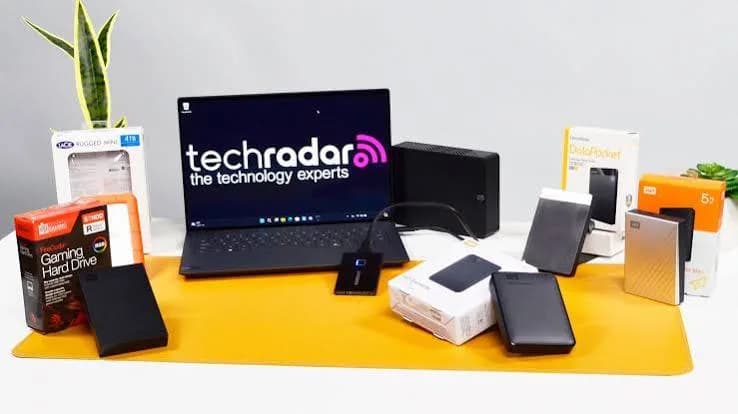
Everyone agrees backups matter. Almost nobody has a good one. A laptop falls off a matatu seat, a ransomware message appears on the office computer, a hard drive starts clicking the week before KRA returns are due, a phone is stolen with every family photo on it. Then the question changes from "should I back up?" to "why didn't I?" This guide helps you choose the best backup drive for home and office in Kenya, and, more importantly, helps you set it up so it actually works. We compare the WD My Passport, Seagate Expansion and One Touch, Toshiba Canvio, Transcend StoreJet and SanDisk portable SSDs that we stock, explain how to back up on Windows and Mac, how big a drive to buy, why encryption matters, how to protect against ransomware, how to test your backup (the step almost everyone skips) and how to avoid fake drives.
We do not print prices in guides because they follow the exchange rate; message us on WhatsApp for today's price.
The short answer
| Your situation | Best choice |
|---|---|
| A family with one or two laptops and phones | One 2 TB portable hard drive, plus a second copy elsewhere |
| A home user with lots of photos and videos | 4 TB portable hard drive for the archive, plus a smaller SSD or flash drive for moving files |
| A small office (3-10 computers) | Several 2-4 TB drives in rotation, with encryption, and one stored offsite |
| An accountant, lawyer, clinic or NGO with sensitive data | An encrypted drive (WD My Passport with password protection, Toshiba Canvio Advance, or SanDisk Extreme PRO) plus an offsite copy |
| A traveller or field worker | Rugged: Transcend StoreJet, or a SanDisk Extreme SSD |
| Someone who wants the fastest backups and restores | SanDisk Extreme or Extreme PRO SSD |
If you want one rule: a hard drive is the best value for backup; an SSD is the best for speed; two copies beat either alone.
What a backup actually is (and what it is not)
A backup is a separate copy of your data, stored somewhere that a single accident cannot destroy both. It is not:
- A second folder on the same computer. If the laptop dies, both copies die.
- A drive that is always plugged in with the files only on it. If that drive is the only place the files live, it is not a backup; it is just storage.
- A cloud sync folder you never check. Sync tools mirror deletions and corruption as well as files.
- A drive you have never tested a restore from. An untested backup is a hope.
The widely used guideline is the 3-2-1 rule: three copies of your data, on two different types of media, with one copy offsite. We explain it in our blog on the 3-2-1 backup rule. For a home user, this might mean the original on your laptop, a copy on a backup drive and another on a drive at a relative's house. For an office, it means the server or main PC, a local backup drive and a rotated offsite drive.
Hard drive or SSD for backup?
For backups, a portable hard drive is usually the right answer, for simple reasons:
- Backups are large and sit still most of the time. Capacity per shilling matters more than speed.
- A 2 TB or 4 TB hard drive costs much less than an equivalent SSD.
- Backup software runs in the background, so speed is rarely noticed.
An SSD makes sense when:
- You back up very large video projects and want fast copies and fast restores.
- The drive travels with you and might be dropped.
- You want a silent, vibration-free drive on a desk.
See our guide to portable hard drives vs SSDs for the full comparison. Many offices use an SSD for the daily working copy and hard drives for the long-term backup.
The drives we stock, and what each is best at
WD My Passport (1 TB, 2 TB, 4 TB)
A 2.5-inch portable hard drive over USB 3.0 / USB 3.2 Gen 1, powered through the cable. The My Passport line adds password protection with 256-bit AES hardware encryption through WD Security software, plus WD Backup software. WD also sells a simpler Elements line without that software; we confirm which you are getting. Retail listings commonly show a two- or three-year limited warranty depending on region.
Best for: home users and small offices who want encryption and bundled software.
Seagate Expansion Portable and One Touch (1 TB, 2 TB, 4 TB)
The Expansion Portable is the simple plug-and-play choice: no software to install, drag-and-drop saving, USB 3.0, powered through the cable. Seagate's datasheet lists warranty periods that vary by region, and some models include data recovery services. The One Touch range adds backup software and optional password protection.
Best for: people who want a simple, no-fuss drive at good value.
Toshiba Canvio (1 TB, 2 TB, 4 TB)
A slim drive with a textured finish. The Canvio Advance offers password protection through Toshiba Storage Security Software, Toshiba Backup software and a two-year limited warranty on retail listings. Canvio Basics and Canvio Ready are simpler, with different features.
Best for: users who want slim design, software and password protection.
Transcend StoreJet (1 TB, 2 TB, 4 TB)
The rugged one. Transcend describes a three-stage shock protection system with a silicone outer shell, an internal suspension damper and a reinforced casing, tested to the US military MIL-STD-810G drop standard. Many models have a one-touch backup button used with Transcend's Elite software, and Transcend lists a three-year limited warranty.
Best for: field workers, NGOs, teachers and anyone who carries the drive.
SanDisk Extreme and Extreme PRO portable SSDs
Fast, compact and tough. The Extreme (E61) runs at about 1,050 MB/s; the Extreme PRO (E81) at up to about 2,000 MB/s with hardware encryption. They suit offices that need fast backups or restores of large files. See our comparison of SanDisk Extreme vs Extreme PRO.
| Drive | Type | Encryption | Notable feature | Best for |
|---|---|---|---|---|
| WD My Passport | HDD | 256-bit AES password protection (My Passport) | Bundled software | Home, small office |
| Seagate Expansion | HDD | None by default | Plug and play | Simple, value backups |
| Seagate One Touch | HDD | Optional password protection | Backup software | Home users wanting software |
| Toshiba Canvio Advance | HDD | Password protection via software | Slim, software | Home and mobile users |
| Transcend StoreJet | HDD | Check model | Shock protection, backup button | Rugged, field use |
| SanDisk Extreme | SSD | Software password | Fast, compact | Fast backups, travel |
| SanDisk Extreme PRO | SSD | 256-bit AES hardware | Fastest, heat-shedding | Sensitive, heavy work |
Specifications come from manufacturer and retailer listings; ask us to confirm the model line, colour and warranty of the unit you order.
How big a backup drive do you need?
The common mistake is buying a backup drive the same size as the computer. Backups keep history (older versions of files), so they need more room than the original.
Rule of thumb: buy a backup drive at least twice the size of the data you want to protect, ideally three times.
| Data to protect | Suggested backup drive |
|---|---|
| Under 250 GB (one typical laptop) | 1 TB |
| 250 GB to 600 GB | 2 TB |
| 600 GB to 1.5 TB (a busy family or small office PC) | 4 TB |
| More than 1.5 TB | 4 TB or larger, or several drives |
Remember to count phones. A modern phone with 256 GB of photos and videos is itself a significant chunk of data. Check how much space your computers and phones actually use (not how big their drives are), add them up, and multiply.
Setting up backup on Windows
Windows includes tools you can use without buying software.
File History
File History saves copies of your files in your Documents, Pictures, Music, Videos and Desktop folders to an external drive on a schedule and keeps previous versions. To use it: connect the drive, open Settings, go to the backup settings, choose "Add a drive" and turn on File History. It is simple and good for personal files.
Windows Backup and image backups
Windows also offers system image options (the exact names vary between Windows versions) that capture the whole system so you can restore a computer after a failure. If you are protecting a business computer with installed software, a system image is worth having in addition to file backups.
Third-party and bundled software
WD Backup, Seagate Toolkit, Toshiba Backup and Transcend Elite offer scheduled backups with a friendly interface. Use them if you prefer. Do not install multiple backup programs fighting over the same files.
Setting up backup on Mac
Time Machine is built into macOS. Connect a drive, choose it in Time Machine settings and let it run. Time Machine keeps hourly, daily and weekly versions and lets you restore single files or the whole Mac. Use a drive formatted for Mac (APFS or Mac OS Extended), or let Time Machine format it for you. If you share a drive between Mac and Windows, use a partition for Time Machine and another formatted exFAT for general files.
Phone backup
Phones hold irreplaceable photos. Options include cloud backup (convenient but dependent on data and plan limits), copying to a computer periodically, or using a USB-C flash drive or SSD directly. See our guides to USB-C flash drives and the SanDisk Creator Phone SSD. Do the copy monthly at least, and before any phone repair or upgrade.
Protecting against ransomware and accidents
Ransomware is malware that encrypts your files and demands payment. It also encrypts any drive that is connected to the infected computer, including your backup. A backup that is always plugged in can be destroyed along with the original. Defences:
- Keep one backup disconnected. A drive that lives in a drawer and is plugged in only for the backup is safe from an attack that happens while it is unplugged.
- Rotate drives. Use two or three drives, swapping them weekly or monthly, so at least one is always offline and holds a clean copy.
- Keep versions. File History and Time Machine keep previous versions, so you can roll back to a date before an infection.
- Update software and use antivirus. See our guide to antivirus software.
- Be careful with email attachments and unknown links. Most infections begin with a click.
- Never plug in unknown flash drives.
- Use a cloud copy of critical files with version history as an extra layer.
Accidents are as common as attacks: files deleted by mistake, an overwritten spreadsheet, a laptop lost in a taxi. Versioned backups rescue those too.
Encryption: protecting the backup itself
A backup drive holds everything: scanned IDs, bank statements, client files, family photos. If it is stolen or lost, the thief has the lot. Encrypt it.
- Drive-level encryption: the WD My Passport (256-bit AES with WD Security software), Toshiba Canvio Advance (Toshiba Storage Security Software) and SanDisk Extreme PRO (256-bit AES hardware encryption) offer password protection. Ask us to confirm the model and software of the unit you buy.
- Operating-system encryption: BitLocker (Windows Pro and higher editions) or FileVault/APFS encryption on a Mac. Both work with any drive.
- Password hygiene: use a strong password and store it somewhere safe, such as a password manager or a sealed envelope in a safe place. A forgotten password usually means unrecoverable data.
For businesses holding personal data about customers, patients or staff, protecting that data is also a legal and professional duty. Kenya's Data Protection Act, 2019 sets obligations for handling personal data. We are not lawyers, so take advice for your sector, but encrypted backups are a sensible baseline.
Testing your backup: the step everyone skips
A backup you have never restored from is unproven. Once a quarter:
- Pick a few files at random from your backup, including an old one and a recent one.
- Open them from the backup drive and confirm they work.
- Restore one folder to a different location and check the contents.
- Check that the backup is current by looking at the date of the latest backup.
- Check the drive's health. Many drives have software tools that report health. If errors appear, replace the drive.
- Record the test in a note. For offices, assign the job to a named person.
Once a year, simulate a disaster: restore a whole computer's data to a different machine. It takes a few hours, and it will teach you more than any article.
A backup plan for a family
- Buy a 2 TB or 4 TB portable hard drive.
- Back up each laptop with File History or Time Machine.
- Copy phone photos and videos to the drive monthly.
- Keep the drive in a drawer, not connected, between backups.
- Buy a second drive and copy the first one every few months; store it at a relative's house.
- Put copies of essential documents (ID scans, certificates, title deeds, school results) in an encrypted folder, with a copy in the cloud.
- Test a restore every quarter.
A backup plan for a small office
- Decide what matters: accounting data, customer records, project files, email archives, scanned documents.
- Centralise. Keep important files in one shared location (a main PC, a server or a NAS) so backing up is easy. See our blog on RAID and NAS basics for small businesses.
- Back up daily to a local drive using scheduled software.
- Rotate offsite weekly: two or three encrypted drives rotate between the office and the owner's home, so one is always away.
- Cloud copy of the most critical items, such as accounting files and contracts.
- Protect power: a UPS on the main computer or server prevents corruption during outages.
- Document and delegate: write down who does what and when, and test restores quarterly.
- Review annually: replace old drives, check capacity and update the plan.
Backup types in plain English
Backup software uses a few terms that confuse people. Knowing them helps you choose settings that make sense.
Full backup. A complete copy of everything you chose. It takes the longest and uses the most space, but is the simplest to restore.
Incremental backup. After a full backup, only the files that changed since the last backup are copied. It is fast and space-efficient. Restoring needs the last full backup plus all the increments, which the software handles for you.
Differential backup. Copies everything that changed since the last full backup. It sits between full and incremental in size and restore effort.
Mirror (sync). Makes a second location look exactly like the first. It is not a true backup, because a deleted or corrupted file is deleted or corrupted in the mirror too.
Versioned backup. Keeps older versions of files so you can go back in time. File History and Time Machine work this way. This is what saves you from overwritten files and ransomware.
System image. A snapshot of the whole disk, including the operating system and installed programs. It lets you restore a whole computer, not just files.
For most home users, a versioned file backup is enough. For businesses that depend on specific software setups, add a system image after any major change.
Sample backup schedule
| Item | How often | Where |
|---|---|---|
| Work documents and accounting files | Continuous or daily | Backup drive, plus cloud copy |
| Photos and videos on the computer | Weekly | Backup drive |
| Phone photos and videos | Monthly (or weekly if you shoot a lot) | Backup drive or USB-C drive |
| System image of business computers | After major changes, or quarterly | Backup drive |
| Offsite rotation | Weekly or monthly | Second drive stored elsewhere |
| Restore test | Quarterly | Spare computer or different folder |
| Drive health check | Quarterly | Manufacturer or health tool |
| Drive replacement | Every four to five years | New drive |
Put the dates in a calendar. A backup plan that depends on remembering will fail.
Watching drive health
Hard drives usually give warnings before they fail, if you look.
- SMART data. Drives report self-monitoring data, such as reallocated sectors and read errors. Free tools like CrystalDiskInfo (Windows) and DriveDx or smartmontools (Mac) display it. Warnings of caution or bad health mean it is time to copy off the data and replace the drive.
- Noises. Clicking, grinding or repeated spin-up and spin-down sounds are bad signs.
- Slowdowns and freezing. Long pauses during copies suggest trouble.
- File errors. Files that will not open or copy.
- Disconnections. A drive that drops out, particularly if the cable and port are fine.
If a backup drive shows any of these, treat the situation as urgent: your backup is now your only copy of some files, and it is failing. Copy its contents to a new drive straight away.
What it costs to lose data, and what recovery involves
Data recovery from a physically failed drive is specialist work done in a clean room, and it is expensive and not guaranteed. It is not a plan; it is a last resort. A backup drive costs a small fraction of a professional recovery bill, and for many small businesses the lost time and lost customer trust cost more again.
If you do lose data:
- Stop using the device. Every write reduces the chance of recovery.
- Do not run repair tools on a failing drive.
- Check your backups, including old drives and cloud copies.
- Try a recovery program only for logical problems (deleted files, a damaged file system), and only if you have somewhere else to save the recovered files.
- Consult a professional for clicking, grinding or undetected drives with valuable data.
See our blog on what to do when you lose data.
Backup for specific professions in Kenya
Teachers and schools. Mark books in digital form, exam papers, lesson plans and student records. Keep the exam papers on an encrypted drive, and rotate a copy to a trusted colleague or the head teacher's office. Schools with a computer lab benefit from a weekly backup of the admin computer.
Accountants and bookkeepers. Accounting software data files are the lifeblood of the business. Back up after every working day, keep an encrypted offsite copy, and test the restore of the accounting file itself, not only the folder.
Lawyers and consultants. Client confidentiality is part of professional duty. Use encrypted drives, strong passwords and careful handling when carrying files between offices and courts.
Clinics and pharmacies. Patient records require care and legal compliance. Combine encrypted local backups with a secure offsite arrangement, and keep power protection on the records computer.
NGOs and field teams. Data collected in the field is expensive to recreate. Rugged drives such as the Transcend StoreJet or a SanDisk Extreme SSD, encrypted, with daily copies to a laptop and a drive in a separate bag.
Shops and retailers. Stock lists, supplier contacts, sales records and M-Pesa transaction exports. A weekly backup of the shop computer, plus a copy of the stock file on a phone or cloud.
Churches and community groups. Membership lists, financial records, photographs and sermon recordings. A shared backup drive held by the treasurer, with a second copy at another trustee's home.
Students. Dissertations and projects. A flash drive copy is not enough; use a backup drive, cloud sync and email-to-self for the latest version before submission deadlines.
If your profession is not on the list, tell us what you store and we will suggest an arrangement.
Quick decision flow
- How much data do you have? Add it up, double it, and choose the capacity.
- Is it sensitive? If yes, choose an encrypted model and enable the password.
- Will the drive travel? If yes, choose the Transcend StoreJet or a SanDisk SSD.
- Do you need fast backups and restores? If yes, choose a SanDisk Extreme or Extreme PRO.
- Is value your priority? Choose a 2 TB or 4 TB hard drive from WD, Seagate or Toshiba.
- Where will the second copy live? Buy a second drive, or plan the cloud copy.
- Who will run the backup, and when? Put it in the calendar.
Mistakes we see all the time
Backing up to the same drive as the original. Partitions are not backups.
Leaving the backup drive permanently attached. Fine for convenience, risky for ransomware and power surges. Combine with an offline copy.
Buying the cheapest unbranded drive. Fake and failing drives are the usual source of backup disasters.
Never checking. Backup software can fail silently for months.
Keeping the drive in the same bag as the laptop. A single theft takes both.
Not backing up phones. Phones are the most likely devices to be lost or stolen.
Not planning for growth. A 500 GB drive for a growing library fills in a year.
Forgetting the encryption password. Protected and unreadable are the same thing.
Care for your backup drive
- Handle hard drives gently and never move them while they run.
- Eject properly, every time.
- Keep them cool and dry, away from sun, magnets and moisture.
- Use a short, good cable.
- Label drives with the date of purchase and the date of the last full backup.
- Replace hard drives every four to five years, or earlier if errors appear.
- Store them upright or flat in a padded case, not loose in a bag.
- Keep spare cables.
How to spot a fake backup drive
A fake backup drive is especially cruel because it works until the day you need it. Typical fakes are small flash chips in a hard-drive-style case, reporting several terabytes, or relabelled used drives sold as new.
- Price. A 4 TB drive at an implausibly low price is the classic trap. Genuine WD, Seagate, Toshiba and Transcend drives from authorised sellers fall within a narrow range.
- Weight. A genuine 2.5-inch portable hard drive has real weight because of platters and motor. A feather-light "hard drive" may be a flash board in a case.
- Sound and vibration. A genuine hard drive makes a faint spin-up sound and vibration. Silence may mean it is an SSD or a fake.
- Packaging. Sealed, crisp printing, correct model numbers and consistent branding. Beware spelling mistakes and loose seals.
- Computer identification. Use Device Manager, CrystalDiskInfo or System Information. Generic or odd names are warning signs.
- Full-capacity test. Use H2testw (Windows) or F3 (Mac and Linux) before trusting the drive.
- Speed check. A genuine portable hard drive usually reads at roughly 80-130 MB/s. A "hard drive" that runs at several hundred MB/s is likely an SSD or flash board.
- Software. WD Security, Seagate Toolkit, Toshiba software and Transcend Elite should install and recognise the drive.
- SMART data. Genuine hard drives report health data (power-on hours, reallocated sectors). A "new" drive with thousands of power-on hours is used.
- Warranty. Check the serial number with the manufacturer and keep your receipt.
The bottom line
The best backup drive is the one you will actually use, sized for your data, encrypted if the data is sensitive, and paired with a second copy somewhere else. For most Kenyan homes that means a 2 TB or 4 TB portable hard drive and a habit; for most offices it means encrypted drives in rotation, a UPS on the main computer and a quarterly restore test. Start this week: buy the drive, run the first backup, and put the next three dates in your calendar. If you want help choosing or setting up, message us on WhatsApp.
Why buy your backup drive from City Gadgets Kenya
- Genuine WD, Seagate, Toshiba, Transcend and SanDisk drives, with the model line, colour and warranty confirmed for the unit you order.
- Real advice about backup, not just boxes. We will help you decide how big, how many and how to set it up.
- A real shop in Nairobi CBD at New Alnoor Exhibition, Second Floor, Shop C7, Accra Road, where you can see and test the drive.
- Same-day delivery in Nairobi and next-day outside Nairobi, with M-Pesa payment.
- Honest guidance. If a cheaper drive does the job, we say so.
- After-sales support for setup, formatting and troubleshooting.
Browse our accessories category and our refurbished laptops.
Frequently asked questions
What is the best backup drive for home use in Kenya? A 2 TB or 4 TB portable hard drive from WD, Seagate or Toshiba, with a second copy kept elsewhere.
Is a hard drive or SSD better for backup? Hard drives give the best value. SSDs are faster and tougher.
How big should my backup drive be? At least twice the size of the data you are protecting.
How often should I back up? Daily for business data, weekly for personal computers, monthly for phones at minimum.
Do I need encryption? Yes, if the drive holds sensitive material or could be lost or stolen.
Can I use one drive for Windows and Mac? Yes, with exFAT, or partitions for each system.
Is cloud backup enough? Not usually, because of data costs and speed in Kenya. Use it as an extra copy.
What if my backup drive fails? That is why you keep a second copy. Replace the drive and run a fresh backup.
How do I protect against ransomware? Keep an offline copy, rotate drives and keep versions.
Can you help me set it up? Yes. Message us, or bring your computer and drive to the shop.
Ready to protect your data?
Tell us how many computers and phones you have, how much data they hold and whether the drive will travel, and we will recommend the right backup drive.
WhatsApp: wa.me/254745575931 Visit: New Alnoor Exhibition, Second Floor, Shop C7, Accra Road, Nairobi CBD. Same-day delivery in Nairobi; next-day outside Nairobi.
Related reading: 3-2-1 backup rule, cloud vs external drive backups, best UPS for home office.








