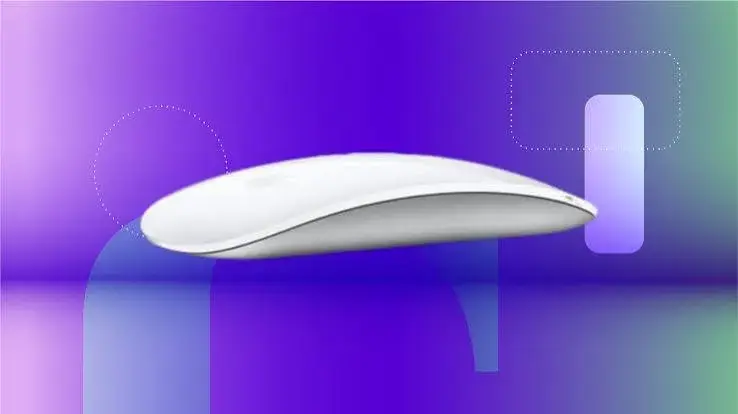
The Apple Magic Mouse looks different from every other mouse on the desk. There is no scroll wheel and no visible buttons, only a smooth, seamless top that you swipe and tap. For some people it is the nicest mouse they have used. For others it takes a few days to get used to, and a few never warm to it. If you own a MacBook, an iMac or a Mac mini and you are wondering whether to buy one, this guide to the Apple Magic Mouse in Kenya explains how it works, what is good and what is awkward, how it compares with Logitech alternatives, and how to avoid counterfeits.
We are City Gadgets Kenya, at New Alnoor Exhibition, Second Floor, Shop C7, Accra Road, Nairobi CBD, with same-day delivery in Nairobi and next-day delivery outside Nairobi. We sell genuine Apple products, and we describe specifications "per the maker" and "we confirm per unit" where details vary. Prices change, so message us on WhatsApp for today's price.
The short version
- What it is: Apple's rechargeable Bluetooth mouse with a multi-touch top surface, designed for Mac.
- Best for: Mac owners who like gesture-based scrolling and a matching, minimalist look.
- Think twice if: you want a scroll wheel, a mouse you can use while it charges, or an ergonomic shape.
- Works with Windows? It can connect over Bluetooth, but its gestures are designed for Mac, so Windows users may prefer a Logitech mouse.
- Check the unit: Apple has released newer model versions, so we confirm the exact model and included cable before you order.
| Apple Magic Mouse | Logitech M196 | Logitech Lift | |
|---|---|---|---|
| Connection | Bluetooth | Bluetooth | Bluetooth (and receiver, per Logitech) |
| Power | Rechargeable | Replaceable battery | Replaceable battery |
| Scrolling | Touch surface | Wheel | Wheel |
| Shape | Low, flat | Compact | Vertical, ergonomic |
| Best on | Mac | Mac, Windows, many tablets | Mac and Windows, for comfort |
Details for the Logitech models are per Logitech's published information, and we confirm per unit.
What makes the Magic Mouse different
A normal mouse has a left button, a right button and a scroll wheel. The Magic Mouse has one seamless surface that senses your fingers. You click by pressing the surface, and you scroll by swiping a finger across it, in any direction. Because it senses more than one finger, it supports gestures, in the same spirit as a MacBook trackpad.
Typical gestures on a Mac include:
- Swipe with one finger to scroll up, down, left and right.
- Swipe with two fingers to move between pages or full-screen apps.
- Double-tap with two fingers to open Mission Control, a view of open windows.
- Secondary click by pressing the right side, if you enable it.
- Smart zoom with a double-tap in some apps.
Which gestures exist and how they behave depends on your macOS version, and you can turn them on or off in System Settings. We recommend trying them and keeping the ones that suit you.
Who loves it, and who does not
People who love it:
- Mac users who enjoy trackpad-style scrolling.
- Anyone who wants a clean desk with a matching keyboard and mouse look.
- People who scroll a lot through long documents, web pages and timelines.
- Buyers who dislike changing batteries.
People who do not:
- Users who prefer a physical scroll wheel and clicking buttons.
- Anyone who wants an ergonomic, hand-filling shape. The Magic Mouse is low and flat, and some people find it less comfortable over long sessions.
- People who want to keep working while charging, if the port is on the underside of their unit.
- Windows users who want full gesture support.
- Gamers.
If you are unsure, ask for a try in the shop, and remember that adjusting takes a few days.
Wireless and rechargeable
The Magic Mouse connects by Bluetooth and has a built-in rechargeable battery. You charge it with a cable, and a short charge gives many hours of use, per Apple. We do not quote hours here because they vary with use and the version, and we confirm per unit.
A note on the charging port. On some Magic Mouse designs, the charging port is on the underside, which means the mouse cannot be used while it is plugged in. Plan your charging for when you are not working, such as at the end of the day or during a break. Ask our team about the design of the unit you order.
Charging habits:
- Charge it when the Mac shows a low battery warning, not only when it dies.
- A short top-up while you take a break usually gives hours of use.
- Use a good-quality cable and a proper charger, not a damaged one.
- Keep the mouse away from heat, and do not leave it in a hot car.
Works best with Mac
The Magic Mouse is designed for macOS. Pairing is simple, and its gestures work fully. It can also connect to some other Bluetooth devices, but the special gestures belong to the Mac.
On a Mac, you can check the battery level in Bluetooth settings or the control centre, adjust the tracking speed, choose the scroll direction, and enable or disable each gesture.
On a Windows PC, the mouse can connect over Bluetooth and move the pointer, but scrolling and gestures may be limited or need extra software, and the experience is not like on a Mac. If you use Windows, a Logitech mouse is usually the better choice. See our best wireless mouse guide.
On an iPad, many iPads support Bluetooth mice, and the pointer appears on screen. Support and behaviour depend on the iPad and its software, so ask us before you buy. See our tablet keyboard guide.
Setting up your Magic Mouse
- Charge it so it has power.
- Switch it on using the switch on the unit. Apple's design includes an on/off switch, but position varies by version.
- Open Bluetooth settings on your Mac. On a Mac with a USB-C or Lightning cable connection, pairing can happen automatically when you plug in, depending on the version.
- Select the mouse if it appears in the list, and wait for it to connect.
- Open the mouse settings in System Settings and customise scrolling and gestures.
- Practise for a few days. Give your hand time to adapt.
If it does not connect, restart Bluetooth, toggle the mouse off and on, charge it and remove it from the Bluetooth list before re-pairing.
Troubleshooting
The pointer lags or jumps. Charge the mouse, move closer to the Mac, remove sources of interference such as other wireless devices, and clean the bottom of the mouse. Try a different mouse surface.
The mouse disconnects. Check the battery and Bluetooth. Remove and re-pair the mouse.
Scrolling is too fast, slow or reversed. Change the scroll direction and speed in System Settings.
Gestures do not work. Check that they are enabled, and update macOS.
The mouse will not charge. Try another cable and charger, and check the port for lint or dirt. If it still fails, bring it to us.
The mouse is not detected on Windows. Pair it through Bluetooth settings, or use a Logitech Bluetooth mouse instead.
Magic Mouse vs Logitech alternatives
Magic Mouse vs Logitech M196
The M196 is a compact Bluetooth mouse with a standard scroll wheel and replaceable battery. It is simple, light and works with Windows, Mac, Chromebooks and many tablets. It does not have gestures. If you want a low-cost, no-fuss mouse for a Mac, it is a perfectly good choice.
Magic Mouse vs Logitech M240 Silent
The M240 Silent is a quiet Bluetooth mouse. If clicking noise matters in your office, it is the better pick. It has a wheel and replaceable battery.
Magic Mouse vs Logitech Lift
The Lift is a vertical ergonomic mouse built to keep your hand in a more natural position. If you feel wrist or forearm strain, it is worth considering. See our ergonomic mouse guide. The Magic Mouse favours looks and gestures over ergonomics.
Magic Mouse vs a trackpad
Some Mac users prefer a trackpad, which offers fuller gestures than the Magic Mouse. We confirm the availability of trackpads and other Apple accessories on request. If gestures are your priority, ask us about a trackpad.
Magic Mouse vs Logitech MX-series mice
Premium Logitech mice offer features such as a fast scroll wheel and custom buttons. If you need those, ask us what is available. For the keyboard side of a premium setup, see our Logitech MX and Pebble guide.
Our honest view: the Magic Mouse is excellent for people who enjoy it and a poor fit for people who do not. If you cannot try one, choose a standard Bluetooth mouse for the first week, and consider the Magic Mouse when you know how you like to work.
Pairing it with a Mac keyboard
Many Mac users pair the Magic Mouse with an Apple keyboard for a matching desk. If you prefer a different keyboard, Logitech keyboards such as the Pebble Keys 2 K380s and MX Keys S have layouts that support Mac, per Logitech. Our Logitech MX and Pebble guide covers them. We confirm key mappings per unit.
Tips to get comfortable quickly
- Rest your hand lightly. Do not grip the mouse hard.
- Use one finger to scroll and let the surface do the work.
- Turn on the gestures you want and leave off the ones you trigger accidentally.
- Adjust the tracking speed so you move the pointer without lifting your wrist.
- Use a mouse mat or desk surface that is clean and not glossy.
- Take breaks and stretch your hand, wrist and forearm.
- Combine with keyboard shortcuts to reduce mouse use.
- Give it a full week before deciding.
Comfort and ergonomics: an honest note
The Magic Mouse is low and flat, and it encourages a particular grip. Some people use it all day with no problem. Others, particularly people who already feel wrist or forearm discomfort, find a taller or vertical mouse more comfortable. We are not doctors, and if you feel pain, numbness or tingling, please see a health professional. Practical steps that help any mouse user are to keep the wrist straight, support the forearm, take regular breaks and vary your tasks. If comfort is a concern, think about a vertical mouse for your main desk.
Cleaning and care
- Wipe the surface with a soft, slightly damp, lint-free cloth. Do not use harsh cleaners or spray liquid onto the mouse.
- Keep liquids away from openings, including the charging port.
- Clean the bottom feet, which can collect dust and affect gliding.
- Do not drop or sit on the mouse.
- Keep it away from heat and direct sunlight.
- Store it in a clean drawer or bag, with the switch off, if you will not use it for a long time. Charge it occasionally to keep the battery healthy.
Battery health and lifespan
A rechargeable battery ages with use. Over several years, it holds less charge. To help it last, avoid leaving it fully drained for long periods, avoid heat and use proper chargers. If the battery life becomes very short, bring it to us, and we will advise on options. We confirm warranty terms per unit, and a genuine Apple product comes with the maker's warranty terms, which you should confirm at purchase.
macOS settings worth knowing
You do not need to be an expert to get more from the Magic Mouse. These settings, found in the mouse section of System Settings, make the biggest difference. Names and menus vary by macOS version, so look for the closest match.
Tracking speed. Controls how far the pointer moves for a given hand movement. A faster setting means less arm movement, which suits large or multiple screens. Too fast makes precise clicks hard.
Scrolling direction. "Natural" scrolling moves the content with your finger, like a phone. You can reverse it if you prefer the classic wheel behaviour.
Scrolling speed. Adjust until long pages move at a comfortable pace.
Secondary click. Choose whether pressing the right or left side performs a right-click. Many people enable the right side, so the mouse behaves as expected in menus.
Smart zoom, page swipes and Mission Control. Turn on only those you will use. Accidental gestures are the main complaint among new users.
Accessibility options. macOS includes options for pointer size, click and drag behaviour and scrolling, which some users find helpful for comfort. You can explore them in Accessibility settings.
If you move between a Mac at work and one at home, remember that settings are stored per computer, so you may need to set them twice.
Using a Magic Mouse in an office or classroom
Rechargeable devices require a routine. If a team shares an iMac or a lab uses Macs, ask who will charge the mice and when. A simple approach is to charge them at the end of each day on a charging shelf, or to use mice with replaceable batteries in shared settings. Where each person has their own Mac, the Magic Mouse suits well. We can advise on a mix for your office. Message us on WhatsApp.
Security and pairing in shared spaces
Bluetooth devices can connect to the wrong computer in a busy space. When pairing a mouse in an open office or a classroom, do it quickly and check that only your Mac is connecting. Remove old pairings you no longer use. Do not leave a mouse paired with a computer you no longer control. If you sell or give away a Mac or a mouse, remove the pairing first. If you buy second-hand, ask us to check that the device is genuine and reset.
Buying second-hand or refurbished: a caution
Second-hand Magic Mice appear in markets and online. Some are fine, but several issues are common: worn batteries, damaged charging ports, fake units sold as genuine, and units locked to someone's setup that need re-pairing. If you consider a used one, test it fully, check the serial number, ask about the battery and ask for a receipt. Buying new from a genuine seller gives you a known warranty and a unit that has not been abused. Our sell page is the place to trade in your own old accessories.
Keyboard shortcuts and gestures that save time
Whatever mouse you use, a few habits speed up work on a Mac.
- Command + C, V and X to copy, paste and cut.
- Command + Tab to switch between open apps.
- Command + Space to open Spotlight search, faster than hunting through folders.
- Command + Z to undo, and Shift + Command + Z to redo.
- Command + W to close a window, and Command + Q to quit an app.
- Two-finger swipe on the Magic Mouse to move between pages in a browser, if enabled.
- Mission Control gesture to see all open windows and spaces.
Using the keyboard for these frees your mouse hand and reduces strain, which matters if you use a flat mouse for long periods.
What is in the box, and what to check on delivery
When you receive any Apple accessory, check the contents before you accept it. Look for the mouse itself, the charging cable and any printed documents, per the maker. Confirm that the box is sealed or intact, that the serial number on the mouse matches the box, and that the surface and charging port are clean and undamaged. Charge and pair the mouse in front of the seller if you can, and test scrolling and clicking. If you order for delivery, ask us on WhatsApp and we will confirm what you will receive and walk you through setup.
Pairing a Magic Mouse with more than one device
Bluetooth mice generally pair with one computer at a time. If you use a Mac at the office and a laptop at home, you will need to re-pair when you switch, or keep a second mouse at each location. Some Mac setups can switch automatically when nearby, depending on the version. If you move between devices daily, a Logitech mouse that stores more than one pairing may be more convenient, so check the product details. We confirm per unit what each Logitech model offers.
Magic Mouse for creative work
Designers, photographers, editors and musicians who use Macs often ask whether the Magic Mouse is good for creative software. The honest answer is mixed. For scrolling through timelines, long web pages and documents, the touch surface is smooth and quick. For precision tasks, such as selecting pixels, drawing paths or working with tiny handles, many people prefer a mouse with a solid grip and physical buttons, or a drawing tablet. The flat shape and light weight make fine control harder for some hands. A practical approach is to use the Magic Mouse for general navigation and keep a second mouse or a tablet for detailed work. Pair this with a colour-accurate monitor and backups, which we cover in our home office setup guide.
Magic Mouse for students and everyday use
For note-taking, research and assignments on a MacBook, the Magic Mouse is pleasant and tidy. Its rechargeable battery means you do not carry spare cells, but you do need to remember the cable. If you carry it in a bag, the flat top can pick up scratches, so use a pouch. Because students often work on trains, in libraries and in hostels, a rugged, cheap, replaceable-battery mouse like the Logitech M196 may be more practical for the bag, with the Magic Mouse kept for the desk at home. See our travel mouse and keyboard guide.
Returns, warranty and what to keep
Keep the receipt, the box and the cable for the period of your warranty. If a problem appears, such as a battery that will not charge, a surface that stops responding or an unstable connection, contact the seller promptly and describe the fault. We will check the unit at our shop, explain the warranty terms that apply and arrange the next step. Warranty terms depend on the product and the channel, which is why we confirm them per unit when you order. Damage from liquids, drops or unauthorised repairs is usually not covered, so handle the mouse with care.
Common mistakes when buying a Magic Mouse
- Buying for a Windows PC and expecting full gestures.
- Assuming you can use it while charging, then finding the port underneath.
- Not checking the model. Newer versions exist, and cables and ports may differ.
- Buying a cheap look-alike sold as an Apple product at a suspiciously low price.
- Giving up in the first day. The touch surface needs a short adjustment period.
- Ignoring comfort if you already have wrist or forearm discomfort.
- Leaving it uncharged before an important meeting. Charge it the night before.
- Skipping the receipt and warranty.
- Forgetting about gestures that trigger by accident, which you can switch off in System Settings.
- Not testing the connection with your Mac before the seller leaves or before you leave the shop.
A short buying path
- Confirm you use a Mac, or an iPad that supports a mouse.
- Decide whether you want gestures and a rechargeable battery, or a wheel and replaceable battery.
- Think about comfort and your usual hours at the desk.
- Ask us to confirm the exact model, cable and port position.
- Check the box, serial number and surface for genuineness.
- Pair it and test it before you leave.
- Keep the receipt and warranty details.
If you work through those seven steps, you will avoid most of the frustrations that buyers report with any wireless mouse, Apple or not.
Magic Mouse and accessibility
Touch-sensitive surfaces suit some users and challenge others. People who find a physical scroll wheel hard to turn may enjoy swiping. People with limited fine motor control may find accidental touches annoying, and may prefer a mouse with distinct buttons. macOS includes accessibility options, such as adjustable pointer size, double-click speed and an option to ignore accidental touches in some contexts, that can help. If accessibility is a concern for you or a family member, tell us on WhatsApp, and we will help you choose among the mice we stock.
Who should buy the Apple Magic Mouse?
Buy it if you use a Mac, enjoy trackpad-style scrolling, want a minimalist desk and are happy to charge it regularly.
Skip it if you rely on a scroll wheel, use Windows, need an ergonomic shape or want to charge while working.
Consider alternatives such as the Logitech M196, M240 Silent or Lift if your priorities are price, quiet or comfort.
Example scenarios
These are illustrative scenarios, not customer records.
The designer with an iMac. They scroll through long canvases and enjoy the gestures. The Magic Mouse suits them, and they keep a small Bluetooth mouse for precision work.
The student with a MacBook. They want a cheap, durable mouse for lectures. A Logitech M196 serves them better and costs less.
The accountant with wrist discomfort. They spend all day in spreadsheets. A vertical Logitech Lift on their desk is a better fit than a flat mouse.
The office with a shared iMac. They want a low-maintenance mouse. A Logitech receiver or Bluetooth model with replaceable batteries is simpler than a rechargeable one that someone must remember to charge.
Questions to ask any seller before you pay
- Is this a genuine Apple product, and is the box sealed?
- Which exact model or version is it?
- What cable is included?
- Where is the charging port, and can I use the mouse while charging?
- Is it compatible with my Mac and software version?
- What warranty applies, and who services it?
- Will I get a receipt?
- Can I see it and test the gestures?
How to spot a fake Apple Magic Mouse
Apple accessories are widely copied, and a fake Magic Mouse may look right at first glance. Use these ten checks together.
- Check the packaging. Genuine Apple boxes have crisp printing, clean edges, accurate text and tidy seals. Blurry text, spelling mistakes and flimsy cardboard are warning signs.
- Check the serial number. The serial number on the mouse and the box should match. Apple's coverage check page can verify a genuine serial number, and we can help you check it. Treat a serial number that is missing or does not verify as a red flag.
- Check the model number on the mouse against the box and Apple's website.
- Check the weight and feel. A genuine Magic Mouse feels solid, with a smooth, even surface and tidy seams.
- Check the surface. The multi-touch top should respond smoothly, with no dead spots, rattle or visible gaps.
- Check the markings. Regulatory markings and logos should be crisp and aligned.
- Check the cable. It should match Apple's style and fit snugly. A cheap-looking cable is suspect.
- Test pairing. A genuine mouse pairs quickly with a Mac and its gestures appear in System Settings. A fake may not show gesture options or may disconnect.
- Check the seller and warranty. A genuine seller has a shop address, gives a receipt and states the warranty.
- Check the price. A price far below normal is a red flag.
If you are unsure, bring the mouse to New Alnoor Exhibition, Second Floor, Shop C7, Accra Road, and we will help you check it.
Why buy your Apple accessories from City Gadgets Kenya
- Genuine Apple products, checked before they reach you.
- A real shop at New Alnoor Exhibition, Second Floor, Shop C7, Accra Road, Nairobi CBD, opening from 9:00 AM.
- Same-day delivery in Nairobi and next-day delivery outside Nairobi.
- M-Pesa payment and clear receipts.
- Honest advice, including telling you when a Logitech mouse suits you better.
- Model confirmation. We confirm the exact model and included cable before you order.
- Apple and accessories in our phones category and accessories category.
- Support and repairs through our repair service.
- Trade-ins through our sell page.
- WhatsApp help on +254745575931.
Your Magic Mouse checklist
- I use a Mac and want gesture-based scrolling.
- I am comfortable charging the mouse regularly.
- I understand where the charging port is and that I may not be able to use it while charging.
- I considered comfort and alternatives such as the Lift or M196.
- I confirmed the exact model and cable with the seller.
- I checked the box, serial number and surface for signs of a fake.
- I have a receipt and know the warranty terms.
Frequently asked questions
What is the Apple Magic Mouse? Apple's rechargeable Bluetooth mouse with a multi-touch surface, designed for Mac.
Does it work with Windows? It can pair by Bluetooth, but the gestures are built for Mac, so Windows users may prefer a Logitech mouse.
Does it have a scroll wheel? No. You scroll by swiping the surface.
Can I use it while charging? On some designs the port is underneath, so you cannot. We confirm per unit.
How long does the battery last? It depends on use and the version. A short charge gives many hours, per Apple.
Is it ergonomic? It is low and flat. Some people find it comfortable, others prefer a taller or vertical mouse.
Does it work with an iPad? Many iPads support Bluetooth mice. Ask us to confirm for your model.
How do I know it is genuine? Use the ten checks above.
Can I pay by M-Pesa? Yes, M-Pesa and card payments are both accepted.
Where can I buy a Magic Mouse in Nairobi? At City Gadgets Kenya, Shop C7, Second Floor, New Alnoor Exhibition, Accra Road.
Ready to order?
Message us on WhatsApp with your Mac model and how you work, and we will confirm the right mouse and the exact model in stock.
Related reading: Best wireless mouse in Kenya · Best ergonomic mouse in Kenya · Logitech MX and Pebble guide · Best travel mouse and keyboard